Connect Your API
Open in CMSThis tutorial walks you through registering an external API so your agent can call it automatically during conversations. By the end, you will have a working API action, know how to test it without leaving qlar, and understand which advanced options are available when you need them.
Before you start
- Your agent already answers correctly from its own knowledge. If not, start with Teach Your Agent.
- You know how to test and publish changes. See Preview and Publish Changes.
- You have the URL of the API you want to call, plus its credentials if it needs any. For this tutorial you only need internet access, because the example API is public.
- Looking for a ready-made integration instead? Check Using Plugins first.
How qlar Calls Your API
qlar does not require you to write any code to connect an API. Instead, you describe the API in plain language and qlar passes that description to the AI model as a function tool. Here is what happens on every conversation turn:
- The AI reads the user's message and decides — based on your description — whether it needs to call the API to give an accurate answer.
- qlar makes the HTTP request to your endpoint, automatically extracting the required parameters from the conversation.
- Your server responds with data in any format (JSON, plain text, etc.).
- The AI reads the response and incorporates it into a natural-language reply.
The detection → API call → response cycle happens automatically. You register the API once; the AI decides when and how to use it.
Scenario Used in This Tutorial
To keep things concrete, this tutorial uses REST Countries — a free, public API that returns information about countries (capital, currency, population, and more). No registration or API key is required, so you can follow along and test the result immediately.
| Field | Value |
|---|---|
| API name | get_country_info |
| Purpose | Retrieve general information about a country by name |
| Endpoint | GET https://restcountries.com/v3.1/name/{country} |
| Parameter | country — the country name to look up (e.g., indonesia) |
| Authentication | None |
Once you are comfortable with the steps, swap in your own endpoint.
Step 1 — Open Custom API
Move your pointer over the icon sidebar on the left edge of the CMS to expand it (on a narrow screen, click the menu button (☰) at the top left instead). Expand Tools, then click Custom API.
The Custom API page loads. It shows all API actions already registered for this agent.
Step 2 — Add a New API
Click the Add New API button in the top section of the page. A sliding panel opens on the right side of the screen with a blank configuration form.
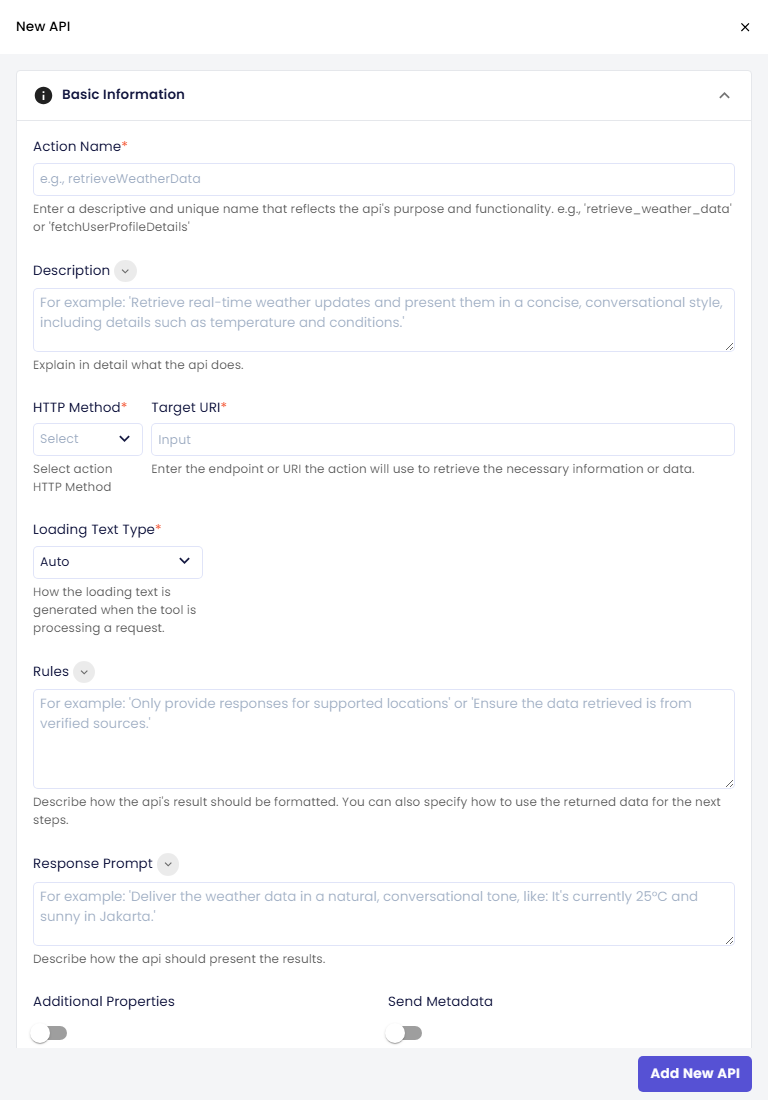
Step 3 — Fill in the Action Name and Description
The Basic Information section is the most important part. The AI uses the name and description to decide when to call this API, so clarity here directly affects how well the integration works.
Action Name
Type get_country_info in the Action Name field.
Tip: Use
snake_caseand keep names short but specific. The AI model reads this name, soget_country_infois clearer thancountriesorlookupCountry.
Description
In the Description field, explain what the API returns and when it should be called. Write this as if you are briefing the AI:
Retrieves general information about a country by name, including its capital city, official currency, population, and region. Call this API when the user asks about a specific country — for example "Tell me about Japan" or "What is the capital of Brazil?".
Step 4 — Set the HTTP Method and Endpoint
Scroll down to the HTTP Method and Target URI fields.
- Set HTTP Method to
GET. - In Target URI, enter the full URL of your endpoint:
https://restcountries.com/v3.1/name/{country}
Note:
{country}is a path parameter — it will be replaced by the value the AI extracts from the conversation. You will define it as a property in Step 7.
Step 5 — Configure a Loading Text
While qlar waits for your API to respond, it can show a brief message to the user.
- Set Loading Text Type to
Fixed. - In the Loading Text field that appears, enter:
Looking up country information, one moment...
Tip: Keep loading text short and action-oriented. It disappears as soon as the API responds. See Loading Text Types for the
dynamicoption, which generates a context-aware message automatically.
Step 6 — Skip Authentication (Public Endpoint)
For this scenario the endpoint is public. Leave Auth Type set to none and move on.
If your API requires credentials, see Authentication Options at the bottom of this page.
Step 7 — Add a Parameter
Parameters tell the AI what values to extract from the conversation and pass to your API. Even when a parameter is optional on the API side, declaring it here lets the AI pass user-provided context more accurately.
Click Add New Property at the bottom of the Properties section. A new property row appears.
Fill in the fields:
| Field | Value |
|---|---|
| Property Name | country |
| Property Type | string |
| Location | path |
| Required | On |
| Property Description | The name of the country to look up, in English. For example: indonesia, japan, brazil. |
Tip: The Property Description is read by the AI. A precise description — including valid value examples — reduces the chance of the AI sending an unexpected value (e.g., a country code instead of a full name).
About Location:
pathmeans the value is injected directly into the URL in place of{country}. Usequeryfor parameters appended as?key=value, andbodyfor POST request payloads.
Step 8 — Add Rules (Optional)
The Rules field gives the AI instructions on how to handle the API response: what to do when data is missing, how to structure the output, or what constraints to apply.
Example rules for this API:
From the API response, extract and present the following fields only: common name, capital city, official currency name and symbol, population (formatted with thousands separators), and region. If the country is not found, let the user know politely and ask them to check the spelling.
Leave this field blank for now if you want to keep things simple and add rules later.
Step 9 — Save the API to the Form
Click the Add New API button at the bottom of the sliding panel. The API is added to the list on the main page and the panel closes.
Note: The API is saved to the local form only. It is not yet live on your agent.
Step 10 — Save All Changes
Click Save all changes at the bottom of the Custom API page. A confirmation dialog appears: click Confirm to save.
The change is saved as a draft. You can try get_country_info in the preview right away, and real users get it after you click Publish in the top bar.
Step 11 — Test the API
Before going live, verify that qlar can reach your endpoint and that the response looks correct.
- In the API list, find
get_country_infoand click the edit (pencil) icon to reopen its configuration panel. - At the bottom-left of the panel, click Test API. The panel switches to Test Mode.
- In the
countryparameter field, typeindonesia. - Click Send Request.
- The panel shows the HTTP response — status code and body.
A successful response looks like this (abbreviated):
[
  {
    "name": { "common": "Indonesia", "official": "Republic of Indonesia" },
    "capital": ["Jakarta"],
    "currencies": { "IDR": { "name": "Indonesian rupiah", "symbol": "Rp" } },
    "population": 273523615,
    "region": "Asia"
  }
]
If the response shows the correct data, the API is ready to use. Click Back to Configuration to return to the form.
Tip: Try a few different countries (e.g.,
japan,brazil,nonexistentcountry) to confirm your Rules field handles both valid and not-found responses correctly.
Check the result
Open the live preview panel on the right side of any config page and send a message that should trigger the API:
"Tell me about Indonesia."
or
"What is the capital of Japan?"
The loading text (Looking up country information, one moment...) should appear briefly, followed by a response that incorporates the country data.
When the answers look right, click Publish so real users get the new API. See Preview and Publish Changes.
Advanced Features
The steps above cover the most common setup. The sections below explain features you may need as your integration grows.
Import APIs from an OpenAPI Schema
Instead of adding actions one by one, you can register several at once from an existing OpenAPI (Swagger) definition.
- On the Custom API page, click Import OpenAPI Schema. A modal opens.
- Set Schema Format to
JSONorYAML. - Provide the schema in one of two ways:
- Paste it directly into the Paste your OpenAPI schema here editor, or
- Click Choose File to upload a
.json,.yaml, or.ymlfile. The file content fills the editor automatically, and the Schema Format is detected from the file extension.
- Click Convert Schema, then confirm. qlar parses the schema and adds one API action per operation to your list.
Note: Imported APIs are added without authentication. After importing, configure credentials — either per API (see Authentication Options) or for many APIs at once (see Set Authentication for Multiple APIs at Once). The import only updates the local form; click Save all changes to save it, then Publish to make it live.
Set Authentication for Multiple APIs at Once
When several APIs share the same credentials — for example, all the actions you just imported from one OpenAPI schema point to the same backend — you can configure authentication once and apply it to all of them in a single step.
- On the Custom API page, click Set Authentication. A sliding panel opens.
- Configure the authentication exactly as you would for a single API — choose the Auth Type (
none,bearer,basic,custom, oroauth) and fill in the required fields. See Authentication Options. - Under Select APIs to update, tick the APIs that should receive this authentication. APIs are grouped by category, so you can use Select All, Clear All, or the per-group Select group / Clear group controls. The header shows how many APIs are currently selected.
- Click OK. A confirmation dialog tells you how many APIs will change and warns that their current authentication will be overwritten. Click Confirm to apply.
- Click Save all changes on the Custom API page, then Publish to make it live.
Note: This overwrites the existing authentication on every selected API. APIs you do not select are left untouched.
Authentication Options
qlar supports five authentication methods. Select the Auth Type in the Authentication section and the required fields will appear.
| Type | When to use |
|---|---|
none | Public endpoints — no credentials needed |
bearer | APIs secured with a static Bearer token |
basic | APIs that use a username and password |
custom | APIs with a custom header name (e.g., X-API-Key) |
oauth | APIs secured with OAuth 2.0 (Client Credentials or Google Service Account) |
For bearer, enter the token in the Key field.
For basic, enter a Username and Password.
For custom, enter the Header Name (e.g., X-API-Key) and the Key value.
For oauth, select the provider type, enter the Token URL, and supply the credentials for your grant type.
Response Prompt
The Response Prompt field describes exactly how the AI should present the API result to the user — tone, format, and level of detail. This is separate from Rules, which governs how the AI interprets the raw data.
Example for Brew:
Present the specials in a friendly, conversational tone. Format each item as a bullet point with the name and price. End with an invitation to ask for more details about any item.
| Field | Controls |
|---|---|
| Rules | How the AI processes and constrains the API response (logic, fallbacks) |
| Response Prompt | How the AI formats and delivers the result to the user (tone, structure) |
Send Metadata
When Send Metadata is enabled, qlar attaches conversation and identity context to every request sent to your API. Use this when your API needs to personalise the response based on the user's identity, channel, or permissions.
Metadata is always sent as HTTP headers, and is additionally included in the query string (for GET/DELETE) or the JSON request body (for POST/PUT/PATCH), depending on the action's HTTP Method.
Always sent as headers
| Header | Description |
|---|---|
X-AgentId | ID of the agent handling the conversation |
X-UserId | Unique identifier of the user chatting |
X-UserEmail | Email of the user chatting (empty string if not available) |
X-InquiryMessageId | ID of the message that triggered the API call |
X-MediaType | Channel the user is on (web, WhatsApp, etc.) |
X-TargetAgentId | ID of the target agent, if the conversation was handed off |
X-MessengerAccount-Product | Messenger product being used — only sent if available |
X-MessengerAccount-AccountCode | Specific messenger account code — only sent if available |
X-User-Permissions | JSON array of the user's permissions — only sent if non-empty |
Also sent in the query string, for GET/DELETE
| Query parameter | Same value as |
|---|---|
agentId | X-AgentId |
userId | X-UserId |
userEmail | X-UserEmail |
inquiryMessageId | X-InquiryMessageId |
mediaType | X-MediaType |
targetAgentId | X-TargetAgentId |
Note: the messenger account and user permissions fields are only available via the headers above for
GET/DELETErequests — they are not appended to the query string.
Also sent in the JSON body, for POST/PUT/PATCH
A metadata object is added alongside your declared body parameters:
{
  "metadata": {
    "AgentId": "...",
    "UserId": "...",
    "UserEmail": "...",
    "InquiryMessageId": "...",
    "MediaType": "...",
    "TargetAgentId": "...",
    "MessengerAccount": { "Product": "...", "AccountCode": "..." },
    "UserPermissions": ["..."]
  }
}
Note: unlike the headers and query string above, the fields inside the
metadatabody object use PascalCase (e.g.AgentId, notagentId).MessengerAccountisnullwhen the user isn't on a messenger channel.
Example Server Implementation
The examples below show a server you build to receive calls from qlar — unlike the public REST Countries API used earlier in this tutorial, which needed no server code at all. The scenario here is a simple order_status action: given an orderId, it looks up and returns the order's shipping status. Authentication uses Auth Type: custom, with a header named X-Api-Key.
Use the controls to see how the request and server code change with HTTP Method, Send Metadata, and Media Type:
Sample request qlar sends
POST /api/order-status HTTP/1.1
Content-Type: application/json
X-Api-Key: sk_live_abc123
X-AgentId: 3fa85f64-5717-4562-b3fc-2c963f66afa6
X-UserId: user_8231
X-UserEmail:
X-InquiryMessageId: msg_9f21
X-MediaType: web
X-TargetAgentId:
X-User-Permissions: []

{
  "orderId": "ORD-1001",
  "metadata": {
    "AgentId": "3fa85f64-5717-4562-b3fc-2c963f66afa6",
    "UserId": "user_8231",
    "UserEmail": "",
    "InquiryMessageId": "msg_9f21",
    "MediaType": "web",
    "TargetAgentId": "",
    "MessengerAccount": null,
    "UserPermissions": []
  }
}
Server implementation
const express = require("express");
const app = express();
app.use(express.json());

const API_KEY_HEADER = "x-api-key";
const API_KEY = process.env.CUSTOM_API_KEY; // must match the "Key" set in CMS Auth Type: custom

const ORDERS = {
  "ORD-1001": { status: "shipped", carrier: "JNE", eta: "2026-08-02" },
};

app.post("/api/order-status", (req, res) => {
  // 1. Verify the custom auth header configured in CMS (Auth Type: custom)
  if (req.get(API_KEY_HEADER) !== API_KEY) {
    return res.status(401).json({ error: "Invalid or missing API key" });
  }

  // 2. Read the declared parameter
  const { orderId } = req.body;
  if (!orderId) return res.status(400).json({ error: "orderId is required" });

  // Metadata is always sent as headers (also duplicated in the query string for
  // GET/DELETE, or under "metadata" in the JSON body for POST/PUT/PATCH)
  const agentId = req.get("X-AgentId");
  const userId = req.get("X-UserId");
  const inquiryMessageId = req.get("X-InquiryMessageId");
  const mediaType = req.get("X-MediaType"); // "web" | "whatsapp" | ...
  const userPermissions = JSON.parse(req.get("X-User-Permissions") || "[]");

  console.log("Call from agent " + agentId + ", user " + userId + ", channel " + mediaType);

  // 3. Look up the order
  const order = ORDERS[orderId];
  if (!order) return res.status(404).json({ error: "Order " + orderId + " not found" });

  // Personalise the response by channel when metadata is available
  if (mediaType === "whatsapp") {
    // Keep WhatsApp replies short; no rich formatting
    return res
      .status(200)
      .send("Order " + orderId + " is " + order.status + " via " + order.carrier + ", arriving " + order.eta + ".");
  }

  return res.status(200).json({ orderId, ...order });
});

app.listen(3000, () => console.log("Listening on :3000"));
Note:
Media Typeonly changes the sample values shown above — the server code itself readsX-MediaTypeat runtime and already handles bothweband
Additional Properties
By default, the AI is restricted to the parameters you define in the Properties section. Enabling Additional Properties allows the AI to pass extra key-value pairs beyond what is explicitly listed — useful for flexible or dynamic API contracts.
Loading Text Types
| Type | Behaviour |
|---|---|
none | No loading message is shown to the user |
fixed | The exact text you enter is shown every time |
dynamic | The AI generates a contextual loading message based on the current conversation |
dynamic is useful when one API action is used in different contexts and a generic fixed text would feel out of place.
Next steps
- Next in the journey: Import an OpenAPI Schema, to register many API actions at once from an existing spec.
- Set Authentication: apply the same credentials to many APIs in one step.
- Connect an MCP Server: connect a server that exposes many tools through one connection.
- Analytics and Logs: monitor API calls and debug responses in production.