Using Resources to Ensure Answer Accuracy
Your AI agent's answers are only as good as the references you give it. The Resources section is where you load, organize, and configure those references — from PDFs and websites to manual text chunks and access permissions.
This tutorial walks through every section of the Resources menu, explaining what it does, when to use it, and how it fits into the answer pipeline.
What Are References?
References are the documents, videos, websites, and text chunks that your agent draws from when answering user questions. Together, they form what the industry commonly calls a knowledge base — but in this platform, you manage them through the Resources menu.
Instead of relying solely on its general AI training data, the agent searches through the specific references you have uploaded, then generates answers grounded in that material.
Think of it as your agent's private library. Everything you add to the Resources section becomes part of this library. The more relevant and well-organized the references, the more accurate and trustworthy the agent's answers will be.
Before You Start: Activate References
Uploading resources alone is not enough. You must explicitly tell the agent to use your references when answering.
Go to Persona → Dialog Settings and turn on the Enable Reference toggle:
"Allows the agent to answer using your organization's documents and videos for accurate, context-specific responses."
Without this toggle enabled, the agent will ignore all uploaded resources entirely and answer using only its general AI knowledge.
Restrict Answer to References Only
Once Enable Reference is on, you will also see a Restrict Answer option:
| Setting | Behavior |
|---|---|
| Restrict Answer: Off | The agent uses your references as its primary source but may supplement answers with information from outside them. |
| Restrict Answer: On | The agent is limited strictly to your uploaded references. It will not draw on information from outside them, ensuring controlled and reliable responses. |
Use Restrict Answer when you need the agent to stay within a defined and auditable set of information — for example, in compliance, legal, or customer support contexts where off-topic or unverified responses are not acceptable.
How the Resource-to-Answer Flow Works
When a user sends a question, the agent does not make up an answer from scratch. Instead it:
- Searches the references for chunks that are relevant to the query
- Retrieves the top-matching chunks (controlled by the Advanced settings)
- Generates an answer grounded in those chunks
- Cites the source documents so the user can verify
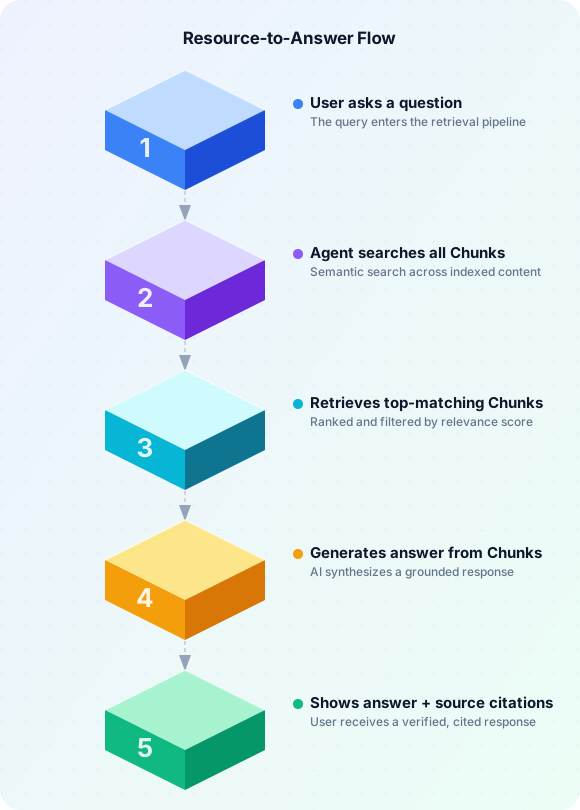
The quality and accuracy of answers depend directly on the quality and coverage of your references. A document that has not been uploaded cannot be cited. A document stuck in "Pending" has not been processed yet.
How Resources Become Searchable: Chunks
Uploading a document does not instantly make it searchable. The platform first needs to parse it — read through the content and break it into smaller pieces called chunks.
Think of it like preparing a thick company handbook for a new employee. Instead of handing them the entire book every time they have a question, you cut it into individual topic cards — one card per section. Each card is focused, easy to find, and quick to read. That is exactly what a chunk is: a small, focused unit of text extracted from a larger document.
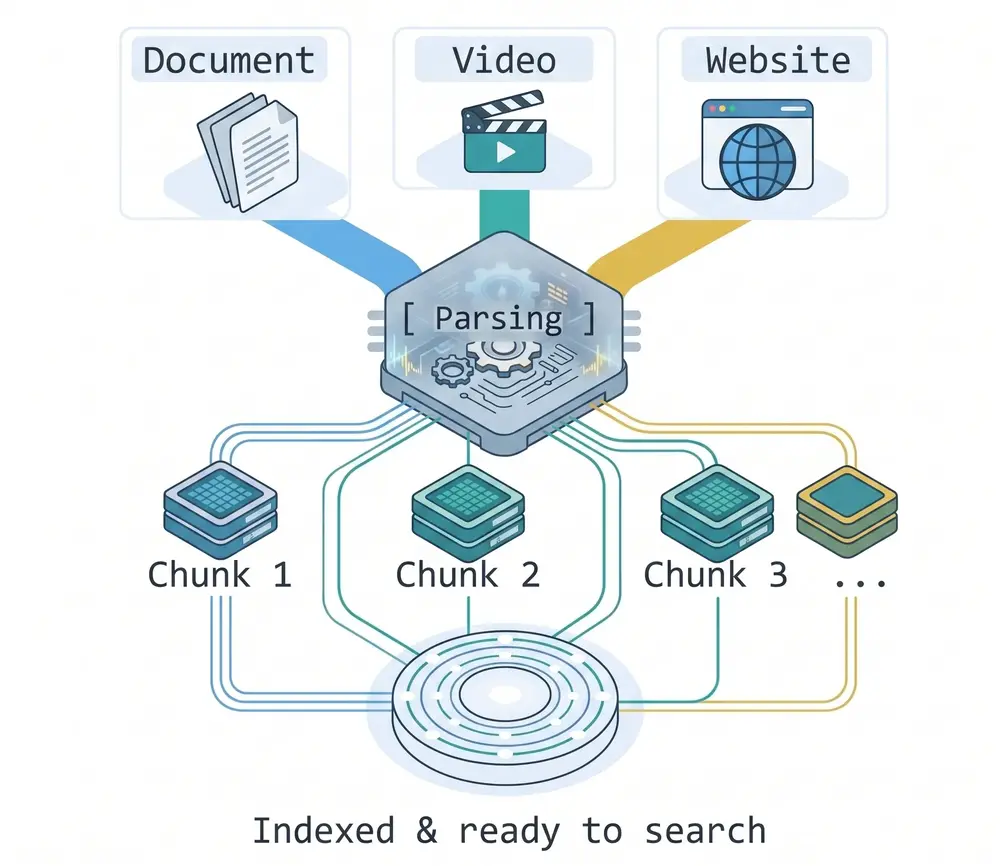
All resource types — documents, videos, and websites — go through this parsing process automatically once uploaded or submitted.
Viewing and Managing Chunks
You can inspect every chunk your agent has by going to Resources → Search. This page shows you exactly what the agent will draw from when answering questions.
From the Search page you can:
| Action | What it does |
|---|---|
| View | See the full text of any chunk and which source it came from |
| Edit | Correct or improve the text of a chunk if the parsed result is inaccurate |
| Enable / Disable | Toggle a chunk on or off — disabled chunks are never retrieved by the agent |
| Create manually | Add a new chunk from scratch, without needing a source document |
Manual chunks are useful when you want to add a short fact, a definition, or a specific Q&A pair that is not in any uploaded file — or when you want to override what the parser extracted.
Tip: If the agent is giving a wrong or incomplete answer, open the Search page and check whether the relevant chunk exists, whether its text is correct, and whether it is enabled.
Resource Types
These are the resource types that form the actual content of your references. Documents, videos, and websites are all parsed into chunks automatically. You manage and inspect those chunks through the Search page.
| Type | What it is | Best for |
|---|---|---|
| Documents | Uploaded files (PDF, Word, text) — parsed into chunks | Policy docs, manuals, FAQs, product sheets |
| Videos | Video entries with transcripts — transcript parsed into chunks | Tutorials, recorded sessions, interview content |
| Websites | Extracted web pages — content parsed into chunks | Live references from public URLs |
| Search Chunks | Individual chunks — auto-generated or created manually | View, edit, enable/disable, or add content directly |
Access Control: Permissions
Permissions let you restrict which references are visible to which users. You define access codes and attach them to specific resources. When a user queries the agent, only the resources matching their assigned permission codes will be surfaced in the answer.
Use permissions when:
- Your references contain sensitive or role-specific material
- Different user groups (e.g., employees vs. customers, or different departments) should only see resources relevant to them
- You need to prevent certain users from accidentally accessing restricted documents
Without any permissions configured, all users can surface all references.
Attribution: Citations
Citations control how the agent credits the references it uses when generating answers. You manage two things here:
- Authors — the individuals or teams assigned to resources, used for governance and attribution
- Citation display — how source references appear in the agent's responses (e.g., author name, document title, or a custom format)
Proper citation configuration is important for transparency, allowing users to verify where an answer came from and follow up with the original source.
Advanced Configuration
Advanced settings let you tune the retrieval engine:
- Number of results — how many chunks the agent retrieves per query
- Search tolerance — how strict or lenient the semantic matching is
- AI model — which model is used for training and indexing
The defaults work for general use. Tuning these settings for your specific content type can significantly improve answer quality.
Common Mistakes to Avoid
- Forgetting to enable references. Even with resources uploaded, the agent will not use them unless Enable Reference is turned on in Persona → Dialog Settings.
- Uploading a document and assuming it is live. Resources go through a processing pipeline before their content is searchable. Watch the status badge on each card — "Processed" means the content is indexed and available.
- Leaving content without an author. Author attribution is important for citation display and content governance. Assign authors before publishing.
- No permissions when sensitive references are mixed. If your resources contain material that only some users should see, set permission codes — otherwise all users can surface it.
- Never checking Search Chunks. If the agent gives a wrong or missing answer, the Search page is the first place to investigate. It shows exactly which chunks exist, what text they contain, and whether they are enabled.
- Ignoring the Advanced settings. The default search tolerance and result count work for general use, but tuning them for your specific content type can significantly improve answer quality.