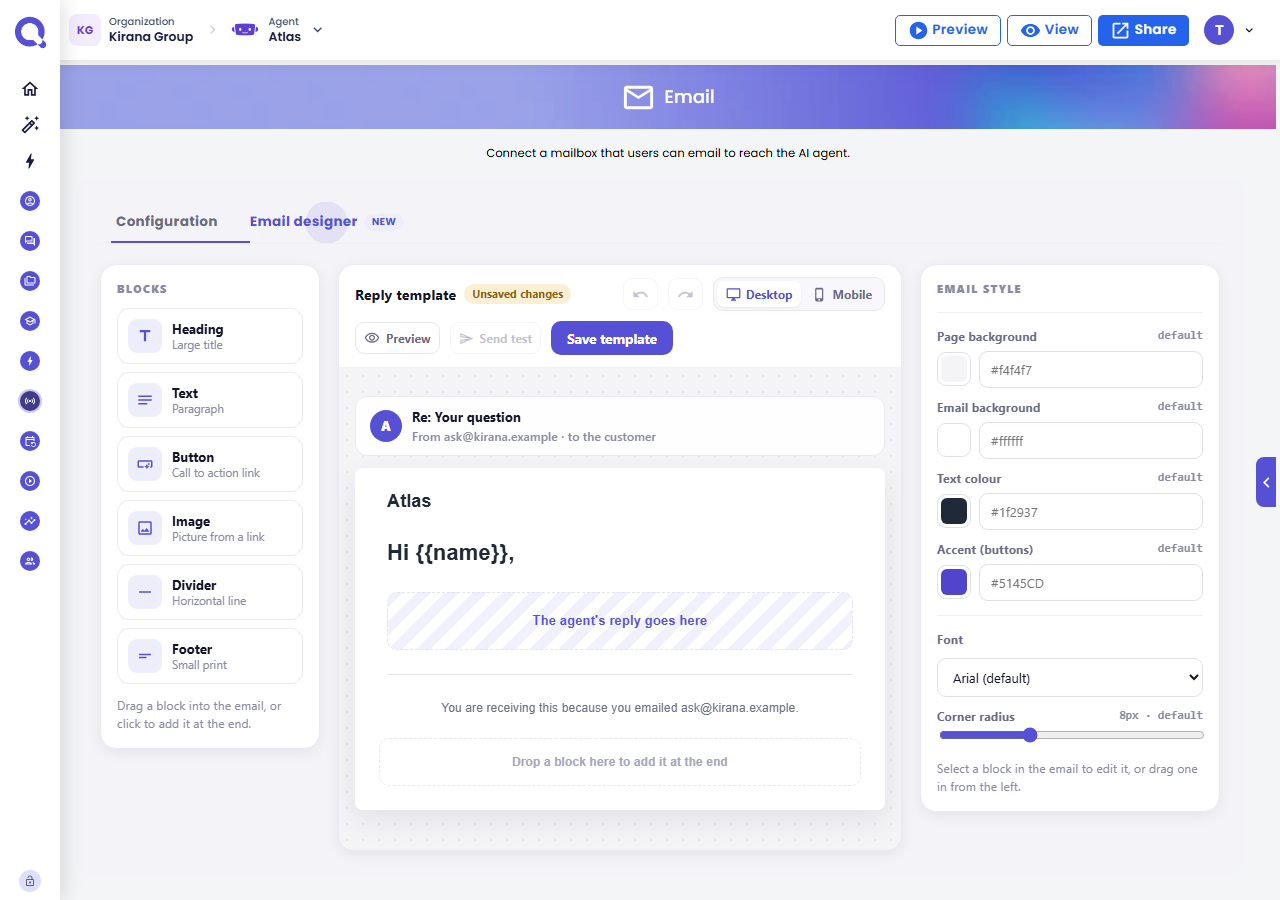
The Email screen connects a mailbox to your agent, so people can email the agent and get answers in the same thread. Found in the agent sidebar under Channels → Email. For a walkthrough, see Connect to Email.
Published agent required
The email channel is attached to the published copy of the agent. Until the agent has been published at least once, the screen shows a warning and no setup.
Connect Email
Shown when no mailbox is connected yet.
| |
|---|
| Hosted (Qlar-managed) | Marked Recommended. Qlar reads the mailbox and sends the replies for you. You enter the mailbox login once; nothing to install. |
| Self-hosted gateway | A small gateway on your own server reads the mailbox and sends the replies. The mailbox password never leaves your server. |
Hosted setup
Four steps: Choose your mail provider, Sign in to the mailbox, Customize the connection, Test and connect.
| |
|---|
| Gmail | A Gmail or Google Workspace mailbox, signed in with an app password. |
| Generic IMAP | Any other mailbox that supports IMAP and SMTP. |
| Microsoft 365 | Shown as Needs OAuth and not selectable in Hosted. |
| Email address | Required. The mailbox. |
| App password | Required. For Gmail, Create an app password opens Google's page. Spaces in a pasted app password are removed. |
| Login username | Optional. Only if different from the email address. |
| Sender name | Optional. Shown as the “From” name on replies. |
| IMAP host, port, security | Pre-filled for Gmail. Reading the inbox. |
| SMTP host, port, security | Pre-filled for Gmail. Sending replies. |
| Test result | Rows for the IMAP sign-in, the SMTP send check, and whether new mail arrives instantly (IDLE supported) or by polling (No IDLE). |
| Connect mailbox | Saves the credentials encrypted and connects the mailbox. |
Self-hosted setup
| |
|---|
| Create a new code | Creates a One-time enrolment code, valid for 15 minutes and single use. New code replaces an expired one. |
| Run the gateway | Ready-made commands to run on the machine that reaches your mail server. Copy commands copies them. |
| Confirm it is yours | Appears when a gateway has enrolled: Hostname, version, and a fingerprint to compare with the gateway's terminal. |
| Fingerprint matches — approve | Approves the gateway. Until then it forwards no email and sends no replies. |
| |
|---|
| Status | Channel active or Channel off. |
| Channel on / Channel off | Switches the channel on or off. Off means incoming mail is ignored and the agent does not reply; settings are kept. |
| Delete channel | Asks for confirmation, then removes the channel. For Hosted, the stored credentials are deleted and not used again. |
Connection card
| |
|---|
| Email configured | The connected mailbox address. |
| Mail server | The mail server in use, and whether it supports IDLE (IDLE supported or No IDLE (polling)). |
| Last seen | When the connection last reported in. |
| SHA-256 fingerprint | Self-hosted only. The gateway's identity. |
| Offline banner | Self-hosted only. Shown when the gateway is not running, with the command to start it again. |
Sender settings (Hosted)
| |
|---|
| Sender name | The “From” name on replies. Not set means replies show the mailbox address. |
| Login username | Same as the email address unless set. |
| Update credentials | Replaces the app password, for example after revoking the old one. |
Decides who the agent answers. See Choose Who Gets Answered.
| |
|---|
| Communication mode | Public answers anyone except the blacklist. Private answers only the whitelist. |
| Whitelist | Private mode. Addresses or domains the agent replies to. Empty means nobody. |
| Blacklist | Public mode. Addresses or domains the agent never replies to. Has its own on/off switch. |
| Always allow | Public mode. Senders the spam detector never flags. |
| Flagged senders | Public mode. Senders the agent stopped replying to because they looked automated. Allow or Blacklist each one. Show spam list opens them. |
Test send
| |
|---|
| Recipient | Required. Where the test email goes. |
| Subject, Message | Optional. Defaults to a short test message. |
| Send test | Queues the test email. Its result appears in the Console. |
Console
Last 50 emails in and replies out. Shows each received email and the reply, with its outcome (for example not delivered), so you can see why a reply was not sent.
Email designer
A tab next to Configuration. It builds the layout of every reply from blocks, with a live preview. A brand block at the top and The agent's reply goes here (where the AI answer is placed) are part of every template.
| Block | What it is |
|---|
| Heading | Large title. |
| Text | Paragraph. |
| Button | Call to action link. |
| Image | Picture from a link. |
| Divider | Horizontal line. |
| Footer | Small print. |
Drag a block into the email, or click it to add it at the end. Select a block in the email to edit it.
| Control | What it does |
|---|
| Desktop / Mobile | Switches the preview width. |
| Preview | Shows the email as it will look. |
| Send test | Sends a test email that uses this template. |
| Save template | Saves the template for this mailbox. Unsaved changes shows until you do. |
| Undo, redo | Step back and forward through your edits. |
The Email style panel sets Page background, Email background, Text colour, Accent (buttons), Font and Corner radius. Each shows default until you change it.