Choose Who Gets Answered
Open in CMSContact rules decide who the agent answers on a mailbox. They apply to both Hosted and Self-hosted mailboxes. This page explains the two modes, the lists, and what to do when the agent holds back a sender.
The example is Kirana Group's ask@kirana.example: Atlas should answer suppliers and site partners, but not random marketing mail.
Before you start
- A mailbox is connected. See Connect to Email.
- Open Channels → Email and find the Contact rules card on the Configuration tab. It says Who may reach the agent on this mailbox.
Choose the communication mode
The Communication mode switch has two positions.
| Public | Private | |
|---|---|---|
| Who is answered | Anyone, except senders on the blacklist. | Only senders on the whitelist. |
| Whitelist | Not used. | The only thing that decides. An empty whitelist means the agent replies to nobody. |
| Blacklist | Applies while its switch is on. | Not used. |
| Always allow | Senders the spam detector never flags. | Not used. |
| Spam detection | On. Suspected spam is held for you. | Off. |
| Sender check | Not checked. | The sender's identity is checked: mail that fails the sender-authentication checks (SPF, DKIM, DMARC) is refused. |
New mailboxes start in Public. If the address should only serve known people, switch to Private and fill the whitelist before you share the address.
Switching modes deletes nothing. Each mode keeps its own lists, and the other mode's lists simply wait.
Manage the lists
Click Manage list on a card to open its panel and add or remove entries. Type an address or domain and click Add, or use Import CSV.
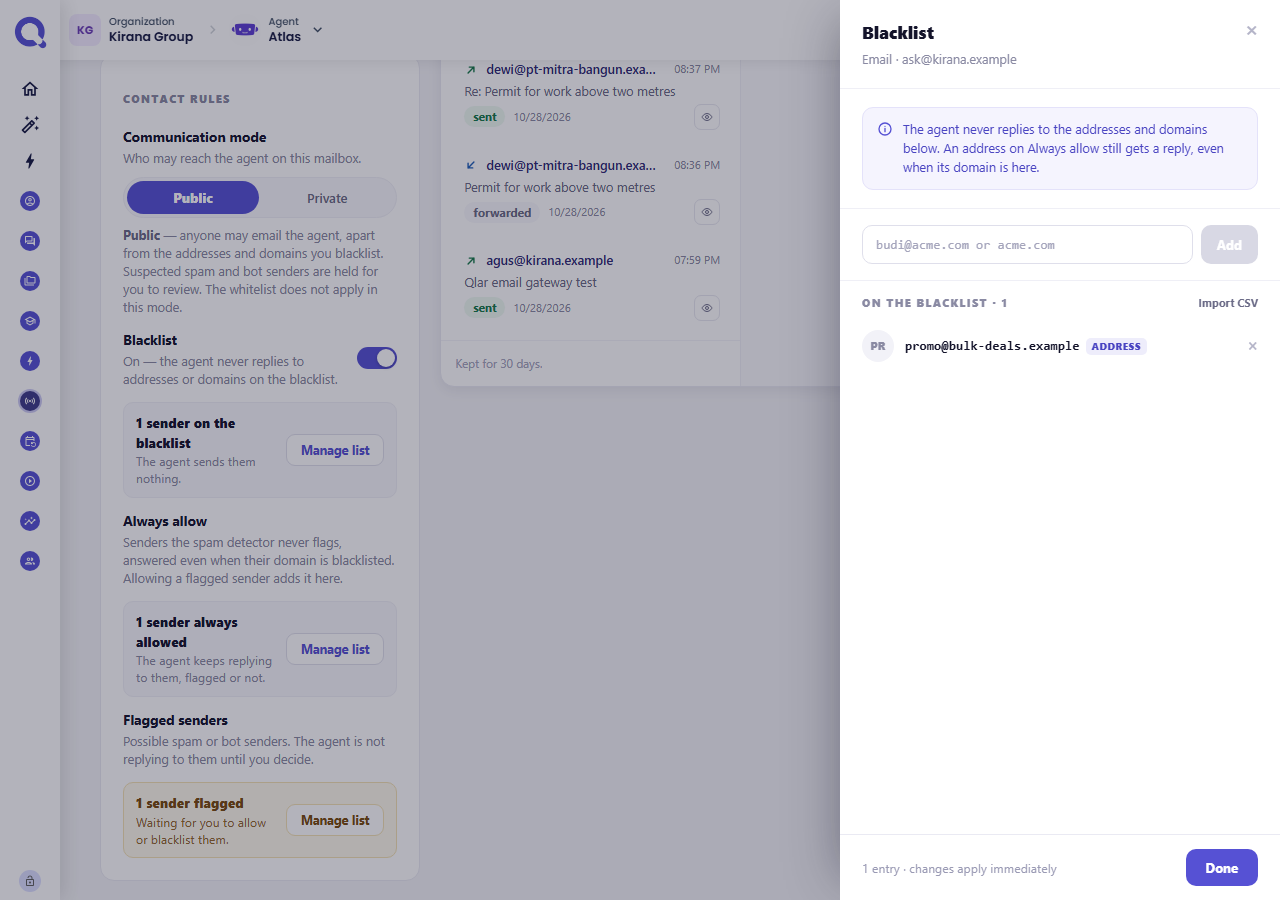
- An entry is either one address (
budi@acme.example) or a whole domain (@acme.example). Tick Include subdomains to covermail.acme.exampleas well. - You can add entries one at a time or import a
.csvor.txtfile. - Mail to
budi+promo@acme.exampleis treated asbudi@acme.example. - When both an address and its domain have a rule, the more specific one wins.
| List | What it does |
|---|---|
| Whitelist (Private) | The agent replies to these senders and nobody else. |
| Blacklist (Public) | The agent sends them nothing. The blacklist has its own switch: Off keeps the list but does not apply it, so the agent replies to everyone on it. |
| Always allow (Public) | The agent keeps replying to these senders, flagged or not. Use it for trusted senders, even when their domain is on the blacklist. |
Flagged senders
In Public mode the agent watches for mail that looks automated or abusive, for example the same text twice within a minute, or a repeated agent answer. When that happens:
- The agent stops replying to that sender immediately.
- An amber banner appears at the top of the page, for example 1 sender you may need to review, with a Show spam list button. The Flagged senders card in Contact rules says Possible spam or bot senders. The agent is not replying to them until you decide.
- Click Show spam list. For each sender, the Flagged senders panel shows the rule that fired and a short reason. Choose Always allow to start replying again, or Blacklist to make the block permanent. How flagging works explains the signals.
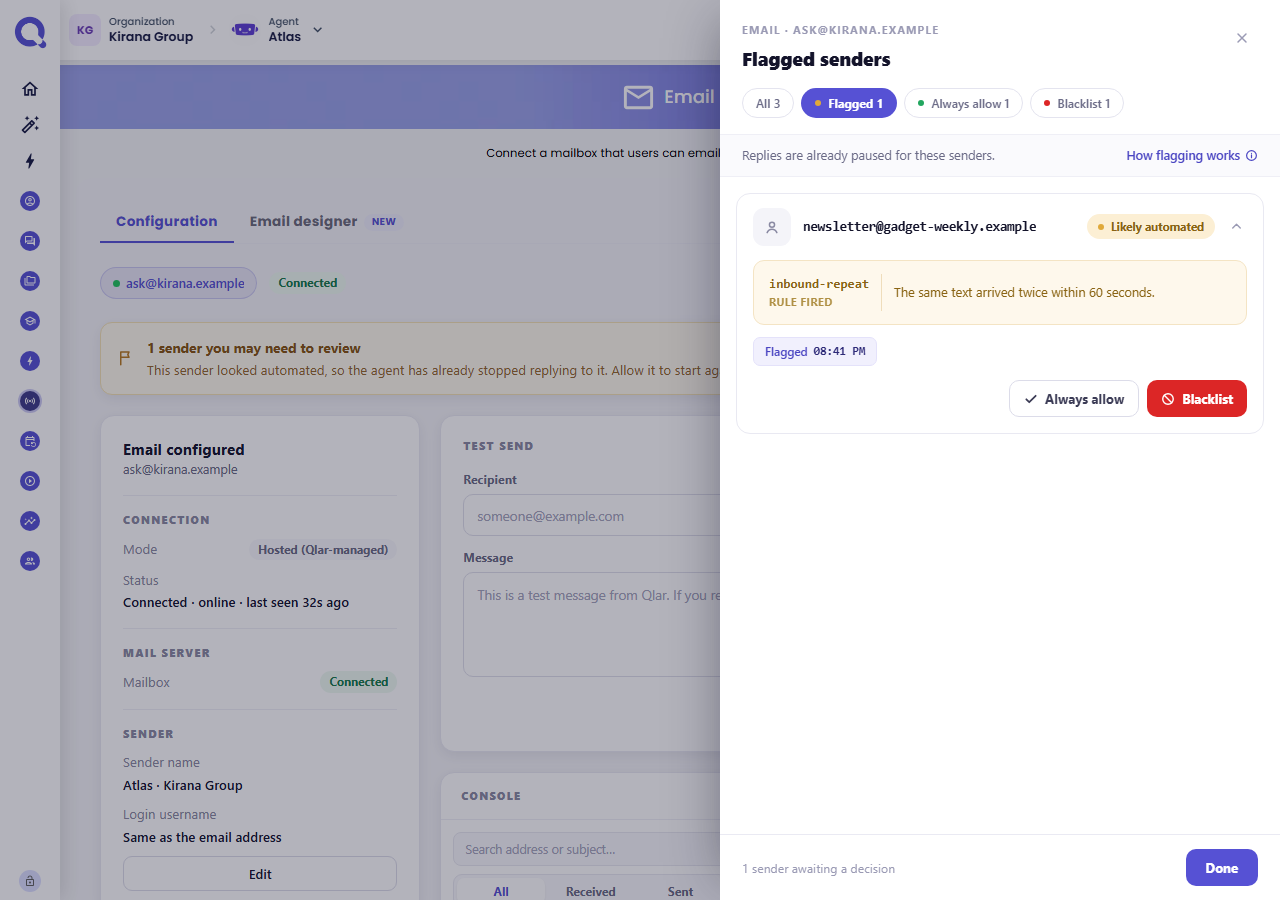
A flag is a guess. Senders you never decide on are released after 7 days. Use Always allow for senders who must never be flagged.
Check the result
- Switch the mode, add a test address to the right list, and send an email from that address and from another one.
- In the Console, which lists the last 50 emails in and replies out, check that each mail got the outcome you expect.
Tip: If a sender says they get no reply, look at the contact rules first: they may be on the blacklist, flagged, or missing from the whitelist in Private mode.
Next steps
- Connect the mailbox: Hosted Mailbox or Self-hosted Gateway.
- Every field on the Email page: see Email.