Welcome to Qlar
Open in CMSThe first time you open the CMS, Qlar greets you with Welcome to Qlar. It is a short page with two steps: a greeting, then what to do first. What you see depends on how you got your account:
- You were invited to an organization: the page says who invited you, to which organization and with which role, and then shows the agents that were shared with you.
- You signed up on your own: the page explains what Qlar does, and then offers to create your first agent with you.
The Welcome page shows once, to new users only. People who already used the CMS before it existed never see it.
The examples on this page use fictional people: Rina Santoso invites Budi Pratama to Kirana Group.
When the Welcome page opens
- Your first visit. After you sign in for the first time, the CMS opens the Welcome page before anything else.
- Right after you accept an invitation. The invitation page says Welcome to the team with the button Open Qlar. For a new user, Open Qlar opens the Welcome page. If you already used Qlar before, it opens the Organizations page on the organization you just joined instead.
Every way out of the page counts as "seen": Skip for now, Configure, Chat or Start chatting, Go to an organization, and Create my own agent or Create my first agent. After that the page doesn't open again, on any device.
Open the Welcome pageThe steps show at the top of the page: Welcome › Your agents when you were invited, or Welcome › Get started when you signed up on your own.
Step 1: Welcome
The page greets you by first name: Welcome to Qlar, Budi!
If you were invited
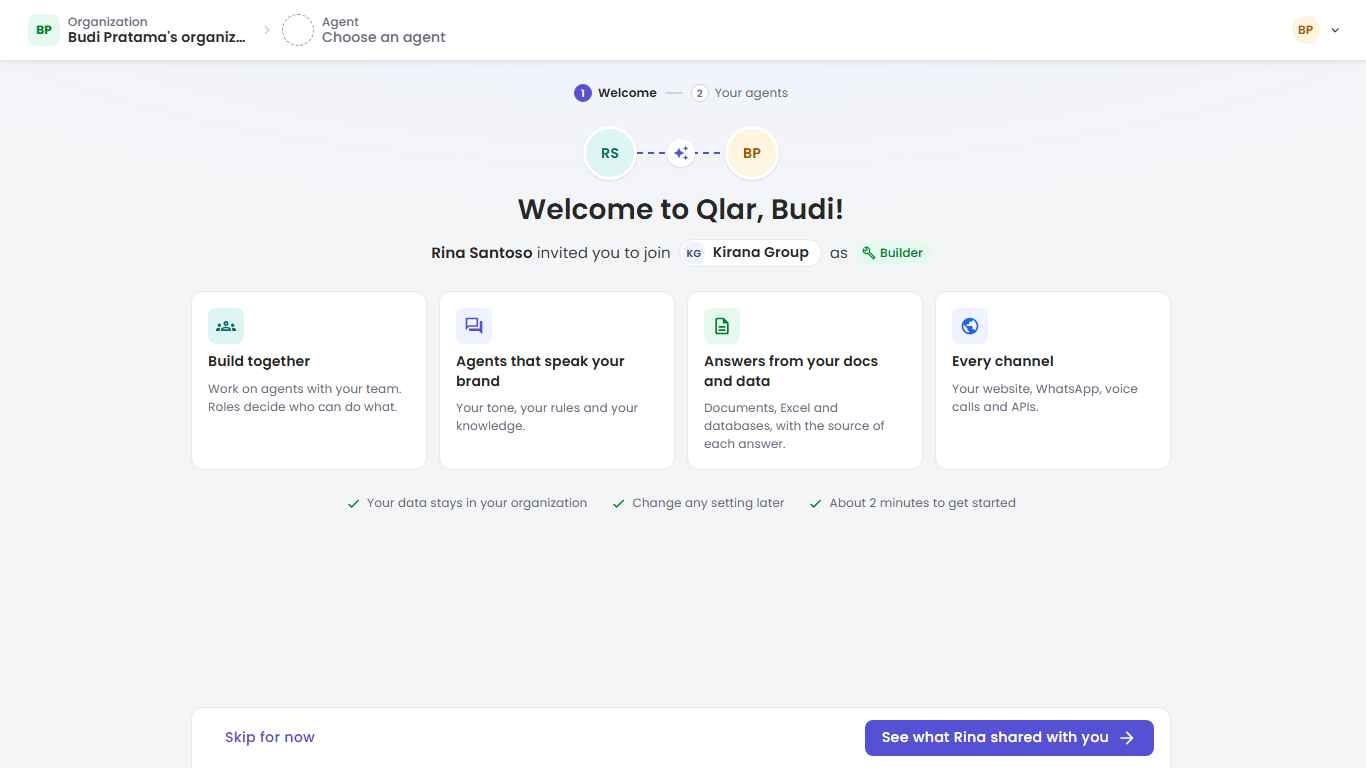
Under the greeting, one line tells you how you got here, for example Rina Santoso invited you to join Kirana Group as Builder. When you were invited to more than one organization, it adds and 1 more organization (or the number of organizations).
The chip at the end of the line is your role in that organization:
| Chip | Meaning |
|---|---|
| Owner, Admin, Builder or Billing | The role you were invited with. When you have more than one, the page shows the first of Owner, Admin, Builder, Billing. |
| Participant | You were invited without a role. You chat with the agents shared with you, in the chat app. Hover the chip to read this. To configure agents, ask an Owner or Admin for the Builder role. |
See Roles & Permissions for what each role can do.
Four tiles say what Qlar gives you and your team: Build together, Agents that speak your brand, Answers from your docs and data and Every channel. Under them: Your data stays in your organization, Change any setting later and About 2 minutes to get started.
The button at the bottom right moves to step 2:
| Button | When |
|---|---|
| See what Rina shared with you (the inviter's first name) | At least one agent was shared with you. |
| Continue | You were invited without any agent. |
If you signed up on your own
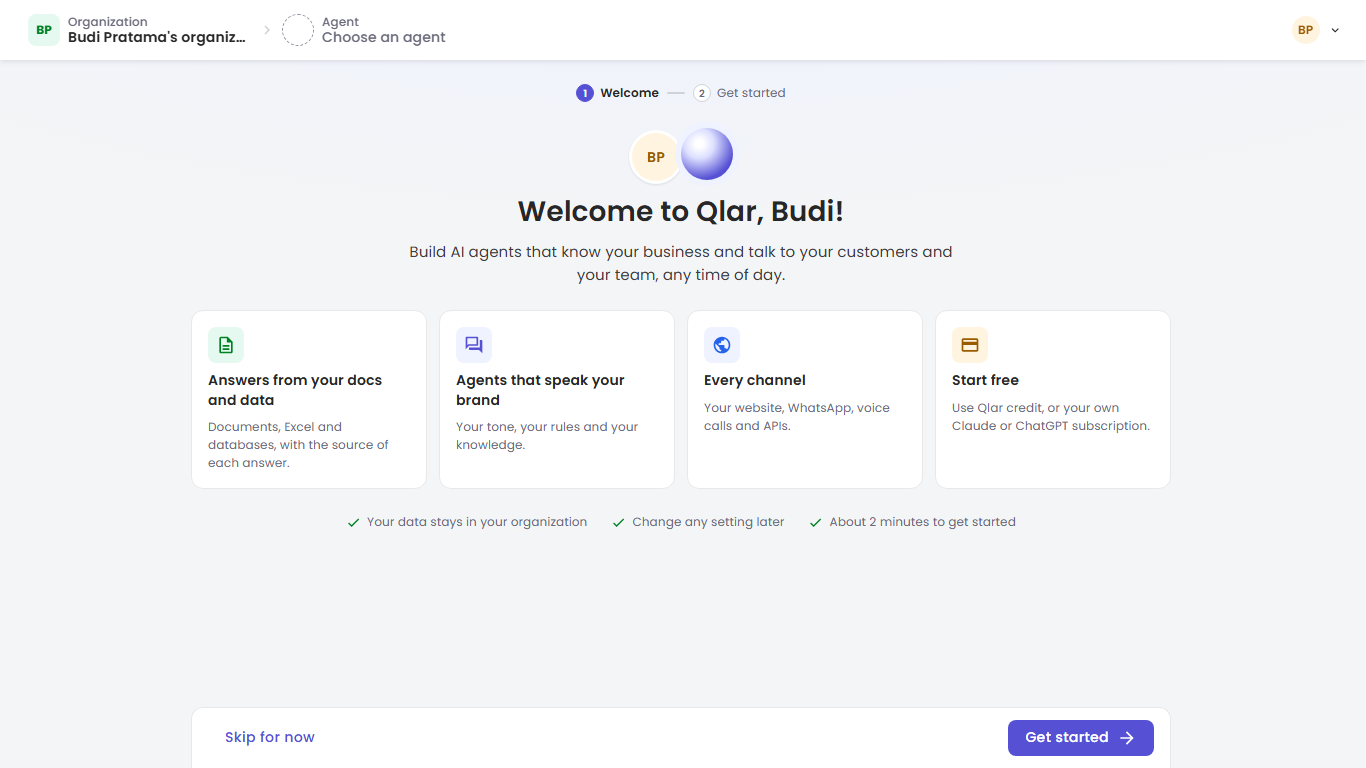
The line under the greeting reads Build AI agents that know your business and talk to your customers and your team, any time of day. The four tiles are Answers from your docs and data, Agents that speak your brand, Every channel and Start free (Qlar credit, or your own Claude or ChatGPT subscription). Click Get started.
Skip for now at the bottom left leaves the Welcome page and opens the Organizations page.
Step 2 if you were invited: Shared with you
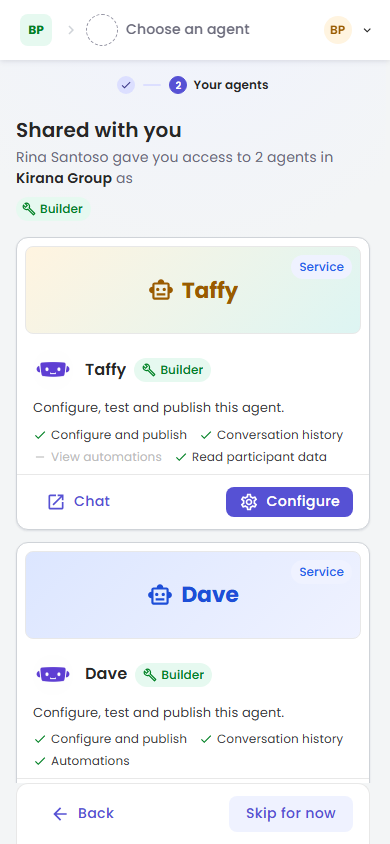
The heading is Shared with you, with a line such as Rina Santoso gave you access to 2 agents in Kirana Group as Builder. Each agent has its own card.
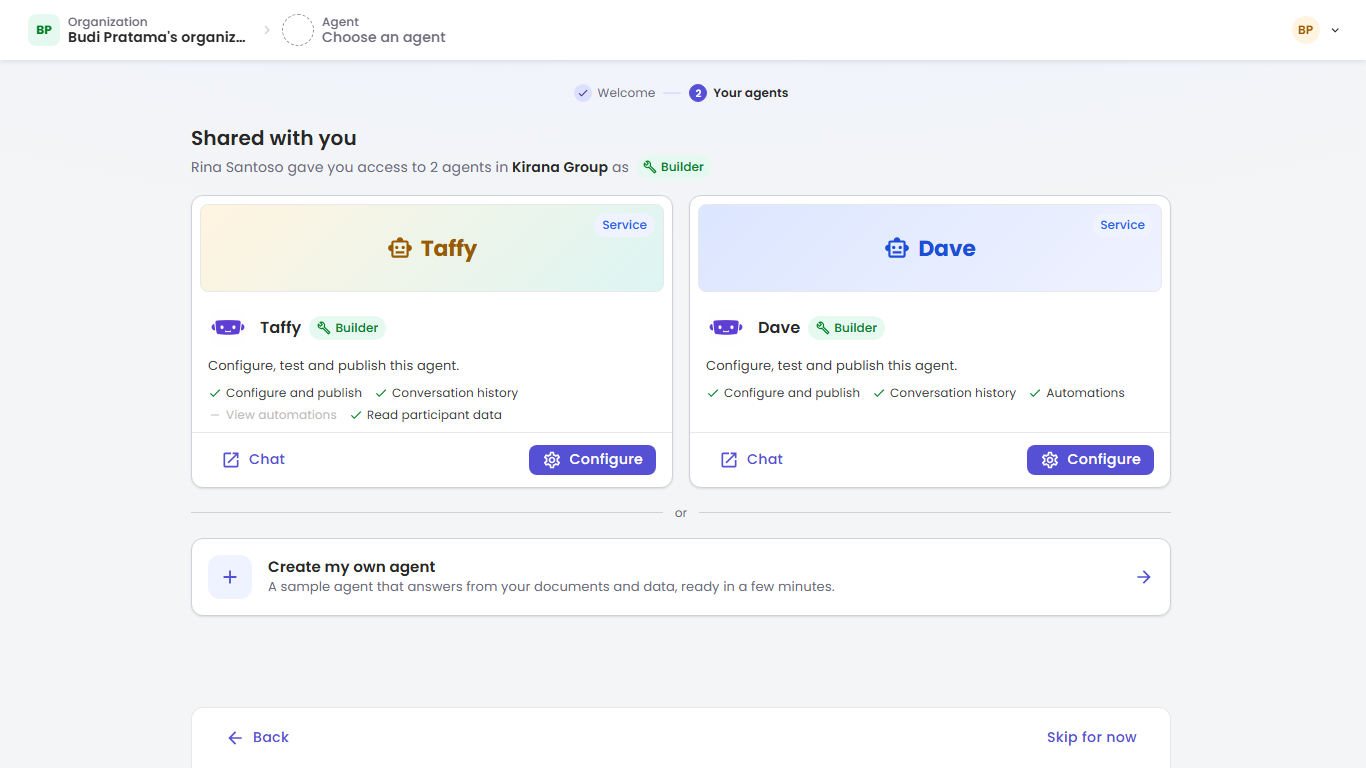
A card shows the agent's logo and name, its kind (Personal or Service, see Personal vs Service Agents), and what you may do with it.
Agents you can configure
The chip says Builder, or Admin when you are an Owner or Admin of the organization (You manage this agent and every other agent in the organization.). The text reads Configure, test and publish this agent.
A checklist shows your access to the agent. A tick means yes; a dash means no.
| Item | Meaning |
|---|---|
| Configure and publish | You can change the agent's configuration and publish it. |
| Conversation history | You can read the agent's conversations. |
| Automations or View automations | You can manage the agent's automations, or only view them. |
| Read participant data, Edit participant data (with sensitive too when that is included) | Your access to the agent's participant data, when you have any. |
These come from what the organization set for you as a contributor of the agent. See Team Members and Contributors.
- Configure (or a click on the card) switches the CMS to that organization and agent and opens the agent's configuration.
- Chat opens the agent in the chat app, in a new tab.
Agents you chat with
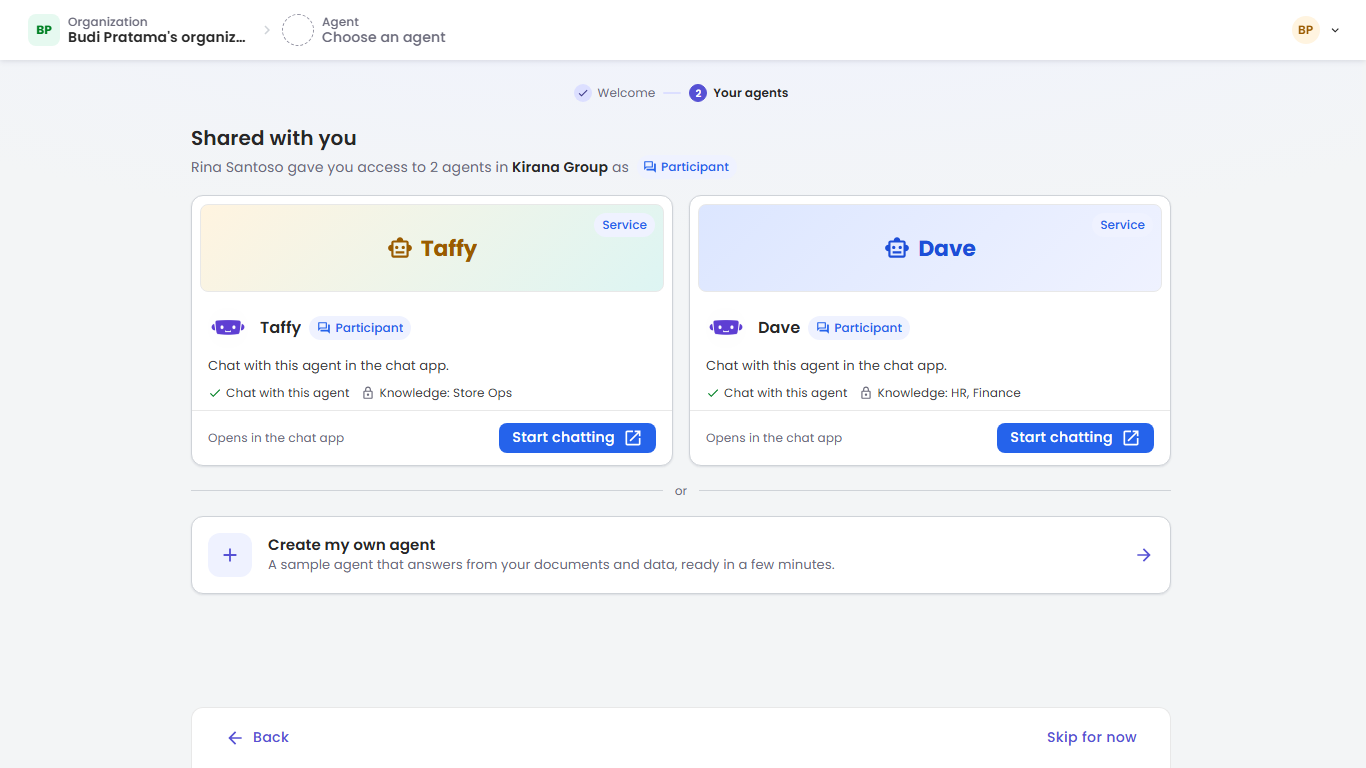
When you were invited without the Builder role, the chip says Participant and the text reads Chat with this agent in the chat app. When the organization gave you knowledge permissions for the agent, the card shows them, for example Knowledge: HR, Finance: the agent answers you from the documents with those codes. See Knowledge Permissions.
Start chatting, or a click anywhere on the card, opens the agent in the chat app in a new tab (Opens in the chat app). The Welcome page stays open in the CMS. See Participants.
An agent that is no longer available
A card with No longer available and This agent was removed or your access changed. has no buttons. The agent was deleted, or your access to it was removed after the invitation was sent.
More than four agents
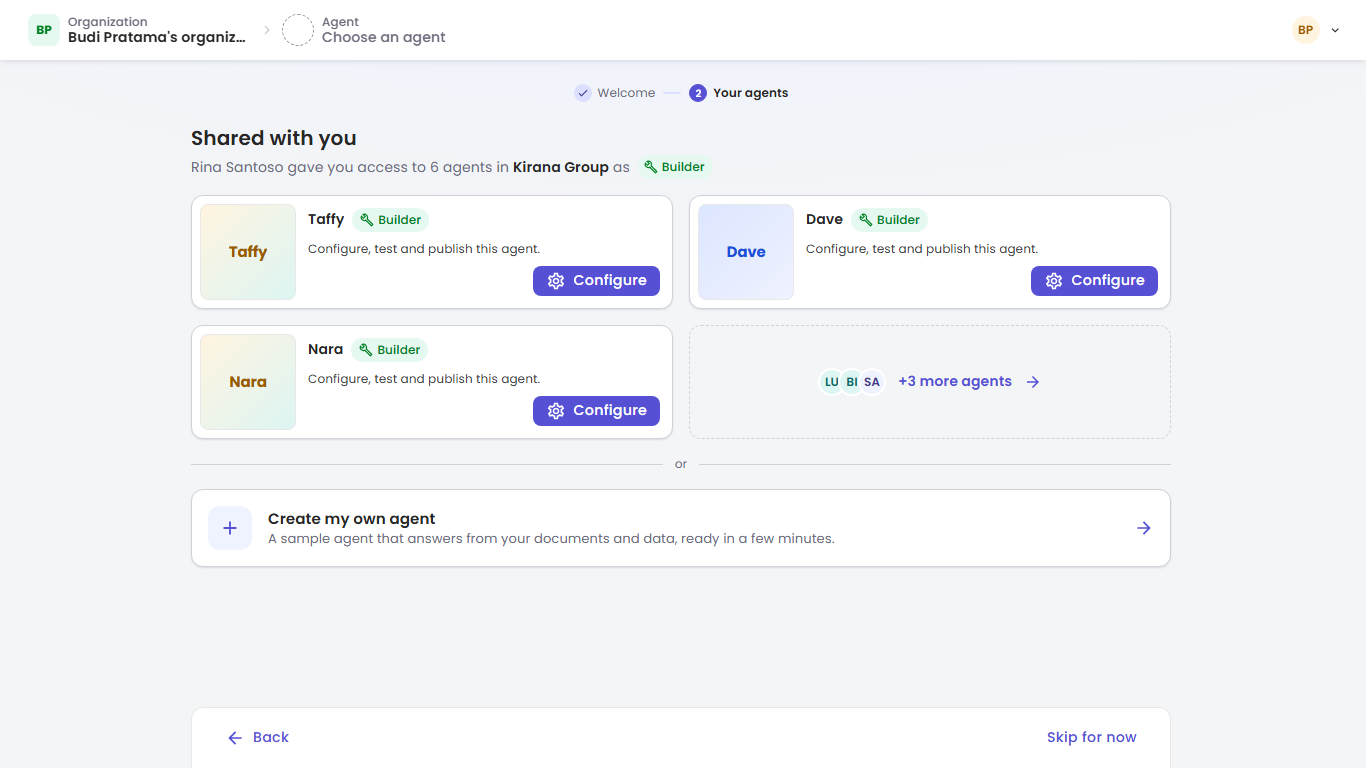
The page shows up to four cards. With more agents, it shows three cards and a +3 more agents card (your number). That card opens the Organizations page on that organization, where all its agents are listed. When three or more cards show, they are compact: no checklist, and only Configure or Chat.
Invited to several organizations
When you were invited to more than one organization, tabs next to the heading show each organization with its number of agents. Pick a tab to see the agents of that organization.
No agent shared with you
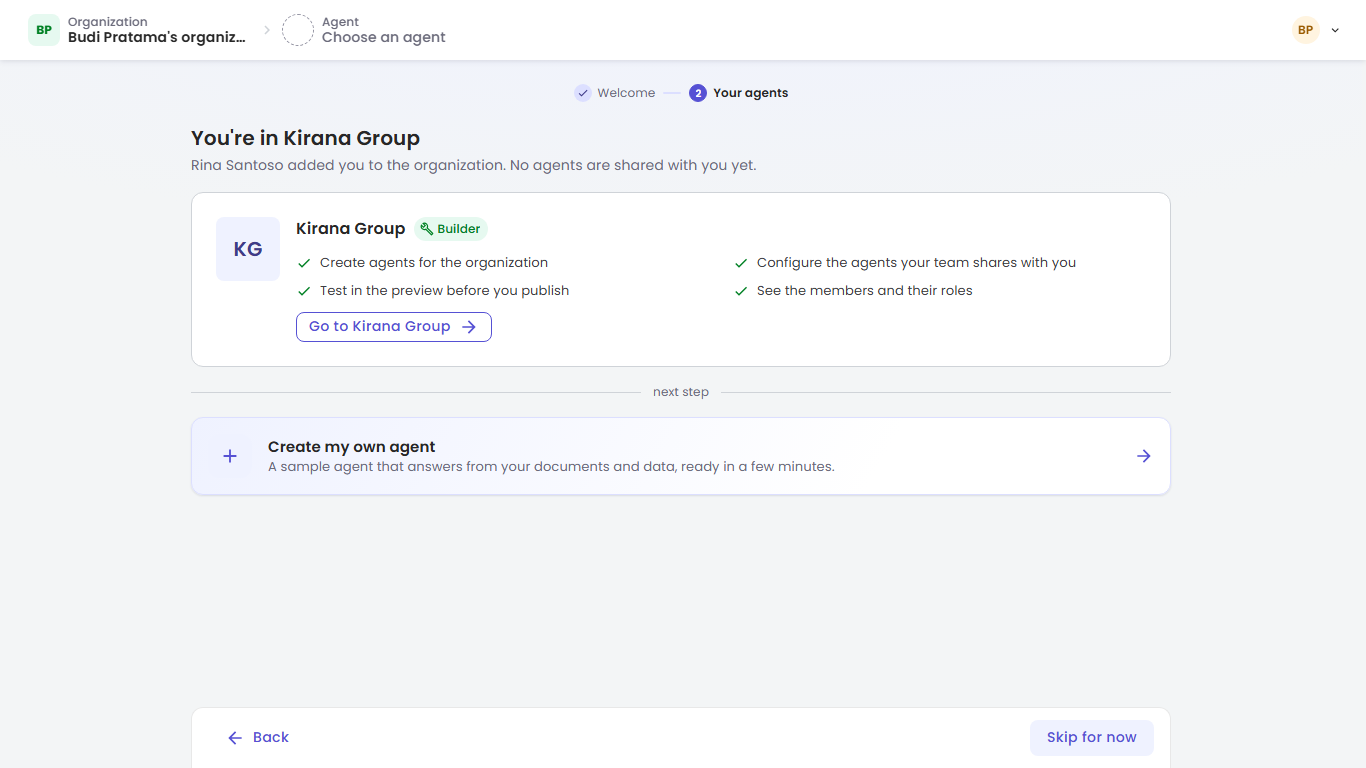
The heading is You're in Kirana Group, with Rina Santoso added you to the organization. No agents are shared with you yet. A card names the organization, your role, and what that role lets you do:
| Role | What the card lists |
|---|---|
| Owner | Manage members, roles and billing; create and configure every agent; set the organization's AI models; see usage and credit |
| Admin | Invite members and set their roles; create and configure every agent; set the organization's AI models; see usage and audit trails |
| Builder | Create agents for the organization; configure the agents your team shares with you; test in the preview before you publish; see the members and their roles |
| Billing | See billing and credit usage; top up credit for the organization |
| Participant | Chat with the agents your team shares with you; ask an Owner or Admin for more access |
Go to Kirana Group opens the Organizations page on that organization.
Create my own agent
Under the agents (after or, or next step when nothing was shared) sits Create my own agent: A sample agent that answers from your documents and data, ready in a few minutes. It opens Create your first agent, which builds a Personal agent in your own Individual organization. See Quick Start: Your First Agent.
At the bottom, Back returns to step 1 and Skip for now opens the Organizations page on the organization you were invited to.
Step 2 if you signed up on your own: Get started
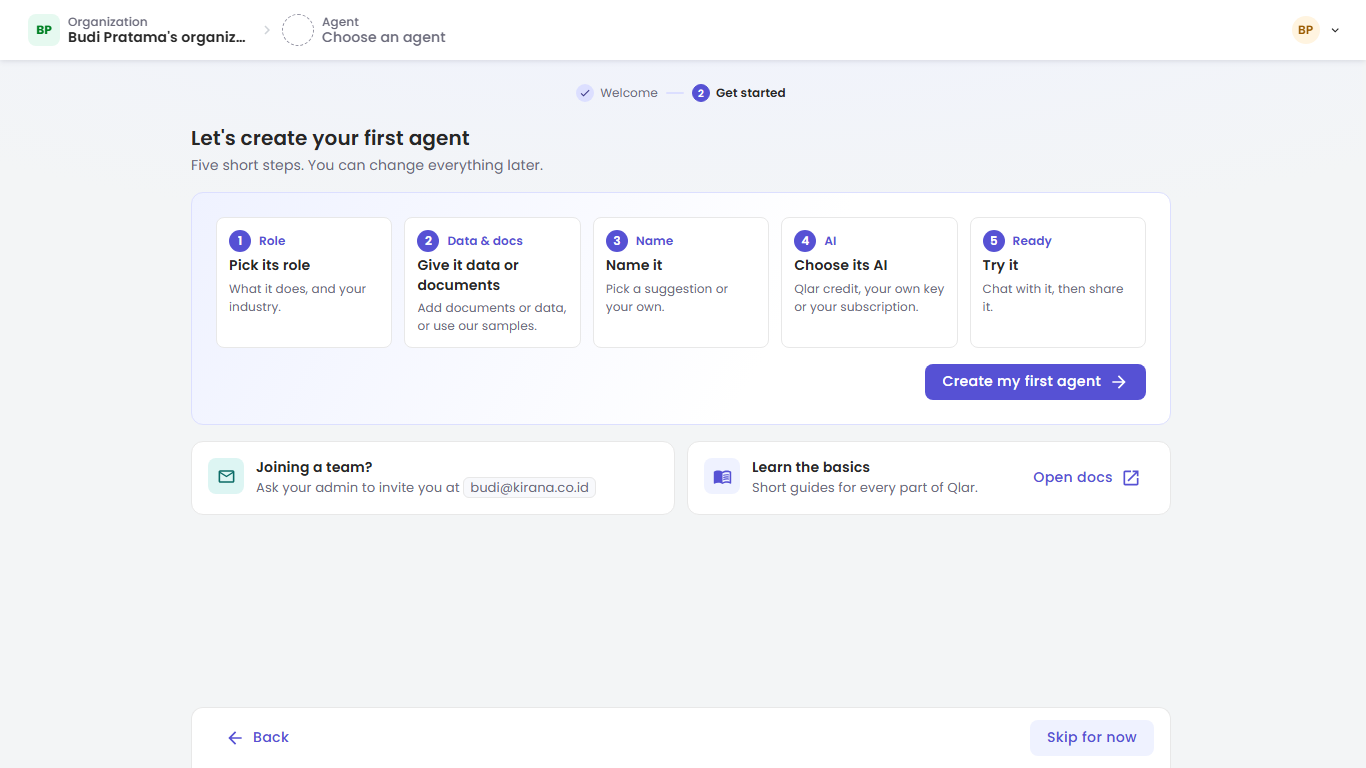
The heading is Let's create your first agent, with Five short steps. You can change everything later. The five steps are the ones you will go through:
| Step | Title | What you do |
|---|---|---|
| Role | Pick its role | What it does, and your industry. |
| Data & docs | Give it data or documents | Add documents or data, or use our samples. |
| Name | Name it | Pick a suggestion or your own. |
| AI | Choose its AI | Qlar credit, your own key or your subscription. |
| Ready | Try it | Chat with it, then share it. |
Create my first agent opens Create your first agent and continues with the Role step. See Quick Start: Your First Agent.
Two smaller cards sit below:
- Joining a team? Ask your admin to invite you at your email address. Someone in your team's organization invites that address; see Users & Invitations.
- Learn the basics: Open docs opens these docs in a new tab.
At the bottom, Back returns to step 1 and Skip for now opens the Organizations page.
On a phone
The Welcome page works on a phone as well. The tiles and cards are stacked in one column, and Back and Skip for now stay at the bottom of the screen while you scroll.
Troubleshooting
I never saw the Welcome page. It shows only to new users, the first time they open the CMS. If you used Qlar before it existed, you go straight to your agents. After you accept an invitation as an existing user, Open Qlar opens the organization you joined on the Organizations page.
"We couldn't load your welcome page" Check your connection and click Try again, or use Go to Organizations to continue without it.
There is no Configure button on my agents. You have Participant access: you chat with the agents in the chat app. To configure an agent, ask an Owner or Admin of the organization for the Builder role on it. See Users & Invitations.
"We couldn't open this agent" The agent couldn't be opened in the CMS, for example because your access changed a moment ago. Click OK, then open the agent from the Organizations page.
Next steps
| If you want to… | Go to |
|---|---|
| Create your own agent | Quick Start: Your First Agent |
| See all agents of an organization | Organizations |
| Understand what your role allows | Roles & Permissions |
| Invite your own team | Users & Invitations |