Participants
Open in CMSParticipants are the people who chat with your agent, on the website widget, WhatsApp, Instagram or any other channel. In this tutorial you will find a participant, read their conversations, and check what the agent remembers about them.
Before you start
- Your agent is published and at least one person has chatted with it. If you have not shared it yet, see Embed Chat on Your Website or Connect to WhatsApp.
- You have Owner or Contributor access to the agent.
- To read conversations, your contributor access must include Conversation history (on by default). To see remembered data, you need a Participant Data level. Both are explained in Managing Agent Access.
Step 1: Open the Participants page
Select your agent, then open Users → Participants in the left sidebar.
The page lists everyone who has interacted with this agent. If nobody has chatted yet, you will see No Participants Yet. That is expected for a new agent: participants appear once they start conversations.
Step 2: Choose a layout
Use the view toggle at the top right to switch between two layouts. Your choice is remembered for your next visit.
| Layout | What it shows |
|---|---|
| Grid | One card per person: avatar, name, email, the date they first registered ("Since ..."), and role chips. |
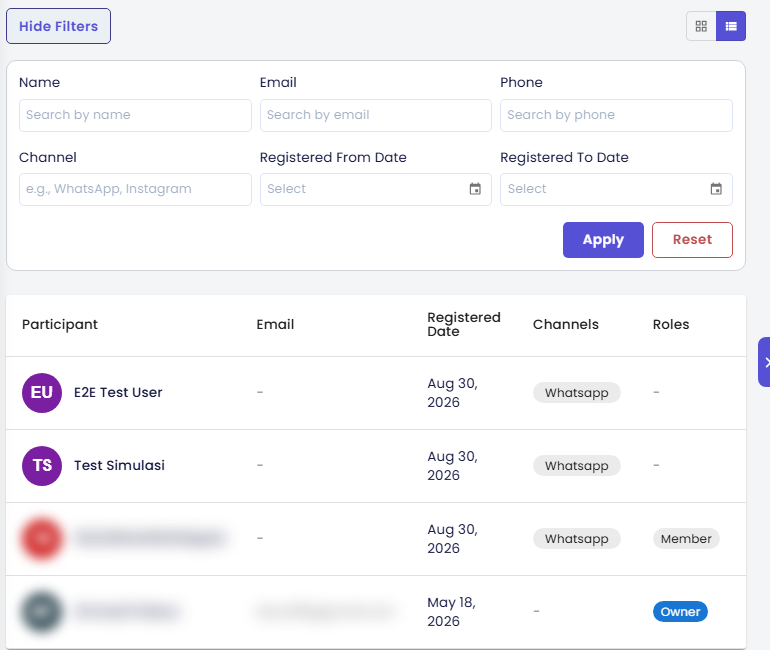
| List | A table with the columns Participant, Email, Registered Date, Channels, Roles and Memory. |
The Channels column is useful when your agent is on several channels: it shows where each person has talked to the agent, such as WhatsApp or Instagram.
The page loads 30 people at a time. Click Load More at the bottom to see the next batch.
Step 3: Filter the list
Click Show Filters to open the filter panel. You can combine any of these fields:
| Filter | Example |
|---|---|
| Name | Siti |
@clinic.com | |
| Phone | 0812 |
| Channel | WhatsApp |
| Registered From Date / Registered To Date | Everyone who started in March |
Click Apply (or press Enter) to run the filter, and Reset to clear it. If no one matches, the page shows No Participants Found. The "to" date cannot be earlier than the "from" date.
Example: to follow up on the people who reached you through WhatsApp last week, type
Step 4: Read a participant's conversations
Click a participant's card or row. The Conversation History page opens with that person's name and a list of their conversation threads. In the table layout, each thread shows the First Message, the number of Messages, the Last Message time and when it was Created.
Click View (or View Conversation on a card) to read the full transcript. Use Back to Participants to return to the list.
Reading a transcript is a sensitive act, so qlar treats it carefully:
- If your Conversation history access is switched off, a warning appears in place of the conversations. The View actions stay visible so you know the feature exists and can ask an Owner or Admin for access.
- Every time a transcript is opened, qlar records who read it, whose conversation it was, and when.
- If your organization has Privacy Mode on, conversation content may not be available at all.
Step 5: See what the agent remembers about someone
If your agent uses Personalization, it can remember facts about each person, such as their preferred language or their branch.
To see those facts for one person, either:
- click the Memory button (the face icon, tooltip "What this agent remembers about them") on their card or table row, or
- click What This Agent Remembers on their Conversation History page.
The What this agent remembers page shows a table with Field, Value, Where it came from, Erased on and Action. Sensitive fields are marked with a sensitive chip. Depending on your Participant Data level you can:
- Correct a value (pencil icon). In the dialog, enter the new Value and click Save correction. Your change is marked as a staff edit, not as something the person said.
- Erase a value (delete icon).
Only correct or erase data when the person it belongs to asks you to. Every opening of this page is recorded.
You might also see one of these messages instead of the table:
| Message | What it means |
|---|---|
| Nothing remembered yet | The agent has not recorded anything about this person. |
| This agent does not remember anything about its participants. | Personalization is off for this agent. |
| This person has paused personalization. | The person turned memory off. Stored data is not used and nothing new is recorded. |
| You do not have access to this participant's remembered data. | Your organization has staff access switched off, or you have no Participant Data level on this agent. |
Check the result
- Chat with your agent from a channel where you can be identified, for example from your own WhatsApp number or from the web chat while logged in. Send something like "Hi, what are your opening hours?"
- Back in the CMS, open Users → Participants and filter by your name, email or phone number. You should appear in the list.
- Click your entry and open the conversation. You should see the message you just sent.
Next steps
- Next in this step: Team Members and Contributors, to give specific colleagues access to the agent.
- Personalization: decide what the agent remembers about each person.
- Participants reference: every field on this screen.