Knowledge Permissions
Open in CMSPermission codes let one agent serve different people with different knowledge. You create a code, attach it to confidential documents, websites or videos, and give it to the members who are allowed to see that content. In this tutorial you set up codes for Atlas, Kirana Group's operations assistant, from start to finish: FINANCE for finance-only material and SITE-HSE for site safety staff.
Before you start
- Your agent already has knowledge. See Teach Your Agent.
- The people who need restricted content are, or will become, members of the agent. See Team Members and Contributors.
- You know how to publish changes. See Preview and Publish Changes.
How permissions work
Permission codes are short labels, for example FINANCE or SITE-HSE. They connect three things:
- The code list. You define the codes on Users → Permissions (the Agent Permissions page).
- The content. On a document, website or video, the Permissions field holds the codes needed to see that item.
- The people. Each member of the agent can hold one or more codes, assigned on Users → Members.
When a conversation starts, qlar looks up the codes held by that person and only lets the agent use content they are allowed to see. Content without a code is available to everyone.
Example: Atlas answers general approval and procurement questions for all Kirana staff. A finance-only document, such as the internal budget guidelines, is tagged
FINANCE. Only the finance team, who holdFINANCEas members, get answers based on that document. Detailed site safety procedures are taggedSITE-HSEand reach only site safety staff. Everyone else still gets the general answers, including SOP-FIN-007, which has no code.
Step 1: Create a permission code
- Open Users → Permissions in the left sidebar.
- Click Add New Permission. A new input row appears.
- Type your code, for example
FINANCE. - Click Add New Permission again for each other code you need. For Atlas, add
SITE-HSE. - Click Save and confirm.
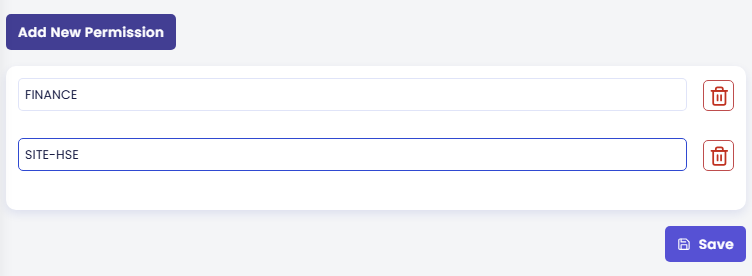
Permission codes are case-sensitive: FINANCE and finance are different codes. Pick one naming style and use it across your team.
If no codes exist yet, the page shows No Permissions Set. That is the normal state for an agent whose content is open to everyone.
Step 2: Attach the code to content
Open the item you want to restrict under Knowledge (a document, a website or a video), choose the code in its Permissions field, and save. See Documents, Websites and Videos for where the field sits on each form.
Step 3: Give the code to the right people
Open Users → Members and either add new members with the code, or click an existing member and add the code in Permissions. See Team Members and Contributors.
Step 4: Publish
Saving the code list marks your agent as having unpublished changes. Click Publish at the top of the CMS so live conversations use the new setup. Codes are attached to a conversation when it starts, so they apply to conversations started after you publish.
Removing a permission
Click the delete icon at the right end of a permission row, then click Save and publish.
Note: Removing a code from this list does not remove it from content items that already use it. Update those items separately.
Check the result
- Sign in to the agent's chat as a member who holds the code (for Atlas, someone from the finance team with
FINANCE) and ask a question only the restricted document can answer. The agent should answer from it. - Ask the same question as a user without the code. The agent should not use the restricted document.
Next steps
- Next in this step: Availability, to decide whether anyone or only members can use the agent.
- Team Members and Contributors: hand codes out to members.
- Permissions reference: every field on this screen.