Creating & Editing Types
Open in CMSFrom the Manage Types tab, click New Type to open the creation form.
Start with AI Suggestion (Recommended)
Not sure where to begin? The AI Suggestion feature can generate a complete type definition from a single short prompt — saving you time and giving you a solid starting point.
Click the Suggest button (the wand icon) in the top-right corner of the form.
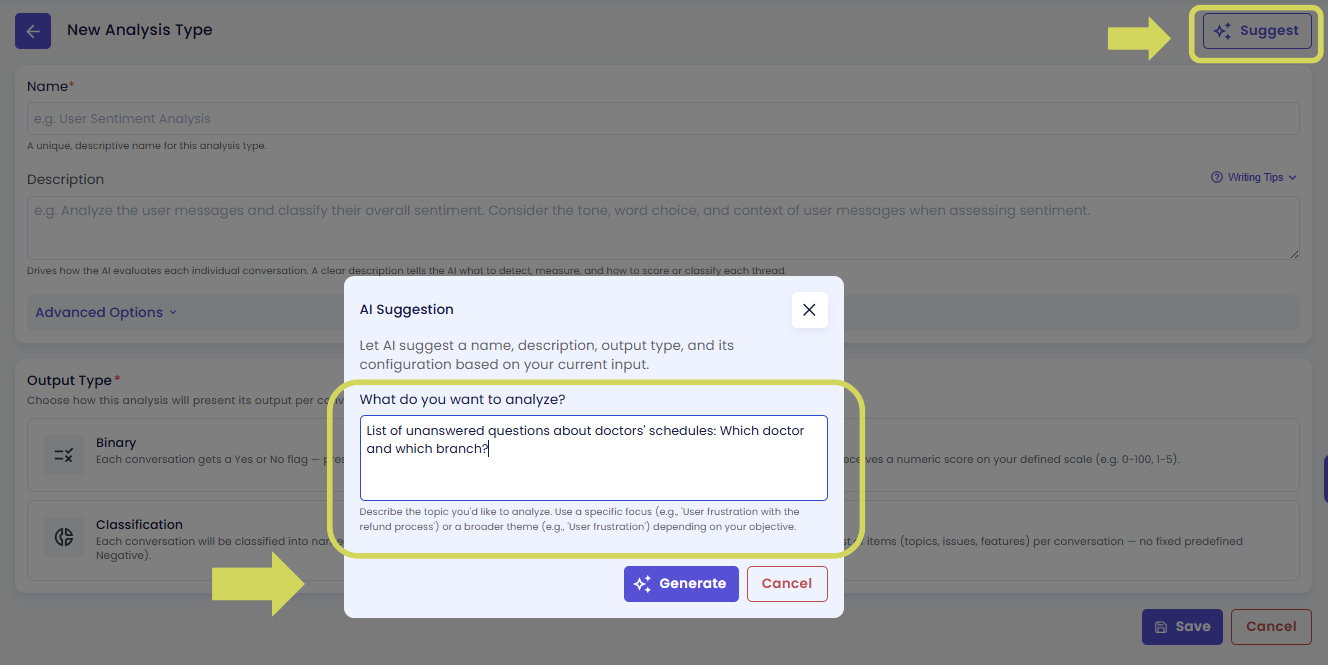
Type a brief description of what you want to measure. For example:
- "detect whether the user expressed frustration during the conversation"
- "score how well the agent resolved the customer's issue, on a scale of 1 to 5"
- "classify the main topic of each conversation into categories like billing, technical support, or general inquiry"
The system will suggest a name, description, target scope, output type, and configuration that fits your intent.
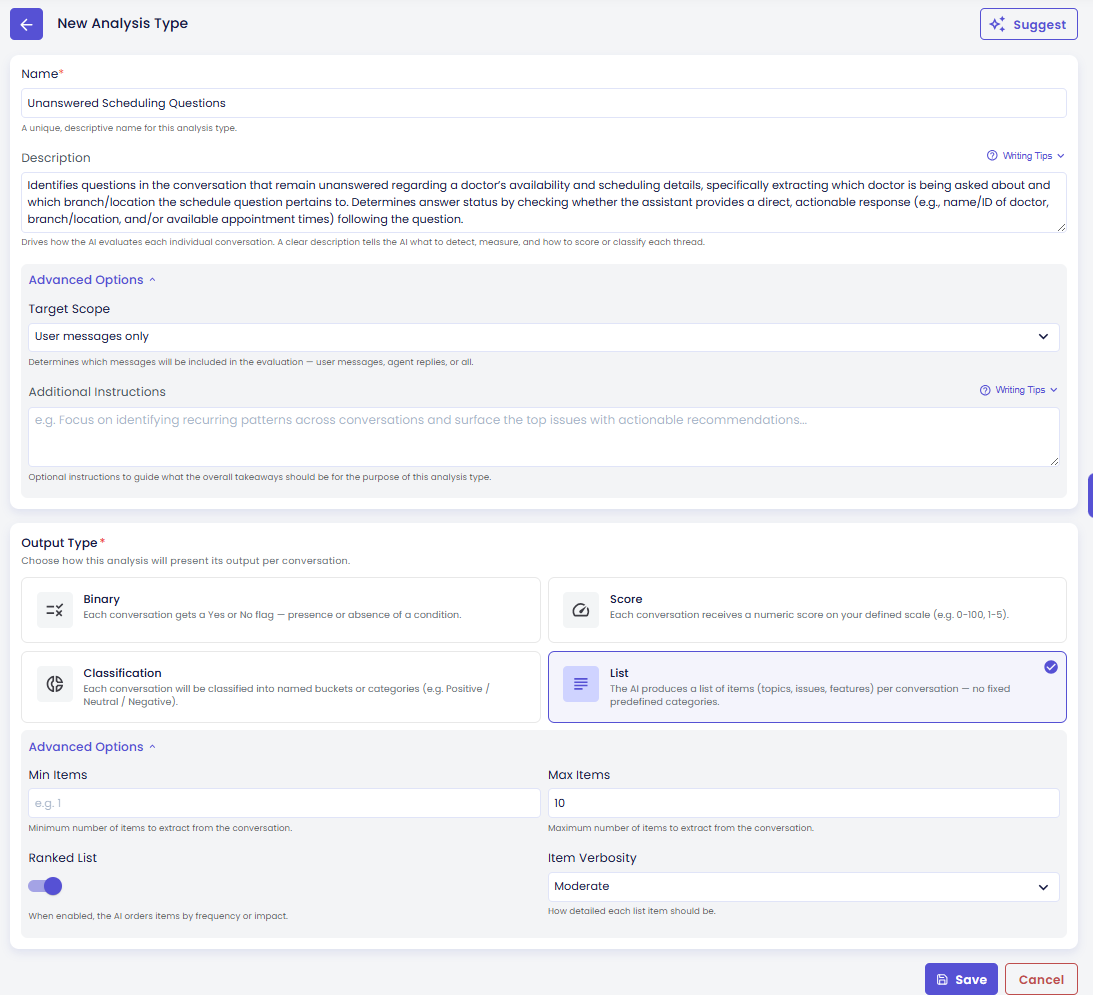
Click Apply to populate the form with the suggestion. You can still review and adjust any field before saving.
Basic Information
| Field | Required | Description |
|---|---|---|
| Name | Yes | A unique, descriptive name for this type. Visible in run configuration and results. Example: "User Sentiment Analysis". |
| Description | No | Drives how the AI evaluates each conversation. Be specific: define what to look for, include positive/negative outcomes, nuances, and edge cases. Keep it focused on a single concept. |
Name
A short, clear label for this type. It appears in run configuration dropdowns, results pages, and charts — so choose something your whole team can recognize immediately.
Use a noun phrase that describes what is being measured, not the outcome. "Complaint Detection" is clearer than "Detect if Complaint Exists". "Resolution Quality Score" is clearer than "How Well Was It Resolved".
Description
This is the most important field. The description tells the AI exactly what to look for in each conversation when it produces a result. The more specific and detailed it is, the more consistent and accurate your analysis will be.
A good description:
- States the evaluation criteria clearly — not just "check for complaints" but "determine whether the user expressed dissatisfaction about a product, service, or response they received from the agent"
- Covers important edge cases — e.g. "include cases where dissatisfaction is implied through phrases like 'this isn't what I expected' or 'I'm disappointed', not just stated directly"
- Stays focused on one concept — if you want to measure two different things, create two separate types
Think of it as writing instructions for a careful human reviewer who knows nothing about your business context. The clearer the instructions, the better the results.
Advanced Options
Target Scope
Controls which side of the conversation the AI reads when producing its result.
| Option | What Gets Analyzed | Best For |
|---|---|---|
| Auto | The system infers the right scope from your description | Most cases — start here |
| User Only | Only the user's messages | Measuring user intent, sentiment, frustration, or effort |
| Agent Only | Only the agent's replies | Measuring response quality, coverage, tone, or resolution |
| Both | All messages from both sides | Detecting interaction patterns, dialogue quality, or escalation signals |
When in doubt, leave this on Auto — the AI will infer the appropriate scope from what you described.
Additional Instructions
Optional guidance that applies only to the run-level insights — the high-level conclusions and recommendations the AI generates after processing all conversations in a run. This does not change how individual conversations are scored or classified.
Use this when you want to:
- Focus insights on a specific theme — e.g. "highlight only issues related to payment and billing flows"
- Give context the AI wouldn't otherwise have — e.g. "users who ask about invoices are always redirected to the finance team — do not count this as an unresolved case"
Leave it empty if you don't need to steer the overall conclusions.
Output Type & Configuration
Choose an output format by clicking one of the tiles. Each format has its own configuration panel below.
Binary
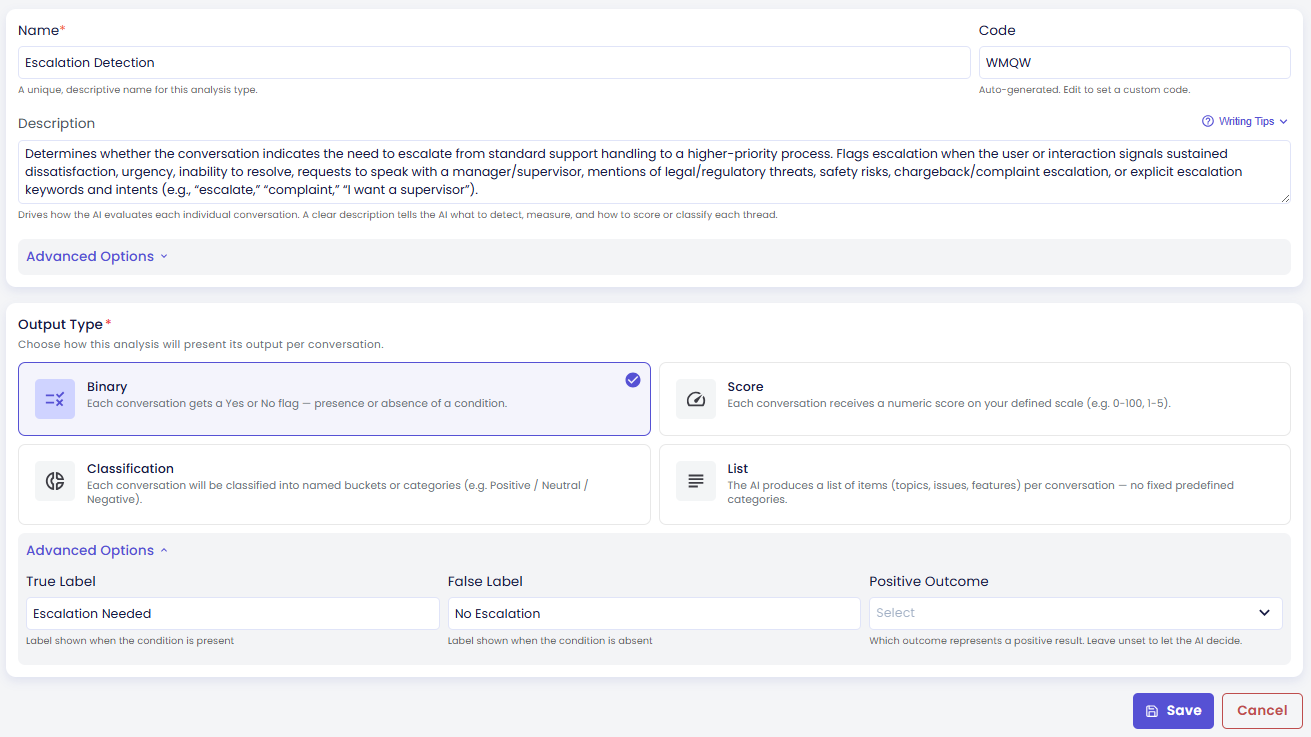
A binary type gives each conversation a yes or no result. Use this when your question has a clear true/false answer: "Was a complaint detected?", "Did the agent resolve the issue?", "Was there an escalation?".
| Setting | What It Does |
|---|---|
| True Label | The label displayed when the result is "yes". Default: "True". Example: "Complaint Detected", "Goal Achieved". |
| False Label | The label displayed when the result is "no". Default: "False". Example: "No Complaint", "Not Resolved". |
| Positive Outcome | Tells the system which result is the "good" one — used to color charts appropriately (green for good, red for bad). Choose True is Positive when detecting the condition is good (e.g., "Goal Achieved"). Choose False is Positive when the condition is something to avoid (e.g., "Complaint Detected"). Choose Auto and the system will infer it from your description. |
Score
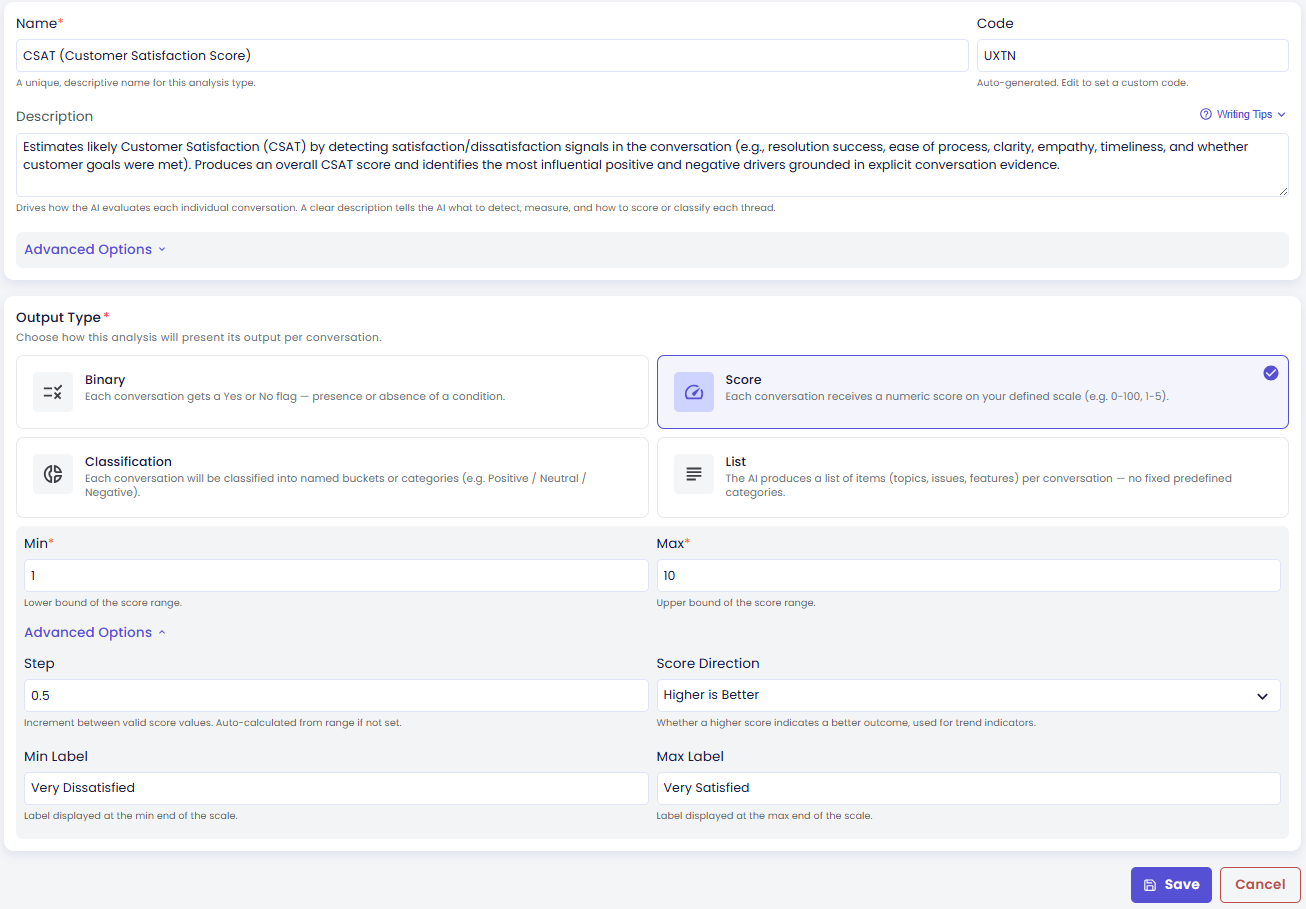
A score type gives each conversation a number within a range you define. Use this when you want to measure something on a scale — resolution quality, user effort, agent clarity, communication effectiveness.
| Setting | What It Does |
|---|---|
| Min / Max | The lowest and highest possible values on your scale. Example: 1 to 5, or 0 to 10. |
| Step | The increment between valid values. For example, Min = 1, Max = 5, Step = 1 means only whole numbers (1, 2, 3, 4, 5) are valid. Leave blank and the system will pick a sensible step automatically. |
| Higher is Better | Sets the direction of the scale for charts and insight generation. Choose Higher is Better (e.g., a satisfaction score where 5 is excellent), Lower is Better (e.g., a complaint rate where lower is healthier), or Auto to let the system decide from your description. |
| Min Label / Max Label | Optional text labels for the two ends of the scale — shown on charts to give context. Example: "Unresolved" at the low end, "Fully Resolved" at the high end. |
Classification
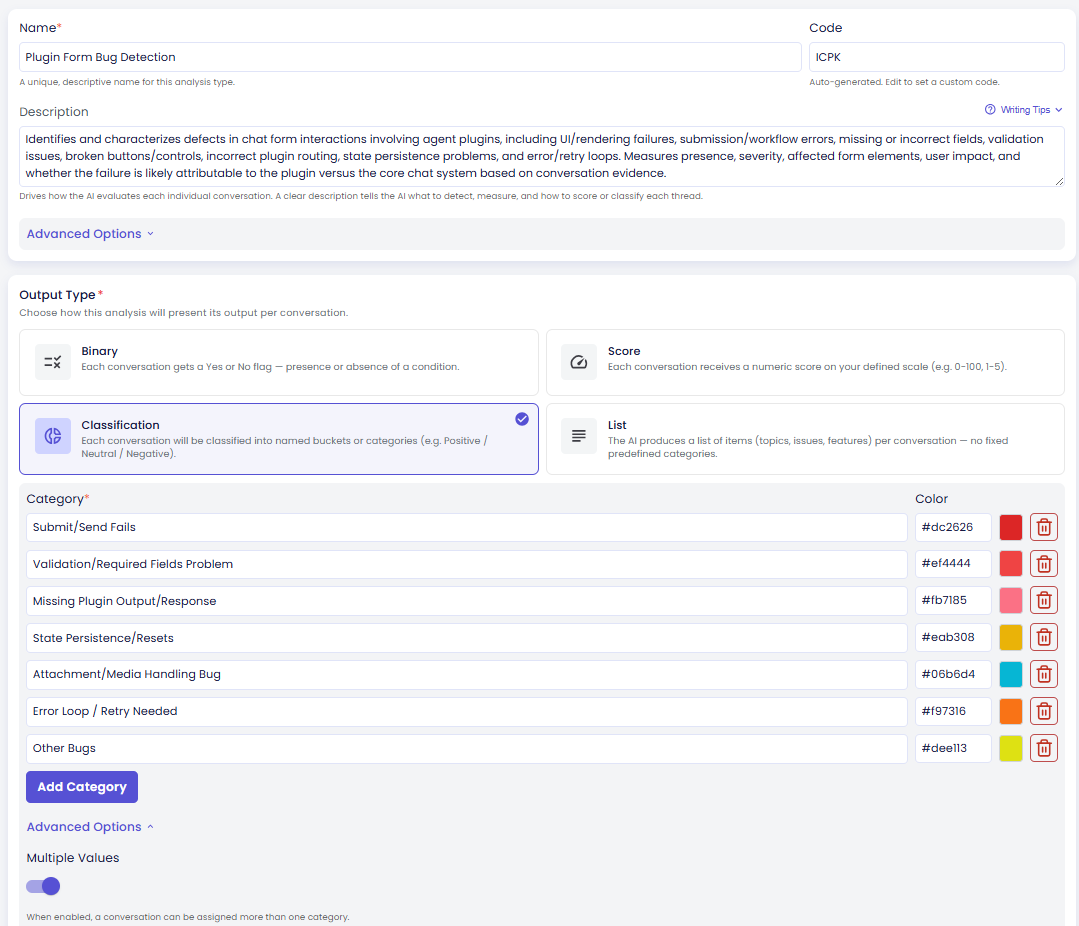
A classification type assigns each conversation one or more labels from a list you define. Use this when conversations can fall into distinct groups — sentiment categories, topic types, risk tiers, resolution styles, etc.
| Setting | What It Does |
|---|---|
| Multi-Label | When on, the AI can assign more than one category to a conversation — e.g. a conversation could be both "Billing" and "Escalated" at the same time. When off, exactly one category is assigned per conversation. |
| Categories | The list of possible labels. You need at least two. Each category requires a name; you can optionally assign a color that appears in charts. Add categories with the + Add button. |
Think carefully about whether your categories are mutually exclusive. If a conversation could reasonably belong to more than one, enable Multi-Label. If not (e.g. sentiment is always exactly one of Positive / Neutral / Negative), leave it off.
List
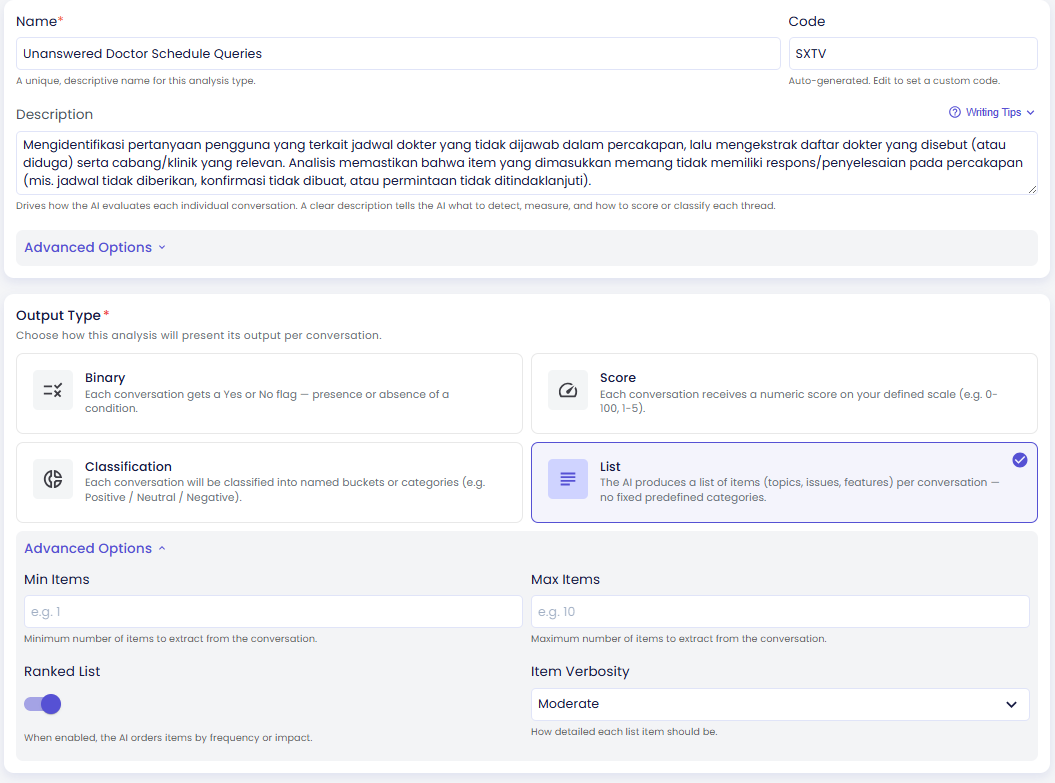
A list type extracts a set of text items from each conversation — topics mentioned, questions asked, products referenced, issues raised. The AI identifies and pulls out relevant items rather than assigning a fixed label or number.
| Setting | What It Does |
|---|---|
| Item Verbosity | Controls how detailed each extracted item is. Concise produces short phrases (e.g. "login issue"). Detailed produces fuller descriptions with more context (e.g. "user was unable to log in after resetting their password"). |
| Is Ranked | When on, items are ordered by frequency or relevance across conversations — the most common or important items appear first. When off, items are returned without a particular order. |
| Min Items / Max Items | Optionally limit how many items are extracted per conversation. Useful to prevent the AI from returning either too few or an overwhelming number of items. |
Editing an Existing Type
Click any type in the Manage Types list to open its detail page. The form looks identical to the creation form — but what you can do depends on whether it's a Predefined or Custom type.
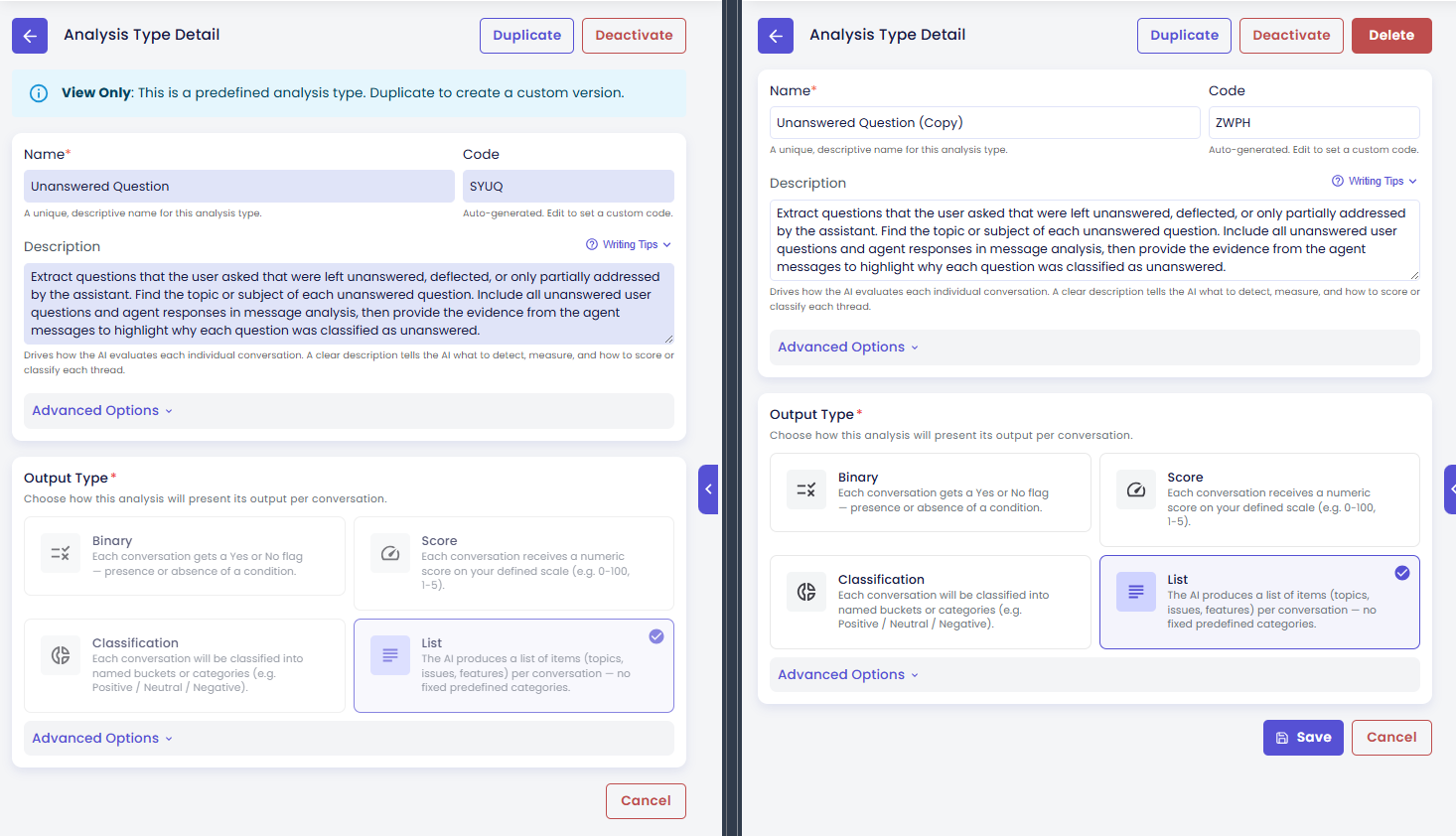
Predefined Types — View Only
If the type shows a lock icon, it's a Predefined type built into the platform. You can view all its settings but cannot change them. The available actions are:
| Action | What It Does |
|---|---|
| Duplicate | Creates a fully editable copy with the same configuration. Use this to create a customized version of a predefined type. |
| Deactivate | Hides the type from run configuration dropdowns. The type still exists and can be reactivated anytime — nothing is deleted. |
Custom Types — Fully Editable
Types your team created support full editing. Available actions:
| Action | What It Does |
|---|---|
| Save | Saves your changes and returns you to the Manage Types list. |
| Duplicate | Creates a copy with the same configuration — useful for building variations of an existing type. |
| Deactivate | Removes the type from run options without deleting it. You can reactivate it later if needed. |
| Delete | Permanently removes the type. This cannot be undone. |
What Happens to Past Results When You Make Changes?
When You Edit
Saving changes to a type never rewrites results that already exist. Existing run results are not affected — they remain exactly as they were when the run was executed. Only future runs will use the updated definition.
When You Deactivate
A deactivated type no longer appears as an option when creating new runs. But it's not gone — all historical run results that used this type remain intact and viewable. You can reactivate the type at any time to make it available again.
When You Duplicate
Duplicating creates an independent copy. Changes to the copy have no effect on the original, and vice versa. The duplicate starts as a new type with no run history.
When You Delete
Deleting a type removes it permanently from the platform — it will no longer appear when creating new runs. However, historical results from previous runs that used this type are preserved. The past analysis data is safe; only the type definition itself is gone.
If there's any chance you might want the type again in the future, consider deactivating it instead of deleting.