Browsing & Managing Types
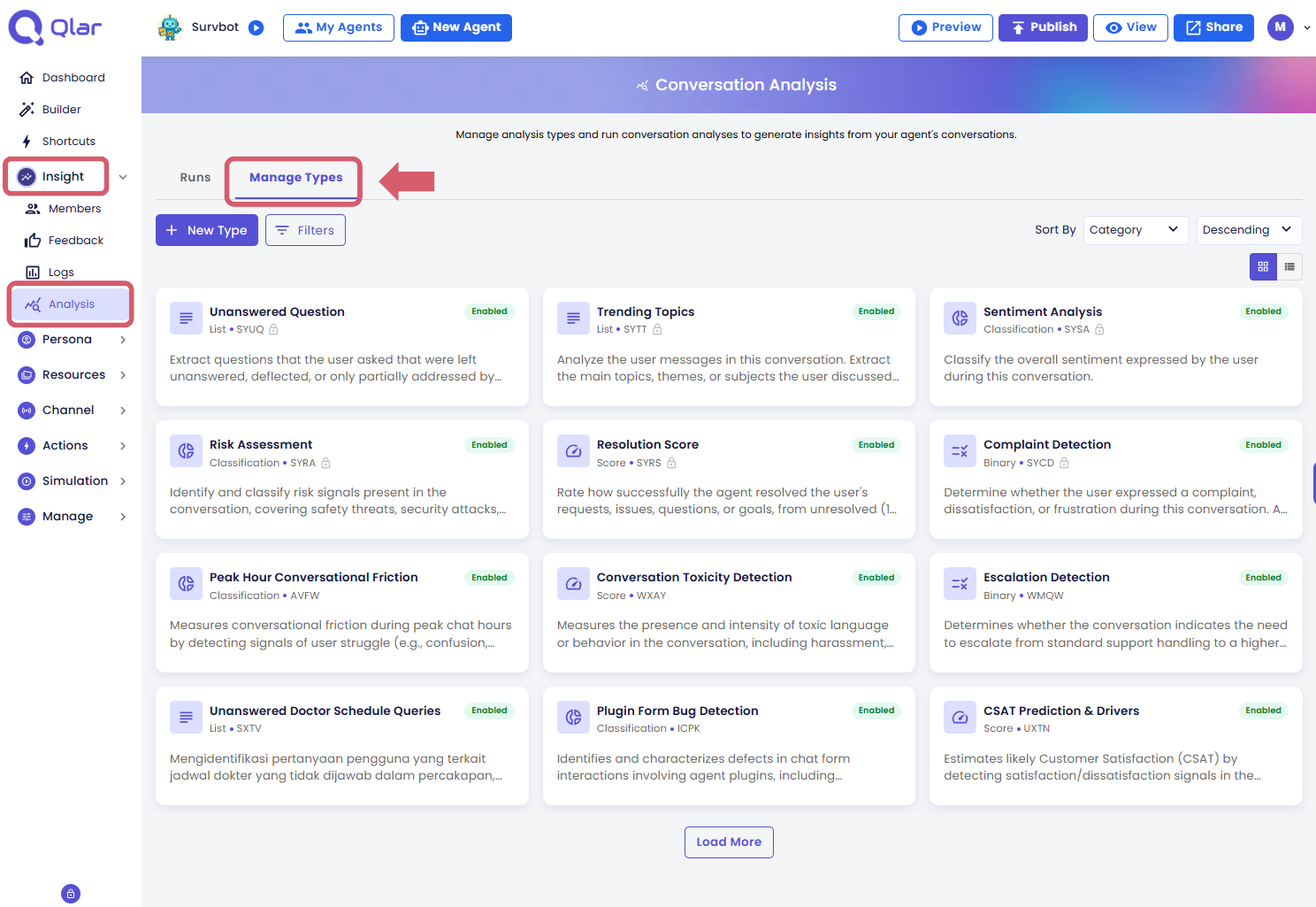
Open in CMSTo get to your analysis types, go to Analytics → Analysis in the sidebar, then click the Manage Types tab.
What You're Looking At
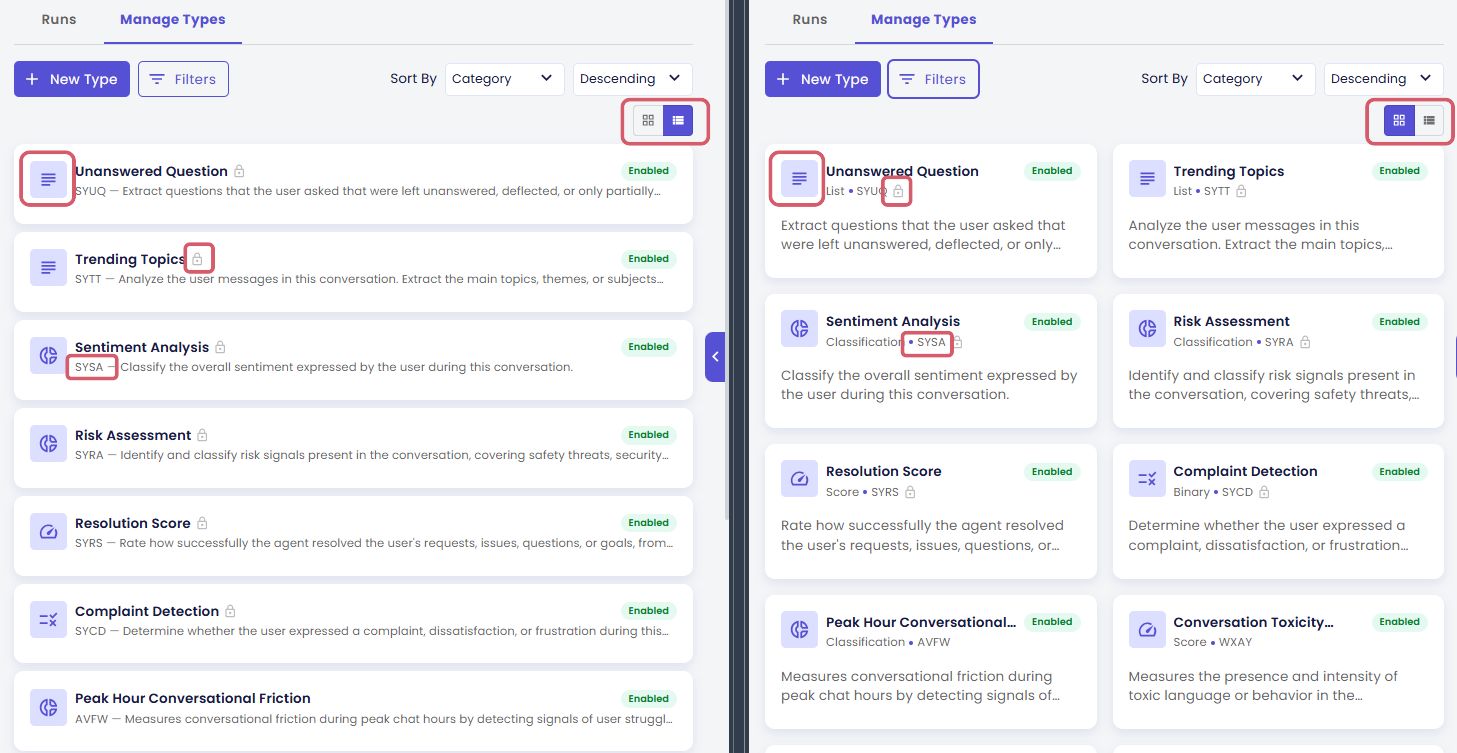
Each card (or row) in the list represents one analysis type. A few visual cues let you understand what kind of type it is and what output it produces — at a glance, without opening anything.
| Visual Cue | What It Means |
|---|---|
| Lock icon (🔒) | This is a Predefined type — it's read-only. You can view it, use it in runs, or duplicate it, but you cannot edit it. |
4-letter code (e.g. CMDT) | A unique identifier for the type. Useful when two types happen to have similar names — the code is always distinct. |
| Colored icon (left of the title) | The output format: a gauge icon for Score, a donut chart icon for Classification, a lines icon for List, and a rules icon for Binary. |
Grid View vs List View
Use the toggle button in the top-right corner to switch between a grid (card) layout and a list (table) layout.
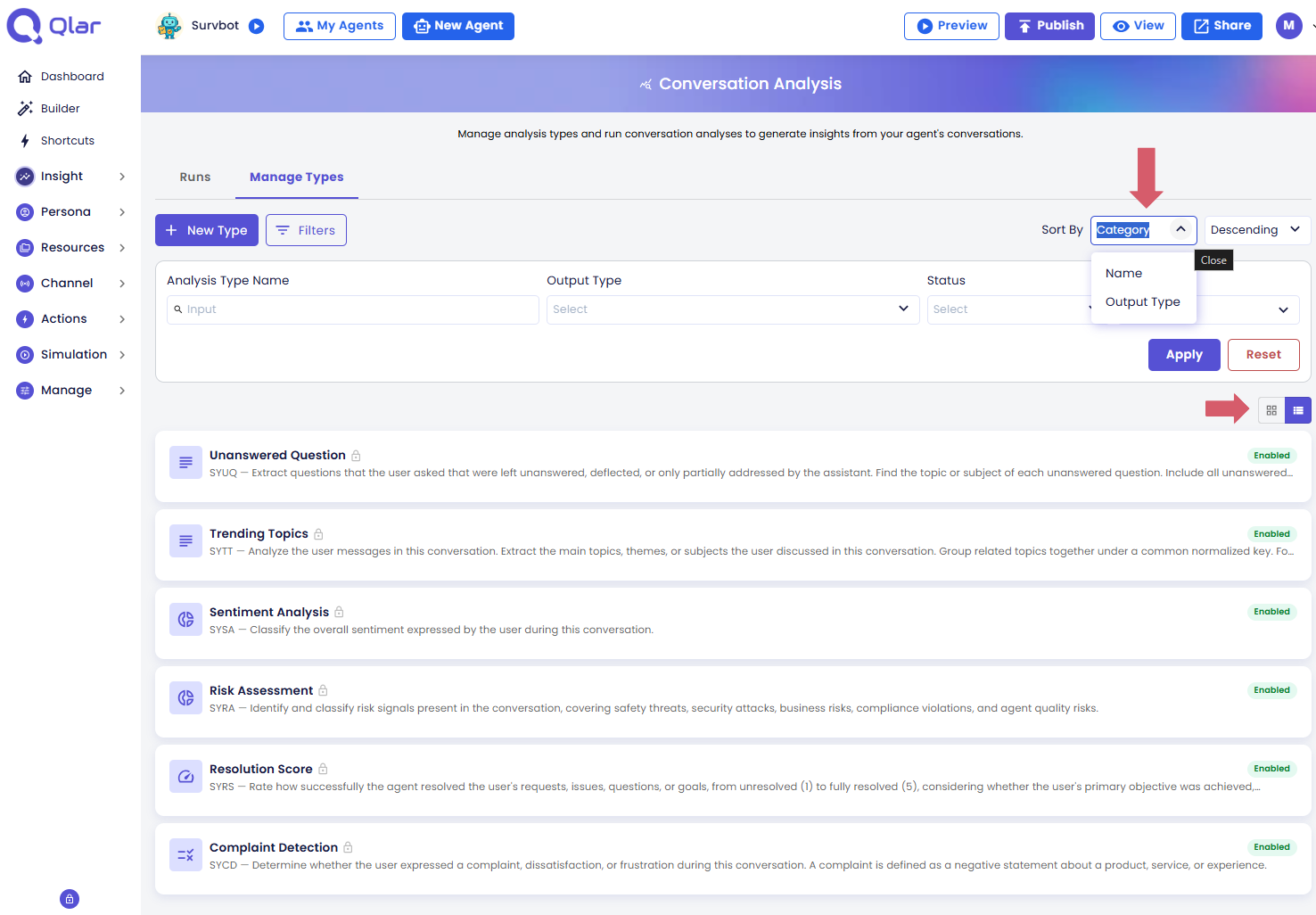
- Grid view — gives you a visual overview of all types at once; easier to scan when you have many types
- List view — more compact; better when you want to quickly read names and codes side by side
Your view preference is saved per agent, so it stays the same next time you come back.
Filtering
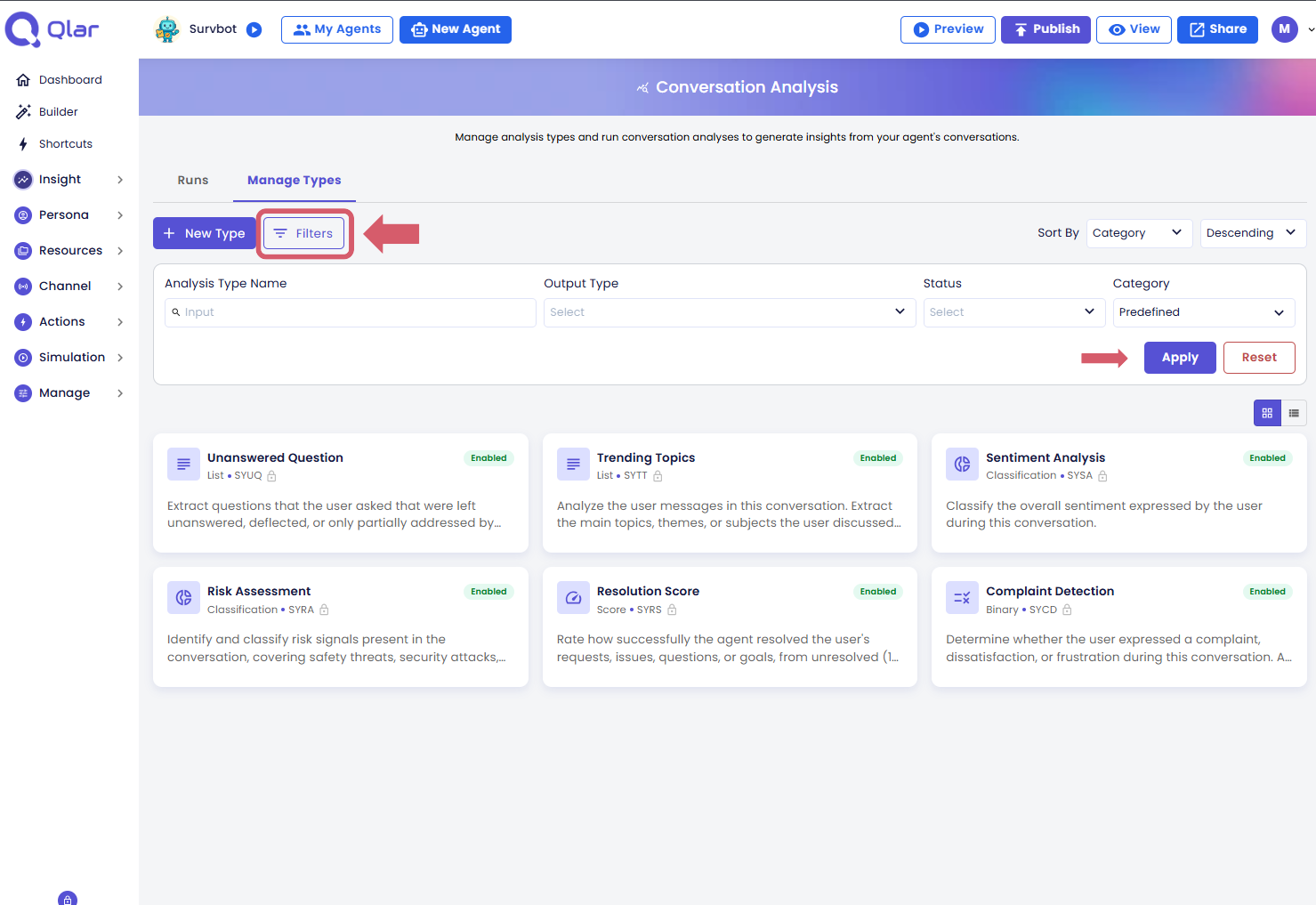
Click the filter icon to expand the filter panel and narrow down the types shown.
| Filter | What It Does |
|---|---|
| Name | Search by keyword — shows only types whose name contains what you type |
| Output Type | Show only Binary, Score, Classification, or List types |
| Status | Show only active types, only inactive (deactivated) types, or both |
| Category | Show only Predefined types (built into the platform), only Custom types (created by your team), or both |
Filter settings are saved per agent, so they stay in place when you navigate away and come back.
Sorting
Use the sort controls (next to the view toggle) to order the list by Name or Output Type, in ascending or descending order.
Next Steps
- Create a new type — define what to measure and choose how to express the result
- Create a run — apply your types to a batch of conversations