Creating a Run
Open in CMSA run applies one or more analysis types to a set of conversation threads within a date range. The system processes each thread against each selected type and produces aggregated results, charts, and AI-generated insights.
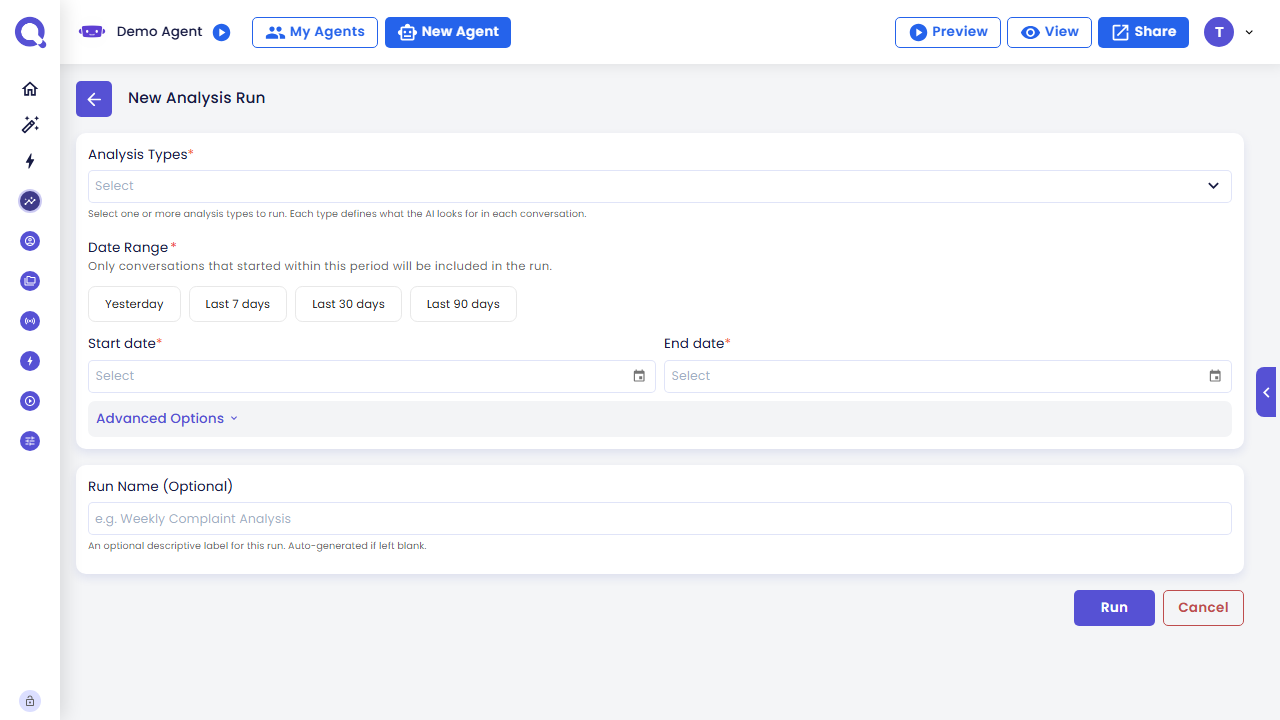
Navigate to Analytics → Analysis → Runs and click New Run to open the run creation form.
Unavailable while Privacy Mode is on. The organization must turn it off before a new run can be created.
Analysis Types & Date Range
Analysis Types
Select one or more analysis types to run. This is required — a run must include at least one type.
- Use the search dropdown to find types by name or code.
- Display format:
CODE - Name(e.g.,SYCD - Complaint Detection). - Both predefined and custom types appear in the list side by side.
- Multiple types can be selected. Each type is processed independently — one type failing doesn't stop the others, and each type has its own status, cache, and cost.
The analysis types you select determine what dimensions are measured. Results and charts are grouped per type on the results page. If you're not sure what a given type measures, check the Predefined Types reference before running — reruns cost credits, so it pays to pick the right types up front.
Date Range
Set the date range for conversations to include. Both dates are inclusive.
Quick presets — click a preset tile to fill both dates instantly:
| Preset | Range |
|---|---|
| Yesterday | The previous calendar day |
| Last 7 Days | Today minus 6 days through today |
| Last 30 Days | Today minus 29 days through today |
| Last 90 Days | Today minus 89 days through today |
Use the date pickers for a custom range. Clicking a date picker clears any active preset.
The To date must be equal to or after the From date. The range filters by when a conversation started, not by its last activity — a long-running thread that began before your start date won't be included even if it continued into your date range.
Advanced Options
Click Advanced Options to expand additional settings. These have defaults and are optional for most runs.
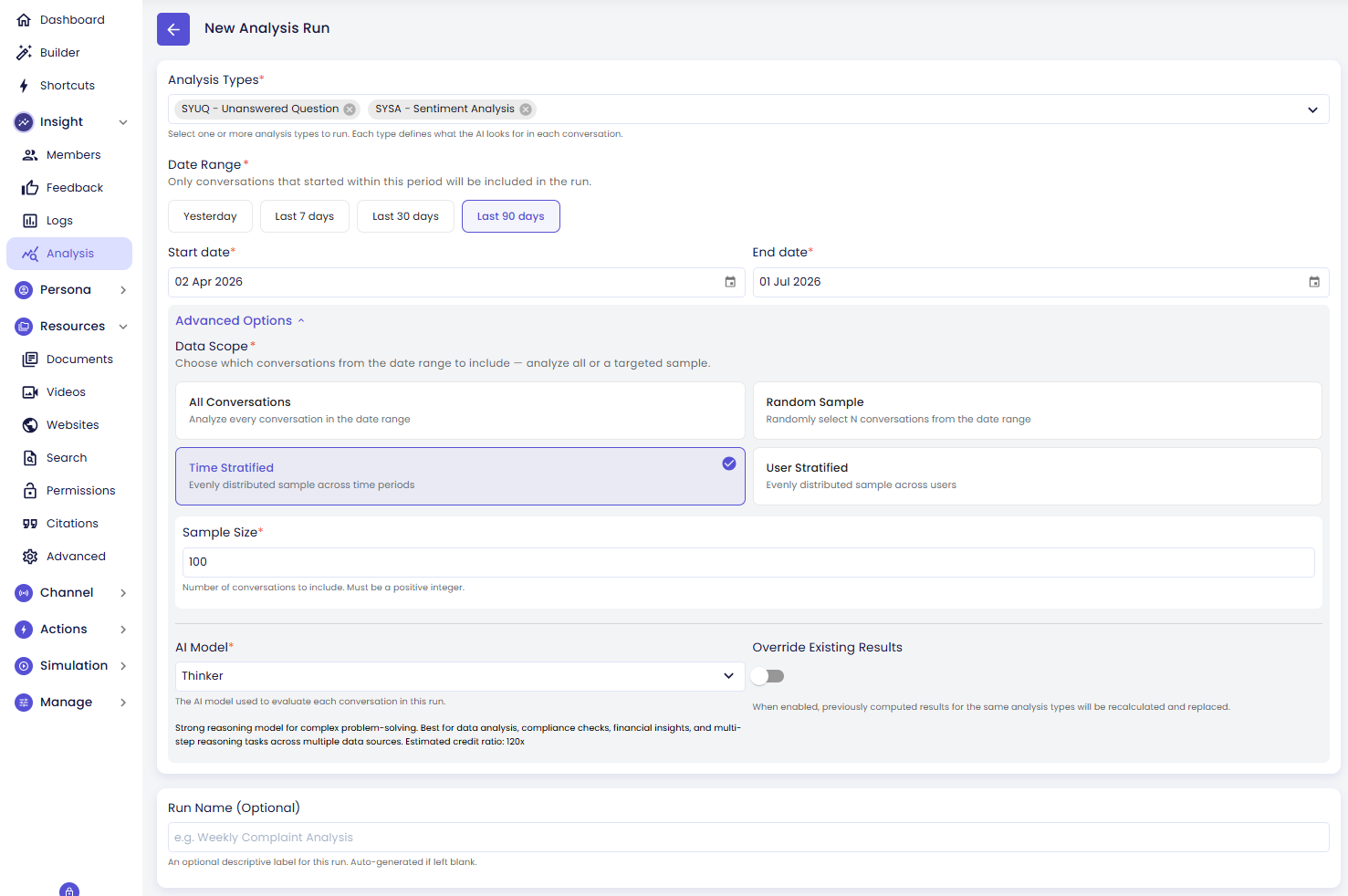
Data Scope (Sampling Mode)
Every conversation processed costs credits (see AI Model below), so sampling lets you trade completeness for cost when a date range has more conversations than you need to analyze. Choose a strategy by clicking one of the four option tiles:
| Mode | What it actually does |
|---|---|
| All Conversations | Every thread in the date range is included. No sampling, no limit — if your date range has 50,000 conversations, all 50,000 are analyzed. |
| Random Sample | A random subset of threads is selected. Set the Sample Size (number of threads). Simple and unbiased, but a period with unusually high volume (e.g. a promo day) can dominate the sample purely by chance. Use when the date range contains more threads than needed for a representative sample. |
| Time Stratified | Threads are sampled evenly across time intervals within the date range. Days with very few conversations are included in full rather than being under-represented, so a slow Sunday isn't drowned out by a busy Monday. Useful when you want to ensure coverage across the full period rather than clustering at one end. |
| User Stratified | Threads are sampled to ensure coverage across distinct users. The sample is split proportionally between identified users and anonymous/guest conversations, then spread across individual users so no single frequent visitor dominates the sample. Useful when user diversity matters more than chronological coverage. |
Sample Size appears when any mode other than All Conversations is selected. Enter a positive integer for the number of threads to include.
If you set a Sample Size larger than the number of conversations actually available in the date range, the run simply uses everything that's available — it won't error out or pad the sample.
Choosing a mode:
- Use All Conversations for smaller, well-defined batches (e.g. "this week's complaints") where you want exhaustive coverage and cost isn't a concern.
- Use Random Sample for a quick, general-purpose read on a large pool — good for a fast pulse check.
- Use Time Stratified when trends over time matter — spotting whether sentiment worsened after a release, for example — since it prevents any single day from skewing the picture.
- Use User Stratified when you care about the breadth of your user base more than chronology — e.g. measuring how many distinct users hit a particular issue, rather than how often it comes up in total.
Large date ranges: "All Conversations" has no built-in cap — for very large windows (e.g. 90 days across a high-traffic agent), this can mean tens of thousands of AI calls, which takes longer to finish and costs proportionally more credits. For exploratory or recurring analysis over large ranges, a stratified sample is usually the more practical choice.
AI Model & Credit Cost
The AI model used to analyze each conversation. A description of each model's capabilities and its credit ratio is shown in the selector, but the ratio alone doesn't tell you the total cost of the run — that depends on how many conversations and analysis types you've selected too:
Total credits ≈ Conversations analyzed x Analysis types selected x Model credit ratio
Example: 100 conversations x 3 analysis types x Thinker (90x) = 27,000 credits.
Only conversations that actually get processed by the AI count toward this — threads with a valid cached result from a prior run are skipped and cost nothing extra.
Model options range from lightweight and cheap to deeply analytical and expensive:
| Model | Ratio | Best for |
|---|---|---|
| Light | 1.5x | Simple, high-volume checks where nuance doesn't matter much |
| Light+ | 3x | Light with Fast mode |
| Smart | 3x | General-purpose classification and detection (e.g. sentiment, complaint flags) |
| Smart+ | 6x | Smart with Fast mode |
| Analyst | 35x | Consistent, structured evaluation with little ambiguity |
| Analyst+ | 70x | Analyst with Fast mode |
| Insight | 45x | Analysis that requires connecting context across a longer conversation |
| Insight+ | 90x | Insight with Fast mode |
| Thinker | 90x | Multi-step reasoning — e.g. resolution scoring, compliance-style checks |
| Thinker+ | 180x | Thinker with Fast mode |
| Sage | 230x | Highest-stakes analysis where you want the most careful possible judgment |
| Sage+ | 460x | Sage with Fast mode |
A + model is the same model as the one above it, running on Fast mode: it answers about 1.5–2x faster in live conversations, at twice the credit ratio. An analysis run works in the background, where nobody waits for an answer, so it never uses Fast mode: a + model analyzes exactly like its base model and is billed like it. Pick the base model here.
Since cost scales directly with model ratio, a practical pattern is to run a first pass with a cheaper to get a broad read, then re-run only the flagged or ambiguous conversations with a stronger model like Thinker or Sage for a deeper look.
Override Existing Results
A toggle (default: off) that controls whether previously computed results are reused or recomputed.
Results are cached per conversation + analysis type + AI model combination. This means:
- Off (default): The engine reuses a cached result whenever one exists for that exact combination, and only calls the AI for conversations that have no cached result yet or previously failed. This is what makes reruns cheap.
- On: Every matching conversation is re-analyzed from scratch, regardless of any cached result — this always costs full credits for every conversation in scope.
You usually don't need Override just because you edited an analysis type's definition — meaningful edits are picked up automatically, so the next run already uses the new definition on its own. Turn Override on when:
- A conversation has received new messages since it was last analyzed — the cache doesn't know the thread changed, so without Override you'd get a stale result based on the earlier version of the conversation.
- You want a clean, fully-recomputed snapshot for reporting purposes, rather than a mix of old and newly-processed results.
- You switched to a different AI Model and want to confirm the new model handles this batch the way you expect (though simply picking a different model already triggers a fresh analysis for that model on its own — Override isn't needed just for that).
Run Name
An optional name for this run. If left blank, the system auto-generates a sequential name (e.g., AR-0001).
Use a descriptive name to make the run easy to find later. Example: Weekly Complaint Analysis — June 2025.
Running the Analysis
Click Run to start. A confirmation prompt appears before submission.
- On success, you are taken directly to the Overview page for this run.
- On error, a dialog displays the error message.
Click Cancel to discard the form. If you have unsaved changes, a confirmation dialog appears before navigating away.
What Happens After You Start
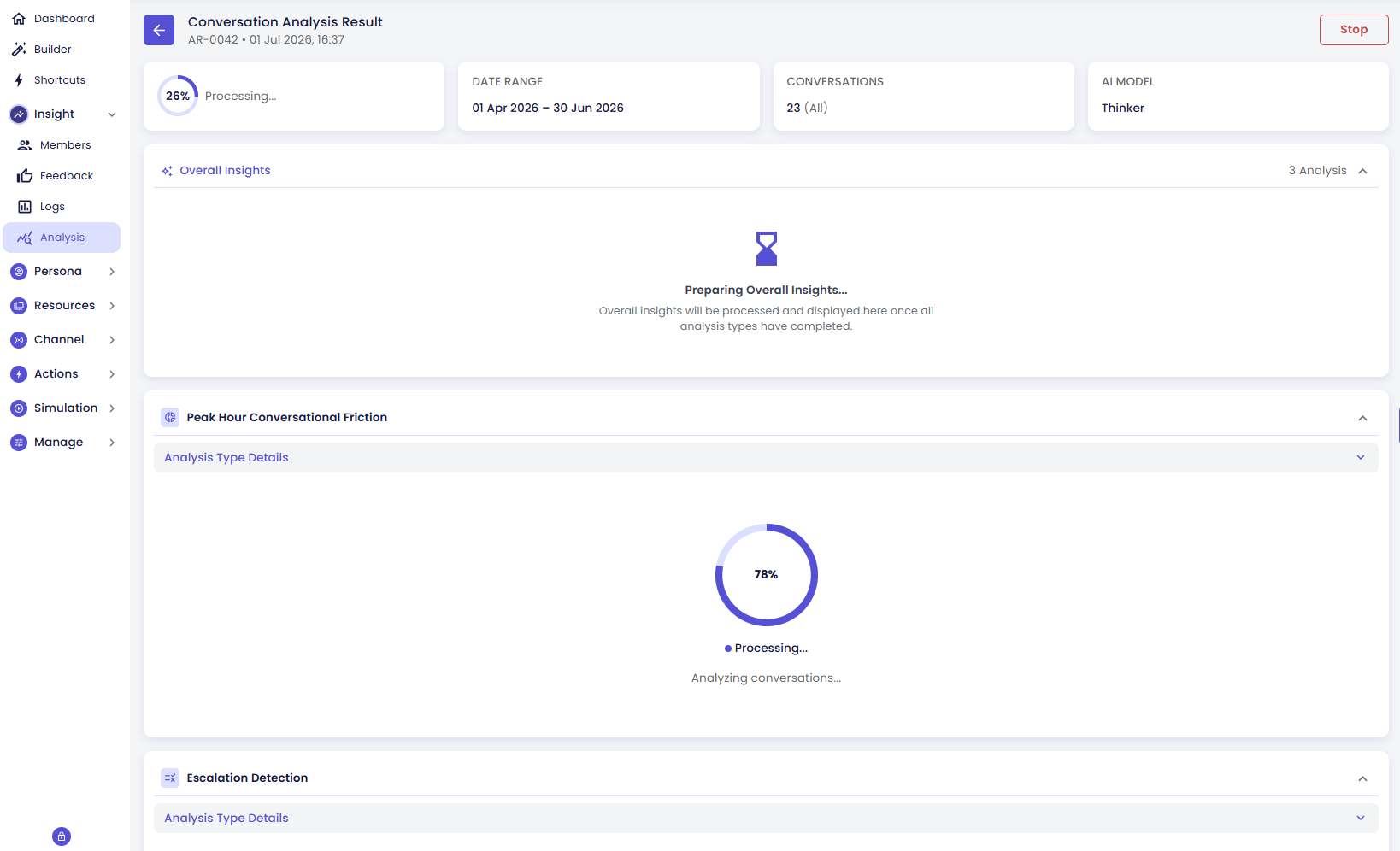
- The run status shows Running.
- The page checks for updates every 10 seconds and refreshes the progress counter (
processed / total), so you can watch it live. - Each analysis type is processed independently. You can see per-type status as processing proceeds.
- When all types complete, the status transitions to Completed, Partially Completed (some types failed), or Failed (all types failed).
- Aggregate charts, insights, and flagged thread lists are available as soon as each type finishes — you don't need to wait for the whole run.
If something looks off partway through, you don't have to let it run to completion: see Stop and Retry in Run Actions on the results page.