Thread Analysis
Open in CMSThread Analysis is the deepest level of drill-down in Conversation Analysis — one single conversation, evaluated against one analysis type. Everything upstream (charts, trends, the drill-down drawer) tells you how many conversations matched a pattern; this page tells you why one specific conversation did, message by message.
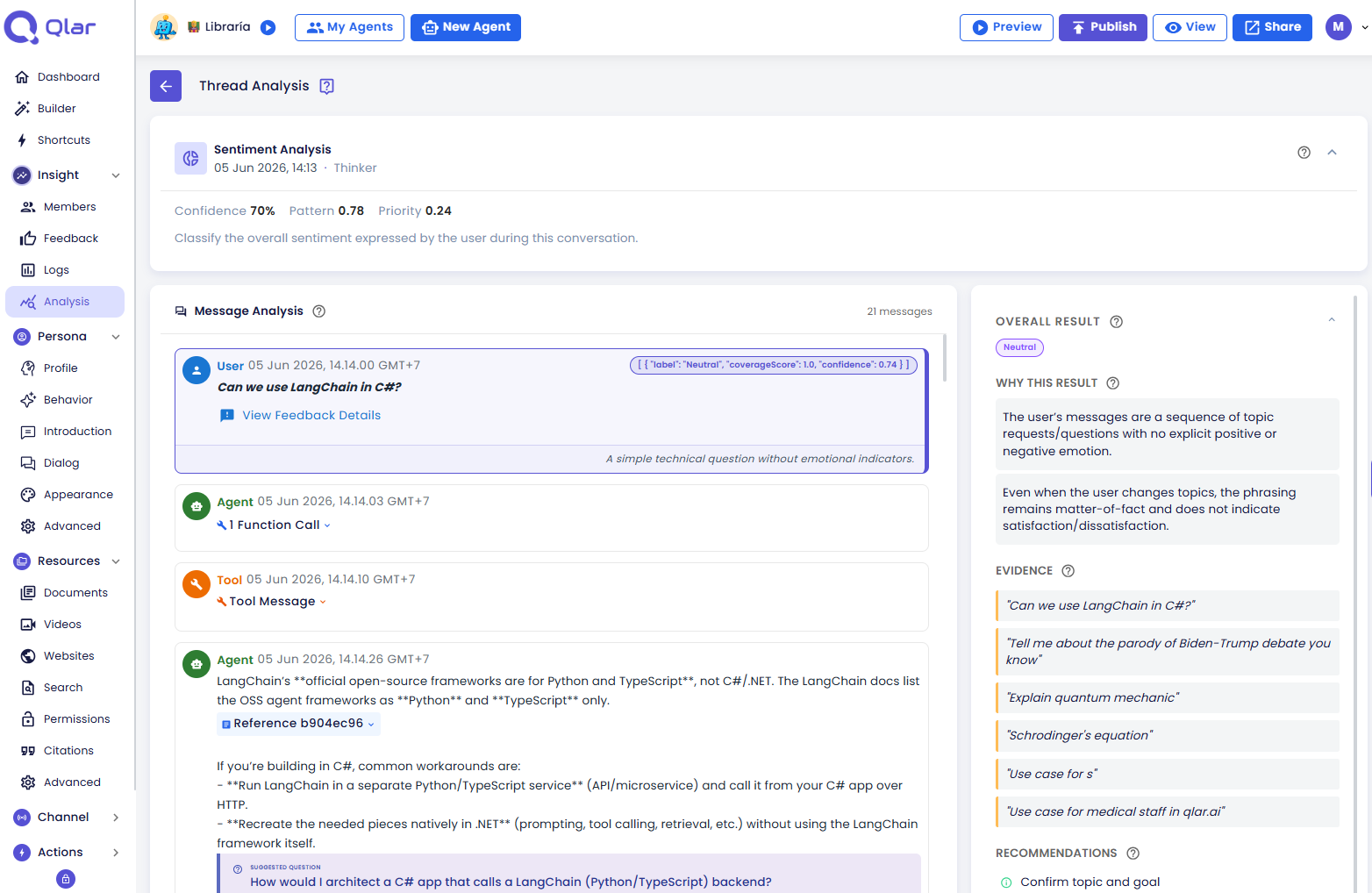
How to Get Here
You never navigate here directly — it's always reached from a run's results, by drilling into a specific conversation.
- Open a completed run from Analytics → Analysis → Runs.
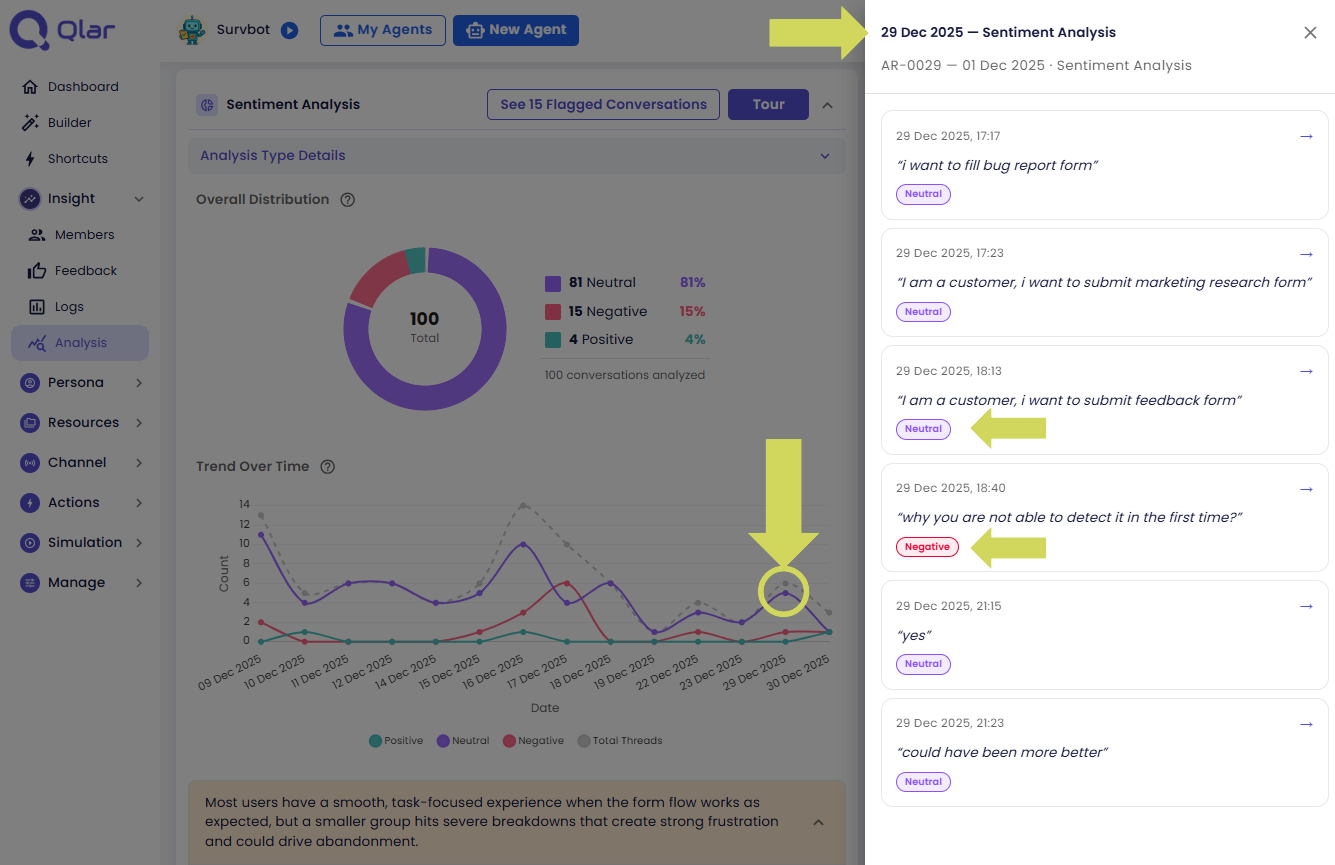
- On the Overview page, click a chart segment, a trend point, or See Flagged Conversations to open the Drill-Down Drawer.
- Click any conversation entry in the drawer to open its Thread Analysis page.
The URL carries all the context needed to load the page directly: /conversation-analysis/runs/{runId}/threads/{threadId}?typeId={typeId}. Bookmark or share this link to send a teammate straight to one conversation's result for one analysis type — useful when flagging something in a review or a support handoff.
Guided Tour & Quick Help
The page has the same two-tier help system as Overview: a step-by-step tour for a first pass, and instant popovers once you already know your way around.
First visit — a snackbar offers to start the tour automatically; dismiss it or let it disappear on its own, it only shows once.

Any time after that — click the ? icon next to the page title to replay the tour manually.
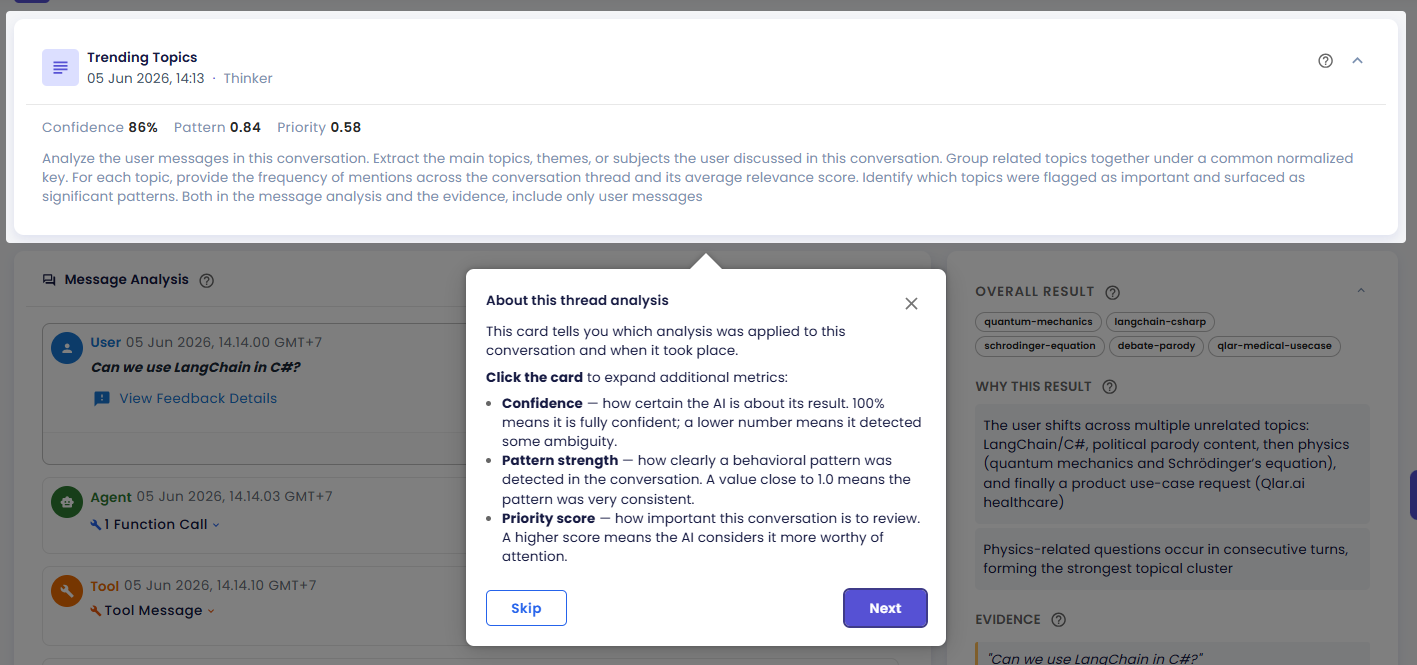
The tour adapts to what this particular result actually has — for example, the "Evidence" step is skipped entirely if the AI didn't cite any evidence for this conversation, and the same goes for reasons and recommendations. It walks, in order, through the summary card, the overall result, why the result was reached, the supporting evidence, the recommendations, and finally how to read a message card.
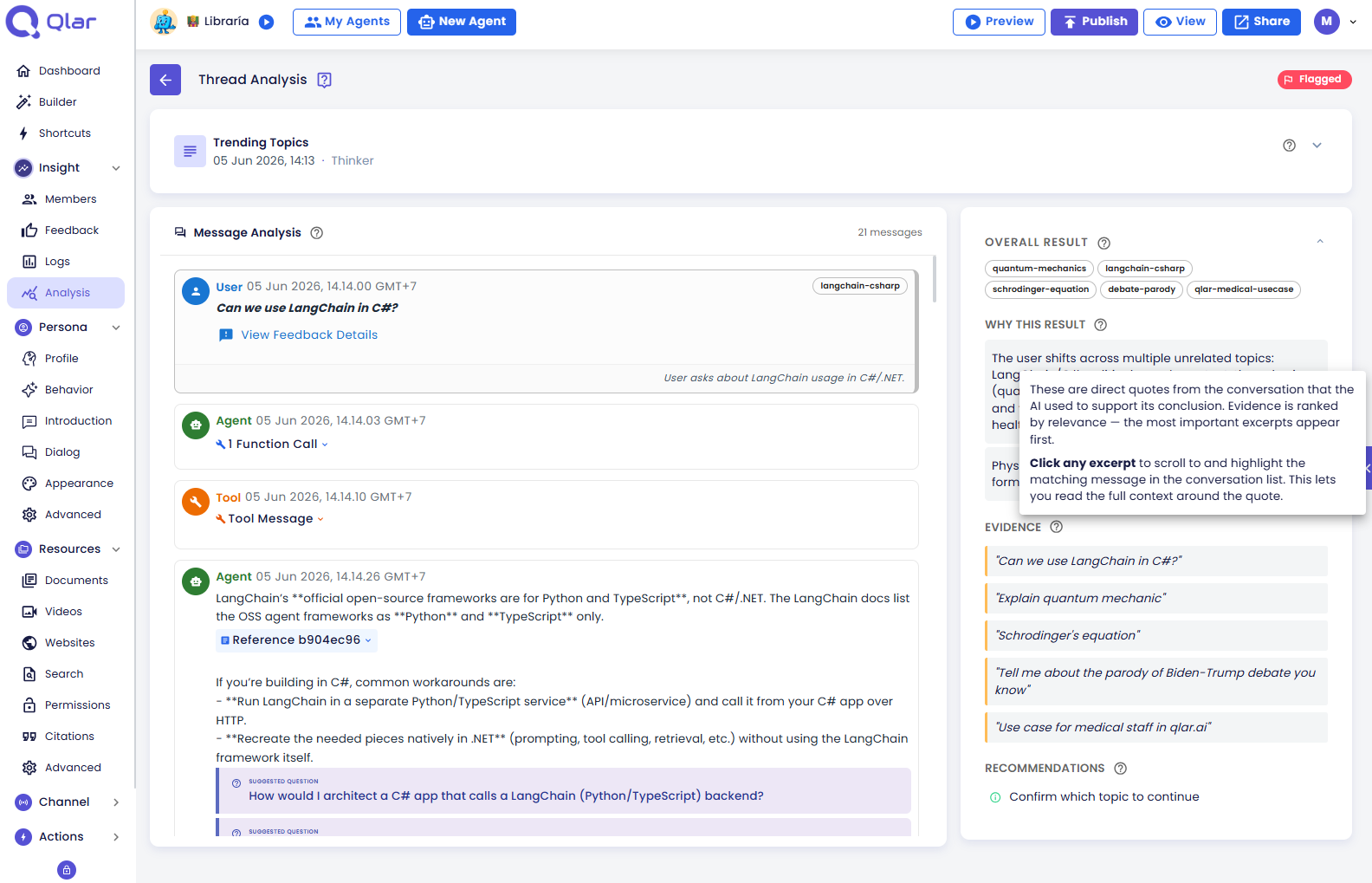
Don't want to step through the whole thing? Every section the tour covers also has its own ⓘ info icon next to its heading. Click it for the same explanation instantly, without leaving your place on the page:
Page Header
- Thread Analysis title with a back button — returns to the Overview page you came from
- Flagged chip — appears only if the AI determined this specific conversation warrants attention for this analysis type; a conversation can be flagged for one analysis type and not another
- A tour button to start a guided walkthrough of the page
Summary Header Card
The card is collapsed by default, showing just the analysis type name, when the conversation happened, and which AI model produced the result. Click it to expand the metrics and the type's description:
| Metric | What it tells you |
|---|---|
| Confidence | How certain the AI is about this specific result, 0–100%. A lower number means the AI itself detected ambiguity in the conversation — worth a manual read before acting on the result. |
| Pattern Strength | How cleanly this conversation matches the behavioral pattern the analysis type looks for, on a 0–1 scale. A conversation can score high on Pattern Strength (a clear match) yet not be flagged, if it doesn't clear the flagging threshold — the two are related but not the same signal. |
| Priority Score | How much business attention this conversation deserves, 0–1. Use this to triage when several conversations are flagged for the same analysis type — sort by priority rather than reading them in chronological order. |
The Type Description shown here is the analysis type's own definition — useful as a reminder of exactly what question this type was set up to answer, especially for types someone else configured.
Message Analysis (Left Column)
The full conversation, rendered as a scrollable list of message cards — including tool calls and system messages for context, even though only user and agent messages are actually scored (tool/system messages never carry a colored border or a value chip).
Each scored message gets a colored left border and a value chip in the corner. The color is not decorative — it encodes the message's contribution to the result, and what it means depends on the analysis type's output type:
- Binary — green if the message pushed toward the "positive" outcome as configured for that type, red if it pushed toward the "negative" one (which color counts as positive depends on the type's own configuration, not a fixed rule)
- Classification — the category's own assigned color, so the border matches the same color used in the run's charts
- Score — a gradient between red and green based on where the value falls in the type's configured range, and whether a higher or lower score is considered better for that type
- Evidence-only messages — a blue border, for messages the AI cited as evidence but did not assign an individual per-message value to
The italic note under a scored message is the AI's specific reasoning for that message — not the overall conversation verdict.
Clicking any evidence excerpt in the right-hand panel scrolls this column to the matching message and briefly flashes a highlight around it, so you don't lose your place hunting through a long conversation.
This column needs the Conversation history permission. It is on by default; if an Owner or Admin has switched it off on your contributor record, this column shows a warning instead of the messages while the Analysis Panel on the right still renders in full — a verdict about a conversation is not the conversation. See Managing Agent Access.
If the organization has Privacy Mode on, this column shows the same warning once a message's retention window closes — this time for every role, including Owners and Admins.
Analysis Panel (Right Column)
The AI's overall verdict for the whole conversation, plus the reasoning chain behind it. Click the Overall Result header to collapse the whole panel when you just want to focus on reading messages.
Overall Result
The final answer to the question this analysis type was built to answer — a yes/no chip, a numeric score, one or more category labels, or a list of extracted items, depending on the type's output type.
Result chips are clickable when that value actually appears on a scored message — clicking jumps the left column to the first message where the AI assigned that value. This is the fastest way to jump straight into the conversation instead of scrolling to find where a category or score first shows up.
Why This Result
1–3 short, specific reasons the AI landed on this verdict — tied directly to the analysis type's criteria, not a paraphrase of the conversation. Treat these as the AI's chain of reasoning, distinct from the Evidence section below, which is the AI's proof.
Example for Complaint Detection:
"User explicitly expressed dissatisfaction with the payment process." "User used negative language when describing their experience."
Evidence
Verbatim excerpts (never paraphrased) that the AI pointed to as support for the result, sorted by Relevance Score — highest first, so the strongest support is always at the top of the list. Click an excerpt to jump to and highlight its source message in the left column.
If Evidence is sparse or missing for a flagged conversation, that's itself a signal worth noting — it may mean the result rests more on overall tone/pattern than on any single quotable moment.
Recommendations
Concrete next steps based on what happened in this conversation specifically — not generic best-practice advice. Recommendations marked Configurable can be acted on directly from the agent's own settings (behavior, knowledge base, plugins), without needing an engineering change; recommendations without that tag typically point at something outside the agent's configuration, e.g. process or product changes.
Navigating Between Threads
There's no "next/previous conversation" control on this page by design — the back button always returns to the Overview page you drilled in from, so you can pick the next conversation deliberately from the drawer or chart rather than clicking through conversations blindly.