Run Summary & Actions
Open in CMSThe top of the Overview tab shows the same summary strip on every run, no matter what analysis types the run contains. It tells you what the run is, whether it's done, and what you're allowed to do with it next.

Run Summary Card
| Field | Description |
|---|---|
| Run ID & Date | Shown next to the page title (e.g. AR-0042 · 01 Jul 2026, 09:26) — a unique reference and when the run was started |
| Status | Current state of the run — see Run Status below |
| Date Range | The conversation date window this run covers, from date to date |
| Conversations | How many conversations were processed out of the total in scope. If sampling was used when creating the run, that's noted here too (e.g. Time Stratified) |
| AI Model | The AI model used to analyze the conversations |
If the run Failed or was Stopped, an error banner appears below the summary with the full error details.
Run Status
| Status | What it means |
|---|---|
| ⬤ Running | Actively processing conversations. The page checks for updates every 10 seconds, so you can watch progress live. |
| ⬤ Completed | Every analysis type finished with zero failures. |
| ⬤ Partially Completed | Some analysis types completed, others failed. Results are still available for the ones that succeeded. |
| ⬤ Failed | Every analysis type failed. No results are available. |
| ⬤ Stopped | The run was manually stopped before it finished. |
A Partially Completed run still shows full results for the analysis types that succeeded — you don't lose anything that already finished. Use Retry to reprocess only what failed.
While a Run Is In Progress
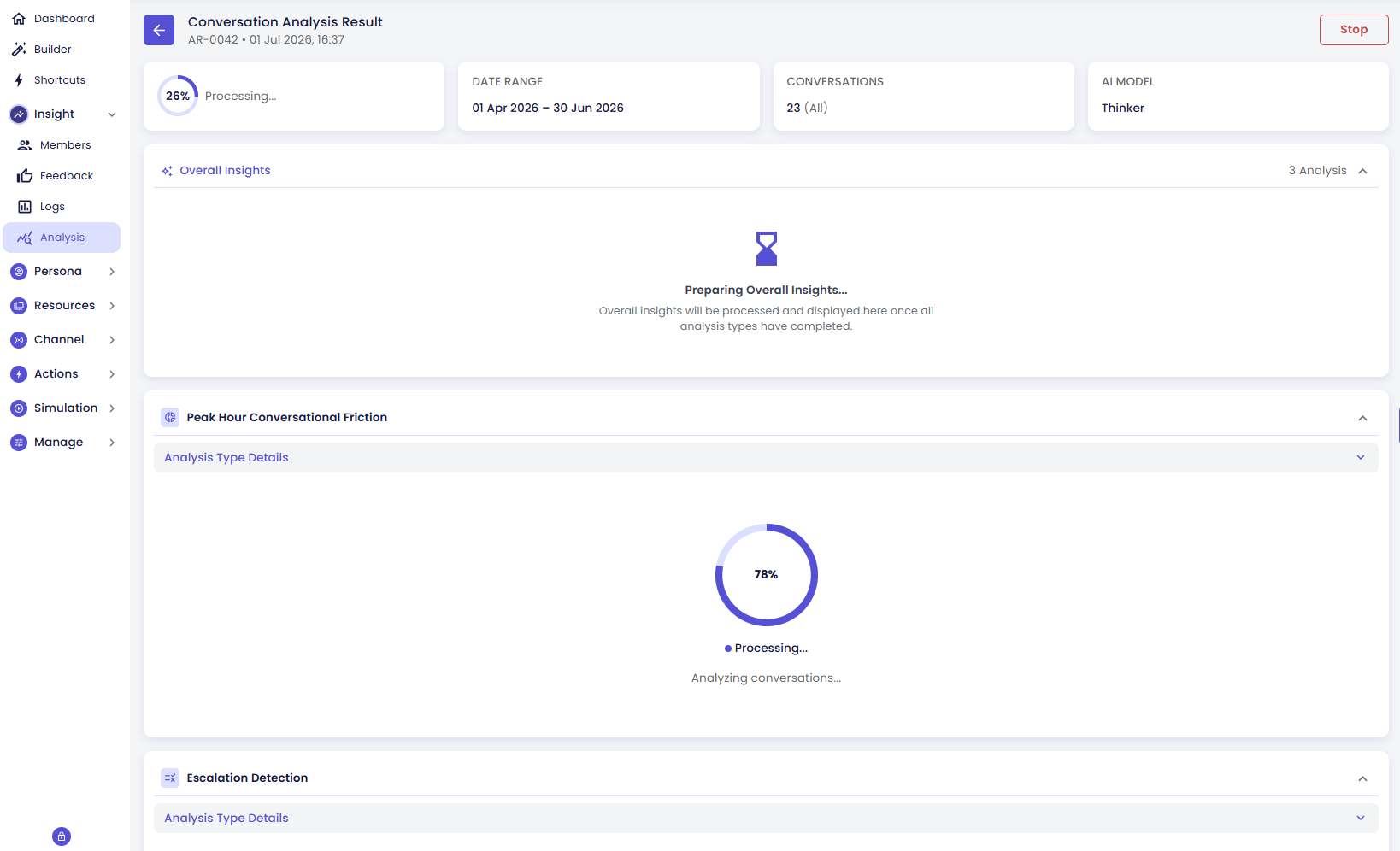
While processing, each result card shows a live progress indicator (percentage complete, "Analyzing conversations…") instead of charts. The page refreshes automatically every 10 seconds — you don't need to reload it yourself, and you don't need to wait for every type to finish before checking on the ones that are done.
Overall Insights stays in a "Preparing…" state until every analysis type in the run has finished. It's generated from the combined results, so it can't be produced early.
The only action available while running is Stop.
When a Run Is Stopped Partway Through
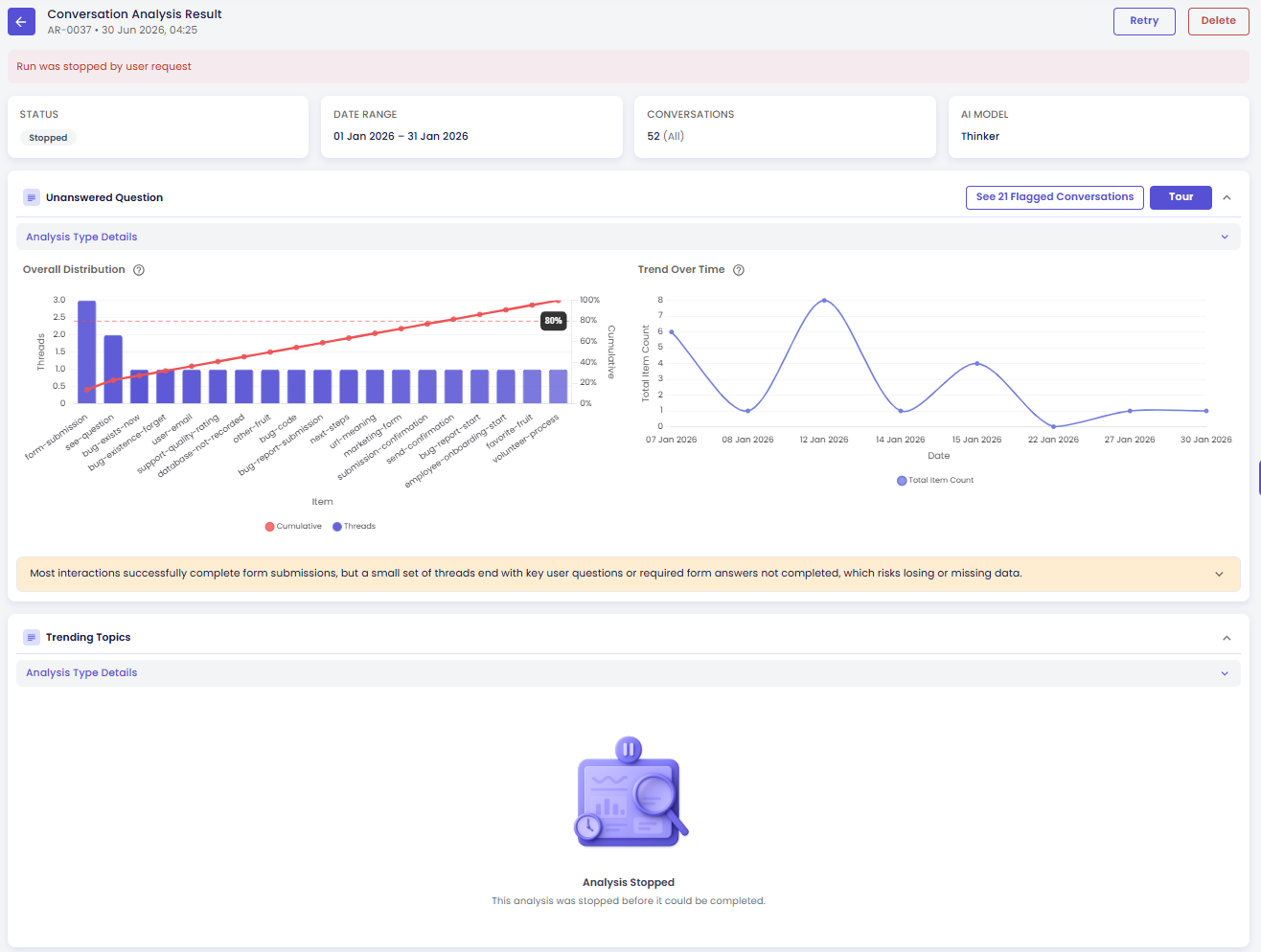
If a run has multiple analysis types and you stop it (or it fails) before all of them finish, you don't lose access to the ones that already completed — their charts and insights are shown normally. Types that hadn't finished yet show a "This analysis was stopped before it could be completed" placeholder instead of charts.
Because it depends on every type finishing, the Overall Insights card won't appear at all in this state — only once every analysis type in the run completes will it generate.
Run Actions
Action buttons appear next to the page title and change depending on the run's status — Stop while running, Retry/Delete once stopped or failed, Rerun/Delete once completed (as seen in the summary card screenshots above).
| Action | When available | What it does | Impact |
|---|---|---|---|
| Stop | While Running | Halts processing right away. | Conversations already analyzed keep their results; anything in progress is marked stopped. No credits are wasted retrying the same conversations twice — use Retry to pick up where you left off. |
| Retry | After Failed or Stopped | Reprocesses only the conversations/types that didn't finish. | Results already computed successfully are reused, not redone — this is the cheaper, faster way to complete a run that didn't finish. |
| Rerun | After Completed | Re-analyzes every conversation in the run from scratch. | Existing results for this run are overwritten with fresh ones. Use this when you want a clean re-analysis (for example, after changing something upstream) rather than just filling in gaps — it costs more than Retry since nothing is reused from cache. |
| Delete | Whenever the run isn't Running | Permanently removes the run and all of its results. | Requires confirmation. This cannot be undone — make sure you don't still need the results before deleting. |
Next Steps
- Overall Insights — what appears once every analysis type in the run has finished
- Guided Tour & Help — the Tour button next to Rerun and Delete starts a walkthrough of this page