Use Your Claude or ChatGPT Subscription
Open in CMSYour agents can run on your own Claude or ChatGPT subscription instead of Qlar credits. The subscription is the one Claude Code or Codex is signed in with on a computer of yours; an API key used by Claude Code or Codex works too.
You install a small program, the Qlar connector, on a computer or server you control, next to Claude Code and/or Codex. It opens one outbound connection to Qlar's subscription service, receives requests from your agents, runs them through those tools, and sends the answers back. Nothing connects in, so no firewall changes are needed.
Who can do this? Owners and Admins of an Individual organization. Subscriptions can't be connected in a Collective organization, and each organization can connect up to 2 computers. If you don't see Connect a subscription, you aren't an Owner or Admin, or Qlar has turned subscriptions off for your organization. If the button is greyed out, the organization is Collective or already has 2 connected computers.
Personal agents only. Subscription models run on your own Claude or ChatGPT subscription, which is licensed for personal use, so only a personal agent can use them. On a service agent they are hidden from every model picker, refused on save, and an agent still set to one runs on a Qlar model instead. See Personal vs Service Agents.
Qlar models, API keys and subscriptions
An organization can get its models from three places. All three appear side by side under Organization → AI Models, and your agents pick from them the same way.
| Qlar | API key | Subscription | |
|---|---|---|---|
| Who pays the AI provider | Qlar, billed to you in credits | You, on your provider account | You, through your Claude or ChatGPT subscription, or an API key used by Claude Code or Codex |
| Qlar credits for the model | Yes | None | None |
| Where the key or sign-in lives | Qlar | Stored encrypted in Qlar | On your computer only |
| Needs a computer of yours to stay on | No | No | Yes |
| Requests at a time | Platform capacity | Your provider's limits | 2 at a time per connected computer by default, plus your subscription's limits |
| Which organizations | Any | Any | Individual only, on up to 2 computers per organization |
| Set up in | Nothing to set up | Bring Your Own Key | This page |
Choose your subscription when you already pay for Claude or ChatGPT and want your agents to use it, or when an API key must never leave your own machine. Choose an API key when the model has to be available around the clock without a computer of yours being on.
What connecting a subscription protects, and what it does not
It does protect:
- Your network. The Qlar connector only connects outward over HTTPS. No inbound port, no listening socket.
- Your keys and sign-ins. API keys you give the Qlar connector are stored encrypted on that computer, and the Claude Code and Codex sign-ins stay where they are. None of them is ever sent to Qlar.
- Your computer. Claude Code and Codex run in an empty temporary folder with their own tools switched off: no shell, no files, no web, no MCP servers or plugins. A request that tries to use one is stopped. (Codex's image generation is the only exception, for image requests.)
- Who may connect. The one-time code is useless on its own. A computer serves nothing until a person approves its key fingerprint in Qlar, and Qlar never stores the code.
It does not protect:
- The conversation itself. What users ask, and the answers, still pass through Qlar and reach Anthropic or OpenAI through your account. That account's own terms and data settings apply.
- Availability. The computer must stay on and the Qlar connector running. While it is off, the agents using its models can't answer, and voice calls on it end.
- Your subscription's limits. Your subscription's usage limits, fair-use rules and terms apply to everything your agents send through it. When the subscription hits its limit, replies fail until it resets.
- Capacity. A connected computer runs 2 requests at a time by default (its card shows its own limit). More at once are turned away as busy, so a subscription suits an internal team or a pilot better than a busy public website.
- Anyone who can use that computer as the user that runs the Qlar connector can also use its signed-in tools.
Before you start
- A computer or server that can stay on:
- Windows 10 or 11, x64 (Windows on Arm runs it under emulation). Uses PowerShell; no admin rights needed to install.
- macOS on Apple silicon (M1 or later). Intel Macs are not supported.
- Linux x64 or arm64 with glibc (Debian, Ubuntu, Fedora, …). Alpine and other musl-based systems are not supported.
- Claude Code and/or Codex installed on that computer. You sign them in during step 4, with your Claude or ChatGPT subscription or with an API key.
- Outbound HTTPS (port 443) from that computer. For voice on a ChatGPT subscription, also outbound UDP port 3478 (see Voice on your ChatGPT subscription).
- Owner or Admin role in an Individual organization. Subscriptions can't be connected in a Collective organization.
- Fewer than 2 connected computers in that organization. To connect a third computer, remove one first.
Setting it up
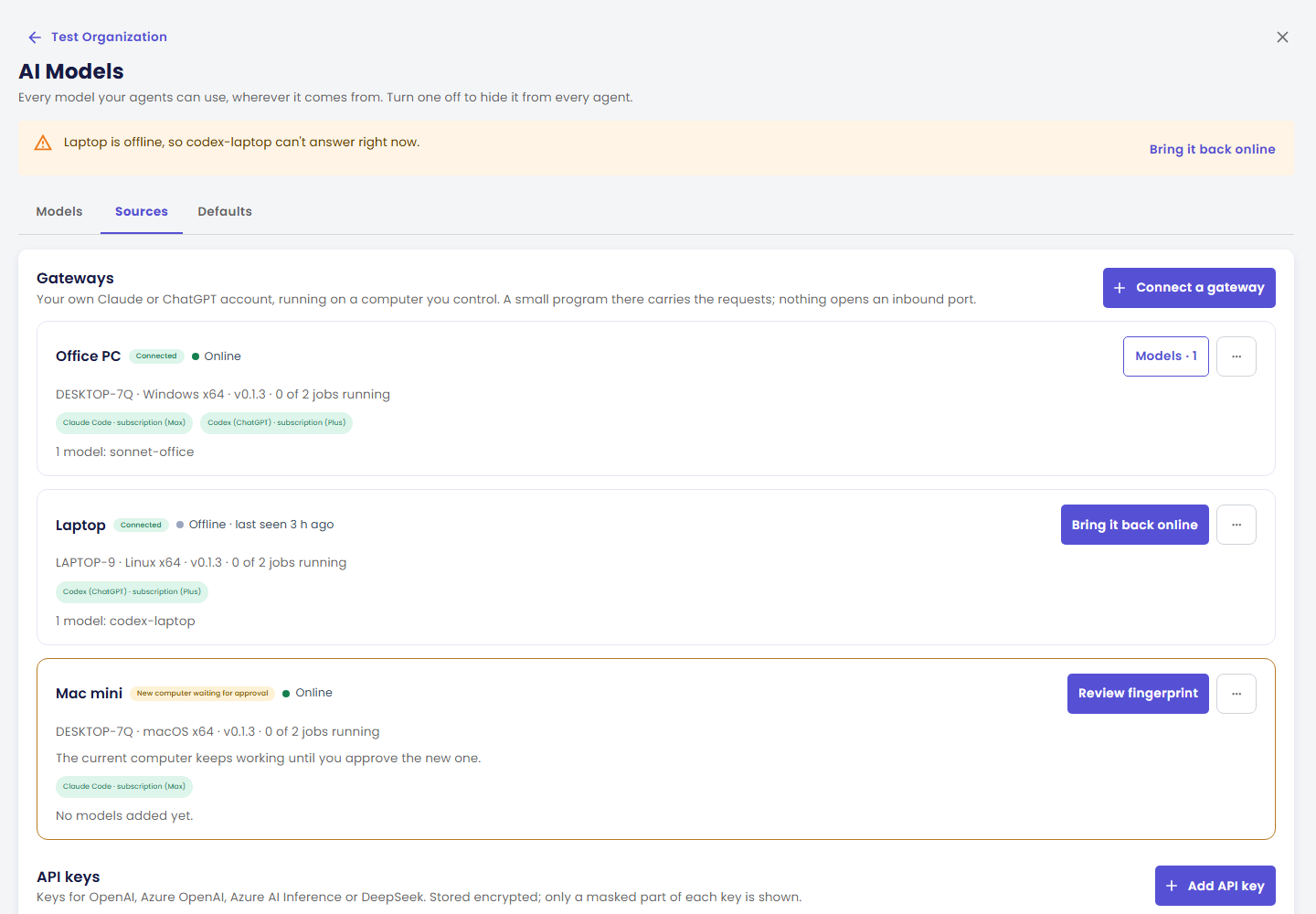
Open the Organizations page → select your organization → Manage organization → AI Models tile → Sources tab → Subscriptions section.
1. Name the computer and pick its system
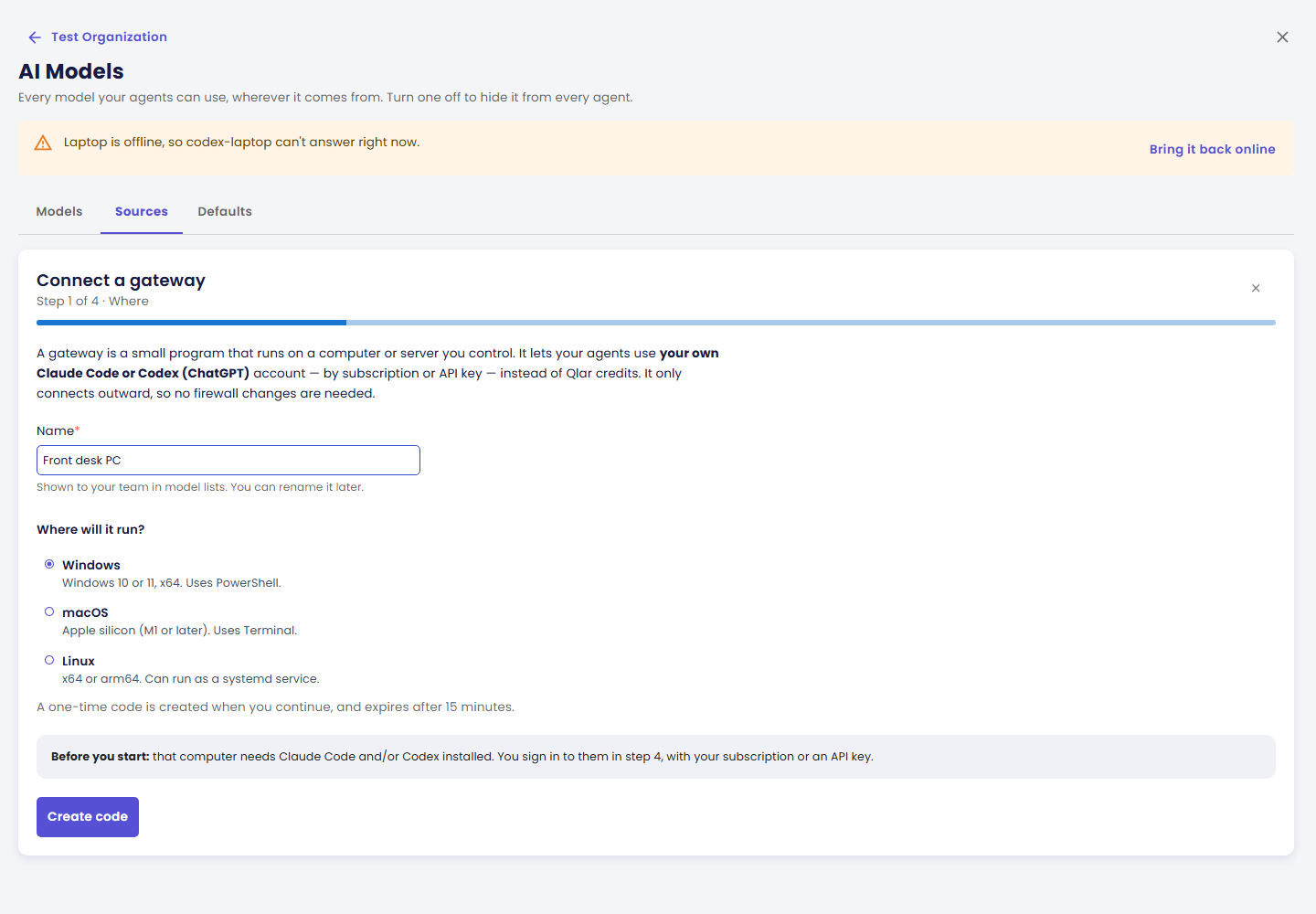
Click Connect a subscription. Give the computer a Name your team will recognise in model lists, for example "Office PC" (you can rename it later), and choose its system: Windows, macOS or Linux. Then click Create code.
2. Run the command on that computer
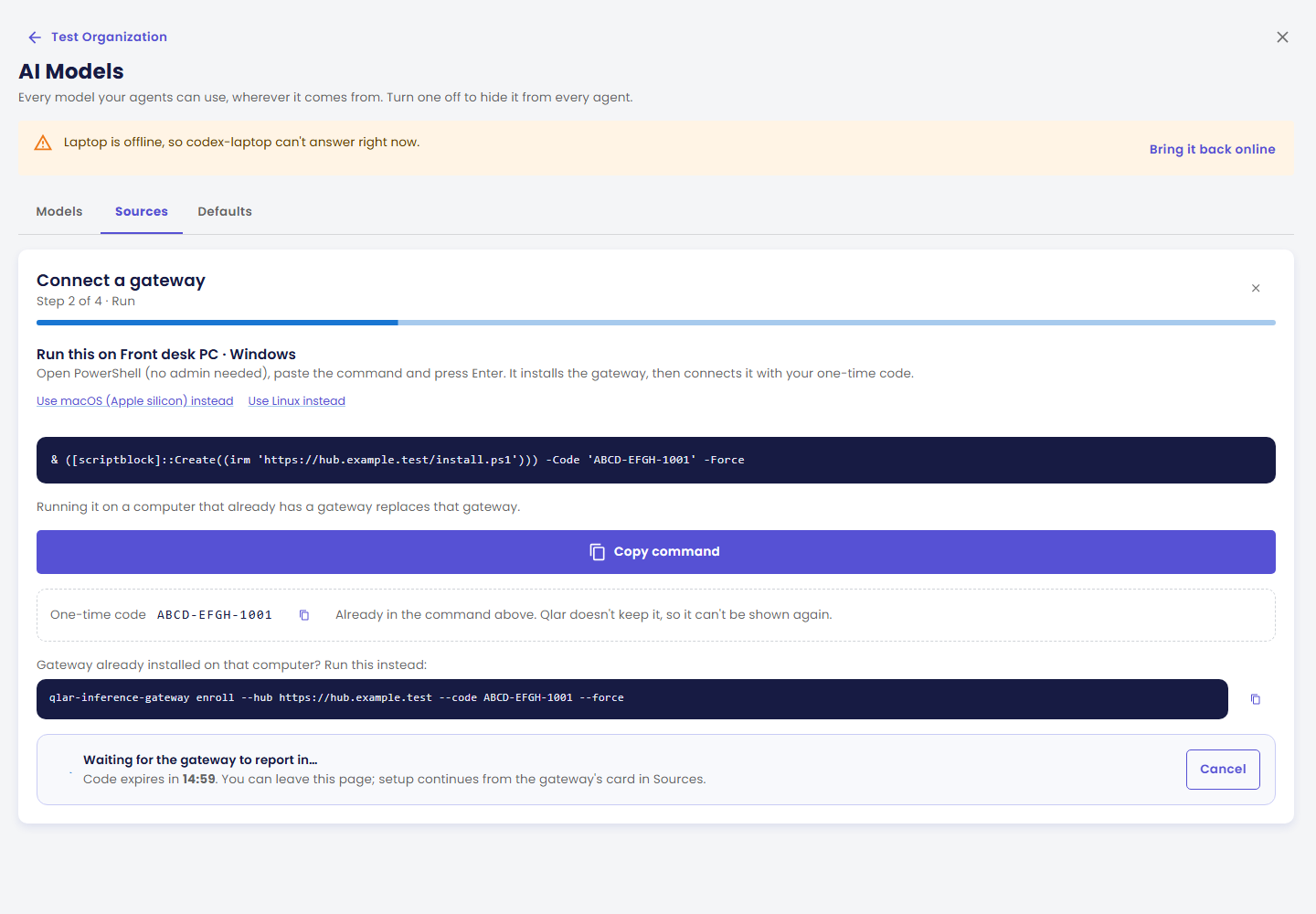
Qlar shows one command, built for the system you chose, with your one-time code already in it. Click Copy command, then on that computer:
| System | Where to paste it |
|---|---|
| Windows | PowerShell (no admin needed) |
| macOS | Terminal |
| Linux | A shell |
The command looks like this — always copy it from the page, because Qlar fills in the address of its subscription service and your code:
# Windows
& ([scriptblock]::Create((irm 'https://<subscription service>/install.ps1'))) -Code 'XXXX-XXXX-XXXX' -Force
# macOS and Linux
curl -fsSL 'https://<subscription service>/install.sh' | sh -s -- --code 'XXXX-XXXX-XXXX' --force
It downloads the Qlar connector, checks its checksum, installs it for your user (no admin rights), and connects it with your code. Leave the window open: the Qlar connector keeps running in it.
Good to know:
- The code is single use and expires after 15 minutes. Qlar doesn't keep it, so it can't be shown again. If it expires or you lose it, click Get a new code.
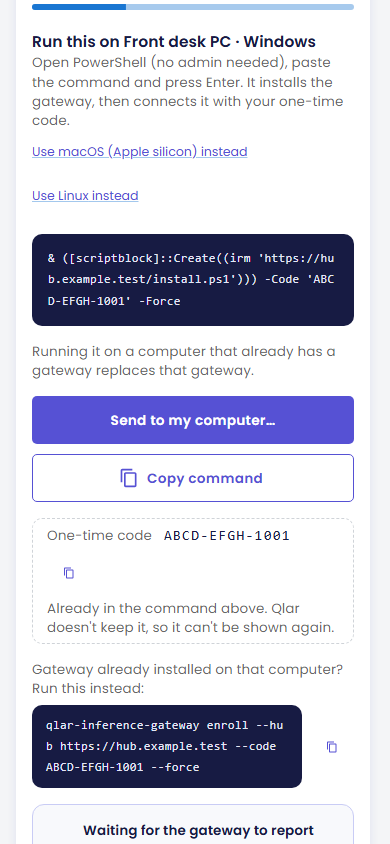
- Setting up from your phone? Tap Send to my computer… to send the command to yourself (by message or email) and open it on the computer. Where sharing isn't available, the button copies the command instead.
- Running it on a computer that is already connected replaces that connection. The command always re-enrols the computer.
- Qlar connector already installed? The page also shows a shorter command,
qlar-inference-gateway enroll --hub … --code … --force. - You can leave the page. Setup continues from the computer's card under Subscriptions on the Sources tab. Cancel deletes a computer that hasn't been approved yet.
3. Compare the fingerprint and approve
When the command has run, the Qlar connector prints a key fingerprint in the terminal: 16 groups of 4 characters, in 4 rows. Qlar shows the computer's name, its system and the same fingerprint, laid out the same way.
Compare every group, and approve only if they are identical. Click Fingerprint matches — approve.
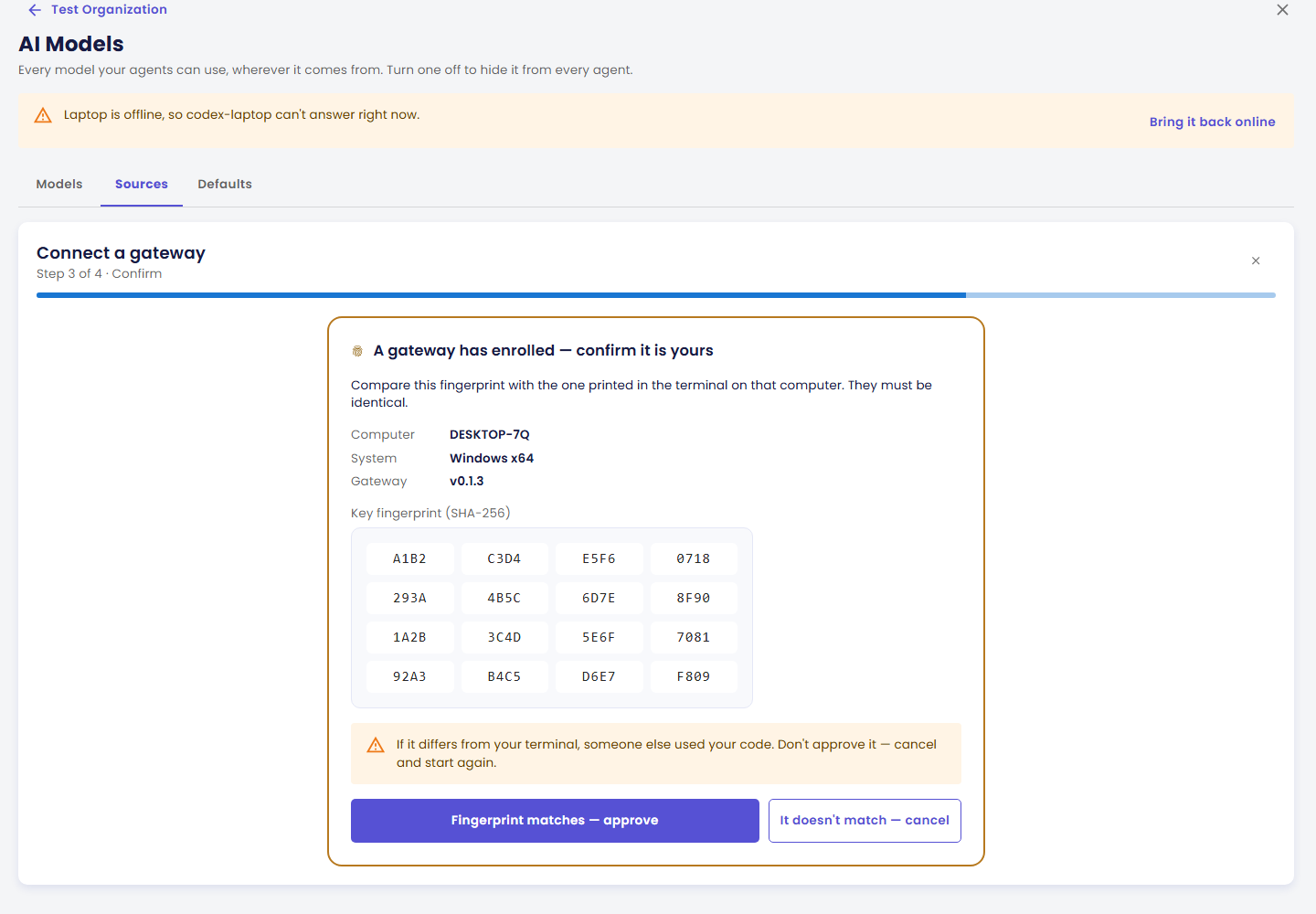
This is the step that matters. Until you approve, the computer receives nothing. If the fingerprint is different from your terminal, someone else used your code: click It doesn't match — cancel and start again.
4. Sign in each tool and choose models
Back in the terminal, the Qlar connector asks, for each tool it found, how it signs in:
- Subscription uses the tool's own sign-in: your Claude subscription for Claude Code, your ChatGPT subscription for Codex.
- API key asks for a key (typed hidden) that Claude Code or Codex will use. It is stored encrypted on that computer and never reaches Qlar.
Qlar shows each tool's state — for example Claude Code · subscription (Max) or Codex (ChatGPT) · not signed in — and the models the computer offers. Tick the ones your agents may use and give each a name: that is what your team sees in model lists. Names use lower-case letters, digits, ., _ or -, and can't contain + (that marks Fast mode). Click Finish.
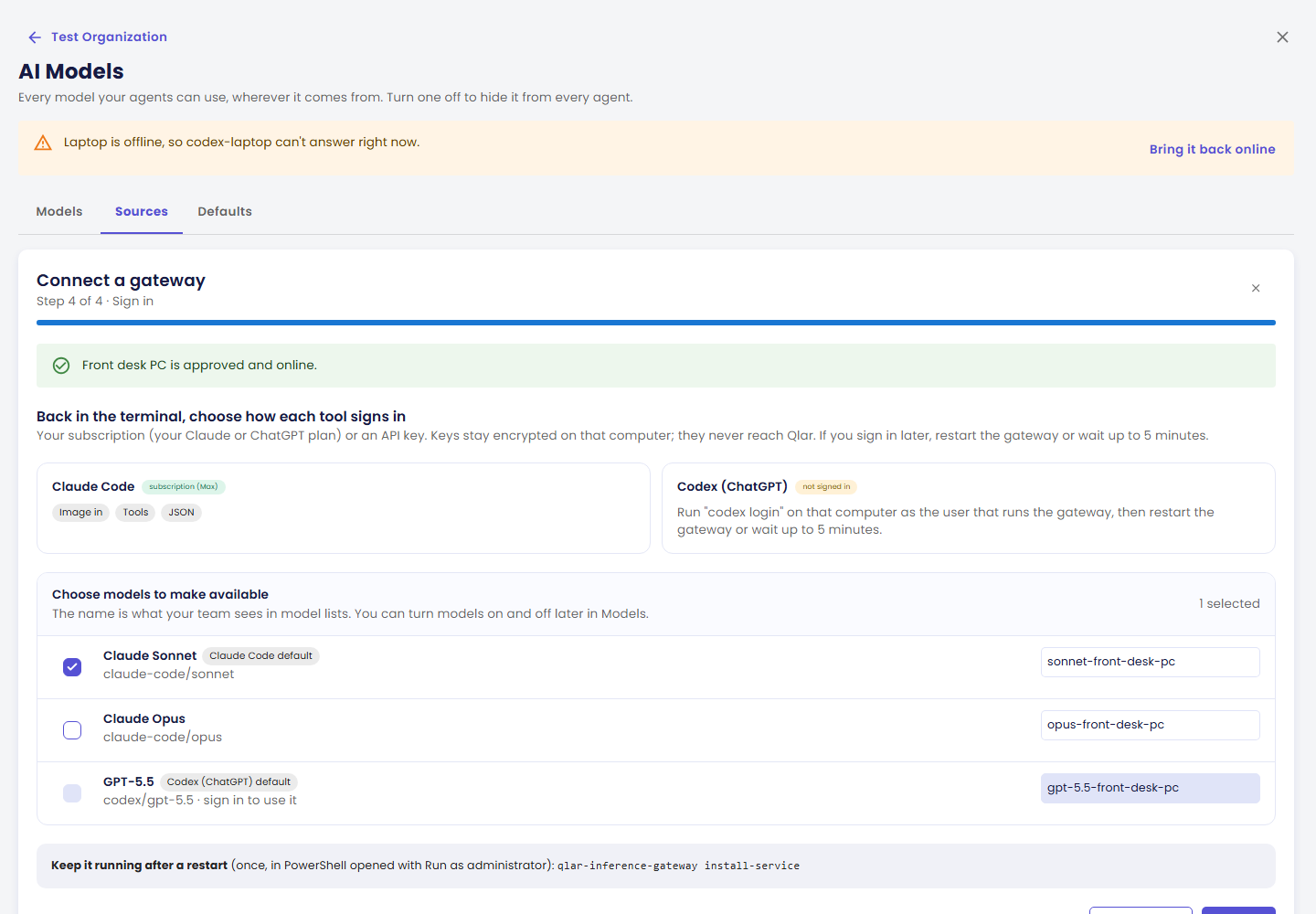
A tool that isn't signed in shows what to run on that computer — claude (then sign in) for Claude Code, codex login for Codex — as the same user that runs the Qlar connector. After signing in, restart the Qlar connector or wait up to 5 minutes for it to notice. You can come back to add models later with Models on the computer's card.
Only models that can chat, call tools and return structured answers are offered; Claude Code and Codex both can.
5. Keep it running
The Qlar connector runs in the window you started it from, so it stops when that window closes or the computer restarts. Once setup is done, stop it (Ctrl+C) and install it as a service, once:
| System | Command | Where |
|---|---|---|
| Windows | qlar-inference-gateway install-service | PowerShell opened with Run as administrator. It asks for your Windows password so the task can run as you at boot. |
| macOS | "$HOME/.local/bin/qlar-inference-gateway" install-service | Terminal. Starts at login. The installer prints this exact line. |
| Linux | sudo "$HOME/.local/bin/qlar-inference-gateway" install-service | A shell. Runs as you, restarts on failure. The installer prints this exact line. |
The service runs as your user, so it uses the same Claude Code and Codex sign-ins. That's it: the card shows Connected · ● Online.
Using subscription models
Subscription models appear under Models in their own group, Your subscriptions, with the computer they run on: ● Office PC while online, ○ Office PC, offline 3 h ago while not.
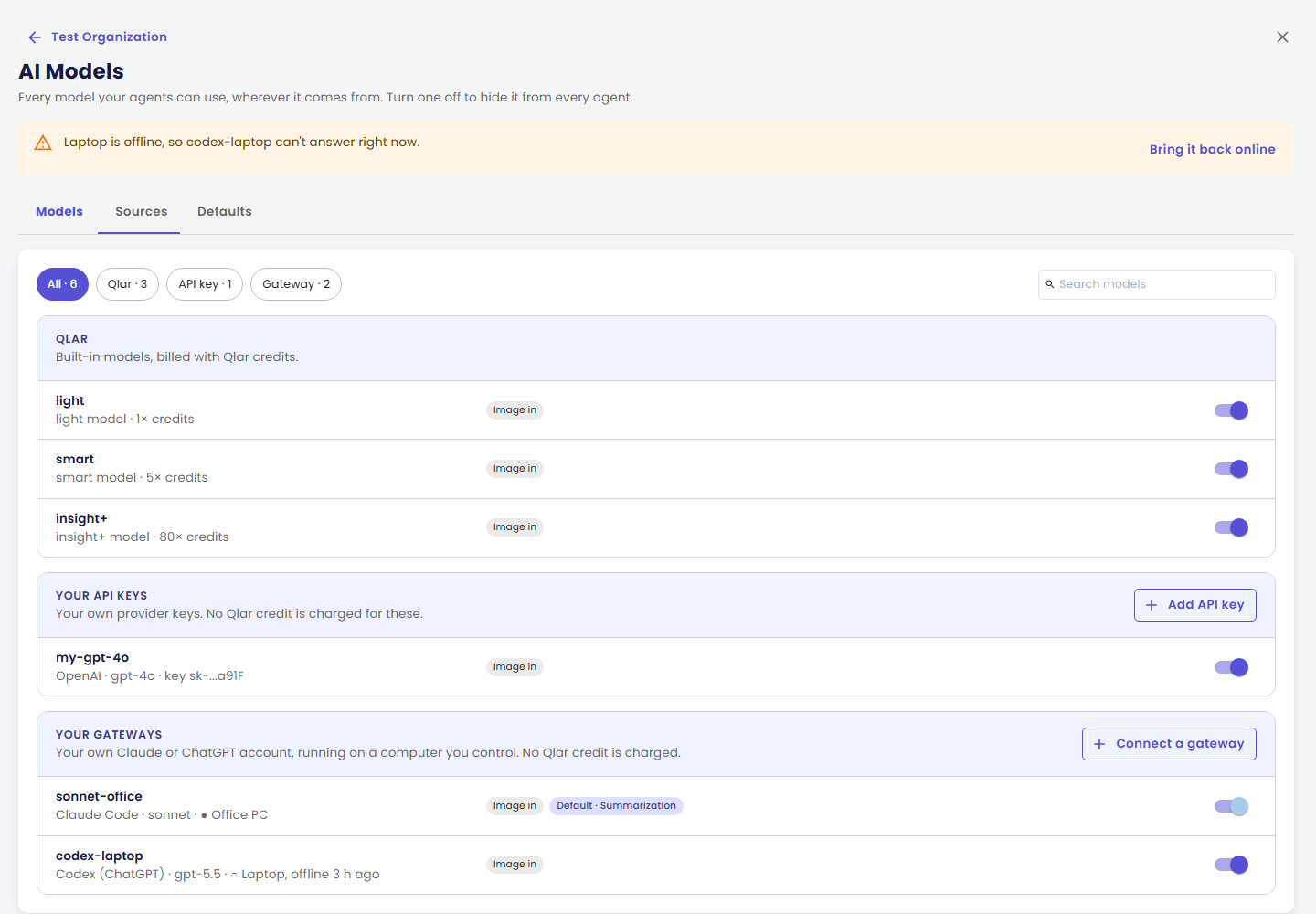
From then on you use them like any other model:
- In an agent: as the conversation model, in Allowed Conversation AI Models, and as the Answering AI model of a Natural conversation voice call. Model lists group them under the computer's name.
- As a feature default under Defaults, for every feature except KB Training.
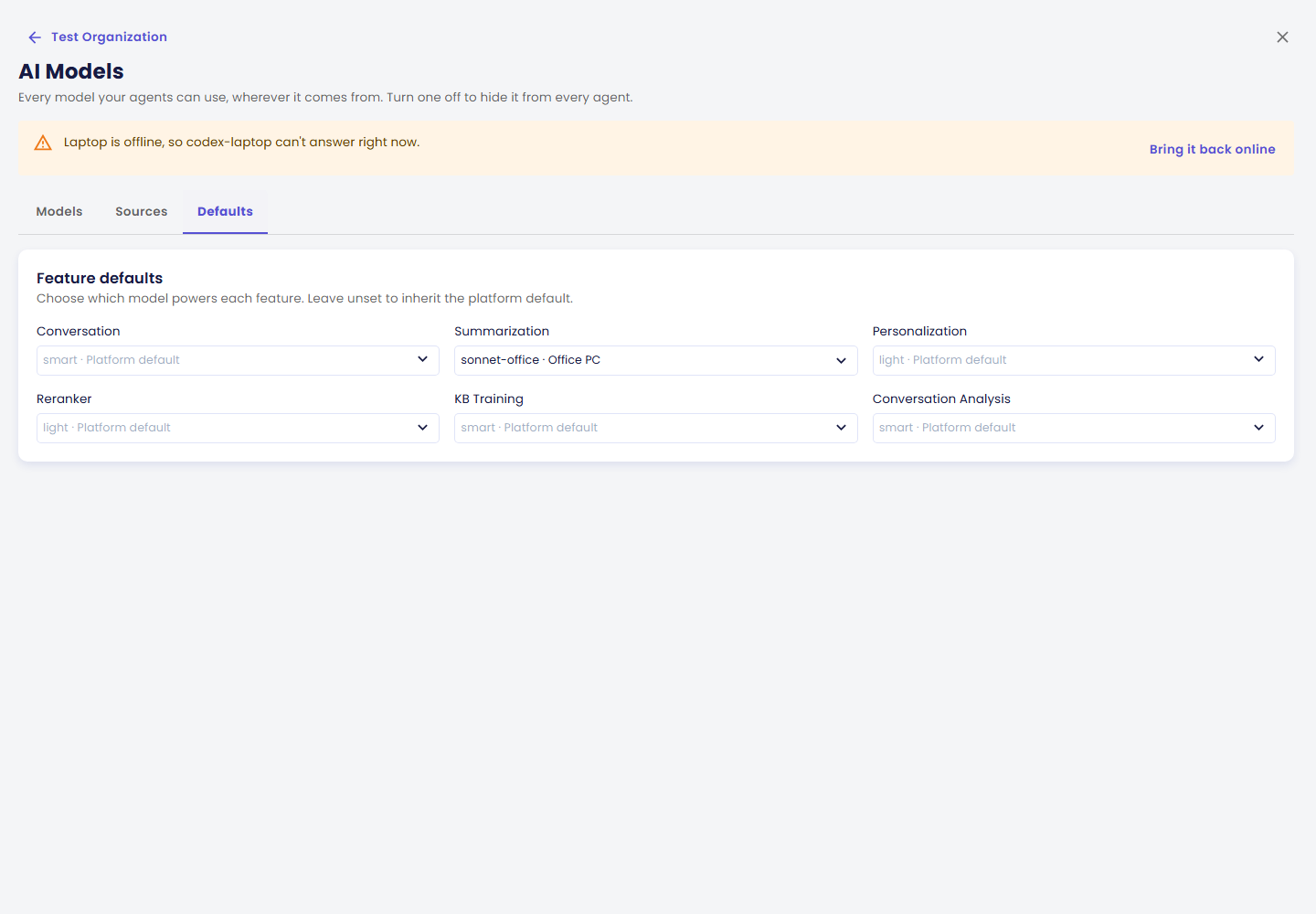
What to expect:
- No Qlar credits are charged for a subscription model's tokens. Tools the answer uses — web search, knowledge base, plugins — are billed as usual.
- Not for content training or image description. Knowledge base training and describing uploaded images keep using Qlar or API-key models; subscription models aren't offered there.
- Replies fail while the computer is offline. Users see "This assistant can't answer right now. Please try again later." — never the computer's name. When all its request slots are in use they see "This assistant is busy right now. Please try again in a moment." The details, with the computer's name and the reason, go to the agent's Monitoring Logs. The AI Models page also shows a banner while a connected computer with models in use is offline.
- If Qlar turns subscriptions off for your organization, their models stop being used and features fall back to the Qlar default. Nothing is deleted: everything comes back as it was when subscriptions are turned on again. You can still remove a connected computer meanwhile.
Voice on your ChatGPT subscription
A connected computer with Codex can also run the voice of a Natural conversation call, using the realtime voice of the ChatGPT account signed in on that computer — your ChatGPT subscription, or an API key used by Codex. Claude Code has no voice.
On the agent's Conversation → Voice page, choose Natural conversation, then under Voice runs on pick the computer instead of Qlar. Computers that can't take calls are shown greyed out with the reason (offline, not connected yet, its tools can't do voice, or Codex isn't signed in).
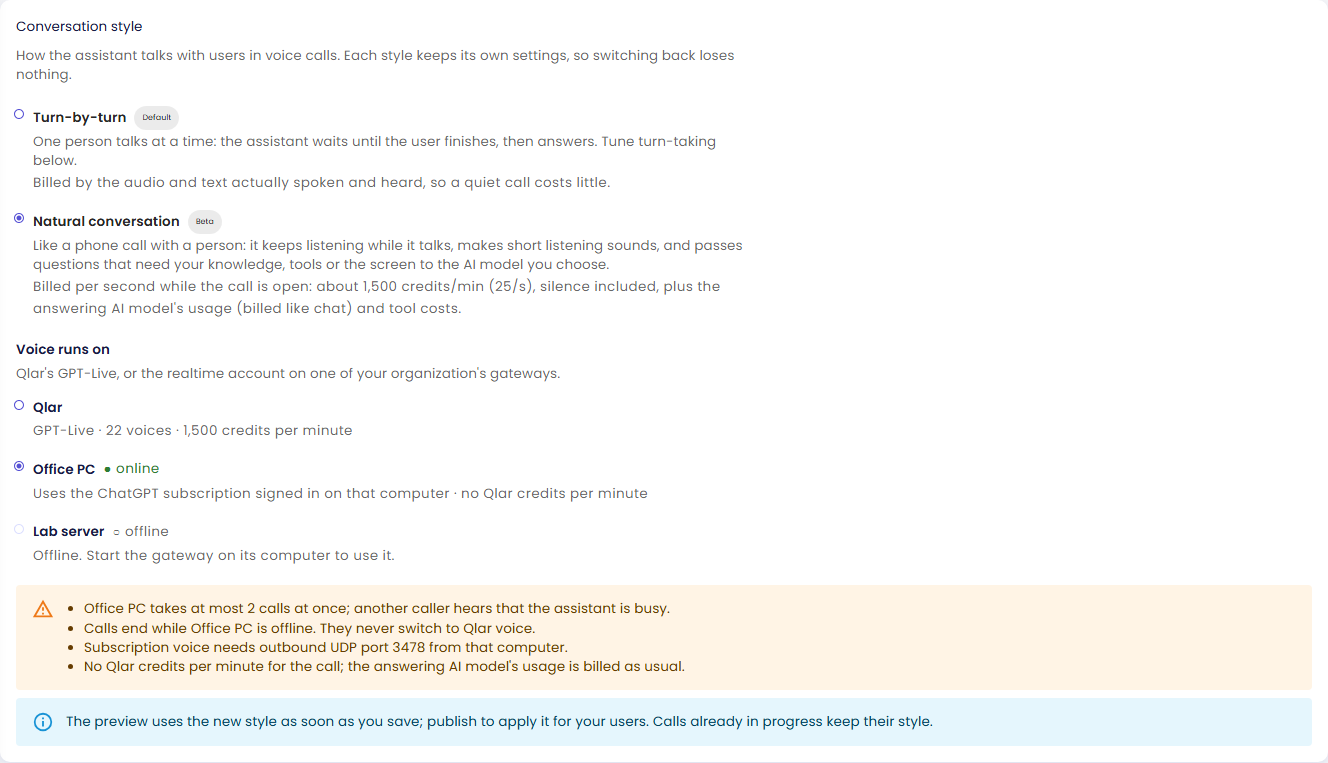
| What happens | |
|---|---|
| Voices | Assistant's voice lists the voices offered by the account on that computer, starting with its default. There is no preview. |
| Calls at a time | By default 2 calls at once per connected computer (the Voice page shows its own limit). Another caller sees that voice calls are busy. |
| Computer offline | The call ends. It never switches to Qlar's voice, so there are no surprise credits. (Unlike a Qlar voice call, it doesn't fall back to Turn-by-turn either.) |
| ChatGPT subscription | Subscription voice needs outbound UDP port 3478 from that computer. Voice with an API key doesn't. |
| Billing | No Qlar credits per minute. The Answering AI model's usage is billed as usual — and costs no credits either when it is a subscription model too. |
Voice on your subscription isn't available while Privacy Mode is on; calls of an agent whose voice runs on a connected computer end until it is off. If a computer that runs an agent's voice is removed, that agent's calls stop until you choose where voice runs again. The Talk by Voice guide has more.
Running it
Each connected computer's card under Subscriptions on the Sources tab shows its state, the computer, its system and connector version, how many requests are running, and how each tool is signed in. The ⋯ menu holds the rest.
| Task | What to do |
|---|---|
| Check it is alive | The card shows ● Online. On the computer, qlar-inference-gateway status shows the connection, the service and each tool's sign-in. |
| Rename it | ⋯ → Rename. Only the name your team sees changes. |
| Add or remove models | Models on the card. Removing a model that is a feature default asks you to change that default first. Agents using a removed model fall back to the organization default. |
| Bring it back online | Bring it back online on the card. Same computer: start the Qlar connector again with qlar-inference-gateway run, or restart the service (Windows: schtasks /Run /TN "Qlar Inference Gateway"; macOS: launchctl kickstart -k gui/$(id -u)/ai.qlar.inference-gateway; Linux: sudo systemctl restart qlar-inference-gateway). New or reset computer: get a new code, as below. |
| Move it to another computer | ⋯ → Move to another computer. You get a new one-time code to run on the new computer, then approve its fingerprint. Its models, the agents using them and their settings stay as they are. The old computer keeps working until you approve the new one, then it stops. |
| Update the Qlar connector | Run the command from step 2 again with --no-enroll in place of --code '…' --force (on Windows, -NoEnroll in place of -Code '…' -Force, after stopping the Qlar connector: its file is locked while it runs). Then restart it. |
| Remove it | ⋯ → Remove…. The dialog lists what changes first (see below). |
Removing a connected computer disconnects it for good — the Qlar connector stops on that computer and can't be used again — and:
- its models are removed from the organization, and agents using them fall back to the organization default;
- feature defaults that used them go back to the Qlar default, which uses Qlar credits;
- agents whose voice runs on it stop taking voice calls until another voice is chosen. They don't move to Qlar's voice.
A computer that was never approved is removed straight away. To remove the Qlar connector from the computer as well, run qlar-inference-gateway uninstall-service (elevated on Windows), "$HOME/.local/bin/qlar-inference-gateway" uninstall-service on macOS, or sudo "$HOME/.local/bin/qlar-inference-gateway" uninstall-service on Linux, then delete it.
Troubleshooting
| Symptom | Cause | Fix |
|---|---|---|
| Card shows Connected · ○ Offline; replies fail | The Qlar connector isn't running (the computer restarted, the window was closed) or can't reach the internet | Bring it back online on the card. Install it as a service (step 5) so it survives restarts; allow outbound HTTPS. |
| Connect a subscription is greyed out: "Subscriptions can be connected only in an Individual organization…" | The organization is Collective | Connect your subscription in your Individual organization. |
| Connect a subscription is greyed out: "This organization already has 2 connected computers…" | Each organization can connect up to 2 computers | Remove a computer you no longer use, then connect the new one. |
| Waiting for the command to run | The command hasn't reported in yet | Run it on the computer. If the code is lost or expired, Get a new code. |
| Waiting for your approval | Nobody approved the fingerprint yet | Review fingerprint on the card, compare, approve. This works even if the page that created the code was closed. |
| Code expired | The command wasn't run within 15 minutes | Get a new code and run the new command. |
| The fingerprint in Qlar differs from the terminal | Someone else used your code, or the command ran on another computer | Don't approve. It doesn't match — cancel, then start again. |
| Approving says the key changed | A new key enrolled while you were comparing | Compare the new fingerprint again before approving. |
| Codex (ChatGPT) · not signed in (or Claude Code) | The tool isn't signed in for the user that runs the Qlar connector — often the service user | On that computer, as that user: claude and sign in, or codex login. Then restart the Qlar connector or wait up to 5 minutes. To use an API key instead: qlar-inference-gateway configure provider codex --auth api-key (or claude-code). |
| A model shows not offered by this computer | The tool was signed out, uninstalled, or no longer offers that model | Sign it in again or reinstall it; or remove the model and add another. |
| Users see "This assistant is busy right now" | More requests at once than the computer allows (2 by default), or its voice-call limit reached | Wait, spread the load over your other connected computer, or use a Qlar or API-key model for busy agents. |
| Replies fail after working for a while | Your subscription's usage limit was reached (the log says rate_limited) | Wait for the limit to reset, or switch that tool to an API key. |
| Voice calls end right after connecting, on a ChatGPT subscription | Outbound UDP 3478 is blocked | Allow it, or sign Codex in with an API key. |
| Revoked or No longer registered; the Qlar connector exits | The computer was removed or revoked, or Qlar's subscription service no longer knows it (exit code 3 or 4) | Remove the card, then connect the computer again with a new code. |
| Status unavailable | Qlar couldn't reach its subscription service | Retry in a moment. |
| "A gateway is already running" when running the command | Another copy of the Qlar connector is running on that computer | Stop it (Ctrl+C in its window, or stop the service), then run the command again. |