Talk by Voice
Open in CMSIn this step you let people talk to your agent out loud and hear it answer. Voice runs alongside your agent's existing text chat rather than replacing it: users can switch between speaking and typing at any point, and everything the agent already does (knowledge base lookups, web search, custom tools, other agents) keeps working the same way behind the scenes. Only how the conversation is carried in and out changes.
In the CMS, voice is configured on the Agent Voice page: open Conversation → Voice in the left sidebar.
Voice calls are billed differently from text chat, and differently for each conversation style: Turn-by-turn bills the audio and text it actually hears and speaks (plus transcription), while Natural conversation bills every minute the call is open — silence included — plus the answers its Answering AI model writes. Either way, enabling voice affects the cost of running the agent. See Billing.
Before you start
- Your agent already answers correctly in text: Give Your Agent an Identity, Teach Your Agent, and Shape the Conversation are done. A voice call uses the same persona, knowledge, and tools.
- You know how to preview and publish changes.
- Optional: write a welcome message. The voice sample on this page speaks it, so you hear what users will be greeted with.
Turn on voice
Voice conversations
Turns voice on or off for this agent. When on, end users get a way to start a spoken conversation from the chat interface (via the + menu next to the chat input) in addition to typing as usual.
When this is off, none of the other settings on the page apply and no voice entry point is shown to users. Every other card on the page appears only once this switch is on.
The same card also holds the Voice screen style and Welcome message, which decide what users see during a call. They are explained in Voice Screen and On-Screen Content.
Conversation style
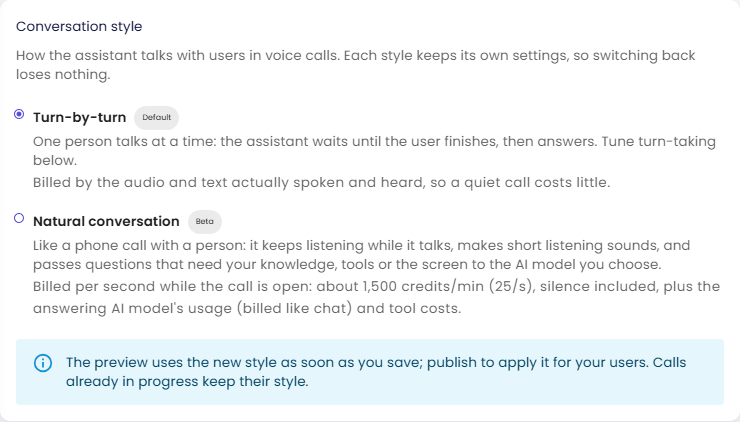
Only shown when Voice conversations is on and Natural conversation is available to your organization (or the agent already uses it). Chooses how the assistant talks with users in voice calls:
| Option | What it is |
|---|---|
| Turn-by-turn (marked Default) | One person talks at a time: the assistant waits until the user has finished speaking, then answers. How it recognizes the end of a turn is tuned in Conversation flow and Push-to-talk. |
| Natural conversation (marked Beta) | Like a phone call with a person: it listens while it speaks. It makes short listening sounds ("mm-hmm") while the user talks, notices when it is talked over and yields, and keeps the conversation flowing. Anything that needs your knowledge base, data, tools, or the screen is handed to an Answering AI model, and the voice tells the user the result in its own words. |
Natural conversation is in beta and available to selected organizations; the option only appears where it is available. It is not offered to organizations with Privacy Mode on, because during a Natural conversation call the conversation — what the user says or types, attached images, and the answers — can be kept by the model provider, where privacy mode can't remove it.
If Natural conversation is later switched off for your organization, an agent that already uses it still shows this card with a warning: its calls run Turn-by-turn until Natural conversation is available again, and its Natural conversation settings are kept.
If you don't see this card at all, your agent uses Turn-by-turn, and everything on this page and in Voice, Listening and Turn-Taking still applies.
How the two styles differ
| Turn-by-turn | Natural conversation | |
|---|---|---|
| Conversation | One person talks at a time | Listens while speaking, makes listening sounds, yields when interrupted |
| Who answers | The voice itself, using the agent's tools | The Answering AI model (by default the chat model); the voice speaks its answer |
| Voices | 10, default marin | 22, default cedar (see Assistant's voice) |
| Speech recognition | The Speech recognition model you choose, billed separately | Built in, not billed separately |
| Turn-taking settings | Conversation flow | When someone talks over the assistant and Listening sounds |
| Push-to-talk | Available | Not available: the call always listens |
| Images during a call | Always read | Depend on the Answering AI model (see Attachments) |
| Call limits | None | Ends after a quiet period and at a maximum length (see Call limits) |
| Billing | Audio and text tokens actually heard and spoken, plus transcription | About 1,500 credits per minute while the call is open, silence included, plus the Answering AI model's usage (see Billing) |
Good to know when switching:
- Each style keeps its own settings. The Turn-by-turn settings stay saved while Natural conversation is selected, so switching back loses nothing.
- Save, then Publish. The CMS preview uses the new style as soon as you save; users get it once you publish. A call that is already running keeps the style it started with.
- Everything else applies to both: the voice screen style, welcome message, on-screen content, and speaking style work the same way in either style. Attachments and immersive view instructions differ slightly; their sections explain how.
- Turn-by-turn is the fallback. If Natural conversation can't take a call (for example while it is at capacity), the call runs Turn-by-turn with your Turn-by-turn settings, so users can still talk.
Which one should you pick? Start with Turn-by-turn: it is the default, a quiet call costs little, and it offers push-to-talk for noisy places. Try Natural conversation when you want calls to feel like talking to a person and you accept paying for every minute a call is open.
Billing
Turn-by-turn is billed by what it actually processes: the audio and text it hears and speaks, plus the transcription of what the user says. A call where nobody talks costs little.
Natural conversation is billed in two parts:
| Part | Rate | What counts |
|---|---|---|
| Voice time | About 1,500 credits per minute (25 per second) | Every second the call is open. Silence, time the user is muted, and time the assistant has been asked to stay quiet all count. |
| Answers | The Answering AI model's normal token rate | Billed exactly like a chat answer from that model, each time the voice hands something over — twice the rate for a + model, which runs on Fast mode. Tools the answer uses — web search, knowledge base, plugins — are billed as usual. |
For example, a 5-minute call in which the voice hands four questions to Smart costs about 7,900 credits: 7,500 for voice time and roughly 100 per answer (the exact amount depends on how long the answers and the conversation are). A question that needs a lookup costs a little more, because the tool's result is sent back to the model, and tools such as web search or the knowledge base add their own small charges. On the usage pages, voice time appears under the category dialog-live and the answers under dialog-live-backend.
The call limits keep an idle or forgotten call from running up voice time.
Saving changes
Click Save after adjusting any setting. The CMS preview uses your saved settings right away; publish your agent to make the changes visible to end users.
In this section
| Page | What you configure |
|---|---|
| Voice, Listening and Turn-Taking | The assistant's voice, speech recognition, speaking style, and (Turn-by-turn only) conversation flow and push-to-talk. |
| Voice Screen and On-Screen Content | What users see during a call: immersive or transcript view, the welcome message, attachments, what goes on the canvas, and instructions for the immersive view. |
| Natural Conversation Settings | Natural conversation only: the Answering AI model, how the assistant yields when talked over, listening sounds, and call limits. |
Start with Voice, Listening and Turn-Taking to pick a voice, then set up the voice screen. Open Natural Conversation Settings only if you chose Natural conversation above.
Check the result
- Turn on Voice conversations, choose a conversation style, and click Save.
- Open the preview of your agent, click the + menu next to the chat input, and start a voice conversation.
- Ask a question your agent can already answer in text. You should hear the answer spoken in the voice you chose, and see the call in the voice screen style you set.
- When you're happy, publish the agent so users get voice too.
Next steps
- Next in the journey: Remember Each User, the first step of Stage 4.
- Voice, Listening and Turn-Taking: choose the voice and tune how the assistant takes turns.
- Model & Context: the chat model (also the default Answering AI model for Natural conversation) and the attachment settings voice calls use too.
- Previous step: Work With Other Agents.