Natural Conversation Settings
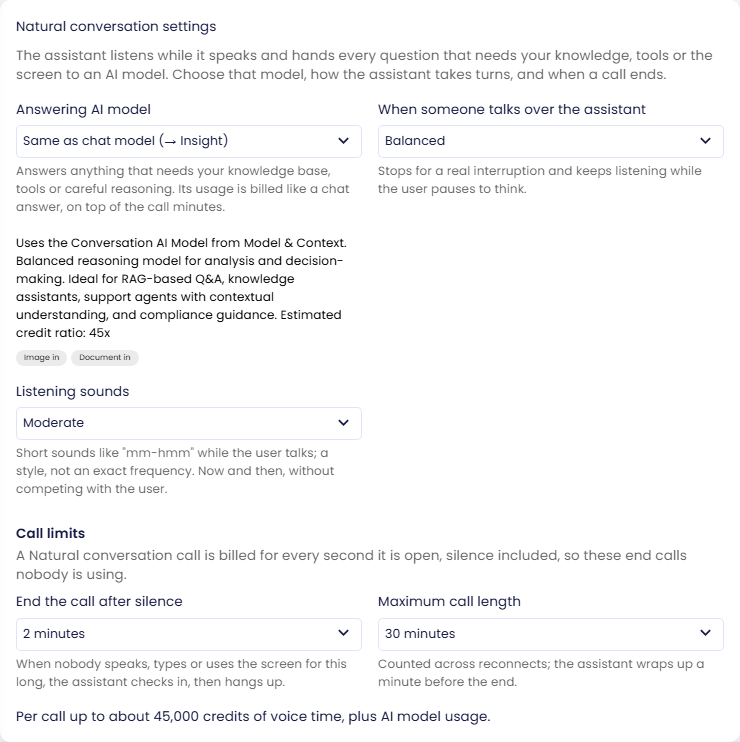
Open in CMSOn this page you tune voice calls that use Natural conversation: which AI model answers the questions, how readily the assistant yields when it is talked over, how often it makes listening sounds, and when a call ends on its own.
These settings are in the Natural conversation settings card on the Agent Voice page (Conversation → Voice in the CMS sidebar).
Natural conversation only. The card is shown when the conversation style is Natural conversation, in place of the Conversation flow and Push-to-talk cards.
Before you start
- Turn on Voice conversations and select Natural conversation as the conversation style. It is in beta and only offered to selected organizations without Privacy Mode.
- Read how Natural conversation is billed: every minute a call is open counts, silence included.
- Check which Conversation AI Model your agent uses; it is the default Answering AI model.
Answering AI model
In Natural conversation the voice carries the conversation itself (greeting, listening, small talk, clarifying questions) and hands everything else to the Answering AI model: questions that need your knowledge base, data, or tools, and anything shown on the canvas. That model works out the answer, and the voice tells the user in its own words.
All of these options are in the Natural conversation settings card, which appears once Natural conversation is selected:
| Choice | Behavior |
|---|---|
| Same as chat model (→ …) (default) | Uses the agent's Conversation AI Model; the arrow shows which model that is today. Change the chat model later and calls follow. This is the agent's own model, not one an end user picked in the chat's model switcher. |
| Any other model | Any model available to your organization, including your organization's custom models. Only calls use it; text chat keeps the Conversation AI Model. |
- Thinking depth comes from the model. There is no separate setting. Light answers without reasoning first and is the fastest; Smart and Analyst reason briefly; Insight, Thinker, and Sage reason longer: better at hard questions, but with longer pauses — with Thinker and Sage, the page notes that callers may wait several seconds.
- + models are the same model on Fast mode. Light+, Smart+, Analyst+, Insight+, Thinker+, and Sage+ think exactly like the model without the +, but answer about 1.5–2x faster, which shortens the pauses in a call. Their answers cost twice the token rate. Under heavy load an answer can occasionally run at normal speed; it is then billed at the normal rate.
- Custom models run through Qlar. Qlar's built-in models are run by OpenAI right next to the voice, the fastest path. Custom models, and models from other providers, run through Qlar exactly as they do in chat, so their answers may start a moment later; the page says so when you pick a custom model.
- Billed like chat answers. Each answer is billed at the chosen model's normal token rate, as a chat answer from that model would be, plus any tools it uses, on top of the call minutes. See Billing.
- If the model becomes unavailable — for example, a custom model is disabled — calls use the chat model instead. The field then shows the stored model as (unavailable — calls use the chat model), with a note naming the model calls use meanwhile.
The Answering AI model also decides whether images can be attached during a call; see Attachments during an immersive call.
When someone talks over the assistant
How readily the assistant stops speaking when the user starts talking.
| Value | Behavior |
|---|---|
| Responsive | Stops talking as soon as someone starts speaking. |
| Balanced (default) | Stops for a real interruption and keeps listening while the user pauses to think. |
| Patient | Stops only for a clear new request; ignores short sounds like "ok" and background noise. Suits noisy places. |
Listening sounds
Short sounds such as "mm-hmm" that the assistant makes while the user talks, to show it is following. This sets a style, not an exact frequency.
| Value | Behavior |
|---|---|
| Off | Stays quiet while the user is speaking. |
| Light | Only during longer turns. |
| Moderate (default) | Now and then, without competing with the user. |
| Frequent | Often, to show it is following. |
Call limits
Because Natural conversation bills every second a call is open, even when nobody speaks, every Natural conversation call has two limits. Neither can be turned off.
| Setting | Choices | What happens |
|---|---|---|
| End the call after silence | 1, 2 (default), 5, 10 or 15 minutes | Once nothing has happened for this long — nobody speaking, nothing typed or attached, no answer being prepared — the assistant asks whether the user is still there. If there is still no reply about 20 seconds later, it says goodbye and ends the call. The user sees Call ended after a quiet period and can reconnect. |
| Maximum call length | 10, 20, 30 (default), 60 or 120 minutes | The assistant warns about a minute before the limit, then ends the call; the user sees Call time limit reached. Reconnecting doesn't reset the clock: the time counts across reconnects of the same call, and reconnecting to the same conversation within about 10 minutes after the limit ends again right away. The user can start a new conversation instead. |
A value set outside these choices through the API (anything from 30 seconds to 15 minutes, and from 1 to 120 minutes) is kept and shown as an extra choice.
Below the limits, the page shows the most voice time one call can cost — Per call up to about 45,000 credits of voice time, plus AI model usage for the default 30 minutes (the maximum length × 1,500 credits).
Check the result
- Click Save. The CMS preview uses Natural conversation right away; users get it after you publish.
- Start a voice conversation in the preview (+ menu next to the chat input).
- Ask something that needs your knowledge base or data. The voice hands the question to the Answering AI model, then tells you the answer in its own words.
- Talk over the assistant while it speaks and check that it yields the way you chose. Listen for the listening sounds while you talk.
Next steps
- Next in the journey: Remember Each User.
- Voice, Listening and Turn-Taking: choose one of the 22 Natural conversation voices and the speaking style.
- How Credits Work: how voice calls show up in your credit usage.