Organize Scenarios in Folders
Open in CMSFolders keep your scenarios tidy as their number grows. In this guide you build a small folder tree, move a scenario into it, make a copy of a scenario, and then run a whole folder at once. You also learn what each warning says before anything is deleted. It takes about ten minutes.
The example agent is Libraría, an agent that already has folders and scenarios, so the screens look like a real project. Your agent will have different names and numbers. The steps are the same. If you have never created a scenario, start with Your First Simulation.
AI is involved only when you run: the agent writes its answers and AI judges each criterion. Folders themselves are plain organisation, so organizing, moving and copying behave the same every time. A folder run can read slightly differently from one run to the next. See Run Simulations.
Key terms
| Term | What it means |
|---|---|
| Folder | A place that holds scenarios. A scenario always sits in exactly one folder. |
| Subfolder | A folder inside another folder. You can nest folders up to 3 levels deep. |
| All folders | The first row of the Folders panel. It shows every scenario, whatever its folder. |
| Include Subfolders | A switch above the list. When it is on, a folder shows and runs the scenarios of its subfolders too. |
| Run All / Run Selected | Two ways to start one run for many scenarios: every scenario in a folder, or only the ones you tick. |
Before you start
- You have the Owner or Contributor role on the agent. Other roles do not see the Simulation group in the sidebar.
- The agent has at least one scenario to work with. If it has none, follow Your First Simulation first.
- You know that a scenario is one test conversation. If not, read the Overview.
Step 1: Open the Folders panel
- Open your agent in the CMS and expand Simulation in the sidebar.
- Click Scenarios.
The Conversation Simulation page opens on its Scenarios tab. On the left is the Folders panel. The first row, All folders, has a number next to it: the total count of scenarios. Each folder below it shows how many scenarios it holds, including the ones in its subfolders. A small arrow next to a folder collapses or expands its subfolders.
Click a folder to show only its scenarios on the right. Click All folders to see everything again. Under the panel, a note reminds you: "Up to 3 levels. Right-click or use the ⋮ menu on a folder."
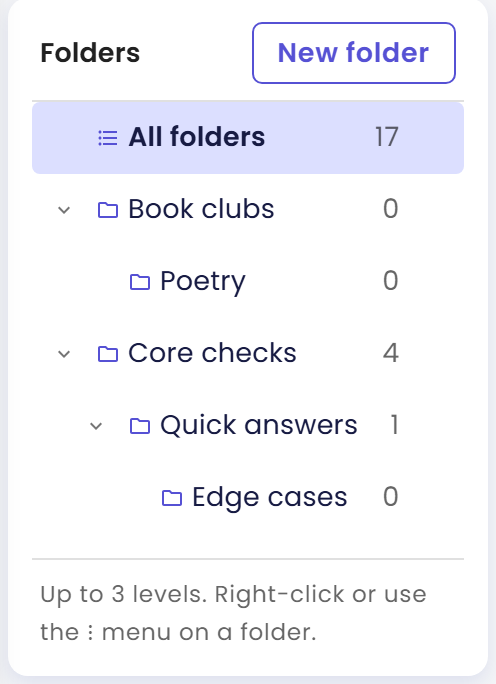
On a narrow screen, the Folders panel is hidden. A button above the list reads Folder: {name}, for example Folder: All folders. Click it to open the panel as a sheet that slides up from the bottom. It holds the same rows and menus.
Step 2: Create a folder and a subfolder
- In the Folders panel, click New folder.
- In the Create New Folder dialog, type a Folder Name, for example
Book clubs. - Click Create.
- When the message
Folder "Book clubs" created successfullyappears, click Close.
Now add a folder inside it.
- Move the pointer over Book clubs, click the ⋮ at the right of the row, and choose New subfolder. You can also right-click the folder to open the same menu.
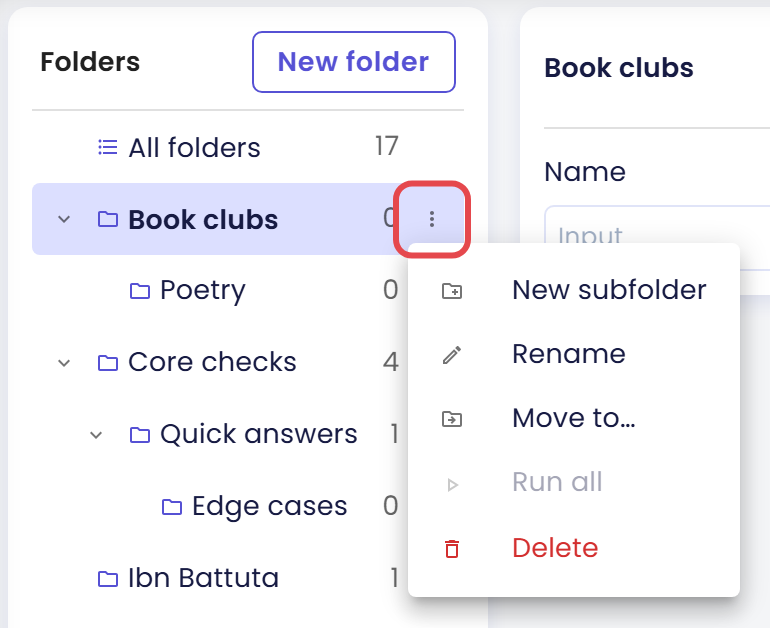
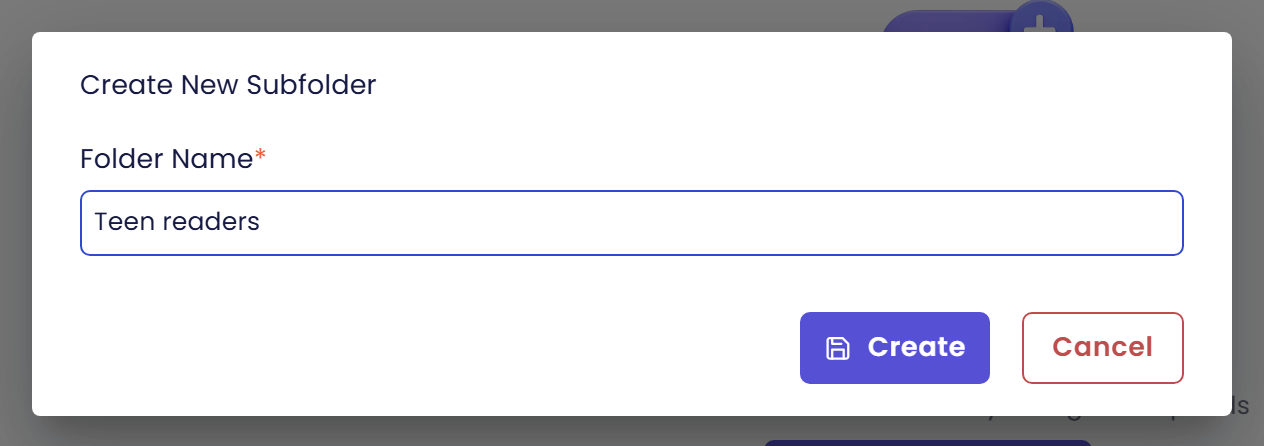
- In the Create New Subfolder dialog, type a Folder Name, for example
Teen readers, and click Create.
- Click Close.
Teen readers now appears under Book clubs. Repeat to add a third level inside it.
A folder that is already on the third level has no New subfolder item in its menu. The limit is 3 levels.
To change a folder's name, open its ⋮ menu and choose Rename. The Rename Folder dialog has the same Folder Name field and a Save button. For example, rename Teen readers to Teen book club.
Step 3: Move a scenario into a folder
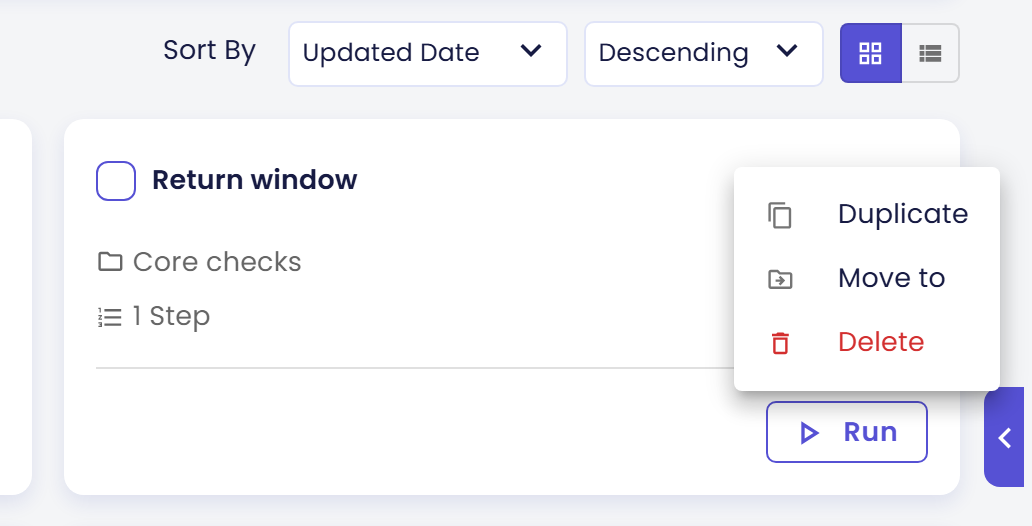
- On the scenario's card (or its row in the list), click the ⋮ icon. You can also right-click the card.
- Choose Move to.
- In the Move Scenario to Folder dialog, pick the new Folder from the list and click Move.
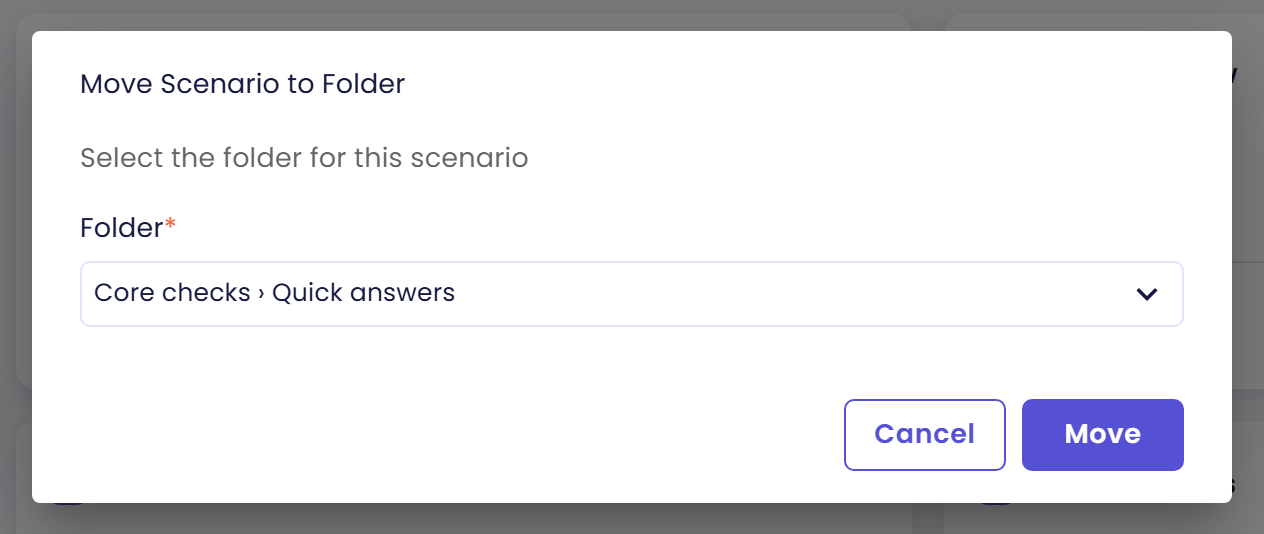
- Qlar asks, for example,
Move the scenario "Return window" to folder "Core checks › Quick answers"?Click Yes. - When "Scenario moved successfully" appears, click Close.
The scenario now shows the new folder path on its card, and the counts in the Folders panel update.
To create a scenario straight into a folder, select the folder first and click New Scenario. The form opens with that folder chosen.
Step 4: Move a folder
You can move a whole folder, with everything inside it, under another folder or to the top level.
The pictures from here to the end of this page were taken on the folder tree as it was before the changes in steps 2, 3 and 5, so names and counts in them differ from the text: the subfolder is still called Teen readers, a Poetry subfolder is also there, Return window is still in Core checks, and the copy from step 5 does not exist yet.
- Open the folder's ⋮ menu and choose Move to….
- In the dialog, titled Move "{folder}", choose Top level or another folder as the new parent. The dialog says "Choose the new parent. Folders can be nested up to 3 levels."
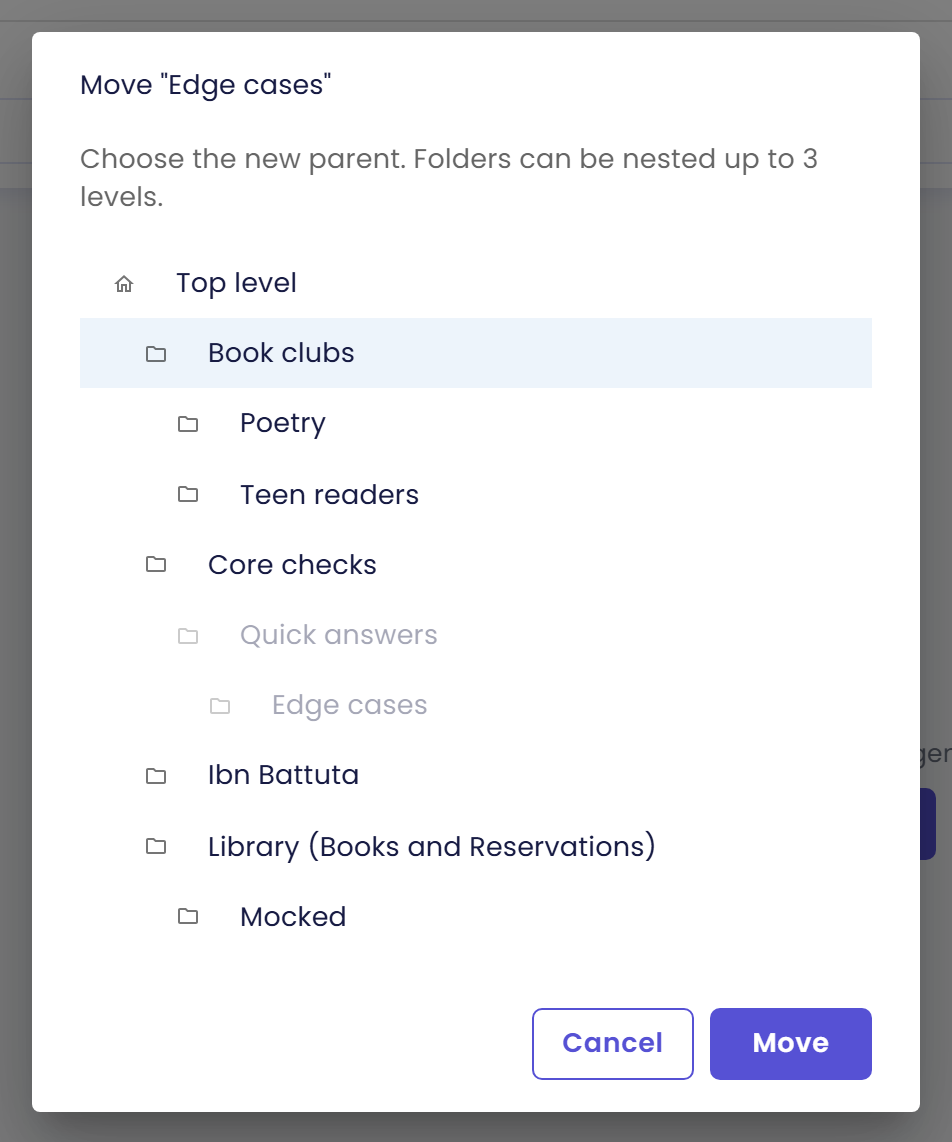
- Click Move.
- Qlar asks, for example,
Move folder "Edge cases" to "Book clubs"?(or "to the top level"). Click Yes. - When the message
Folder "Edge cases" moved to "Book clubs" successfullyappears, click Close.
Some destinations are greyed out and cannot be chosen: the folder's current parent, the folder itself and its own subfolders, and any place where the moved folders would end up deeper than 3 levels.
Step 5: Duplicate a scenario
Duplicating a scenario is handy when you want a variation of a test without starting over. Only scenarios can be duplicated. Folders have no Duplicate item.
- Open the scenario's ⋮ menu and choose Duplicate.
- Qlar asks
Duplicate the scenario "Return window"?Click Yes. - When the message
Scenario "Return window" duplicated successfullyappears, click Close.
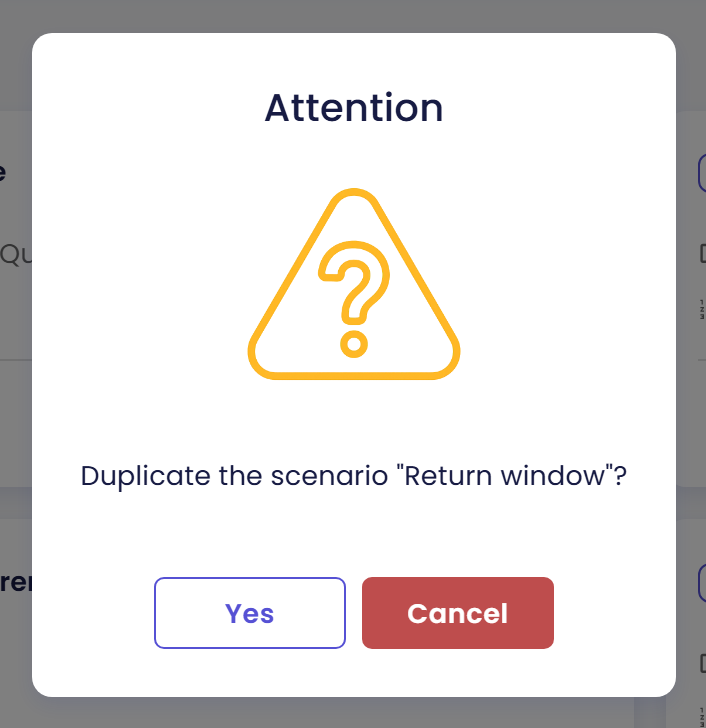
The copy is named "Return window (Copy)" and sits in the same folder. It has its own copy of the steps, the criteria, the Fixed date & time setting and any mock set that is private to the scenario. Shared library mock sets stay shared. Open it to rename it and change what you need.
If the original lets some tools run live, the copy only keeps that permission when you are an organisation Owner or Admin. Otherwise the copy starts with none. See Tools in Simulations.
Step 6: Choose how the list looks
Above the scenario list, two controls change how you read it.
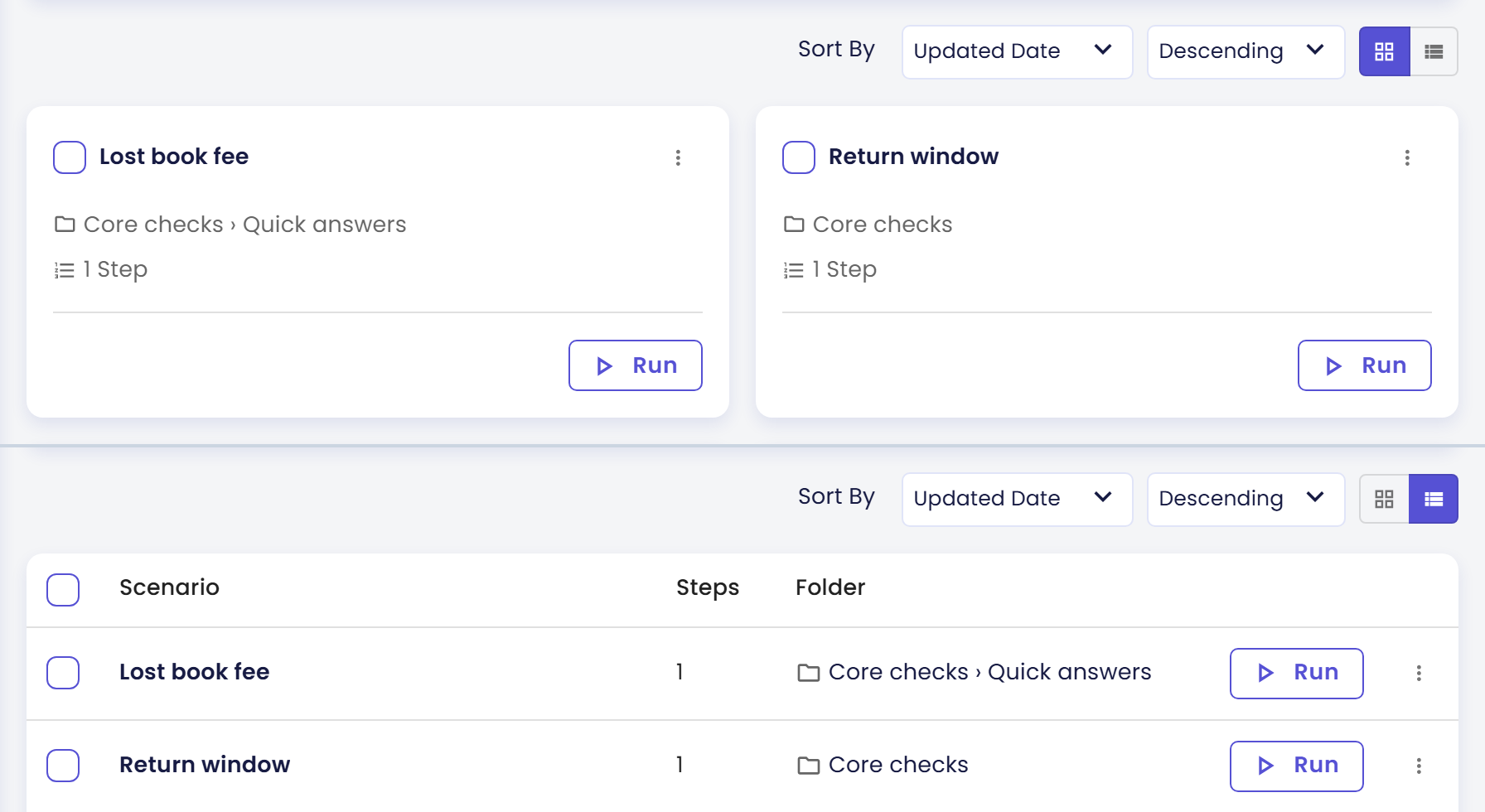
- Sort By orders the list by Updated Date (the default, newest first) or Name, Ascending or Descending.
- Grid View and List View switch between cards and a table. The table has the columns Scenario, Steps and Folder, and a checkbox on each row.
Grid View is easier to scan when you have few scenarios. List View is easier when you have many and want to see their folder paths side by side. Your choice is remembered while the browser tab stays open.
To find a scenario by name, type part of it in Name in the card above the list and click Apply. Click Reset to clear the filter.
Step 7: Run a whole folder
Running many scenarios together gives you one result that covers all of them.
- Click the folder you want in the Folders panel.
- Look at the switch Include Subfolders next to the folder's name. It appears only when a subfolder holds scenarios. It is on by default.
- On: the list and the run include the subfolders' scenarios.
- Off: only the scenarios sitting directly in this folder.
- Click Run All (n), where n is the number of scenarios it will run (the 4 in the pictures counts the earlier tree, so your number will differ). You can also use Run all in the folder's ⋮ menu.

- In the confirmation, for example
Run all 4 scenarios in "Core checks" and its subfolders?, check Run against (Published or Draft) and click Yes.
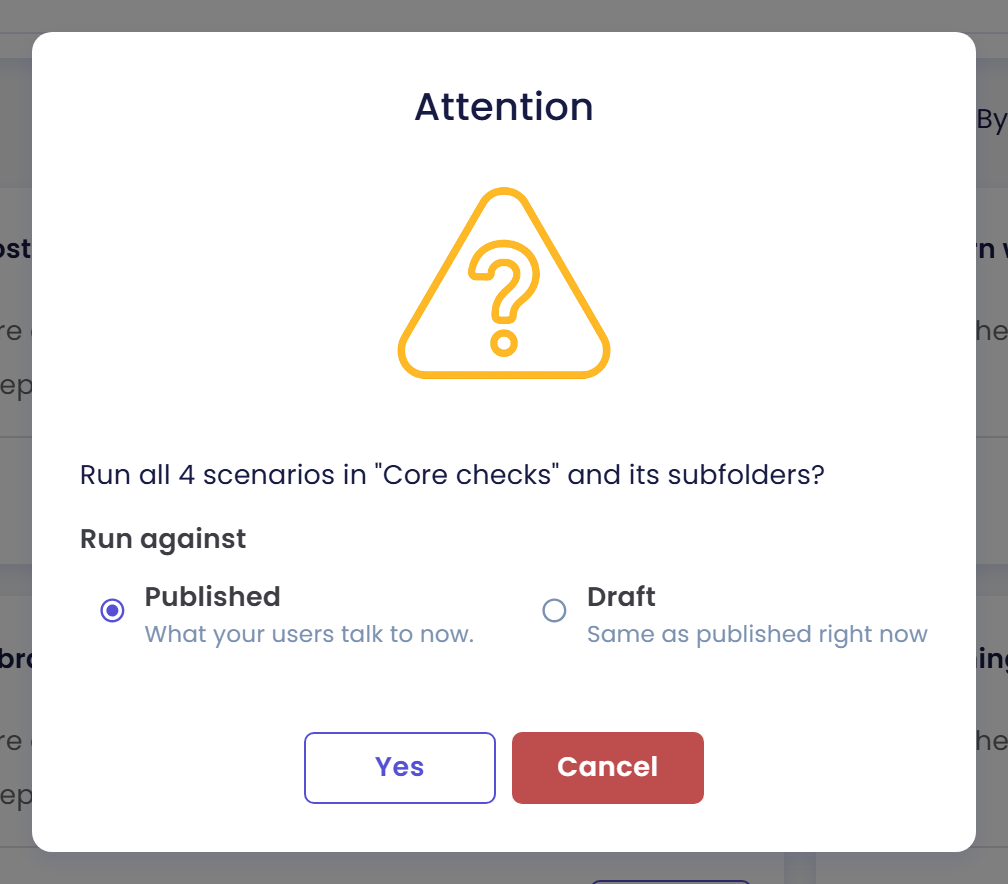
- When the message
"Core checks" execution started successfully against the published versionappears, click Close.
Qlar opens one Simulation Result with every scenario in it. Run all is greyed out in the menu, and Run All is missing from the header, when the folder has no scenario to run.
Step 8: Run only the scenarios you pick
- Tick the checkbox on each scenario you want. In List View, the checkbox in the header selects every scenario shown.
- Click Run Selected (n). It appears above the list as soon as one is ticked.
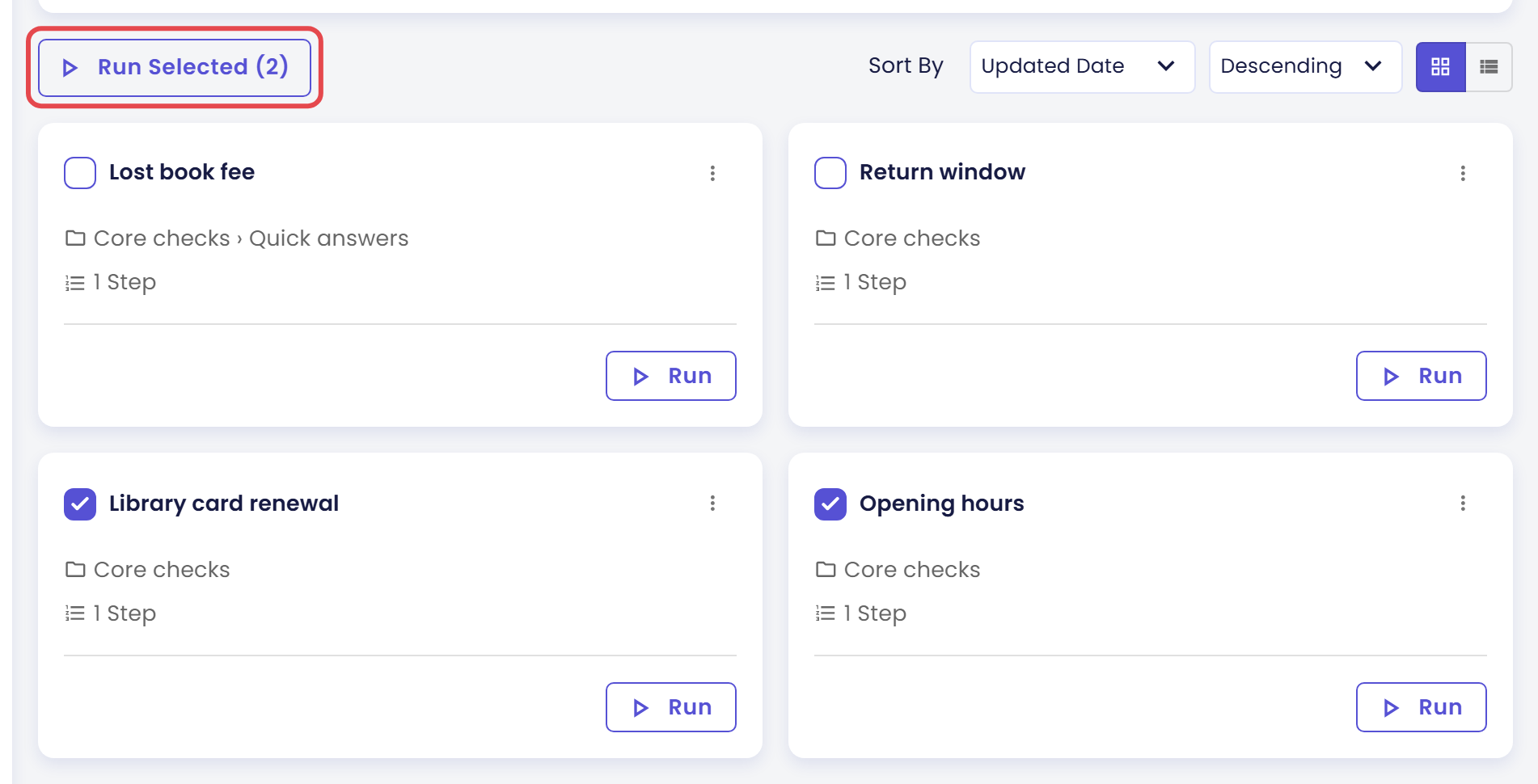
- In the confirmation,
Are you sure you want to run 2 selected scenarios?, check Run against and click Yes. - Click Close on the success message.
The ticks cover the scenarios shown in the list right now. They are cleared when you select another folder, switch Include Subfolders, or change the filter or the sort. To tick scenarios from several folders, select All folders first. The checkbox in the List View header selects only the scenarios already loaded, so click Load More first if the list has more. The ticked scenarios run together as one run.
The video shows the folder steps above: creating a subfolder and renaming it, moving a scenario, turning Include Subfolders off and on, and ticking two scenarios.
Step 9: Delete with care
Deleting cannot be undone, so the dialogs spell out what goes with it.
A scenario. Open its ⋮ menu and choose Delete. The Delete Scenario dialog says "Are you sure you want to delete {name}? This action cannot be undone." Click Delete, then Close on the message Scenario "{name}" deleted successfully.
A folder. Open its ⋮ menu and choose Delete. The Delete Folder dialog depends on what is inside:
| The folder holds | The warning says |
|---|---|
| Nothing | Are you sure you want to delete "Edge cases"? This action cannot be undone. |
| Only subfolders | Deleting "Book clubs" also deletes its subfolders. This action cannot be undone. |
| Scenarios | Deleting "Quick answers" also deletes its 2 scenarios, together with any private mock sets they own. This action cannot be undone. |
| Subfolders and scenarios | Deleting "Core checks" also deletes its subfolders and 4 scenarios, together with any private mock sets they own. This action cannot be undone. |
The numbers count the scenarios in the folder and in all of its subfolders. They are examples: Quick answers holds Return window and its copy from the steps above, while the 4 for Core checks and in the pictures comes from the earlier tree. Read the message before you click Delete. These are three of the dialogs, for a folder that is empty, one that holds only subfolders, and one that holds subfolders and scenarios.
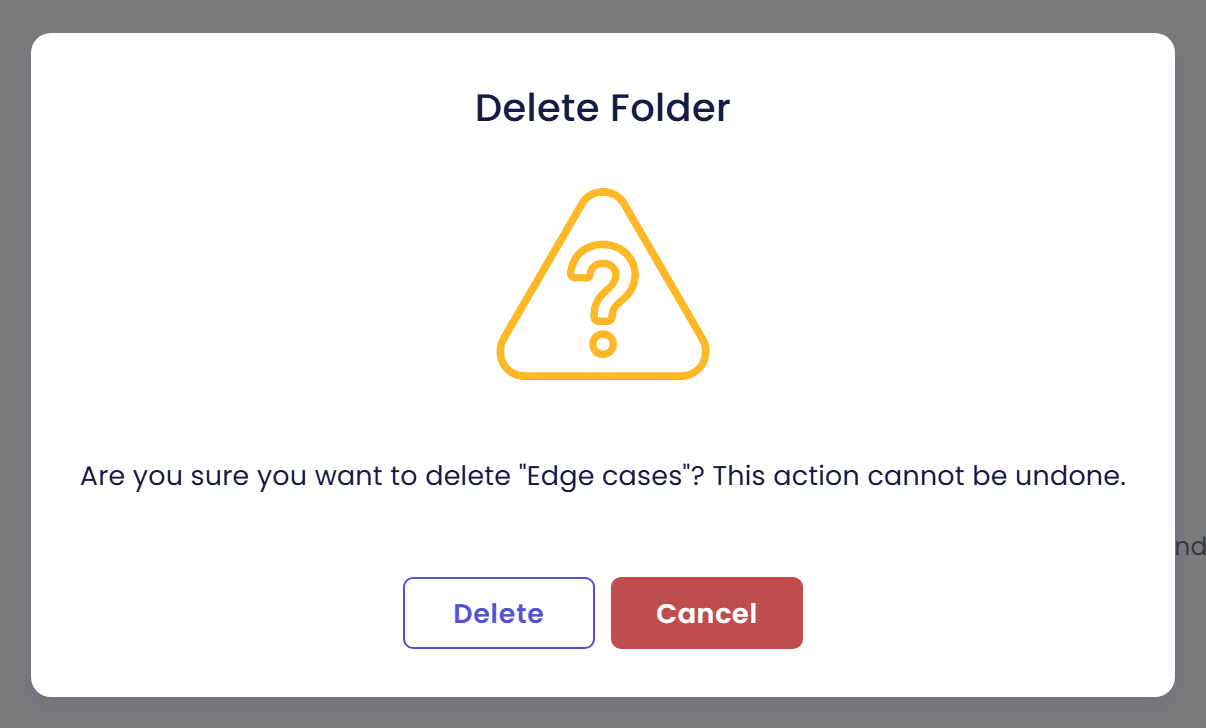
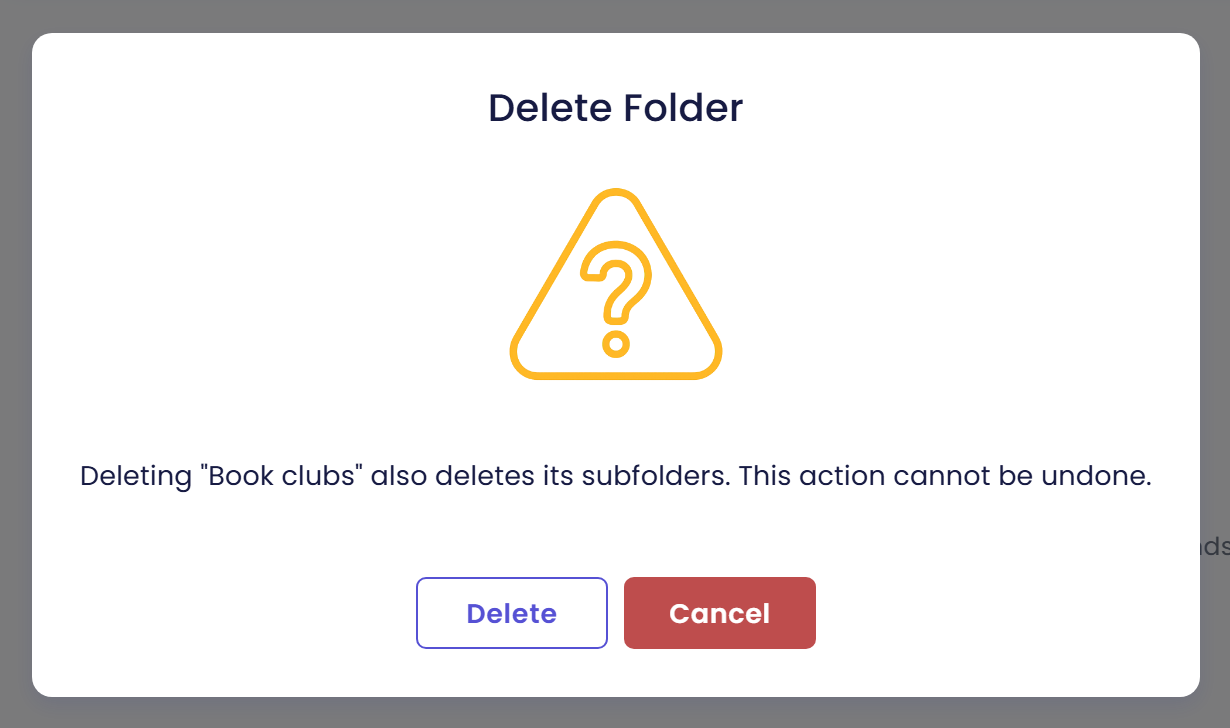
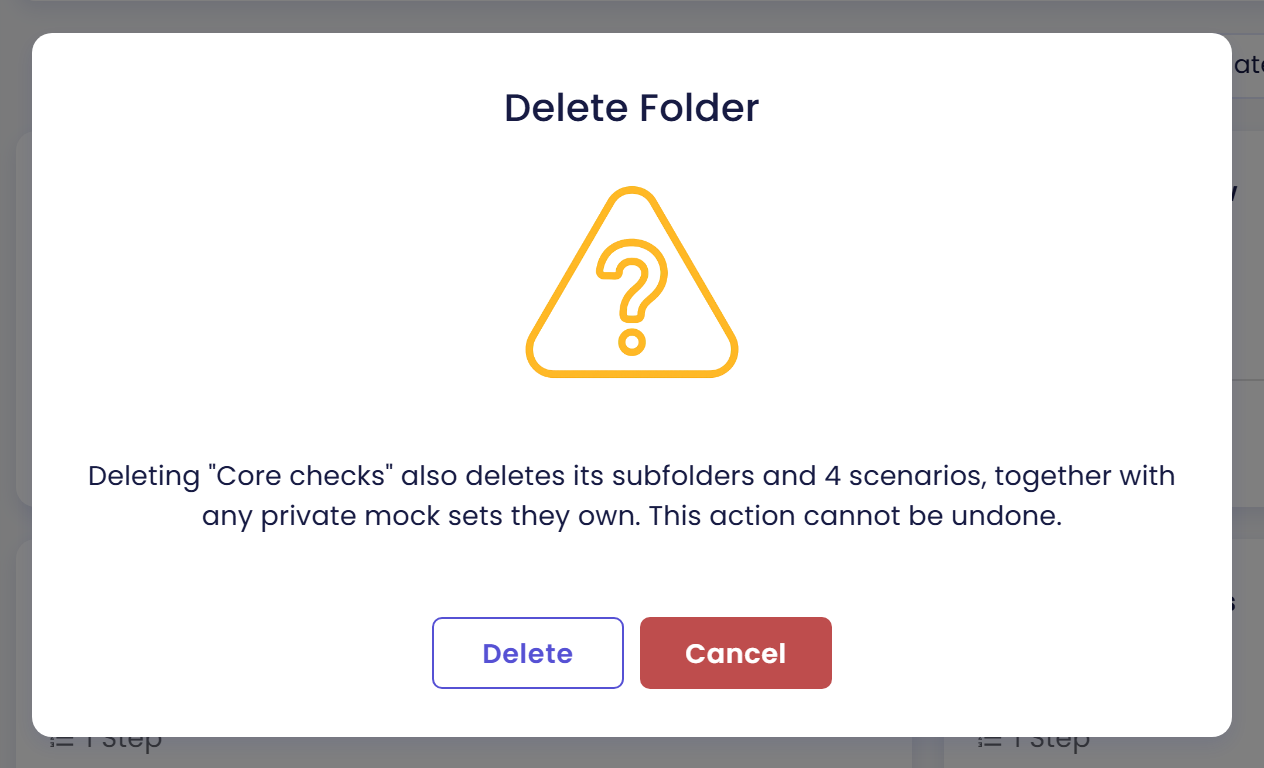
If the folder, with its subfolders, is every folder the agent has, Delete is greyed out. An agent always keeps at least one folder, so scenarios have a place to go.
Check the result
You made it if you see all of these:
- A folder with a subfolder under it in the Folders panel, and the scenario you moved shows the new folder path.
- A copy of a scenario named "... (Copy)" in the same folder as the original.
- A result with the scenarios of the folder you ran, opened after you confirmed Run All.
If you see something else:
- There is no New subfolder item. The folder is already on the third level. Create the new folder somewhere higher up.
- A destination in Move to… is greyed out. It is the current parent, the folder itself, one of its subfolders, or it would make the tree deeper than 3 levels.
- There is no Include Subfolders switch. The selected folder has no subfolder that holds a scenario. The switch only appears when it would change something. It is also missing under All folders.
- Run All (n) shows fewer scenarios than I expected. Include Subfolders is off, so the count leaves out the subfolders. Turn it on.
- Run all is greyed out. The folder has no scenario to run. Move or create one in it first.
- I cannot find a folder. On a narrow screen, open the panel with the Folder: {name} button.
- The folder run reads differently from last time. The answers and the judgement are generated by AI, so they change between runs. See Read the Results.
Next steps
- Next in this section: Write Good Scenarios, to make each scenario worth running, then Run Simulations.
- Where you came from: Your First Simulation and the Overview.
- Field-by-field reference: Scenarios.