Read the Results
Open in CMSA finished run leaves a result behind. In this guide you learn how to find a run on the Results tab, how to read the result page from the top down, what the green and grey criteria boxes mean, what the highlights in the agent's answer show, and what the notices on the page tell you. It takes about ten minutes.
The example agent is Libraría, which already has runs. Your agent will have other names and numbers. The steps are the same. If you have not run a scenario yet, start with Run Simulations.
AI is involved twice in every result: the agent writes its answers and AI judges every criterion. Both can differ from one run to the next, so the same scenario can read slightly differently each time. Read one result as a sample, not a guarantee, and run again before you decide that something is broken.
Key terms
| Term | What it means |
|---|---|
| Result | What a run leaves behind: the status, the agent's real answers and the verdict for every criterion. One run has one result, with a code such as #TE-0001. |
| Criterion | One thing the answer must contain or do. A criterion is either matched or not matched. |
| Excerpt | The part of the agent's answer that proves a matched criterion. |
| Highlight | A coloured mark on the agent's answer: green where it supports a criterion, red where it contradicts one. |
| Tool call | A moment where the agent used one of its tools while answering. |
Before you start
- You have the Owner or Contributor role on the agent.
- You have at least one run. See Run Simulations.
- You know which version the run used, Published or Draft. If not, read Run Simulations first.
Step 1: Open the Results tab
- In the sidebar, open Simulation and click Scenarios.
- On the Conversation Simulation page, click the Results tab.
You see one card per run, newest first. Each card shows:
- the run code, for example
#TE-0007 - a Published or Draft chip, which tells you which version of the agent answered, and a status chip
- when the run started and how long it took
- how many scenarios and how many steps it contains
The status is Completed, Failed, Running or Stopped.
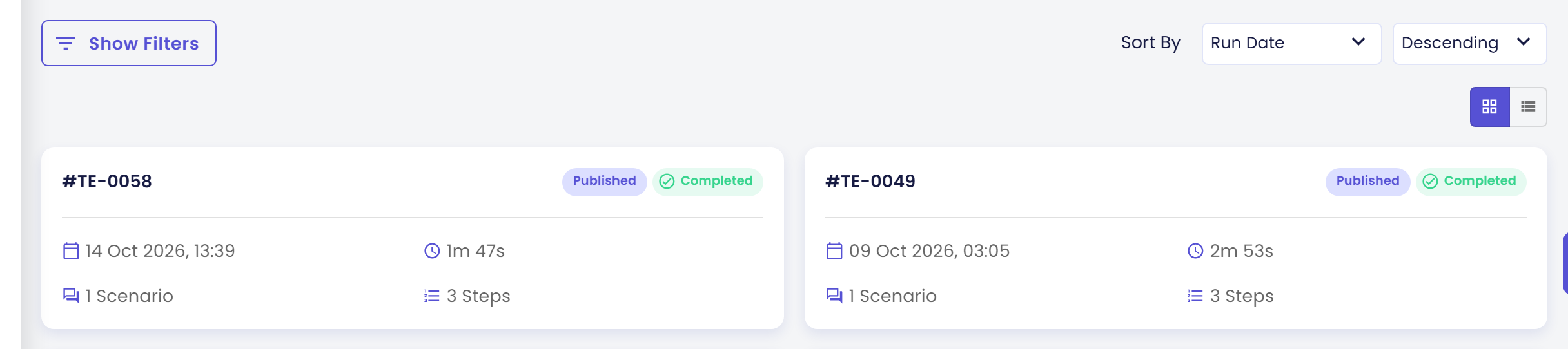
Click List View above the list for a table with the columns Run, Status, Version, Started, Duration, Scenarios and Steps. Click Grid View to go back to cards. The list shows a batch of runs at a time. Click Load More at the bottom for the next batch.

On an agent without runs the tab says No simulation results yet and "Run your scenarios to see results here".
Step 2: Find the run you want
Click Show Filters to open the filter panel. It changes to Hide Filters while it is open.
| Filter | What it does |
|---|---|
| Code | Shows only runs whose code matches what you type, for example TE-0001. |
| Status | Shows only Completed, Failed, Running or Stopped runs. |
| Version | Shows All runs, only Draft runs, or only Published runs. |
| Run Date From and Run Date To | Shows only runs that started within these dates, both days included. |
Click Apply to filter. Click Reset to clear the filters and see every run again. If nothing matches, the tab says No Results Found and suggests changing your filters or date range.
Next to Show Filters, Sort By orders the list by Run Date (the default, newest first), Code, Status or Duration. A second dropdown switches between Ascending and Descending.

Click a card or a row to open its result.
Step 3: Read the top of the page
The page is titled Simulation Result. Under the title you see the run code and the start time. Read the top in this order.
The buttons. A run that is still Running has a red Stop button and a refresh icon. A run that is not running has Run Again and a Delete button with a trash icon. The arrow on the left of the title goes back to the Results tab. See Run Simulations for Stop and Run Again.
The four summary cards.
| Card | What it tells you |
|---|---|
| STATUS | The status of the run, with the Published or Draft chip next to it. Always check the chip first, so you know what you are judging. |
| CRITERIA MATCH | How many criteria were matched out of all the criteria of all steps, for example 8/10 Matched. The badge is green at 70% or more, yellow from 30% to 69% and red below 30%. With exactly one criterion the card reads CRITERION MATCH. |
| DURATION | How long the whole run took. |
| STEPS | How many steps the run contains. With exactly one step the card reads STEP. |
Notices. Messages can appear under the title. They are explained in Notices on the page below.

Step 4: Open a scenario
Under the cards, the heading Scenarios (n) (Scenario (1) when the run has one) lists every scenario of the run as one row. A row shows:
- a status icon and the scenario name
- the folder it lives in
- how many steps were completed, for example "3/3 Steps completed", and how long it took
- Failed at step #n in red when the scenario failed, with the reason under the row
- "2 blocked calls" in red when the agent tried to use tools that were blocked
- the link Mocks used in this run
- a badge such as 3/5 Matched once the scenario completed
Click the arrow at the right end of a row to open it. The middle of the row is the Mocks used in this run link, so do not click there. The row expands into one card per step. A scenario that failed has a reddish row, so you can find it at a glance.

Step 5: Read one step
Each step is a card headed Step #1, Step #2 and so on, with its own match badge once it completed. Click the arrow at its right end to expand it. From top to bottom it shows:
- The user message. The question you wrote for that step, in larger text.
- Expected Response and AI Agent Response, side by side. The first is the answer you wrote in the scenario. The second is what the agent really answered in this run. If the step failed, a red Error line explains why. That line sits in the card's header, so you can read it without opening the step.
- Evaluation Criteria, with how many were matched.
- Tool calls, when the run recorded them.
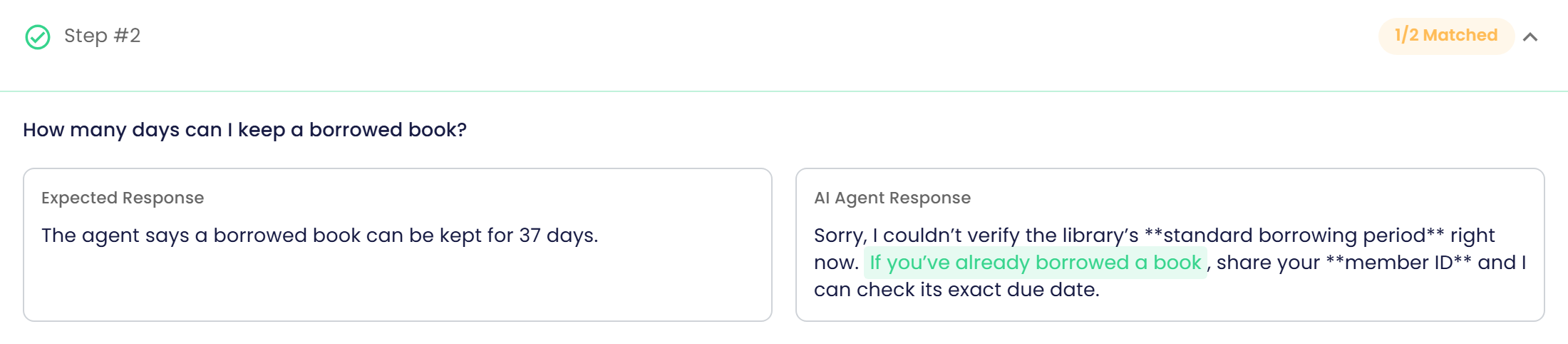
The agent's answer is shown as plain text, so formatting marks such as **bold** appear as asterisks.
How a criterion is shown
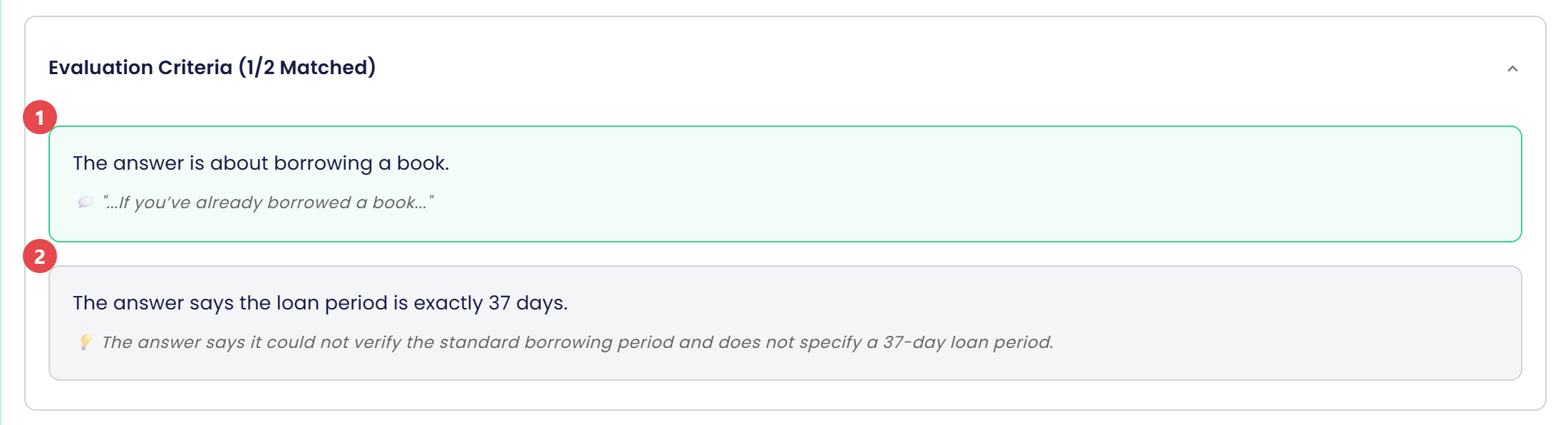
The heading reads Evaluation Criteria (x/y Matched). Under it, every criterion is one box.
| What you see | What it means |
|---|---|
| A green box: the criterion's wording, then 💬 and a quote in quotation marks | The criterion was matched. The quote is the excerpt of the answer that proves it. |
| A grey box: the criterion's wording, then 💡 and a sentence | The criterion was not matched. The sentence is the reason, for example that the answer did not mention it, or said something different. |
In the picture, badge 1 is on a matched criterion and badge 2 on a criterion that was not matched. There are no other labels. Read a grey box as "this did not happen, and here is why". Click the heading to fold the box away or open it again.
A step with no criteria says No Evaluation Criteria, "This step does not have evaluation criteria defined." That step has nothing to match, so its badge does not count in the totals.
Highlights in the agent's answer
Qlar also marks the quoted parts in the AI Agent Response:
- Green marks the part of the answer that supports a matched criterion.
- Red marks a part of the answer that contradicts a criterion.
So a grey box with a red highlight in the answer means the agent said the opposite of what you expected. A grey box without any red highlight usually means the answer left it out. When the agent quoted its knowledge, a short reference label sits in the answer. Click it to read the source text without leaving the page.
Read both sides before you decide who is wrong. Sometimes the answer is fine and the criterion is too strict. Fix and Retest shows what to change in each case.
Step 6: Look at the tool calls
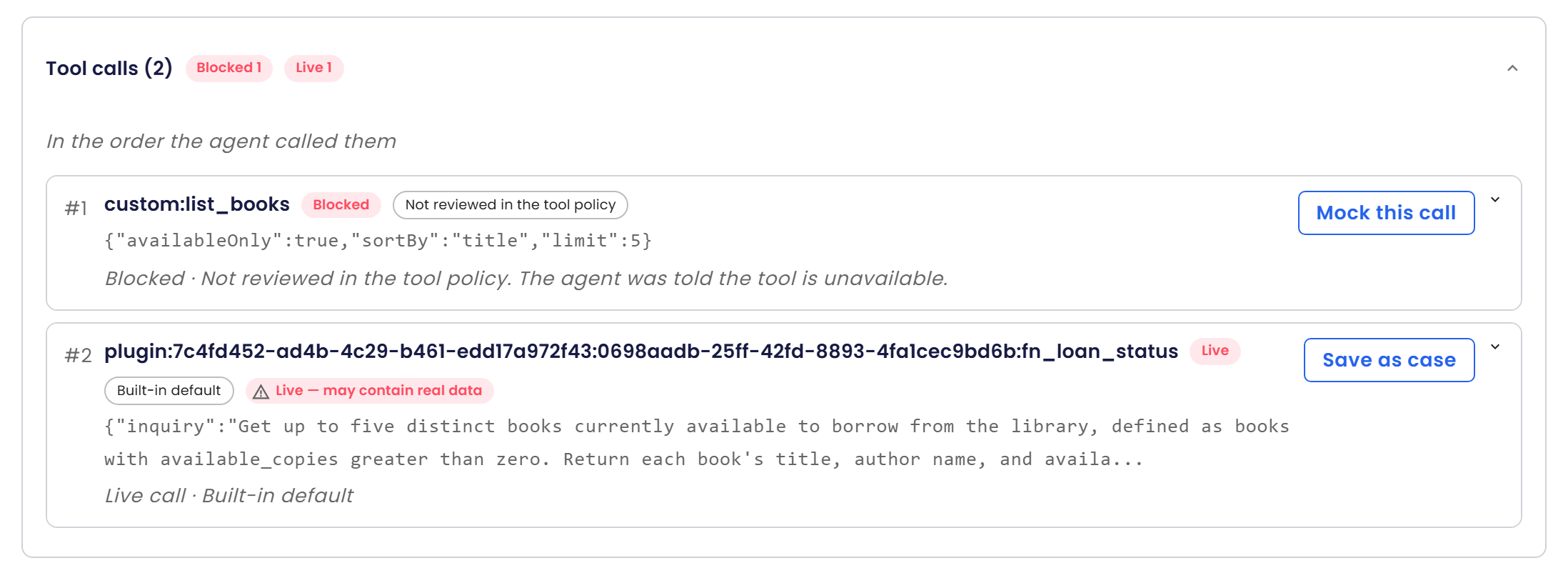
If your agent has tools, a step card ends with Tool calls (n). Next to it are small chips that count the outcomes, for example Blocked 1 and Live 1. When the agent used no tool in that step, the card says No tool calls in this turn.
Click Tool calls (n) to open the list. It is headed "In the order the agent called them". Each row shows:
- the call number, such as #1, and the tool's key, for example
custom:list_books. A plugin tool shows a longer key that ends with the tool name, such asplugin:...:fn_loan_status - an outcome chip: what happened to the call, one of Mocked, Default, Simulated, Live, Blocked, Internal or Unknown
- a source chip: why that outcome, one of Step, Scenario, Tool policy, Not reviewed in the tool policy, Allowed live in this scenario or Built-in default
- a short preview of what the agent sent, and one sentence that spells the outcome out
The one to look at first is Blocked. The call was not made, and the agent was told the tool is unavailable. A tool that is missing from the tool policy shows Not reviewed in the tool policy as its source. A scenario with blocked calls shows "n blocked calls" in its row. The chip Live carries a warning, "Live — may contain real data", because that call really ran against a real system.
Click a row to see the Arguments and the Response of the call. On a Blocked call you can click Mock this call, and on a Mocked or Live call you can click Save as case, to turn it into a mock. Tools in Simulations explains every outcome and source, and Tool Mocks shows how to work with them. Every scenario row also has Mocks used in this run. It opens a read-only panel with the mocks that run was started with.
Notices on the page
| You see | What it means |
|---|---|
| "Live updates paused after 10 minutes — use refresh to check the latest status." | The run is still Running after 10 minutes. The page stops refreshing by itself. Click the refresh icon to see the latest status. If it still does not move after a few minutes, click Stop and then Run Again. |
| Note: "The draft changed during this run. Later scenarios may have used newer settings." | You saved a change to the agent while a Draft run was going. Some scenarios answered with the old settings and some with the new ones. Run again if you need a clean result. |
| Note: "The agent was published during this run. Later scenarios may have used the newly published settings." | The same, for a Published run: someone published while it was going. |
| A red Error: line, sometimes ending with "Running it again may help." | The run, a scenario or a step could not finish, and this is the reason. |
Check the result
You made it if you can answer these from the page:
- Which version answered, Published or Draft?
- How many criteria matched in total, and in which scenario and step the grey boxes are?
- For one grey box: was the answer wrong, or the criterion too strict?
- Whether the agent used tools, and whether any call was Blocked.
If you see something else:
- The Results tab is empty. Nothing has been run yet, or a filter hides the runs. Click Reset.
- The criteria differ from the last run. The answers and the judgement are generated by AI, so they change. Click Run Again and compare. A criterion that keeps flipping is usually too vague. See Write Good Scenarios.
- The result page says Running for a long time. Click the refresh icon. See the first row of the notices table.
- A step has no Tool calls line at all. The run was created before tool-call recording was available. When the agent simply used no tool, the step says No tool calls in this turn.
Next steps
- Next in this section: Fix and Retest turns a grey box into a change and checks that it worked.
- If your agent calls tools: Tools in Simulations.
- Field-by-field reference: Results.