Overview
Open in CMSSimulation lets you try your agent out before real users do. You write a test conversation, run it against your agent, and Qlar checks each answer against the points you said it must cover. Instead of waiting for a user to find a weak answer, you find it yourself, fix it, and check again. This page explains what Simulation is for, the words you will meet, and where to find it. To start building, go straight to Your First Simulation.
AI is involved at several points: it can suggest the criteria, the agent's answers are generated, and the match outcome is judged by AI. For that reason, two runs of the same scenario can read slightly differently. Treat one result as a sample, not a guarantee.
What Simulation is for
Run a simulation whenever a change could make your agent answer differently from before:
- Before you publish. Changes to your agent go live for users when you publish. A quick run on the Draft version shows whether the agent still answers the way you expect. See Run Simulations.
- After you change knowledge or Behavior. Adding a document, rewriting the Behavior instructions or changing a setting can fix one answer and quietly break another. Running the same scenarios again shows which answers moved.
- When you switch the AI model. A different model can change the tone, the depth and the consistency of answers. Run your scenarios before and after the switch, and publish only when the important ones still pass.
A scenario you write once can be run again and again, so the same check costs you nothing after the first time.
Key terms
| Term | What it means |
|---|---|
| Scenario | One test conversation with your agent, with a name and a folder. A scenario has one or more steps. |
| Step | One turn of the conversation: something a user says, the answer you expect, and the criteria that answer must meet. All steps of a scenario belong to the same conversation, like a real chat. |
| User Message | What the user says to the agent in a step. |
| Expected Response | The answer you want from the agent in that step, in your own words. Qlar uses it to suggest criteria. |
| Evaluation criterion | One thing the agent's answer must contain or do, for example "The answer says the refund window is 14 days". A step usually has several. The run checks each one separately. |
| Run | Playing a scenario (or several) against the agent: Qlar sends your User Message steps one by one and records the agent's real answers. |
| Result | The record of a run, with a code such as #TE-0001. For each step it shows the agent's answer and how many criteria were matched, for example "2/3 Matched". |
| Folder | A place to keep related scenarios together. Folders can sit inside other folders, up to 3 levels. |
| Published | The version of your agent that your users talk to now. |
| Draft | The version with your changes that are not published yet. You can run scenarios against it to check a change before it goes live. |
What you will see
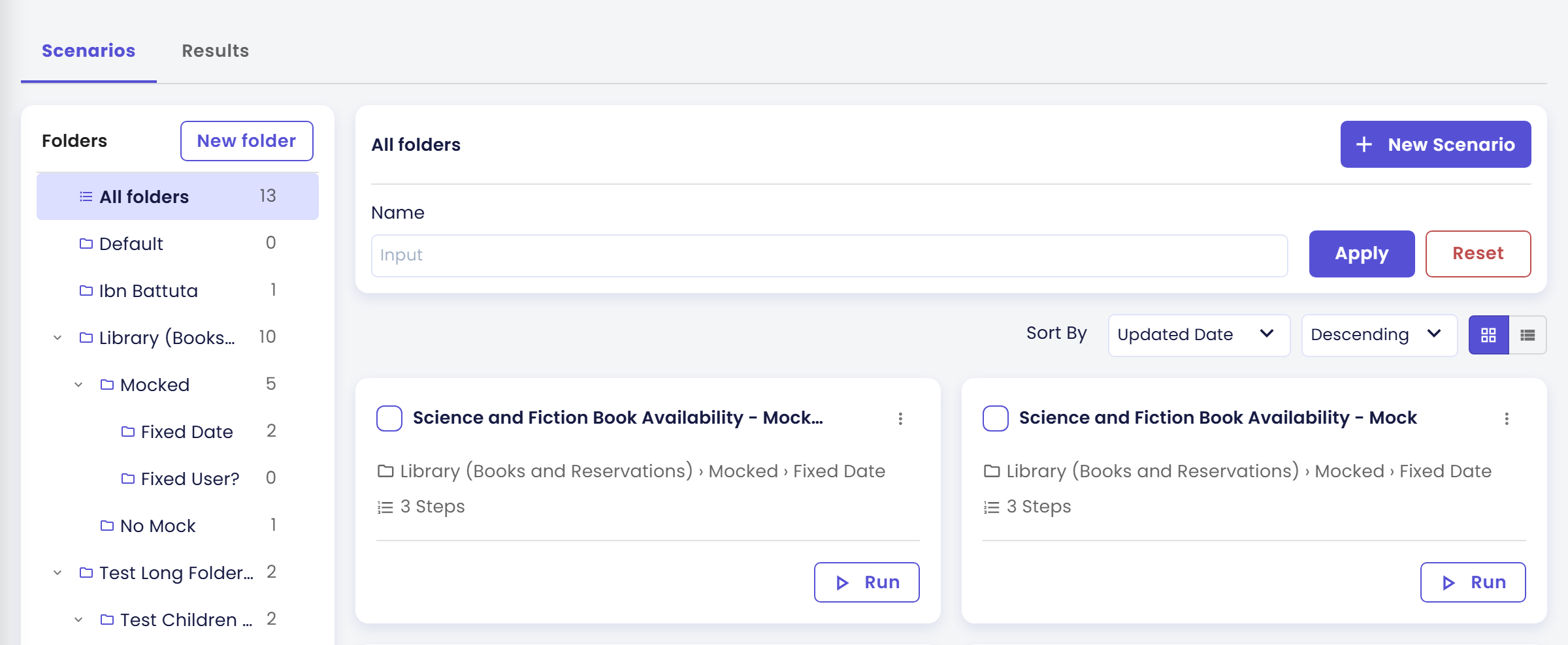
Scenarios and Results share one page of the CMS, Conversation Simulation, which has two tabs.
- Scenarios: your folders on the left and your scenarios on the right. This is where you write scenarios and start runs.
- Results: every run you have made, with its status (Completed, Failed, Running or Stopped) and the version it ran against. Open a run to read its Simulation Result.
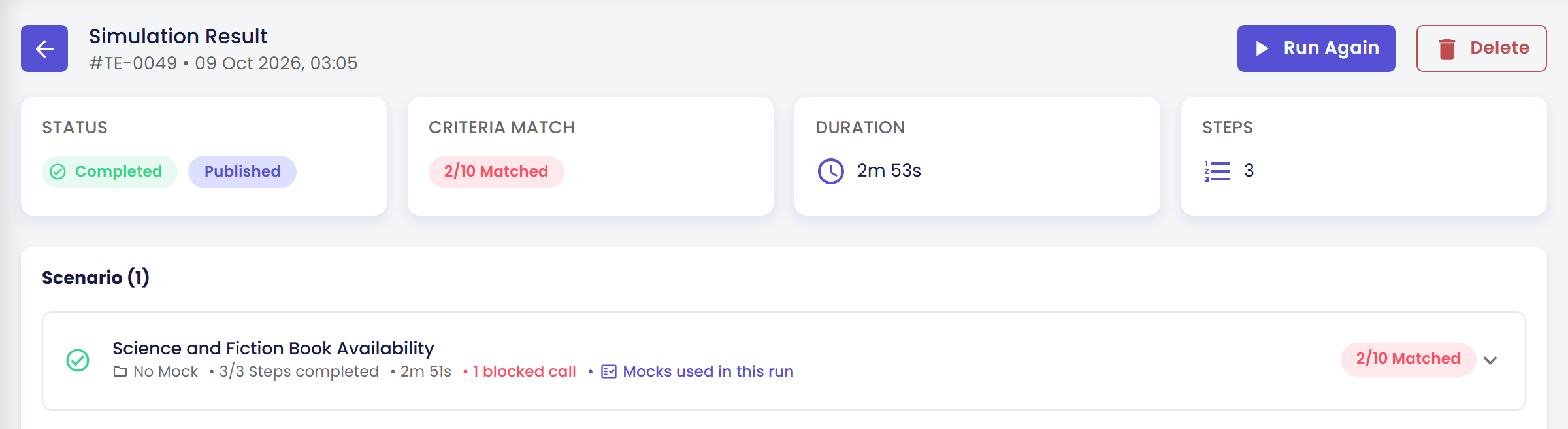
Each step of a result shows the answer the agent gave and its Evaluation Criteria (x/y Matched). A matched criterion shows the part of the answer that proves it. A criterion that was not matched shows the reason.
Published and Draft
Every run is made against one version of your agent. You choose it each time you run.
| Published | Draft | |
|---|---|---|
| What it is | What your users talk to now. | Your latest changes, before they are published. |
| Use it to | Check how the live agent behaves today, or set a baseline before a change. | Check a change before you publish it. |
| Availability | Always. | Only when the agent has a separate draft. Otherwise the choice is greyed out. |
Knowledge, documents and plugin data are shared between both versions. Only the agent's settings (such as the prompt, model, tools and skills) differ.
Tools in a simulation
Many agents call tools: your own API (a set of web addresses that one program can ask to read or change data held by another), an MCP server (a service that offers tools to AI agents in a standard way), another agent or a plugin. A test run must not change real systems by accident, so during a simulation Qlar decides for each tool call what really happens:
- A tool that only reads data runs for real.
- A tool that writes data (for example a form or a reminder) is simulated: nothing is written and the agent gets an empty "success" answer.
- A tool Qlar cannot judge, such as your own API or an MCP server, is blocked until someone reviews it. The agent is told the tool is unavailable, so a step that needs it will fail.
You can change this. Tool Mocks let you script the answer a tool gives, so a test gets the same result every time. Tool Policy sets the default for each tool. A scenario can also allow a single tool to run live. Tool Mocks and Tool Policy only appear in the sidebar when the feature is switched on for your CMS. Tools in Simulations explains all of this step by step.
Who can use Simulation
Anyone with the Owner or Contributor role on the agent can open the Simulation group and write, run and read scenarios. Using Allow live… to let a tool run live in one scenario is limited to organisation Owners and Admins, because a live call touches a real system. The Run live switches in the Tool Policy, which apply to every scenario, need only the Owner or Contributor role on the agent.
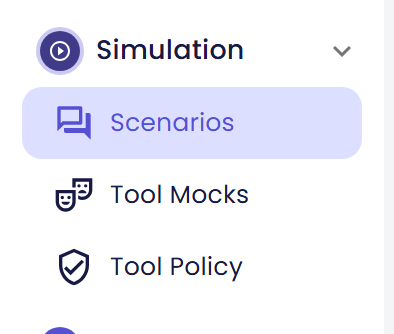
To open it, expand Simulation in the agent sidebar. It holds Scenarios, Tool Mocks and Tool Policy.
The three places Simulation is explained
The documentation covers Simulation in three places. Each has a different job.
| Place | Use it to | Where |
|---|---|---|
| Story | Follow a complete example while you set up an agent: Atlas at Kirana Group. | Configuring Your Agent → Test Your Agent's Quality |
| How-to | Learn each part of Simulation in depth, one menu at a time (these pages). | Simulation |
| Reference | Look up what one button, field or status means. | Help → Simulation |
Next steps
- Your First Simulation: build, run and read one scenario on an agent that has no tests yet.
- Organize Scenarios in Folders and Write Good Scenarios: grow your tests.
- Test Your Agent's Quality: the same ideas as part of building the Atlas agent.
- Field-by-field reference: Scenarios and Results.