Write Good Scenarios
Open in CMSA simulation is only as useful as the scenarios in it. A vague scenario passes when it should fail, or fails for no clear reason, and then you stop trusting the results. In this guide you learn how to design one scenario around one conversation, how to write criteria that tell a good answer from a weak one, how to use the AI suggestions without trusting them blindly, and when to fix the date and time. It takes about fifteen minutes.
The examples use Linguéa, a multilingual language and grammar assistant, because its questions and answers are easy to judge without any special knowledge. Linguéa itself answers only from its own reference books, so your agent may not answer these exact questions. Replace them with questions that suit your own agent. The ideas are the same. If you have never built a scenario, do Your First Simulation first.
AI is involved in several places: Qlar suggests the criteria, the agent writes its answers, and AI judges whether each answer matched. These can differ every time, so a good scenario is one whose criteria are clear enough that the verdict stays steady, even when the wording of the answer changes. This is also why you should treat a single result as a sample, not a guarantee.
Key terms
| Term | What it means |
|---|---|
| Scenario | One test conversation, with a name and a folder. |
| Step | One turn of that conversation: a User Message, an Expected Response and the criteria. |
| Expected Response | The answer you want, in your own words. It guides the criteria. It is not compared word for word. |
| Evaluation criterion | One thing the agent's answer must contain or do. Each criterion is checked on its own. |
| Fixed date & time | A setting that makes the agent believe it is a chosen date and time on every run. |
Before you start
- You have the Owner or Contributor role on the agent.
- You can open Simulation → Scenarios and have a folder to put the scenario in. See Organize Scenarios in Folders.
- You have an idea of one thing you want to check about your agent. Good scenarios start from a real question that users ask, not from a blank page.
Step 1: Decide what one scenario tests
A scenario is one conversation with one goal. "The agent explains how to say thank you" is a goal. "The agent handles everything about greetings, thanks and goodbyes" is not: when it fails, you cannot tell which part broke.
Some rules of thumb:
- One goal per scenario. Name it after the goal, for example "Saying thank you in Spanish". The name is what you see in lists and results.
- Separate the normal path from the edge cases. One scenario for the usual question, another for the awkward one (a spelling mistake, a request in another language, a question outside the agent's topic).
- Start from real conversations. Your questions from users, your support FAQs and the answers that once went wrong make the best scenarios.
- Keep it short. Most scenarios need one to four steps. A long scenario is slow to run and hard to read when it fails.
When to use more than one step
All steps of a scenario belong to the same conversation, just like a real chat. The agent remembers what it said in the earlier steps. Use several steps when the point of the test is the follow-up:
| Step | User Message |
|---|---|
| 1 | How do you say 'thank you' in Spanish? |
| 2 | And what do I say when someone thanks me? |
Step 2 only makes sense after step 1, and the second answer should keep the context of the first. If each step could stand alone, make them separate scenarios instead.
In the form, the two steps look like this when they are collapsed. Each one shows its User Message and how many criteria it has.
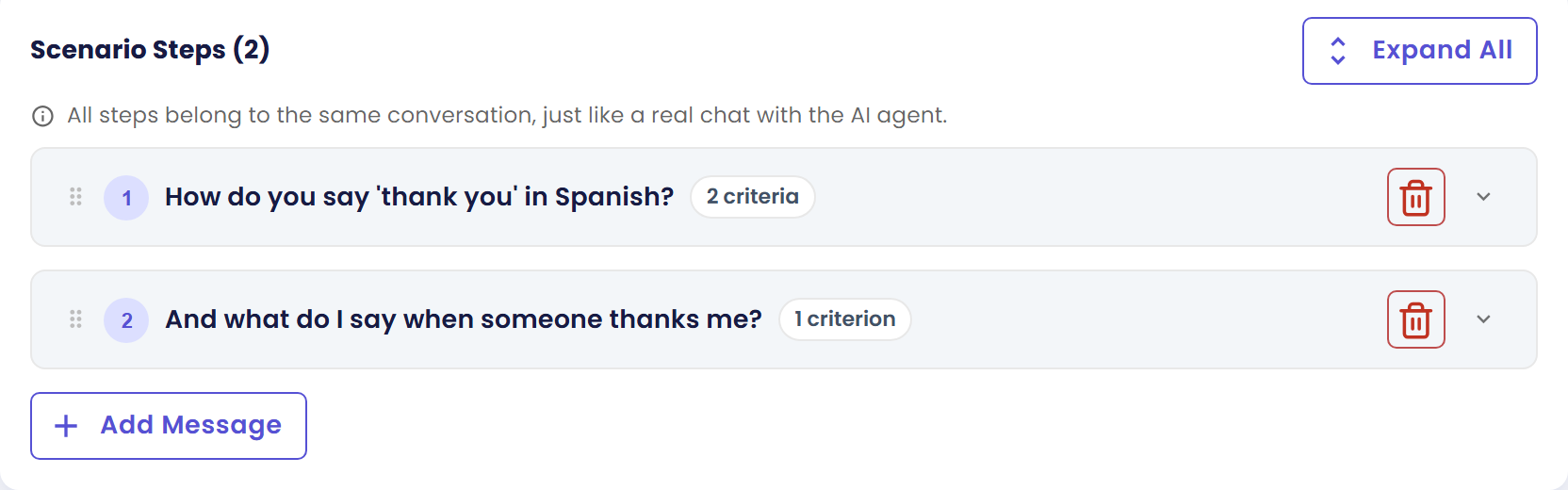
Every User Message is fixed text that is sent as written, whatever the agent answered before. So write follow-ups that still make sense when the agent words its previous answer differently. "And what do I say when someone thanks me?" works. "Use the second example you just gave" does not, because the agent might have given a different example.
Step 2: Write the steps
- Click New Scenario in the folder you want. The Create New Scenario form opens with one empty step.
- Write the User Message the way a real user would write it, with the same tone, spelling and length. Do not tidy it up. A real question tests the agent better than a perfect one.
- Write the Expected Response in your own words. It is not matched word for word. It describes what a good answer contains. Qlar uses it to suggest the criteria.
- Click Add Message to add the next step. To change the order, drag a step by its handle ("Drag to reorder steps"). To remove one, use the trash icon at its right. A scenario always keeps at least one step.
When the scenario grows, Collapse All and Expand All close or open every step card at once. A collapsed step still shows its User Message and a chip such as 2 criteria or 1 criterion.
Step 3: Write criteria that can be checked
The criteria decide whether a step passes. The run checks each criterion separately against the agent's real answer. A criterion is matched or not matched, and you see the part of the answer that proves it, or the reason it was not matched.
So a good criterion is one a stranger could check by reading the answer. Vague words like "good", "clear" or "polite" leave the judge guessing, and a guess can change from one run to the next.
| Weak criterion | Why it is weak | Strong criterion |
|---|---|---|
| The answer is good. | Nobody can check "good". | The answer says "gracias" for "thank you". |
| The agent explains clearly. | "Clearly" is an opinion. | The answer gives the Spanish phrase and one short example sentence that uses it. |
| The agent is friendly. | There is no visible sign to look for. | The answer greets the learner in Spanish, for example "¡Hola!". |
| The answer is correct and complete. | Two ideas in one, and neither is specific. | The answer says that "de nada" is what you reply to "gracias". |
| The agent does not make mistakes. | It cannot be checked without the answer key. | The answer does not call "gracias" a word for "please". |
Use these patterns when you write your own:
- Name the fact. Include the exact fact, number, name or step the answer must contain.
- One idea per criterion. If a criterion has "and" in it, split it into two. Then a failure points at one thing.
- Describe what you can see in the text. "Mentions the 14-day refund window" can be checked. "Understands the user" cannot.
- Say what must not happen. A criterion can also forbid something: "The answer does not ask the user for a password".
- Do not demand exact wording. Ask for the meaning ("says that the user must attach the receipt"), not the sentence.
Exercise: rewrite these
Here are three weak criteria for a step where the learner asks how to say "good morning":
- The answer is good.
- The agent teaches well.
- The agent gives the right amount of detail.
Try to rewrite each one before you read on. One possible answer:
- The answer says "buenos días" for "good morning".
- The answer gives the Spanish phrase and one short example sentence that uses it.
- The answer has no more than three sentences.
Your own rewrite may differ and still be good. The test is: could someone check it by reading the answer?
Step 4: Let Qlar suggest criteria, then review them
You do not have to write every criterion from scratch.
- Fill in the User Message and the Expected Response of a step.
- Click Suggest Criteria in that step. Qlar writes criteria from your Expected Response, and the Evaluation Criteria box lists them.
- The button now reads Rewrite Criteria. (It reads Rewrite Criterion when the step has exactly one.) Click it to ask for a fresh set.
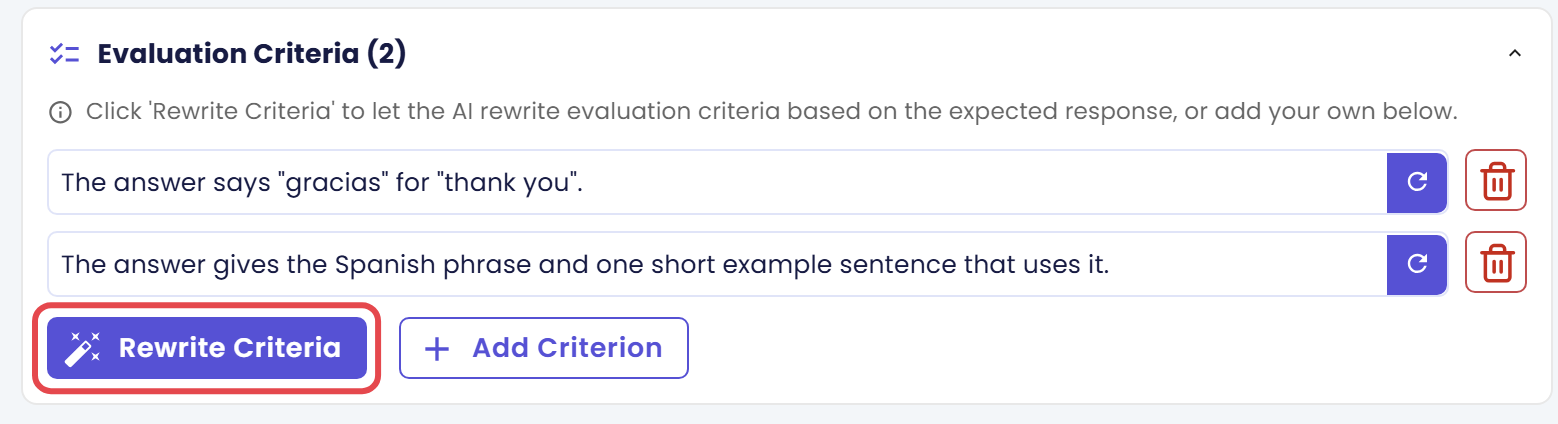
- When every step has criteria, click Save. Until then, the button at the bottom of the form reads Suggest All Criteria (x/n Steps ready) and fills in every step that has none. On a new scenario, Save opens the Scenario Information dialog, where you check the name and folder, click Continue and confirm. Your First Simulation walks through it.
Suggest Criteria is greyed out until the step has an Expected Response.
Two things to know before you click Rewrite
- Rewrite replaces the whole list. Your own criteria and your edits on that step are replaced by the new suggestions. If you want to improve one criterion only, edit its text. At the end of a criterion's field there is a purple refresh icon that asks AI to reword just that one. Add Criterion adds an empty criterion for you to type, and the red trash button next to a field removes it.
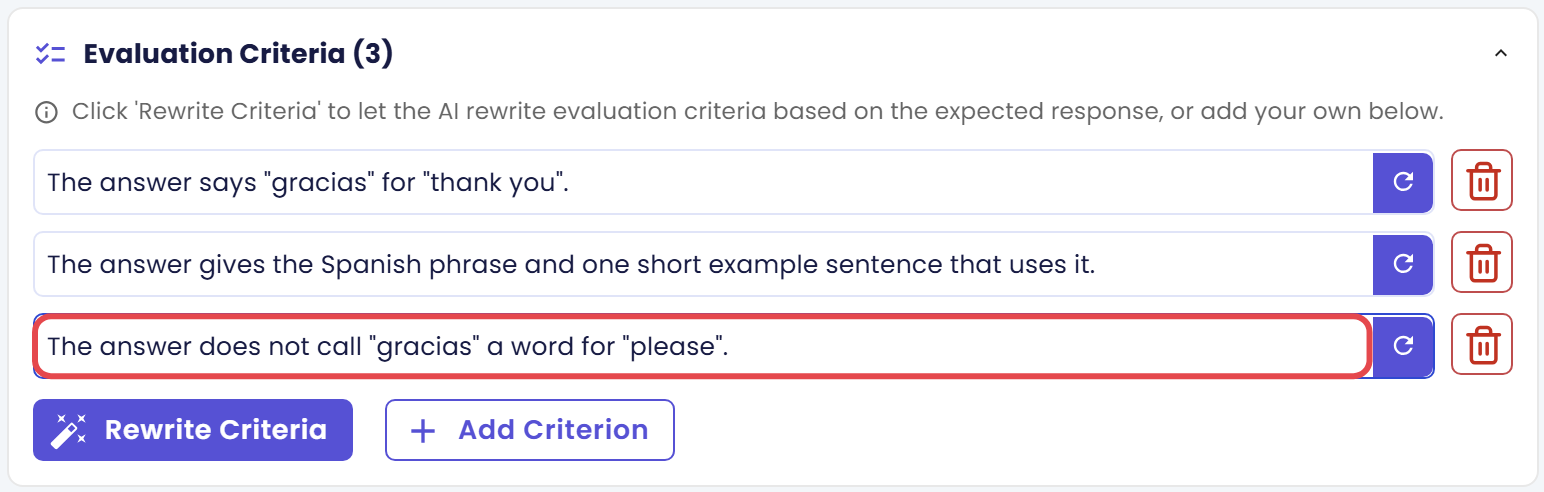
- Rewrite works from the Expected Response. If the suggestions are off, improve the Expected Response first.
Why you should review every suggestion
The suggestions are written by AI. They are a good first draft and a poor final answer. Read each one and check:
- Is it true? The AI can state a fact you did not mean as a requirement, or a fact that is wrong for your business.
- Is it checkable? Rewrite vague ones with the patterns in step 3.
- Is it too strict? A criterion that demands exact wording fails good answers.
- Is anything missing? The AI rarely thinks of what must not happen. Add those criteria yourself.
- Is there too much? Five criteria that all say the same thing make one weak answer look like five failures. Keep the ones that matter.
A criterion that flips between matched and not matched when you run the same scenario twice is almost always too vague. Rewrite it and run again.
Step 5: Fix the date and time when it matters
By default, the agent behaves as if it is the real current date and time. For most scenarios that is right. It becomes a problem when the answer depends on the date.
Think of a scenario where the learner asks "What day is today? Say it in Spanish." The correct answer changes every day, so a criterion such as "The answer says 'lunes'" passes on Mondays and fails the rest of the week. Other cases where dates matter:
- The user says "tomorrow", "next Friday" or "this month".
- The agent calls a tool with a date, such as a booking for "tomorrow".
- A criterion mentions a weekday, a month or a deadline.
For those scenarios, fix the clock:
- Open the scenario, or start a new one.
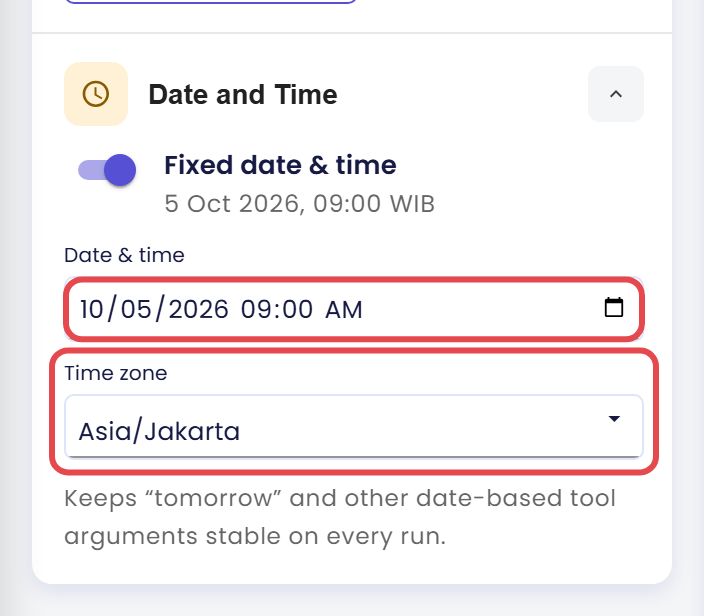
- Find Date and Time in the setup panel on the left of the form. On a narrower screen it is a row under the scenario information, and it opens in place when you click it.
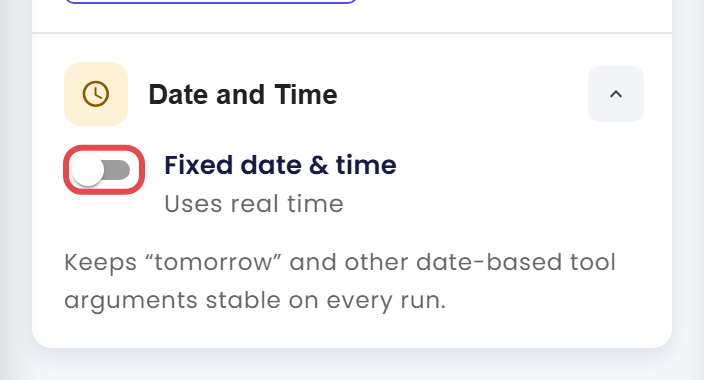
- Switch on Fixed date & time. Under the switch, the line "Uses real time" turns into the chosen date, for example "5 Oct 2026, 09:00 WIB". The switch starts with the current date and time in your browser's time zone.
- Change Date & time to the moment you want the agent to believe it is.
- Choose the Time zone for that moment. The Date & time field uses your browser's date format, so it may read differently from the picture.
- Click Save. On a scenario that already exists, confirm with Yes. On a new one, Save opens the Scenario Information dialog for the name and folder, as described in Your First Simulation.
The panel adds this reminder: "Keeps “tomorrow” and other date-based tool arguments stable on every run." On every run, the agent is told it is that date and time, so today and tomorrow always mean the same day. Your criteria can then rely on it. If you fixed a Monday, a criterion such as The answer says lunes is safe.
Leave the switch off when the scenario does not depend on the date. Then the agent behaves exactly like it does for your users today, which is what you want most of the time.
Date and Time only shows when the mock features are switched on for your CMS, the same as Tool Mocks and Tool Policy. See Tools in Simulations for more about how tools behave in a run.
Check the result
You made it if you see all of these:
- A scenario with one goal, whose name tells you what it checks.
- Each step has a User Message, an Expected Response and at least one criterion, each of which someone could check by reading the answer.
- If dates matter in the scenario, Fixed date & time is on and the Date and Time panel shows the date you chose.
If you see something else:
- Suggest Criteria is greyed out. The step has no Expected Response yet. Write one first.
- The criteria are too many or too vague. Delete the extra ones with the trash icon and rewrite the vague ones with the patterns in step 3.
- My edits disappeared. You clicked Rewrite Criteria, which replaces the whole list of that step. Type your own criteria again with Add Criterion. Use Rewrite Criteria before you hand-edit, not after.
- The same scenario passes and fails on different runs. A criterion is too vague, or it depends on today's date. Rewrite it, or turn on Fixed date & time.
- There is no Date and Time panel. The mock features are not switched on for your CMS, so the panel is hidden.
- The results are not what you expected. The agent's answers and the AI's judgement change between runs, so which criteria are matched or not matched, and whether a step passes or fails, can differ. Click Run Again and compare. A criterion that keeps flipping is too vague.
Next steps
- Next in this section: Run Simulations, to choose Published or Draft and start the run, then Read the Results.
- To keep scenarios tidy: Organize Scenarios in Folders.
- If your agent calls tools: Tools in Simulations.
- Field-by-field reference: Scenarios.