Run Simulations
Open in CMSA run plays your scenarios against your agent and records what it really answers. In this guide you learn every way to start a run, how to choose between the Published and Draft version of your agent, what the blocked-tools warning means, and how to follow, stop and repeat a run. It takes about ten minutes.
The example agent is Libraría, which already has folders and scenarios. Your agent will have other names. The steps are the same. If you have not written a scenario yet, start with Your First Simulation.
AI is involved while a run is going: the agent writes its answers and AI judges every criterion. These can differ every time, so the same scenario can read slightly differently from one run to the next. Treat one run as a sample, not a guarantee.
Key terms
| Term | What it means |
|---|---|
| Run | One start of one or more scenarios against your agent. Every run gets its own result, with a code such as #TE-0001. |
| Run against | The choice in the confirmation dialog of which version of the agent answers: Published or Draft. |
| Published | The version your users talk to now. |
| Draft | Your latest saved changes, which are not published yet. |
| Blocked tool | A tool the run will not call, because nobody has decided it is safe. The agent is told it is unavailable. |
| Version chip | The small Published or Draft label on a run, in the Results list and on the result page. |
Before you start
- You have the Owner or Contributor role on the agent.
- You have at least one scenario. See Your First Simulation.
- You know the difference between a draft and a published agent. If not, read Preview and Publish Changes first. It takes a few minutes.
Step 1: Pick how to start a run
Every way of starting a run opens the same confirmation. They differ in what they run.
| To run | Do this |
|---|---|
| One scenario, from the list | In Simulation → Scenarios, click Run on the scenario's card. In List View, click Run at the end of its row. |
| One scenario, from its form | Open the scenario to open the Edit Scenario form. Click Run at the top right. |
| A whole folder | Select the folder, then click Run All (n) above the list, or open the folder's ⋮ menu and choose Run all. |
| A hand-picked set | Tick the checkbox on each scenario, then click Run Selected (n). |
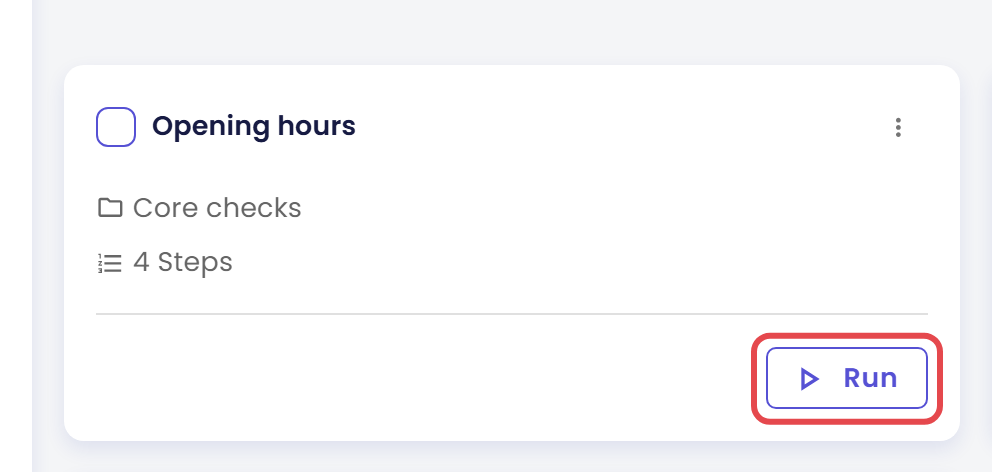
A folder run and Run Selected put all their scenarios in one run, with one result. See Organize Scenarios in Folders for Include Subfolders and selecting scenarios.
Two things to know about the form:
- A run uses the saved scenario. If you changed the form and did not save, save first. If you changed which tools are allowed to run live and did not save, Qlar tells you to save before running.
- The Run button only exists on a scenario that is already saved. On a new one, save it first.
A finished run also has a Run Again button. See step 6.
Step 2: Choose Run against
Every confirmation asks which version answers. It asks the question first, for example Are you sure you want to run the scenario "Opening hours"?, then shows Run against with two options.
| Option | What it shows under its name | Meaning |
|---|---|---|
| Published | "What your users talk to now." | The live agent. This is the default the first time. |
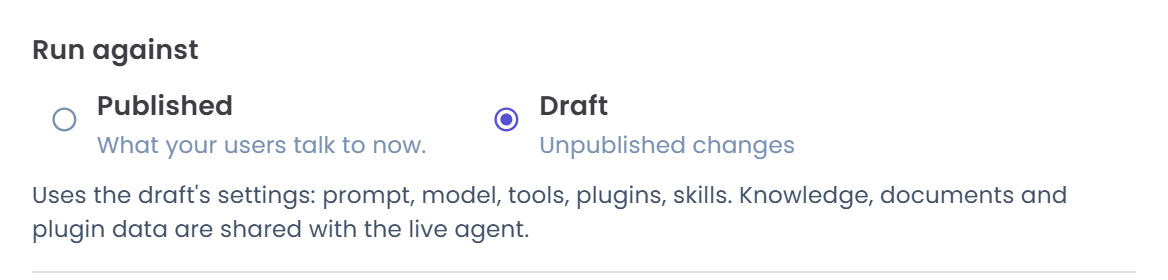
| Draft | "Unpublished changes", "Same as published right now" or "No separate draft yet." | Your saved changes that are not published yet. |
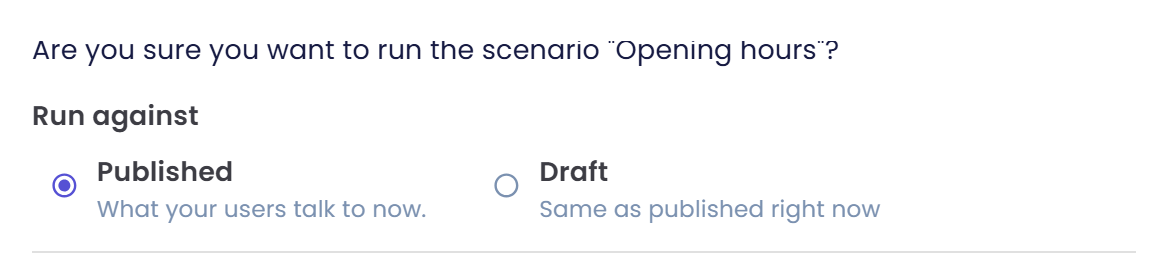
The three hints under Draft tell you whether it is worth choosing:
- Unpublished changes. You have saved changes that users cannot see yet. A Draft run shows how the agent will answer after you publish.
- Same as published right now. The draft has no changes of its own. A Draft run and a Published run will answer the same way.
- No separate draft yet. The agent has no separate draft, so Draft is greyed out and cannot be chosen.
The dialog remembers your last choice for each agent, so the next run starts with it.
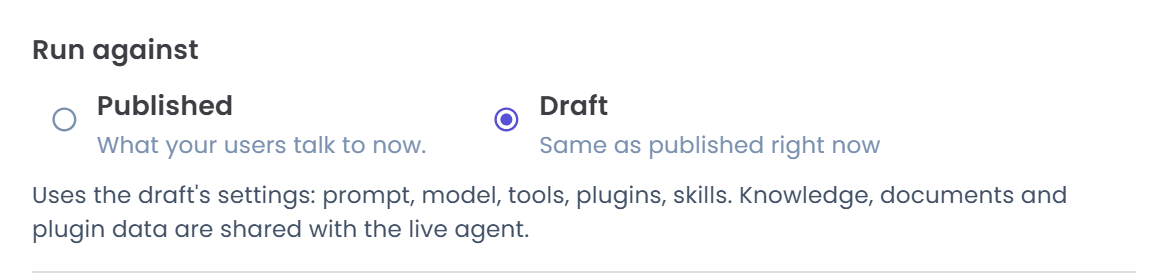
When you choose Draft, a note appears under the options: "Uses the draft's settings: prompt, model, tools, plugins, skills. Knowledge, documents and plugin data are shared with the live agent." So a Draft run tests your changed settings, but it reads the same knowledge base, documents and plugin data as the live agent. That is why adding a document is not something you need to publish before testing.
If the scenario lets the escalation tool run live and you chose Draft, a second note says "Escalations from this run go to the draft escalation inbox."
Step 3: Read the blocked-tools warning
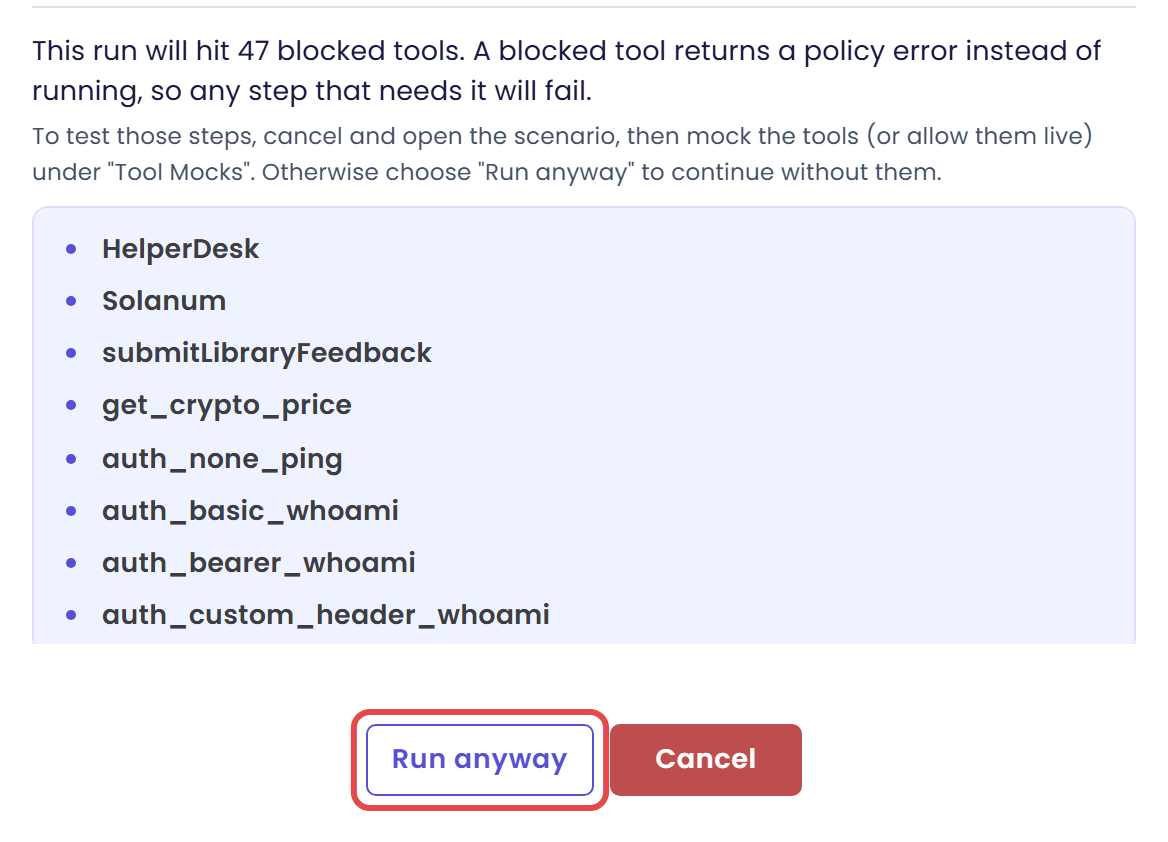
When you run a single scenario from its card, its row or its form, Qlar also checks the tools your agent would call. If the run would hit tools that are blocked, the confirmation lists them under a divider:
"This run will hit 47 blocked tools. A blocked tool returns a policy error instead of running, so any step that needs it will fail."
Each blocked tool is listed by name. A long list scrolls inside the dialog. The list follows the version you chose under Run against. Switch between Published and Draft and the list can change, because the two versions can have different tools.
Under the sentence, a hint says what you can do:
- From the Edit Scenario form, when Tool Mocks is switched on for your CMS, a Mock it link sits next to each tool. It opens the mock set editor for that tool, so the tool gets a scripted answer. The hint reads "Click "Mock it" to give a tool a simulated response, or choose "Run anyway" to continue without them."
- From a card or a row, the hint reads "To test those steps, cancel and open the scenario, then mock the tools (or allow them live) under "Tool Mocks". Otherwise choose "Run anyway" to continue without them."
The confirm button changes from Yes to Run anyway. Choosing it starts the run with those tools blocked, so any step that needs one of them fails. That is fine when you only want to test the rest of the conversation. If you want those steps to pass, cancel and give the tools a mock first. Tools in Simulations explains how Qlar decides what happens to each tool, and Tool Mocks shows how to script one.
Qlar does not list blocked tools for Run All or Run Selected, because several scenarios are involved. Use the Agent Tools summary in each scenario to check them. Two more notes can appear in the dialog: that the draft's or published version's tool list could not be loaded in full, or that the agent's tool policy could not be loaded. In both cases the list may be incomplete.
Step 4: Start the run and follow it
- Check Run against and click Yes (or Run anyway).
- Qlar shows a message such as
Running scenario "Opening hours" against the published version.... A run on Draft says "against the draft". - When the success message appears, for example
Scenario "Opening hours" execution started successfully against the published version, click Close. A run for a folder says"Core checks" execution started successfully against the published version. A run for ticked scenarios says3 scenarios execution started successfully against the published version.
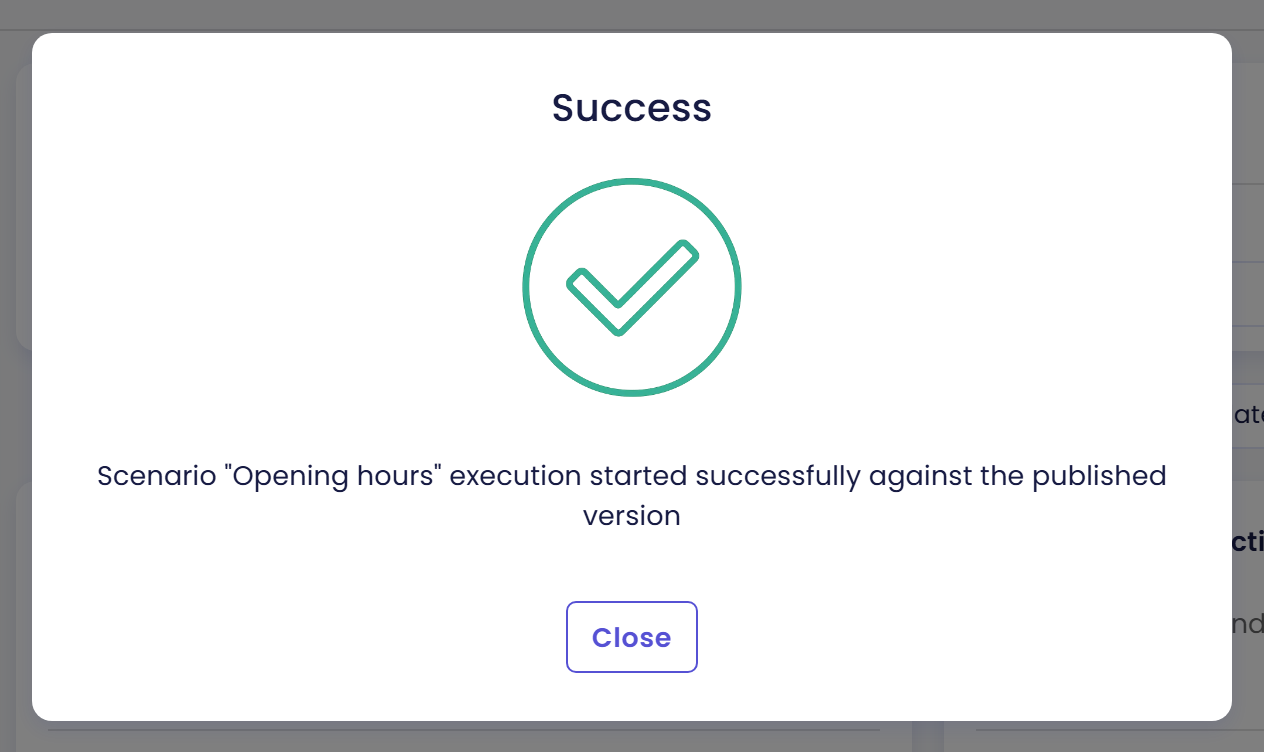
Qlar opens the Simulation Result page for the run. The status chip starts as Running and turns Completed when it is done. Next to it, the version chip shows Published or Draft, so you always know which version answered. The page updates by itself.
- A run with a slow answer can take a few minutes. After 10 minutes the page stops updating by itself and says "Live updates paused after 10 minutes — use refresh to check the latest status." Click the refresh icon to see the latest status.
- If the agent was published, or the draft changed, while the run was going, the page warns you that later scenarios may have used the newer settings. Run it again if you need a clean result.
How to read the answers, criteria and tool calls is in Read the Results.
Step 5: Stop a run
A run that is still going can be stopped, for example when you started it on the wrong version.
- On the Simulation Result page, click Stop. It is the red button at the top right, and only exists while the status is Running.

- Qlar asks "Are you sure you want to stop this execution?" Click Yes.
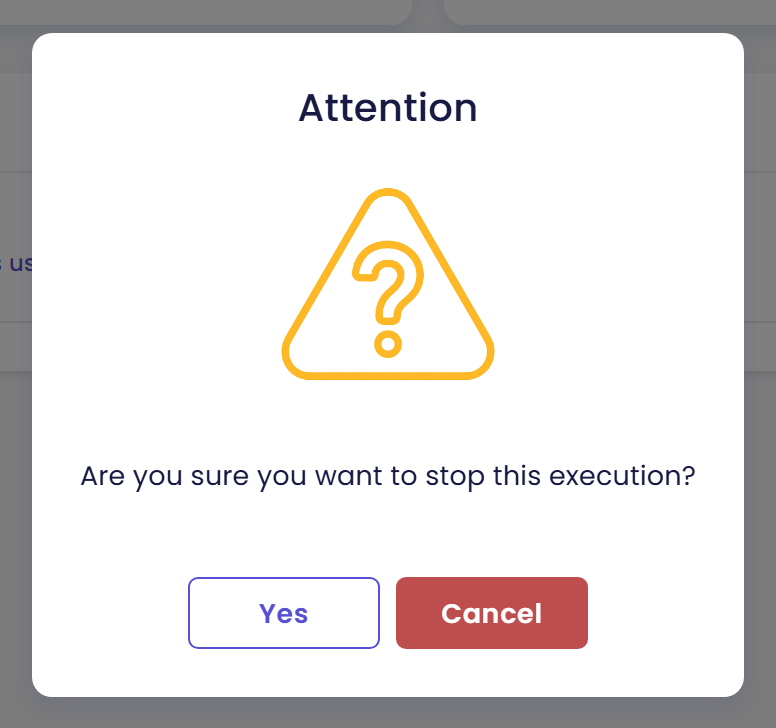
- When "Run stopped successfully" appears, click Close.
The status turns to Stopped. To start it over, click Run Again.
Step 6: Run Again
Once a run is no longer Running, the Run Again button appears at the top right of its result page. Click it to run the same scenarios once more. Next to it is a Delete button, with a trash icon, that removes this result after a confirmation.

- It asks no confirmation and does not ask for a version. A rerun uses the same version as the original run.
- When "Test execution started successfully" appears, click Close. Qlar opens the new result.
- The old result stays where it is, so you can compare the two.
A run on Draft uses the draft as it is when you click Run Again. If you changed the agent in between, the new run answers with the new settings. That makes Run Again the quickest way to check a change you just made. Fix and Retest builds on it.
Step 7: Try a run on Draft
This walk-through shows what Draft is for. You make a small change, run on Draft, and see the version chip.
- Open your agent's Profile page, titled Agent Profile, change the Disclaimer text a little, and click Save, then Yes. Any change you save on the agent creates unpublished changes. A change to the disclaimer does not alter how the agent answers, so it is a safe way to practise. A real change to the agent's instructions would show up in the answers.
- Go to Simulation → Scenarios and click Run on a scenario.
- Under Run against, look at the Draft hint. It now reads Unpublished changes. Choose Draft.
- Click Yes (or Run anyway), then Close on the success message.
- On the result page, the version chip next to the status says Draft.
The video shows steps 2 to 5, starting after the Disclaimer change.
While the change is pending, Publish shows in the top bar next to Preview.
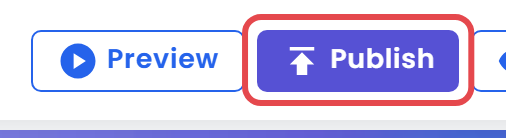
Do not publish unless you want your users to see the change. If you only practised, set the Disclaimer back and save again. A save marks the agent as having unpublished changes even when nothing differs, and only Publish clears it. See Preview and Publish Changes.
Where the version shows
The version of every run stays visible, so you can tell a check of the live agent from a check of a change:
- On the Results tab, each run shows a Published or Draft chip. In List View, Version is a column.
- The Version filter on that tab shows only All, Draft or Published runs.
- On the Simulation Result page, the chip sits next to the status chip.
Check the result
You made it if you see all of these:
- A confirmation with Run against, and a success message that names the version, for example "against the published version".
- A result page with a status that changes from Running to Completed, and a Published or Draft chip next to it. A run can also end as Failed, when something went wrong during the run, or as Stopped, when someone clicked Stop. Both still count as a run: open the result to see why, or click Run Again.
- After Run Again, a second result with its own code.
If you see something else:
- Draft is greyed out. The hint says "No separate draft yet." The agent has no separate draft copy yet. Save a change to the agent first, or run on Published for now.
- A Draft run and a Published run answer the same way. The hint says "Same as published right now", so there are no differences. Save a change on the agent first.
- The button says Run anyway. The run would hit blocked tools. Read the list, then mock the tools or continue.
- Run does not appear in the form. The scenario is not saved yet. Save it first.
- The run is stuck on Running. Click the refresh icon on the result page. If it still does not move after a few minutes, click Stop and Run Again.
- The failure is at one step. Open the scenario in the result. It says "Failed at step #n" and gives the reason. See Read the Results.
- The outcome differs from last time. The agent's answers and the AI's judgement change between runs, so which criteria are matched or not matched, and whether a step passes or fails, can differ. Click Run Again and compare.
Next steps
- Next in this section: Read the Results, then Fix and Retest.
- If your agent calls tools: Tools in Simulations.
- Story version: Test Changes Before You Publish runs the same check for Atlas, Kirana Group's agent.
- Field-by-field reference: Scenarios and Results.