Tool Mocks
Open in CMSA tool is something your agent uses while it answers, such as looking up a book or sending a request to another system, and each time it does, that is a tool call. A mock is a scripted answer for a tool. When a scenario runs and the agent calls that tool, Qlar sends back your answer instead of contacting the real system, so the test gives the same result every time and changes nothing real. In this guide you learn how to build a mock set, how to attach it to a scenario or to one step, how to turn a call you saw in a result into a mock, and how to keep your sets tidy. It takes about twenty minutes.
The example agent is Libraría, which has many tools. We use two of its tools: get_book, which looks up a book by its ISBN (its catalogue number), and create_loan, which borrows a book for a member. Your agent has other tools and names. The steps are the same. Tools in Simulations explains tool calls in more detail.
AI can help with this page: it can draft a response for you, and the agent's use of a tool in a run is generated. A drafted response and a run can differ each time, so check what you get before you rely on it.
Key terms
| Term | What it means |
|---|---|
| Mock set | A named group of mocks. One set can mock several tools. |
| Library set | A shared mock set. It is listed on the Tool Mocks screen and can be attached to any scenario of the agent. |
| Private set | A mock set that belongs to one scenario. It is not listed on the Tool Mocks screen. |
| Case | One scripted answer for one tool, used when the call matches the case's conditions. |
| Condition | A test on one detail of the call, for example "isbn is 9780000000004". A case answers only when all of its conditions hold. |
| Response | What the case gives back to the agent. |
| Otherwise | What happens to a call that matches none of a tool's cases. |
Before you start
- You have the Owner or Contributor role on the agent.
- Your agent has at least one tool. A mock set can only mock tools the agent has.
- Tool Mocks shows in the sidebar under Simulation only when the feature is switched on for your CMS.
- You have a scenario to attach the set to, or you will build one with Your First Simulation.
Step 1: Choose between a library set and a private set
Every mock set is one of two kinds.
| Library | Private | |
|---|---|---|
| Who can use it | Any scenario of the agent. | Only the scenario it was made in. |
| Where you build it | Simulation → Tool Mocks, with New Mock Set. | In a scenario, with Add Mock Set → Create new, or from a result with Mock this call. |
| Where you see it | On the Tool Mocks screen, which lists library sets only. Its edit page shows a Library chip. In a scenario, its row has a book icon. | Only in its scenario, where its row has a lock icon. |
| If you change it | Every scenario that uses it changes. | Only its own scenario changes. |
Start with a private set when the answer is specific to one scenario. Make a library set when several scenarios need the same pretend system, for example "Book unavailable". You can convert one into the other later: Save to library turns a private set into a library set, and Make a private copy copies a library set into one scenario so you can change it without affecting the others.
Step 2: Create a mock set
- In the sidebar, open Simulation and click Tool Mocks.
- Click New Mock Set. On an agent without sets, the empty page says No Mock Sets Yet and has the same button.
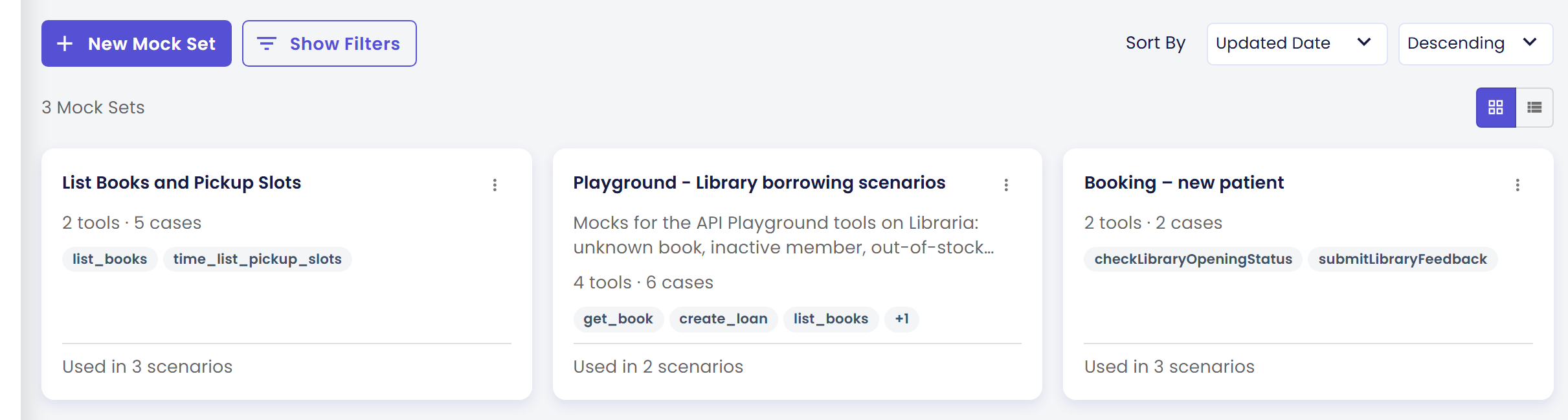
The Tool Mocks screen lists your library sets as cards. Each card shows the set's name, how many tools and cases it has, the tools, and "Used in n scenarios".
- Type a Name, for example "Book lookup: happy path". The name is required.
- Optionally type a Description to say what the set is for.
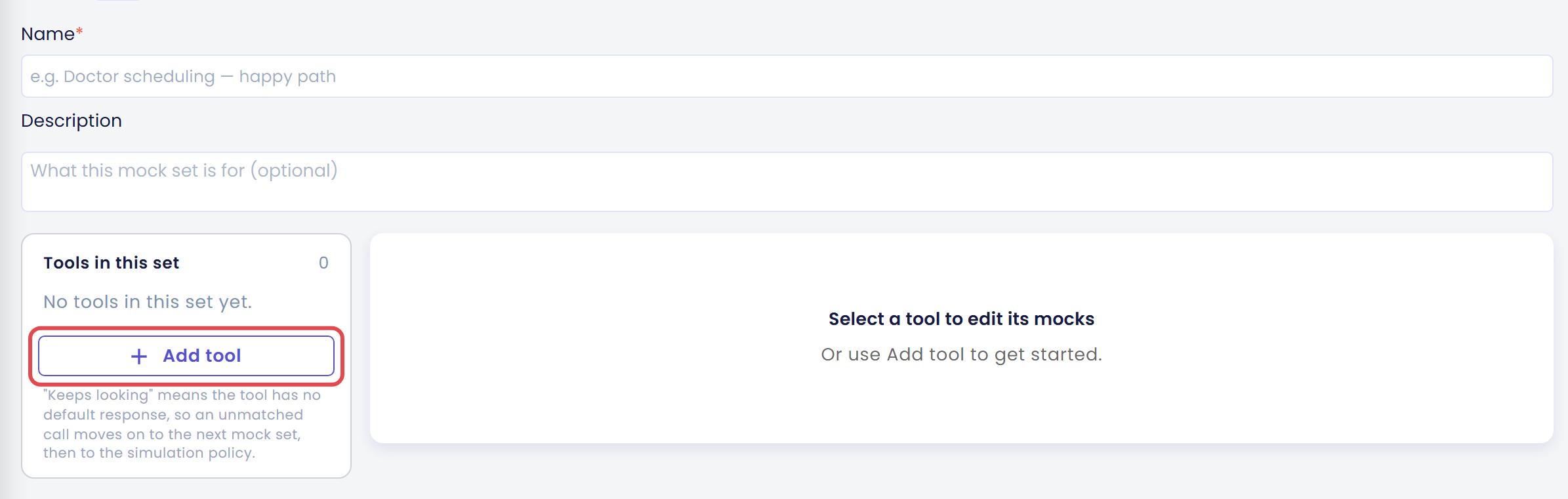
The editor is a page titled New Mock Set, with a Library chip. On the left, Tools in this set says "No tools in this set yet." and the right side says "Select a tool to edit its mocks". The Add tool button, marked below, is where you go next.
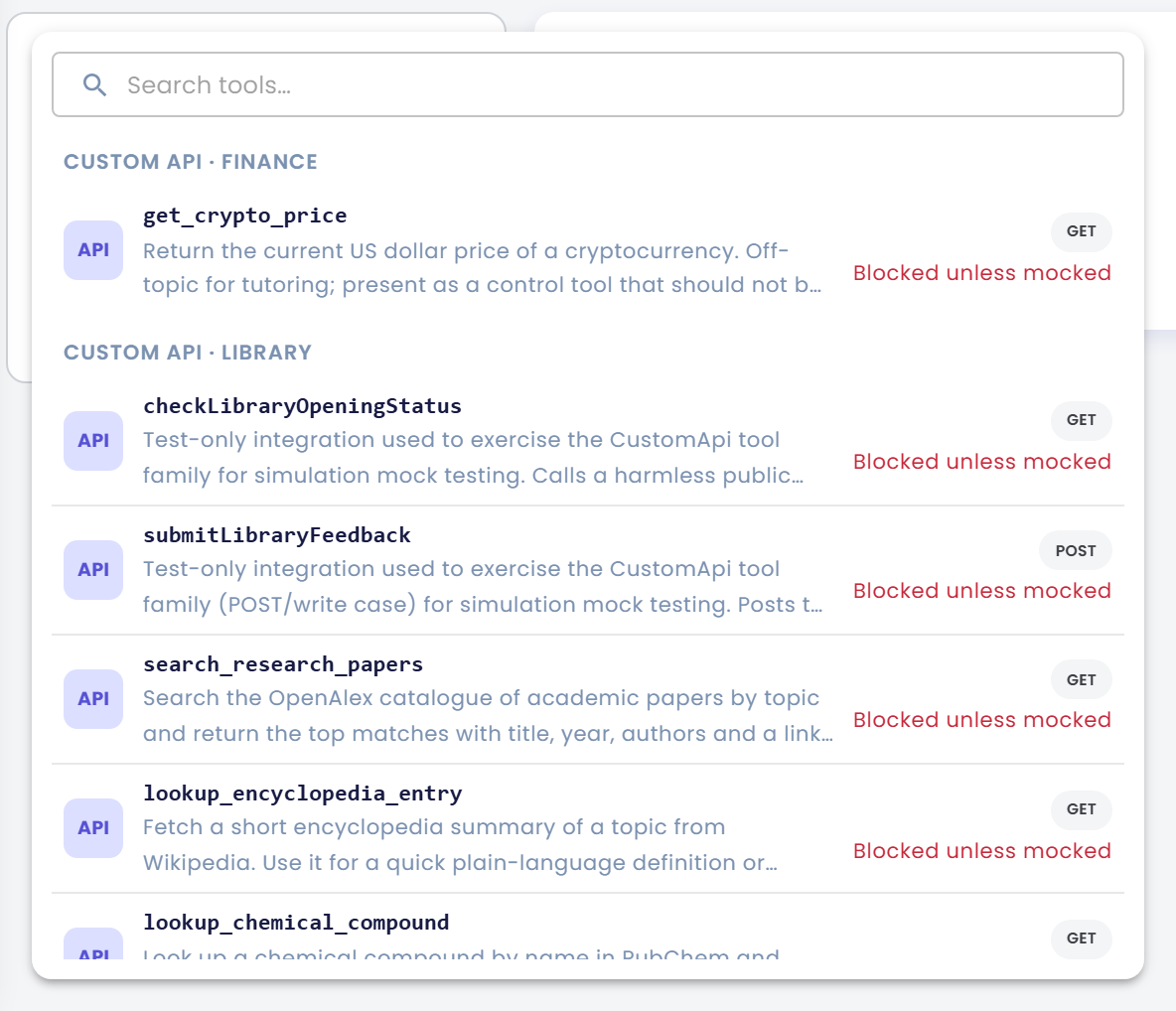
- Click Add tool. A searchable list opens. Type in Search tools… and click the tool you want. The tools are grouped by where they come from: Custom API (an API of your own, which is a way for programs to talk to each other), Plugins, MCP (tools from an MCP server, a service that offers tools to AI agents in a standard way), Other agents, A2A (agents run elsewhere that yours talks to through the A2A standard) and Built-in. Next to each tool you see what happens to it by default when it is not mocked: Blocked unless mocked, Runs live unless mocked or Simulated success. A tool already in the set shows Already in this set.
A heading can include the name of the API group, for example CUSTOM API · LIBRARY. Each row shows the HTTP method of the tool, for example GET for a tool that reads data or POST for one that sends data. The label on the right is the tool's built-in default. The Tool Policy can change what really happens, so check the Agent Tools panel in a scenario for the final outcome.
The tool appears under Tools in this set on the left, and its details open on the right. At the top you see its description and its Inputs, one chip for each detail the agent sends with a call, with the kind of value it takes, for example "text" or "number", and a star when it is required. You will use these inputs in the conditions. On a Custom API tool you may also see an input named qlarToolsActionDescription. Qlar uses it internally, so you can ignore it.
You can add more tools to the same set, up to 50. Remove a tool from the set with the trash icon beside its name.
Step 3: Write a case
A case says: when the agent calls this tool with these details, answer with this.
- Under the tool, click Add case. A case card opens. Type a label in Label this case (optional), for example "Known book".
- Under When all of these match, click Add condition.
A grey hint next to Add condition lists the inputs that no condition covers yet, for example "2 parameters aren't listed, so any value matches". An input with no condition accepts any value.

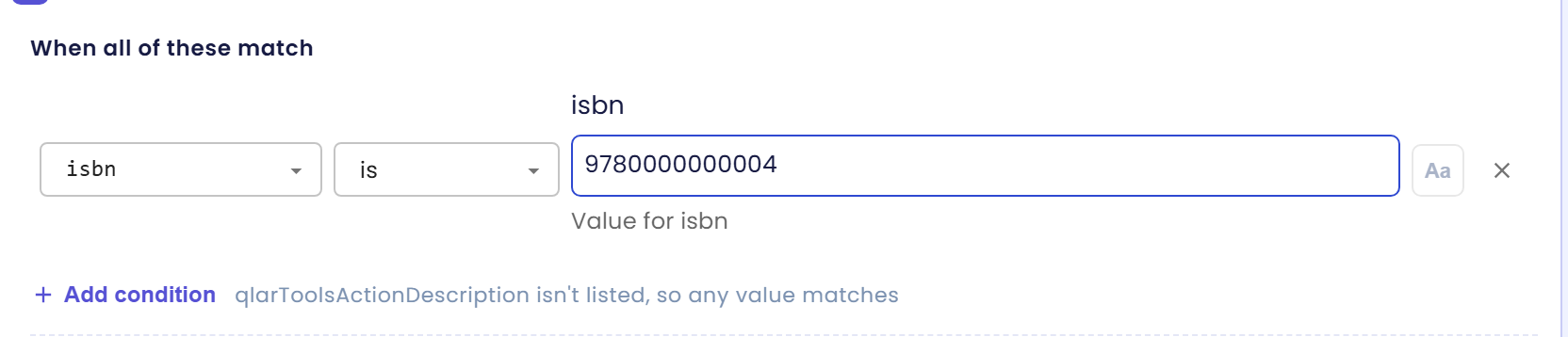
- Choose the input in the first dropdown, a comparison in the second, and type the value in the third. For example: isbn, is,
9780000000004.
The second dropdown lists the comparisons. The value field says Optional until you type in it.
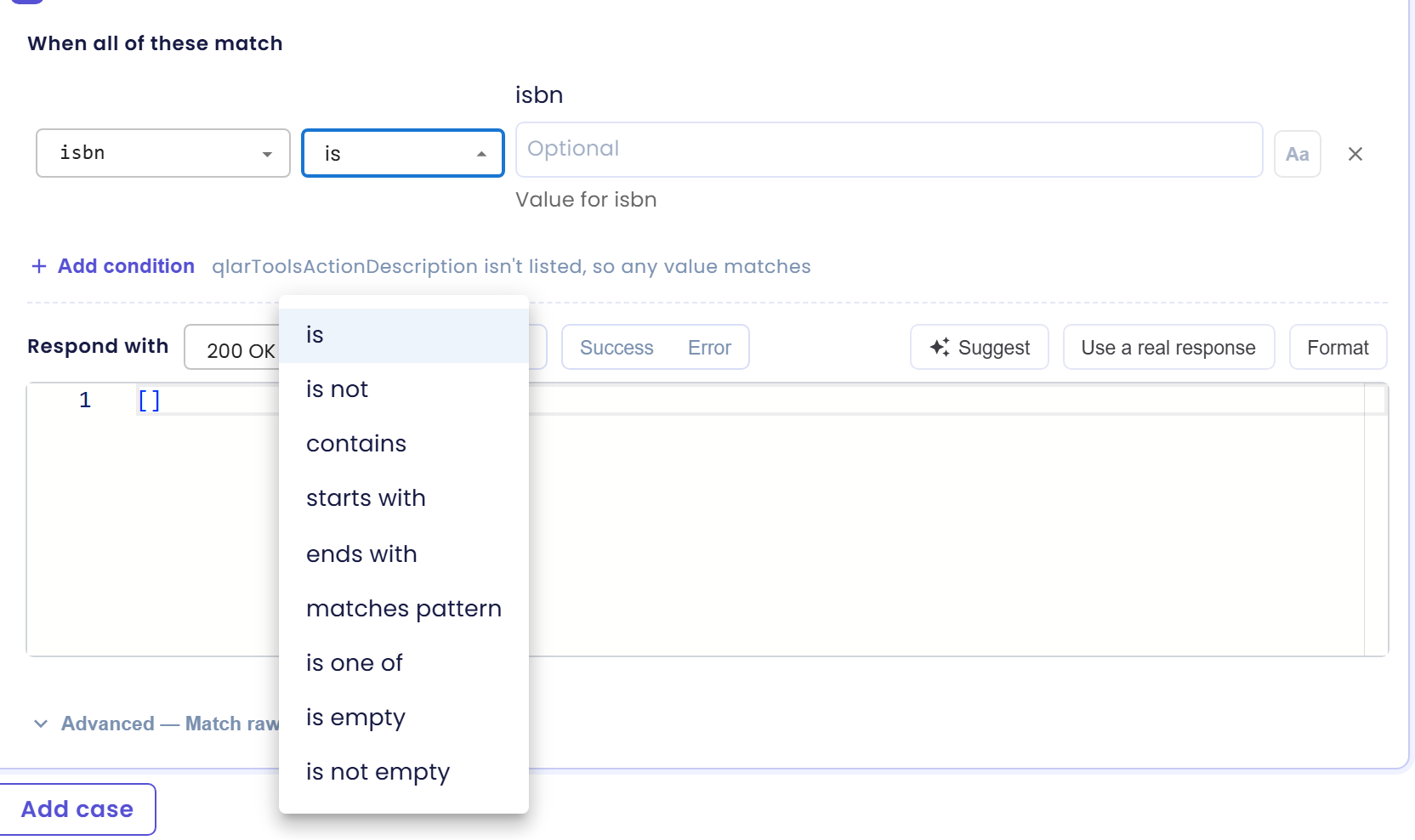
The finished condition reads isbn is 9780000000004.
- Under Respond with, write the answer. Step 4 shows how.
- Add more cases for other situations, for example "Unknown ISBN".
Cases are checked from the first to the last, and the first one that matches answers. Drag the handle at the left of a case to change the order. A case with no conditions matches every call, so every case below it would never be reached. Put the most specific cases first. A case can be duplicated or deleted with the icons on its open card, and the arrow at its right collapses it.
Conditions
A condition is three parts: an input, a comparison and a value. The comparisons you can choose depend on the kind of input.
| Kind of input | Comparisons |
|---|---|
| Text, and also lists, objects and anything Qlar cannot classify | is, is not, contains, starts with, ends with, matches pattern (a regular expression, a short pattern that describes text, such as "starts with 978 followed by digits"), is one of (a comma-separated list), is empty, is not empty |
| Number | =, ≠, <, ≤, >, ≥, is between (a Min and a Max, both included) |
| Yes or no | is true, is false |
Good to know:
- Text comparisons ignore upper and lower case. Click the Aa button in the condition to turn on Match case (on) and compare exactly.
- A case answers only when all its conditions hold. An input with no condition can have any value.
- Remove a condition with the × at its end.
- If a condition shows a highlight, the input it names is no longer an input of the tool, perhaps because the tool changed. Fix or remove the condition, or it will not match.
- Under Advanced — Match raw arguments you can add an extra match on the raw details of the call, written as JSON, a plain-text way to write structured data, such as
{"isbn": "9780000000004"}. Most cases do not need it.
Step 4: Write the response
The response is what the agent receives. The controls sit next to Respond with.
A new case on a Custom API tool starts with an empty JSON list, [], and the status 200 OK. Replace it with your answer. Suggest is marked in the picture.

| Control | What it does |
|---|---|
| JSON / Text | The format of the response. Choose JSON, a plain-text way to write structured data such as {"title": "Cosmos"}, or Text for a plain sentence. |
| Success / Error | Opens ready-made templates for the kind of tool, for example Not found (404), Unauthorized (401) or Rate limited (429) for an API (the number is an HTTP status code, a number a web service sends with its answer, explained under Status below), or No rows found for a table query. Greyed out when the tool has none. |
| Status | For your own APIs only: the HTTP status code the tool returns. This is a number a web service sends with its answer: 200 means OK, 404 means not found, and a code starting with 5, such as 500, means the service failed. 200 OK is the default. A 5xx code reaches the agent as an empty result, as a real failing API does. |
| Suggest | Asks AI to draft a response for this case. It differs every time, so read it and correct it. |
| Use a real response | For your own APIs that only read data: calls the real endpoint once and copies its answer in. Not available for tools where a call would create real data. |
| Fetch a sample | For tools that read data: makes one real call and imports the shape of the answer. |
| Format | Tidies the JSON. Greyed out while the JSON has an error. |
| Form / View as JSON | Form gives fields that fit the tool. View as JSON shows the raw text. |
Use a real response and Fetch a sample make one real call to the real system. Use them only on tools that are safe to call.
Here is the finished case "Known book" for get_book: one condition and a JSON response that gives the book's details.
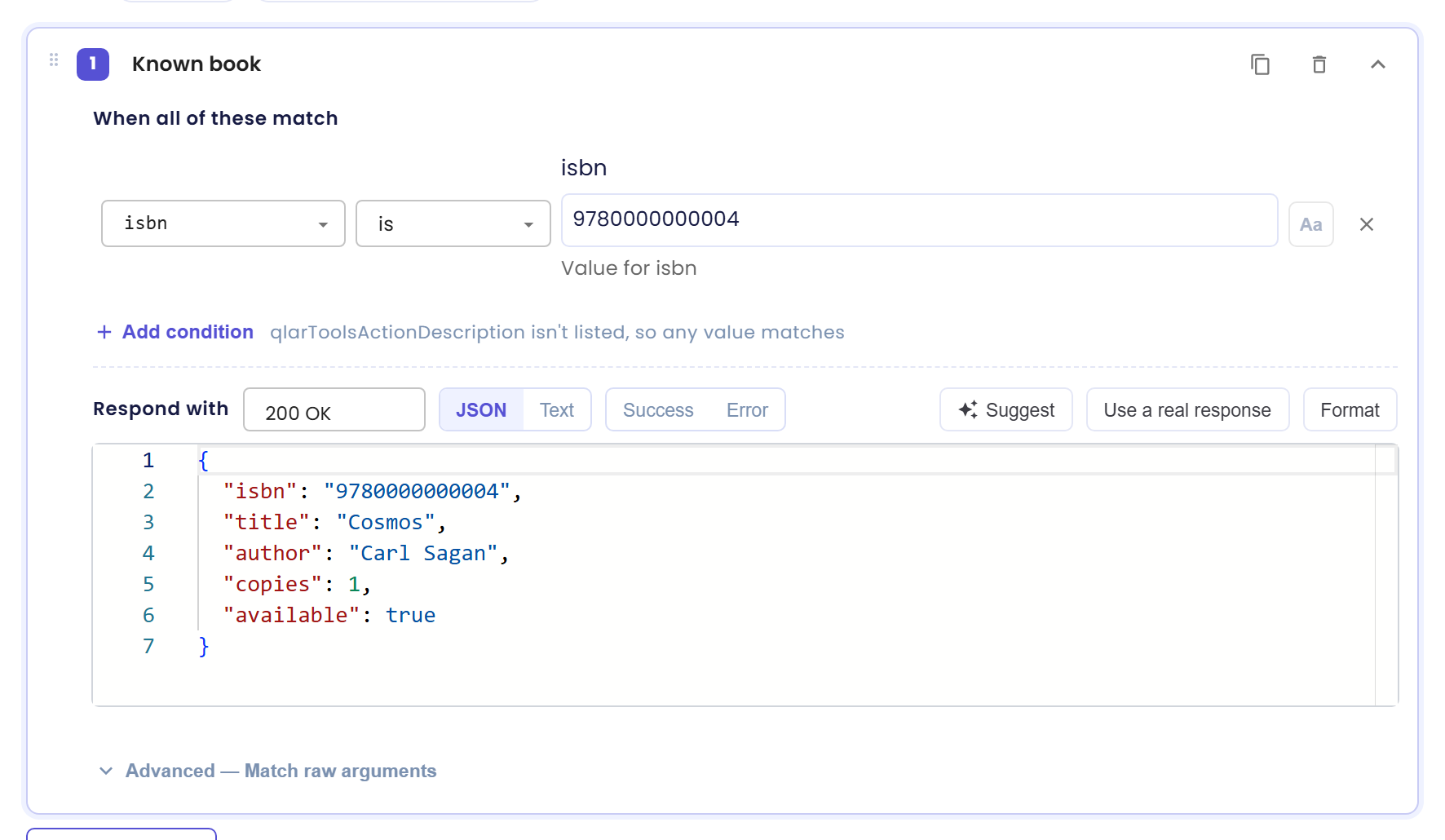
The Form adapts to the kind of tool, so you rarely type JSON by hand.
| Kind of tool | What the form asks for |
|---|---|
| A table query (a database reader, a data table) | Query succeeds or Query fails. For success: the columns, and a grid of rows. For failure: an Error message. |
| Searching documents | A list of hits, each with a Title, Text and Section. |
| A conversational form | Submitted or Validation errors, and a Message. |
| A reminder | Created or Failed, and a Message. |
| An escalation | The Status (Pending, InProgress or Completed) and the Response message. Other values are filled in for you. |
| Another agent | A Reply text: the reply that agent sends back. |
| An MCP tool | The Content it returns, or an MCP error message. |
Values marked as filled in automatically, such as an ID or a time, come from the call itself and cannot be typed.
Step 5: Decide what happens to every other call
At the bottom of each tool, the card Otherwise (every other call) decides what happens to a call that matches none of the cases. By default it holds a response, the same as a case, so every call gets an answer. Click Advanced to choose between two options:
| Option | What it does |
|---|---|
| Respond with a default | The call gets the response you write in this card. Every call to the tool is answered by this set. |
| Keep looking — check the next mock set, then the tool's default policy | The call moves on to the next mock set, and then to the Tool Policy and the tool's built-in default. In the tool list, such a tool is marked "keeps looking". |
The picture shows the Otherwise (every other call) card with Advanced open (marked). Respond with a default is selected, and the response is the empty list [] that a Custom API tool starts with.
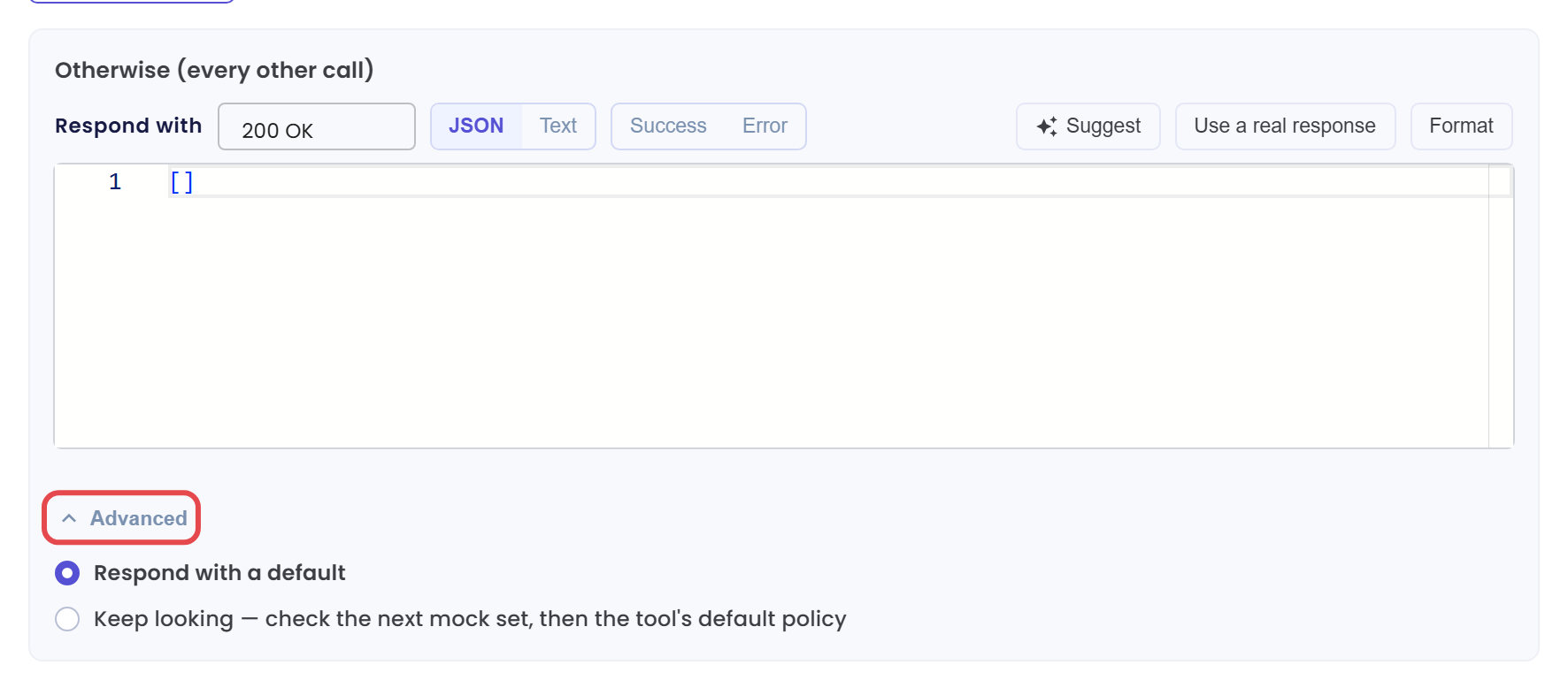
Choose Respond with a default when the set should fully replace the tool in a scenario. Choose Keep looking when the set only covers a few special calls, and the rest should behave as they normally would. A tool whose set is set to keep looking shows Mocked for some inputs · otherwise … in the Agent Tools panel, so you can see what the rest will do.
Click Save at the top. You see "Mock set created successfully" or "Mock set saved successfully". If someone else changed the set at the same time, Qlar says "Someone else changed this set. Reload?" and you click Reload.
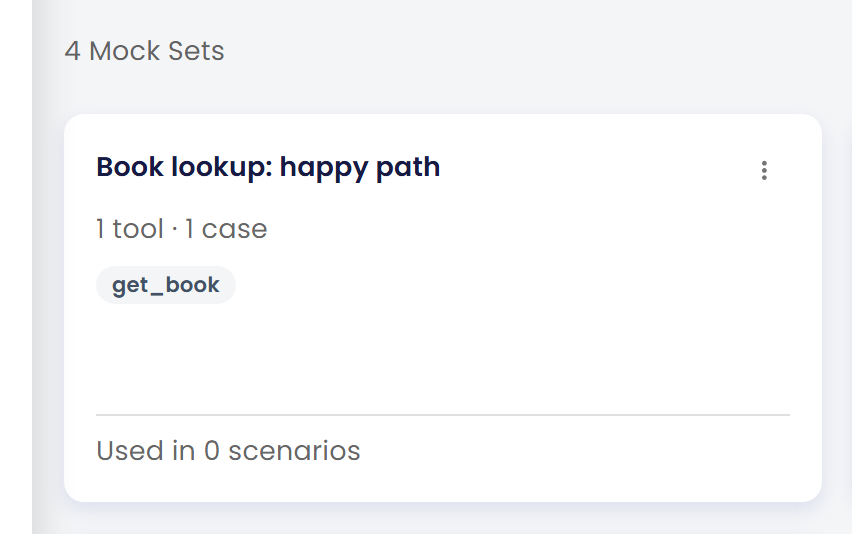
After saving, the set shows on the Tool Mocks screen as a card, here "1 tool · 1 case" with the tool get_book and "Used in 0 scenarios".
Step 6: Attach the set to a scenario
A mock set does nothing until a scenario uses it.
- Open a scenario, or click New Scenario.
- In the setup pane on the left, open Tool Mocks. It lists Mock sets attached (n). with the note "Used by every step. A step’s own mock sets are checked before these." On a narrow screen it is a row under the information card.
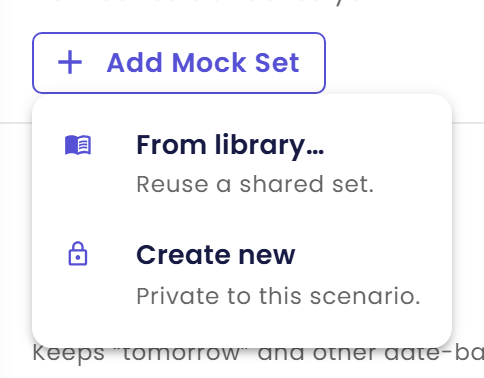
- Click Add Mock Set. A menu opens with two choices.
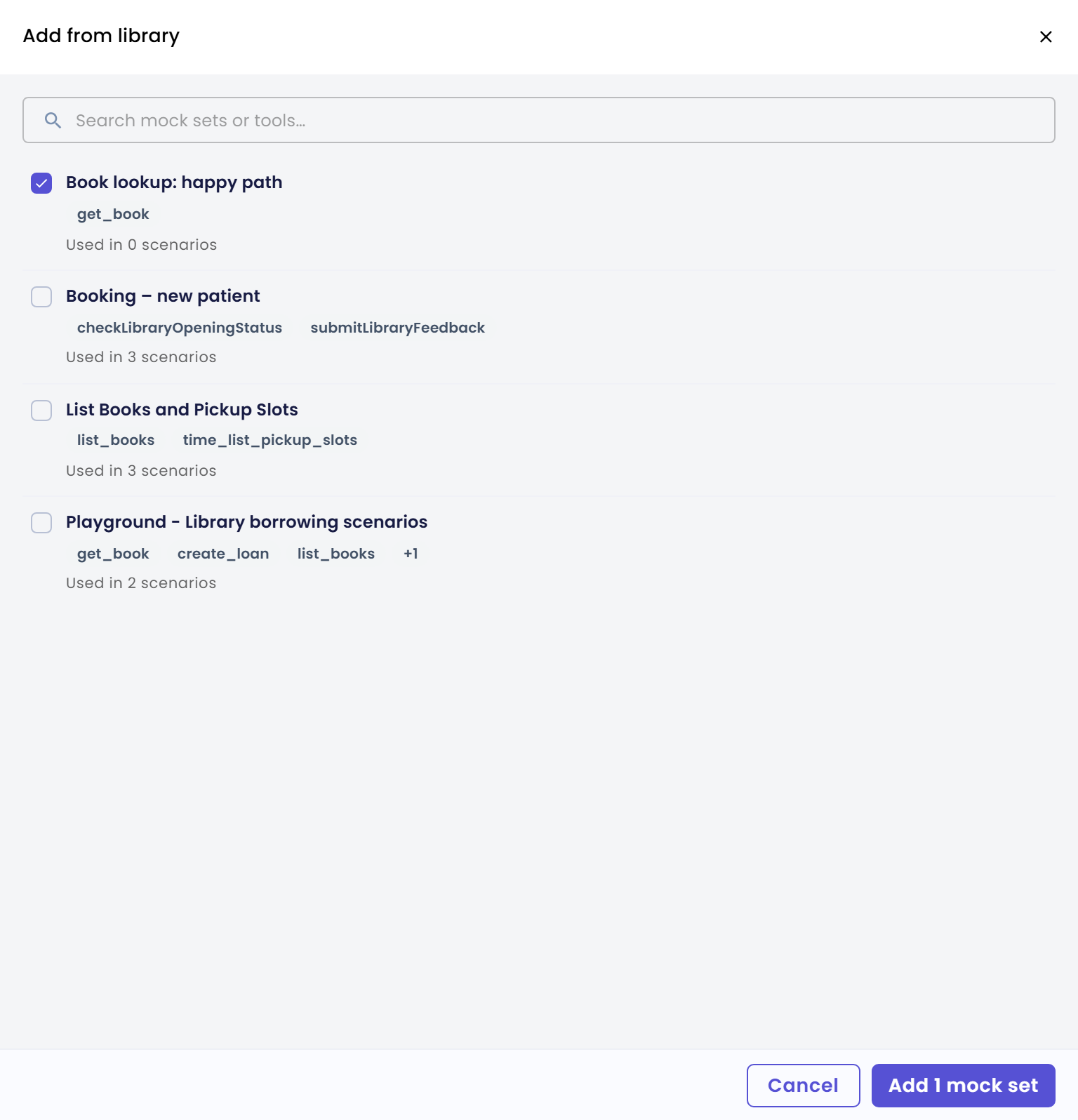
- From library… ("Reuse a shared set."). The panel Add from library opens. Type in Search mock sets or tools…, tick the sets you want and click the button at the bottom. It reads Add 1 mock set for one set, Add 2 mock sets for two, and so on.
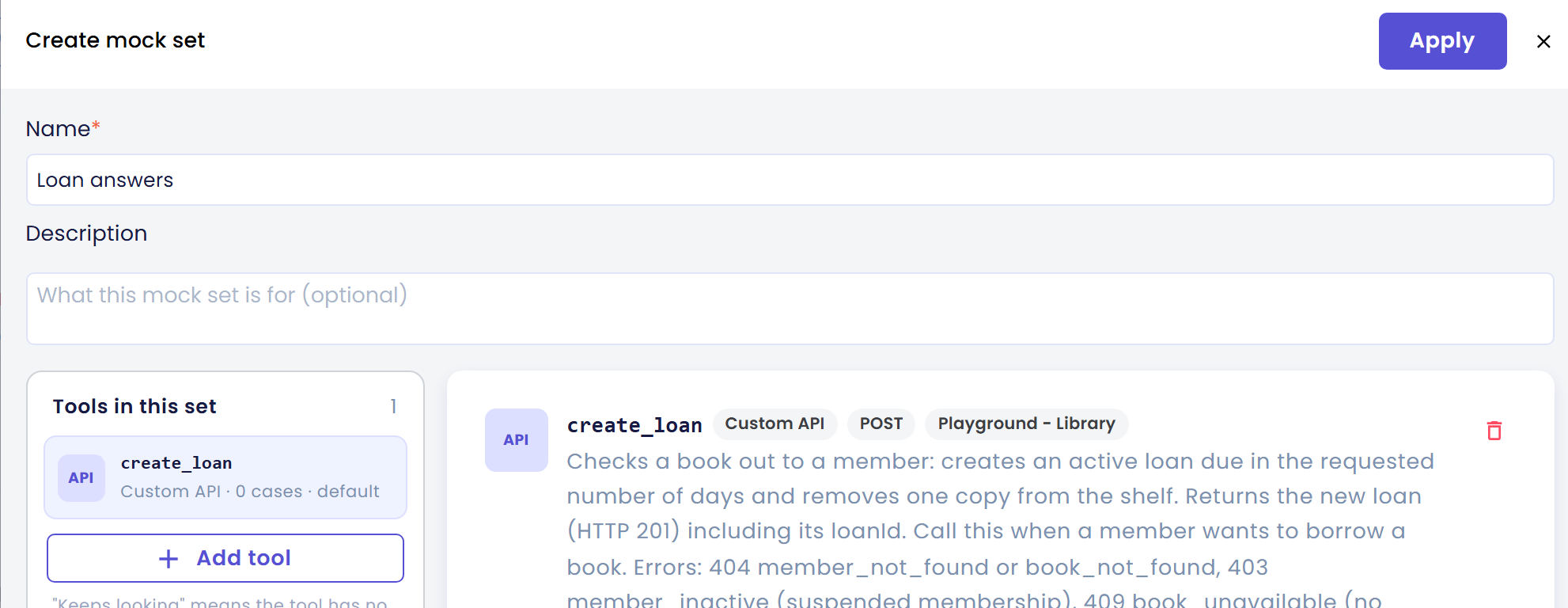
- Create new ("Private to this scenario."). The editor opens in a side panel titled Create mock set. Build it as in steps 2 to 5, then click Apply.
- Click Save on the scenario.
The Add Mock Set menu has the two choices:
The Add from library panel with one set ticked:
A new private set in the Create mock set panel, here a set named "Loan answers" that holds the tool create_loan:
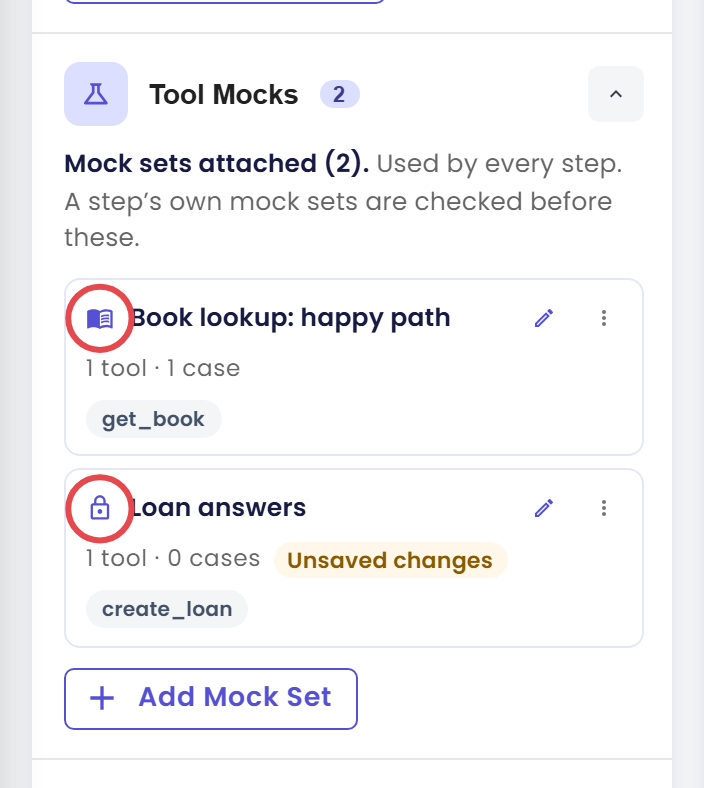
Each attached set is a row with a book or lock icon, its name, a count such as "2 tools · 5 cases" and the names of its tools. Use the pencil to edit it, and the ⋮ menu for Make a private copy, Save to library or Remove. Save to library is greyed out until you save the scenario. Remove takes the set off this scenario. A library set stays in the library. A private set only lives in this scenario, so it is gone once you save, unless you chose Save to library first.
In the picture, the book icon (marked) means a library set and the lock icon (marked) means a private set. A private set you have just created shows an Unsaved changes chip until you save the scenario.
Step 7: Attach a set to one step
Sometimes only one step needs a pretend answer, for example the third step, where the user asks to borrow a book that has no copies left.
- In the scenario form, open the step's card and find its Tool Mocks (n) section.
- Click Add Mock Set and choose From library… or Create new, as in step 6.
- A line under the heading explains what this step now does, for example "Calls this step’s 1 set doesn’t answer fall back to the scenario’s 2 sets." when the step has a set of its own, or "This step uses the scenario’s 2 sets." when it has none. The link What will each tool do in this step? opens the Agent Tools panel on this step.
The heading reads Tool Mocks (0) while the step has no set of its own, as here:

Which set answers first
For one call, Qlar checks in this order:
- The step's own mock sets, from the top of the list to the bottom.
- Then the scenario's mock sets, from the top to the bottom.
- Then, if nothing answered, Allow live, the Tool Policy and the built-in default, as in Tools in Simulations.
A step's own mock sets are checked first. When two sets in the same list mock the same tool, a number and a drag handle appear on each row, and a notice names the one that answers first, for example "Both sets mock get_book. 'Book lookup: happy path' is higher in the list, so it answers first. Drag to change the order." Drag a row to reorder.
Remember that a set set to Keep looking passes the call to the next set. That is how a small step set can sit on top of a bigger scenario set.
Step 8: Create a mock from a result
The easiest mock to write is the one for a call you just saw. After a run, open its result and find the call under Tool calls (n). Read the Results shows where.
- For a call that was Blocked, click Mock this call. For a call that was Mocked or Live, click Save as case.
In this picture a Mocked call has Save as case (marked). The line under the call names the case that answered: its id, a long code, then its label, the set and the status.

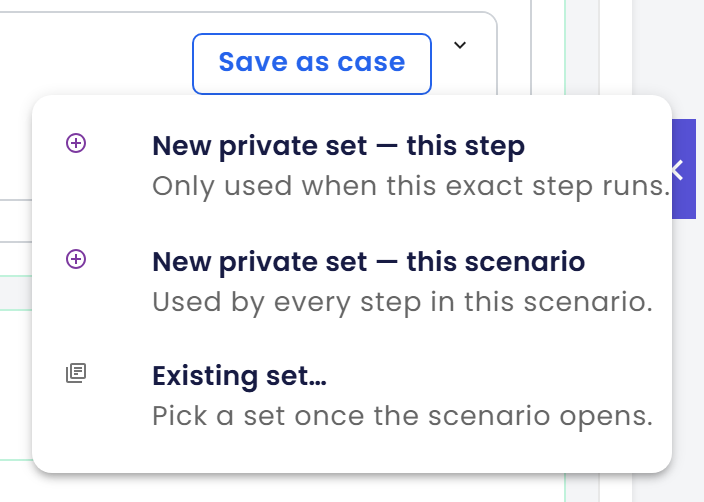
- A menu asks where the mock should go.
- New private set — this step: "Only used when this exact step runs."
- New private set — this scenario: "Used by every step in this scenario."
- Existing set…: "Pick a set once the scenario opens." The panel Add this case to a mock set then lists the sets attached to the step and to the scenario. Pick one, and the case is added to it.
The menu looks like this:
- The scenario opens with the mock editor already filled in. The conditions are copied from the details the agent sent, as "is" tests. For a Blocked call the response is empty and you write it. For a Mocked or Live call the response is copied from what came back.
- Check the response, click Apply, and save the scenario.
Two warnings can appear:
- A Live response may contain real data, so Qlar asks "This call ran live and may contain real data. Saving it as a case stores that response as the mock. Continue?" before it copies it.
- If the response was too large to copy, Qlar says so and you fill it in yourself.
A Blocked call has Mock this call in the same place, marked here:

Step 9: See where a library set is used, and delete it
- In Simulation → Tool Mocks, a mock set card shows how many scenarios use it, for example "Used in 3 scenarios". In List View, the columns are Name, Tools · cases, Used in and Updated.
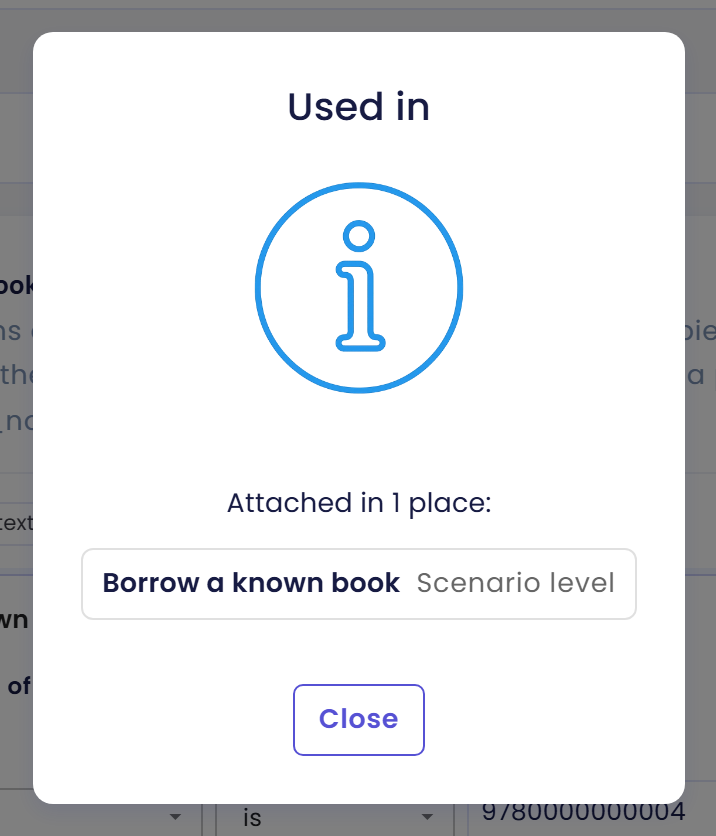
- Open a set and click Used in n scenarios to see the scenarios, and the steps, that use it.
A dialog titled Used in says "Attached in 1 place:" and lists each scenario, with "Scenario level" or "Step n". Click Close when you are done.
- To remove a set, open its ⋮ menu and choose Delete, then confirm.
If a set is still attached to scenarios, Qlar does not delete it quietly. The dialog This mock set is in use lists where, each as a scenario with "Step n" or "Scenario level". Its confirm button, Remove from n scenarios and delete, detaches the set everywhere and then deletes it. Those scenarios will then fall back to the next rule for that tool, and might show Blocked. The menu also has Duplicate, which creates a copy of a set.
Editing a library set from inside a scenario changes it for everyone. The panel says "Library set, used in n scenarios. Saving changes all of them." with a link Make a private copy instead.
Check the result
Run the scenario and open its result. See Run Simulations if you need the steps.
You made it if:
- The call to the tool shows Mocked with the source chip Step or Scenario.
- The explanation under it names your case and set, for example "Case a90aced3-6289-4444-9e79-1dc464fae31b 'Known book' · Book lookup: happy path → 200". The long code is the case's id.
- The agent's answer uses the information in your response.
If you see something else:
- The call shows Default. No case matched, so the Otherwise response answered. Check the conditions.
- The call still shows Blocked. The set is not attached to this scenario, you did not save the scenario, or the call matched no case while the set was set to Keep looking. Open Agent Tools and Review all tools to see what the tool will do.
- A different case answered. An earlier case or an earlier set matched first. Reorder, or make the earlier one more specific.
- Add tool shows no tools. The picker says "This agent has no tools in its catalog." when the agent has none, or "Failed to load the tool catalog. Close and reopen Add tool to retry." when loading failed. It lists the tools of the draft and the published agent together.
Good practice
- Name sets by the situation they create, such as "Book unavailable", not by the tool.
- Write the most specific case first and the general case last.
- Keep each case to one idea. Several small cases are easier to fix than one long one.
- Cover failures too. An error case shows whether your agent says something sensible when a tool is down.
- Use real response shapes. Copy one from Use a real response or Fetch a sample on a safe tool, so your mock looks like the real thing.
- Use a library set for answers that many scenarios share, and a private set for one-off cases.
- Mocks only change simulations. They do not change your live agent, so there is nothing to publish.
Next steps
- Previous in this section: Tools in Simulations.
- Next in this section: Tool Policy sets what each tool does when no mock answers.
- As part of building Atlas: Test Tools Safely with Mocks.
- Field-by-field reference: Tool Mocks and Scenarios.