Fix and Retest
Open in CMSA grey criterion is not the end of the work. It is the start of a fix. In this guide you learn how to tell whether the agent or the test is at fault, which setting to change for each kind of problem, how to check a change on Draft before your users see it, how to compare the two results, and when to Publish. It also gives you a routine for switching the AI model safely. It takes about fifteen minutes.
The example agent is Libraría. The scenarios and numbers below are only examples. Your agent will have other names. The steps are the same. If you have not read a result yet, start with Read the Results.
AI is involved every time: the agent writes its answers and AI judges every criterion, so one run can differ from the next. That matters here, because you want to know whether a change helped or whether the result simply moved by chance. The routine below runs the check twice before it trusts it.
Key terms
| Term | What it means |
|---|---|
| Baseline | A result from before your change. You compare the new result with it. |
| Draft | Your latest saved changes, not yet published. A run on Draft shows how the agent will answer after you publish. |
| Published | The version your users talk to now. |
| Version | The Published or Draft chip on every run, and the filter of the same name on the Results tab. |
Before you start
- You have the Owner or Contributor role on the agent.
- You have a result with at least one grey criterion, so you have something to fix. See Read the Results.
- You know that saving a change does not publish it. If not, read Preview and Publish Changes. It takes a few minutes.
Step 1: Decide who is at fault
Open the result and look at one grey criterion together with the answer. There are only three possibilities:
- The agent is wrong. The answer misses a fact, says something false or has the wrong tone. Fix the agent.
- The test is wrong. The answer is good, but the criterion asks for something you do not really need, or is too vague or too exact. Fix the scenario.
- A tool got in the way. The step used a tool and the call was Blocked, or the answer came from a mock that gave the wrong data. Fix the tool setup.
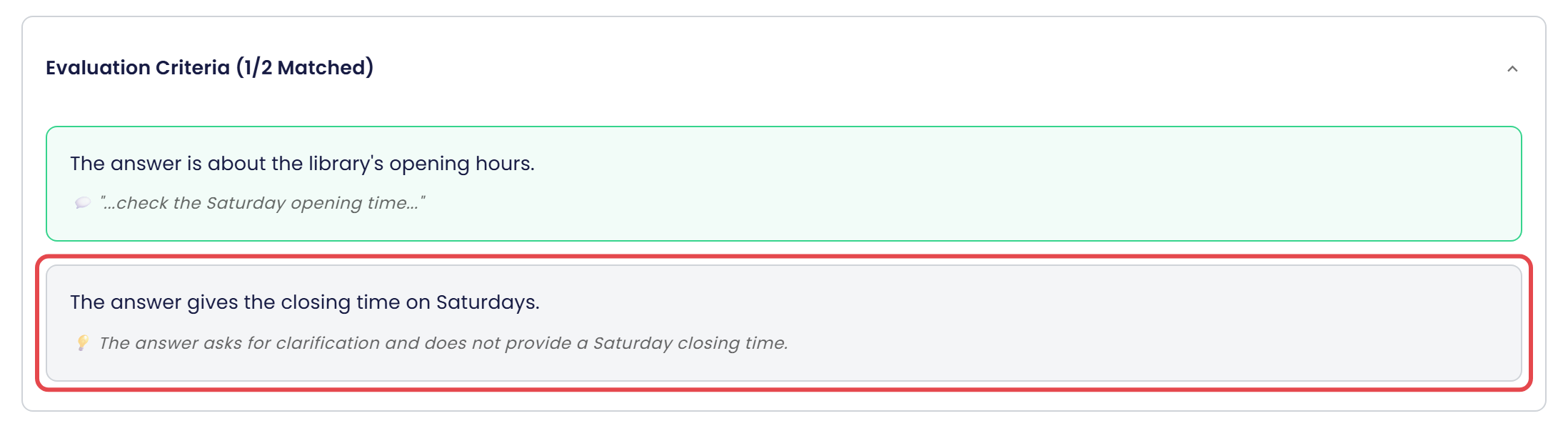
Read the grey box (💡) for the reason and the highlights in the answer. Ask yourself: would a real user be happy with this answer? If yes, the test is wrong. If no, the agent is.
Fix one thing at a time. If you change three settings together and the result gets better, you will not know which one did it.
Step 2: Find the setting to change
| What you see | Most likely cause | What to change |
|---|---|---|
| The answer says it does not know, or leaves out a fact that your content has. | The fact is not in the knowledge, or it is out of date. | Add or correct it in Knowledge → Documents, Websites or Videos. Check how it was split in Knowledge → Chunks. A knowledge change is live right away, so it needs no publish. |
| The fact is in your knowledge, but the agent does not use it or quotes the wrong part. | The agent does not find or choose that part. | Knowledge → Retrieval, the Agent Retrieval page, and Knowledge → Chunks. A change to the Retrieval settings is a draft change. A change to chunks is live right away, like any other knowledge change. See Fine-Tune Answer Quality. |
| The facts are right, but the tone, length, format or language is not. The agent goes off topic or refuses when it should answer. | The agent's instructions. | Persona → Behavior, the Agent Behavior page: Mission, Personality and Interaction. A draft change. See Behavior. |
| Answers are slow, too shallow, or the agent cannot read an attachment. | The AI model or the context. | Conversation → Model & Context, the Conversation AI Model. A draft change. Use the model-switch routine below. |
| A step fails or answers poorly because a tool call was Blocked. | Nobody has decided what that tool does in a simulation. | Give it a mock, or allow it to run live for the scenario. See Tools in Simulations and Tool Mocks. Tool Mocks and Tool Policy only change what simulations do. They do not change your live agent, so there is nothing to publish. |
| A tool answered with the wrong data. | The mock case you wrote, or the tool itself. | Edit the case in Simulation → Tool Mocks if it is a mock. If it was a live call, check the tool itself under Tools. |
| The answer is good, but a criterion is grey. | The criterion is too strict or too vague. | Edit the scenario, not the agent: reword the criterion, improve the Expected Response and click Rewrite Criteria, or turn on Fixed date & time if the answer depends on today's date. See Write Good Scenarios. |
| The same criterion is matched on one run and grey on the next. | A vague criterion, or just AI variation. | Run again. If it keeps flipping, make the criterion more specific. |
The Agent Behavior page has a field for each part of the agent's instructions, and each field has its own Modify button.
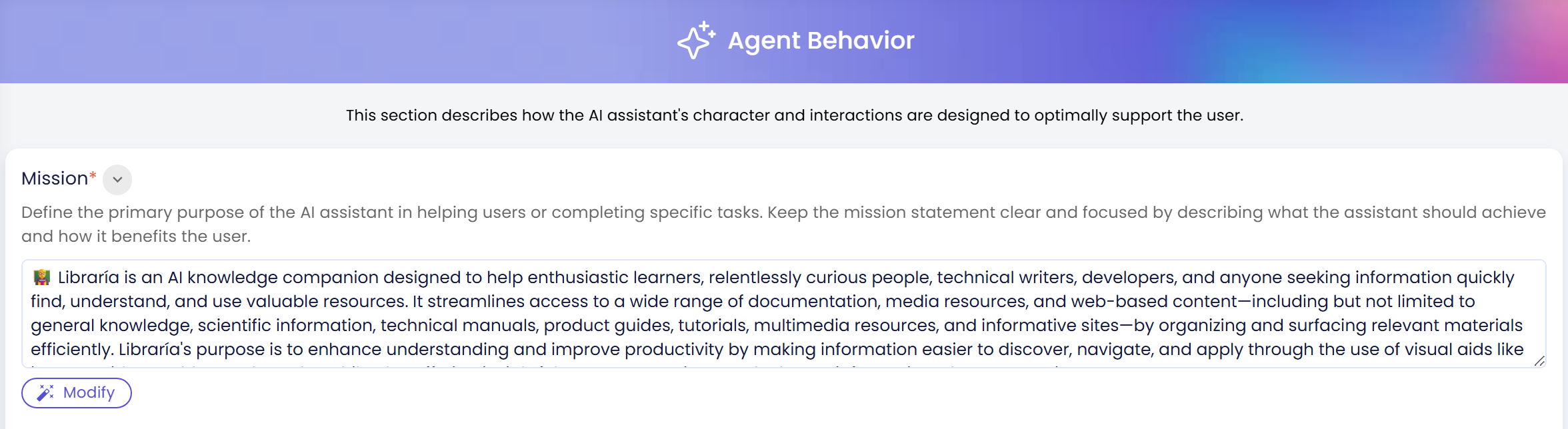
Take the scenario "Opening hours" from the failed result in step 1. Its grey criterion is "The answer gives the closing time on Saturdays", and the reason says the answer asks for clarification and does not provide a Saturday closing time. The criterion is fair, so the test is not at fault. Look at why the agent asked instead of answering. Either your content lacks the Saturday hours, and you add them in Knowledge → Documents, or the agent's instructions make it ask first, and you change them in Persona → Behavior. Next you retest.
Step 3: Make the change and save
- Go to the page from the table and make one change.
- Click Save and confirm if the CMS asks you to.
A saved setting goes into the Draft. Your users keep talking to the Published version until you publish. A knowledge change is the exception: documents, websites, videos and their chunks are shared by both versions, so they are live as soon as they are processed. Tool Policy, Tool Mocks and scenario edits are different again: they are saved on their own, apply to your next run on either version, and need no Publish. See Preview and Publish Changes.
If the change is a scenario edit, save the scenario. A run always uses the saved scenario.
Step 4: Run again on Draft
- Go to Simulation → Scenarios.
- Click Run on the scenario you fixed. To retest a whole folder, click Run All (n).
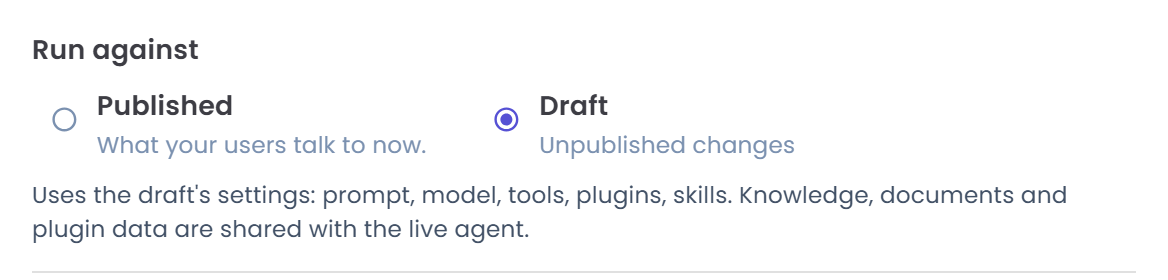
- Under Run against, choose Draft. Its hint reads Unpublished changes when you have a draft change. If it reads "Same as published right now", the draft has no changes of its own, and a run on Draft answers like one on Published.
- Click Yes, or Run anyway if the dialog lists blocked tools, then Close on the success message.
Under the two choices, the dialog explains that Draft uses the draft's settings: prompt, model, tools, plugins and skills. Knowledge, documents and plugin data are shared with the live agent.
On the result page, check that the chip next to the status says Draft. Then read the grey box that started this. You can click Run Again on that Draft result after every further change. It starts a new run of the same scenarios on the draft as it is at that moment. A Published result's Run Again goes back to Published, so start your retest from Run as above. See Run Simulations for all the ways to start a run.
Step 5: Compare by Version
A single better result proves little, so compare.
- Go to the Results tab and click Show Filters.
- Open the baseline, the last Published run of the same scenarios, and your new Draft run. Use the Version filter and the Code filter to find them. The Version column in List View shows the chips too.
- Put the results side by side, for example in two browser tabs, and compare:
- CRITERIA MATCH: did the total move up, for example from 8/10 to 9/10?
- The scenario you fixed: is the grey box green now, and with a sensible excerpt?
- The other scenarios: did a green box turn grey somewhere else? A fix in one place can break another, so check the whole folder.
- DURATION, if speed was part of the problem.
- Run the Draft once more. If the result is the same, you can trust it. If it jumps around, the criterion is too vague to judge. Rewrite it and start again from step 4.
The Version chip on each result tells the two apart. Here the two results sit side by side, with the Published chip on the left and the Draft chip on the right. Both read 1/2 Matched because the only change made for this picture was a harmless one. After a real fix, you hope to see the Draft total go up.

A result that is a little different in wording but the same in verdicts is normal. Look at the verdicts and the excerpts, not at the words.
Step 6: Publish
When the Draft is at least as good as Published everywhere you checked, publish it.
- Click Publish in the top bar. The button shows only while the agent has unpublished changes. On a small screen, open the user menu at the top right, which has the same action.
- Wait for Publishing... to finish. The button then disappears.
While a draft change is waiting, the button looks like this, next to Preview:
Publishing is all or nothing. It publishes every saved draft change, not only the one you tested. Check that you tested all of them. A knowledge change needs no publish because it is already live.
After publishing, run the scenarios once more on Published. The result carries the Published chip and is your new baseline for the next change.
Switch the AI model safely
Changing the Conversation AI Model can change every answer, so test it on more than one scenario. Use this routine.
- Baseline. Select the folder with your most important scenarios, click Run All (n) and choose Published. Note the CRITERIA MATCH and DURATION.
- Switch. Go to Conversation → Model & Context, change the Conversation AI Model and save. See Model & Context.
- Run on Draft. Run the same folder again with Run against set to Draft.
- Repeat. Run the Draft a second time. Two runs show how much the result moves by chance.
- Compare. Use the Version filter as in step 5. Look at the verdicts per scenario, not only at the total, and at DURATION. Also check the tool calls: a different model may call a tool differently.
- Decide. If the new model is as good or better, publish. If not, set the old model back and save. Your users never saw the new model, because the Published version did not change.
Try the model on scenarios that matter to your users. A model that does well on easy questions can still fail on the hard ones, so include some hard ones.
Check the result
You made it if you see all of these:
- The scenario you fixed has a green box where it had a grey one, with a Draft chip on its result.
- The totals and the other scenarios did not get worse, and a second run agrees.
- After Publish, the button is gone from the top bar, and a run on Published gives you the new baseline.
If you see something else:
- The grey box is still grey. Read its reason again. You may have fixed the wrong thing. Go back to step 2.
- A different criterion turned grey. The change helped one answer and hurt another. Undo it, or make a smaller change.
- A run on Draft looks the same as before. Check the hint under Draft. If it says "Same as published right now", your change is not a draft change. That is expected for a knowledge, mock or scenario edit. Otherwise, check that you saved it.
- There is no Publish button. There is nothing unpublished. Knowledge changes never bring the button back, because they are live already.
- The result changes every run. That is the AI. Judge a change by two or three runs, not by one.
Next steps
- Back to the start of the loop: Read the Results.
- If tools were the problem: Tools in Simulations and Tool Mocks.
- Better criteria: Write Good Scenarios.
- Story version: Test Changes Before You Publish walks through the same loop for Atlas, Kirana Group's agent.
- Field-by-field reference: Results.