Tools in Simulations
Open in CMSMany agents do more than talk. They look something up, send a request to another system, or save something. A test run must never change real data by accident, so Simulation decides, for every tool call, what really happens. In this guide you learn what a tool call is, how Qlar decides what happens to it, what each outcome label means, and how to review and change it for a scenario. It takes about fifteen minutes.
The example agent is Libraría, which has many tools. Your agent will have other tools. The steps are the same. If you have not run a scenario yet, start with Your First Simulation.
AI is involved in every run: the agent writes its answers, decides when to use a tool and which details to send, and AI judges every criterion. These can differ every time, so the same scenario can use a tool slightly differently from one run to the next. Treat one result as a sample, not a guarantee.
What is a tool call?
A tool is something your agent can use while it answers, besides its own knowledge. Looking up a book, checking a table of data, searching documents, sending a form, setting a reminder, asking another agent: each is a tool. When the agent decides to use one in the middle of an answer, that is a tool call.
A tool call has three parts:
- The call. The agent picks a tool and fills in the details it needs. These details are called arguments. For a book lookup (
get_book) the argument is the book's ISBN, its catalogue number. - The work. The tool does its job, usually by contacting another system. Many tools reach that system through an API, which is a set of agreed web addresses that one program can ask to read or change data held by another program.
- The response. The tool sends back an answer, and the agent uses it to write its reply. Responses are often written in JSON, a plain-text way to write structured data, for example
{"status": "on hold"}. You do not need to write JSON to use Simulation. The mock editor has forms for most tools.
The risk is in step 2. A call that only reads data is harmless to repeat. A call that writes data can create a loan, send an email or change a record, and in a test you do not want that. That is why Simulation does not simply let every call through.
Key terms
| Term | What it means |
|---|---|
| Tool call | One moment where the agent used a tool while answering. |
| Arguments | The details the agent sends with a call, such as a book's ISBN. |
| Response | What the tool sends back. |
| Mock | A scripted, pretend response that you write, so the call returns the same answer every time without touching a real system. |
| Mock set | A group of mocks for one or more tools. See Tool Mocks. |
| Allow live | A setting on one scenario that lets one tool make real calls in that scenario. |
| Tool Policy | A page where you set, for the whole agent, which tools may run live when no mock answers. See Tool Policy. |
| Blocked | The call is not made. The agent is told the tool is unavailable, so a step that needs it will probably fail. |
| Simulated | The call is not made, but the agent gets a pretend "success" answer. |
| Live | The call is really made, against the real system. |
Before you start
- You have the Owner or Contributor role on the agent.
- Your agent has at least one tool. Without tools, nothing on this page applies to it.
- Tool Mocks and Tool Policy show in the sidebar under Simulation only when the feature is switched on for your CMS. If you do not see them, ask the person who looks after your CMS.
- To use Allow live… in a scenario you need to be an Owner or Admin of your organisation. Everything else on this page works for every Owner and Contributor of the agent, including the Run live switches in the Tool Policy, which apply to every scenario.
How a tool call is decided
When the agent calls a tool during a run, Qlar looks for an answer in a fixed order. The first rule that has an answer wins, and the rest are not asked.
- Step mocks. A mock set attached to the step that makes the call. If one of its cases matches the call, its response is used.
- Scenario mocks. A mock set attached to the whole scenario. Only asked when no mock on the step answered.
- Scenario's Allow live. The scenario has allowed this tool to run live, so the call is made for real.
- This policy. The agent's Tool Policy: a setting that makes the tool run live or stay blocked. It applies to every scenario of the agent.
- Built-in default. What the tool does when nothing above applies.
Three things follow from this order.
- Mocks always win. A tool set to run live in the Tool Policy can still be mocked in the scenarios that need a fixed answer.
- A step's own mock sets are checked before the scenario's. The step is the more specific place, so it goes first.
- A mock set may answer only some calls. If none of its cases match and it is set to keep looking, the call moves on to the next set, and then down the list.
The built-in default
The last rule depends on what kind of tool it is.
| Kind of tool | Default in a simulation |
|---|---|
| Tools that only read data from a plugin, such as a database reader, a data table or public documents | Live: they run for real, because reading changes nothing. |
| Built-in tools that only read, such as web search, web scraping and searching your agent's knowledge | Live: they run for real and cannot be mocked. Allow live… is not offered for them, because they are already live. |
| Tools that write data, such as a form, a reminder or an escalation to a person | Simulated: nothing is written, and the agent gets a pretend "success". |
| Tools Qlar cannot judge from outside: your own API, an MCP server (a service that offers tools to AI agents in a standard way), another agent (including an A2A agent, one run elsewhere that yours talks to through the A2A standard), or a plugin tool of unknown effect | Blocked, until someone reviews them in the Tool Policy. |
| Qlar's own internal tools | Internal: they always run and are never mocked, simulated or blocked. |
Because the defaults for the third group are strict, a first run on an agent with your own APIs often shows Blocked calls. That is on purpose: the safe answer is the default until a person decides otherwise.
The outcome labels
Two places show an outcome label, and they use slightly different words. In a result, a label tells you what happened. In a scenario, the Agent Tools panel tells you what will happen.
What happened in a run
On a result's step card, Tool calls (n) lists every call. Each row has an outcome chip and a source chip. Read the Results shows where to find them.
| Outcome chip | What it means |
|---|---|
| Mocked | A case in a mock set matched the call, and its response was used. |
| Default | A mock set was asked, no case matched, and its Otherwise response answered. |
| Simulated | No mock answered. The tool's default simulated a success: nothing was done for real. |
| Live | The call was really made. It carries the warning "Live — may contain real data". |
| Blocked | The call was not made. The agent was told the tool is unavailable. |
| Internal | One of Qlar's own tools. It always runs. |
| Unknown | Qlar could not tell what happened to the call. |
| Source chip | Why the call got that outcome |
|---|---|
| Step | A mock set attached to the step answered. |
| Scenario | A mock set attached to the whole scenario answered. |
| Allowed live in this scenario | The scenario's Allow live made the call real. |
| Tool policy | The agent's Tool Policy decided. |
| Not reviewed in the tool policy | Nobody has reviewed the tool in the Tool Policy yet, so the call was blocked. |
| Built-in default | The tool's built-in default decided. |
| — | No source applies. |
What will happen in a scenario
The Agent Tools panel shows these before you run.
| Chip | What it means |
|---|---|
| Mocked · name | Every call to the tool gets a mocked answer from the set named in the chip. Step n overrides is added when a step's own set takes over in that step. |
| Mocked for some inputs · otherwise … | A mock answers only calls that match one of its cases. The rest, shown after "otherwise", fall through to the next rule. |
| Mocked in step n only · otherwise … | Only that step has a mock. Every call in other steps falls through. |
| Live | The tool runs for real because this scenario allowed it. |
| Live · read-only | The tool only reads data, so it runs for real by default. |
| Live · Tool policy | The Tool Policy lets the tool run live. |
| Simulated success | Nothing is done for real. The agent gets a pretend "success". |
| Blocked | The call will fail. |
| Blocked · Tool policy | The Tool Policy keeps the tool blocked. |
| Blocked · Not reviewed in the tool policy | Nobody has reviewed the tool yet. |
| Unknown | Qlar cannot tell. |
Step 1: Look at the Agent Tools summary
- In the sidebar, open Simulation and click Scenarios.
- Open a scenario, or click New Scenario to start one.
- Find Agent Tools in the setup pane on the left of the form. On a narrow screen it is a row under the form's information card, and clicking it opens a side sheet.
Under Agent Tools you see a coloured bar with one chip for each outcome that applies, such as Live 10, Simulated 3 or Blocked 47 on Libraría. The grey number next to the title is how many tools the agent has. Collapsed, the pane shows one line, for example "1 will be blocked · 2 mocked · 1 live · 3 simulated". When nothing would fail it starts with "Nothing blocked".
The chips mean:
| Chip | Meaning |
|---|---|
| Mocked | Every call is answered by a mock. |
| Partly mocked | A mock answers some calls only. |
| Live | The tool runs for real. |
| Simulated | The tool gets a pretend "success". |
| Blocked | The call will fail. |
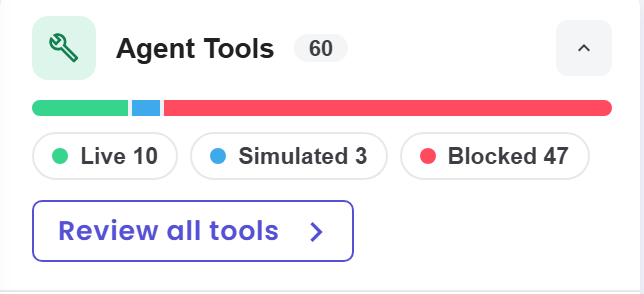
Anything under Blocked is the first thing to deal with. The bar and its counts appear only after the agent's tools and the Tool Policy have loaded. Until then the section shows just "Loading tool catalog..." or "Checking tool policy…", and a Retry button if loading failed. If it says "This agent has no tools with mockable policies." there is nothing to review.
Step 2: Review all tools
- Under Agent Tools, click Review all tools. You can also click one of the outcome chips to open the panel already filtered to that outcome.
- The panel What the agent’s tools will do opens. Its subtitle names your agent and the version the scenario runs against, draft or published version.
- Use the tabs at the top to choose the scope. Whole scenario shows what every step gets. Step 1, Step 2 and so on show what that one step gets. On a step tab, the step's own mock sets are checked first.
- Read the line under the tabs, for example "50 action tools · 0 mocked · 47 will be blocked". An action tool is one that would be blocked or simulated without a mock.
- Click All to see every tool. Click Needs attention · n to see only the tools that will be blocked or are only partly mocked.
- Type in Search tools… to find a tool by its name or description.
- Tools are grouped by where they come from: Custom API (your own APIs), Plugins, MCP (tools from MCP servers), Other agents, A2A (agents run elsewhere) and Built-in. A heading can add the name of the API group, for example Custom API · Finance and Custom API · Library.
The panel opens like this, with the All and Needs attention buttons marked.
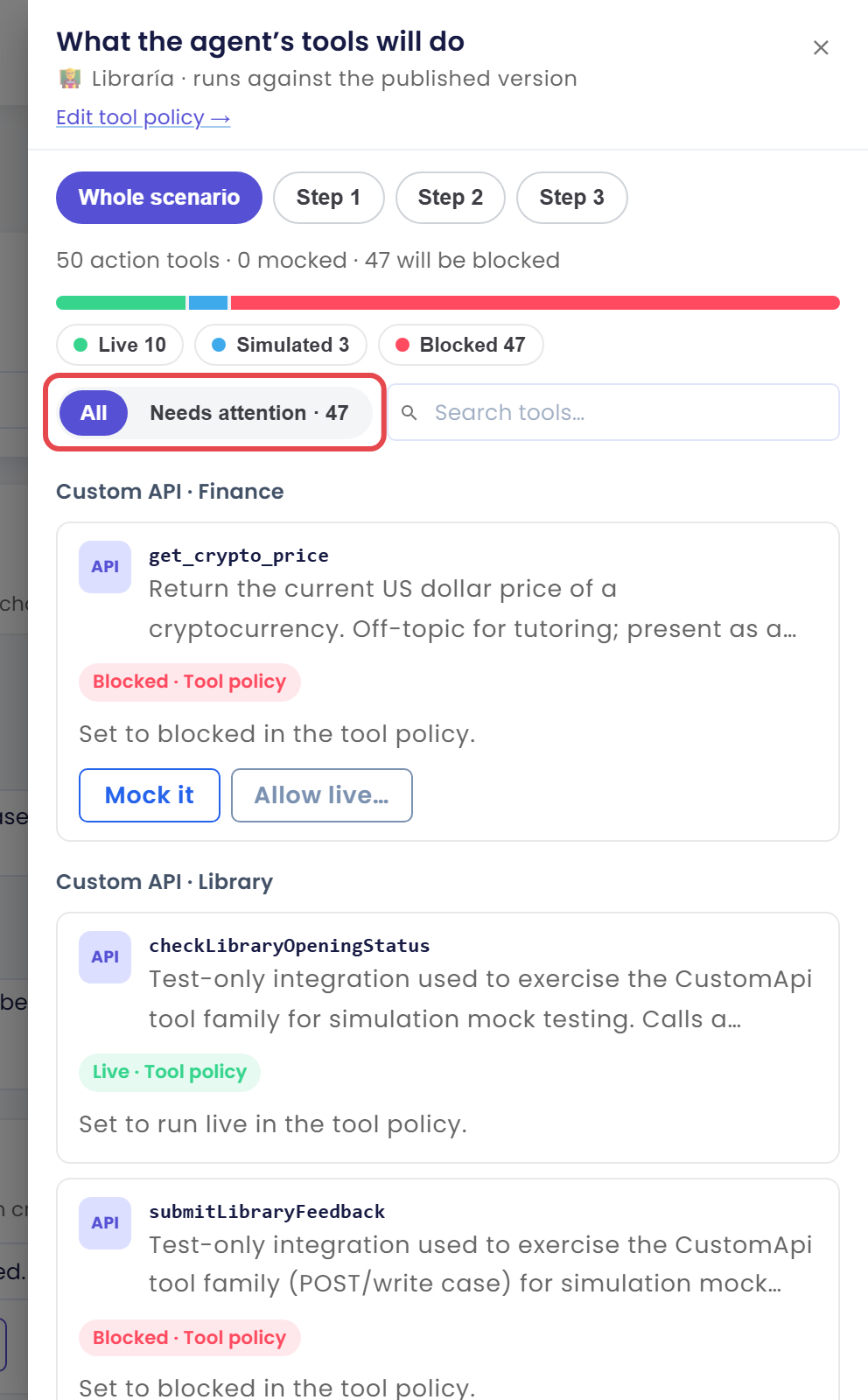
Needs attention · n keeps only the tools that will be blocked or are only partly mocked. That is the list to work through first.
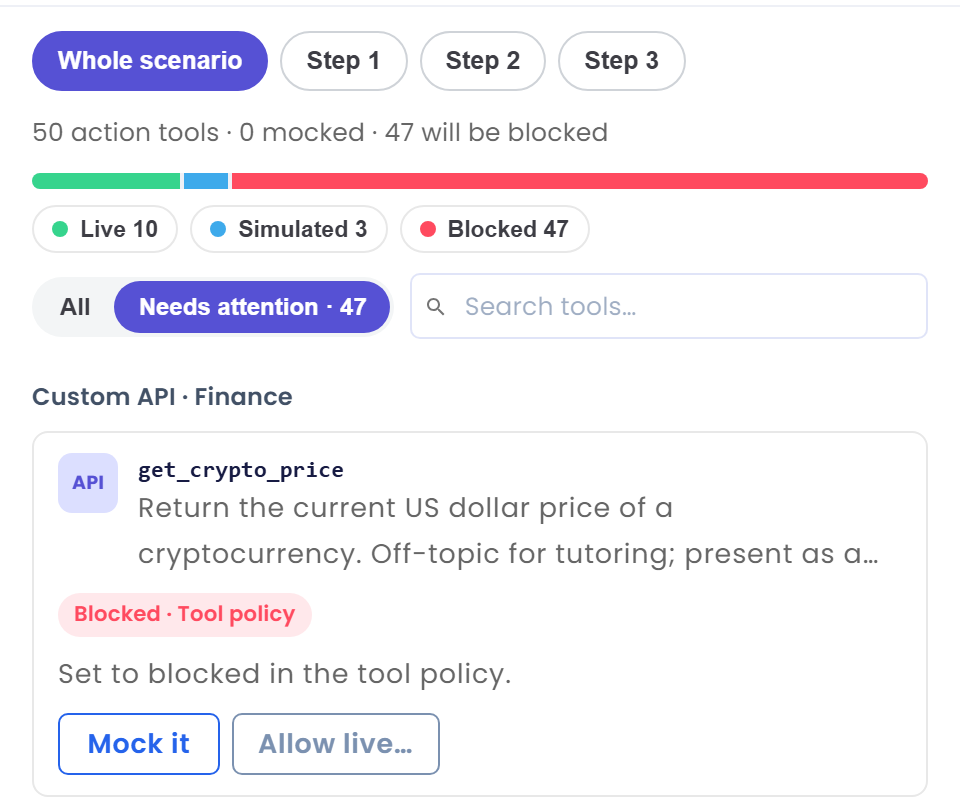
Each tool is a row with its name, a short description, an outcome chip and a line that says why. For example, Blocked · Tool policy is followed by "Set to blocked in the tool policy.", Live · Tool policy by "Set to run live in the tool policy.", and Blocked · Not reviewed in the tool policy by "Nobody has reviewed this tool in the tool policy yet, so calls are blocked." and a link Review in Tool Policy. A Draft only or Published only chip shows when the tool exists in just one version. A tool that is turned off in both versions shows Disabled and cannot be changed here. The link Edit tool policy → at the top opens the Tool Policy page in a new tab.
Step 3: Give a blocked tool a mock
A Blocked tool is not allowed to run in a test, so a step that needs it fails. The safe fix is a mock: a scripted answer.
- In the panel, find the tool. On a tool that would be blocked, click Mock it.
- The mock set editor opens with that tool already added. Add a case and write the response you want the agent to receive. Tool Mocks shows how.
- Click Apply. The set is attached to the scenario, or to the step if you opened the panel on a step tab.
The picture shows a blocked tool with the Mock it button marked. Next to it, Allow live… is the other choice, covered in the next step.
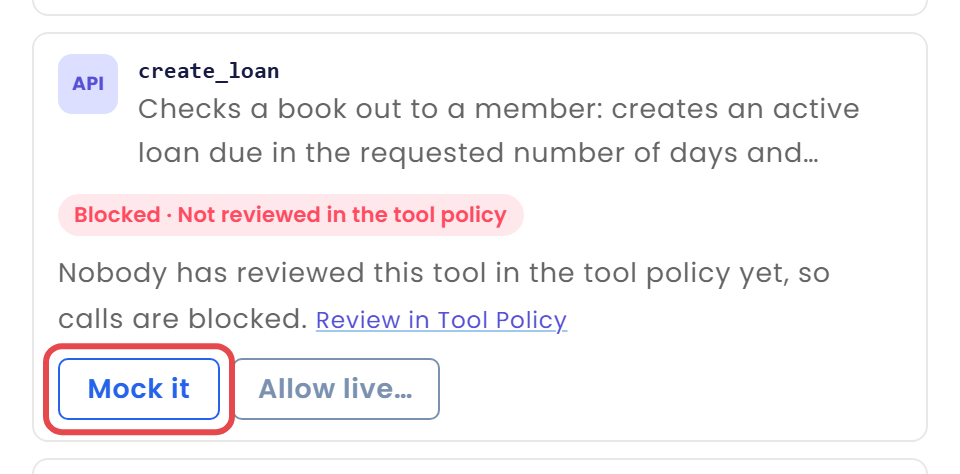
The tool's row now reads Mocked · name, and its chip in the bar moves from Blocked to Mocked. Save the scenario.
If you opened the panel on a step tab, Mock it adds a mock set to that step. Otherwise it adds one to the whole scenario.
Step 4: Let a tool run live, only when you have to
Sometimes a scenario must prove that the real system works, for example that your library system really accepts a loan from create_loan. For that you can let a single tool run live in this scenario.
- In the panel, find the tool. On a tool that would be blocked or simulated, click Allow live….
- Read the confirmation. It says "Real data will change." For an escalation tool it adds that supervisors will be notified. For another agent it adds that the other agent and its own tools will really run. If the tool is mocked for some inputs, it also says that calls a mock answers stay mocked and all other calls run for real.
- Confirm. The row now reads Live, and under it "Takes effect after you save".
- Click Save on the scenario. A run uses the saved scenario, so an Allow live that you did not save is not used. Qlar tells you to save before running.
To take it back, click Remove on the same row, and save.
Use this sparingly. Allow live makes real calls, with real credentials, in every run of that scenario.
This step covers both cases, because what you see depends on your role. If you are not an organisation Owner or Admin, Allow live… is greyed out and you cannot use it. The pictures on this page were taken with such an account, so the confirmation in item 2 is described in words only.
Who can use Allow live…
Only organisation Owners and Admins can use Allow live… in a scenario. For everyone else the button stays visible but is greyed out. Hover over it to read "Only organisation Owners and Admins can allow a tool to run live", and a lock note at the bottom of the panel repeats it.
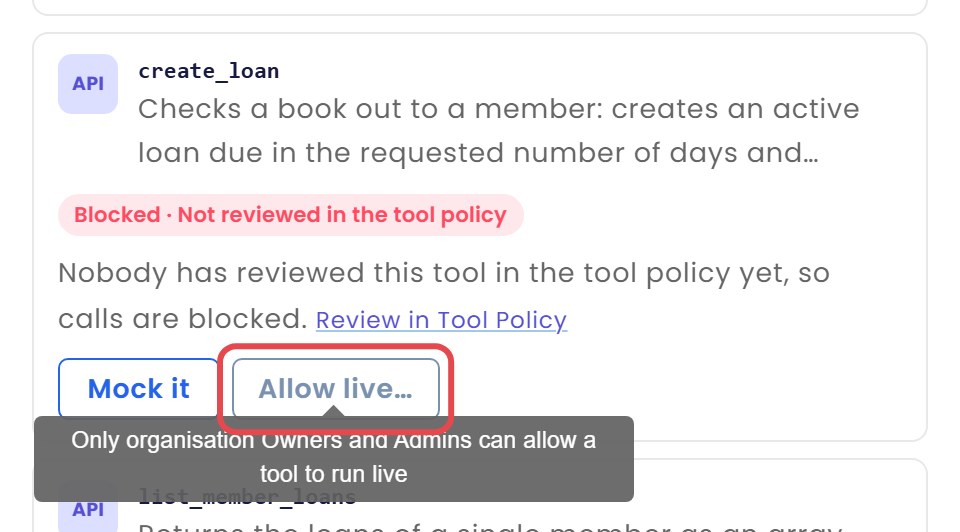
If that is you, ask an Owner or Admin of your organisation to open the scenario and allow the tool. Or avoid the need: a mock does the same job for a test, without touching a real system, and anyone with the Owner or Contributor role on the agent can use Mock it.
The Run live switches in the Tool Policy are different. Anyone with the Owner or Contributor role on the agent can change them, and they apply to every scenario of the agent, not just one.
Step 5: Check the result of a run
After a run, open its result and look at the tool calls. See Read the Results for where to find them.
- Open the Results tab and click the run.
- Open the scenario and a step, then click Tool calls (n).
- For each call, compare the outcome chip with what the Agent Tools panel promised.
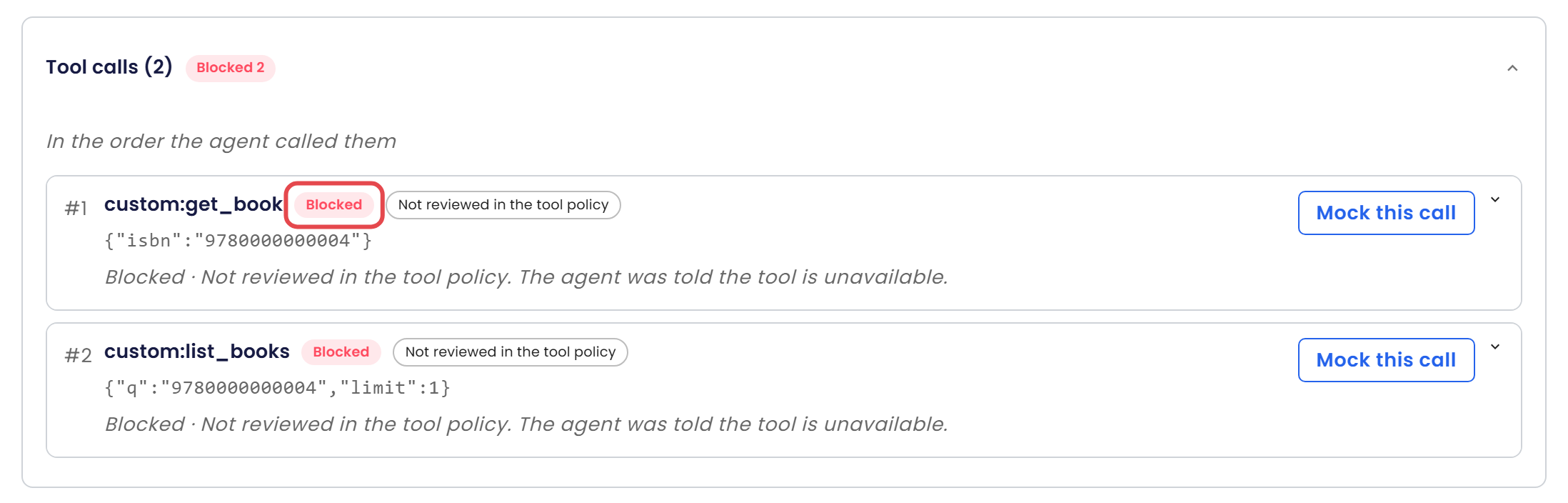
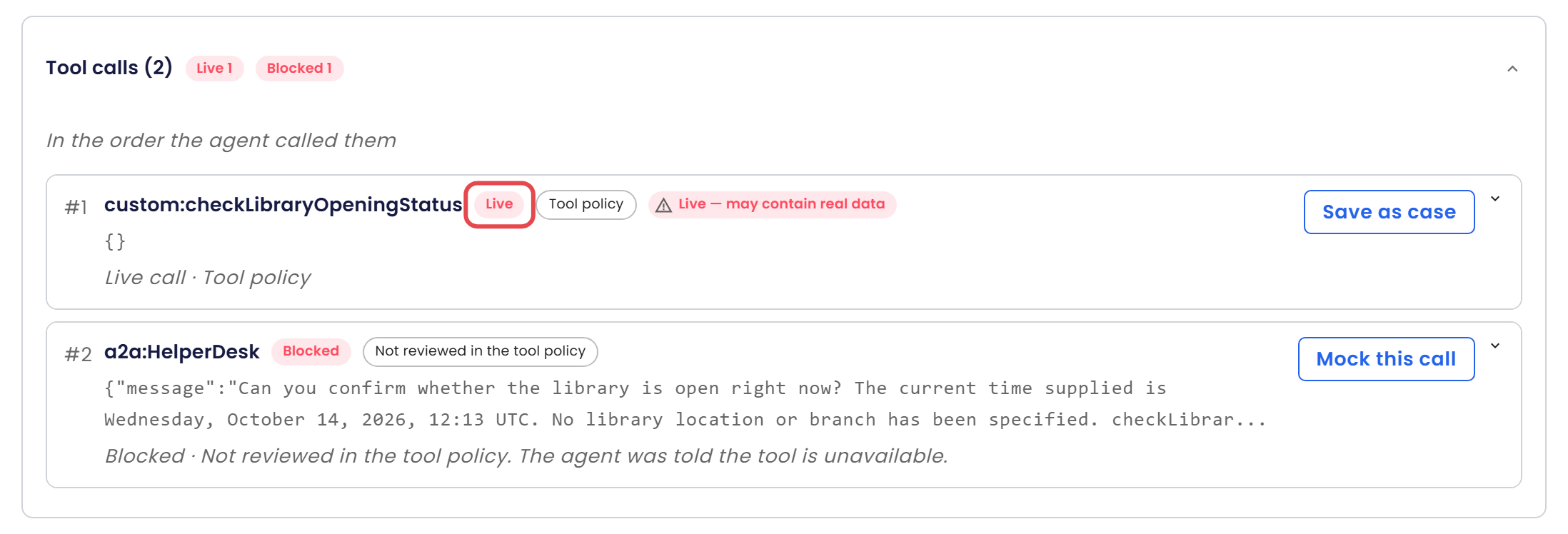
Each row shows the tool's key, for example custom:get_book for a Custom API tool or a2a:HelperDesk for an A2A agent, then the outcome chip, the source chip and the arguments the agent sent. A line under them says what happened. The section header counts the outcomes, for example Live 1 and Blocked 1.
In this first step, the agent looked up a book and searched the catalogue. Neither tool had been reviewed in the Tool Policy, so both calls were Blocked. The first outcome chip is marked.
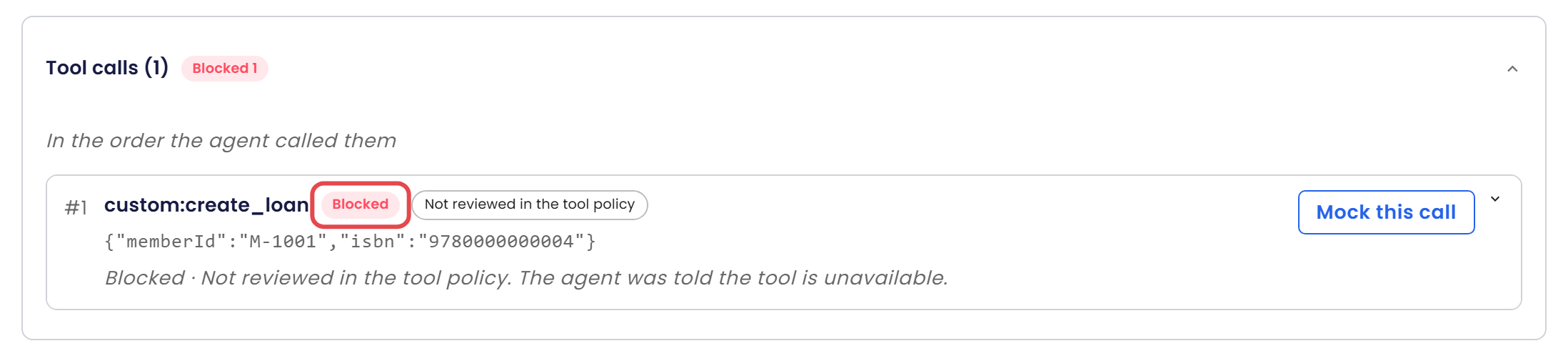
The next step borrowed a book with create_loan. create_loan is one of your own APIs (a Custom API), so it is blocked until someone reviews it in the Tool Policy, whether it reads or writes data.
In the last step, the first call was Live because the Tool Policy lets that tool run live. It shows the warning "Live — may contain real data" and a line that reads "Live call · Tool policy". The second call went to another agent and was Blocked.
For a Blocked call you can click Mock this call, and for a Mocked or Live call you can click Save as case, to turn the call into a mock for the next run. Tool Mocks explains both.
Check the result
You made it if you can answer these:
- For one tool on your agent, which rule decides what happens: a step mock, a scenario mock, an Allow live, the Tool Policy, or the built-in default?
- Which tools in a scenario would be Blocked if you ran it now?
- Who in your organisation can use Allow live… in a scenario?
If you see something else:
- A tool says Blocked · Not reviewed in the tool policy. Nobody has decided about the tool yet. Give it a mock with Mock it, or review it in Tool Policy.
- A call you mocked still shows Default. A mock set answered with its Otherwise response, because none of its cases matched. Check the conditions of its cases.
- A call you mocked still shows Blocked. The call may match no case, and the set may be set to keep looking. Check the Otherwise (every other call) card of the tool.
- A call shows Live and you did not expect it. Look at its source chip. Tool policy means the Tool Policy lets the tool run live. Allowed live in this scenario means this scenario allowed it. Remove the setting, or add a mock to the scenario.
- The Agent Tools section shows only a notice. The agent's tools or the Tool Policy are still loading, or loading failed. It says "Failed to load the tool catalog. The rest of the form is still usable." or "The agent's tool policy couldn't be loaded, so what each tool will do can't be shown. Runs still follow the saved policy." Click Retry.
Next steps
- Next in this section: Tool Mocks shows how to write the pretend answers.
- Set the defaults for the whole agent: Tool Policy.
- As part of building Atlas: Test Tools Safely with Mocks.
- Field-by-field reference: Scenarios, Results and Tool Policy.