Your First Simulation
Open in CMSIn this guide you build and run your first simulation. You start with an agent that has no tests yet, create a folder, write a short two-step conversation, let Qlar suggest the pass criteria, run it against the version your users talk to, and read the result. It takes about ten minutes.
The example agent is Linguéa, a multilingual language and grammar assistant that answers from its reference books. The test asks it two Spanish grammar questions: when to use the subjunctive after "quiero que", and when to keep the infinitive. If you are following along with your own agent, write two questions that suit it. The steps are the same.
AI is involved in several places: Qlar suggests the criteria, the agent writes its answers, and AI judges whether each answer matched. These can differ every time, so what you see will not be word for word what this page shows. Read the page for the shape of the result, not the exact text.
Before you start
- You have the Owner or Contributor role on the agent. Other roles do not see the Simulation group in the sidebar.
- The agent has no simulation data yet: no folders and no scenarios. If it already has some, the steps still work, but your screen will look a little different at steps 1 and 2.
- You know which version you are testing. This first run uses Published, which is what the agent currently has live for your users. See Preview and Publish Changes.
- You know the words scenario, step, criterion and Published. If not, read the Overview first. It takes two minutes.
Step 1: Open Simulation
- Open your agent in the CMS. Here it is Linguéa.
- If the sidebar is collapsed, move the pointer over it to expand it. Then click Simulation to open the group.
- Click Scenarios.
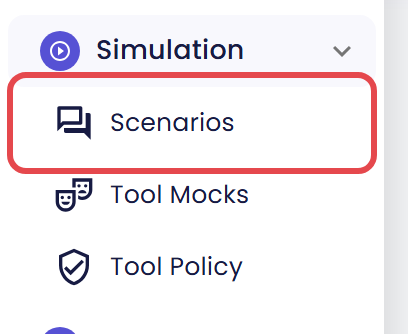
The Conversation Simulation page opens on its Scenarios tab. The Results tab next to it stays empty until you run something.
Step 2: Create a folder
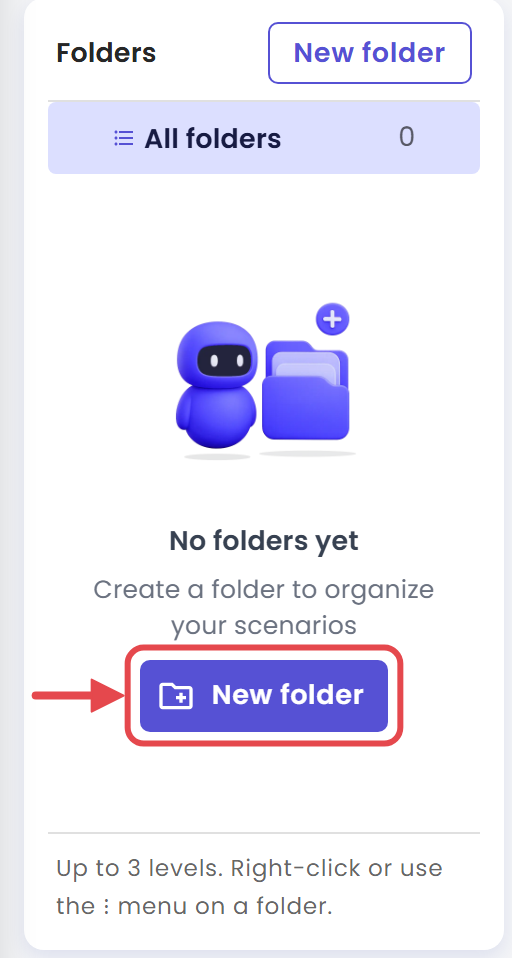
Scenarios live in folders, so make one first. On an agent with no folders, the left side of the page says No folders yet.
- In the Folders panel, click New folder.
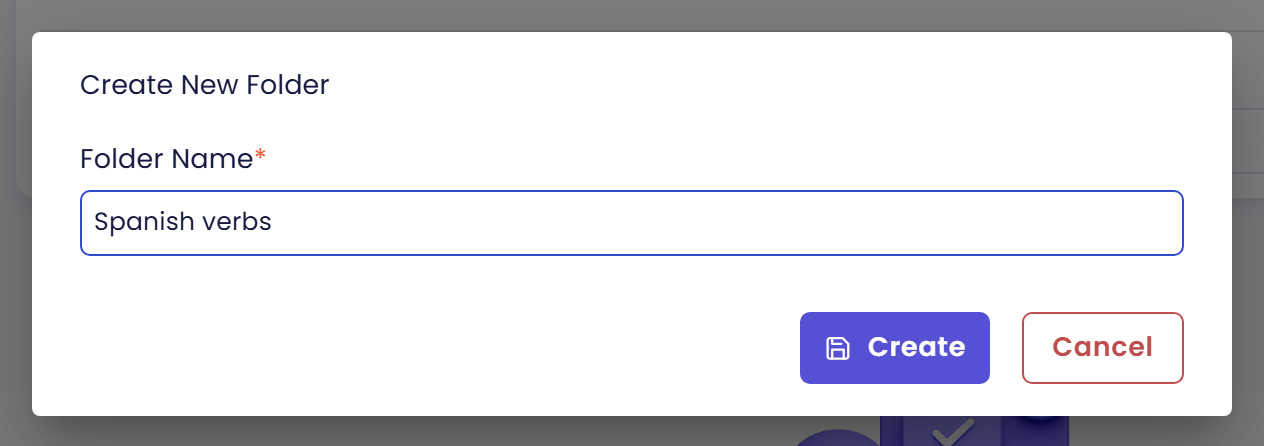
- In the Create New Folder dialog, type a Folder Name, for example
Spanish verbs. - Click Create.
- When the message
Folder "Spanish verbs" created successfullyappears, click Close.
The folder now shows in the Folders panel.
Step 3: Start a new scenario
Click New Scenario, above the list of scenarios. The Create New Scenario form opens with one empty step.

Step 4: Write the steps
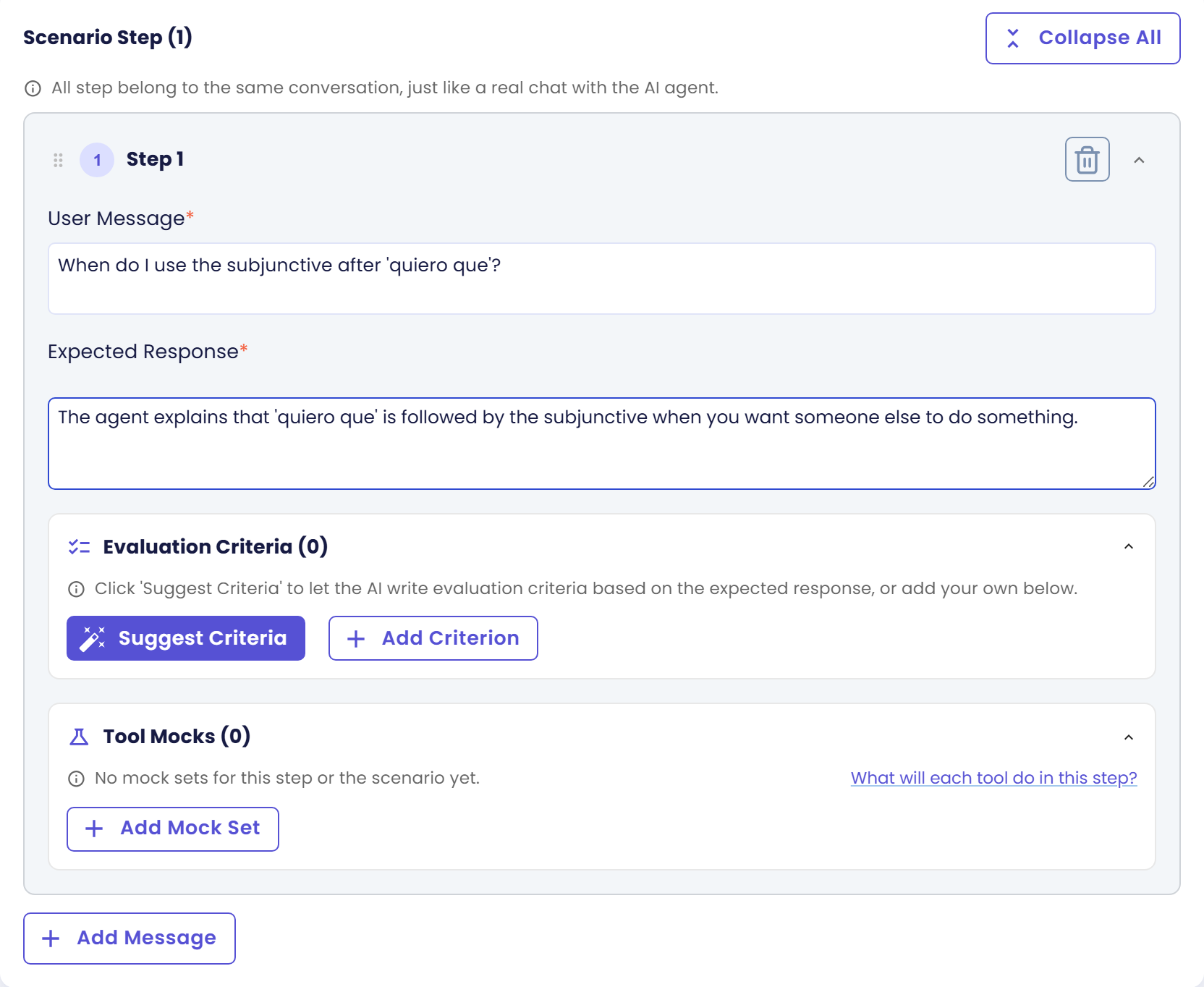
A step is one turn of the conversation. Each one has a User Message (what the user says) and an Expected Response (the answer you want to get).
-
In Step 1, write the User Message:
When do I use the subjunctive after 'quiero que'? -
Write the Expected Response in your own words. It does not need to match word for word, because it only guides the criteria in the next step:
The agent explains that 'quiero que' is followed by the subjunctive when you want someone else to do something. -
Click Add Message to add a second step.
-
In Step 2, write the User Message:
And when do I keep the infinitive, like in 'quiero ir'? -
Write the Expected Response:
The agent explains that you keep the infinitive when the person who wants and the person who acts are the same, and answers in two sentences at most.
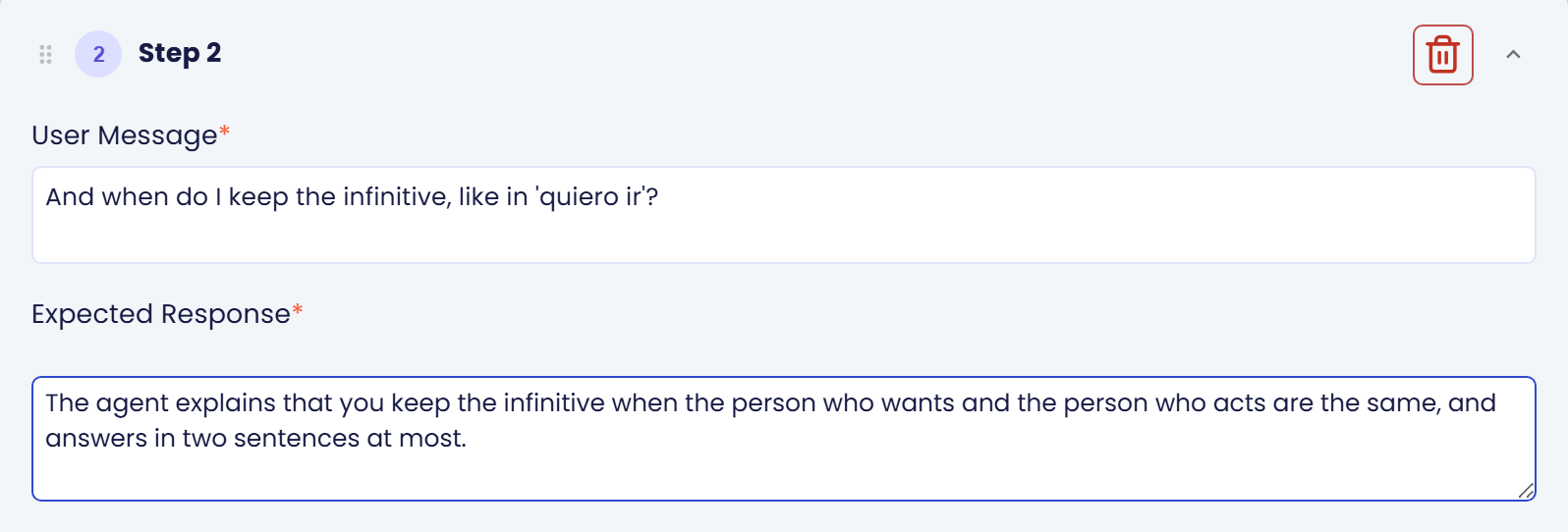
The steps belong to one conversation, just like a real chat, so step 2 is asked right after step 1 and the agent remembers what it said.
Step 5: Get criteria
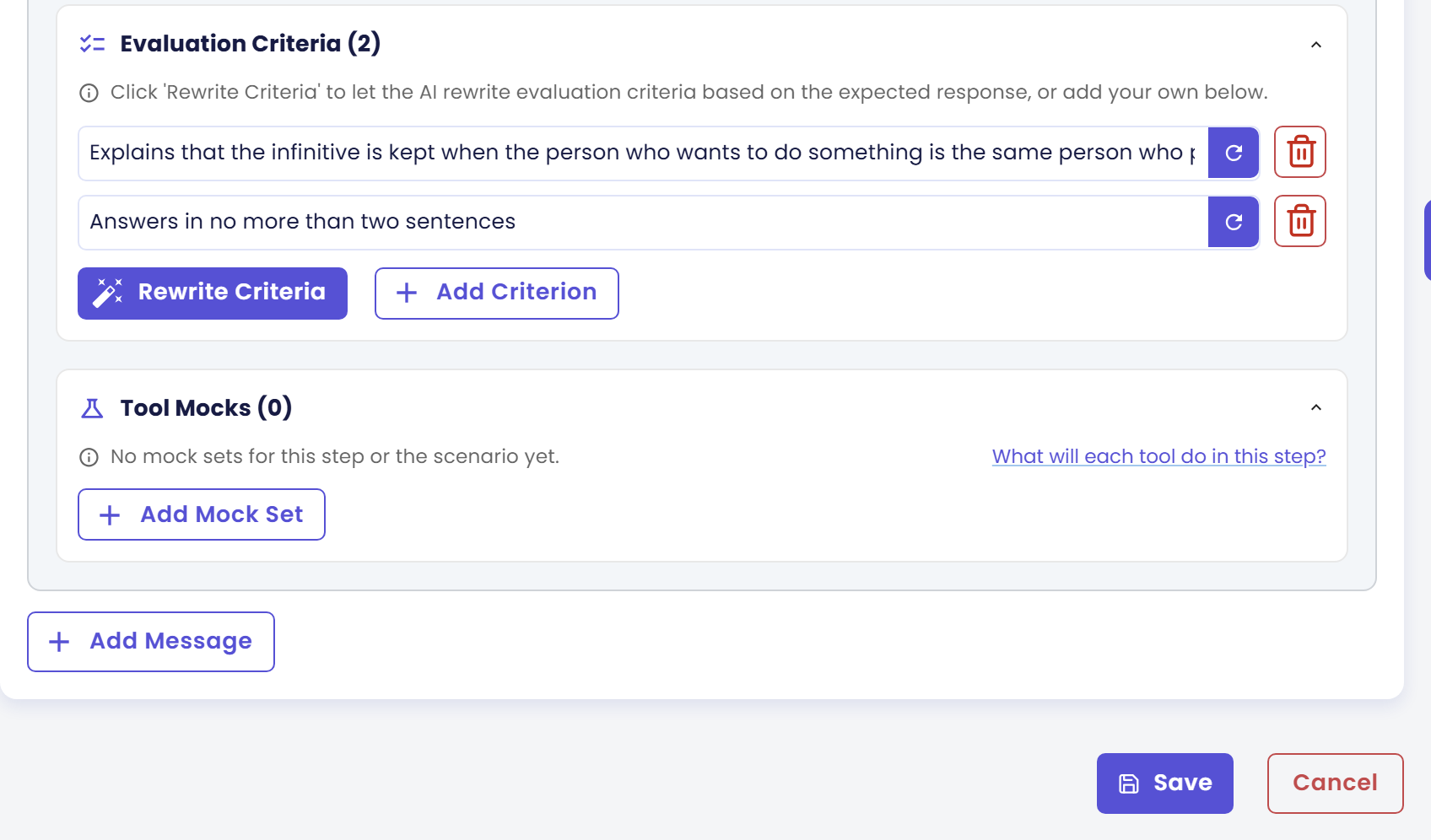
A criterion is one thing the agent's answer must contain or do. A step can have several. The run checks each one separately, so they are what make a test pass or fail.
- In Step 1, click Suggest Criteria. Qlar writes criteria from your Expected Response. A moment later the Evaluation Criteria box lists them, and the button now reads Rewrite Criterion (with more than one criterion it reads Rewrite Criteria).
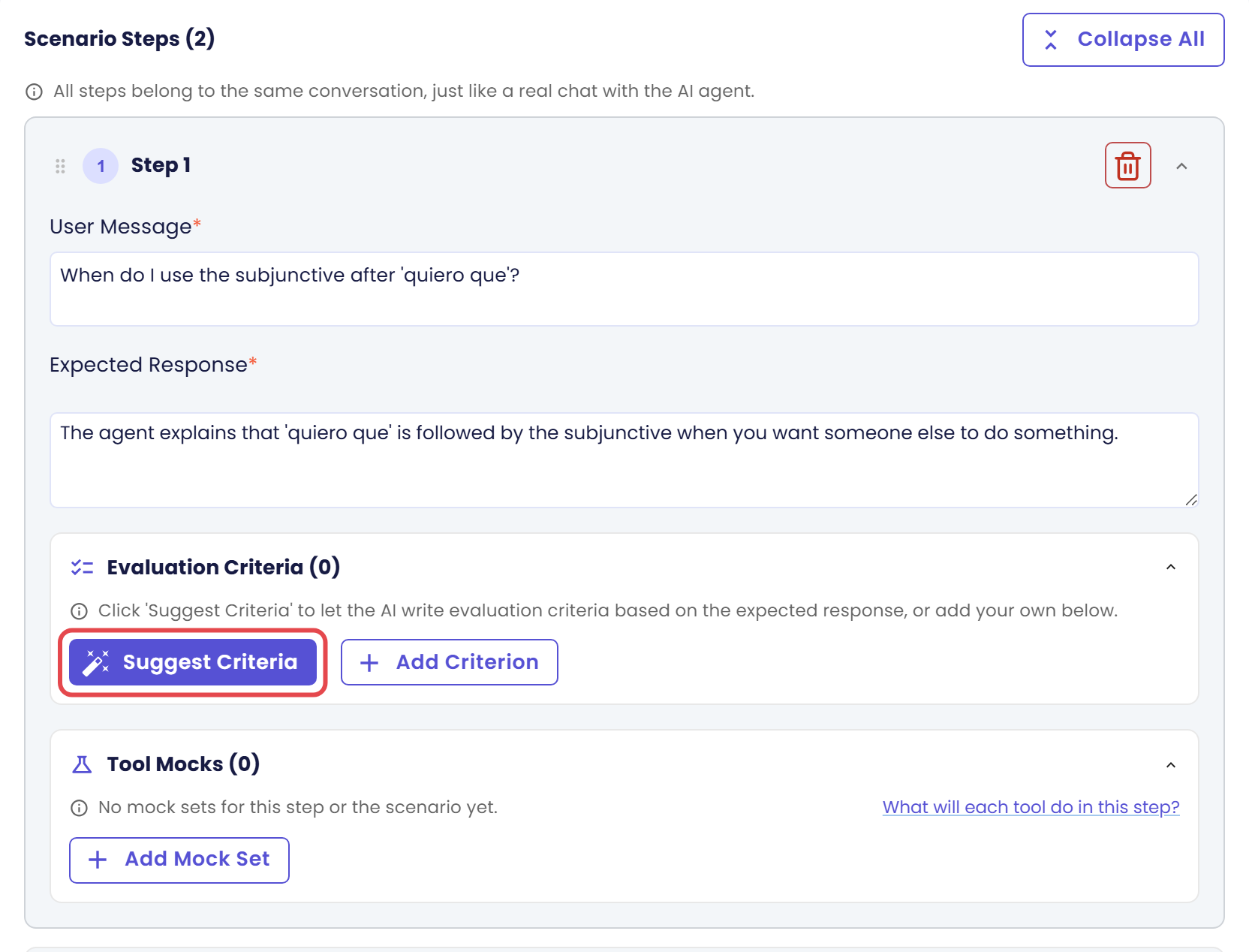
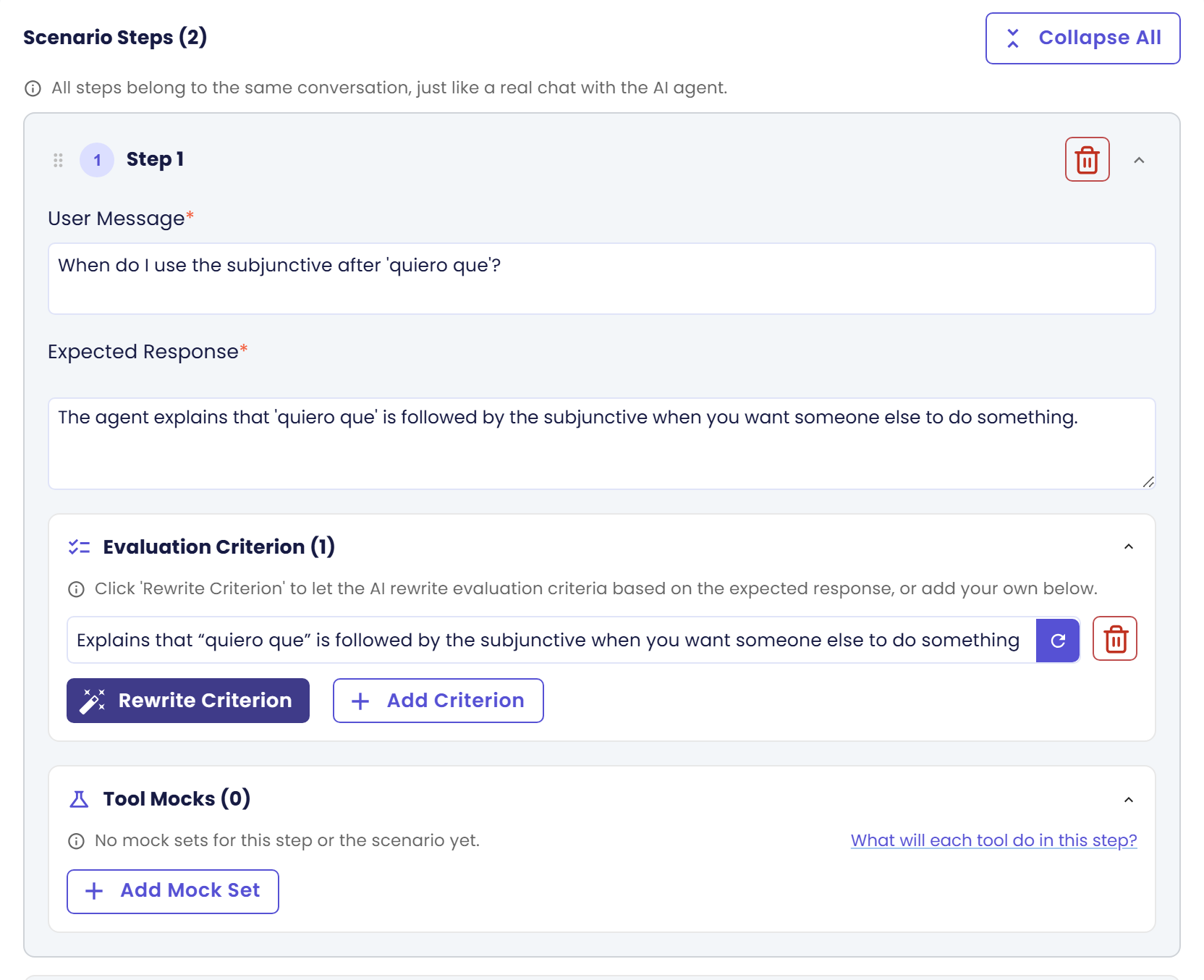
- Read each criterion. Edit the text, click the trash icon to remove one, or click Add Criterion to write your own.
- At the bottom of the form, click Suggest All Criteria (1/2 Steps ready). This fills in the criteria for every step that does not have any yet. The numbers count the steps that already have criteria.
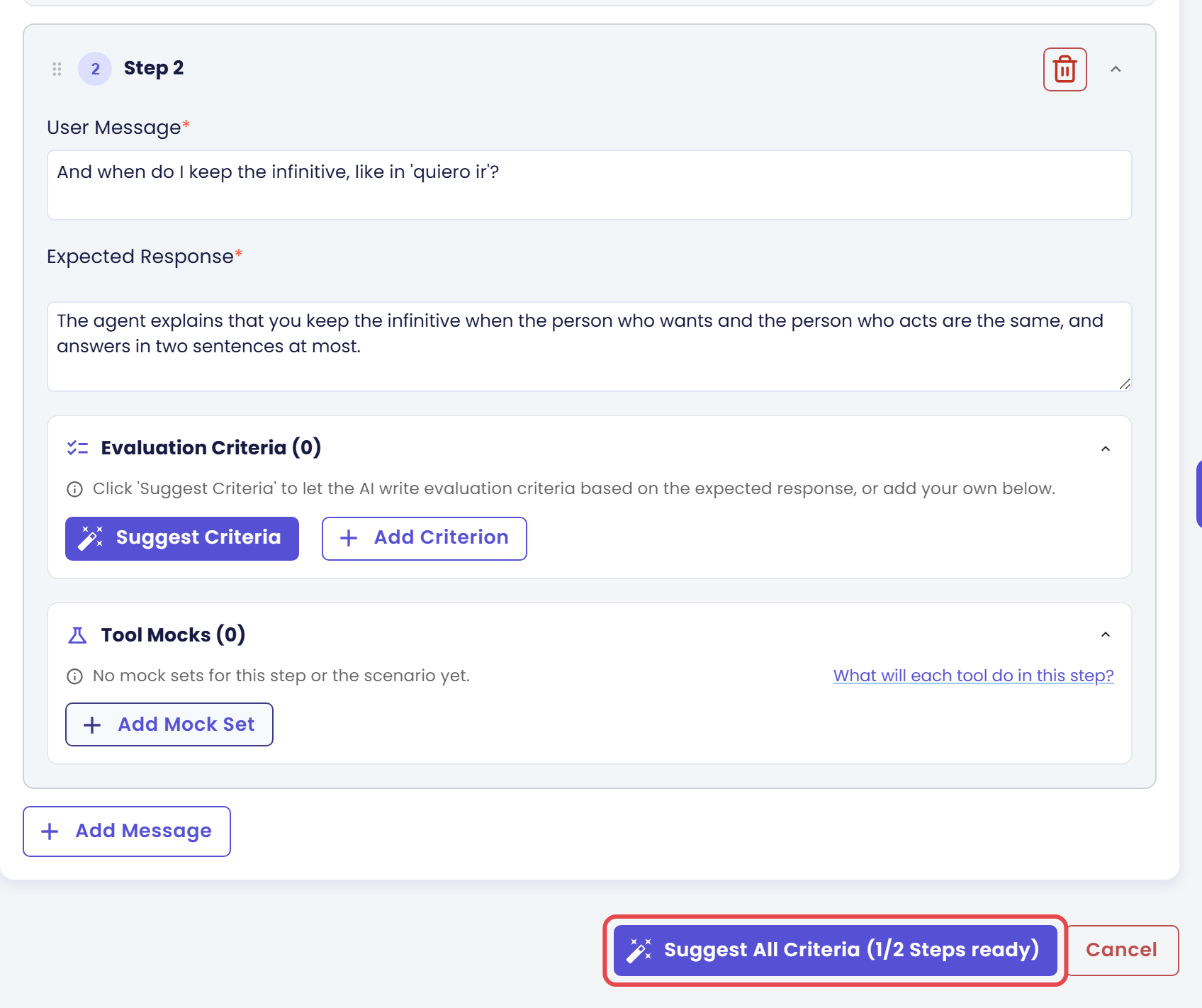
- A message "Successfully generated criteria for 1 Step" appears. Click Close.
When every step has criteria, Suggest All Criteria is replaced by Save. Until you close the message, Save stays hidden behind it.
Step 6: Save the scenario
- Click Save. Qlar suggests a name from your steps and opens the Scenario Information dialog.
- Check the Scenario Name, for example "Spanish Subjunctive Versus Infinitive Usage". Change it if you like. If the name is empty, type one.
- Check the Folder. It is already chosen when you have only one folder, or when you selected a folder in the Folders panel before clicking New Scenario. Otherwise pick the folder from the list.
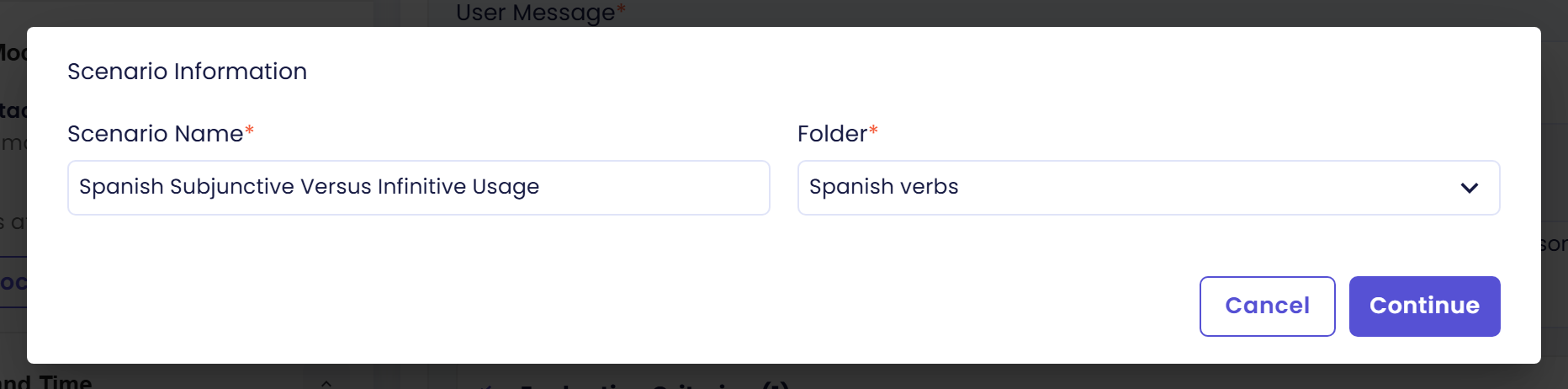
- Click Continue.
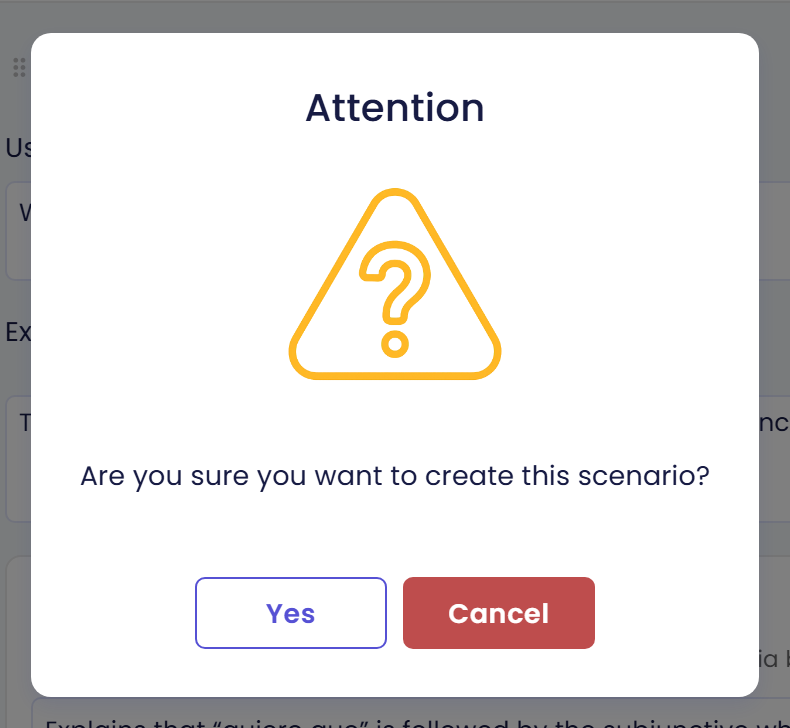
- Qlar asks "Are you sure you want to create this scenario?" Click Yes.
- When "Scenario created successfully" appears, click Close.
You are back on the Scenarios tab, and your scenario is in the list with its name, folder and number of steps.
Step 7: Run it against Published
- On the scenario's card, click Run.
- Under Run against, choose Published. It says "What your users talk to now." The next time you open this dialog, it remembers your last choice for this agent. Draft is the version with your unpublished changes. When there are none, it reads "Same as published right now". It is greyed out for an agent that has no separate draft.
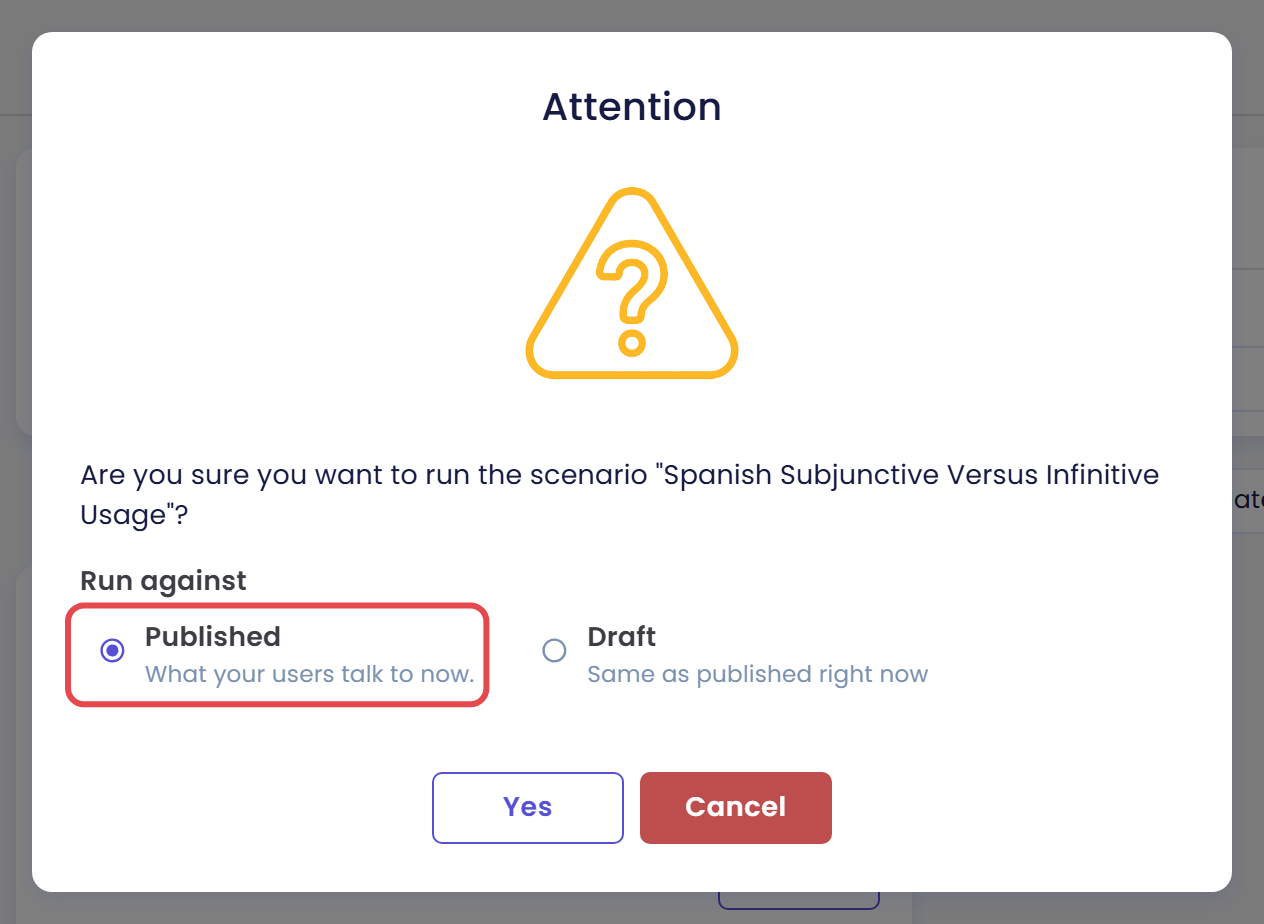
- Click Yes. If the dialog lists blocked tools, the button reads Run anyway. See Tools in Simulations for what that means.
- When the message "Scenario ... execution started successfully against the published version" appears, click Close.
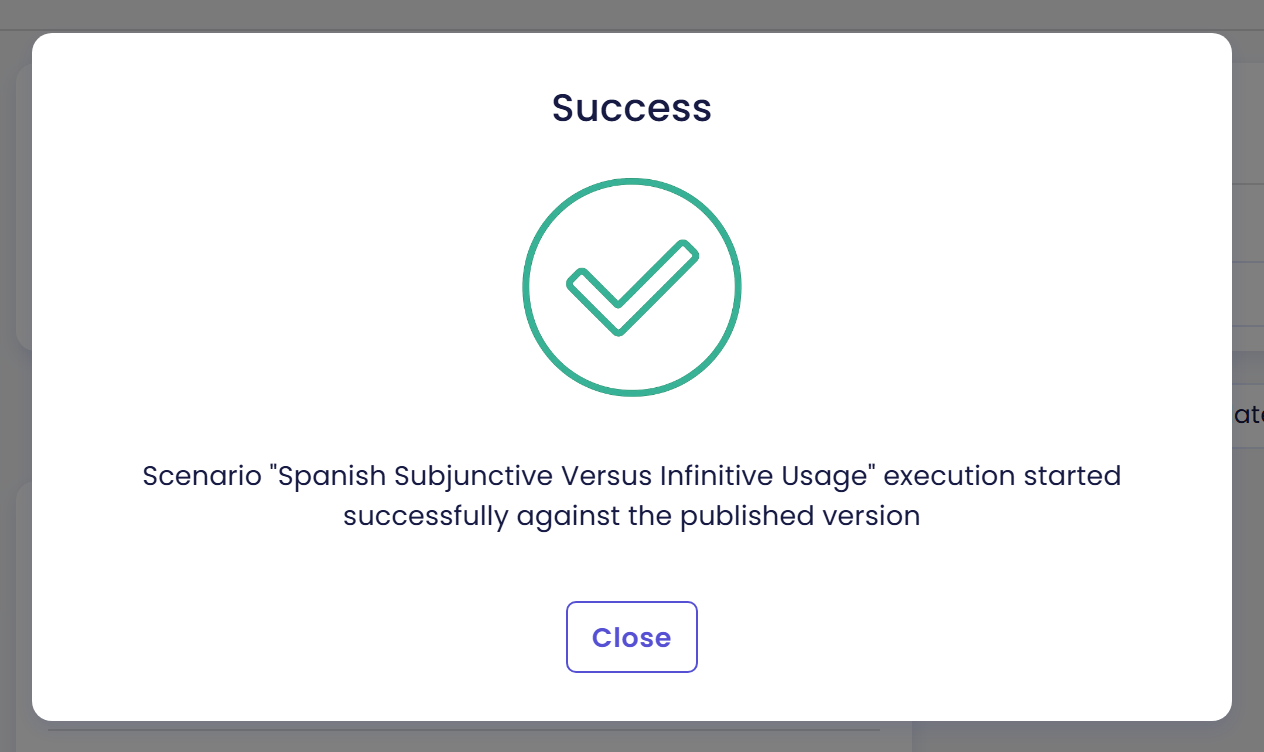
Qlar opens the result page for the run. The agent is now answering your two messages one after the other.
Step 8: Read the result
The page is titled Simulation Result and carries the run's code, for example #TE-0001. Its status chip starts as Running and turns Completed when the run is done. The page updates by itself for the first 10 minutes of the run. If the run is still going after that, the page says "Live updates paused after 10 minutes — use refresh to check the latest status." and you click the refresh icon to check.
- Look at the summary cards at the top. CRITERIA MATCH says how many criteria were matched out of all of them, for example "2/3 Matched". STATUS, DURATION and STEPS are next to it.
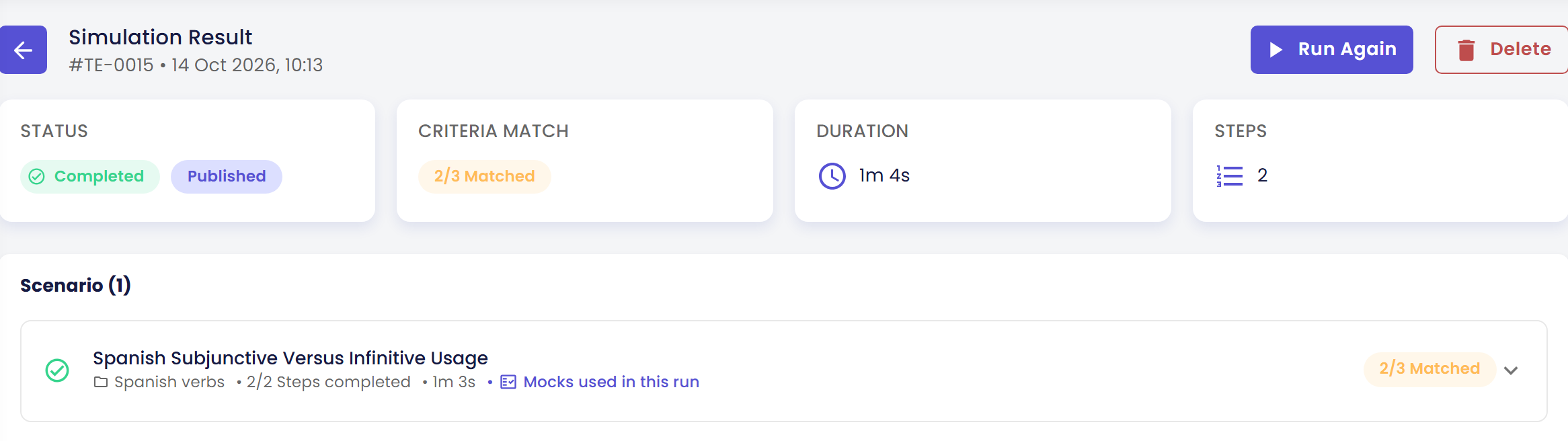
- Under Scenario (1), click your scenario to open it. The word is singular when the run has one scenario; with more it reads Scenarios (n).
- Click Step #1, then Step #2. Each step shows your Expected Response beside the AI Agent Response, which is what the agent really said.
- Read the Evaluation Criteria (x/y Matched) box under the answer. Each criterion has its own box:
- A green box means the criterion was matched. Under it, a speech bubble (💬) quotes the part of the answer that proves it.
- A grey box means it was not matched. Under it, a light bulb (💡) gives the reason. Either the answer left the point out, or it said the opposite. In the agent's answer, text that supports a criterion is highlighted in green, and text that contradicts one in red.
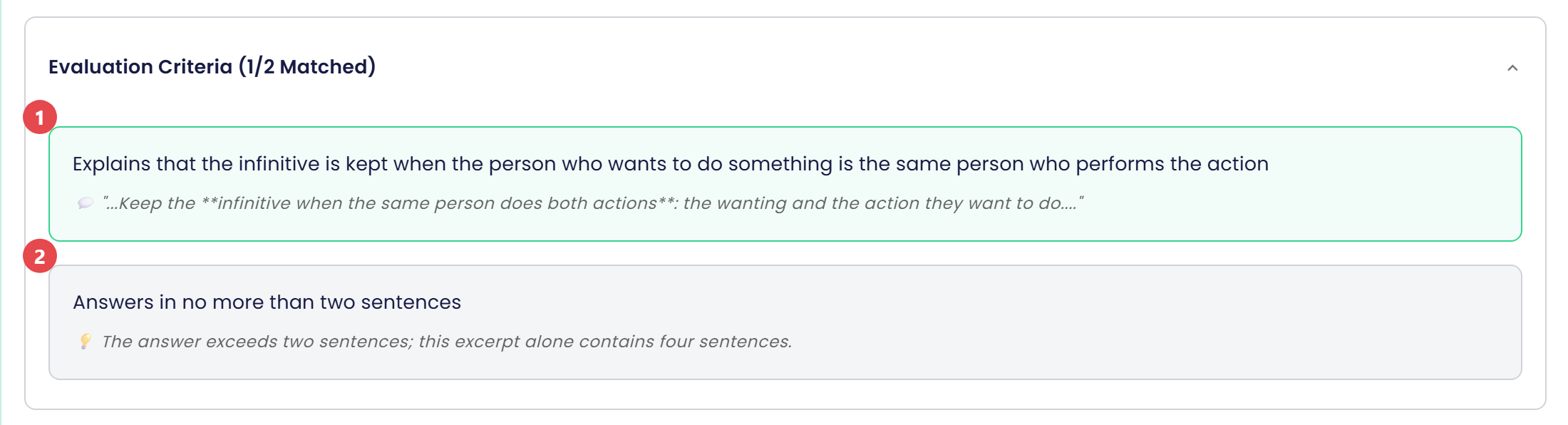
Suppose step 2's criterion "Answers in no more than two sentences" comes out grey, with a reason such as "The answer exceeds two sentences", while the criterion about keeping the infinitive is green. That is the simulation doing its job: it found a gap between what you expected and what the agent does. The exact wording and colours will differ on your screen, because the answers and the judgement are generated by AI. Fixing gaps like this is covered in Fix and Retest.
Check the result
You made it if you see all of these:
- A folder in the Folders panel and a scenario in the list, with two steps.
- A result with the status Completed and an Evaluation Criteria (x/y Matched) box in each step.
- For every criterion, either a green box with a quote or a grey box with a reason.
If you see something else:
- Suggest Criteria is greyed out. It stays disabled until the Expected Response of that step has text. Write the expected answer first, then click it again.
- There is no Save button. The bottom button reads Suggest All Criteria until every step has at least one criterion. Click it, or add a criterion to the step that has none.
- A folder called "Default" appeared. You started a scenario on an agent that had no folders, so Qlar created Default to give the scenario a place. Move the scenario later into a folder you name yourself. See Organize Scenarios in Folders.
- The Scenario Name is empty in the Scenario Information dialog. Qlar could not suggest a name this time. Type one.
- The status is Failed. Open the scenario in the result. It says "Failed at step #n" and gives the reason. Click Run Again at the top of the page. If it keeps failing, see Read the Results.
- The status stays Running for a long time. A run with a slow answer can take a few minutes. Wait, or click the refresh icon on the page. After 10 minutes the page stops updating by itself, so use the refresh icon from then on.
- The colours are not what you expected. The answers and the judgement are generated by AI, so they change between runs. Click Run Again and compare. A criterion that flips between runs is usually too vague. See Write Good Scenarios.
Next steps
- Next in this section: Organize Scenarios in Folders, to keep your tests tidy as they grow, then Write Good Scenarios.
- To understand a result in depth: Read the Results.
- Story version: Build Your First Test Suite does the same for Atlas, Kirana Group's agent, as part of building it.
- Field-by-field reference: Scenarios and Results.