Tool Policy
Open in CMSThe Tool Policy page answers one question for your whole agent: when a simulation calls a tool and no mock answers, should the call run for real or be blocked? In this guide you learn why the page exists, how to read it, how to change a tool and how to save safely. It takes about ten minutes.
The example agent is Libraría, which has many tools. Your agent will have other tools. The steps are the same. If you are not sure what a tool call is, read Tools in Simulations first.
AI is involved in every run: the agent writes its answers and decides when to call a tool. This page itself has no AI in it. What a tool does is decided by the rules you read here, so the same setting gives the same decision every time. The calls a scenario makes can still differ from run to run.
Why a tool policy exists
Qlar has to be careful with tools in a test. Some tools only read information. Others write, send or book things, or reach a system that Qlar cannot see into. A test must not change real data by accident.
So when the agent calls a tool during a simulation, Qlar first looks for a mock, a scripted answer. If no mock answers the call, something else has to decide what to do. That is the Tool Policy. It sets, for each tool, whether the call is allowed to run live (for real) or is blocked.
Two more things to know:
- It applies to every scenario of the agent, on both Draft and Published. You set it once.
- It is only a default. A mock always wins, and a single scenario can still allow a tool to run live on its own.
Key terms
| Term | What it means |
|---|---|
| Run live | The tool makes a real call, to the real system, with the real credentials. |
| Blocked | The call is not made. The agent is told the tool is unavailable. |
| Not reviewed | A tool nobody has decided about yet. Until someone does, it is blocked. |
| Mock | A scripted answer. See Tool Mocks. |
| Allow live | A setting on one scenario that lets one tool run live in that scenario. It is not on this page. |
Before you start
- You have the Owner or Contributor role on the agent. Anyone with either role can change the Run live switches on this page, and the changes apply to every scenario of the agent.
- Your agent has at least one tool. Otherwise the page says "This agent has no tools that can be set here."
- Tool Policy shows in the sidebar under Simulation only when the feature is switched on for your CMS.
- You have read Tools in Simulations. It explains the outcomes used below.
Step 1: Open the page and read the decision card
- In the sidebar, open Simulation and click Tool Policy.
- Read the line under the title: "What each tool does in simulations when no mock answers the call. Applies to every scenario of this agent, on both Draft and Published."
- Read the card How a tool call is decided in a simulation. It shows five chips, from left to right, in the order Qlar asks them. The first one with an answer wins.
| Chip | What it means |
|---|---|
| Step mocks | A mock set attached to the step that makes the call. |
| Scenario mocks | A mock set attached to the whole scenario. |
| Scenario's Allow live | The scenario has allowed this tool to run live, set in the scenario's Agent Tools panel. |
| This policy | The setting on this page. |
| Built-in default | What the tool does when none of the above applies. |
The note under the chips reads "Mocks always win, so a tool that runs live here can still be mocked in the scenarios that need specific answers."
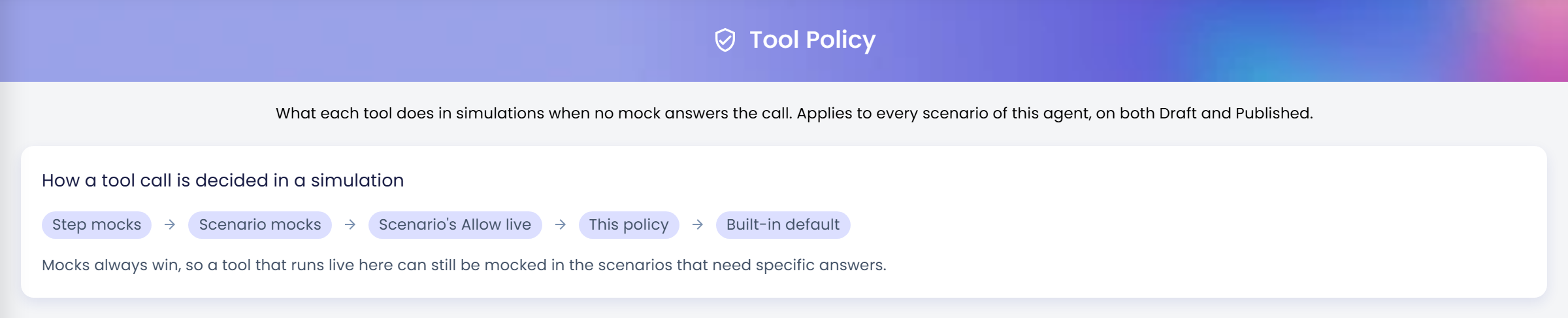
This page only controls the fourth chip. You can set a tool to run live here and still keep it safe in every scenario that mocks it.
Step 2: Understand the groups and their defaults
Below the card, your agent's tools are in four groups. Each group is a card that you can open and close. Next to its title is a count, for example "12 tools · 3 not reviewed · 1 unsaved". On Libraría the counts read "52 tools · 45 not reviewed" for Effect unknown, "3 tools" for Reads data and "7 tools" for Not set on this page.

| Group | Default | Which tools are in it |
|---|---|---|
| Effect unknown | Default: Blocked | Tools Qlar cannot judge from outside: your own APIs (ways for programs to talk to each other), MCP servers (services that offer tools to AI agents in a standard way), other agents, A2A agents (agents run elsewhere that yours talks to through the A2A standard), and plugin tools of unknown effect. They are blocked until someone reviews them. Each has a Run live switch. This group is open when you arrive. |
| Reads data | Default: Live | Plugin tools that only read data, such as a database reader, a data table and public documents. They run live unless you switch Run live off, which blocks them. |
| Not set on this page | No default chip | Tools this page never changes. Each shows what it does: Simulated success for tools that write data, such as a form, a reminder or an escalation, or Always runs for read-only built-in and internal tools. |
| No longer on this agent | No default chip | Leftover settings for tools the agent no longer has. It only appears when there are some. See Clean up settings for tools that are gone. |
Inside a group, tools are sorted by where they come from, with headings such as Custom API · name of the API group, Plugins · plugin name, MCP · server name, Other agents and A2A. Here is Effect unknown, open, with the first heading Custom API · Finance and a tool that has a Run live switch, switched off:

In Reads data, the headings name the plugin, for example Plugins · Library Policies (Test). The Run live switch is on, because these tools run live by default:

Not set on this page has no switches. Its tools are listed under the sub-headings Simulated success and Always runs, each tool with a chip that says so:
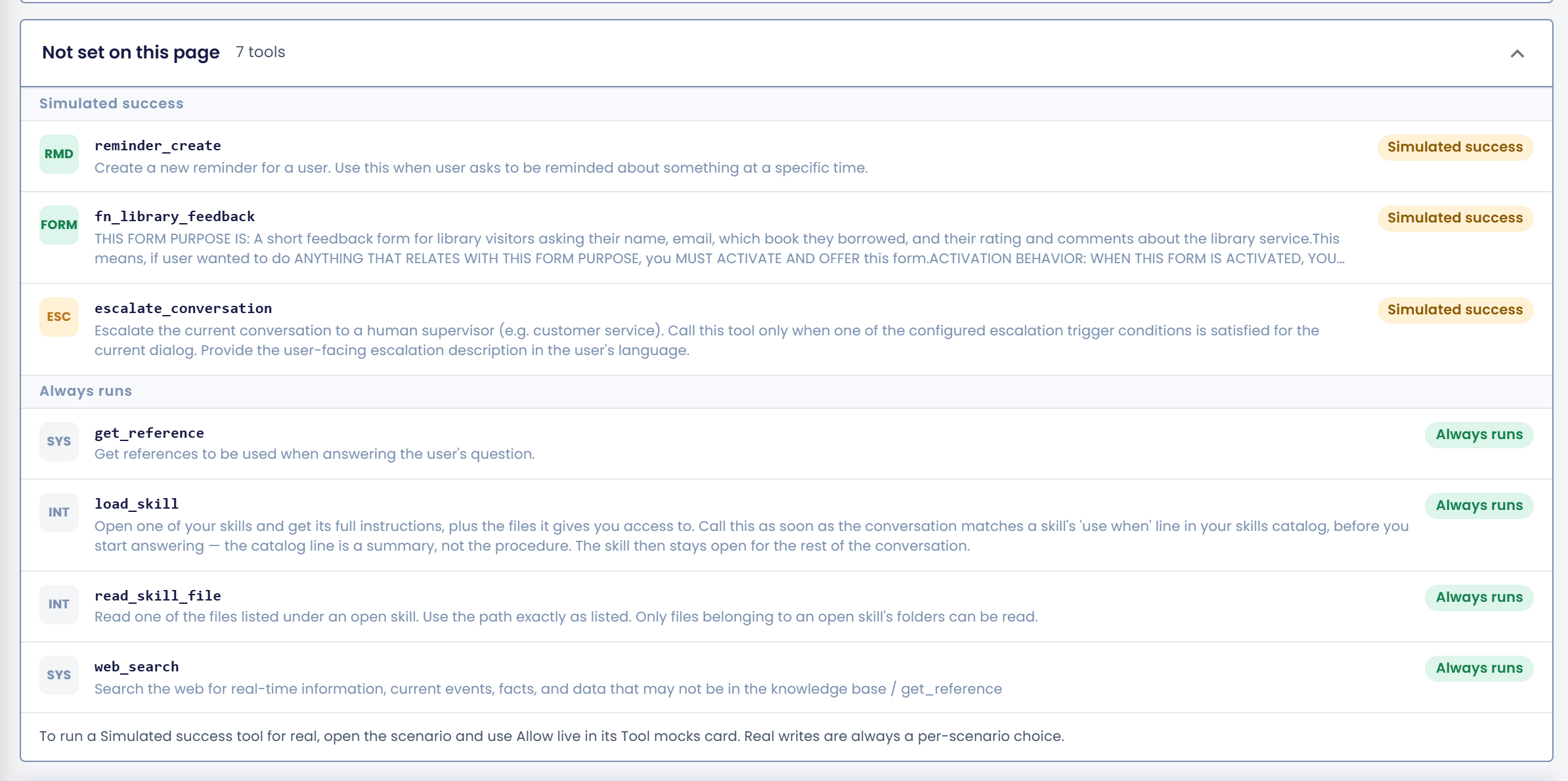
A tool in Not set on this page has no switch. To let a Simulated success tool run for real, open the scenario and use Allow live… in its Agent Tools panel. The group ends with the note "To run a Simulated success tool for real, open the scenario and use Allow live… in its Agent Tools panel. Real writes are always a per-scenario choice." In the scenario form, Allow live… is in the Agent Tools panel, which you open with Review all tools.
Step 3: Find the tools you want
The bar above the groups has filters and a search.
| Control | What it does |
|---|---|
| All tools | Shows every tool. |
| Not reviewed (n) | Shows only the Effect unknown tools nobody has reviewed yet, with their count. |
| Unsaved (n) | Shows only the tools you have changed and not yet saved. |
| Search tools | Finds tools by name, description or source heading, ignoring upper and lower case. |
While a filter or a search is active, groups with nothing to show are hidden, and the matching ones open. If nothing matches, the page says "No tools match".
Start with Not reviewed. These are the tools your agent cannot use in a simulation right now.
The Not reviewed (45) filter is marked here:

Step 4: Decide for each tool
Each tool is a row with an icon, its name, a short description and, on the right, a Run live switch. The picture shows get_book, a tool nobody has reviewed yet, with its Not reviewed chip and its switch (marked), switched off.

| On the row | What it means |
|---|---|
| Run live switch, on | The tool makes real calls in simulations when no mock or scenario setting answers. |
| Run live switch, off | The tool is blocked. |
| Not reviewed chip | Nobody has decided about this tool. Turning its switch on or off, either way, marks it as reviewed once you save. |
| Disabled, Disabled in Draft, Disabled in Published, Draft only or Published only chip | The tool is off, or exists in only one version of the agent. |
| A row marked as changed | You changed it and have not saved yet. It counts under Unsaved. |
| A line "Turned off in Draft and Published. Enable the tool to change this setting; it applies again as soon as the tool is on." | The tool is off in both versions, so the switch is locked. |
When you switch Run live on for a tool that can do real harm, a warning appears under it:
- For your own API that is not a plain read (not GET, the HTTP method that only reads data; methods such as POST, PUT and DELETE send or change it): "This is a
<method>call. Running it live changes real data in every simulation run." - For an MCP tool whose name suggests it changes data: "The name suggests this tool changes data. Running it live does so in every simulation run."
- For another agent: "This agent runs as a normal conversation, so its own tools also run for real: its escalations, forms and API calls are not simulated."
- For an A2A agent: "
<name>is outside Qlar. Whatever it does with the request happens for real."
On a heading inside a group, Turn all on and Turn all off change every tool of that source at once, for example all the tools of one MCP server. Each button is greyed out when it would change nothing. Be careful with Turn all on: read the warnings first.
A good starting point for most agents:
- Leave tools that write or send blocked, and give them a mock in the scenarios that need them.
- Set tools that only read to Run live, if the data they read is safe to read in a test.
Step 5: Save the policy
Your changes are not applied until you save them. A bar at the bottom of the page shows "No unsaved changes", or "n unsaved changes" once you change something. After you switch Run live on for get_book, the row is highlighted and the bar says "1 unsaved change", with the buttons Cancel and Save.
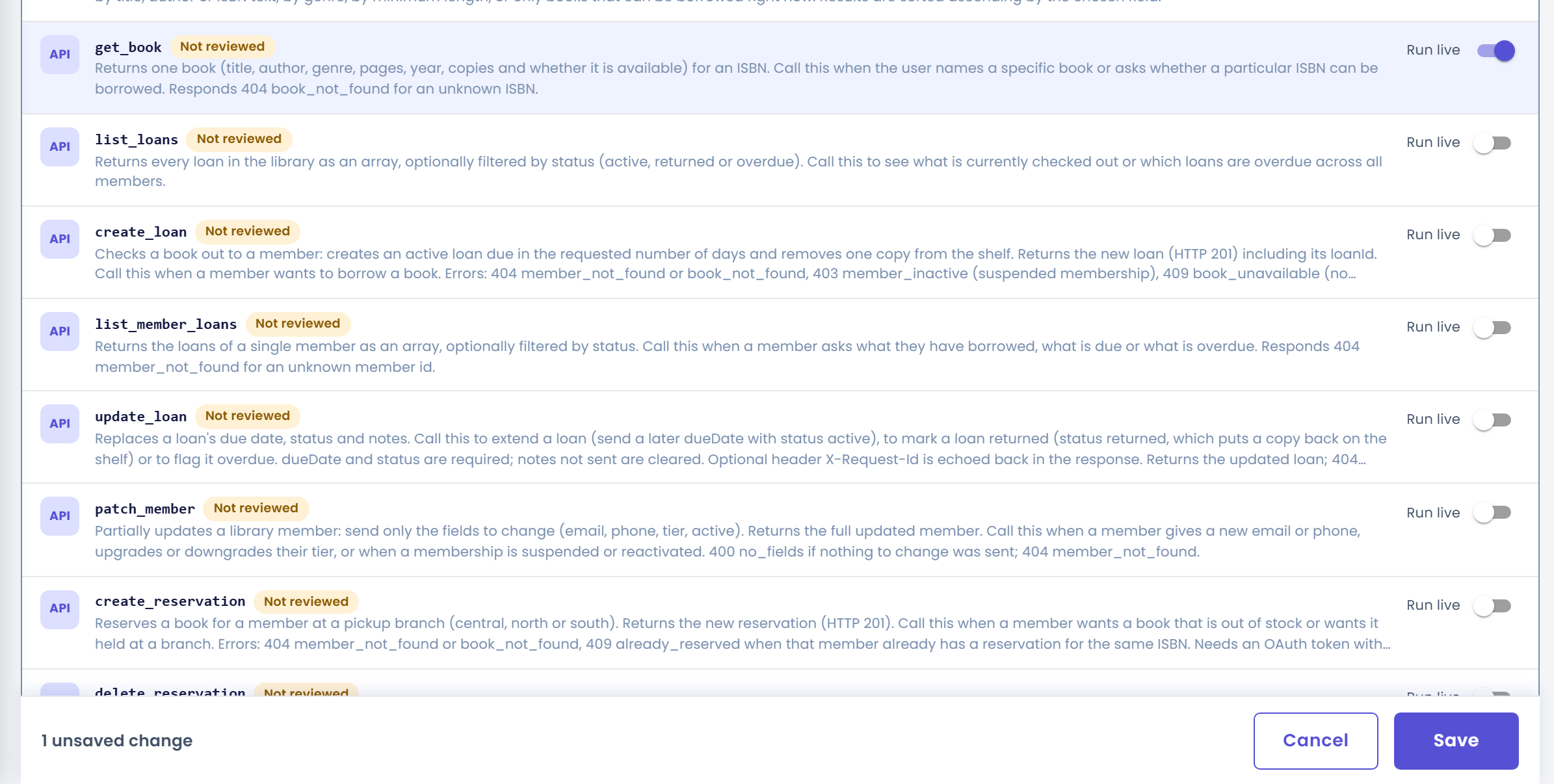
- Click Save in the bar. It is greyed out when there is nothing to save.
- A dialog titled "Save n changes to the tool policy?" opens. It says "Every scenario of Libraría uses these settings for calls that no mock answers, starting with the next run. Runs already queued keep the old settings."
- Read the list under it. Every change is one line, for example "get_book: Not reviewed (Blocked) → Live". If any tool is going live, a warning is added: "Tools set to Live call the real system with real credentials in every simulation run, so what they do is not simulated." For other agents it adds that everything they do, including their own tools, happens for real.
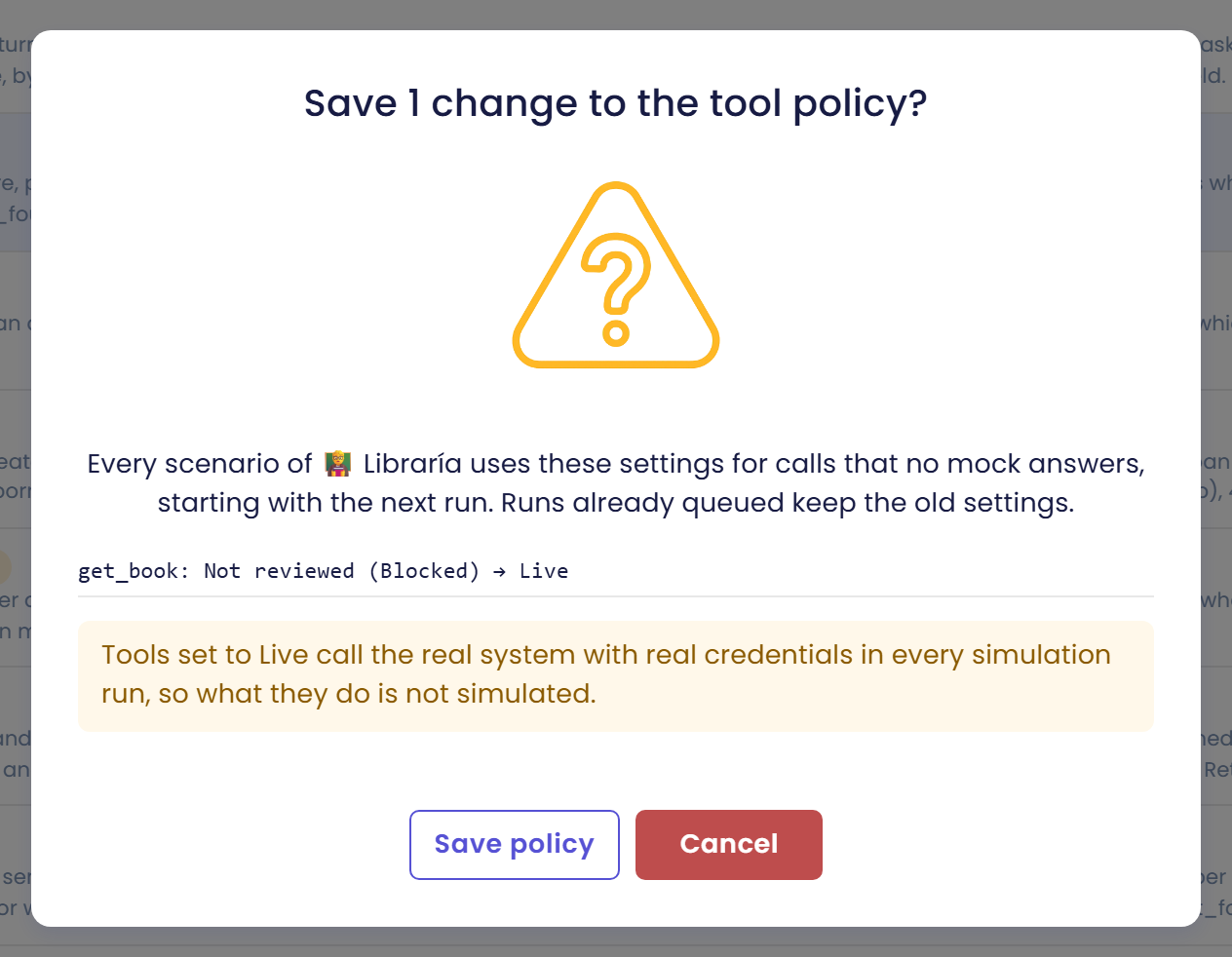
- Click Save policy, or Cancel to go back. Save policy is the outlined button and Cancel is the red one.
To drop your changes without saving, click Cancel in the bar.
What saving changes
- From the next run. The next simulation of this agent uses the new settings. A run that is already queued keeps the old ones.
- Every scenario. One save applies to every scenario of the agent.
- Draft and Published. The settings apply to simulations on both versions.
- Nothing to publish. The Tool Policy only changes what simulations do. It does not change your live agent, so you do not need to publish anything.
If someone else saved first
Another person with access may save the policy while you have the page open. Then your save does not go through, and the page says "The policy changed since you opened it. Reload it?"
Click Reload. Qlar loads the newer version and drops your unsaved changes. Look at what the other person changed, then make your changes again and save. If the reload fails, the page says "Failed to reload the tool policy."
Other messages you may meet:
| Message | What to do |
|---|---|
| "Tool policy saved — The next simulation run of this agent uses the new settings." | Nothing. Your changes are saved. |
| "Failed to load the tool policy." | Click Retry. |
| "Failed to save the tool policy." | Try again. The page shows the reason when the server gave one. |
| "The tools of the Draft and Published versions couldn't be loaded, so the tool policy can't be edited right now." | Try again later. |
| "The Draft version couldn't be loaded, so settings for tools found only there are kept unchanged." (or Published) | You can still edit. Settings that Qlar cannot check are left as they are. |
Allow live is set per scenario, not here
You will not find Allow live… on this page. Letting a tool make real calls is a choice for one scenario at a time. It is made in the scenario's Agent Tools panel, and only an organisation Owner or Admin can make it. Tools in Simulations shows how. This page only has Run live switches. Anyone with the Owner or Contributor role on the agent can change them, and they apply to every scenario as a default. A scenario's Allow live is asked before this page, so it can override a block set here.
Clean up settings for tools that are gone
When a tool is removed from the agent, or an MCP server or plugin is removed and added again, its old setting stays behind and does nothing. These appear in the card No longer on this agent. Each one shows the old tool's name and a chip, Was Live or Was Blocked.
- Open the card. It says "These settings belong to tools this agent no longer has, so they do nothing now."
- For each old setting, choose the tool that replaced it in Move to… and click Move. A tool with the same name is marked "· same name". The old setting leaves the list and the new tool takes its value.
- For a whole MCP server or plugin, use Move all to… to move every setting to the tool of the same name on a current server or plugin. A message tells you how many moved and why any stayed.
- If there is no replacement, click Remove.
- Save the policy. Cancel brings every moved and removed setting back.
A Custom API or other agent that you renamed on its own page is carried over automatically. A tool that is only turned off is never listed here.
Check the result
You made it if:
- The card Effect unknown has no tools left under Not reviewed, or you know why they are left.
- After saving, the footer says "No unsaved changes".
- On a scenario that calls a tool you set to Run live, the Agent Tools panel shows Live · Tool policy. For one you left or set to blocked it shows Blocked · Tool policy.
- In a result, the tool call shows the source chip Tool policy.
If you see something else:
- The scenario still says Blocked · Not reviewed in the tool policy. You have not saved yet, or you did not touch that tool. Open it on this page, set the switch either way, and save.
- A tool you set to Run live still shows Mocked. That is expected: mocks win over this page.
- A tool you set to Run live does not run live. Check that you saved, and that the tool is turned on in the version you run.
- Your save was refused. Someone else saved first. See above.
Next steps
- Previous in this section: Tool Mocks.
- As part of building Atlas: Choose Which Tools Run Live.
- If a tool call was blocked: Tools in Simulations.
- Field-by-field reference: Tool Policy.