Finding Participants
Open in CMSA run can hold thousands of participants, so the Participants tab gives you three ways to get from "everyone" to "the people who match a specific condition": search, filters, and sorting. All three live above the list — search and the filters share one always-visible card, and sorting sits in the toolbar.
Search
Search Participants narrows the list to participants whose name, email, or contact info matches what you type. It lives inside the filter card itself — there's no separate search bar in the toolbar, and no button to reveal it, because the filter card is never hidden. The field is labelled Search Participants, with placeholder text Name, email, or contact info, and a Clear search button to remove what you've typed.
Search is the one control on this card that updates the list on its own — as you type, the list narrows without any extra step. Every other control on the card, covered below, needs Apply.
To search:
- Open the filter card (it is already visible — there is no button to open it).
- Type into Search Participants to match by name, email, or contact info. The list narrows as you type.
- Select Clear search to remove the text and return to the rest of your filters, or to the full list if none are set.
Filters
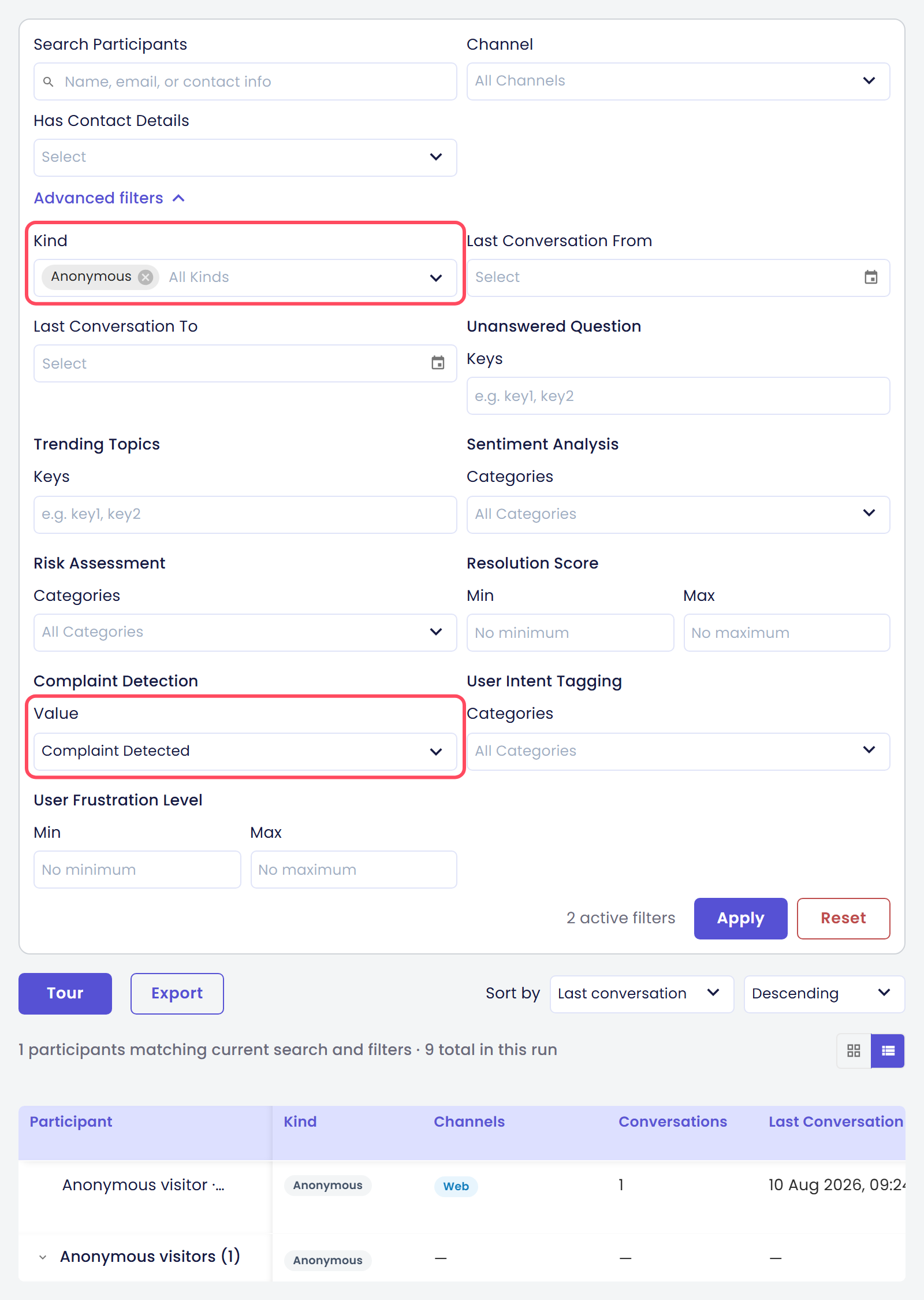
The filter card is not entirely flat. Search Participants, Channel, and Has Contact Details are always visible at the top of the card:
| Filter | What it narrows by |
|---|---|
| Channel | The channel the participant's conversations came through — Web, WhatsApp, Instagram, A2a |
| Has Contact Details | Whether an email or phone number was captured for the participant |
Kind, the two date filters, and every per-analysis-type filter sit behind a collapsed Advanced filters toggle — a clickable label with its own expand/collapse chevron — that you have to open before you can see or set them:
| Filter | What it narrows by |
|---|---|
| Kind | The participant's kind — Identified, Anonymous, Agent, ServiceAccount, Group, Unattributed |
| Last Conversation From | Only participants whose most recent conversation is on or after this date |
| Last Conversation To | Only participants whose most recent conversation is on or before this date |
Unlike search, none of these filters — visible or behind Advanced filters — update the list the moment you set them. The card has an Apply button that runs whatever you've set, a Reset button that clears it all, and an {n} active filter(s) count so you can see how many are currently applied.
To apply a filter:
- If the filter you want is Kind, a date field, or a per-analysis-type filter, select Advanced filters to expand that section first.
- Set the value for the filter you want — for example, choose
Identifiedunder Kind, or pick a date under Last Conversation From. - Select Apply to run the filters against the list. You can combine as many filters as you need before selecting Apply; they all narrow the list together, not one at a time.
- Select Reset to clear every filter you've set, or check the
{n} active filter(s)count to see how many are currently applied.
Per-Analysis-Type Filters
Every analysis type on the run also contributes its own filter, so you can narrow participants by what the analysis actually concluded about them. These filters sit behind Advanced filters along with Kind and the date fields above. The control depends on the type's output type:
| Output type | Filter label | Control |
|---|---|---|
| Binary | Value | A clearable two-option field labelled with the type's own true/false labels (defaulting to Yes/No, but a type can rename them, e.g. Complaint Detected/No Complaint). There is no third Any option — clearing the field is the neutral "no filter" state |
| Classification | Categories | Pick one or more categories to match |
| Score | Min / Max | A numeric range — leave either side blank to leave that bound open |
| List | Keys | A free-text field (placeholder e.g. key1, key2) — type comma-separated keys to match. There is no dropdown of existing keys to pick from |
Some output types have no combining rule of their own and no filter to go with it — those show No filter available for this type instead of a control.
To apply a per-analysis-type filter (example: a Score type):
- Select Advanced filters to expand that section, if it isn't already open.
- Find that analysis type's filter and enter a value under Min, Max, or both. A participant matches when their combined score for that type falls in the range.
- Leave whichever side you don't need blank — a range with only Min filled matches everyone at or above that value.
- Select Apply to run the filter against the list.
Sorting
Sorting lives in the toolbar under Sort by, beside the Export button and the guided tour button — it is not part of the filter card. The available fields are Last conversation (the default, sorted Descending), Conversations, Name, and one option per analysis type on the run; any of them can be sorted Ascending or Descending.
To change sort:
- Open Sort by in the toolbar.
- Choose the field to sort by — for example,
Conversationsto see the busiest participants first. - Choose
AscendingorDescending.
Switching Between List and Grid
The same toolbar also has a view toggle — List View and Grid View — that changes how matching participants are displayed without changing which ones match. List View is the table described elsewhere on these pages; Grid View shows the same fields as a card per participant, laid out in a grid. Search, filters, and sort all carry over unchanged when you switch.
Above the list or grid itself, a results line states how many participants currently match — {n} participants matching current search and filters · {m} total in this run — so you always know how narrow your current search/filter combination is relative to the whole run. While no Kind filter is set, {n} counts the participants listed as rows; the visitors folded into the Anonymous visitors and Unattributed conversations groups are counted in each group's own ({n}) instead.