The Participant Detail Drawer
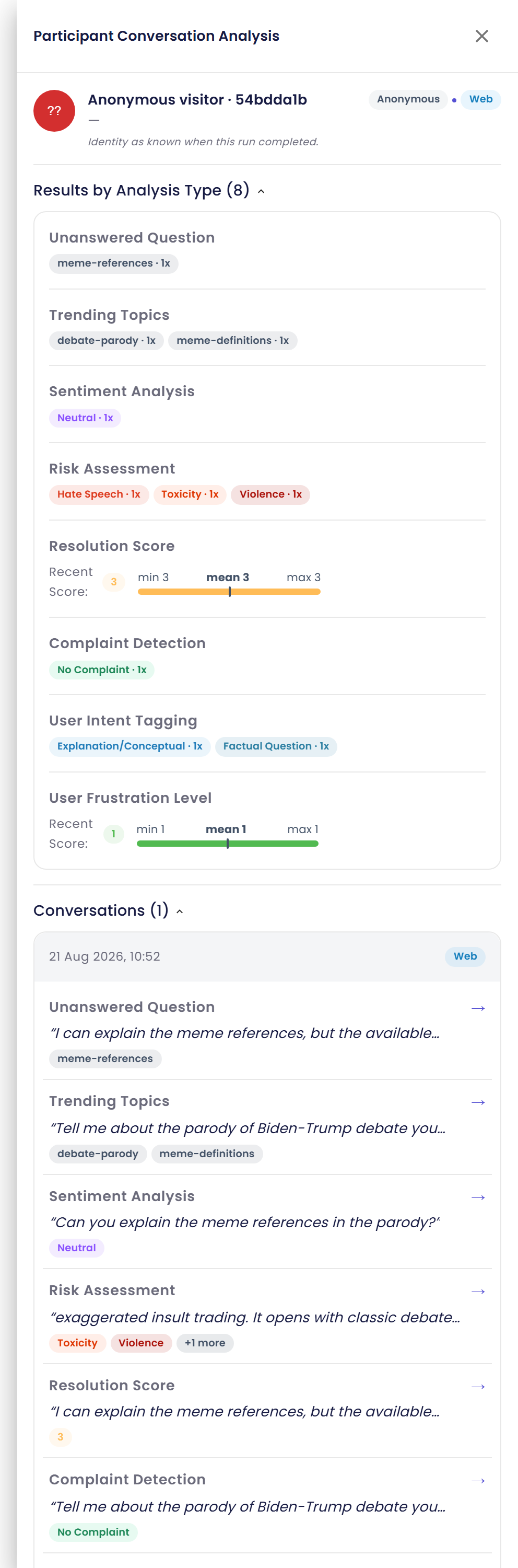
Open in CMSSelecting any participant row opens their detail drawer — the one place that shows everything the run knows about that person: full identity, every analysis type's result (not just the ones that fit in a table column), and the complete list of their conversations in this run.
Opening the Drawer
To open a participant's drawer:
- Find the participant in the list, using search, the filters, or sort if the list is large.
- Select the row.
- The drawer, titled
Participant Conversation Analysis, opens, showing that participant's identity, results, and conversations.
Identity
The drawer's identity block shows what's known about the participant — name, kind, channel, and contact details where captured. It carries an explicit caveat about freshness:
Identity as known when this run completed (captured {date}).
The captured-date suffix only appears when a capture date was actually recorded; on older runs the caveat may appear without it. Either way, this block is a snapshot from when the run finished, not a live view — if the participant has since changed their name, email, or other details elsewhere in the product, the drawer won't reflect that change.
Results by Analysis Type
The Results by Analysis Type ({n}) section lists the participant's combined value for every analysis type on the run — not only the ones visible as columns in the participant list. Each entry shows the complete set of aggregated chips for that type, exactly like the list/grid but without the top-2 truncation applied there — see How Results Combine for how each output type's chips are put together.
Conversations
The Conversations ({n}) section lists every one of the participant's conversations in this run. Selecting one takes you to that conversation's full Thread Analysis page — the complete transcript and result, not just the excerpt the drawer shows.
That destination page's transcript is subject to the Conversation history permission and, if the organization has it on, to Privacy Mode.
To go from one of a participant's conversations to its full analysis:
- Open the participant's drawer.
- Find the conversation you want under
Conversations ({n}). - Select it to open that conversation's Thread Analysis page.
Opening the Participant's Current User Details
For a participant whose identity resolves to a real platform user — that is, only a participant of kind Identified — the participant's name in the drawer is itself clickable, and selecting it opens that person's current user details from the Users → Participants directory.
For every other kind — Anonymous, Agent, ServiceAccount, Group, Unattributed — the name in the drawer is plain text, not a control, and nothing opens when you select it. That isn't a missing feature: those kinds don't correspond to a platform user id, so there's nothing in the directory to look up.