Run Results: Participants Tab
Open in CMSEvery run's detail page has two tabs: Overview and Participants. Overview is the aggregate view you already know — charts, trends, and insights across every conversation the run analysed. Participants turns the same run inside out: instead of "how many conversations landed in each bucket", it answers "who was behind them" — one row per participant, with every analysis type's result folded into a single value for that person.
Navigate here the same way you'd reach the Overview tab: go to Analytics → Analysis, open the Runs tab, click any run to open its detail page, then select the Participants tab near the top.
Not the Same as the Participants Directory
The CMS also has a Users → Participants directory at Participants Directory — the agent's live list of every end-user who has ever chatted with it. This tab is related to that directory, but answers a narrower question, on four axes:
| Participants Directory | This Tab | |
|---|---|---|
| Scope | Every end-user who has ever interacted with the agent | Only the participants behind conversations this one run analysed |
| Freshness | Live — always reflects the agent's current end-user base | Frozen the moment this run completed — it never updates itself afterwards |
| Membership | Platform users only | Also includes kinds that never appear in the directory at all: Anonymous, Agent, ServiceAccount, Group, Unattributed |
| Identity | Every row is a user record | An Identified row is the same person as the matching directory entry; every other kind has no directory counterpart to look up |
So a run's participant list is not a filtered view of the directory — it can contain kinds the directory has no concept of, and even its Identified rows are a snapshot, not a live link.
List or Grid — Your Choice
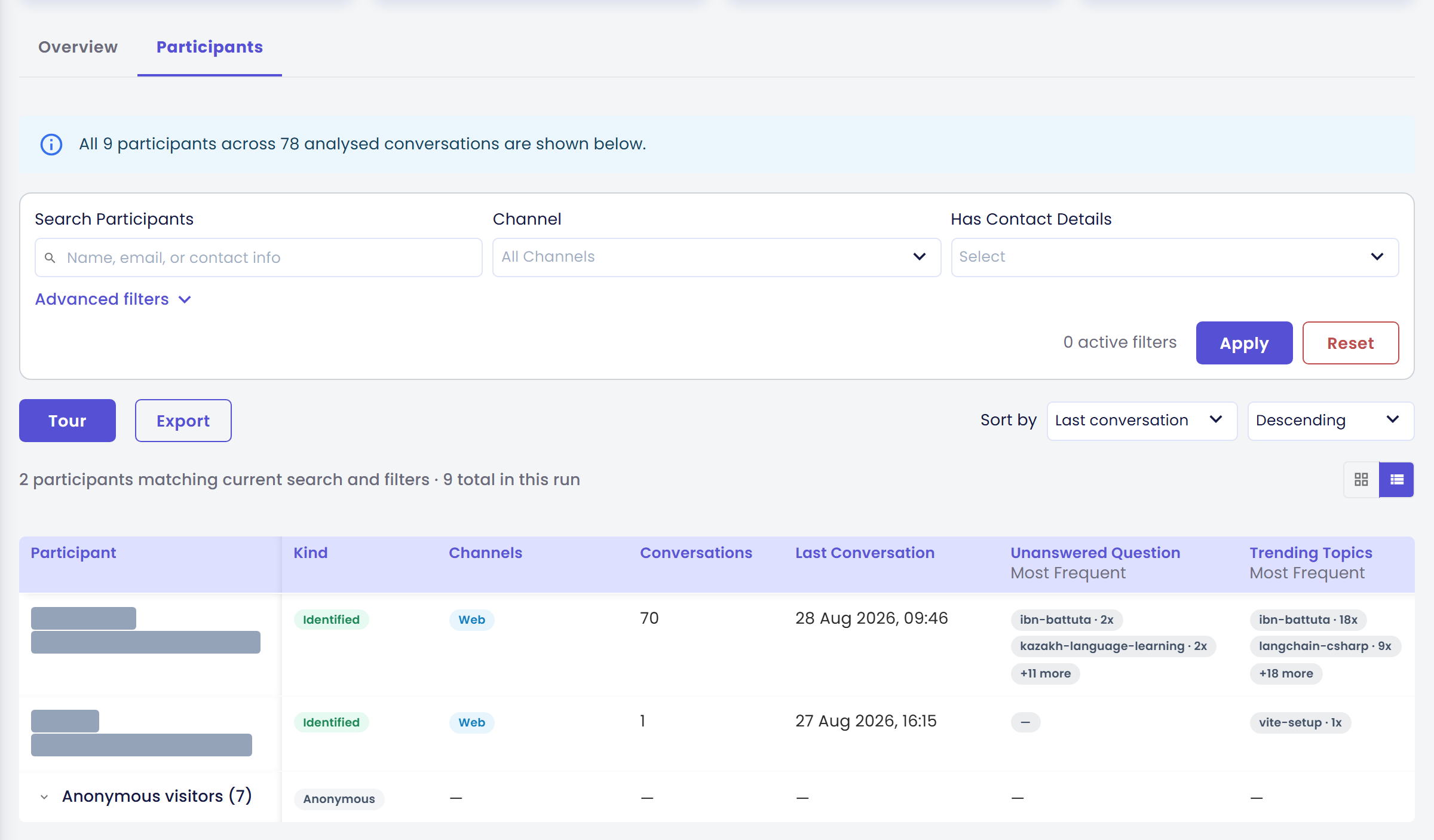
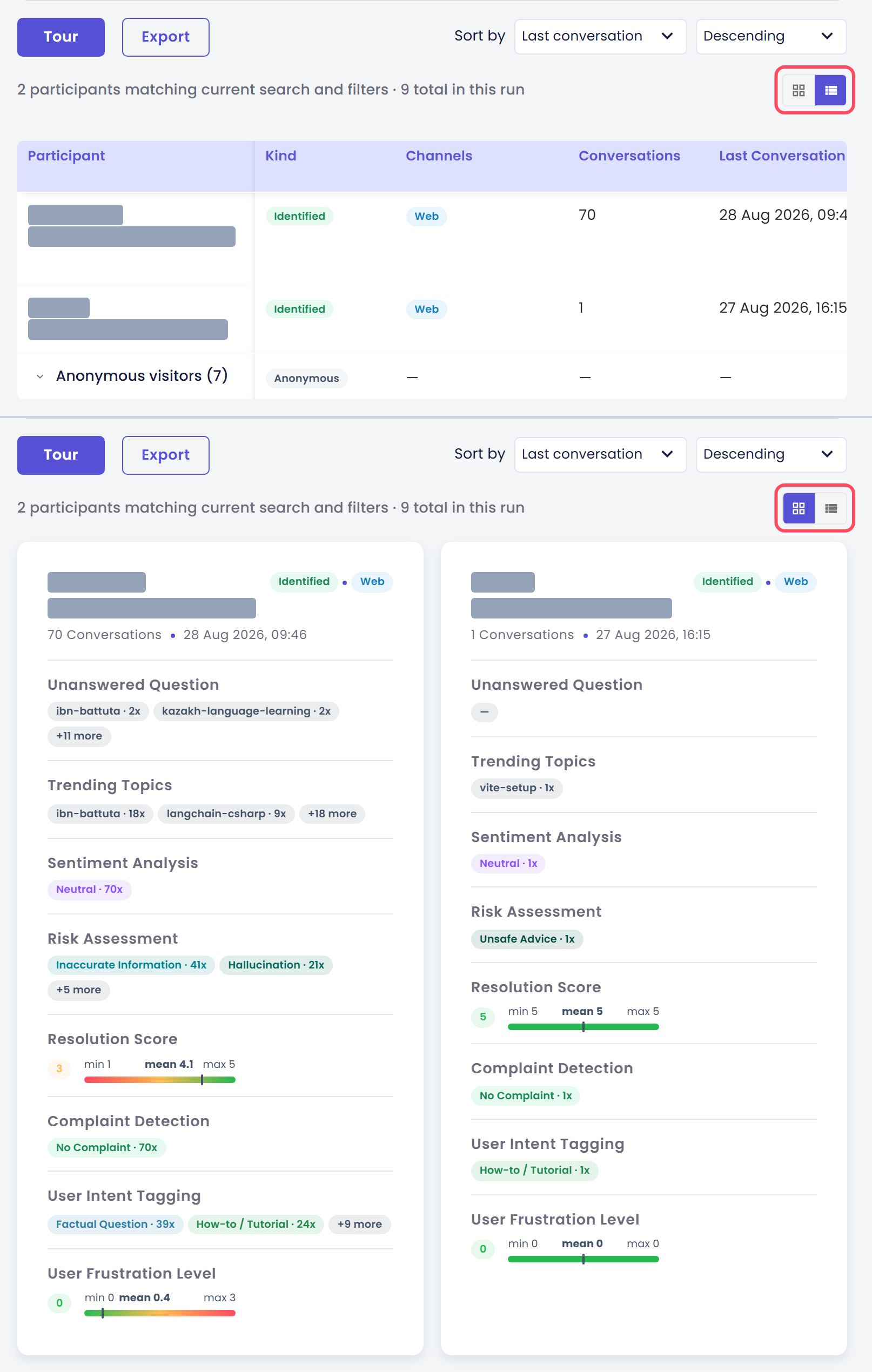
A view toggle in the toolbar switches between List View (a table, one row per participant) and Grid View (one card per participant). Both show the same fields, laid out differently; switching between them never changes which participants match your search and filters, only how they're displayed.
What a Row (or Card) Shows
| Field | What it shows |
|---|---|
| Participant | The participant's identity — a display name or contact info when one was captured; contact details (email or phone), when captured, render inside this same cell rather than a separate column — — when none was captured. Anonymous participants are labelled Anonymous visitor · followed by a short id. A caveat icon appears here too when the participant is a Group or business-account kind whose identity needs a bit more explanation — hover it for details |
| Kind | A colour-coded chip: Identified, Anonymous, Agent, ServiceAccount, Group, or Unattributed |
| Channels | One colour-coded chip per channel the participant's conversations came through: Web, WhatsApp, Instagram, A2a |
| Conversations | How many of this run's conversations belong to the participant |
| Last Conversation | The date of the most recent of those conversations |
| One column per analysis type | The participant's single combined result for that type — see How Results Combine |
Opening a row or card for the full picture — identity, every analysis type's result, and the participant's conversations — is covered in The Participant Detail Drawer.
States You Can Encounter
The tab doesn't always show a list. Depending on the run, you may see one of these instead:
| State | What it means |
|---|---|
Participants Not Yet Available | The run's conversations haven't finished analysing yet — there's nothing to build a participant list from |
Participant Results Not Built | Analysis is done, but nobody has built the participant list for this run yet. A Build participant list action starts it; the button shows Building… while the request is sent |
Building participants… | The list is being assembled in the background. The tab shows this while it waits, then switches to the list automatically when it's ready |
Participant Build Failed | The build ran and did not succeed. The tab offers a way to start it again from the same place |
Participant Build Timed Out | The build ran longer than allowed and was abandoned. As with a failed build, you can start it again |
A run whose participant results were never built shows one of these states — a build action, not a list — until you (or someone else) triggers the build.
Older runs may show a separate notice instead of contact details: "Participant names and contact details were not captured for this run…" — those runs predate the data this tab needs, so identity is limited to what can still be inferred, like kind and channel.
Coverage and Sampling
Above the list, a banner states how completely the run covers its conversations:
- Complete coverage:
All {n} participants across {m} analysed conversations are shown below.— every conversation in the run was analysed, so the list is the full picture. - Sampled coverage:
This run sampled {a} of {b} conversations — participant counts below reflect only the sampled conversations.
A sampled run only ever analysed part of its conversations, so its participant list is necessarily incomplete — participants whose only conversations fell outside the sample never appear at all, and conversation counts for the ones who do appear can undercount their real activity. Rerunning the same run does not fix this: Rerun copies the original run's sampling mode and sample size, so it re-analyses the same sampled subset of conversations rather than a wider one — it cannot make the participant list more complete, and running it would spend credits for no benefit here. If you need the complete list, create a new run with a wider sample size, or with the All Conversations data scope, instead.
Anonymous and Unattributed: Grouped, Not Listed
Most rows fold multiple conversations onto one participant because there's a stable identity to fold them onto — a user id, a service account, a WhatsApp number. Anonymous and Unattributed conversations have no such identity: each one is, as far as the run can tell, a different visitor. Listing them individually would mean one row per conversation instead of one row per person, so instead they're collapsed into two group rows (a full-width section in Grid View, a group row in List View):
Anonymous visitors ({n})— visitors the run could not identify at allUnattributed conversations ({n})— conversations with no participant information to attribute them to
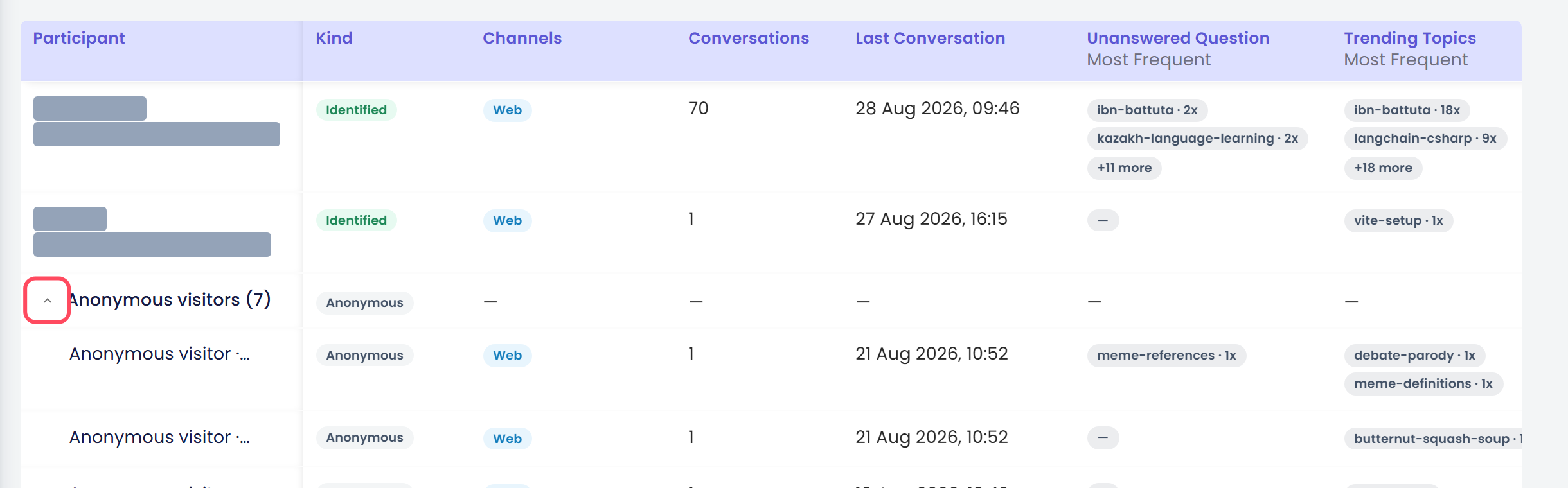
These groups honor the same search and filters as the rest of the list — the {n} reflects the currently active search/filters, not the run's overall total, and both groups disappear entirely (rather than showing a stale or zero count) when the active Kind filter excludes them, or when the run has none of that kind to begin with.
To see the individual participants inside either group:
- Select the group's expand control (labeled Expand group for assistive technology) to reveal each participant it contains.
Select the same control, now labeled Collapse group, on an expanded group to fold it back down.