Private Server
Open in CMSWith the private server option, the WhatsApp connection runs in the Qlar Connector app on a computer or server you control, instead of on Qlar's public server. The setup in the CMS is almost the same as the public server; the difference is that you run the app and type a pairing code into it before scanning the QR code.
Before you start
- Your agent answers well in Preview and has been published at least once. See Preview and Publish Changes.
- You have read Connect to WhatsApp. If you have not tried the public server yet, it is the quicker way to start.
- You have a Windows, macOS or Linux machine that can stay on (your own computer or a VPS/server).
- You have the phone with the WhatsApp number you want to connect, nearby and with an active internet connection.
When to choose a private server
| Choose Private server when | Choose Public server when |
|---|---|
| You want the WhatsApp session to run on your own IP address and infrastructure. | You want the fastest setup with nothing to install. |
| You can keep a machine running the Connector at all times. | You do not want to look after a machine. |
| You do not want the channel removed after a quiet period. | The idle disconnect is acceptable for your number. |
Step 1: Start the wizard
- Open the CMS, select your agent, and open Channels → WhatsApp.
- Pick the Published Configuration or Draft Configuration tab.
- In the Connect WhatsApp wizard, choose Qlar (Self-hosted) as the Protocol and click Next.
- On Choose how to connect, click Private — your own machine.
The wizard opens Qlar Connector Setup, a short guide with Back and Next buttons.
Step 2: Download the Qlar Connector
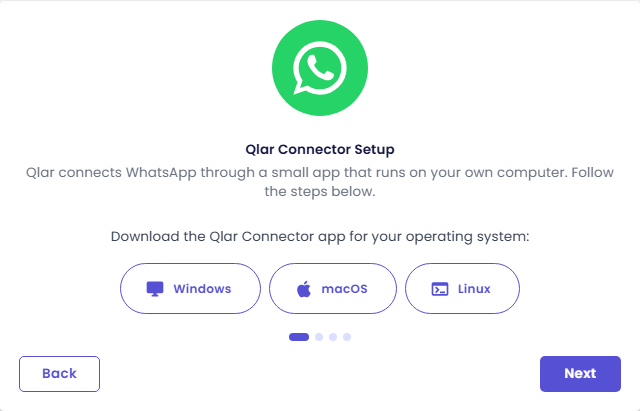
Click the button for your operating system: Windows, macOS or Linux. Then click Next.
Step 3: Run the Connector
Double-click the downloaded file. There is nothing to install.
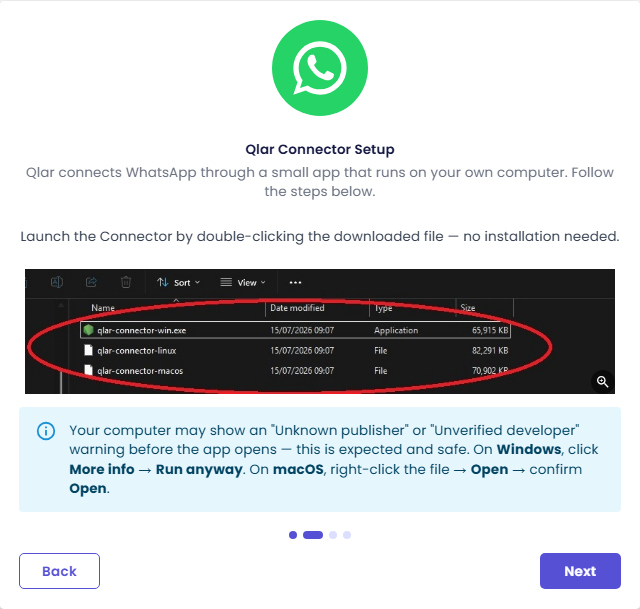
Your computer may warn about an "Unknown publisher" or "Unverified developer" before the app opens. The wizard says this is expected:
- Windows: click More info → Run anyway.
- macOS: right-click the file → Open, then confirm Open.
Click Next.
Step 4: Get your phone ready
The next step shows where Linked Devices is in WhatsApp, with pictures for Android and iOS:
- Android: open WhatsApp, tap the ⋮ menu (top right) → Linked Devices → Link a Device.
- iOS: open WhatsApp → Settings → Linked Devices → Link a Device.
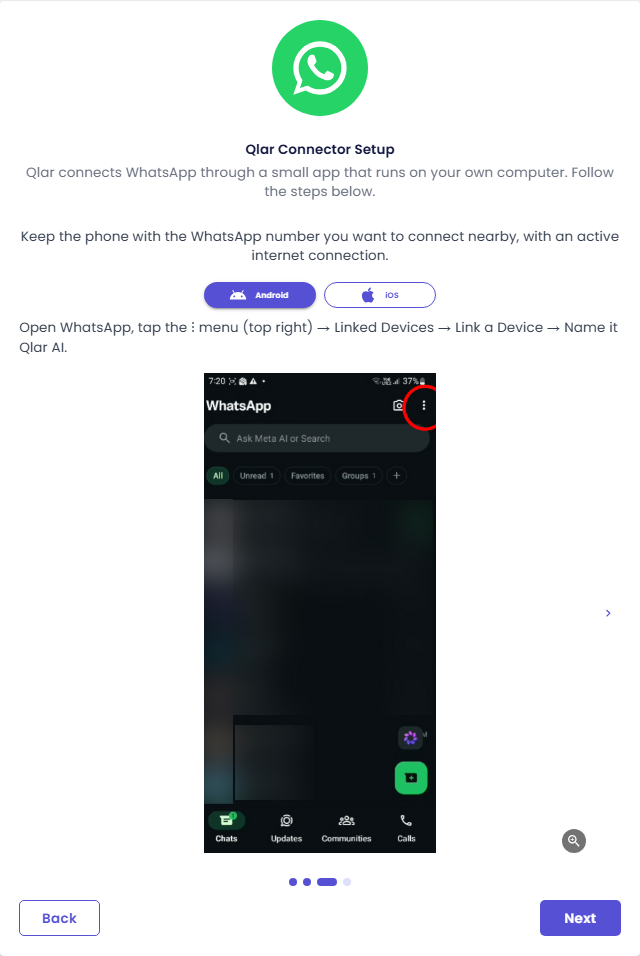
The guide suggests naming the device Qlar AI. Do not scan anything yet; click Next.
Step 5: Get a pairing code
The last step reminds you to keep the Connector running. Make sure the app is open, then click Get Pairing Code.
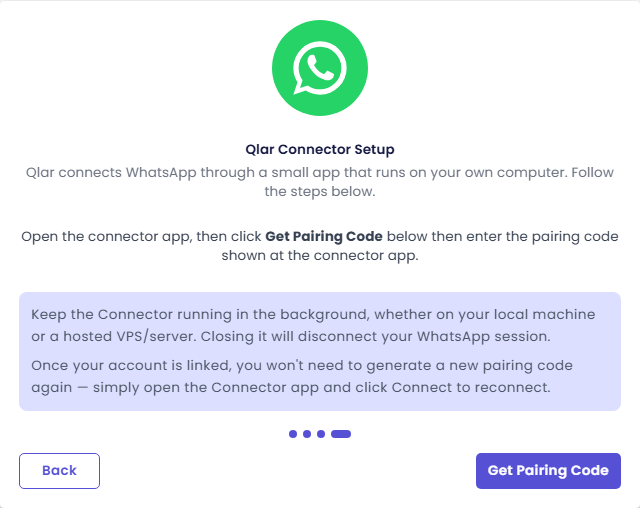
The wizard shows Enter the Code in the Connector App with a Pairing Code and a countdown.
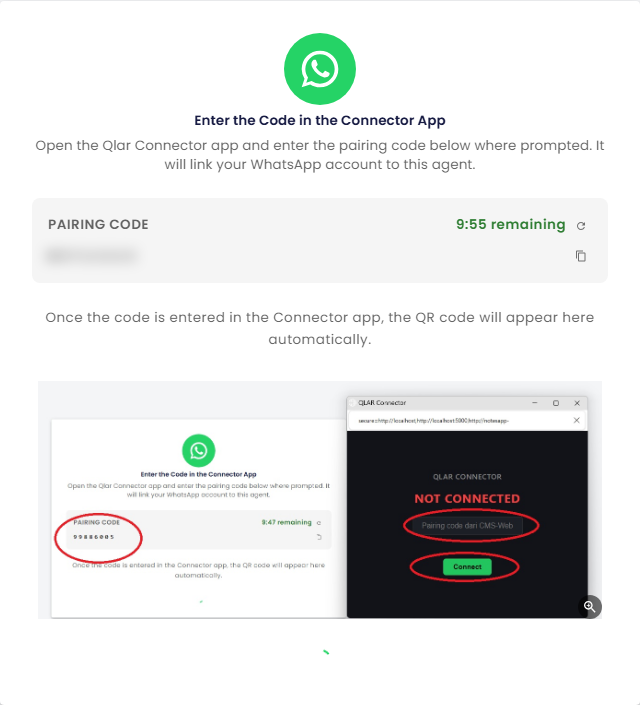
- The code is valid for 10 minutes. The countdown turns orange in the last minute and shows Expired at the end.
- Click the copy icon to copy the code, or the refresh icon to get a new one.
Step 6: Enter the code and scan the QR code
- In the Qlar Connector window, enter the pairing code and click Connect.
- The CMS shows Connector connected — waiting for WhatsApp QR code…, then a QR code.
- On the phone, open Linked Devices → Link a Device and scan the QR code in the CMS. It refreshes automatically.
- The wizard shows Connected! with the linked number, then opens the channel console.
How the console differs
The console is the same as for the public server (see the console tour), with these differences:
- The header label reads Qlar (Private server).
- There is no idle-disconnect notice: a channel on your own Connector is never removed for inactivity.
- While the Connector is not running, the identity card says WhatsApp not connected with the hint Start the Qlar Connector app to link a number., and Test send and the reply box are disabled. While no Connector is attached, the header may show the protocol name Qlar (Self-hosted) instead.
Keep it running
- Keep the Connector running in the background, on your computer or on a VPS/server. Closing it disconnects your WhatsApp session, and the agent stops answering until it runs again.
- After the first link you do not need a new pairing code: open the Connector app and click Connect to reconnect.
Check the result
- Make sure the Connector is running and the console shows WhatsApp configured with your number.
- From a different phone, send a WhatsApp message to the linked number. The agent should reply within a few seconds, and the conversation appears under Recent conversations.
- Optional: use Test send to send a message from the agent's number to your own phone.
If you are working on the Published Configuration tab and the Publish button shows at the top of the CMS, click it so live users get your latest agent changes.
Troubleshooting
| Problem | What to do |
|---|---|
| Failed to generate pairing code | Try again. If it keeps failing, reload the page and start the wizard again. |
| The code shows Expired | Click the refresh icon for a new code and enter that one. |
| No QR code appears | Check that the Connector is running and that you entered the current code and clicked Connect. |
| The wizard says the account could not be saved | The reason is shown in the message; most often the number is already connected to another agent. Use another number, or delete the channel there first. |
| The agent stopped answering | Check that the Connector is still running (open it and click Connect), and that the header switch says Channel on. |
Next steps
- Next in the journey: Embed Chat on Your Website, so website visitors can chat with your agent too.
- Using an official provider instead? See Meta Cloud, Coster or Qontak.
- Field reference: WhatsApp in Help.