Quick Start: Public Server
Open in CMSThis is the fastest way to get your agent answering on WhatsApp. Qlar runs the connection for you, so there is nothing to download and no provider account to set up: you pick Public server, scan a QR code with your phone, and the number starts answering with your agent.
Before you start
- Your agent answers well in Preview and has been published at least once. See Preview and Publish Changes.
- You have read Connect to WhatsApp, which compares the options and explains the Published and Draft configurations.
- You have the phone with the WhatsApp number you want to connect, unlocked and online. Use a number dedicated to the agent: once linked, the agent answers the messages that arrive on it.
- You have a second phone (or a colleague) to send test messages from.
Step 1: Open the WhatsApp channel
- Open the CMS and select your agent.
- In the sidebar, open Channels → WhatsApp.
- Pick the tab to set up: Published Configuration (the number your live users message) or Draft Configuration (a test number for your draft agent).
If a number is already connected on that tab, you see its console instead of the wizard. To connect a different number, delete the channel first (see Disconnect the number).
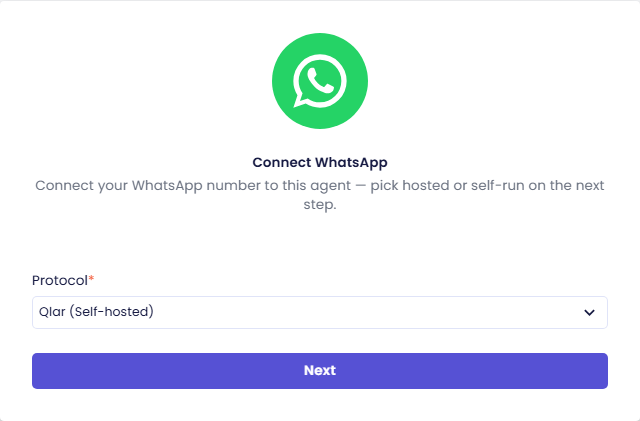
Step 2: Choose Qlar (Self-hosted)
- In the Connect WhatsApp wizard, open the Protocol list and choose Qlar (Self-hosted). No phone number is needed here: Qlar reads it from WhatsApp when you link the phone.
- Click Next.
Step 3: Choose Public server
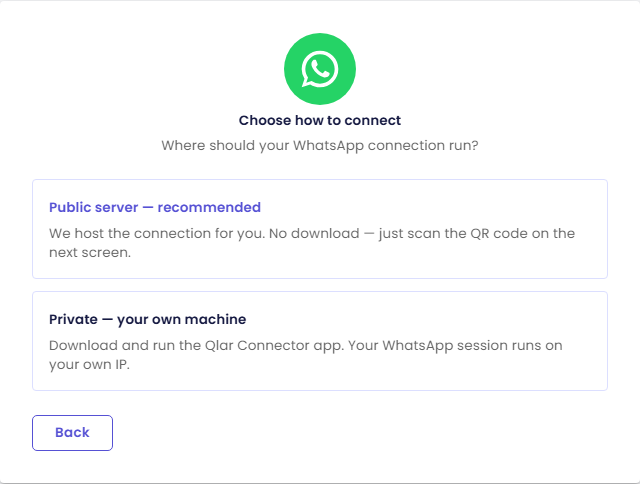
The wizard asks Choose how to connect. Click Public server — recommended.
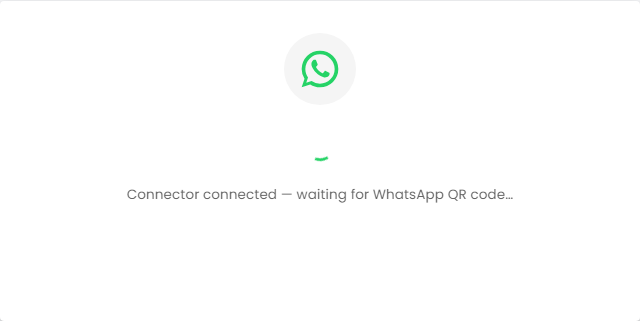
Qlar starts a WhatsApp session on its own connector server. For a moment the wizard shows Connector connected — waiting for WhatsApp QR code….
If you see Public connector server is not configured, the public server is not available in your environment. Use Private Server instead, or contact support.
Step 4: Link your phone
When the QR code appears:
- On the phone, open WhatsApp.
- Android: tap the ⋮ menu (top right) → Linked Devices → Link a Device.
- iPhone: open Settings → Linked Devices → Link a Device.
- Point the phone at the QR code in the CMS.
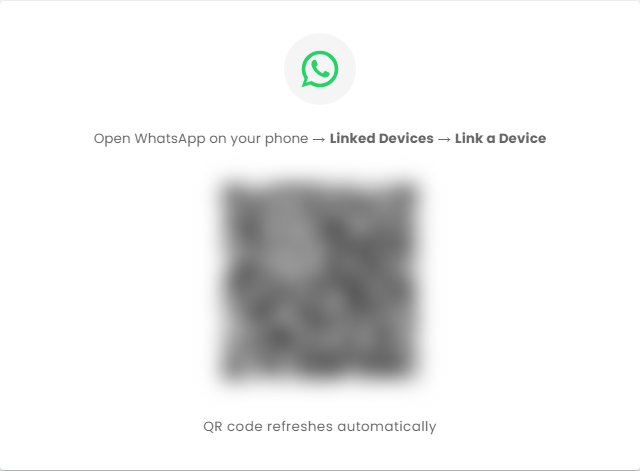
The QR code refreshes automatically, so you do not need to reload the page if it changes. When WhatsApp accepts the scan, the wizard shows Connected! with the linked phone number, and then opens the channel console.
Already connected elsewhere? If the number is already linked to another agent, the wizard says the account could not be saved and explains why. Qlar then tries to remove the refused link from your phone, so it does not keep a linked-device slot. Use another number, or delete the channel on the other agent first.
Step 5: Look around the console
After linking, Channels → WhatsApp shows the console for this number instead of the wizard.
| Part | What it shows |
|---|---|
| Header | The protocol label Qlar (Public server) with a status dot (live when the number is linked and the channel is on), the Channel on / Channel off switch, and Delete channel. |
| Idle notice | Disconnected after N days without activity: see Limits and caveats. |
| Identity | WhatsApp configured and the linked number. |
| Reply mode | AI agent (the agent answers on WhatsApp) or Redirect to web (each private message gets a one-time sign-in link to the agent's web chat instead). |
| Behaviour | Reply in group chats (on by default) with an Agent reply mode for groups, approval of New groups, Emoji reactions and Voice notes (both off by default). |
| Contact rules | Communication mode: Public (anyone may message the agent, except blacklisted contacts) or Private (only contacts on the whitelist get a reply). New channels start in Public. Also the Blacklist, Always allow and Flagged contacts lists. |
| Test send | Send a message from the agent's number to any recipient. |
| Recent conversations | The last 50 messages on this number, with a reply box. |
The Public / Private communication mode is about who may talk to the agent. It is not the same thing as the Public server / Private server choice you made in the wizard, which is about where the connection runs.
For every field, see WhatsApp in Help.
Step 6: Publish if needed
On the Published Configuration tab the number is tied to your published agent, so it answers with the live version as soon as it is linked. On the Draft Configuration tab it answers with your draft.
If the Publish button shows at the top of the CMS (for example because you changed the agent's knowledge or persona), click Publish so the Published number uses your latest changes.
Check the result
- From a different phone, send a WhatsApp message to the linked number, for example a question your agent answers well in Preview.
- The agent should reply within a few seconds.
- In the console, the message and the reply appear under Recent conversations.
- Optional: in Test send, enter your own number as Recipient, type a message, and click Send test. The message arrives from the agent's number, which confirms that sending works too.
If nothing comes back:
- Check that the header switch says Channel on. When it is off, the console shows This channel is switched off and the agent ignores incoming messages.
- Check Contact rules: in Private mode only whitelisted contacts get a reply, and in Public mode a contact on the blacklist gets nothing.
- Check Reply mode: with Redirect to web the agent sends a sign-in link instead of an answer.
- In a group chat, the agent only answers when its group Agent reply mode allows it (by default, when it is mentioned with @ or someone replies to one of its messages). When group approval is enforced, it stays silent in a new group until you approve it.
Limits and caveats
- Idle disconnect. A number on the public server can be disconnected after a number of days without activity. When this applies, the console shows the notice Disconnected after N days without activity with the number of days. Only messages the agent or an operator sends count, incoming messages do not. When it happens, the WhatsApp session is logged out and the channel is removed, so reconnecting means running this wizard and scanning a new QR code.
- It uses a linked-device slot. The agent is one of the linked devices on your phone (you see it under Linked Devices). Removing it there disconnects the agent.
- One agent per number. A number that is already connected to another agent is refused.
- Need the session on your own infrastructure? Use Private Server, which is not subject to the idle disconnect.
Disconnect the number
- Pause it: switch the header to Channel off. Incoming messages are ignored and the agent does not reply, but the pairing is kept, so switching back on resumes immediately. On the Published Configuration tab the CMS asks you to confirm, because live users stop getting answers.
- Remove it: click Delete channel and confirm. The wizard comes back, so you can connect another number or choose another option. You can also remove the device from Linked Devices on the phone.
Next steps
- Next in the journey: Embed Chat on Your Website, so website visitors can chat with your agent too.
- Prefer to run the connection yourself? See Private Server.
- Send scheduled messages over WhatsApp: see Automate Tasks.