Teach Your Agent
This is the second step of Stage 1. You teach your agent your own content (documents, websites, and videos) so it answers from your material instead of general AI knowledge, and you decide how it credits those sources.
Your agent's answers are only as good as the references you give it. This page explains how knowledge works; the pages below walk you through adding each kind of source.
Before you start
- Your persona is in place, especially the mission in Behavior. The mission tells the agent what kind of questions your content should answer.
- You have a few files or links ready, ideally the material behind your most frequently asked questions.
Pages in this step
In the CMS, these settings live under the Knowledge menu in your agent's sidebar.
| Page | What you set up | Best for |
|---|---|---|
| Documents | Uploaded files (PDF, Word, text) | Policies, manuals, FAQs, product sheets |
| Websites | Content extracted from web pages | Public pages you already maintain |
| Videos | Video entries with transcripts | Tutorials, recorded sessions, interviews |
| Citations | Authors and how sources appear in answers | Letting users verify where an answer came from |
Where to start: upload two or three of your most important files in Documents. Add websites and videos later if you need them.
The example in this step
The pages in this step teach Atlas, Kirana Group's operations assistant. Out of the box, Atlas does not know Kirana's approval rules. Ask it who has to approve a project worth $2.5 million, and it can only say it cannot confirm the approver. Once you upload the SOP SOP-FIN-007 "Project and Capex Approval Policy", Atlas gives the exact approval chain and names the SOP. The Documents page walks through this before and after, step by step. The other pages add an HSE web page, a site safety video, and an author for citations.
What are references?
References are the documents, videos, and websites your agent draws from when answering. Together they form what is often called a knowledge base; in the CMS you manage them through the Knowledge menu.
Think of it as your agent's private library. Instead of relying only on its general AI training, the agent searches the references you added and generates answers grounded in that material. The more relevant and well organised the references, the more accurate and trustworthy the answers.
Turn references on
Uploading resources alone is not enough. The agent only uses them when the Enable Reference toggle is on. In the CMS, open Knowledge → Retrieval to find it:
"Allows the agent to answer using your organization's documents and videos for accurate, context-specific responses."
Without it, the agent ignores all uploaded resources and answers from general AI knowledge only.
Once Enable Reference is on, you can also switch on Restrict Answer:
| Setting | Behavior |
|---|---|
| Restrict Answer: Off | The agent uses your references as its primary source but may add information from outside them. |
| Restrict Answer: On | The agent is limited strictly to your references, for controlled and reliable responses. If they cannot answer a question, it says so instead of guessing. |
The helper text under the Restrict Answer switch describes its current state. When the switch is off, it reads "Allow the agent to respond using information from outside the knowledge base"; that is a description of the off state, not an extra option.
Use Restrict Answer when the agent must stay within an auditable set of information, for example in compliance, legal, or customer support contexts. Both toggles, and the rest of the retrieval settings, are explained in Retrieval.
How a resource becomes an answer
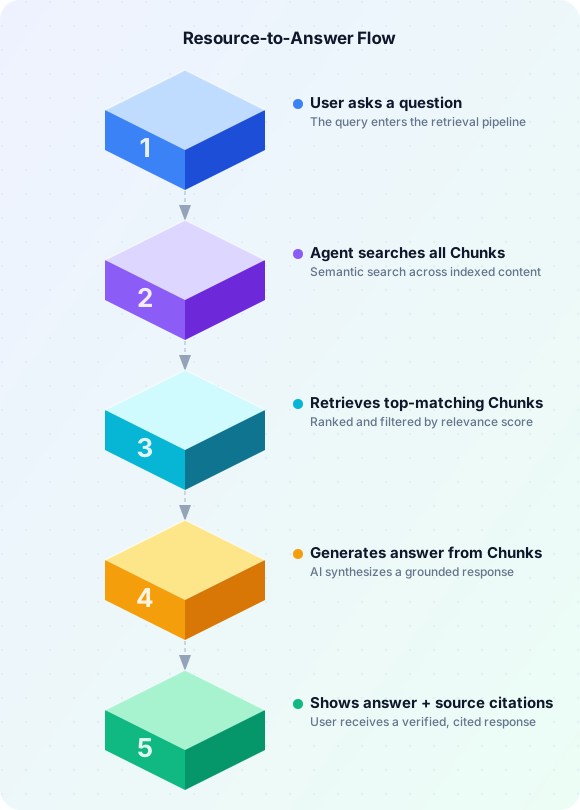
When a user sends a question, the agent:
- Searches the references for pieces of text that are relevant to the question
- Retrieves the best-matching pieces
- Generates an answer grounded in them
- Cites the source documents so the user can verify
Those pieces of text are called chunks. Every document, video transcript, and website is parsed into chunks automatically after you add it. Think of a thick company handbook cut into topic cards: each card is focused, easy to find, and quick to read.
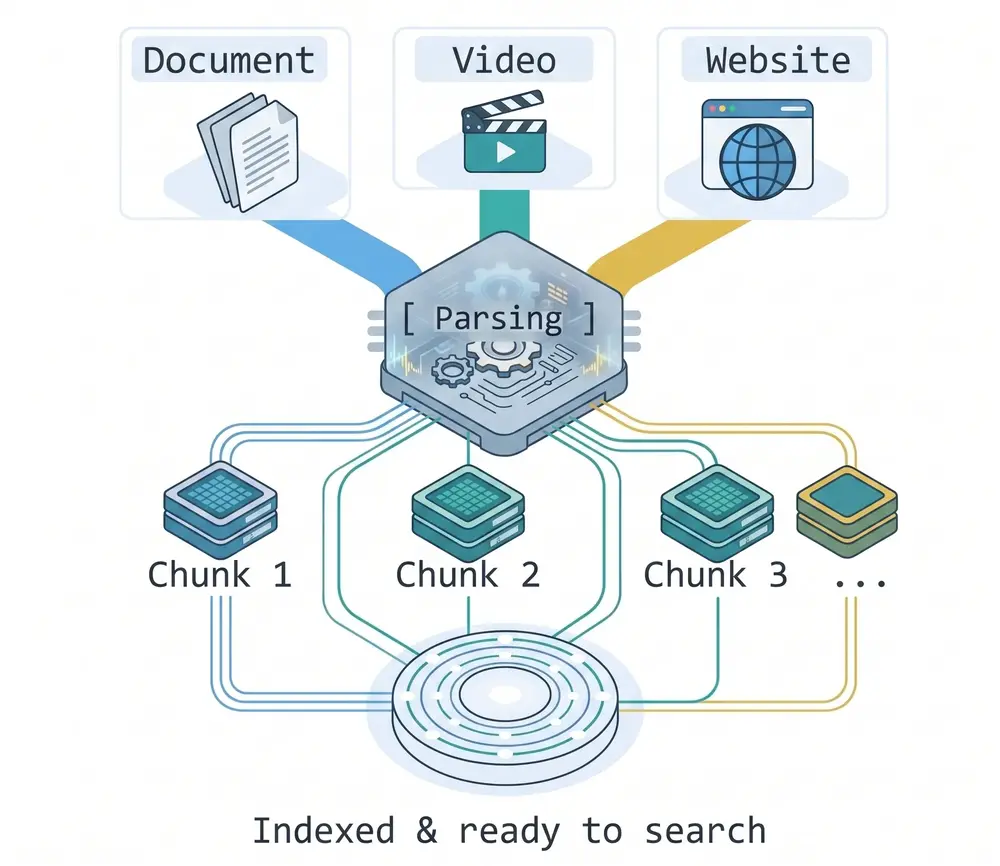
This is why a resource is not usable the moment you upload it: wait until its status badge changes from Processing to Active. A document that was never uploaded cannot be cited, and one that is still processing cannot be found yet.
Knowledge does not go through Publish. Your draft (the Preview) and your live agent share the same documents, websites, and videos, so once an item is processed, both can use it right away. Adding, editing, or deleting knowledge does not bring back the Publish button. Settings such as Enable Reference are different: they are part of the agent's draft and reach the live agent only after you publish. See Preview and Publish Changes.
Who can see which references
If some of your material is only for certain people (for example employees versus customers), you can restrict it with permission codes. That is covered in Stage 2, in Knowledge Permissions. Without permissions, every user can surface every reference.
Improving answer quality later
You do not need to tune anything to get started; the defaults work for general use. When you want to go further, Stage 4 covers it in Fine-Tune Answer Quality:
- Retrieval: how many chunks are retrieved, how strict matching is, and the reference toggles.
- Chunks: view and edit chunks, switch them active or inactive, and add your own short facts.
- Model & Context: the AI model and how much conversation history it uses.
Tip: if the agent gives a wrong or incomplete answer, the Chunks page is the first place to look: check whether the right chunk exists, whether its text is correct, and whether it is active.
Common mistakes to avoid
- Forgetting to enable references. Even with resources uploaded, the agent does not use them unless Enable Reference is on in Knowledge → Retrieval.
- Assuming an upload is live immediately. Watch the status on each resource; only content marked Active is searchable.
- Leaving content without an author. Authors drive citation display and content governance. See Citations.
- Mixing sensitive and public material without permissions. See Knowledge Permissions.
Next steps
- Start with Documents.
- When your content is in, continue to Shape the Conversation.
- Test what the agent learned in Preview and Publish Changes.