Remember Each User
Open in CMSIn this step your agent starts remembering useful facts about each person between conversations, such as their preferred branch or language, so they don't have to repeat themselves. Just as importantly, you decide what it may never remember.
In the CMS, open Conversation → Personalization in the left sidebar.
Declare what this agent may remember about the people it talks to. Anything outside that list is never stored — which is what keeps the agent relevant, fast, and explainable.
Before you start
- Your agent is live and people talk to it: see Preview and Publish Changes and the Stage 2 channels, such as Embed Chat on Your Website or Connect to WhatsApp.
- Memory is kept only for signed-in people; anonymous participants have no profile. See Participants.
- Check that your organization does not have Privacy Mode on: with it on, no memory is captured at all.
- Have a test account ready. Testing a draft agent writes to real profiles (see Changing fields later).
How it works
You define a short list of Memory Fields — named slots such as preferred_branch, allergies, or language. When someone says something that fills one of those slots, the agent records it against their profile. In later conversations it reads those values back and uses them.
Three consequences follow from that design, and they are worth understanding before you configure anything:
- Nothing is captured that you did not ask for. A clinic agent that declares six fields about appointments will not quietly start storing someone's favourite football team, because there is nowhere to put it.
- Reading costs nothing extra. The fields are a fixed, known list, so recalling them is a single lookup rather than a search. No AI call happens on the way in.
- You can explain it. Every stored value keeps its origin, the verbatim quote it came from, when it was captured, and when it expires. If someone asks "how do you know that about me?", there is a real answer.
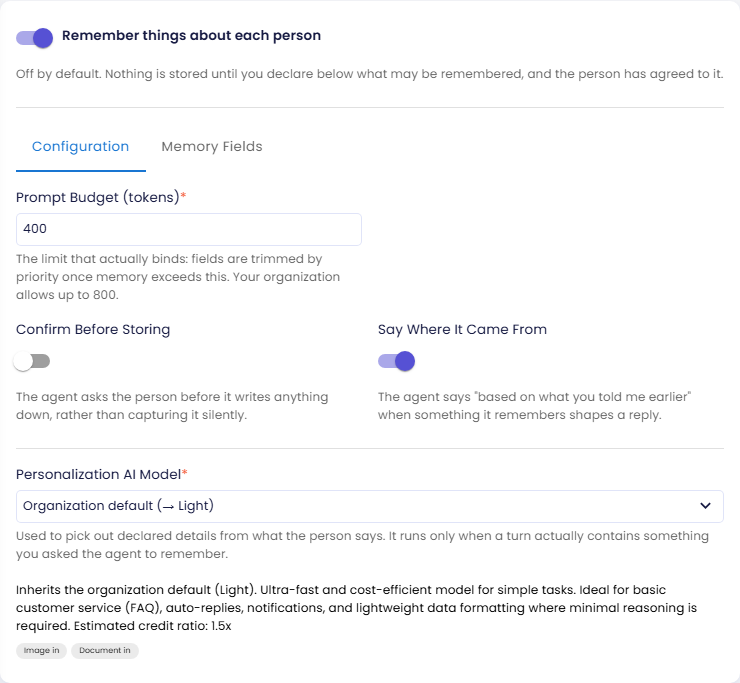
Remember things about each person
The master switch. Off by default.
Off by default. Nothing is stored until you declare below what may be remembered, and the person has agreed to it.
If the organization has Privacy Mode on, this switch has no effect — no memory is captured for any agent in the organization, regardless of what's declared here.
Turning it on captures nothing by itself: with no fields declared there is nowhere to put anything. Everything else on the page is configuration for this switch, so the rest appears only once it is on.
If your agent still has the retired personalization mechanism enabled, a warning appears here with a Switch it off button. That older mechanism stored data separately, is being retired, and feeds nothing on this page.
Underneath the switch the page splits in two:
| Tab | What it holds |
|---|---|
| Configuration | The prompt budget, the two behaviour switches, and the extraction model. Set once and rarely revisited. |
| Memory Fields | The declared fields themselves — the surface you actually iterate on. |
The switch and the Save button sit outside both tabs, because one Save commits the settings and the field list together. Editing a field on one tab and adjusting a setting on the other is a single save, not two.
Memory Fields
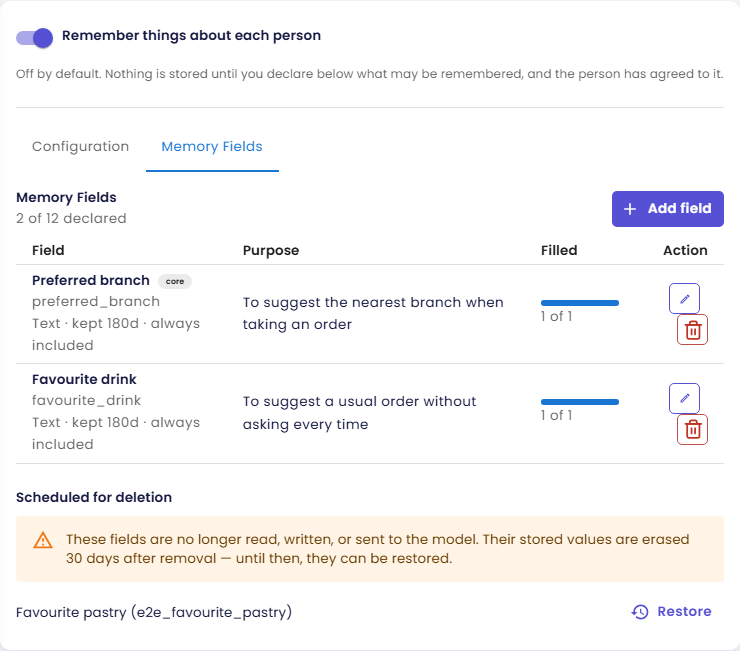
The heart of the page. The list shows how many fields are declared against your limit, what each one is for, and how often it actually gets filled.
Each row shows the field's label and key, a one-line summary (Text · kept 180d · always included), and a Filled column giving aggregate counts — "38 of 210" — with no individual values. Fields carry a core chip when they are always included, and an orange sensitive chip for special-category data.
Declaring a field
Add field opens the editor. The important ones first:
| Setting | What it does |
|---|---|
| Key | Stable identity, e.g. preferred_branch. Lowercase letters, digits and underscores. Changing it creates a different field. |
| Label | Shown to the person this is remembered about. |
| Purpose | Required. This exact sentence is what the person is told, and it limits what the data may be used for. |
| Type | Text, Number, Date, Choice (one of a fixed set), Yes / No, or List (a set of items, each with its own history). |
| Retention (days) | After this, the value is erased. It cannot be unlimited. Default 180, maximum 3650. |
| Priority | When the token budget is exceeded, the highest numbers are dropped first. |
Then the ones that decide when and how a field is used:
| Setting | Options |
|---|---|
| When it is included | Always · When the conversation mentions a keyword · When a particular tool is available · Only on request. On-demand is never injected — the agent fetches it only when it genuinely needs it. |
| How it may be captured | Only when stated outright (the default) · May be inferred from context. Explicit-only means nothing is guessed about the person. |
| When the value changes | Keep the newest · Keep the first · Ask before replacing. A correction the person made themselves is never overwritten by a guess. |
| Lawful basis | Consent · Necessary for a contract · Legitimate interest. Chosen by you as the controller, per field. |
| Sensitivity | Ordinary personal data · Special category (health, beliefs, …). Disabled unless your organization has enabled special-category data; choosing it forces the lawful basis to Consent. |
Choice and List fields take a comma-separated Options list. List fields additionally choose which items reach the prompt (most recently confirmed, all of them, or closest to the conversation) and how many — up to 25, which governs how many reach the prompt, not how many are stored.
Three switches finish the dialog: Core field (always included, never trimmed by the budget), Show prominently (given its own place on the person's memory page), and The person may correct it. The last two change presentation only — every field always appears in the person's data access and export regardless.
Apply stages the change; the page's single Save commits it.
Writing a good field
A field earns its place when it is a fact you would act on and it is stable enough to still be true next time. Good candidates are things a person would be mildly annoyed to repeat: which branch they use, what language they prefer, a dietary restriction. Poor candidates are anything that changes per conversation — that is what conversation context is for.
Keep values short; a slot holds a fact, not a note. Prefer Choice over Text where the answers are genuinely finite, so three spellings of the same thing do not accumulate. And set priority deliberately: it is the order in which the agent forgets under pressure.
Changing fields later
Editing the schema of an agent that already has profiles is the easiest way to damage data quietly.
| Change | What happens |
|---|---|
| Removing a field | Its values stop being used immediately and are erased after a 30-day grace period. Until then the field sits under Scheduled for deletion with a Restore button, and re-declaring the same key brings it back rather than duplicating it. |
| Changing the type | Best avoided — treat key and type together as the field's identity, the way you would a database column. |
| Changing the purpose or sensitivity | Not cosmetic. Data gathered for one purpose cannot be redirected to another, so a material change is treated like creating a new field. |
| Changing retention | Shortening applies immediately. Lengthening is not retroactive: values already collected keep the retention the person was told about. |
| Changing the label or description | Cosmetic and safe. |
Memory Fields follow your agent's draft and published versions, so you can add a field on the draft and try it before publishing. The stored data is shared between them, though — which means testing a draft agent writes to real profiles. Test with a test account, not a customer's.
Personalization AI Model
Used to pick out declared details from what the person says. It runs only when a turn actually contains something you asked the agent to remember.
That last clause is the cost story: turns that clearly contain nothing relevant are filtered out before any AI call, so most turns cost nothing extra. Leave this on Organization default unless you have a reason not to — the job is small and structured, and does not need your most capable model.
Prompt Budget (tokens)
The limit that actually binds: fields are trimmed by priority once memory exceeds this.
Default 400, and it may go as high as your organization's ceiling. This, not the field count, is the real constraint, because one List field can grow far larger than a single-value one.
How many fields you may declare is not set here. It is an organization setting — see The limits your organization sets below.
Confirm Before Storing
The agent asks the person before it writes anything down, rather than capturing it silently.
Off by default. Turning it on makes capture visible in the moment but slower; leaving it off means the person sees it only afterwards, on their own memory page. Which is appropriate depends on how sensitive your declared fields are.
Say Where It Came From
The agent says "based on what you told me earlier" when something it remembers shapes a reply.
On by default, and worth leaving on. An agent that silently knows things is unsettling in a way that one which explains itself is not.
The limits your organization sets
Two numbers bounding this page live on the organization rather than the agent, under Organization → Personalization. They are set by an organization Owner or Admin.
| Limit | What it does |
|---|---|
| Memory fields per agent | How many fields any agent of the organization may declare, up to the platform ceiling of 30. Once the list reaches it, Add field is disabled. |
| Prompt budget ceiling | The most any agent may spend on remembered data, up to 800. Each agent sets its own budget under it. |
The field count is deliberately not an agent setting. Its whole purpose is to bound what a contributor may declare, and a limit the contributor could raise themselves would not be a limit — so the agent holds no number of its own, and the organization's is the only one.
Lowering either afterwards is safe for data already captured. Fields already declared are never erased by a limit lowered later; the agent simply cannot add more until it is back under. A prompt budget above a lowered ceiling is brought down to it.
Cost, incidentally, follows the fields people have actually filled rather than the number declared — twelve declared with three filled costs three.
What the person sees
The people being remembered are not passive here, and most of this is their right rather than a courtesy. Signed-in users of an agent with memory on get a Your memory link in the sidebar, opening a page that lists everything stored about them — each value with "Kept because: {your purpose}", its expiry, and the quote it came from.
There they can correct a field (where you allowed it), forget one, Download a copy, Erase everything, or Pause remembering — which stops reading and writing without erasing anything.
They can do all of it in plain conversation too, by simply asking: "what do you remember about me?", "forget my preferred branch", "stop remembering things about me". That path matters for people on WhatsApp and other messaging channels, who have no page to visit. It works from the very first turn — someone is entitled to ask what you know and be told "nothing".
Consent is asked once per agent. Rather than interrupting with a dialog, the agent raises it in conversation when one of your declared details would naturally come up, tells the person what it would keep and why, and asks. Nothing is written until they answer, and it does not press if they decline.
Both the link and the conversational controls appear only for signed-in people; anonymous participants have no profile to keep.
Who on your team can see it
By default nobody sees individual values — contributors see only the aggregate Filled counts above. That is deliberate: tuning a schema, the common task, does not require reading anyone's personal data.
Seeing one person's remembered data takes an explicit grant, is reached from that specific participant rather than browsed as a table, and is recorded every time. Two organization-level switches sit above it, both closed by default and changeable only by an organization Owner:
- Staff may view what agents remember about individual participants — while off, no contributor can open a participant's data whatever level they hold.
- Agents may declare special-category memory fields — while off, the Sensitivity dropdown here is disabled.
Those two carry a higher bar than the limits above, which an Admin may also set. The difference is what they decide: the switches say what personal data the organization is willing to process at all, while the limits only bound how much of it an agent may carry.
See Managing Agent Access for the five levels and who may grant them.
Saving Changes
Click Save. The switch, the numbers, and the field list save together. If the backend rejects something it reports every problem at once, quoting the field — for example "purpose is required on 'preferred_branch'".
Check the result
- Turn on Remember things about each person, declare one or two Memory Fields (for example
preferred_branch), and click Save. - Open the preview while signed in with a test account, and say something that fills a field, such as "I usually go to the Bandung branch". When the agent asks for consent, agree.
- Start a new conversation and ask "what do you remember about me?". The agent should list the value it kept.
- Open the Your memory link in the sidebar to see the value with its purpose, expiry, and the quote it came from. In the CMS, the field's Filled column counts how many people have a value.
- Publish the agent when the fields behave the way you want.
Next steps
- Next in the journey: Automate Tasks, so people can ask your agent to do work later on its own.
- Managing Agent Access: who on your team may read participant data.
- Model & Context: the model that answers, and how much conversation history it carries.
- Participants: where a participant's remembered data is opened from.
- Previous step: Talk by Voice.