Preview and Publish Changes
Your agent has two versions: a draft that you edit and test, and a published version that your users talk to. This page shows how changes move from one to the other, how to test them safely, and what changes for your users when you click Publish.
Before you start
- You have an agent. If not, see Create Your First Agent.
- You have made at least one change, for example in Give Your Agent an Identity, Teach Your Agent, or Shape the Conversation.
- You are an Owner or Contributor of the agent. Only these roles can publish.
How changes are saved as a draft
When you click Save on a settings page (for example Profile, Behavior, Introduction, or Chat), the change is stored in the agent's draft. Your users do not see it yet.
The same applies to things you connect to the agent, such as plugins, embed and agent keys, WhatsApp or Instagram accounts, and Knowledge Permissions codes: they are saved in the draft and only reach the live agent when you publish.
Knowledge is live right away
Knowledge items are the exception. Documents, websites, and videos (and their chunks) are not part of the draft: the draft and the published agent share one knowledge base. When you add, edit, deactivate, or delete a knowledge item, the change applies to the Preview and to your live agent as soon as the item is processed, without publishing. That is why adding a document does not make the Publish button appear.
The settings that decide how knowledge is used are different. Enable Reference, Restrict Answer, and the other settings on Knowledge → Retrieval, as well as citation settings, are saved in the draft and need Publish like any other setting. If you answer Yes, Enable to the Enable Reference? question after uploading a document, that is a draft change too.
Because knowledge changes reach your users immediately, test a new or edited document in the Preview panel as soon as it is processed, and deactivate it if the answers are not right.
The Publish button
As soon as the draft contains something that is not live yet, a Publish button appears in the top bar. When everything is published, the button disappears. That is the quickest way to tell whether you have unpublished changes.

Publishing is all or nothing: it pushes every saved draft change at once. There is no way to publish one change and hold back another, so finish and test a batch of related changes before you publish.
How to preview and test your draft
You have three ways to look at your agent. The first two run the draft; the third shows what users see today.
| Where | What it shows | Use it to |
|---|---|---|
| Preview panel (right side of the agent pages) | The draft, inside the CMS | Test changes while you edit, without leaving the page. |
| Preview button (top bar) | The draft, in a new browser tab | Test the full-screen experience, as a user would see it. |
| View button (top bar) | The published version, in a new tab | Compare against what your users see right now. |
The Preview panel
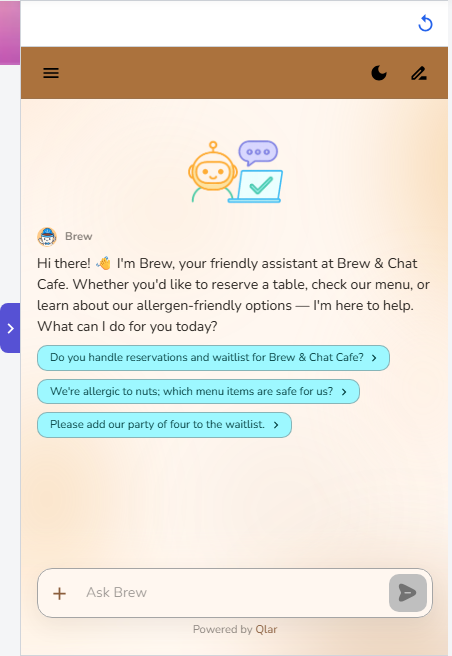
On most agent pages, a chat panel sits on the right side of the screen. It runs your draft, so it is the fastest place to try a change:
- Make a change and click Save.
- Look at the Preview panel. Some pages reload it for you after saving (for example Profile, About, Introduction, Chat, and Voice). If the panel does not show your change, click the reload button (the circular arrow) at the top of the panel.
- Ask the questions your users would ask, and check the answer, tone, and sources.
Use the arrow tab on the left edge of the panel to collapse it when you need more room, and expand it again the same way.
Testing many questions at once
Trying questions by hand is fine for small changes. When you want to check dozens of questions after every change (for example after uploading new documents or rewriting the mission), use Simulation: you write scenarios once and run them again whenever you like. See Test Automation.
How to publish
- Test your draft in the Preview panel or with the Preview button.
- Click Publish in the top bar. On a small screen, where the top-bar buttons are hidden, open the user menu at the top right: it has the same Preview, Publish, View, and Share actions.
- The button shows Publishing... while the changes are applied, then disappears.
- Click View to open the published version and confirm your changes are there.
After publishing, the Publish button is gone from the top bar:

There is no confirmation step, so make sure you have tested first.
What publishing changes for your users
After you publish:
- Everyone using the agent's link, your website embed, WhatsApp, Instagram, and other channels gets the new configuration.
- New logos and avatars are copied to the published version, so users see the new branding.
- Your public About page, if you have one, is published together with the agent.
- WhatsApp and Instagram accounts that you connected or changed while in draft are synced, so they start working with the live agent.
Until you publish, users keep talking to the previous version, even if you saved many changes.
Share your agent
Click Share in the top bar to share the link to your published agent. Depending on your browser, it opens your device's share menu or copies the link to your clipboard. The link always points to the published version, so publish first if you want people to see your latest changes.
Common gotchas
- "I saved, but users don't see it." Saving only updates the draft. Click Publish.
- "The Preview panel still shows the old version." Click the reload button at the top of the panel.
- "I published by accident." Publishing cannot be undone with a button. Change the settings back, save, and publish again.
- "The Publish button is missing." There is nothing to publish: your draft and published versions are the same. Adding or changing documents, websites, or videos never brings the button back, because knowledge is live right away (see Knowledge is live right away). If you just saved a setting and the button still does not appear, refresh the page.
- "I connected WhatsApp but it doesn't answer." New or changed channel accounts start working with the live agent only after you publish.
- "The agent ignores my new document." Documents, websites, and videos need to finish processing before the agent can use them (no publishing needed). Check the status on the Knowledge pages, and make sure references are enabled (see Retrieval); if you just turned Enable Reference on, publish so the live agent gets it too.
Check the result
- Open View and ask a question that depends on your latest change (for example, the new welcome message or a fact from a new document).
- Confirm the published agent behaves like your draft did in the Preview panel.
- Check that the Publish button is gone from the top bar.
Next steps
- Stage 2 starts here: Embed Chat on Your Website.
- Prefer messaging apps? Connect to WhatsApp.
- Want repeatable tests before every publish? Test Automation.