Test Changes Before You Publish
Open in CMSIn this step you check a change to Atlas before employees see it. You change one setting and save it, which only changes the draft. You run your Kirana Projects suite on Draft, compare the result with a run on Published, and click Publish only when the draft is at least as good as what is live. It takes about fifteen minutes.
This is the same habit as in Preview and Publish Changes, but repeatable: instead of asking a few questions by hand in Preview, you replay the whole suite and compare numbers.
AI is involved in every run: Atlas writes its answers and AI judges every criterion. Both can differ each time, so one run on Draft against one run on Published is a sample, not proof. The same setting can pass in one run and fail in the next. Read the grey boxes, not only the totals, and run again when the difference is small.
Before you start
- You have the suite from Build Your First Test Suite, and ideally the project-status scenario from Test Tools Safely with Mocks, in the folder Kirana Projects.
- Atlas is published, and you have run the suite once on Published.
- If you allowed the escalation tool to run live in a scenario on the previous page, remove that setting first. Otherwise a run of the whole folder on Published would notify a real supervisor.
- You are an Owner or Contributor of the agent. Only these roles can publish.
- The top-bar Publish button is only shown on screens at least 1025 px wide. On a smaller screen, open the user menu at the top right: it has the same Publish action.
What Draft is, and what it shares with the live Atlas
Atlas has two versions. The published version is what employees talk to now. The draft is your saved changes that are not published yet. A run can use either one: you choose with Run against in the confirmation.
When you choose Draft, a note appears under the options: "Uses the draft's settings: prompt, model, tools, plugins, skills. Knowledge, documents and plugin data are shared with the live agent." For Atlas that means:
| Part of Atlas | In a Draft run |
|---|---|
| The prompt (Behavior), the model, tools (including a tool's Response Prompt and Rules), plugins and skills | The draft's own settings. This is what you are testing. |
| SOP-FIN-007, the site safety briefing and other knowledge | Shared with the live agent. Knowledge is live as soon as it is processed, so a Draft run reads the same documents. |
| Plugin data | Shared with the live agent. |
| Escalations | If a scenario lets the escalation tool run live, a note adds "Escalations from this run go to the draft escalation inbox." |
So a Draft run is a safe rehearsal of your settings. It reads the same knowledge employees read, and it does not change anything for them.
Step 1: Change a setting and save it
To practise the steps without changing how Atlas answers, change the Disclaimer, the small text shown below the chat input box. It is empty on Atlas now. This is the change the pictures on this page use.
- Open Persona → Profile.
- In Disclaimer, type
Please double-check important details.The help line under the field says "Text shown below the chat input box. Leave empty to hide the disclaimer." - Click Save, then Yes.

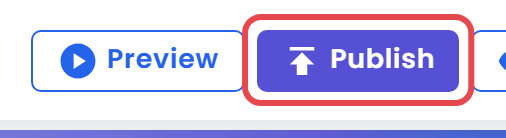
The change is saved in the draft only. Employees still talk to the previous version. In the top bar, a Publish button appears. It shows only while the draft holds something that is not live yet.
For a change that matters, use the one the mock test pointed at. In Test Tools Safely with Mocks, the answer about KG-2041 never said which project it was. To fix it:
- In the sidebar, expand Tools and click Custom API. Open
get_project_status.- In Response Prompt, change the text to:
Start with the project code and name, then the status and the current approval stage, then progress, budget spent versus total, and the latest update. Keep it under six lines.- Click Save all changes at the bottom of the page, then Yes.
The steps below are the same. The difference is that the two runs can then answer differently, as step 3 explains. With the Disclaimer, both runs answer the same way, and you only see the version labels change.
Step 2: Run the suite on Draft
- Open Simulation → Scenarios and select the folder Kirana Projects.
- Click Run All (n) above the list. The confirmation asks
Run all 2 scenarios in "Kirana Projects"?The number follows the scenarios in your folder. - Under Run against, look at the hint under Draft. It now reads Unpublished changes. Choose Draft. The note about what the draft shares appears.
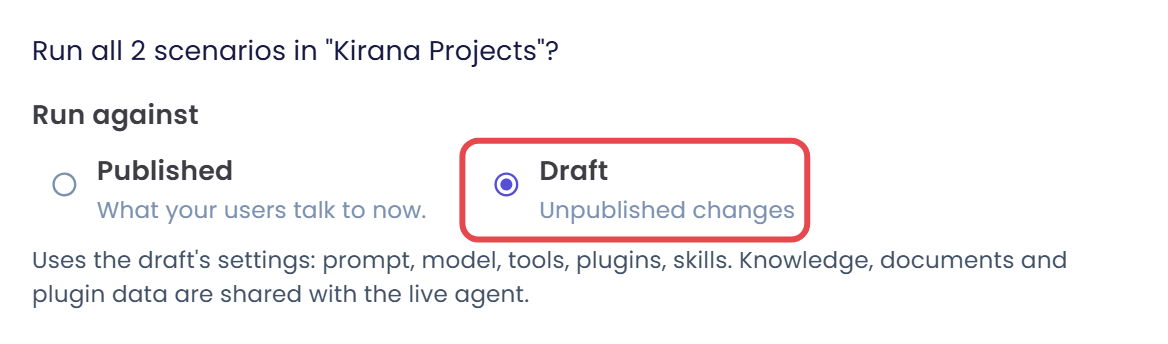
- Click Yes, and Close on the success message, which says the run started successfully against the draft.
Qlar opens the Simulation Result page. Next to the status, the chip says Draft, so you always know which version answered. The status starts as Running and turns Completed when it is done.
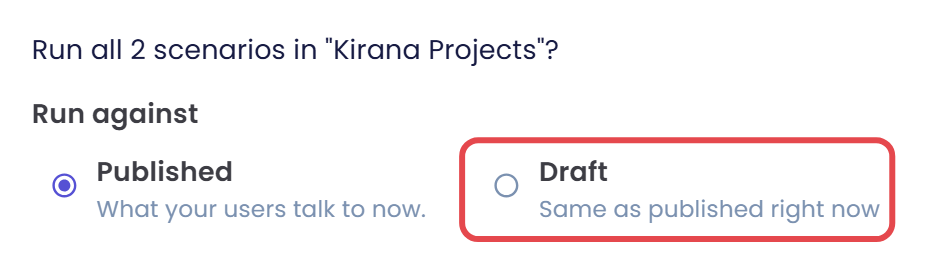
If Draft is greyed out and the hint says "No separate draft yet.", Atlas has no draft copy yet, so there is nothing to run against. An agent gets its draft copy when it is created or the first time it is saved or published, and publishing keeps it. Saving any change on Atlas creates one. If Draft can be chosen but the hint says "Same as published right now", a draft exists but it matches the published version. In both cases a run on Draft would answer like Published.
Step 3: Compare with Published
For a fair comparison, run the same folder on Published too, now, so both runs happened on the same day with the same questions.
- Go back to Simulation → Scenarios, select Kirana Projects and click Run All (n).
- Under Run against, choose Published and click Yes.
- Open the Results tab. Each run is a card with its code such as
#TE-0034, a Published or Draft chip, and its status. Click Show Filters (it then reads Hide Filters) to filter by Code, Status, Version, Run Date From and Run Date To, then click Apply, or Reset to clear them. Version starts on All. Choose Draft or Published to see one kind at a time. Sort By Run Date Descending puts the newest run first. In List View, Version is a column.
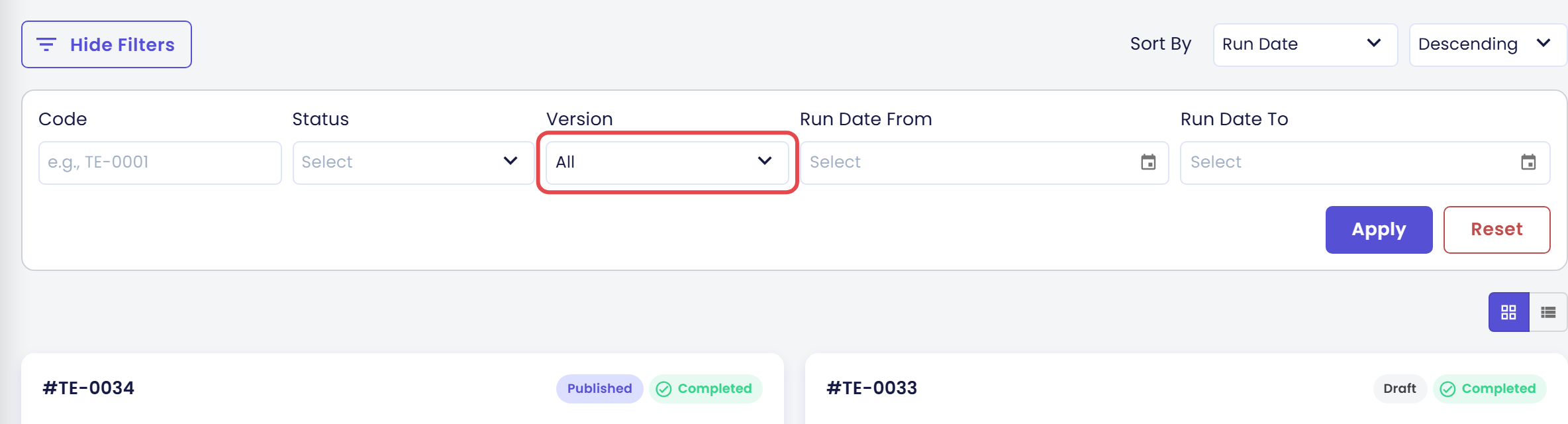
- Open the two runs one after the other and compare the card CRITERIA MATCH, which counts every criterion in the folder. With the Disclaimer change both runs match the same: in the pictures both show 4/4 Matched, because the Disclaimer does not change what the scenarios ask.

- If you changed the Response Prompt instead, also look at the badge on the row of the project-status scenario under Scenarios (n). For example, that row can show 5/6 Matched in the Published run and 6/6 Matched in the Draft run. Open that scenario in both. In the Published run the criterion The answer identifies KG-2041 as the Surabaya warehouse expansion project. is a grey box. In the Draft run it can be a green box with a quote, because Atlas now starts with the project name.
What to look for:
- Better on Draft, nothing worse, or the same when the change should not affect answers, like the Disclaimer. The change works. Go to step 4.
- Worse on Draft in a scenario that has nothing to do with the change. Read the grey box before you decide. If it is AI variation, run that scenario again with Run Again. If it is real, go back to step 1 and refine the change.
- No difference. Either the change does not affect these questions, or the suite is missing a scenario that exercises it. Write one in Write Good Scenarios.
If you change Atlas or publish while a run is going, the result page warns you: "The draft changed during this run. Later scenarios may have used newer settings." or "The agent was published during this run. Later scenarios may have used the newly published settings." Run again for a clean result.
Step 4: Publish
When you are happy with the Draft run:
- Click Publish in the top bar.
- The button shows Publishing... while the changes are applied, then it disappears.
There is no confirmation step, and publishing sends every saved draft change at once. Make sure the Draft run covered everything you changed. If you changed the Disclaimer only to practise, clear it again (its old text was empty), save, and then publish, so that the draft is clean and employees never see the practice text. A save marks the agent as having unpublished changes even when nothing differs, and only Publish clears it.
Employees now get the new Atlas. To confirm, open View in the top bar to see the published version, or open the confirmation of a new run: under Draft, the hint reads Same as published right now.
Check the result
You made it if you can say these things:
- Which version each run used, from the Published or Draft chip.
- Which scenario got better or worse with your change, and why.
- The Publish button is gone from the top bar, and the hint under Draft reads Same as published right now.
If you see something else:
- Draft is greyed out. The hint says "No separate draft yet." Atlas has no draft copy yet. Save a change on Atlas first.
- Both runs look the same. Your change may not touch what the scenarios ask. See the "No difference" case in step 3.
- A scenario flips between runs. The agent's answers and the AI's judgement change from run to run. Click Run Again and compare. A criterion that keeps flipping is usually too vague.
- The Publish button is missing. There is nothing to publish, or your screen is narrower than 1025 px. Use the user menu at the top right.
Next steps
- Next in the journey: Remember Each User, the first step of Stage 4, so Atlas can remember where each person works.
- The same feature in more depth: Run Simulations and Fix and Retest.
- Field-by-field reference: Results and Scenarios.
- Previous in this step: Choose Which Tools Run Live.