Voice, Plugins and Services on Your Own Models
Open in CMSChat isn't the only thing that sends your data to an AI model. Voice notes are transcribed, replies are spoken, scanned PDFs are read, logos are drawn, plugins write SQL and form questions, and agents search the web. Each of these can run on models and keys of your own, so the data stays on accounts you control and costs no Qlar credits for the model.
Who can do this? Owners and Admins of the organization. The choices apply to every agent in the organization.
What can run on your own account
| Job | Where you choose it | What it needs | Providers |
|---|---|---|---|
| Speech to text (dictation, WhatsApp voice notes) | Tasks › Voice | A speech-to-text model, such as gpt-transcribe, gpt-4o-transcribe or whisper-1 | OpenAI, Azure OpenAI, OpenAI-compatible |
| Text to speech (spoken WhatsApp replies, voice previews) | Tasks › Voice | A text-to-speech model, such as gpt-4o-mini-tts | OpenAI, OpenAI-compatible |
| Voice calls (turn-by-turn) | Tasks › Voice › Voice calls · Turn-by-turn, or per agent on its Voice page › Voice runs on | A realtime voice model, such as gpt-realtime-2.1 or gpt-realtime-2.1-mini | OpenAI, Azure OpenAI |
| Voice calls (Natural conversation) | Tasks › Voice › Voice calls · Natural conversation, or per agent on its Voice page › Voice runs on | A GPT-Live model, gpt-live-1 | OpenAI, Azure OpenAI |
| Read scanned PDFs | Tasks › Chat helpers | A chat model that accepts images | Any API key |
| Logo image | Tasks › Builder assistants | An image model, such as gpt-image-2 or gpt-image-1 | OpenAI, Azure OpenAI |
| Plugins: Chat Form, SQL Database Reader, Dynamic Table | Tasks › Plugins | A chat model | Any API key |
| Web search | Sources › Service keys, then Tasks › Other services | An Exa API key | Exa |
| Knowledge search | Tasks › Other services | An embedding model | See Knowledge Search on Your Own Model |
Public Documents (the shared document library plugin) and video transcription of knowledge videos always run on Qlar.
Unlike the chat helpers, these jobs never borrow their group's model: a voice, image or scanned-PDF job runs on your model only when you choose one for it.
Before you start
Add the models on the Sources tab, under an API key of a provider that serves them. See Bring Your Own Key.
Open the Organizations page → select your organization → Manage organization → AI Models tile → Sources tab → Add API key (or Add models on an existing key).
- From Qlar's list: tick the model. Speech, image and realtime models show their kind instead of capability chips.
- A model that isn't listed: Add a model that isn't listed, type its Model name, and switch on what it is:
- Speech-to-text model (for dictation and voice notes)
- Text-to-speech model (for spoken replies and voice previews)
- Realtime voice model (for voice calls)
- for an image model, Produces › Image
A switch shows only for providers that can serve that kind of model. These models are offered only for their own job, never as a chat model.
Voice
Tasks tab → Voice. Each row has its own picker; leave one empty to keep Qlar's model (shown as the placeholder, for example "Qlar text to speech (gpt-4o-mini-tts)").
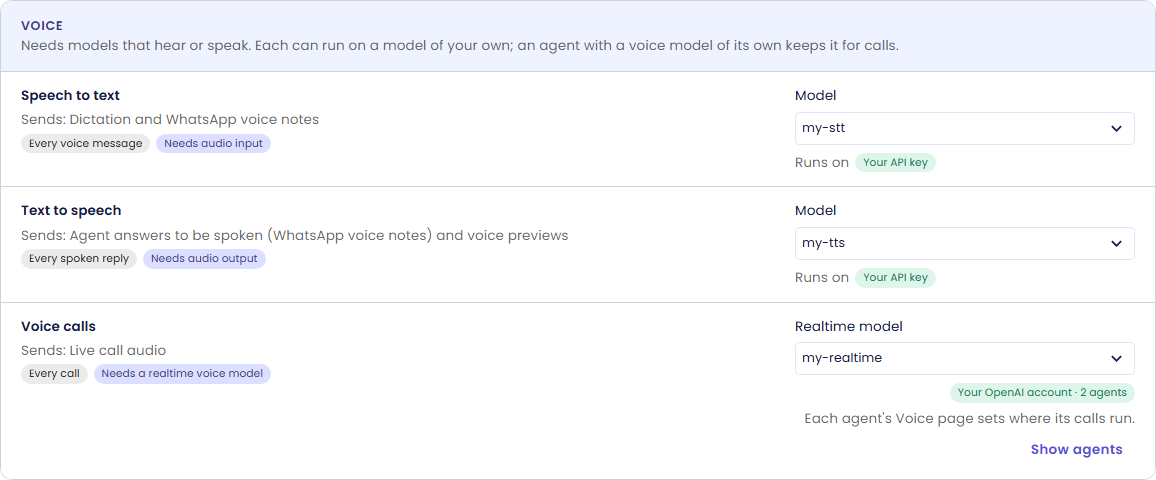
- Speech to text transcribes dictation in the chat and WhatsApp voice notes.
- Text to speech speaks an agent's replies as WhatsApp voice notes, and the voice previews on an agent's Voice page.
- Voice calls · Turn-by-turn runs turn-by-turn calls on your realtime model and your OpenAI or Azure OpenAI key. On Azure, add the model with the name of your realtime deployment. It also offers Qlar's lower-cost Qlar realtime voice mini (gpt-realtime-2.1-mini), which needs no key of your own.
- Voice calls · Natural conversation runs Natural conversation calls on your GPT-Live model (gpt-live-1). Leave it empty for Qlar's GPT-Live. See Natural conversation on your OpenAI account.
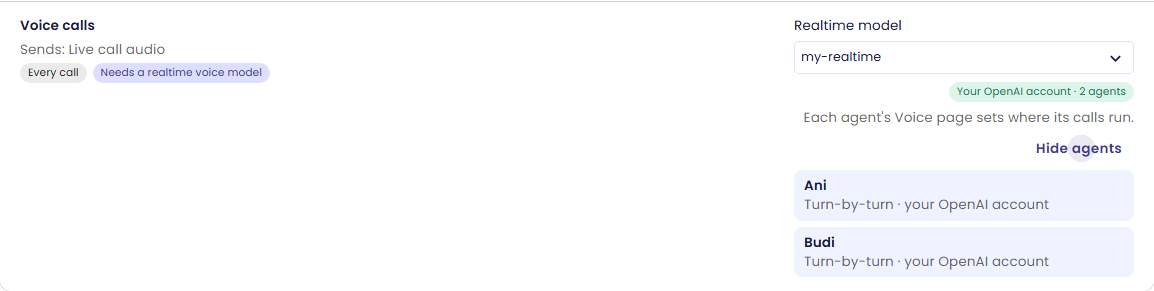
Both rows are your organization's default. They apply to every agent whose Voice page leaves Voice runs on at Organization default, which is where every agent starts; an agent can pick another voice there instead. Each row counts its agents by where their calls run, and Show agents lists each one, for example "Turn-by-turn · your OpenAI account (my-realtime) · organization default".
If your OpenAI account can't take a call (an invalid key, no quota), the call ends and the caller sees "Voice is unavailable right now. Please try again later or type your message." The reason is only in your logs, never shown to the caller. A Natural conversation agent on your subscription keeps its own setup.
Natural conversation on your OpenAI account
Natural conversation (GPT-Live) calls can run on your organization's OpenAI or Azure OpenAI account too:
- On the Sources tab, add gpt-live-1 under one of your OpenAI keys, or under an Azure OpenAI key with the name of your gpt-live-1 deployment (it is in the model list).
- For every agent at once, pick it on the Tasks tab under Voice calls · Natural conversation. Agents whose Voice runs on is Organization default then run their Natural conversation calls on it.
- Or for one agent, on its Conversation → Voice page choose Natural conversation on the Conversation tab, then on the AI models tab under Voice runs on pick Your OpenAI account (or Your Azure OpenAI account). Each of your GPT-Live models is listed with the last four characters of its key. Pick Qlar to keep an agent on Qlar's GPT-Live whatever the organization chooses.
- OpenAI or Azure bills your account for the voice. No Qlar credits are charged per minute. The Answering AI model's usage is billed as usual (free of Qlar credits when it is a model of your own).
- It works for Personal and Service agents, and needs neither a connected computer nor the Natural conversation pilot on Qlar.
- If your key can't be used, or the model is removed, the call ends with the same message as above. It never switches to Qlar's voice.
- Voice calls · Turn-by-turn never offers gpt-live-1, and Voice calls · Natural conversation offers only gpt-live-1 models.
Scanned PDFs and logos
Read scanned PDFs (under Chat helpers) reads PDFs that have no selectable text, such as scans, which end users upload. Each page goes to your model as an image, which costs more tokens than text. Without a model of its own, Qlar's Azure AI Vision reads the pages.

Logo image (under Builder assistants) draws the logos and avatar when you generate an agent's appearance, about 4 images per setup. Logo brief, which writes the drawing prompt, follows the group's model as before.

Plugins
Tasks tab → Plugins. Choose one model with Use for every task in this group, or one per plugin:
| Plugin | What it sends to the model |
|---|---|
| Chat Form | The form description and the question texts you write, when you generate a form. |
| SQL Database Reader | Each question, with your table and column names and descriptions; the SQL itself runs on your database. A strong reasoning model writes better SQL. |
| Dynamic Table | Table descriptions and columns while you set it up; the question and the rows a search finds. The rows are embedded with your Knowledge search model. |
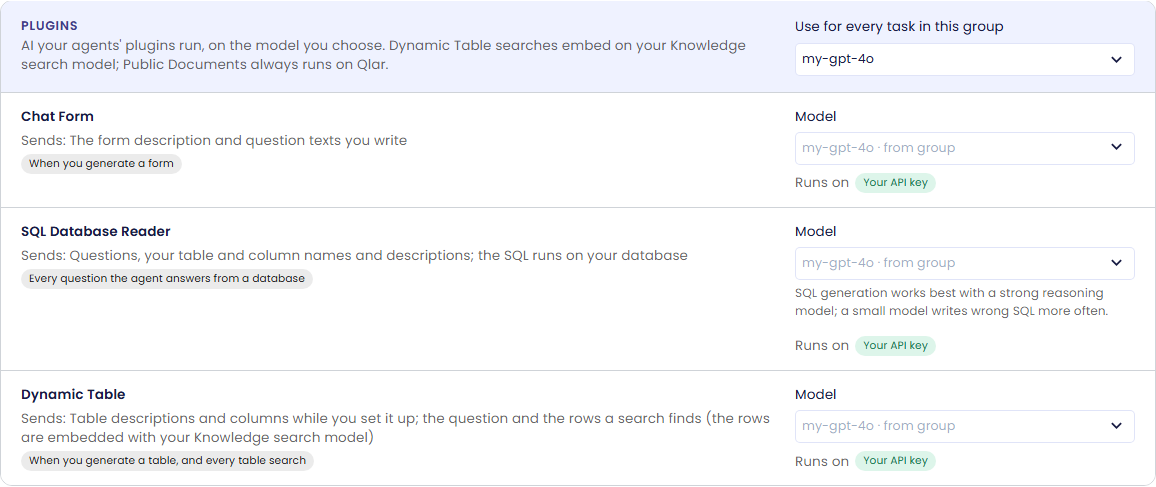
Reminder uses no AI model. Public Documents always runs on Qlar.
Dynamic Table and knowledge search. When you choose or change the Knowledge search model, the rows of every Dynamic Table of your agents are embedded again on that model, on your account. A large table means many calls to your model, and its searches find fewer rows until it finishes.
Web search on your own Exa account
Agents search the web with Exa. By default that's Qlar's Exa account. To use yours:
-
Sources tab → Service keys → Add Exa key. Find the key in the Exa dashboard (dashboard.exa.ai › API keys). Give it a name if you like, and click Check and save: Qlar runs one small search to check the key, then stores it encrypted. Only its last 4 characters are shown.

-
Adding a key changes nothing yet. Tasks tab → Other services → Web search → Search account → Your Exa account · name. The toast confirms "Web search now runs on your Exa account."

To go back, choose Qlar's Exa account. Deleting the key in use moves web search back to Qlar's account (or turns it off under Only use our own models); your Exa account itself is not changed.
See where your calls ran
The AI calls in the last n days card on the Tasks tab counts the organization's AI calls on your own models and on Qlar's, by group, for the last 7, 30 or 90 days. See details lists each job and model.
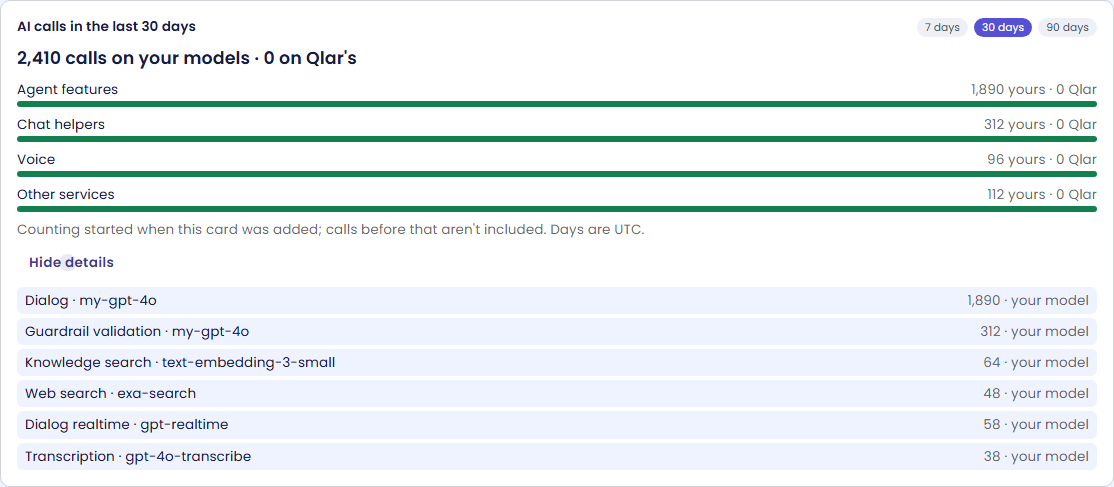
Under Only use our own models, the card lists any call that still ran on Qlar's models on or after the day the rule was turned on. Counting started when the card was added, so older calls aren't included; days are UTC.
With Only use our own models on
Everything on this page keeps working under Only Use Your Own Models once it runs on your account:
| Job | Without a model or key of your own |
|---|---|
| Speech to text, Text to speech | Off: voice notes aren't transcribed, replies go out as text. |
| Voice calls | Calls on Qlar's voice end with "This agent can't take voice calls right now." |
| Read scanned PDFs | Scanned PDFs are refused; PDFs with text still work. |
| Logo image | Skipped: upload a logo yourself. |
| Plugins | SQL Database Reader and Dynamic Table stop (Dynamic Table also needs a Knowledge search model of your own); Chat Form can't generate questions. Reminder keeps working. Public Documents is off. |
| Web search | Off, until you choose your Exa key. |
Billing
Calls on your own models and searches on your own Exa account cost no Qlar credits; your provider bills you directly. Qlar's per-message platform fee still applies.
Troubleshooting
| Symptom | Cause | Fix |
|---|---|---|
| A model isn't offered in a Voice picker | It isn't a model of that kind, or its provider can't serve it | Add it again with the right switch (Speech-to-text model, Text-to-speech model, Realtime voice model). Voice calls need an OpenAI key. |
| Callers hear "Voice is unavailable right now" | Your OpenAI or Azure OpenAI account refused the call (key, quota, model access, or a deployment name that doesn't exist) | Check the key and the model on your OpenAI account, or choose another realtime model. |
| "Exa refused this key" when adding a key | The key is wrong or has no credits | Copy the key again from the Exa dashboard. |
| Web search still runs on Qlar | The key was added but not chosen | Tasks › Web search › Search account › your key. |
| Dynamic Table searches find nothing after a change | Its rows are being embedded again on the new Knowledge search model | Wait for it to finish; large tables take longer. |