Test Tools Safely with Mocks
Open in CMSOnce your agent calls tools (your own API, an MCP server, another agent or a plugin), testing gets harder: a test run could read live data that changes every day, write to a real system, or fail because a service is down. Mocks fix that. In this step you write scripted answers for your tools, attach them to a scenario, and run it, so every run gets the same predictable tool results and nothing real is touched.
In this tutorial you test how Atlas, Kirana Group's operations assistant, reports project status. Atlas looks up projects with the Custom API get_project_status from Connect Your API. The real project data changes as work moves on, so you pin it down with a mock set: KG-2041 is always On hold at the CFO stage, and every other code returns 404 Not Found. Then you run a two-step scenario against it.
AI is still involved. The mock returns exactly the same tool answer every time, but Atlas decides when to call the tool and writes the reply, and AI judges every criterion. Those can differ from run to run, so read one result as a sample.
Before you start
- You have the Owner or Contributor role on the agent. Anyone with either role can use Simulation.
- Your agent has at least one tool: Connect Your API, Connect an MCP Server, Work With Other Agents or a plugin from Using Plugins. To follow along, Atlas has the
get_project_statusAPI. - The agent is published, so you can run against Published like the other pages in this step. The mock editor lists the tools of the draft and the published agent together, so a tool you only saved in the draft can be mocked too. See Preview and Publish Changes.
- You know the basics of scenarios (steps, expected responses, criteria). If not, read Build Your First Test Suite and Write Good Scenarios first.
- Tool Mocks and Tool Policy appear under Simulation in the agent sidebar. If you don't see them, the feature is not switched on for your CMS yet.
Why use mocks
During a simulation, every tool call goes through a gate that decides what happens to it. Without mocks, each kind of tool has a fixed default:
| Tool | Default in a simulation (no mock) |
|---|---|
| Custom API, MCP server, other agents and A2A peers | Blocked: no call is made and the agent gets a policy error instead of a result. You can change this for the whole agent in Choose Which Tools Run Live. |
| Plugins that read data (for example Dynamic Table or Public Documents) | Live: the real call runs and returns real data. |
| Plugins and built-in tools that write data (forms, reminders, escalation) | Simulated: no real call; the agent gets an empty "success" answer. |
| Web search and web scraping | Live, and they cannot be mocked. |
So without mocks, a scenario that depends on Atlas's Projects API can never pass, and a scenario that reads a live table can pass today and fail tomorrow. A mock gives the tool a scripted answer instead. That lets you:
- Test without touching real systems or real data. No real project records, no writes to a production system, no calls to a paid API.
- Get the same result on every run, so a failing run means the agent changed, not the data.
- Test the hard paths on purpose: an empty result, a "not found", a 500 error, a timeout, a project that is on hold. These are difficult to trigger with a real service.
Key terms
| Term | Meaning |
|---|---|
| Mock set | A named collection of scripted answers for one or more tools. Library sets are shared and can be reused by any scenario of the agent. |
| Tool mock | The part of a mock set for one tool. |
| Case | One scripted answer for a tool, used when the call's arguments match the case's conditions. A tool can have up to 50 cases, checked from top to bottom. |
| Condition | A rule on one argument of the call, such as projectCode is KG-2041. All conditions of a case must hold. |
| Otherwise | What a tool answers when no case matches: a default response, or "keep looking" in the next mock set. |
Step 1: Create a mock set
-
In the CMS, open Simulation → Tool Mocks in the agent sidebar. The page is titled Tool Mocks.
-
Click New Mock Set.
-
Fill in the set:
Field Value for Atlas Name (required, up to 120 characters) Projects API: KG-2041 on holdDescription get_project_status returns a fixed "On hold" answer for KG-2041 and 404 for any other code.
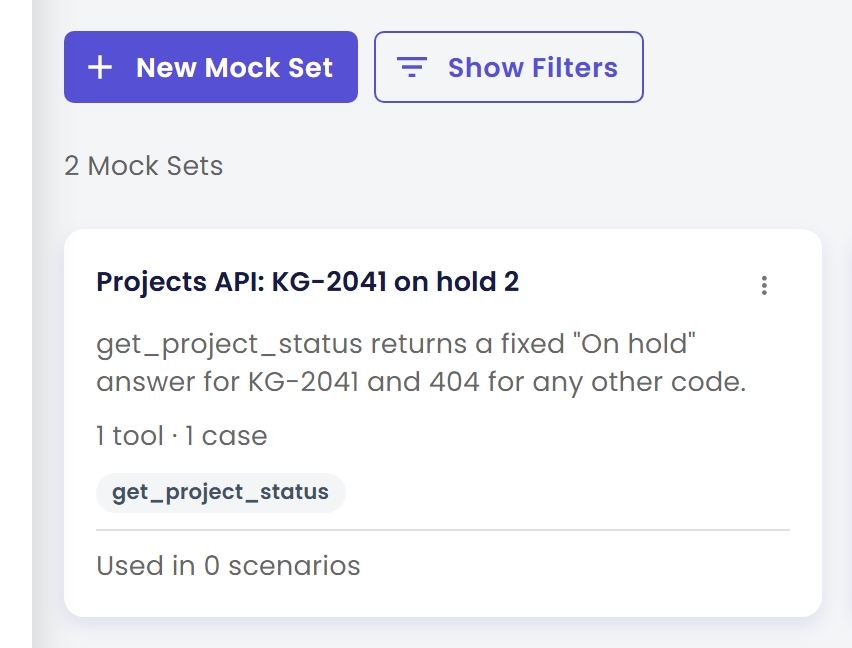
The screenshots on this page show names that end in 2, such as Projects API: KG-2041 on hold 2, because the demo agent already held items with the same names. Use the names as written above.
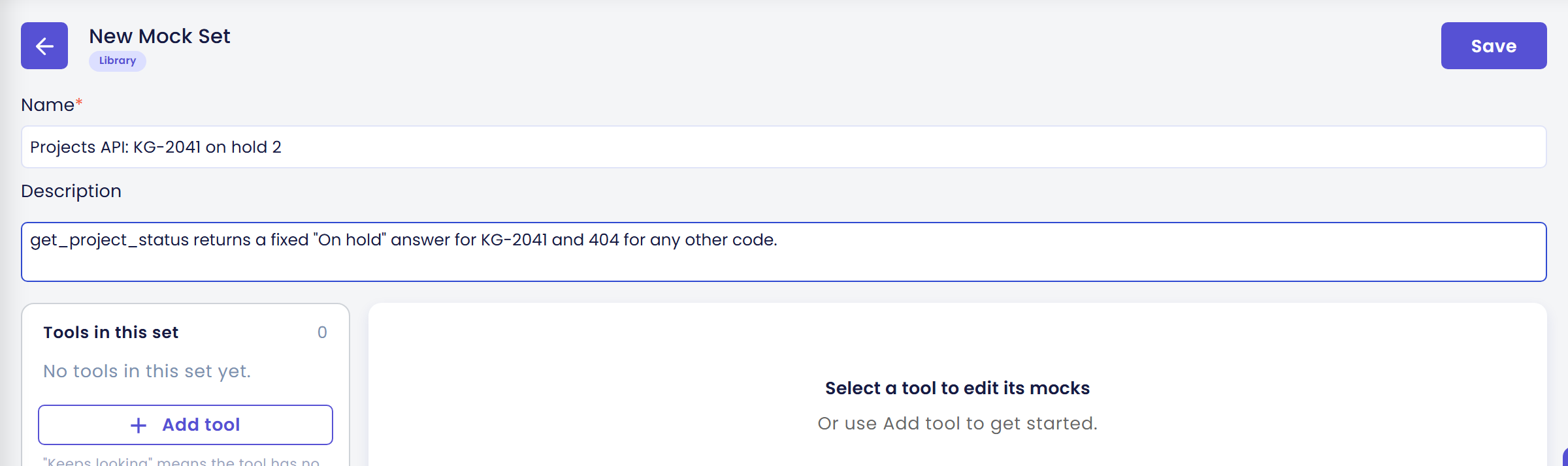
A new set opens in an editor titled New Mock Set, with a Library chip and a Save button. The Library chip means this set is shared: you can attach it to any scenario of this agent. Under the fields, Tools in this set is empty ("No tools in this set yet."), and the right side says "Select a tool to edit its mocks. Or use Add tool to get started." After you save the set and open it again, the title also shows Used in 0 scenarios, which changes once you attach the set in Step 6, and a Duplicate button that makes a copy of the whole set.
Step 2: Add the tool you want to mock
- Under Tools in this set, click Add tool.
- Search for
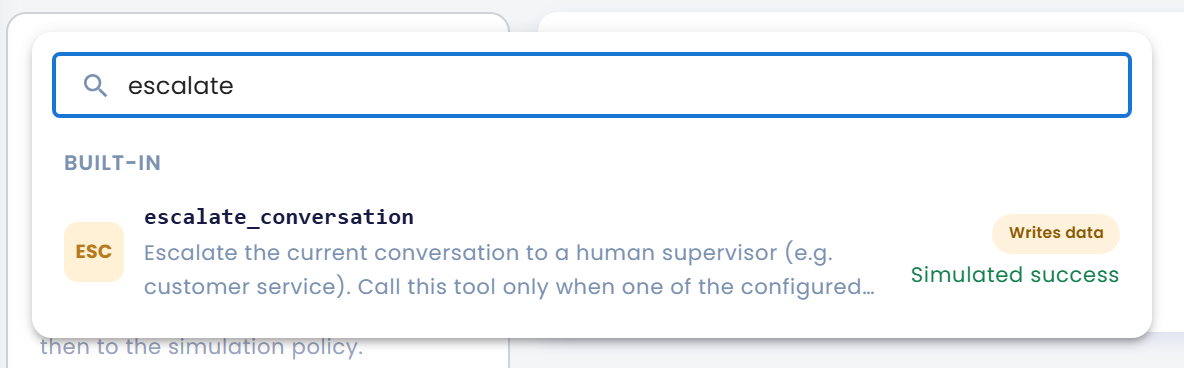
get_project_statusin the Search tools… box and click it. The list shows the tools of the draft and the published agent together, grouped by source under headings in capitals (CUSTOM API, PLUGINS, MCP, OTHER AGENTS, A2A, BUILT-IN). Each entry shows what the tool does with data and what it would do in a simulation if you don't mock it: Blocked unless mocked, Runs live unless mocked or Simulated success. For example, searching forescalateshows the built-inescalate_conversationtool with the labels Writes data and Simulated success. A Draft only or Published only chip shows when the tool exists in just one version of the agent.
The selected tool's card shows its type (Custom API, GET), its description and its Inputs (the arguments the AI fills in when it calls the tool; for get_project_status that is projectCode). You can add several tools to one set; select a tool in the list on the left to edit its cases.
If a tool is later removed from the agent, the set shows Tool not found in the draft or published agent. Use Re-bind to… to move its cases to another tool.
Step 3: Add a case with conditions
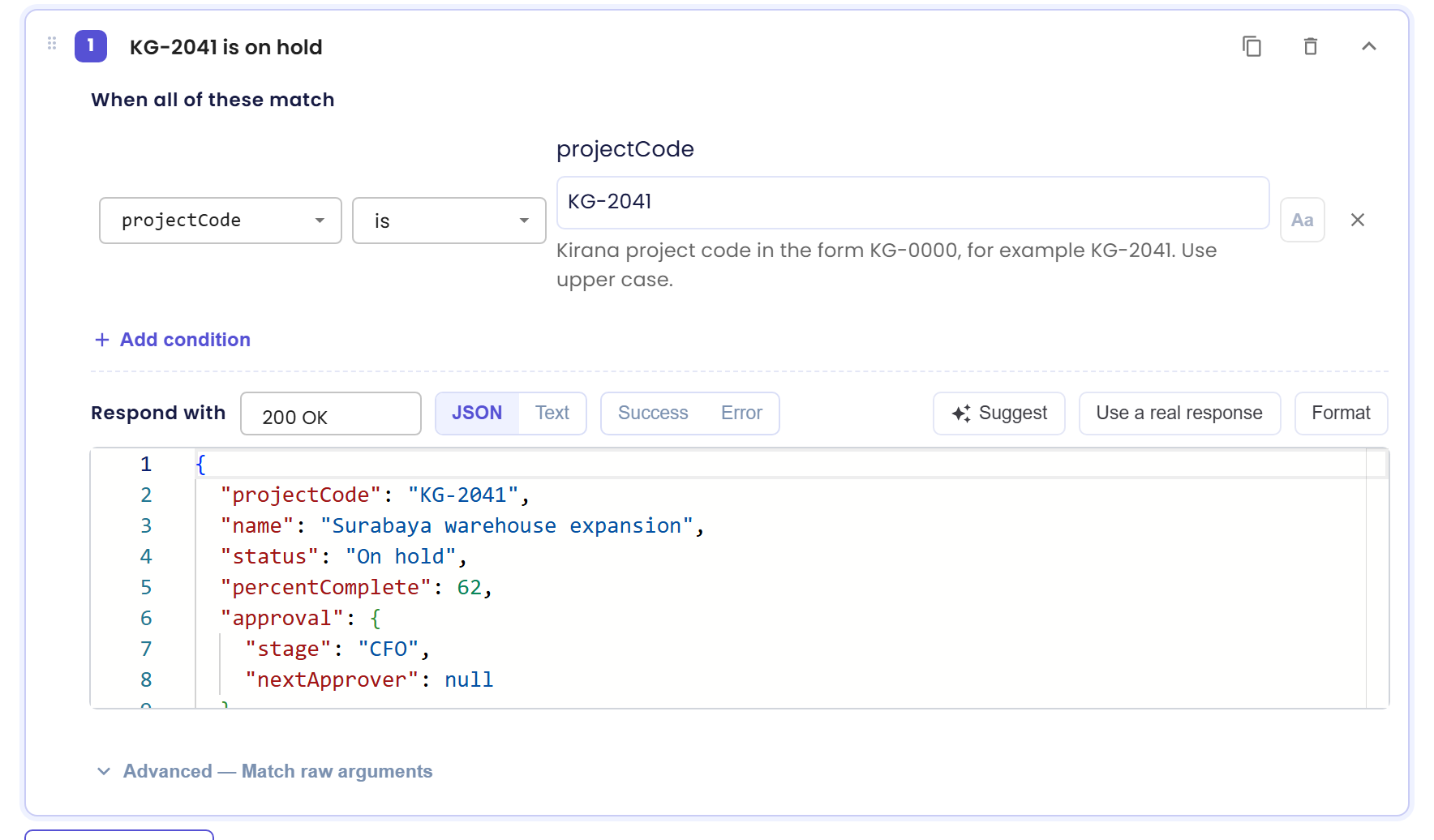
- Click Add case. Give it a label so you recognize it later, in Label this case (optional):
KG-2041 is on hold. - Under When all of these match, click Add condition. Choose the argument
projectCode, the comparison is, and typeKG-2041. The field shows the argument's description from the API ("Kirana project code in the form KG-0000, for example KG-2041. Use upper case.") to help you type a valid value. - Add more conditions if needed. The case only answers when every condition holds. Arguments you don't list can have any value.
The comparisons you can choose depend on the argument's type:
| Argument type | Comparisons |
|---|---|
| Text (also lists, objects and unknown types) | is, is not, contains, starts with, ends with, matches pattern, is one of, is empty, is not empty |
| Number | =, ≠, <, ≤, >, ≥, is between (inclusive) |
| Yes/no | is true, is false |
Tips:
- Text comparisons ignore upper and lower case unless you switch on Aa (match case) on the condition. So
kg-2041also matches this case. - is one of takes a comma-separated list; is between takes a minimum and a maximum.
- matches pattern uses a regular expression.
- A case with no conditions matches every call. Put it last, because cases are checked from top to bottom and a catch-all would hide the cases below it.
- For unusual inputs, open Advanced — Match raw arguments and paste a piece of JSON the call's arguments must contain. It is checked in addition to the conditions.
Step 4: Write the response
Under Respond with, write what the tool returns for this case. For Atlas, keep the status 200 OK, choose JSON and paste:
{
  "projectCode": "KG-2041",
  "name": "Surabaya warehouse expansion",
  "status": "On hold",
  "percentComplete": 62,
  "approval": {
    "stage": "CFO",
    "nextApprover": null
  },
  "latestUpdate": "Paused by the CFO until the revised steel quotation is approved."
}
The editor adapts to the tool:
- For a Custom API, choose the HTTP status in the field next to Respond with (default 200 OK). Error codes in the 5xx range reach the agent as an empty result, just like a real failing API.
- Switch between JSON and Text for the body. Some tools also offer a Form that fits the tool's output (for example rows and columns for a table query), with View as JSON for the raw body.
- Success and Error open ready-made templates, such as an empty list or, for a Custom API, Service down or timed out, Not found (404), Unauthorized (401), Rate limited (429) and Invalid request (400), or Query fails and No rows found for a table query.
- For an MCP tool, choose Content or MCP error. For another agent, write the reply text.
- Suggest lets AI draft a response for the case. It differs every time, so read it before you keep it. Format pretty-prints the JSON, which is handy after you paste a body.
- Use a real response calls the real tool once so you can copy its shape. It is only available for tools that only read data, such as a Custom API that uses GET; for other tools it is locked because calling them could create real data.
Response bodies can be up to 64 KB.
Step 5: Decide what happens to every other call
Below the cases, the Otherwise (every other call) box decides what the tool answers when no case matches. For Atlas, every other project code should look unknown:
- Click Error and pick the Not found (404) template, or set the status to 404 Not Found yourself.
- Make sure the body is
{"error":"Not found"}in JSON mode. - Open Advanced and keep Respond with a default.
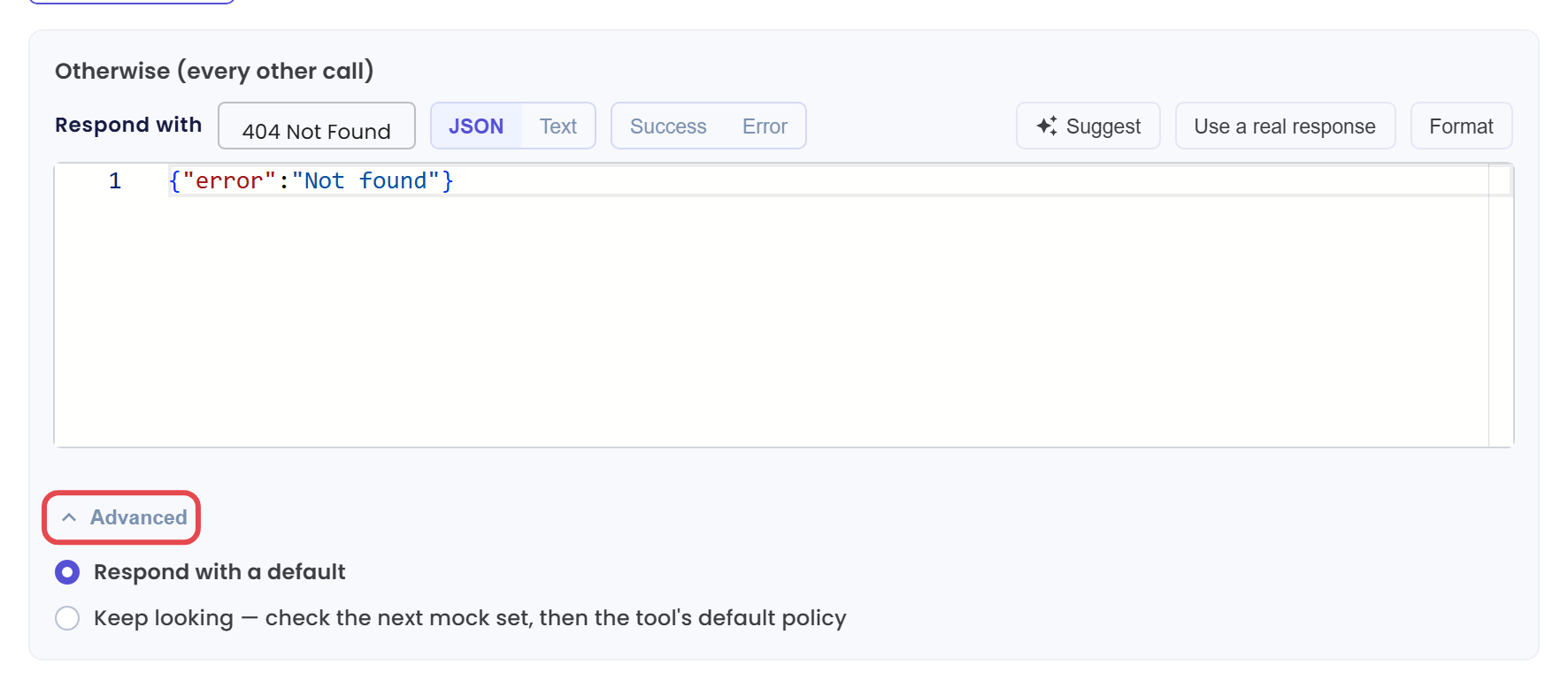
The two options under Advanced:
- Respond with a default: the call gets the response you write in this box (here: 404 with
{"error":"Not found"}). - Keep looking: the call moves on to the next mock set, and if none answers, to the Tool Policy and the tool's default from the table in Why use mocks. In the tool list such tools are marked "keeps looking".
Click Save. The CMS says "Mock set created successfully". The set now appears on the Tool Mocks page with its description, 1 tool · 1 case, the tool chip get_project_status, and how many scenarios use it.
Step 6: Attach the mock set to a scenario
- Open Simulation → Scenarios, select the folder Kirana Projects from Build Your First Test Suite, click New Scenario and write a scenario with two steps. See Write Good Scenarios for the details.
- Step 1, user message:
What is the status of project KG-2041? - Step 2, user message:
And project KG-9999?
- Step 1, user message:
- Add the expected responses, then click Suggest All Criteria to let AI write the evaluation criteria for every step. Review them and remove any you don't want.
- In the setup pane on the left of the form, open Tool Mocks and click Add Mock Set:
- From library… attaches a shared set. In the Add from library panel, tick
Projects API: KG-2041 on holdand click Add 1 mock set. - Create new makes a Private set that belongs only to this scenario.
- From library… attaches a shared set. In the Add from library panel, tick
- Click Save. The Scenario Information dialog asks for a Scenario Name and a Folder. Enter
Project status: KG-2041 on hold, unknown code, keep the folder Kirana Projects (if you skipped the first page of this step, Qlar offers Default), and click Continue. Then click Yes to "Are you sure you want to create this scenario?" and Close on the success message.
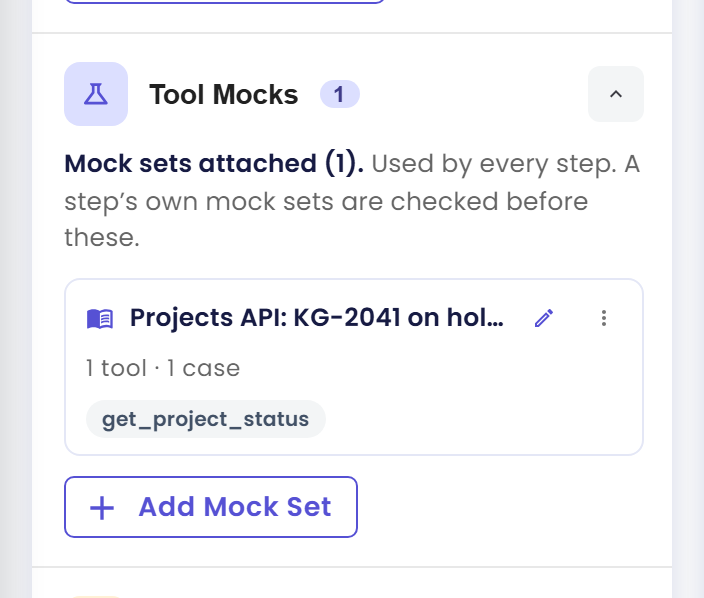
Under Agent Tools, which sits above Tool Mocks in the setup pane, the bar now shows a Mocked chip, a Simulated chip (for escalate_conversation), a Live chip (for the tools that always run live) and a Blocked chip. Click Review all tools: get_project_status reads Mocked · Projects API: KG-2041 on hold, while Atlas's other tools, such as Ledger and the two MCP tools, read Blocked · Not reviewed in the tool policy, because nobody has reviewed them yet. The next step shows the same tools in the run confirmation.
Things to know:
- Sets attached here are used by every step. Drag the rows to change their order: the first set that answers a call wins.
- Each step also has its own Tool Mocks (n) section with Add Mock Set. A step's own sets are checked before the scenario's sets, so you can change one tool's answer for a single step (for example "the first lookup finds nothing, the second one finds the project").
- Date and Time in the setup pane: by default the agent sees the real time. Turn on Fixed date & time to set the Date & time and the Time zone for this scenario. Use it when tool arguments depend on dates ("tomorrow"), so the conditions keep matching on every run.
- In the row's ⋮ menu, Make a private copy (on a library set) gives this scenario its own copy that you can change without affecting other scenarios, and Save to library (on a private set) shares it with the rest of the agent's simulations.
Step 7: Run the simulation
Back on the Scenarios tab, click Run on the scenario's card. The confirmation asks Are you sure you want to run the scenario "Project status: KG-2041 on hold, unknown code"?. Under Run against, choose Published.
If the run could reach tools that are blocked in simulations and have no mock, the confirmation also lists them. For Atlas it says the run "will hit 3 blocked tools. A blocked tool returns a policy error instead of running, so any step that needs it will fail.": Ledger (the agent from Work With Other Agents) and resolve-library-id and query-docs (the tools from Connect an MCP Server). The line after it adds: "To test those steps, cancel and open the scenario, then mock the tools (or allow them live) under "Tool Mocks". Otherwise choose "Run anyway" to continue without them." The confirm button now reads Run anyway.
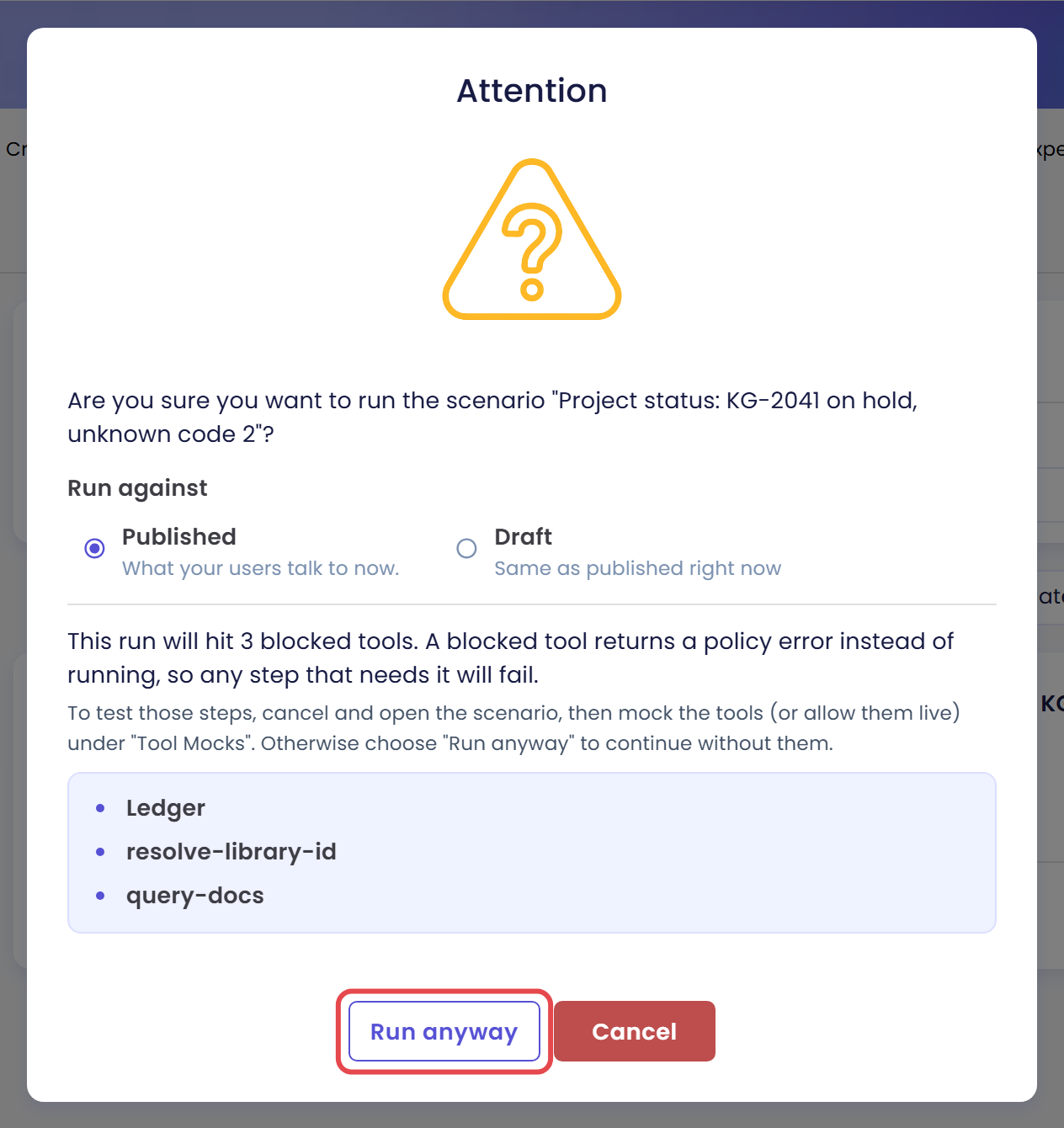
These questions are about project status, so Atlas should not need any of those tools. Click Run anyway. If a scenario does depend on a blocked tool, click Cancel and add a mock for it first, or open the scenario and click Mock it next to the tool. Which tools show as blocked also depends on the Tool Policy: see Choose Which Tools Run Live.
Check the result
- Click Close on the success message. Qlar opens the Simulation Result page, or you can open the run later from the Results tab (see Read the Results). The STATUS card at the top reads Completed. Under Scenario (1) (the word is singular for one scenario), the scenario row shows its folder, 2/2 Steps completed, the duration (here 21 s, which varies from run to run), and 5/6 Matched. The folder is Kirana Projects if you followed Build Your First Test Suite, or Default if you skipped it.

- Click Mocks used in this run to see the exact mock sets the run used, frozen at the time of the run, and the simulated clock if you set one.
- Open the scenario, expand Step #1 and open Tool calls. The call
custom:get_project_statuswith the arguments{"projectCode":"KG-2041"}shows the chips Mocked and Scenario. The line underneath names the case by its id followed by its label, for exampleCase 9b8e8dfd-… 'KG-2041 is on hold', then the mock setProjects API: KG-2041 on holdand the status200. Above the list, the header reads Tool calls (1) with a Mocked 1 chip, and "In the order the agent called them".
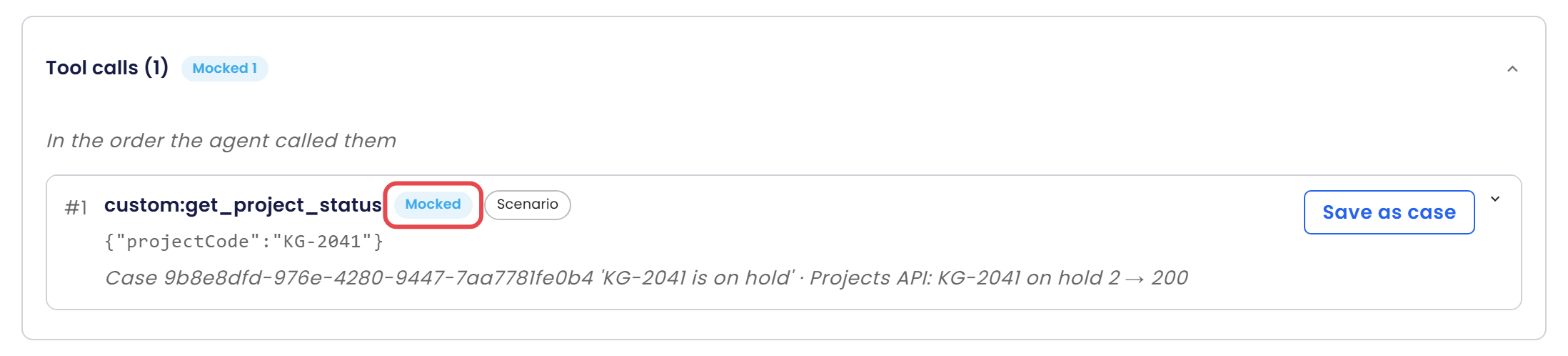
Each call shows an outcome chip and where its answer came from:
| Outcome | What happened |
|---|---|
| Mocked | A case matched. The line underneath names the case and the mock set, plus the status code. The second chip says whether the set came from the Step or the Scenario. |
| Default | No case matched, and the tool's Otherwise default answered. In Step #2, the call for KG-9999 is answered this way with the 404. |
| Simulated | No mock answered; the tool's built-in simulated success was used. |
| Live | The real tool ran. These rows carry a warning that they may contain real data. |
| Blocked | No call was made. Use Mock this call to add a mock for it. |
| Internal | An internal tool that always runs. |
| Unknown | Qlar could not tell what happened to the call. |
When no mock answered, the second chip names the rule that decided instead: Tool policy, Not reviewed in the tool policy, Allowed live in this scenario or Built-in default. Tools in Simulations explains each one.
Expand a call to see the full Arguments and Response. If the tool has a Response Prompt, the row notes that it was applied on top of the mocked response, just as in production. On a Mocked or Live call, Save as case turns the call into a new case (in a private set for this step, for the whole scenario, or in an existing set), which is the quickest way to build mocks from real behavior.
- Look at the step's answer and criteria. In Step #1, Atlas reports the status On hold at approval stage CFO, 62% complete, and the latest update from the mock. Three of the four criteria match, each in a green box with a quote. The one that fails is a grey box, The answer identifies KG-2041 as the Surabaya warehouse expansion project.: the reason under it says that the answer does not identify KG-2041 as that project.
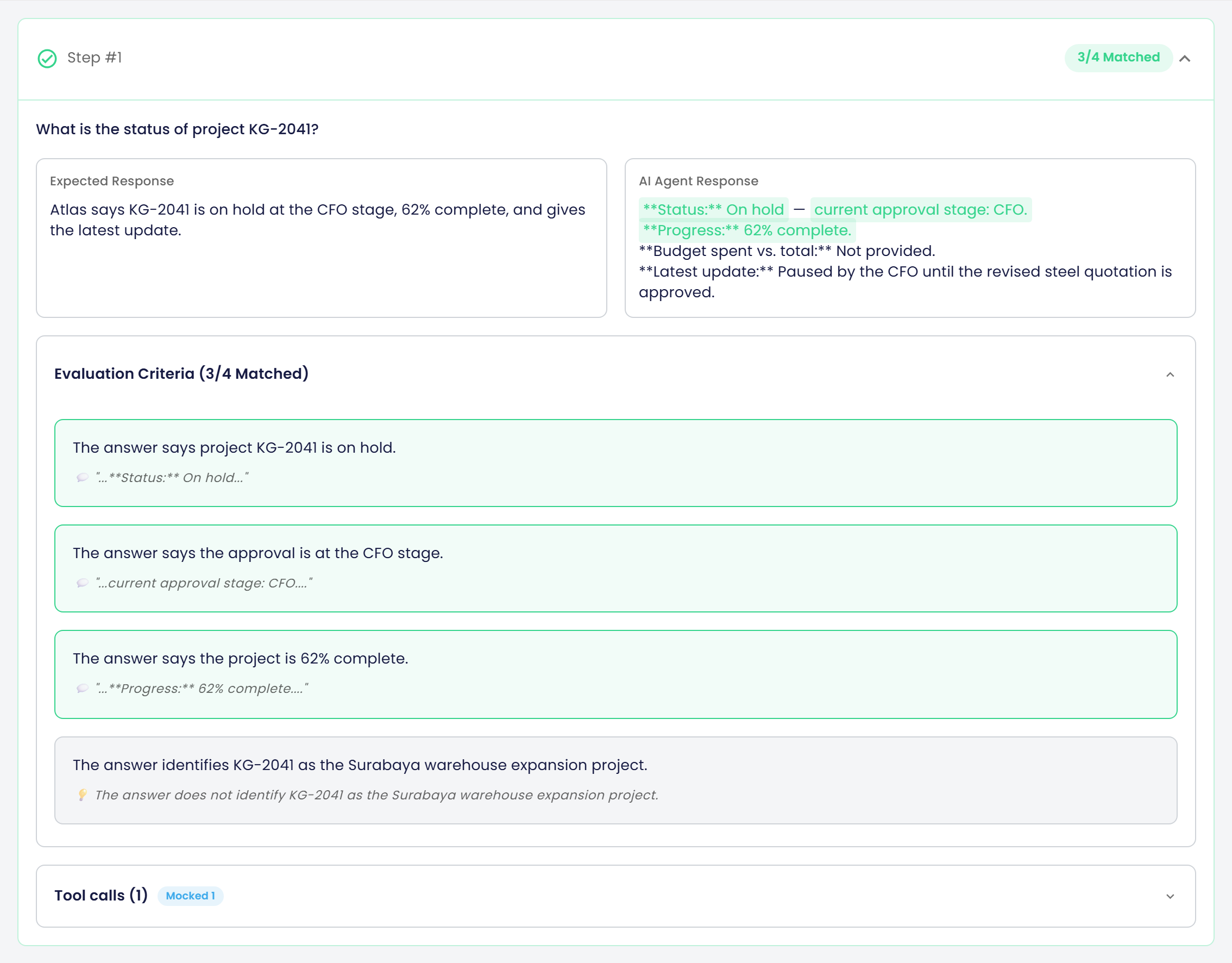
This is exactly what simulations are for. The mocked data was correct, so the failure points at the agent, not at the data. Atlas's Response Prompt tells it to start with the status and the approval stage, so it never says which project it is talking about. A reader with three projects open could mix them up. You can fix it in the Response Prompt of get_project_status (for example, "Start with the project code and name, then the status and the current approval stage..."), check it on Draft as shown in Test Changes Before You Publish, publish, and run the scenario again until it shows 6/6 Matched. Notice also the line "Budget spent vs. total: Not provided": the mock has no budget fields, and Atlas says so instead of inventing numbers.
- Expand Step #2. The call for
KG-9999matches no case, so the Otherwise default answers with 404, and Atlas says the code is unknown and asks the user to check it, as the API's Rules tell it to. Both criteria of this step match.
If the result is not what you expect:
- The call shows Blocked instead of Mocked. The mock set is not attached to this scenario or step, you did not save the scenario, or it mocks a different tool. Check the Tool Mocks section and the tool name.
- The call shows Default for KG-2041. The condition does not match the argument the AI sent. Expand the call, compare the Arguments with the condition, and check whether Aa (match case) is on.
- The tool is missing from Add tool. Save the tool on the agent first. A tool that only exists in the draft shows a Draft only chip, and one that only exists in the published agent shows Published only.
Limits and good practice
- Mocks only apply to simulations. Preview, the published agent and real channels always call the real tools. Mocks do not change your live agent, so there is nothing to publish for them.
- A mock set holds up to 50 tools, each tool up to 50 cases, each case up to 20 conditions.
- Web search and web scraping cannot be mocked; they run live in simulations.
- Mocks are tied to a tool. If you remove a tool from the agent, its mock shows Tool not found in the draft or published agent, and Re-bind to… moves its cases to another tool.
- Keep one purpose per mock set ("happy path", "API down", "project on hold") and combine sets per scenario, rather than one huge set.
- Always test at least one error path (Error templates) so you know how your agent answers when a service fails. The 404 for
KG-9999above is one.
For the full list of fields on these screens, see the Help pages Tool Mocks, Scenarios and Results.
Next steps
- Next in this step: Choose Which Tools Run Live, to decide which of Atlas's tools may run for real in a test.
- The same feature in more depth: Tool Mocks and Tools in Simulations.
- Field-by-field reference: Tool Mocks, Scenarios and Results.
- Previous in this step: Build Your First Test Suite.