Chat
Open in CMSThe Chat page controls how the agent manages a text conversation: what language it replies in, how it formats responses, and a handful of quality-of-life features for the chat interface.
Navigate to Conversation → Chat in the left sidebar. The settings are grouped in cards, in this order: Language & Input, Response Rendering, Canvas, Chat Controls, and Conversation History. This page follows the same order.
Changes to these settings affect token consumption and therefore the cost of running the agent. The page header includes a reminder of this.
Before you start
- Set up the welcome message and example questions in Introduction, so you can test the whole first exchange in one go.
- Add knowledge in Teach Your Agent. Formatting is easier to judge on real answers.
Example: set up Atlas's chat settings
Atlas answers questions about approval rules, so its answers should be easy to scan and employees should be able to say when an answer is wrong.
- Open Conversation → Chat.
- In Language & Input, leave Dialog Language on Auto, so Atlas replies in the employee's language.
- In Response Rendering, turn on Enforce Markdown Response. Approval chains and steps then come out as bold text and lists.
- In Chat Controls, turn on Display Feedback Buttons, so employees can rate each answer.
- In Conversation History, turn on Show Conversation History, so signed-in employees can return to earlier questions.
- Click Save, then check the result in the preview panel (see Check the result).
The sections below explain every setting on the page.
Language & Input
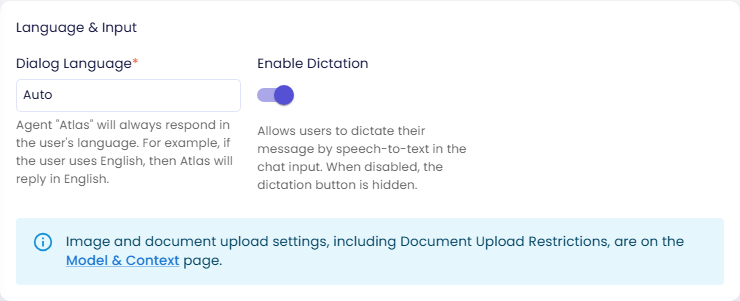
Dialog Language
Sets the language the agent uses when composing responses. Select from the dropdown or type a custom value.
If you select Auto, the agent matches the language the user writes in. For example, if a user sends a message in French, the agent responds in French. This is useful for multilingual audiences where you want each user to receive answers in their own language. Atlas uses Auto, because Kirana's employees write in both English and Indonesian.
Setting a specific language (for example English or Indonesian) overrides Auto: the agent always responds in that language, whatever language the user writes in.
Enable Dictation
Lets users dictate their message by speech-to-text in the chat input, through the Dictate option in the input's + menu. When disabled, the option is hidden and users can only type.
Image and document upload settings, including Document Upload Restrictions, are not on this page. The info box at the bottom of the card links to Model & Context → Attachments, because attachments work in immersive voice calls as well as in chat.
Response Rendering
These settings control the structure and visual format of the agent's responses.
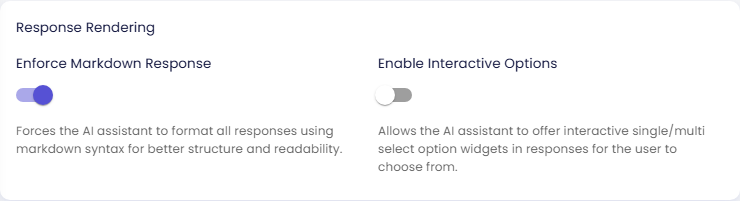
Enforce Markdown Response
Forces all responses to use Markdown syntax: headers, bold text, bullet lists, code blocks, and so on. Enable this when your chat interface renders Markdown and you want consistently structured answers. Atlas has it on, so an approval chain comes out as a list with the key roles in bold.
Disable this for voice interfaces or plain-text channels where Markdown symbols would appear as raw characters.
Enable Interactive Options
Lets the agent offer single-select or multi-select option widgets inside a response, so the user can pick an answer instead of typing one. Useful for guided flows where the valid answers are known in advance.
The same widget is used for follow-up offers: when the agent offers several directions to continue (see Follow-up offers), they appear as a clickable choice card instead of a numbered list.
Canvas
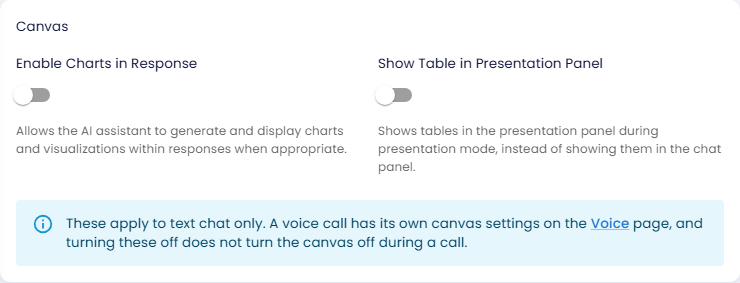
Enable Charts in Response
Allows the agent to generate and display charts or data visualizations inside responses when the data warrants it. Useful for analytics or reporting assistants.
Show Table in Presentation Panel
When enabled, tables generated in a response are shown in the presentation panel (the right-side panel in presentation mode) rather than inline in the chat panel. This keeps the chat readable while detailed tabular data appears in a dedicated area.
These two settings apply to text chat only. A voice call has its own canvas settings on the Voice page, and turning these off does not turn the canvas off during a call.
Chat Controls
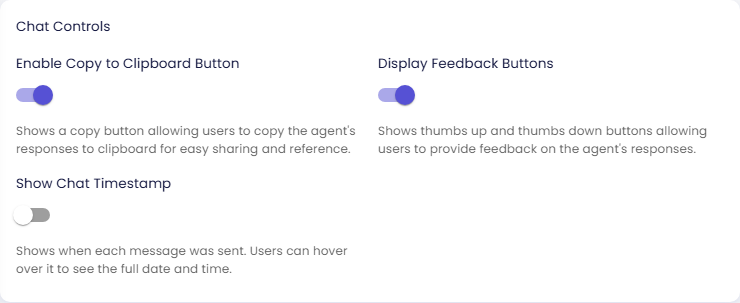
Enable Copy to Clipboard Button
Shows a Copy button on each agent response, so users can copy the text to their clipboard with one click.
Display Feedback Buttons
Shows thumbs-up and thumbs-down buttons below each agent response. Users can use these to provide feedback, which is recorded for review in the monitoring dashboard. For Atlas, a thumbs-down on an approval answer is a signal to check the SOP or the knowledge behind it.
Show Chat Timestamp
Shows when each message was sent. Users can hover over the time to see the full date and time. Atlas leaves it off. Turn it on when users need to refer back to when something was said, for example to quote an answer in an email.
Follow-up offers
The Response Suggestions card (Suggested Response Type Fixed or Dynamic) has been removed from this page. In its place, an info box links to the Behavior page: whether the agent offers next steps after answering is now set by Conversation Initiative, which applies to chat and voice alike.
- Agents that used Dynamic were moved to Guided with Enable Interactive Options turned on, so an offer with several directions still appears as a card users can click.
- Fixed suggestions are no longer shown.
- The example questions under the welcome message are not affected. You set them in Introduction.
Conversation History
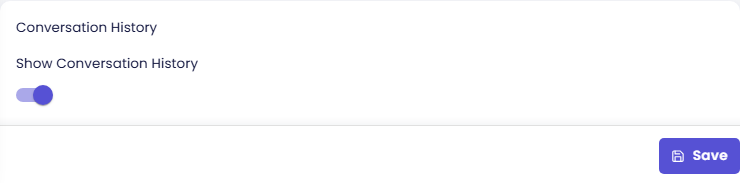
Show Conversation History
When enabled, a My Chats panel appears in the chat sidebar. This panel lists the user's past conversations with the agent, showing a preview of the first message, the date it was started, and the total number of messages exchanged.
Users can click any conversation in the list to resume it: the full message history is reloaded and the conversation continues from where it left off.
This feature only activates for signed-in users. Even if the setting is enabled, anonymous or guest users do not see the My Chats panel and cannot resume previous conversations. If a guest later signs in, their previous anonymous session becomes associated with their account and appears in the history.
When disabled, the My Chats panel is hidden entirely and each session starts fresh. Past conversation data is still retained on the backend; it simply is not shown in the interface.
Saving Changes
Click Save at the bottom right of the page after adjusting any setting. Publish your agent to propagate the changes to end users.
Check the result
After you save, the preview panel on the right side of the page reloads. Ask a few typical questions and check that:
- Answers are formatted the way you chose, in the language you set.
- Thumbs-up and thumbs-down buttons appear below each answer, if you turned feedback on.
For Atlas, ask Who approves a USD 80,000 purchase?. The answer names the Department Head in bold, cites SOP-FIN-007, and ends with the citation links. Below it are the Copy button and the feedback buttons.
The preview runs your draft. End users see the changes only after you publish.
Next steps
- Preview and Publish Changes: test everything you set up in Stage 1 and make it live (next step).
- Talk by Voice: voice call display, voice persona, canvas during calls, and push-to-talk (in the CMS under Conversation → Voice).
- Model & Context: AI model selection, image and document attachments, and conversation context memory (in the CMS under Conversation → Model & Context). Enable Reference and Restrict Answer, which used to live on this page, are now on Retrieval.