Retrieval
Open in CMSThe Retrieval page contains the technical configuration that controls whether — and how — the agent retrieves and learns from your knowledge base. Most settings here do not need to change for general use — but tuning them for your specific content and query patterns can noticeably improve answer quality.
Navigate to Knowledge → Retrieval in the left sidebar. The CMS lists this page under Knowledge; in these docs it belongs to the Fine-Tune Answer Quality stage. The one exception is the Enable Reference toggle described below: turn it on as soon as you start adding knowledge.
Before you start
- Add and process your knowledge sources in Teach Your Agent (Documents, Websites, Videos).
- Prepare a short list of test questions, including a few the agent currently answers badly. You will use them to judge every change.
Reference
These settings control whether the agent draws on your Knowledge base when forming answers.
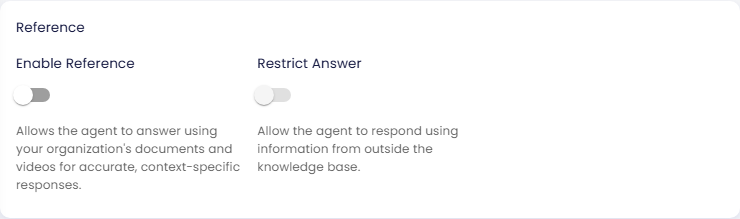
Enable Reference
When enabled, the agent searches references derived from your uploaded Knowledge content — documents, videos, and websites — before responding. This allows it to give accurate, context-specific answers grounded in your own content rather than relying solely on the base AI model's knowledge.
Disable this if your agent is intended for general-purpose conversation with no proprietary knowledge base.
How content becomes references: Every document, video, and website you add through the Knowledge menu is parsed and broken into text chunks. These chunks are what the agent actually searches — they are the references. Uploading content is a prerequisite for reference-based answers to work.
Restrict Answer
Only available when Enable Reference is turned on.
| Switch | What the agent does | Helper text shown under the switch |
|---|---|---|
| Off (default) | Uses your knowledge as its main source, but may also answer from information outside the knowledge base. | "Allow the agent to respond using information from outside the knowledge base." |
| On | Answers only from your knowledge base (and the results of its tools, such as web search when that is enabled). If the references cannot answer the question, it apologizes that it cannot answer instead of guessing or using general knowledge. | "Limits the agent's answers to your organization's knowledge base to ensure controlled and reliable responses." |
The helper text under the switch describes the current state, so it changes when you flip the switch. Seeing "Allow the agent to respond using information from outside the knowledge base" simply means Restrict Answer is off.
Turning Enable Reference off also turns Restrict Answer off (and switches off citations).
Use this when accuracy and traceability to your documents is critical (e.g., legal, compliance, or technical support agents).
Content Scope
This section lets you restrict which content types the agent draws from during retrieval. By default, the agent searches across all content types in the knowledge base.
When content types are defined here, the agent only retrieves chunks that match one of the listed types. Leave this list empty to allow all content types.
Use content type filtering when your knowledge base contains a mix of materials (e.g., legal docs, FAQs, product specs) and you want the agent to scope its searches to specific categories.
Search Configuration
These settings directly control how many results the agent considers per query and how strictly it matches against the user's question.
| Setting | Description |
|---|---|
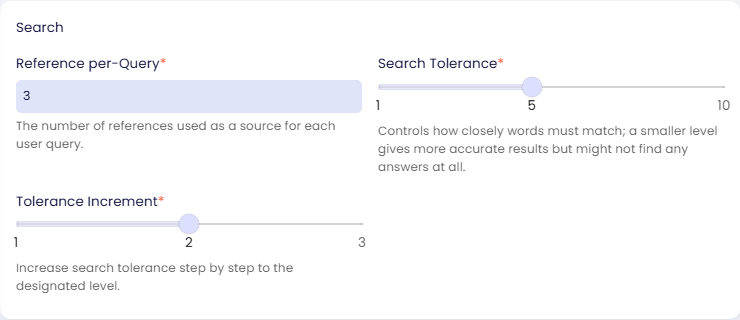
| Reference per-Query | The number of chunks retrieved and fed to the AI per user query. Higher values give the AI more context but increase response latency and token cost. Default for a new agent: 3 (the empty field shows 4 only as a placeholder example). |
| Search Tolerance | A 1–10 scale controlling how closely chunk content must match the query. Lower values (closer to 1) require a tighter match and may return no results for ambiguous queries; higher values cast a wider net but may include loosely relevant chunks. |
| Tolerance Increment | When no results are found at the current tolerance, the search automatically widens by this step size. For example, a value of 2 means the tolerance increases by 2 on each retry until results are found or the maximum tolerance is reached. |
Tuning Guidance
| Scenario | Recommended adjustment |
|---|---|
| Agent often says "I don't know" for questions you expect it to answer | Increase Search Tolerance or Tolerance Increment |
| Agent returns off-topic answers | Decrease Search Tolerance |
| Agent answers are shallow or missing detail | Increase Reference per-Query |
| Response times are too slow | Decrease Reference per-Query |
Reranker Configuration
The reranker adds a second scoring pass after the initial vector search. Vector search is fast but operates on embedding similarity, which can surface chunks that are topically adjacent without being the best answer to the specific question asked. The reranker reads the actual text of each candidate chunk against the query and re-orders them by contextual relevance before the final selection is passed to the AI.
The effect is better answer precision — especially for knowledge bases with many similar-sounding chunks — without needing to lower Search Tolerance or increase Reference per-Query.
How it works
- The vector search retrieves a larger candidate pool — controlled by Documents to Rerank
- The reranker AI model scores every candidate against the query
- The top Reference per-Query chunks (from the Search Configuration section) are selected from that re-ranked pool
- Those chunks are sent to the AI to generate the final answer
Documents to Rerank must be greater than Reference per-Query. The reranker needs a wider pool than the final selection — for example, retrieve 10 candidates, rerank them, then pass the best 4 to the AI.
Settings
| Setting | Description |
|---|---|
| Enable Reranker | Toggle that turns the reranking pass on or off. When disabled, the top chunks from the vector search are used as-is. |
| Reranker AI Model | The AI model used to score candidates. Only available when the reranker is enabled. Default: the organization default option, which uses the reranker model set for your organization. |
| Documents to Rerank | How many candidates the vector search retrieves for the reranker to score. Must be a positive integer greater than Reference per-Query. Default: 10. |
When to enable the reranker
Enable it when:
- Your knowledge base has many chunks with similar vocabulary (e.g., a large FAQ or policy library)
- The agent retrieves technically relevant chunks but misses the most directly applicable one
- Answer quality is inconsistent despite adequate Search Tolerance settings
Leave it disabled when:
- Your knowledge base is small and well-structured — vector search alone is sufficient
- Latency is a priority — the reranking pass adds an extra AI model call per query
Training Configuration
| Setting | Description |
|---|---|
| Content Training AI Model | The AI model used during knowledge base training and embedding generation. Changing this affects how new content is indexed — existing indexed content is not automatically re-indexed. |
Saving Changes
Click Save at the bottom right and confirm. Retrieval settings are part of the agent's draft: the Preview uses them right away, and your live agent uses them after you click Publish (see Preview and Publish Changes). Changes to Training Configuration affect only newly indexed content — existing embeddings are not updated.
Check the result
Change one setting at a time. After each save, click the reload button in the preview panel on the right side of the page and ask your test questions again:
- Answers should use your sources (and cite them, if citations are on).
- With Restrict Answer on, questions outside your knowledge should not get answers made up from general knowledge.
- If an answer is still missing, check in Chunks whether the right chunk exists and its text is correct.
For a repeatable before-and-after comparison across many questions, use Test Automation.
Next steps
- Chunks: inspect and correct the chunks the agent retrieves with your current settings (next step).
- Documents: the primary source of content that is trained and searched.
- Websites: web-extracted content subject to the same search settings.
Coming from the Chat page? Enable Reference and Restrict Answer used to live on Chat. They are now here.