Introduction
Open in CMSThe Introduction page controls what users see before they type their first message. A thoughtful welcome message and a set of relevant example questions help users understand what the agent can do and lower the friction of getting started.
Whether the agent offers a next step after each answer is set by Conversation Initiative on the Behavior page instead.
Navigate to Conversation → Introduction in the left sidebar.
Before you start
- Write the Mission and Personality in Behavior. The welcome message should sound like the same agent, and the AI Modify suggestions use them.
- Add your main knowledge sources in Teach Your Agent, so the example questions you show are ones the agent can actually answer.
Example: set up Atlas's introduction
Atlas, Kirana Group's operations assistant, should greet employees by name, say in one line what it helps with, and offer three questions it can answer from the SOPs it already knows.
-
Open Conversation → Introduction.
-
In Welcome Message, enter this text. The first line greets the visitor. The second line depends on whether they are signed in:
{{time.greeting}}, {{user.first_name|there}}! I'm {{agent.name}}, Kirana Group's operations assistant. {{#if user.logged_in}}Ask me who approves a purchase, what a capex request needs, or how a site safety rule works.{{else}}Sign in with your Kirana account so I can answer for your department and site.{{/if}} -
Use the Preview box under the editor to check both versions: switch Signed-in visitor on and off, and pick a time of day.
-
Leave Introduction Placement on As a chat message.
-
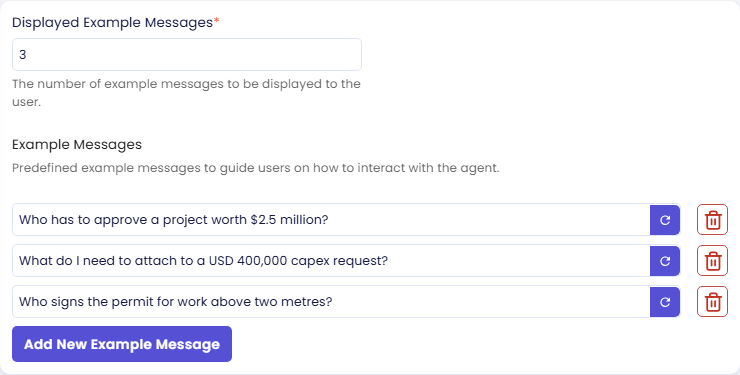
Set Displayed Example Messages to
3and enter three example messages:- Who has to approve a project worth $2.5 million?
- What do I need to attach to a USD 400,000 capex request?
- Who signs the permit for work above two metres?
-
Click Save.
The sections below explain each setting in detail.
Welcome Message
The welcome message is the first piece of text displayed when a user opens the chat. It is shown before any interaction takes place.
Write a welcome message that:
- Greets the user and introduces the agent by name
- States what the agent can help with in one or two sentences
- Invites the user to start asking
Atlas's message above does all three. A signed-in employee reads Good morning, Budi! I'm Atlas, Kirana Group's operations assistant. followed by Ask me who approves a purchase, what a capex request needs, or how a site safety rule works.
The welcome message supports rich text formatting: you can use bold, italics, bullet points, and line breaks to make it more readable.
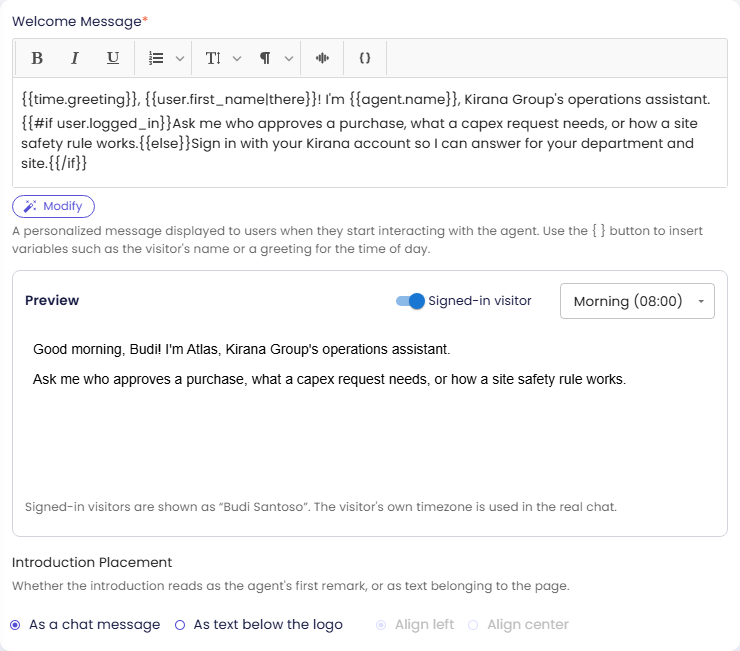
AI Modify
The AI Modify chip (✦) rewrites the current welcome message using the AI. This is useful if you have a rough draft or want to match a specific tone defined in your Behavior settings. Any variables and conditions in the message (below) are kept exactly as written.
Variables and Conditions
The welcome message can greet each visitor personally: by name when they are signed in, with a greeting that fits the time of day, or with a line that only shows on weekends. You write placeholders in double curly braces, and they are filled in for each visitor the moment a conversation starts.
{{time.greeting}}, {{user.first_name|there}}! I'm {{agent.name}}, Kirana Group's operations assistant.
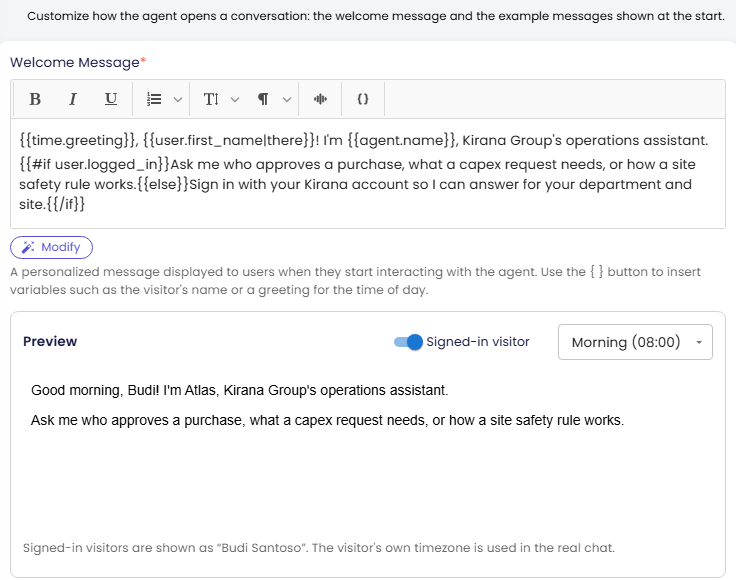
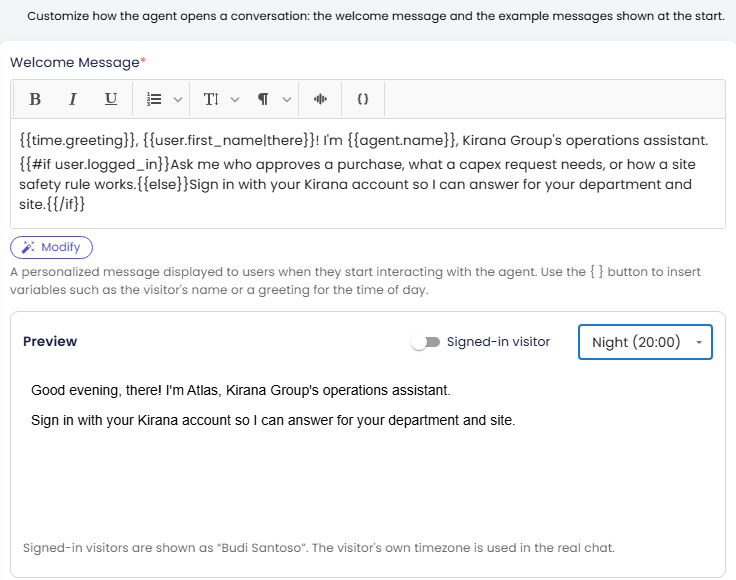
A signed-in visitor named Budi opening the chat at 8 in the morning sees Good morning, Budi! I'm Atlas, Kirana Group's operations assistant. An anonymous visitor at 8 in the evening sees Good evening, there! I'm Atlas, …
You don't have to type them. Click the { } button in the editor toolbar (Insert Variable or Condition) to pick a variable or a ready-made condition, and it is inserted where the cursor is. The menu starts with Language of dates and greetings (see below), followed by the variables grouped as Visitor, Agent, Date, and so on.
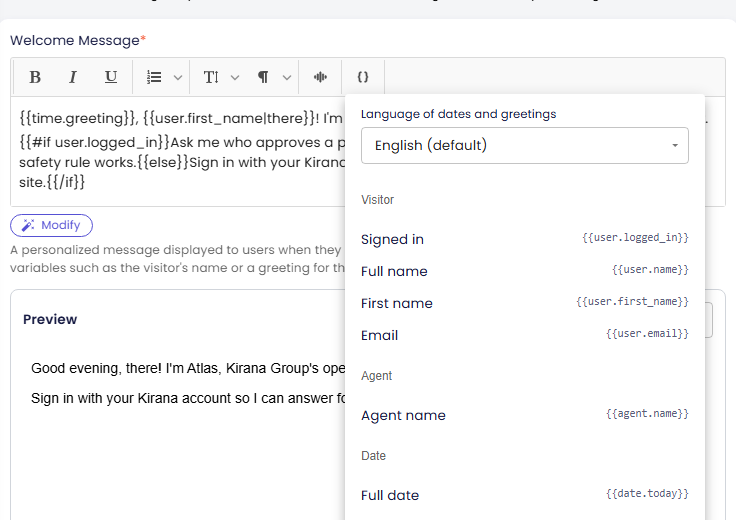
Once the message uses a variable, a Preview box appears under the editor. Switch Signed-in visitor on and off and pick a time of day to see each version before you save. In the Preview, a signed-in visitor is shown as "Budi Santoso". In the real chat, the visitor's own name and timezone are used.
Available variables
| Variable | Shows | Example |
|---|---|---|
user.first_name | First name of the signed-in visitor, empty for anonymous visitors | Budi |
user.name | Full name of the signed-in visitor | Budi Santoso |
user.email | Email of the signed-in visitor | budi@kirana.example |
user.logged_in | true when the visitor is signed in, for use in conditions | true |
agent.name | Your agent's name, so the message stays correct after a rename | Atlas |
date.today | Today's date written out | Monday, September 28, 2026 |
date.short | Today's date in numbers | 9/28/2026 |
date.day | Name of the day | Monday |
date.month | Name of the month | September |
date.is_weekend | true on Saturday and Sunday | false |
time.now | Current time | 9:15 AM |
time.hour | Current hour, 0–23, for comparing in conditions | 9 |
time.part | morning (04–11), midday (11–15), afternoon (15–18) or night | morning |
time.greeting | A greeting for the time of day | Good morning |
client.embedded | true when the chat runs inside another website | false |
client.mobile | true when the visitor is on a phone | true |
Dates and times use the visitor's own timezone, as reported by their browser.
Fallback for empty values
Add | and some text to show when a value is empty, which is mostly for anonymous visitors, who have no name:
Hi {{user.first_name|there}}!
Language of dates and greetings
Dates, day and month names, the time and the greeting are in English by default. Add @ and a language code for another language:
| You write | Visitor sees |
|---|---|
{{date.day}} | Monday |
{{date.day@id}} | Senin |
{{time.greeting@id}} | Selamat pagi |
{{date.today@ja}} | 2026年9月28日月曜日 |
{{time.greeting@dialog}} | The greeting in your agent's Dialog Language |
The codes cover every language in the Dialog Language setting on Chat: en English, id Indonesian, es Spanish, fr French, de German, zh Mandarin Chinese, ja Japanese, ko Korean, ru Russian, ar Arabic, pt Portuguese, it Italian, nl Dutch, sv Swedish, tr Turkish, vi Vietnamese, pl Polish, hi Hindi, he Hebrew, th Thai.
@dialog follows the agent's Dialog Language. When that is Auto, the visitor hasn't written anything yet, so the language of their browser is used, and English if it isn't one of the languages above. The Language of dates and greetings picker at the top of the { } menu adds the tag for you. Leave it on English (default), as Atlas does, and no tag is added.
Only dates, times and greetings change with language. Names, email and time.part don't, so a condition such as time.part == "night" works the same whatever language the message is in.
Conditions
Show a part of the message only in some cases with {{#if …}} … {{/if}}, optionally with {{else if …}} and {{else}}:
{{#if user.logged_in}}
Welcome back, {{user.first_name}}!
{{else if time.part == "night"}}
Working late? I can still explain the approval rules.
{{else}}
Hi! Sign in with your Kirana account so I can answer for your department and site.
{{/if}}
Atlas's welcome message uses the simplest form: one {{#if user.logged_in}} with an {{else}}.
A condition can be:
- a variable on its own, which is true when it is
trueor not empty:user.logged_in - a comparison with
==,!=,>,>=,<or<=:time.hour >= 17,date.day == "Friday" - several of those joined with
and,orandnot, with brackets where needed:not user.logged_in and (time.hour >= 17 or date.is_weekend)
Text in comparisons goes in quotes, and comparing text ignores upper and lower case. Comparisons always use the English values, so write date.day == "Friday", not the name in another language. Conditions can be placed inside each other, up to five deep. A condition tag on a line of its own leaves no empty line behind.
Mistakes are caught when you save
If a variable is misspelled, a condition is not closed with {{/if}}, or part of a tag has been made bold or turned into a link, Save is refused with a message saying what is wrong, and the Preview shows the same message while you type. Remove any formatting inside the braces: the whole tag must be plain text.
Variables are filled in only in the Welcome Message and the example messages you write here. An opening line sent by an embedding website is shown exactly as the site sends it.
Displayed Example Messages
This number controls how many example messages are shown to the user at once as conversation starters. If you have added more examples than this number, the system randomly picks from the pool each time a user opens the chat.
Recommended value: 3, enough to show variety without crowding the interface.
Example Messages
Example messages are pre-written questions or prompts that appear as clickable chips below the welcome message. Users can click one to instantly send it and see how the agent responds.
Guidelines for good example messages:
- Cover different topics or use cases the agent handles
- Use the same tone and language your users would naturally use
- Keep them short enough to fit in a single line
Atlas's example set:
- Who has to approve a project worth $2.5 million?
- What do I need to attach to a USD 400,000 capex request?
- Who signs the permit for work above two metres?
Each one is answered from a knowledge source Atlas already has: the approval policy SOP-FIN-007 for the first two, and the site safety briefing video for the third. That is why they make good starters: the first click gets a correct, cited answer.
Example messages can use variables too, for example What's due for approval this {{date.month}}?.
Adding a new example
Click Add New Example Message at the bottom of the list. A new input field appears where you can type the example.
Regenerating an example
Each example has a regenerate button (⟳) on the right. Clicking it uses the AI to suggest a new example message relevant to the agent's mission.
Removing an example
Click the delete icon (🗑) on the right side of the row to remove an example message from the list.
Introduction Placement
By default (As a chat message) the introduction appears as the agent's first remark: its avatar on the left, text in a chat bubble. As text below the logo turns it into page copy instead: no avatar, no indent, and a slightly larger typeface, so it reads as the page's opening line rather than the first of many messages. Atlas keeps the default.
When you choose the below-logo placement you can also pick Align left or Align center. With As a chat message these two options are greyed out, because the message column decides the alignment.
The color of the below-logo text is set on the Appearance page, under Fine-tune individual colors → Introduction. Leave it unset and it follows your agent's normal text colour.
Introduction From The Embedding Website
If you embed this agent in a website, that site can supply the opening line itself. This helps when the greeting should mention the page the visitor is on, or data only that site knows.
You do not set this on the Introduction page. This page only has a pointer card, Introduction From The Embedding Website, with the link Choose what websites can send. The link opens Channels → Embed at the Opening lines from websites card, where the switches live.
This is off by default. Each switch opens exactly one route, and with all three off the Welcome Message above is always what visitors see, no matter what the embedding page sends.
| Switch on Opening lines from websites | What the website may do |
|---|---|
| Custom text | Supply the opening line as text, shown exactly as given. |
| Custom prompt | Supply a prompt your agent answers, where the answer becomes the opening line. Your persona, tools and knowledge all apply. The prompt itself is never shown to the visitor. |
| Prompt without system prompt | Supply a prompt answered with no system prompt at all, for turning the site's own data into an opening line, such as summarising an order history. Requires a guardrail (below). |
After you change the switches, click Save on the card, then publish your agent. Live sites use the published agent, so a route that is saved but not published does nothing on them yet.
Guardrail for the raw prompt
Turning on Prompt without system prompt shows a required field, Guardrail for this route. Write one instruction saying what that route is for, and that anything else must be refused. For example:
You turn the supplied purchase request status into one short opening line in Indonesian. Refuse any other request.
It is the only thing the model is told on that route, so without it the route answers whatever an embedding site sends. That would make your agent a general-purpose text generator on your bill. An agent with no guardrail has not really enabled the route: the setting is ignored and the Welcome Message is shown instead.
A guardrail bounds what the route is useful for, not what it costs: the call is still made and still billed either way. Generated introductions are also capped per agent per hour, so a flood cannot run up an unbounded bill.
Be careful with this route. It bypasses your agent's persona and its guardrails: the model is handed the website's text and nothing else. Turn it on only for sites you control, and prefer Custom prompt when you want the greeting to sound like your agent.
The matching HTML attributes are data-intro-message, data-intro-prompt and data-intro-raw-prompt. If a page sets more than one, that is the order in which they win. See Embed chat to website for the full attribute list and for testing an opening line in the builder.
Whatever a site sends is handed to the chat privately rather than through the page URL, so a prompt carrying customer data stays out of the visitor's browser history and out of server access logs. Generated introductions are produced once, when the conversation starts. Reopening a conversation shows what was generated then rather than spending another AI call. As with any AI usage, generating one is billed to your account.
Saving Changes
Click Save after making any changes. The updated welcome message and examples will appear in the Config preview immediately. Publish your agent to make them visible to end users.
Check the result
After you save, the preview panel on the right side of the page reloads. Check that:
- The welcome message appears before you type anything, with any variables filled in.
- The example messages are shown, and clicking one sends it as your first question.
- The agent gives a good answer to each example message. If it does not, change the example or add the missing knowledge.
For Atlas, the preview shows the Kirana logo, the greeting with the signed-in line, and the three example messages as chips. The preview runs with your own CMS account, so the greeting uses your first name (Rina in this screenshot). The chips can appear in a different order than in the editor.
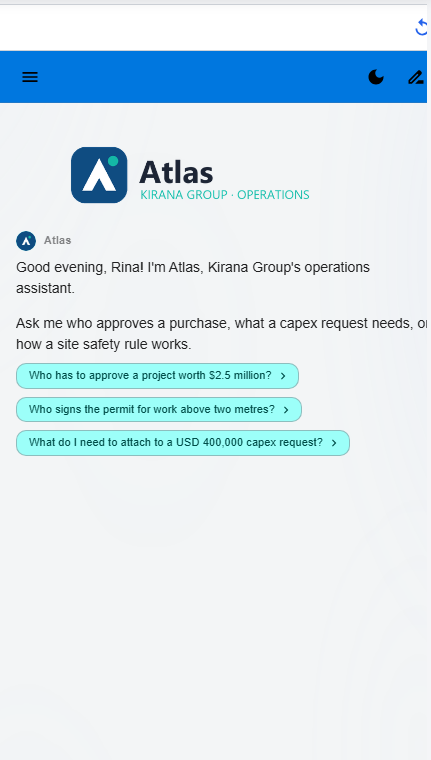
Click Who has to approve a project worth $2.5 million?. Atlas should answer from SOP-FIN-007: Group Risk Office review, then the Regional Director, then the CFO.
The preview runs your draft. End users see the new introduction only after you publish. See Preview and Publish Changes.
Next steps
- Chat: set language, formatting, and other chat features (next step).
- Behavior: mission and personality that inform the AI Modify suggestions.
- Embed Chat on Your Website: set a different introduction per website page.