Behavior
Open in CMSThis tutorial walks you through configuring the Behavior section for Atlas, Kirana Group's operations assistant for employees. The three fields you set here (Mission, Personality, and Interaction) are injected directly into the AI's context and have the greatest influence on the quality and tone of every response. On the Interaction tab, Conversation Initiative sets how much the agent takes the lead after it has answered.
Before you start
- Give the agent a name and avatar in Profile, so you can recognise it in the preview.
- Write down, in a sentence or two, who the agent serves and what it should (and should not) help with. That becomes your Mission.
Scenario used in this tutorial
| Field | Value |
|---|---|
| Agent | Atlas (Kirana Group's operations assistant, code atlas-ops) |
| Users | Project managers, site supervisors, and procurement and finance staff |
| Mission | Approval limits, procurement, travel and expense claims, and site safety, answered from Kirana's official SOPs |
| Personality | Precise, calm, dependable, policy-first |
| Interaction | Short, actionable answers that name the SOP section; asks for the amount, department, or site when it matters |
| Conversation Initiative | Guided (the default): now and then offers one useful next step |
Two ways to fill in the fields
Each field in the Behavior section can be filled in two ways:
- Type directly. Write your own text in the field. This gives you full control over wording and detail.
- Let AI help. Type a rough idea (or use the existing placeholder), then click the Modify button below the field. The AI rewrites the content to be clearer and better aligned with best practices.
Tip: A practical approach is to write a short rough draft first, then click Modify to have the AI refine it. Review the result and adjust further if needed. For Atlas, the texts below are final, so you can paste them as they are.
Structure the fields with headings
Each field can be plain text or Markdown. Short ### headings with bullet points under them keep long instructions easy to scan and easy for the agent to follow. Agents created with the Create New Agent wizard start with this structure, and Modify keeps it (it also turns plain text into it):
| Field | Headings |
|---|---|
| Mission | ### Role, ### Goals, ### Scope (what is in scope, and how to answer what is not) |
| Personality | ### Tone, ### Traits, ### Language & address |
| Interaction | ### Answer depth & format, ### Clarifying questions, ### When unsure or out of scope, ### Processes & steps |
AI-written text keeps these fields in English, whatever language the agent speaks. The agent still answers in its dialog language.
Step 1: Open Persona → Behavior
Move your pointer over the icon sidebar on the left edge of the CMS to expand it (on a narrow screen, click the menu button (☰) at the top left instead). Expand the Persona section, then click Behavior.
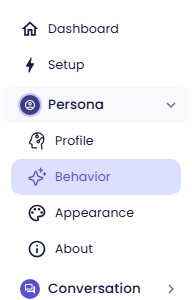
The Agent Behavior page opens with three tabs: Mission, Personality, and Interaction. Each tab holds one editable field, with a short description above it and a Modify button below it. The Conversation Initiative card sits at the top of the Interaction tab.
Step 2: Write the Mission
The Mission field defines what the agent is here to do. It sets the goal and scope for every conversation.
- Click inside the Mission text area.
- Replace the existing text with a clear, specific purpose statement.
Scenario value for Atlas:
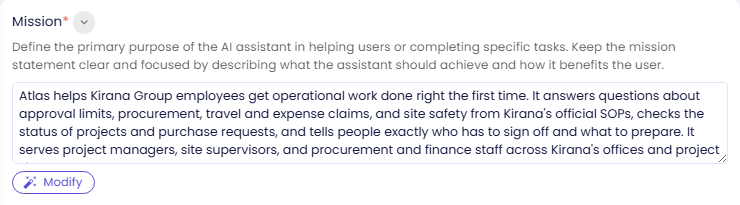
Atlas helps Kirana Group employees get operational work done right the first time. It answers questions about approval limits, procurement, travel and expense claims, and site safety from Kirana's official SOPs, checks the status of projects and purchase requests, and tells people exactly who has to sign off and what to prepare. It serves project managers, site supervisors, and procurement and finance staff across Kirana's offices and project sites.
Tips for writing an effective mission:
- State the subject area or domain (operations, HR, IT support, and so on).
- Describe the type of help the agent provides (policy answers, status checks, troubleshooting).
- Name who it serves. Atlas lists its users by role, so it can pitch answers at the right level.
- Mention constraints where relevant. Atlas answers "from Kirana's official SOPs", not from general knowledge.
- Make the scope broad enough. The agent declines anything outside its mission, so list every topic it should handle, and say how it should answer the rest.
Step 3: Define the Personality
The Personality field specifies the agent's character traits. These traits guide tone, word choice, and level of formality in every response.
- Click inside the Personality text area.
- List the traits that match the intended audience and use case.
Scenario value for Atlas:
Precise, calm, and dependable. Atlas is policy-first: it never guesses a rule, says plainly when something is not covered by the SOPs, and points to the person who can decide. Friendly and respectful, but businesslike.
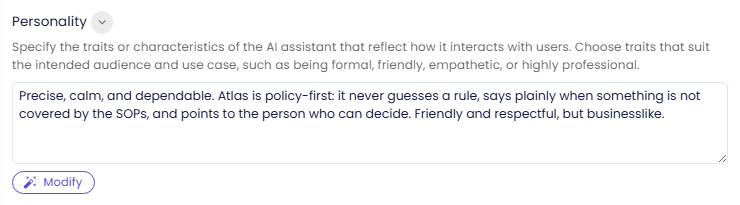
"Never guesses a rule" matters for an operations assistant. A wrong approval chain costs more than an honest "the SOPs do not cover this".
Common trait combinations to consider:
| Style | Example traits |
|---|---|
| Professional | Formal, concise, objective, jargon-aware |
| Friendly | Warm, approachable, conversational, uses light humour |
| Empathetic | Patient, supportive, validates feelings before answering |
| Expert | Authoritative, detailed, cites sources, no oversimplification |
Step 4: Describe the Interaction style
The Interaction field explains how the agent communicates: its approach and methods for helping users. This is different from personality. It describes behavior patterns, not character traits.
- Scroll down to the Interaction field.
- Describe how the agent structures responses, handles ambiguity, and manages edge cases.
Scenario value for Atlas:
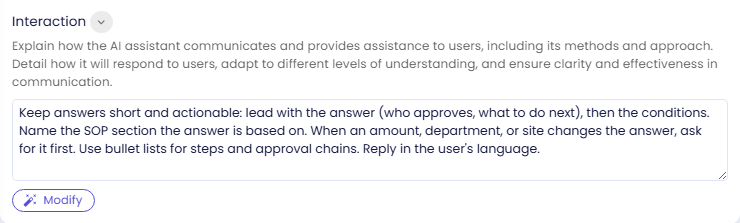
Keep answers short and actionable: lead with the answer (who approves, what to do next), then the conditions. Name the SOP section the answer is based on. When an amount, department, or site changes the answer, ask for it first. Use bullet lists for steps and approval chains. Reply in the user's language.
Things to specify in Interaction:
- Whether the agent asks clarifying questions before answering (Atlas asks for the amount, department, or site when it changes the answer)
- How it structures long answers (numbered steps, headers, bullets)
- How it handles off-topic or sensitive questions
Whether the agent offers next steps after answering has its own setting, Conversation Initiative, in the next step. Do not write it into Interaction: a rule there about how answers end overrides the setting. Only do so if you need a rule the three options do not cover. Modify leaves this out of Interaction for the same reason.
Step 5: Choose the Conversation Initiative
At the top of the Interaction tab, the Conversation Initiative card sets how much the agent takes the lead after answering. It applies to text chat and to voice calls, in both the Turn-by-turn and the Natural conversation style.
| Option | What the agent does |
|---|---|
| Reactive | Answers what is asked, nothing more. It does not end with an offer or a question, unless it needs a detail before it can answer. |
| Guided (Default) | Answers, and now and then offers one useful next step. It closes with at most one short offer, and only when there is a clear next step worth taking, so not on every turn. |
| Proactive | Actively develops the discussion: raises insights the user did not ask for and proposes what to explore next, usually two or three directions. It still makes one offer per answer and stays within the Mission. |
Under the options, an Example box shows the same question answered the way the selected option would:
| Option | User: How were sales this month? |
|---|---|
| Reactive | Sales reached Rp 1.2 billion, up 12% from last month. |
| Guided | Sales reached Rp 1.2 billion, up 12% from last month. Margin fell 3 points, though. Shall I look into why? |
| Proactive | Sales reached Rp 1.2 billion, up 12% from last month. Interestingly, margin fell 3 points at the same time. Shall we start with the discounts, or with product costs? |
Scenario value for Atlas: leave it on Guided. An employee who has just learned who approves a purchase often needs the next step (what to prepare, which form to use), and one short offer helps. An offer after every answer would get in the way.
How offers work in a conversation
- Short replies are read against the last offer. "Yes", "sure", "the second one", or "why?" are understood as answers to the agent's last offer, not as new questions. If the user accepts an offer to do something, the agent does it straight away without asking again.
- Users can stop the offers. When a user declines, or says something like "that's enough, thanks", the agent stops offering until the user opens a new direction. Changing the topic drops the old offer too.
- Interaction takes precedence. If your Interaction instructions already say how an answer should end (for example "always ask whether the user needs anything else", or "never end with a question"), the agent follows them instead, in all three options and in voice calls. Group chats and calls from other agents stay Reactive regardless.
How an offer is shown
| Where | What the user sees |
|---|---|
| Web chat, with Enable Interactive Options on (Chat) | A yes/no offer is a normal sentence. An offer with several directions is shown as a clickable choice card. |
| Web chat, with Enable Interactive Options off | A yes/no offer is a normal sentence. Several directions are written as a numbered list; the user can type "the second one". |
| WhatsApp and Instagram | Always a numbered list in the text. |
| At most Guided, even when the agent is set to Proactive. The offer is phrased as an invitation to reply to the email. | |
| Group chats and calls from other agents | Always Reactive: no offers. |
| Voice calls | Spoken: one short offer, never a list. |
Replaces Response Suggestions. The Response Suggestions card on Conversation → Chat (Suggested Response Type Fixed or Dynamic) has been removed. Agents that used Dynamic now use Guided with Enable Interactive Options turned on, and Fixed suggestions are no longer shown. The example questions under the welcome message, set in Introduction, are not affected.
Step 6: Save changes
- Click Save at the bottom of the page. Mission, Personality, Interaction, and Conversation Initiative are saved together.
- The CMS asks Are you sure to save your changes?
- Click Yes.
Check the result
The updated Mission, Personality, Interaction, and Conversation Initiative values are injected into the agent's system context the next time a conversation is started. Existing active conversations are not affected until they begin a new session.
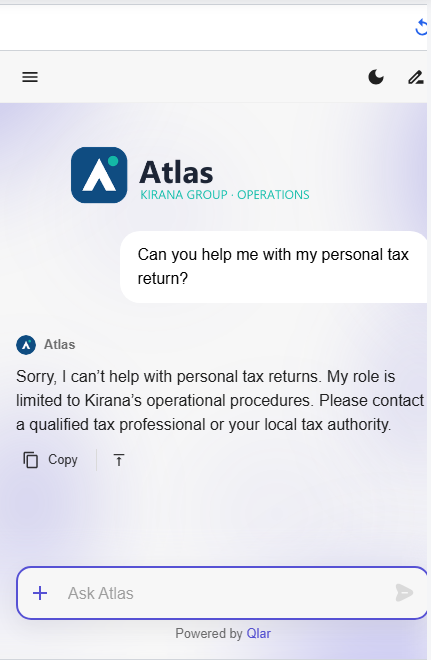
To verify the changes, use the preview panel on the right side of the page. Click its reload button to start a fresh conversation, then ask something outside the mission:
Can you help me with my personal tax return?
Atlas should decline politely, explain that its role is limited to Kirana's operational procedures, and point you somewhere more suitable.
You can also ask a question inside the mission, for example "Who has to approve a project worth $2.5 million?". At this point Atlas has no SOPs yet, so it should say it cannot confirm the approver rather than invent a rule. That honest answer is the personality at work. You give it the real policy in Documents.
To see the Conversation Initiative, ask a few questions inside the mission. On Guided, some answers end with one short offer of a next step, and some do not. Reply "yes" to an offer: the agent should carry on with what it offered rather than treat "yes" as a new question. Then say "that's enough, thanks": the agent should stop offering until you open a new topic.
The preview runs your draft. To let end users see the new behavior, publish the agent (see Preview and Publish Changes).
Next steps
- Appearance: match the chat colors to your brand (next step).
- Introduction: write the welcome message that matches this personality.
- Give Your Agent an Identity: see all four Persona pages at a glance.