Appearance
Open in CMSThe Appearance page sets how your agent's chat looks to visitors. It offers three steps, from easiest to most technical. Pick the one that fits you:
| Step | Who it is for | What you do |
|---|---|---|
| 1 · Just make it pretty | Anyone | Pick a ready-made look. The colors are handled for you. |
| 2 · Use my colors and style | Teams with brand colors | Enter your brand colors and choose the display options. Everything else is derived from them. |
| 3 · I know my CSS | Developers | Read the generated theme CSS and add your own styling on top. |
In this tutorial you give Atlas, Kirana Group's operations assistant, Kirana's brand colors: navy #0F4C81 as primary and teal #14B8A6 as accent.
Before you start
- Upload your logo and avatar in Profile, so you can judge the colors next to them.
- Have your brand colors at hand as hex codes. For Atlas:
#0F4C81and#14B8A6.
Step 1: Open the Appearance page
In the CMS, open your agent and go to Persona → Appearance in the left sidebar. The page shows three numbered cards (steps 1, 2, and 3). Click a card's header to expand or collapse it. A bar at the bottom of the page holds three buttons:
| Button | What it does |
|---|---|
| Reset | Discards your unsaved changes and restores your last saved appearance. The CMS asks you to confirm first, because this cannot be undone. |
| Save | Saves the appearance to your draft, after you confirm Are you sure to save your changes? |
| Preview | Sends your current colors to the preview pane on the right, without saving, so you can compare options. |
Step 2: Browse the ready-made looks (The easy way)
Card 1 · Just make it pretty asks What does your chatbot do? Each chip shows looks designed for that kind of agent: Patient care, Staff operations, Data & analytics, Document Q&A, Lead & intake, Field & logistics, and Finance & IR.
Atlas helps internal staff with SOPs, so click Staff operations. Its description reads "SOP lookup, compliance Q&A, HR onboarding. Internal staff, functional and low-distraction." Four looks appear: Qlar (balanced and on-brand), Slate (neutral, no-nonsense), Moss (calm, operational green), and Obsidian (pure dark, focused).
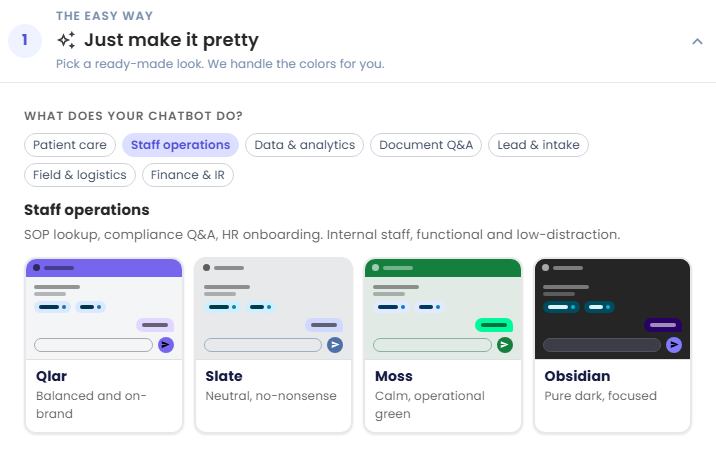
Clicking a look applies it at once: its four colors, plus its own header bar, color scheme, and background. If you have no brand colors, this is all you need. Click Preview to see it, then Save.
Kirana has brand colors, so for Atlas you move on to step 2. Browsing the looks first is still useful: they show you which header bar and background styles suit an internal staff tool.
Step 3: Enter your brand colors (If you have brand colors)
Card 2 · Use my colors and style has two columns: Your brand colors on the left and Display options on the right.
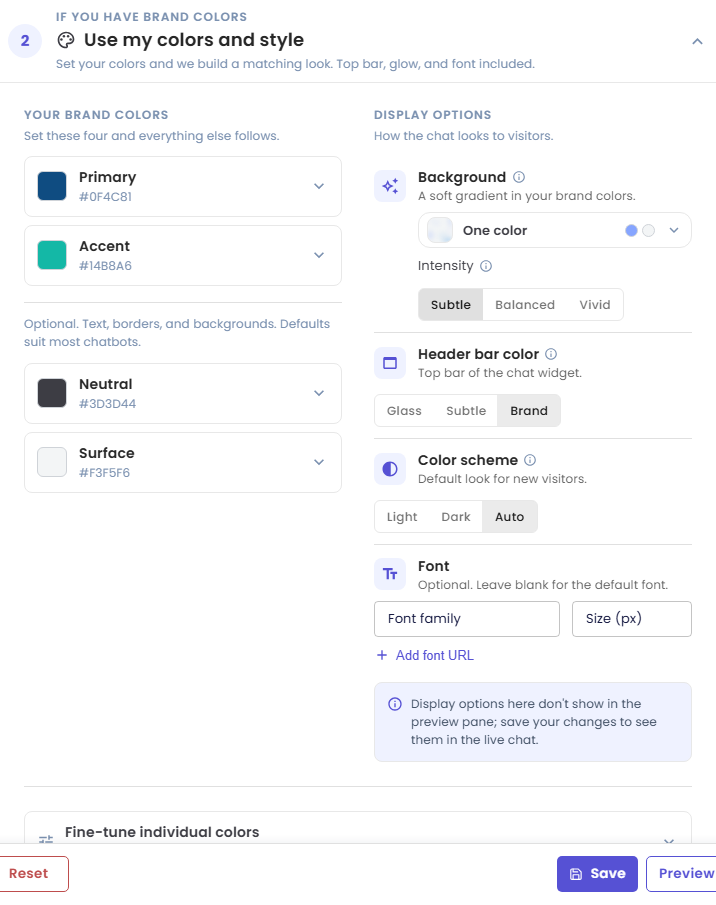
The brand colors are the base of the whole theme. Set them and every component color follows.
| Color | What it drives |
|---|---|
| Primary | Buttons, the top bar, the send button, and primary calls to action. |
| Accent | Links, reference (citation) text, and suggestion arrows. |
| Neutral (optional) | Text, borders, icons, and disabled states. |
| Surface (optional) | Backgrounds and card fills. |
Neutral and Surface are grouped under "Optional. Text, borders, and backgrounds. Defaults suit most chatbots." Their shades adapt to light and dark mode automatically.
To set Atlas's colors:
- Click the Primary row to open it, then enter
#0F4C81in the color field (or pick a swatch). - Click the Accent row and enter
#14B8A6. - Leave Neutral (
#3D3D44) and Surface (#F3F5F6) at their defaults.
When a row is open, it also shows the shade ramp generated from your color, and a note if the color may be hard to read or clashes with Primary. If your agent has no separate accent, click Use primary instead in the Accent row: links, chips, and references then follow your primary color.
Step 4: Choose the display options
The Display options column sets how the chat looks to visitors.
| Option | Choices | What it does |
|---|---|---|
| Background | Plain, One color, Two colors, plus Intensity: Subtle, Balanced, Vivid | A soft gradient in your brand colors behind the chat. Intensity sets how strong the gradient looks. Visitors can turn the gradient off for themselves; pick Plain to remove it for everyone. |
| Header bar color | Glass, Subtle, Brand | The top bar of the chat widget. Glass frosts whatever scrolls behind the bar instead of painting a color. |
| Color scheme | Light, Dark, Auto | The look new visitors see first. They can still switch in the chat. |
| Font | Font family, Size (px), Add font URL | Optional. Leave blank for the default font. A font URL is only needed for a font that is not already on visitors' devices, such as a Google Fonts stylesheet. |
For Atlas:
- Keep Background on One color and set Intensity to Subtle. Atlas is a work tool, so the gradient should stay in the background.
- Set Header bar color to Brand, so the top bar carries Kirana's color.
- Keep Color scheme on Auto, so the chat follows each visitor's device setting.
- Leave Font blank.
Note: As the notice under the options says, display options don't show in the preview pane. Save your changes to see them in the live chat.
Step 5 (optional): Fine-tune individual colors
Below the two columns, Fine-tune individual colors opens a per-component color list. Use it only when one component needs a different color. The rest keep following your brand.
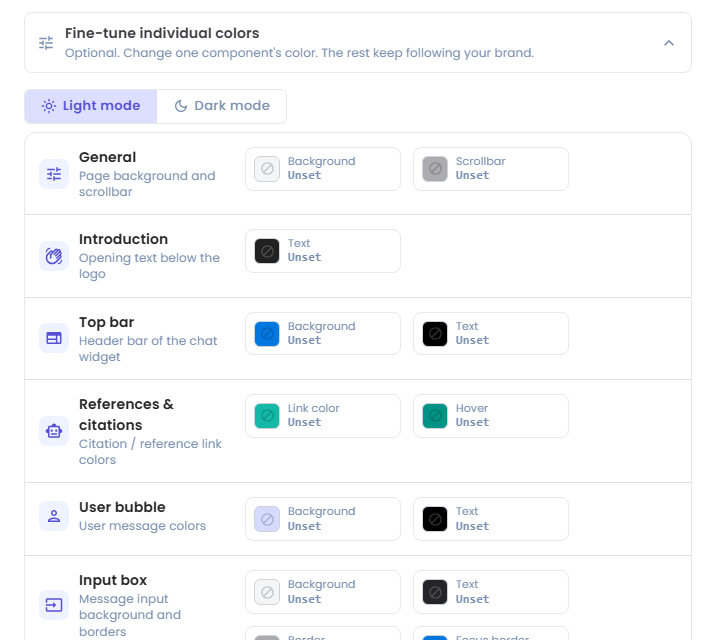
- Use the Light mode and Dark mode tabs to choose which mode you are editing.
- Colors are grouped by component: General (page background and scrollbar), Introduction (opening text below the logo), Top bar, References & citations, User bubble, Input box, Send button, Suggestions, Uploads, and Tables.
- Every color shows Unset until you override it. Unset means it uses the value derived from your brand colors. Clear an override to go back to that value.
- You can lock a color so that Reset and section re-sync don't change it.
If you have overridden colors and then change a brand color, a notice appears: Changed your base colors? Select Update colors to sync every component to your new brand colors. Locked colors are kept.
Atlas does not need any overrides. Leave this section closed.
Step 6 (optional): Add custom CSS (For developers)
Card 3 · I know my CSS is for developers who want full control.
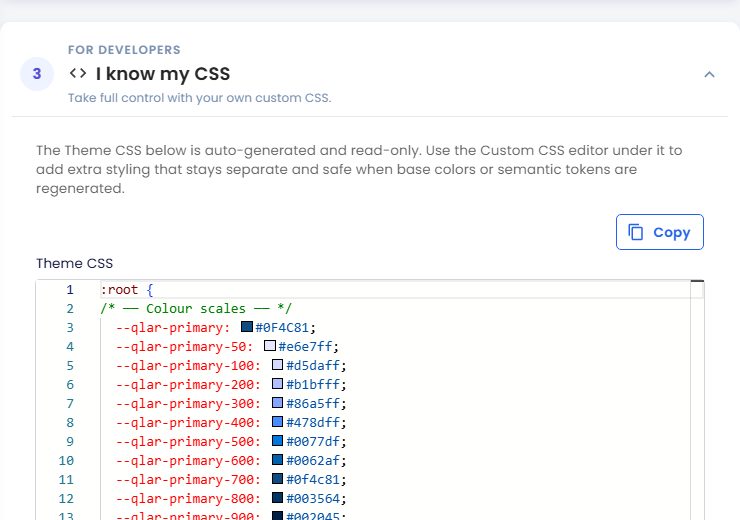
- Theme CSS is auto-generated from your brand colors and display options. It is read-only and updates whenever you change them. Click Copy to copy it, for example to see which
--qlar-*variables exist. - Custom CSS, below it, is where you add extra styling. It is kept separate from the Theme CSS, so it stays safe when the theme is regenerated after a color change.
Use Custom CSS for details the theme does not cover. For example:
/* A slightly cooler page background */
:root {
  --qlar-body-bg: #F5F8FB;
}
Check custom CSS in both light and dark mode before you publish. Atlas does not need custom CSS.
Step 7: Save your changes
- Click Save in the bar at the bottom of the page.
- The CMS asks Are you sure to save your changes?
- Click Yes.
Check the result
After you save, the preview pane on the right reloads with the new theme. Ask Atlas a question, for example "Who approves a USD 80,000 purchase?", and check that:
- The top bar uses the brand color.
- The user bubble picks up a light tint of the primary color.
- Reference links in the answer are teal, from the accent color.
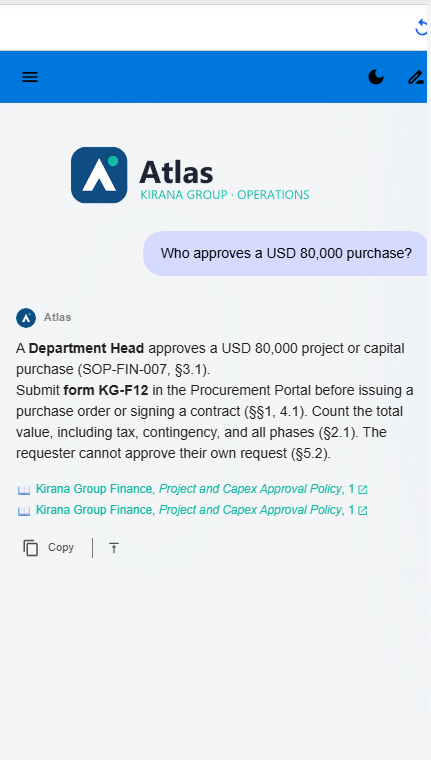
The answer in this screenshot comes from the approval SOP you upload in Documents. If you have not uploaded it yet, ask any question: the colors are what you are checking here.
Also check the chat in both light and dark mode, and make sure text stays easy to read on every background. Display options (background, header bar, color scheme, font) show in the live chat; open it full-size with the top bar Preview button.
End users see the new look only after you publish. See Preview and Publish Changes.