Let Other Agents Call Yours
Open in CMSIn this tutorial you make your agent reachable by other agents. You will turn on Agent-to-Agent, fill in your agent's card so other agents know what to ask it, choose which tools they may use, and create a key for each agent you let in.
Before you start
- Read Work With Other Agents to understand the outbound and inbound directions.
- Your agent answers its specialist questions well in Preview. Other agents will rely on those answers.
- You know how to publish changes. See Preview and Publish Changes.
- You have Owner or Contributor access to the agent.
This tutorial continues the Pharmacy example: you own the internal Pharmacy agent and want the public Front Desk agent to ask it about medicine stock.
Step 1: Turn on Agent-to-Agent
- Open Channels → Agent-to-Agent in the left sidebar. A blue box reads This is the inbound direction.
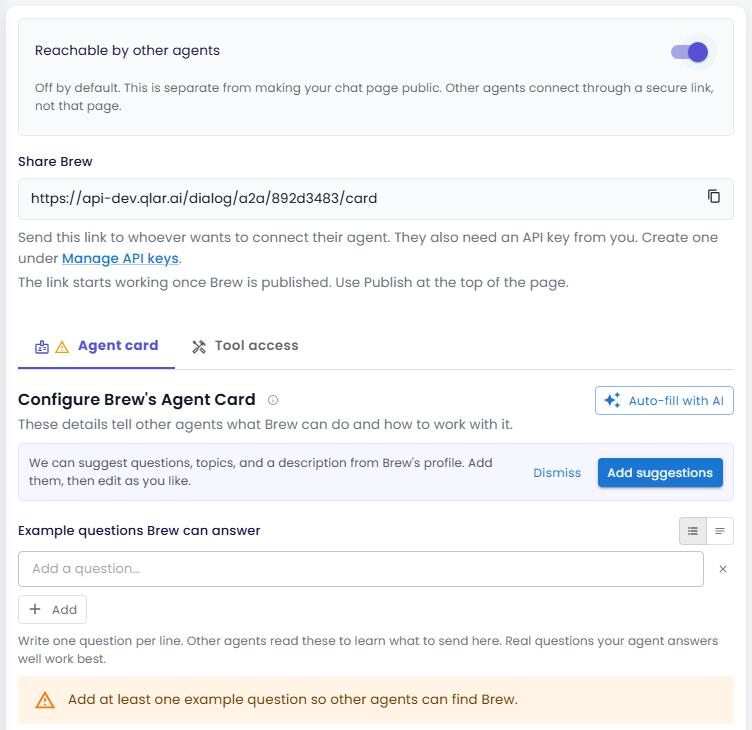
- Switch on Reachable by other agents.
The switch is off by default. It is separate from making your chat page public: other agents connect through a secure link, not through your public chat page. The rest of the page only appears once the switch is on.
Step 2: Copy the share link
Under Share followed by your agent's name, you see your agent's link with a copy button. This is the link you give to whoever wants to connect their agent. If it says "Save this agent first to get its link.", save the page first.
The link starts working once your agent is published (Step 7).
Step 3: Fill in the agent card
The Agent card tab describes your agent to other agents, like a business card: who it is, what it is good at, and how to reach it.
You can let qlar draft it for you: click Auto-fill with AI, or click Add suggestions when qlar offers questions, topics and a description from your agent's profile. Review and edit what it fills in.
| Field | What to write | Pharmacy example |
|---|---|---|
| Example questions | One question per line. Other agents read these to learn what to send here. Real questions your agent answers well work best. | Is amoxicillin in stock at the Kemang branch? What is the price of paracetamol 500 mg? |
| Topics (optional) | Type a topic and press Enter. These help other agents find your agent. | stock, medicine, prices |
| Description (optional) | What other agents see when they discover your agent. It starts from the agent's mission. | "Checks medicine stock and prices at each hospital branch." |
Add at least one example question. Without one, a warning appears on the tab and other agents cannot find your agent.
Open Advanced technical details to see the protocol (A2A, JSON-RPC 2.0), the endpoint, and the current limits: your agent replies in text only, one complete reply per request, and it can pause to ask the calling agent a question when it needs more information.
Step 4: Choose which tools callers may use
Open the Tool access tab. The header shows how many tools are allowed, for example 1 of 4 allowed.
Other agents can always ask your agent questions. Everything else is off until you allow it. Turn on only what you would be comfortable with a stranger's agent using.
- Use Search tools or the All, Allowed and Not allowed filters to find a tool.
- Switch on each tool callers may use. Tools are grouped as Built-in (for example Web search), Your custom tools, MCP tools and Plugins.
A fixed section at the bottom lists tools you cannot change. The Knowledge base is always on (read-only). Hand over to a person and tools that call other agents can never be allowed, so a caller cannot reach your supervisors or chain through to your other agents.
Example: the Pharmacy agent has a custom
check_stockAPI and acreate_orderAPI. Allowcheck_stockonly. Front Desk can then check stock, but can never place an order.
Step 5: Save
Click Save all changes at the bottom of the page and confirm.
Step 6: Create a key for the caller
Every agent that connects needs a key from you. No key, no entry.
- Open Channels → Agent Keys (the Agent-to-Agent page links to it under Manage API keys).
- Under Make a key for another agent, fill in:
- Who is this key for?: name it after the caller, for example
Front Desk agent. - How long should it work?: 7, 14, 30, 90 or 365 days. The key stops working on its own when the time is up.
- Who is this key for?: name it after the caller, for example
- Click Create key and confirm.
- The new key opens in the Keys you've handed out list. Copy the Main key and send it, together with the share link from Step 2, to the other agent's owner.
Each key entry has two values: a Main key to hand out and a Backup key to keep ready, so you can swap keys without downtime. In each entry you can also:
| Action | What it does |
|---|---|
| Replace | Creates a new value for the main or backup key. The old value stops working right away, and you choose how long the new one lasts. |
| Turn off / Turn back on | Blocks both values of the key immediately, or allows them again. The entry shows Turned off or Active. |
| Rename | Changes the key's name. |
| Delete key | Removes the key for good. |
Step 7: Publish
Click Publish at the top of the CMS. Your share link only starts working once the agent is published, and other agents always talk to the published version.
Agent Keys and the classic protocol
The keys on Channels → Agent Keys serve two kinds of callers:
- A2A callers, as described above. A turned-off or expired key is refused.
- Classic callers, which use the older key-based connection: another agent's owner enters your agent's code and one of your keys under Classic connections (manual key) on their Tools → Other Agents page.
The classic protocol is pending sunset. When it is retired, the Agent Keys page will merge into Agent-to-Agent. Until then, keep the keys of any classic callers in place, and give new callers the share link plus a key so they connect over A2A.
Check the result
- On the calling agent (for example Front Desk), connect your agent with the share link and key, as described in Call Other Agents.
- Ask the calling agent one of your example questions in its Preview. It should get the answer from your agent.
- On your Agent Keys page, click Turn off for that key and ask again. The calling agent should no longer reach your agent. Click Turn back on when you are done.
Next steps
- Next in the journey: Talk by Voice, to let people speak with your agent.
- Call Other Agents: the outbound direction.
- Reference: Agent-to-Agent and Agent Keys.