About
Open in CMSThe About page lets you publish an optional public profile for your agent: a short description, social media links, and contact details that end users can open from within the chat interface. It's a good place to answer "who made this, and how do I reach a human?" without cluttering the conversation itself.
In this tutorial you give Atlas, Kirana Group's operations assistant, an About page that tells employees what Atlas covers and how to reach the Operations Excellence team.
Before you start
- Set the agent's name, logo, and avatar in Profile. They are shown alongside the About description.
- Collect the links and contact details you want to share publicly (website, social accounts, email, phone).
Step 1: Open the About page
In the CMS, open your agent and go to Persona → About in the left sidebar.
Step 2: Turn on the About page and write the description
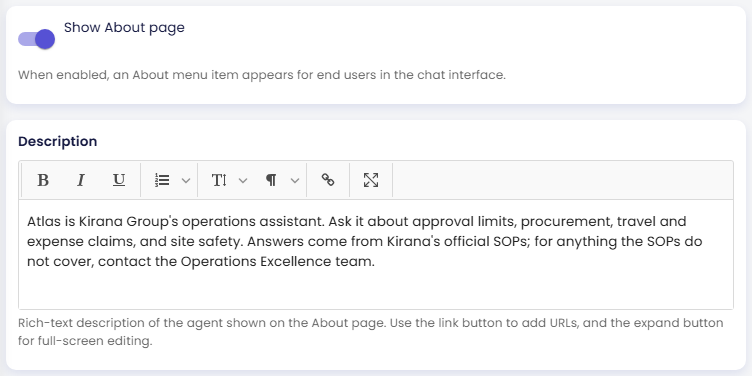
Show About page
Turns the About page on or off. When enabled, an About item (with an info icon) appears at the bottom of the chat sidebar. Clicking it takes the user to a dedicated page with your description, social links, and contact details; a back arrow returns them to the conversation.
When disabled, no About entry is shown to end users, regardless of what you've filled in below. Existing content is kept, just hidden.
For Atlas, turn Show About page on.
Description
A rich-text field for describing the agent: who it is, what it does, and why it's helpful. Use the link button in the toolbar to add clickable URLs, and the expand button to edit full-screen.
This is the first thing users see on the About page, directly below your agent's logo and name. For Atlas, enter:
Atlas is Kirana Group's operations assistant. Ask it about approval limits, procurement, travel and expense claims, and site safety. Answers come from Kirana's official SOPs; for anything the SOPs do not cover, contact the Operations Excellence team.
A good description says what the agent covers, where its answers come from, and who to contact when it cannot help.
Step 3: Add social links and contact details
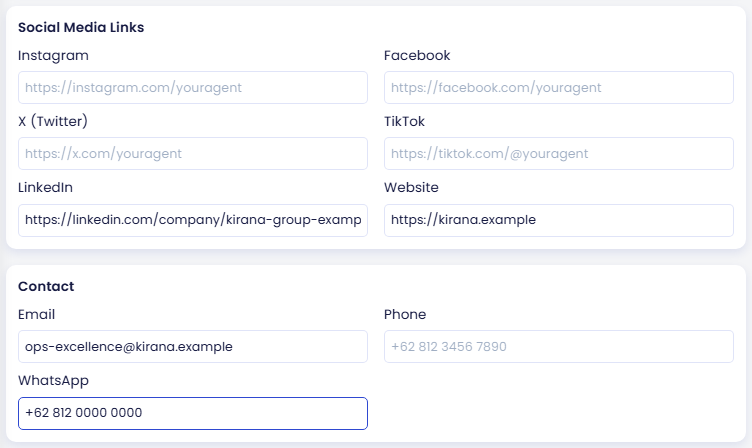
Social Media Links
Links to your agent's or organization's social profiles, shown as a row of clickable icons under a "Connect" heading. All fields are optional. Only the platforms you fill in are shown; empty ones are omitted entirely.
The fields are Instagram, Facebook, X (Twitter), TikTok, LinkedIn, and Website. Atlas is an internal tool, so it only links to Kirana's company profile and website:
| Field | Value for Atlas |
|---|---|
https://linkedin.com/company/kirana-group-example | |
| Website | https://kirana.example |
Leave Instagram, Facebook, X (Twitter), and TikTok empty.
Contact
Direct contact details, shown as a list of tappable rows under a "Contact" heading. Like social links, only the fields you fill in appear.
| Field | Behavior when tapped | Value for Atlas |
|---|---|---|
Opens the user's mail client with the address pre-filled (mailto:) | ops-excellence@kirana.example | |
| Phone | Starts a call on devices that support it (tel:) | (empty) |
Opens a WhatsApp chat with the number (wa.me) | +62 812 0000 0000 |
Enter phone and WhatsApp numbers in international format (e.g.
+62 812 0000 0000) so thetel:andwa.melinks resolve correctly regardless of the user's device or country.
Step 4: Save your changes
- Click Save at the bottom of the page.
- The CMS asks Are you sure to save your changes?
- Click Yes.
Publish your agent to make the changes visible to end users.
Check the result
After you save, the preview panel on the right side of the page reloads with your draft. For a full-size view, click Preview in the top bar to open the draft in a new tab. Open the About item at the bottom of the chat sidebar. You should see:
- The Atlas logo and name, followed by the description.
- Under Connect, two icons: LinkedIn and Website.
- Under Contact, the Email and WhatsApp rows. There is no Phone row, because you left it empty.
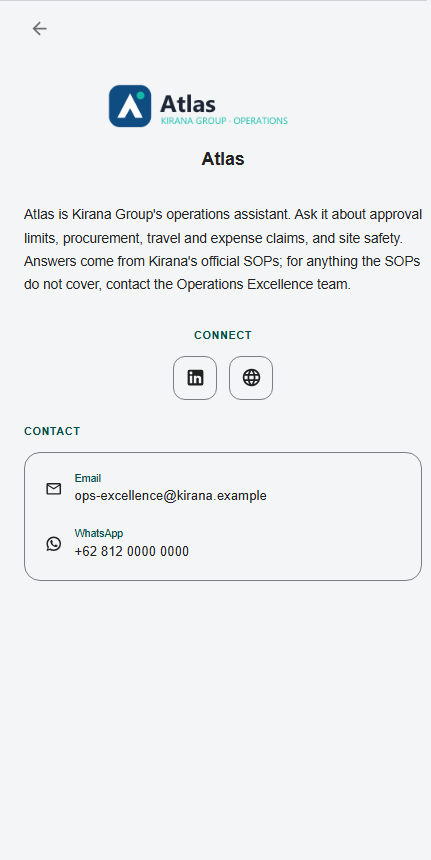
If Show About page is off, the About item should not appear.
End users see the About page only after you publish. See Preview and Publish Changes.
Next steps
- Teach Your Agent: give your agent the documents and websites it should answer from (next step).
- Profile: agent name, URL code, logos, and avatar shown alongside the About description.
- Appearance: colors and theme applied across the chat interface, including the About page.