Profile
Open in CMSThe Profile page is where you define the visual and identifying properties of your agent. These settings appear directly in the chat interface and determine how users recognise and access your agent.
In this tutorial you set up the profile of Atlas, Kirana Group's operations assistant: its name, its link, its timezone, its logos and avatar, and the small print below the chat input.
Agent kind. The Profile page also shows whether this is a personal or a service agent, with a short explanation. Owners and Admins get a Change agent kind link to Manage agent › Agent Kind. See Personal vs Service Agents.
Before you start
- You have an agent. If not, follow Create Your First Agent first.
- Have your logo and avatar images ready if you want to replace the defaults. For Atlas you need a wide logo for light mode, a wide logo for dark mode, and a square avatar.
- New to this section? Skim the Overview to see where Profile fits in the journey.
Step 1: Open the Profile page
In the CMS, open your agent and go to Persona → Profile in the left sidebar. The page is titled Agent Profile and is made of cards: the identity fields, Agent Logo, Avatar, and Disclaimer.
Step 2: Set the name, code, and timezone
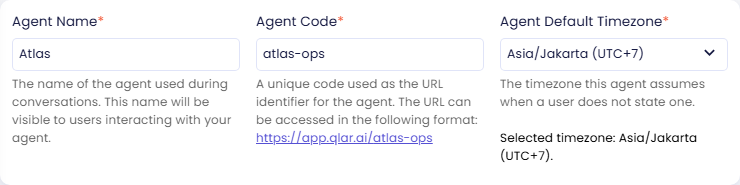
Agent Name, Agent Code, and Agent Default Timezone sit together in the first card. For Atlas, fill in:
| Field | Value |
|---|---|
| Agent Name | Atlas |
| Agent Code | atlas-ops |
| Agent Default Timezone | Asia/Jakarta (UTC+7) |
Agent Name
The name shown in the chat header and throughout the user interface. Choose a name that reflects your agent's role and is easy for users to remember.
Example values: Atlas, Nova, Aria, Kira
Agent Code
A short, URL-safe identifier that becomes part of your agent's public link. The helper text under the field shows the full link as you type. For Atlas it is:
https://app.qlar.ai/atlas-ops
When you create an agent, the CMS gives it a random code of eight letters and digits, for example 892d3483. You can replace it with something easier to remember.
The field is required, and the code must be unique across all agents on the platform (not only in your organization). The check ignores upper and lower case, so Atlas-Ops and atlas-ops count as the same code. If the code is already taken, saving fails and you need to choose another one. The CMS does not restrict which characters you use, but because the code becomes part of a link, stick to lowercase letters, digits, and hyphens and avoid spaces. Once the code is set and shared publicly, avoid changing it, because existing links will break.
Example values: atlas-ops, hr-assistant, nova-v2, 892d3483
Agent Default Timezone
The timezone the agent assumes when a user does not state one. It is the reference point for all date and time reasoning performed by the agent.
This affects:
- Thread separation (conversations are split at midnight in this timezone)
- Any date/time-aware responses or scheduled actions
Kirana's offices and project sites are in Indonesia, so Atlas uses Asia/Jakarta (UTC+7).
Choose the timezone that represents your primary user base. Users in other timezones can still interact normally. This setting only affects how the agent interprets "today" and daily boundaries internally.
Step 3: Upload the logos
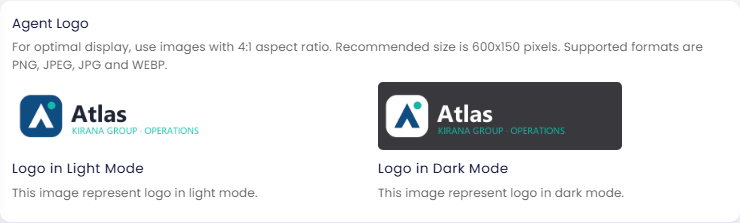
The logo is shown in the chat header and on the agent listing page. Upload separate versions for light mode and dark mode so the logo is always legible. Click each image area in the Agent Logo card to upload a file.
| Variant | Recommended use |
|---|---|
| Logo in Light Mode | Displayed when the user interface is in light mode |
| Logo in Dark Mode | Displayed when the user interface is in dark mode |
Image requirements:
- Aspect ratio: 4:1 (wide/banner format)
- Recommended size: 600 × 150 pixels
- Formats: PNG, JPEG, JPG, WEBP
If you only upload one variant, the same image is used for both modes. Use a version with sufficient contrast for each background.
For Atlas, the light mode logo has dark text on a light background, and the dark mode logo has white text so it stays readable on a dark header.
Step 4: Upload the agent avatar
The Agent Avatar is a small circular image shown next to the agent's messages in the conversation thread. There is one avatar, for the agent. Users do not get an avatar field here.
Image requirements:
- Aspect ratio: 1:1 (square)
- Recommended size: 128 × 128 pixels
- Formats: PNG, JPEG, JPG, WEBP
For Atlas, upload the navy Atlas mark on its own, without the wordmark. It is shown small, so a simple icon reads better than the full logo.
Step 5: Decide on the disclaimer and the Qlar backlink
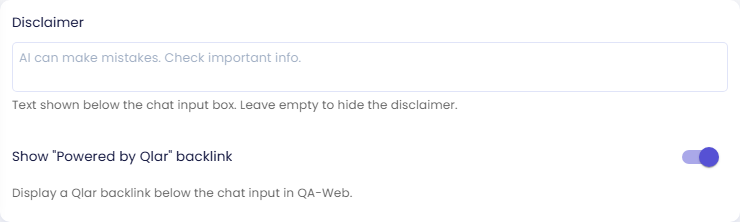
The Disclaimer card holds two settings that appear below the chat input box in QA-Web.
Disclaimer
A short text shown below the chat input box, for example to remind users of AI limitations. The helper text says it plainly: Leave empty to hide the disclaimer. The grey text inside the empty field ("AI can make mistakes. Check important info.") is only a placeholder suggestion. If you want that text shown, type it into the field.
For Atlas, leave the field empty. Atlas names the SOP section behind every answer, so people can check the source themselves, and the chat stays uncluttered. If your agent gives advice people should double-check, type a short reminder instead.
Show "Powered by Qlar" backlink
When this switch is on, QA-Web displays a Qlar backlink below the chat input. Turn it off if you do not want the link shown. For Atlas, leave it on.
Step 6: Save your changes
- Click Save at the bottom of the page.
- The CMS asks Are you sure to save your changes?
- Click Yes.
Saving is disabled while an image is still uploading, so wait for every upload to finish first. Changes take effect immediately in the preview panel. To make them visible to end users, you must also Publish your agent.
Check the result
After you save, the preview panel on the right side of the page reloads with your changes. Check that:
- The name Atlas and the Atlas logo appear in the chat.
- The round Atlas avatar appears next to the agent's messages.
- Below the chat input you see Powered by Qlar and no disclaimer, because the Disclaimer field is empty. If you typed a disclaimer, it appears there too.
- The agent answers date questions (for example, "What day is it today?") using Jakarta time.
The preview runs your draft. End users keep seeing the published version until you click Publish. See Preview and Publish Changes.
Next steps
- Behavior: write the mission and personality that shape every answer (next step).
- Appearance: match the chat colors to your brand.
- About: add a public description and contact details.