Build Your First Test Suite
Open in CMSIn this step you build the first test suite for Atlas, Kirana Group's operations assistant. You make a folder called Kirana Projects, write three short scenarios about what Atlas knows from SOP-FIN-007 and the site safety briefing, run all of them at once against the live Atlas, and read the result. It takes about fifteen minutes.
A scenario is a short conversation that you write once: what the user says, and what you expect Atlas to answer. You do not have to write the answer word for word. You describe what a good answer must contain, and AI checks every answer against that. These are the criteria of the scenario.
AI is involved in several places. Qlar suggests the criteria, Atlas writes its answers, and AI judges whether each answer matched. These can differ every time, so what you see will not be word for word what this page shows. Read the page for the shape of the result, not the exact text.
This page follows Atlas through the first run. For the same steps on a different agent, see Your First Simulation.
Before you start
- Atlas can already answer from SOP-FIN-007 and from the site safety briefing. See Documents and Videos. A suite is only as useful as the answers it checks.
- The agent is published. A first run uses Published, the version employees talk to now. See Preview and Publish Changes.
- You have the Owner or Contributor role on the agent.
- You have read Test Your Agent's Quality to see where this page fits.
Step 1: Open Simulation
- Open Atlas in the CMS.
- In the sidebar, open Simulation and click Scenarios.
The Conversation Simulation page opens on its Scenarios tab. The Results tab next to it stays empty until you run something. The Folders panel on the left lists All folders and every folder the agent already has. On an agent without folders it says No folders yet instead.
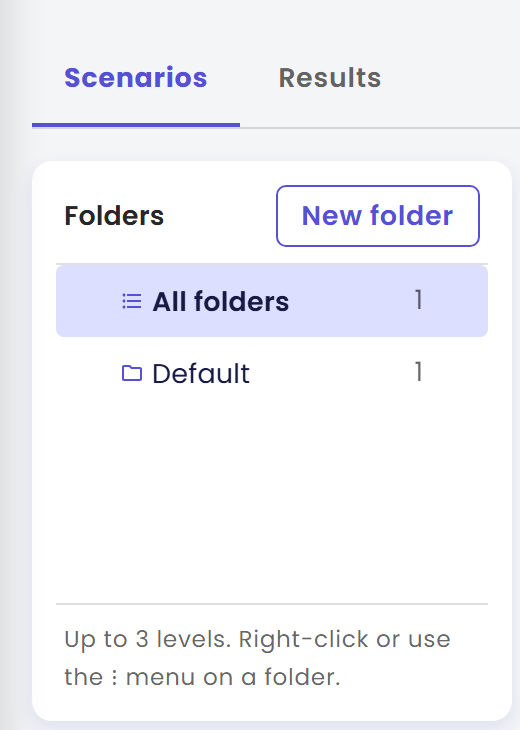
Step 2: Create the Kirana Projects folder
Scenarios live in folders, so make one first.
- In the Folders panel, click New folder.
- In the Create New Folder dialog, type
Kirana Projectsin Folder Name. - Click Create, then Close on the success message.
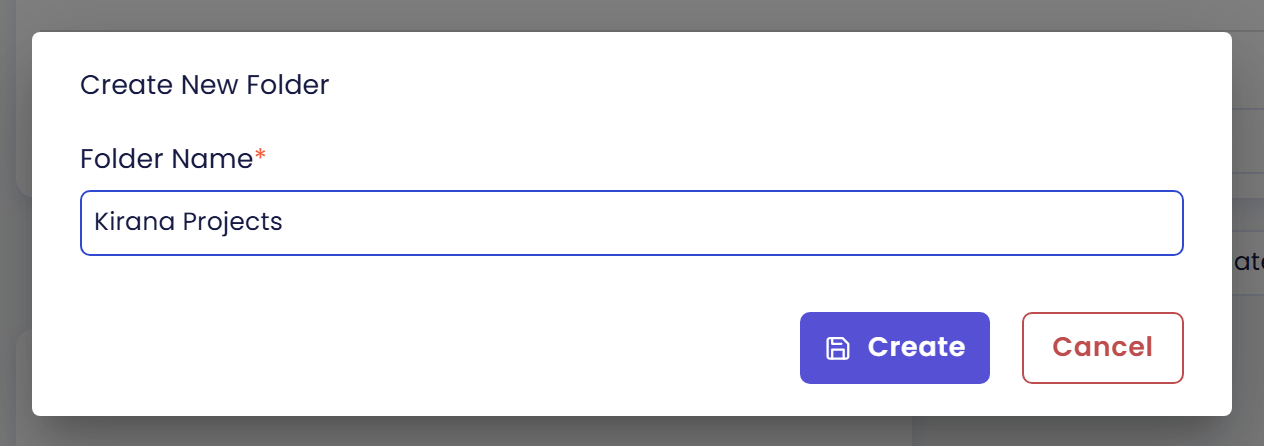
The folder shows in the Folders panel. Click it, so that the scenarios you write next go into it.
Step 3: Write the first scenario
The first scenario checks the question you asked in Documents: who approves a project worth $2.5 million.
-
Click New Scenario, above the list. The Create New Scenario form opens with one empty step. The setup pane on the left (Agent Tools, Tool Mocks, Date and Time) is for the next pages. Ignore it for now.
-
Under Scenario Step (1), in Step 1, write the User Message:
Who has to approve a project worth $2.5 million? -
Write the Expected Response in your own words:
Atlas gives the approval chain from SOP-FIN-007: Group Risk Office review, then the Regional Director, then the CFO.
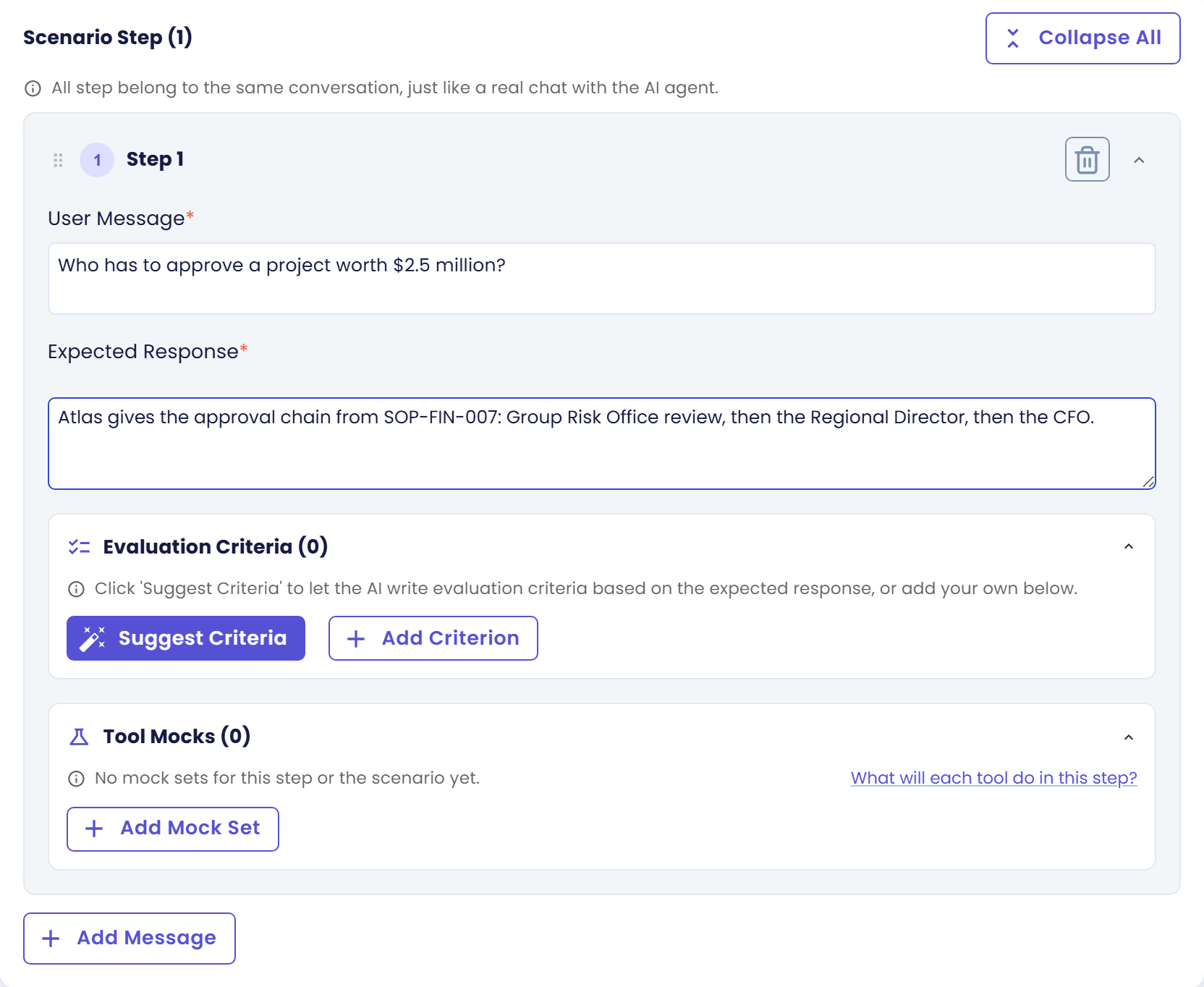
- Click Suggest Criteria. Qlar writes criteria from your expected response, and the Evaluation Criteria box lists them. Qlar writes between one and three, so your list can be shorter or longer than the examples below. With one criterion the box reads Evaluation Criterion (1) and the button reads Rewrite Criterion. With more, it reads Evaluation Criteria (n) and Rewrite Criteria.
- Read each criterion. Edit it, remove one with the trash icon, or click Add Criterion to write your own. Keep the ones that really matter, for example:
- The answer lists the Group Risk Office review.
- The answer lists the Regional Director.
- The answer lists the CFO, last.
- The answer names SOP-FIN-007 as the source.
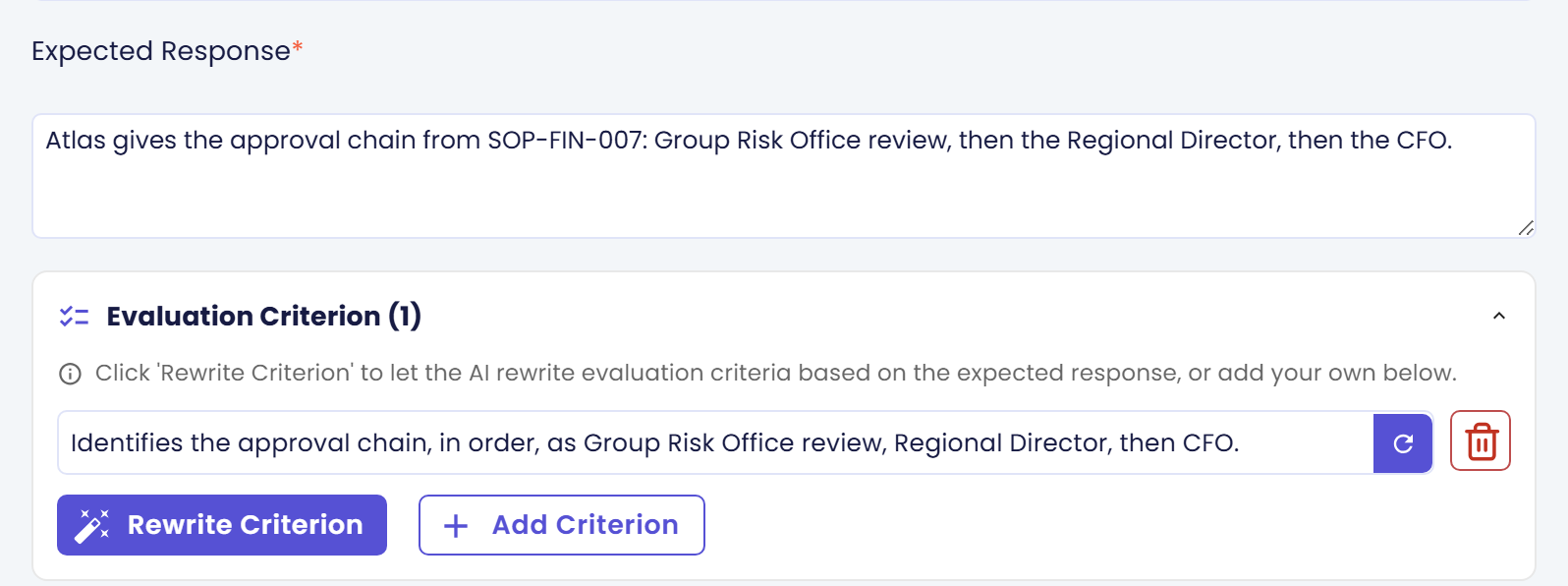
When every step has criteria, Suggest All Criteria at the bottom of the form is replaced by Save.
Step 4: Save the scenario into the folder
- Click Save. Qlar suggests a name from your steps, for example one about the approval authority, and opens the Scenario Information dialog.
- Check the Scenario Name. Replace the suggestion with
Approval chain for a $2.5 million project. - Check the Folder. It is already Kirana Projects, because you selected that folder first. If not, pick it from the list.
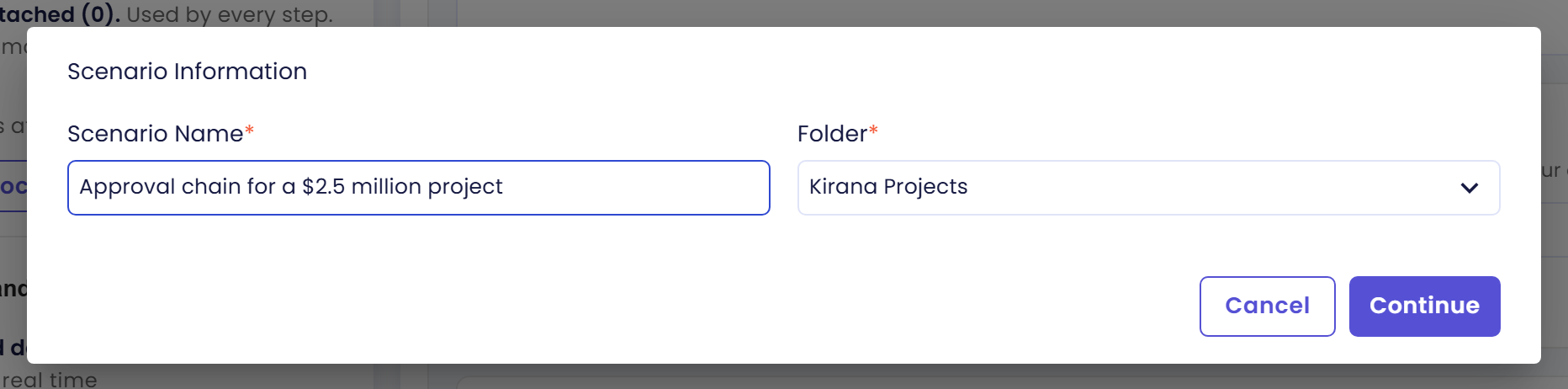
- Click Continue, then Yes to "Are you sure you want to create this scenario?".
- When "Scenario created successfully" appears, click Close.
You are back on the Scenarios tab, and the scenario is in the list with its folder and its number of steps.
Step 5: Write two more scenarios
Repeat steps 3 and 4 with these two. They use the same controls. The second one has two steps, so click Add Message to add the second step.
| Scenario 2 | Scenario 3 | |
|---|---|---|
| Scenario Name | Capex request attachments | Permit for work at height |
| Step 1, User Message | What do I need to attach to a USD 400,000 capex request? | Who has to sign the permit for work above two metres on site? |
| Step 1, Expected Response | Form KG-F12 and three vendor quotations, with the approval chain Department Head, then Finance Controller. | The site HSE officer must sign the permit before work starts. |
| Step 2, User Message | Where do I submit the form? | |
| Step 2, Expected Response | In the Procurement Portal. |
For each step click Suggest Criteria and read what Qlar wrote. With two steps, Suggest All Criteria (1/2 Steps ready) fills in the rest for you. The numbers count the steps that already have criteria.
On Step 1 of Capex request attachments, also click Add Criterion and write The answer is no longer than two sentences. Atlas answers a question like this with a full list, so this is a check it will fail. You need one failing criterion in step 7 to see what a failure looks like.
Good criteria are specific: "The answer names form KG-F12" can be checked, while "The answer is helpful" cannot. Write Good Scenarios goes deeper into writing them.
Step 6: Run the folder
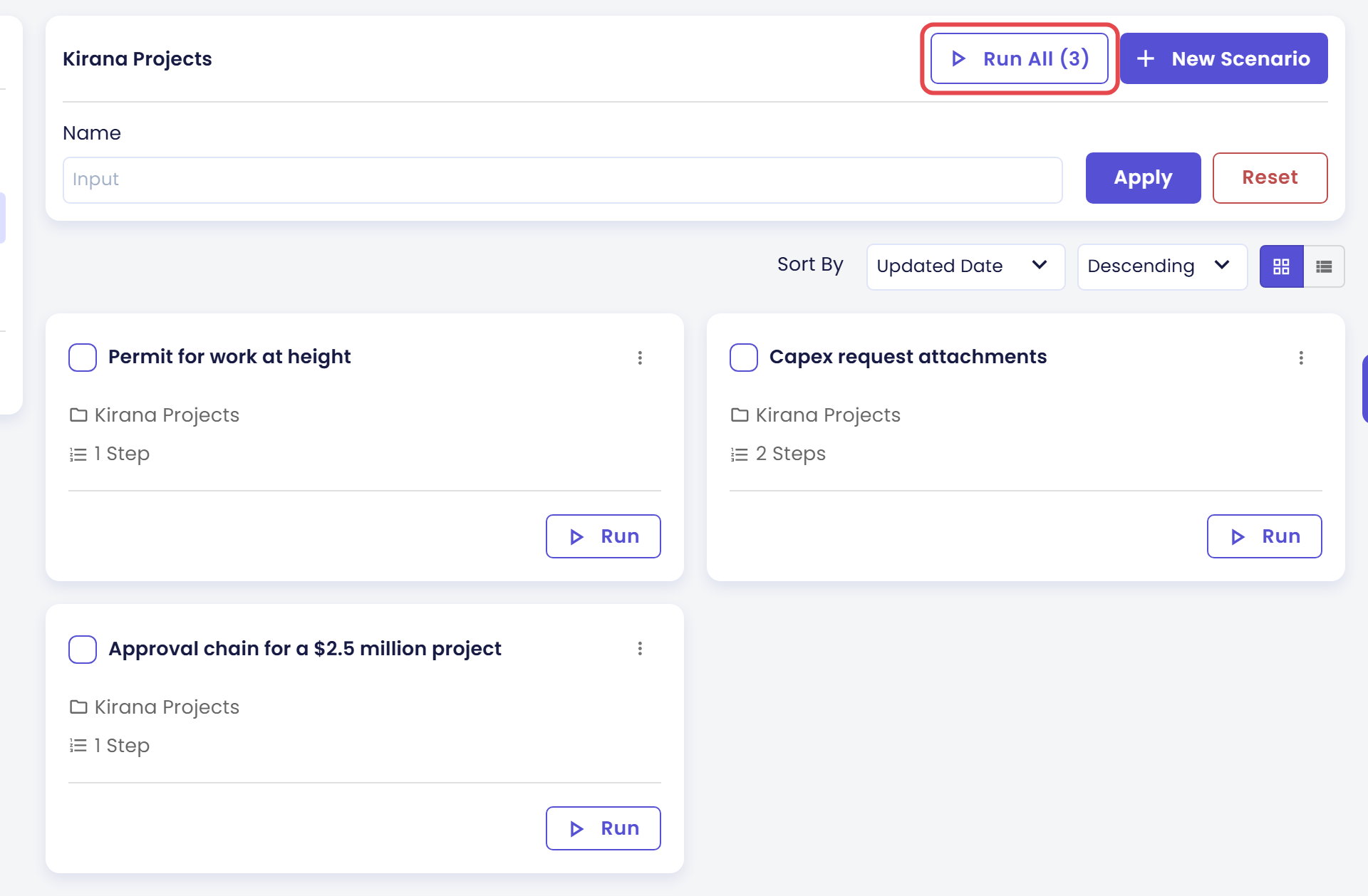
- In the Folders panel, click Kirana Projects.
- Above the list, click Run All (3). A confirmation titled Attention opens and asks
Run all 3 scenarios in "Kirana Projects"? - Under Run against, choose Published. It says "What your users talk to now." The Draft option is for Test Changes Before You Publish. On an agent that has not been changed since it was published, it says "Same as published right now".
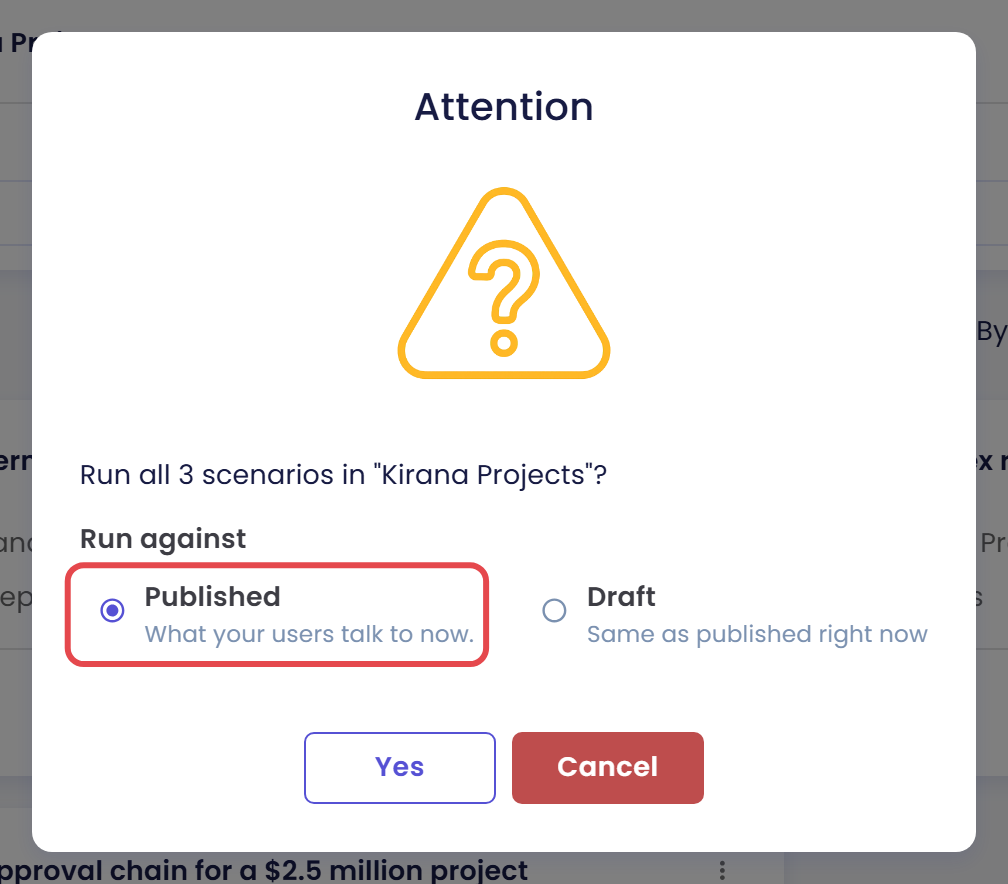
- Click Yes.
- When the success message says the run started successfully against the published version, click Close.
Qlar opens the Simulation Result page. The status starts as Running and turns Completed when Atlas has answered every question.
You can also run one scenario with Run on its card. For Atlas, that confirmation lists the tools that are blocked in a simulation, such as the Projects API, Ledger and the MCP tools, and the button reads Run anyway. These questions do not need those tools, so you can continue. Test Tools Safely with Mocks explains what blocked means and what to do about it. A run of a whole folder does not show that list.
Step 7: Read the result
- Look at the four cards at the top: STATUS, CRITERIA MATCH, DURATION and STEPS. CRITERIA MATCH says how many criteria were matched out of all of them, for example 7/8 Matched. STATUS also shows a Published chip, which is the version that answered.
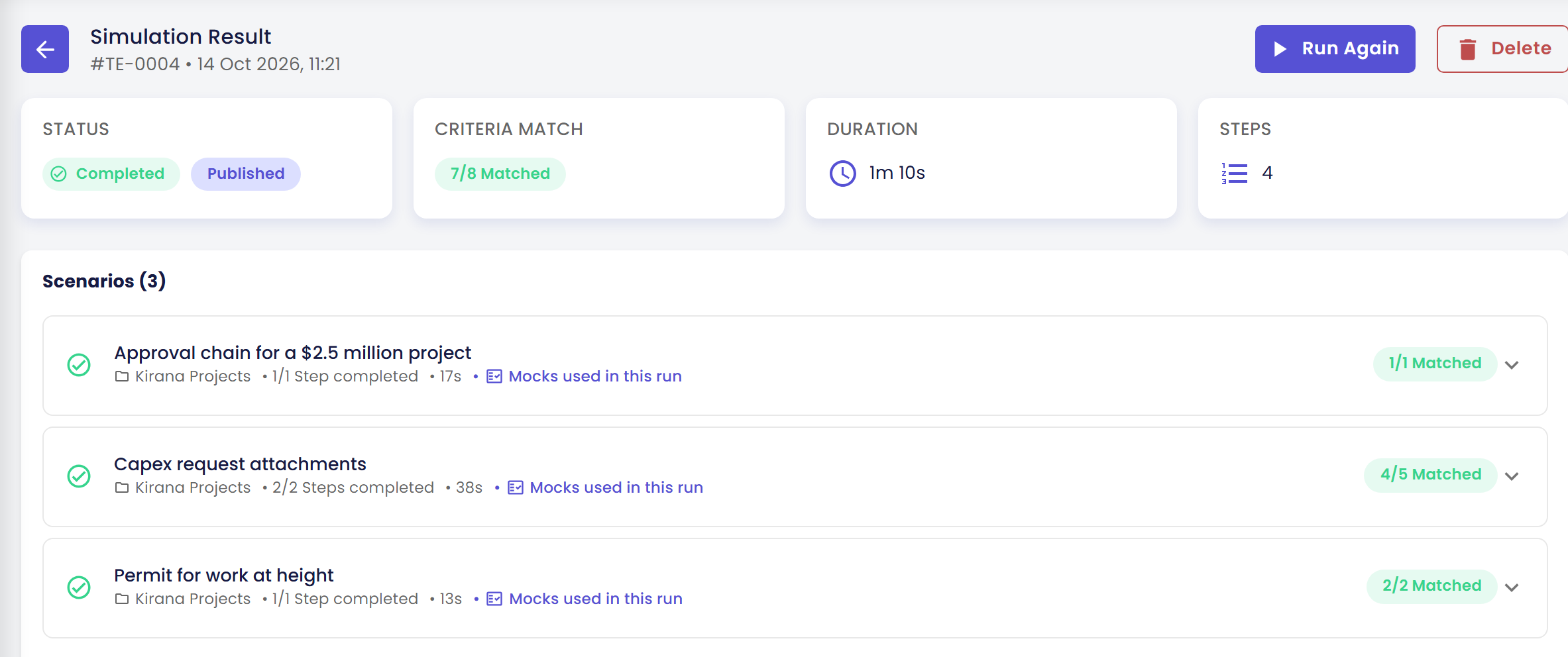
- Under Scenarios (3), each row shows its folder, how many steps completed, how long it took and a badge such as 4/5 Matched. Every row also shows Mocks used in this run, even when you used no mocks. Click a scenario to open it, then click Step #1, and Step #2 if it has one.
- Each step shows your Expected Response beside the AI Agent Response, which is what Atlas really said. Atlas writes in Markdown and this page shows it as plain text, so you may see marks such as
**bold**. Below the two answers, Evaluation Criteria (x/y Matched) has one box per criterion:- A green box means it was matched, and a speech bubble (💬) quotes the part of the answer that proves it.
- A grey box means it was not matched, and a light bulb (💡) gives the reason.
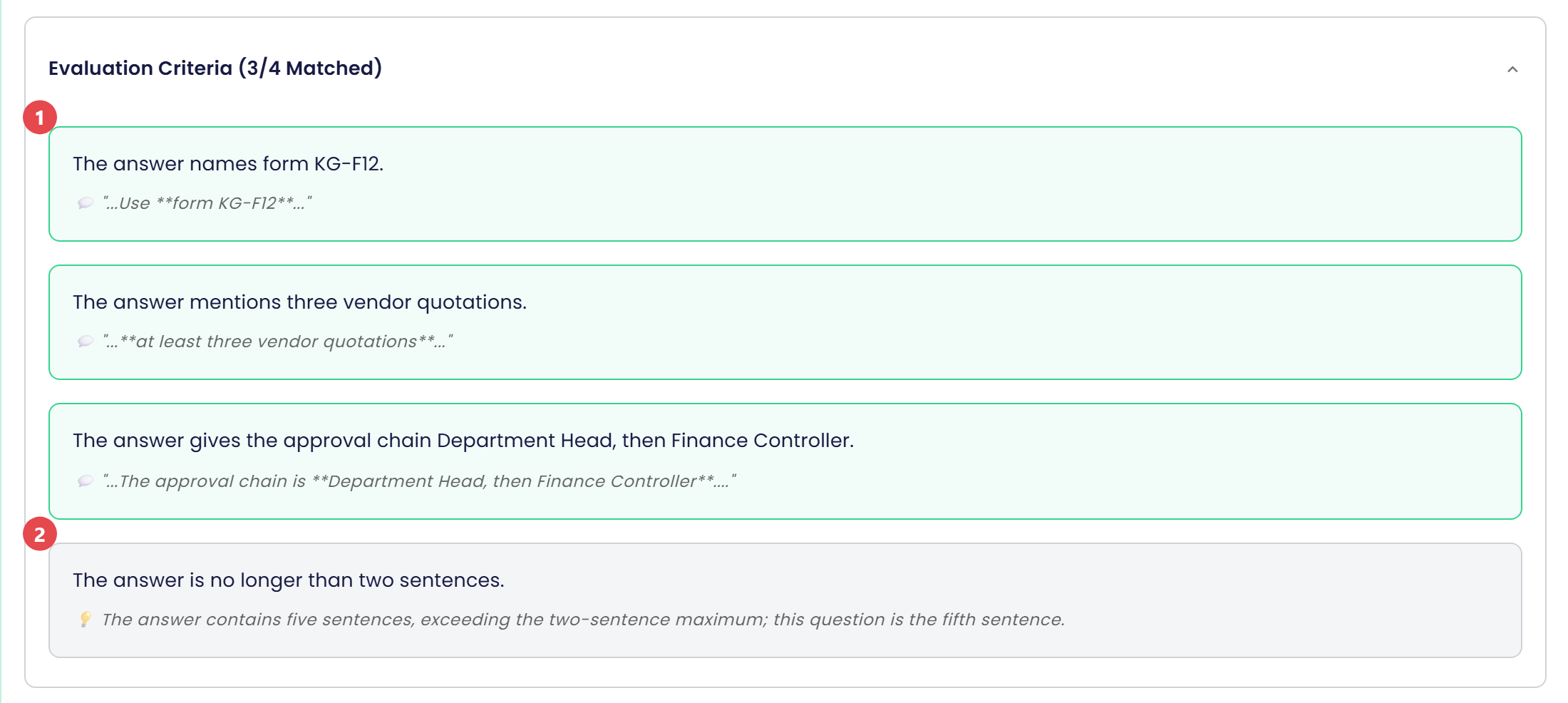
In this example the grey box is the criterion you added in step 5, "The answer is no longer than two sentences." The reason says the answer contains five sentences. That is the suite doing its job: it tells you exactly which check failed and why, and you can fix it and run the same folder again. For a grey box about missing content, such as a document detail that Atlas leaves out, see Retrieval. Read the Results explains every part of the page.
Open Step #1 of the $2.5 million scenario once more. Below the criteria it can show Tool calls (1) with a Live 1 chip. That is Atlas searching its knowledge, which always runs for real in a simulation. Test Tools Safely with Mocks is about the tools that do not.
Check the result
You made it if you see all of these:
- A folder Kirana Projects with three scenarios in it.
- A run with the status Completed and a Published chip.
- For every criterion, either a green box with a quote or a grey box with a reason. At least one grey box shows, from the criterion you added in step 5.
If you see something else:
- Suggest Criteria is greyed out. It stays disabled until the Expected Response of that step has text. Write the expected answer first.
- There is no Save button. The bottom button reads Suggest All Criteria until every step has at least one criterion. Click it, or add a criterion to the step that has none.
- A folder called Default appeared. Qlar creates Default when you start a scenario before any folder exists, and an agent may already have one, as Atlas does here. Either way, it is not a mistake. Move the scenario into Kirana Projects later. See Organize Scenarios in Folders.
- A grey box for something Atlas clearly said. The judgement is AI too. Read the reason, and if the criterion is vague, rewrite it. Run the folder again before you decide.
- The status stays Running for a long time. A slow answer can take a few minutes. After 10 minutes the page stops updating by itself, so click the refresh icon.
Next steps
- Next in this step: Test Tools Safely with Mocks, to test the project-status tool without touching real data.
- The same how-to on another agent: Your First Simulation, then Organize Scenarios in Folders and Write Good Scenarios.
- Field-by-field reference: Scenarios and Results.
- Previous in this step: Test Your Agent's Quality.