Self-hosted Gateway
Open in CMSThis tutorial walks you through connecting a mailbox with the Self-hosted gateway. A small program, the Qlar Email Gateway, runs on a machine you control. It reads the mailbox, passes each email to your agent, and sends the answer. The mailbox password stays on your server and is never sent to Qlar.
The example connects Atlas, Kirana Group's operations assistant, to ask@kirana.example, running on a Kirana server.
Before you start
- Your agent has been published at least once. See Preview and Publish Changes.
- You have a dedicated mailbox reachable over IMAP and SMTP with a username and password. Microsoft 365 and Google Workspace usually need an app password, or SMTP AUTH turned on for that mailbox. The gateway answers every human email that arrives in the mailbox.
- You have a machine that stays on, with Docker or Python 3. It needs outbound access only, nothing inbound:
- HTTPS (443) to the Qlar API.
- IMAP (993 or 143) and SMTP (587 or 465) to your mail server.
- The machine clock is accurate (NTP running). Requests are signed with a timestamp, and a clock more than two minutes off is refused.
Step 1: Choose the self-hosted gateway
- Open the CMS dashboard, select your agent, and open Channels → Email.
- On Connect Email, choose Self-hosted gateway. The page lists the three steps: create a one-time code here, run the gateway on a machine that can reach your mail server, then compare the fingerprint and approve.
- Click Connect a mailbox. The CMS creates your enrolment code.
Step 2: Get the enrolment code and commands
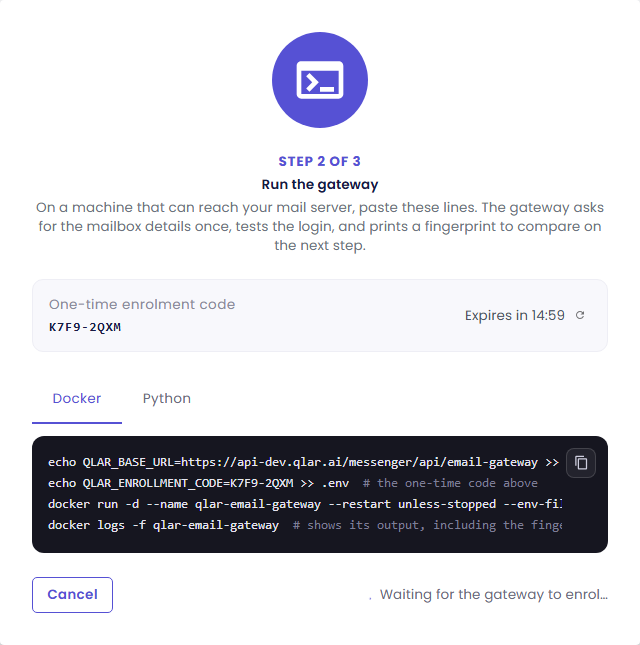
The Run the gateway screen (step 2 of 3) shows:
- A One-time enrolment code with a countdown, for example Expires in 14:59. It is valid for 15 minutes and can be used once. The refresh icon next to the countdown creates a new code; when the code has expired, a Create a new code button appears.
- Two tabs, Docker and Python, with ready-made commands. Use the copy icon in the corner of the command block (Copy commands).
- Cancel, which removes the pending registration. While you wait, the screen says Waiting for the gateway to enrol…
Step 3: Run the gateway
On the machine that can reach your mail server, paste the commands the CMS gave you. They save the Qlar address and your code, then start the gateway. The gateway asks for the mailbox details once (IMAP and SMTP hosts, username, password), tests the login, and prints a fingerprint.
To test the mailbox login first without contacting Qlar, run the gateway's test-mailbox command. It logs in to IMAP and SMTP and reports whether the server supports IDLE.
Two ways to run it:
- Docker (simplest): the CMS commands use the Qlar image. Keep the
statefolder you mount: it holds the gateway's private key, its enrolment state and an audit log. Back it up. Losing it means enrolling again. - Python: install the gateway into a virtual environment, enrol with the code, then run it as a service with systemd (Linux) or Task Scheduler / a service wrapper (Windows). The CMS shows the exact version to install.
Note: Use the version and commands the CMS prints, not an older copy. The CMS always shows the current supported gateway version.
Step 4: Compare the fingerprint and approve
Back in the CMS, the screen changes to Confirm it is yours (step 3 of 3). It shows the Mailbox, Hostname and Version of the gateway, and its Key fingerprint (SHA-256). Until you approve it, the gateway forwards no email and sends no replies.
- Compare the fingerprint in the CMS with the one printed in the gateway's terminal.
- If they are identical, click Fingerprint matches — approve.
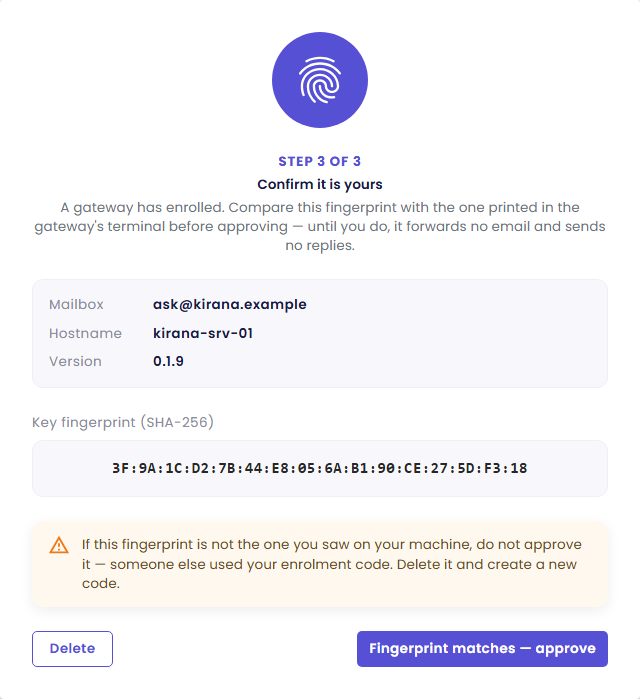
Warning: If this is not the fingerprint you saw on your machine, someone else used your enrolment code. Do not approve: click Delete and start again from Step 1.
Check the result
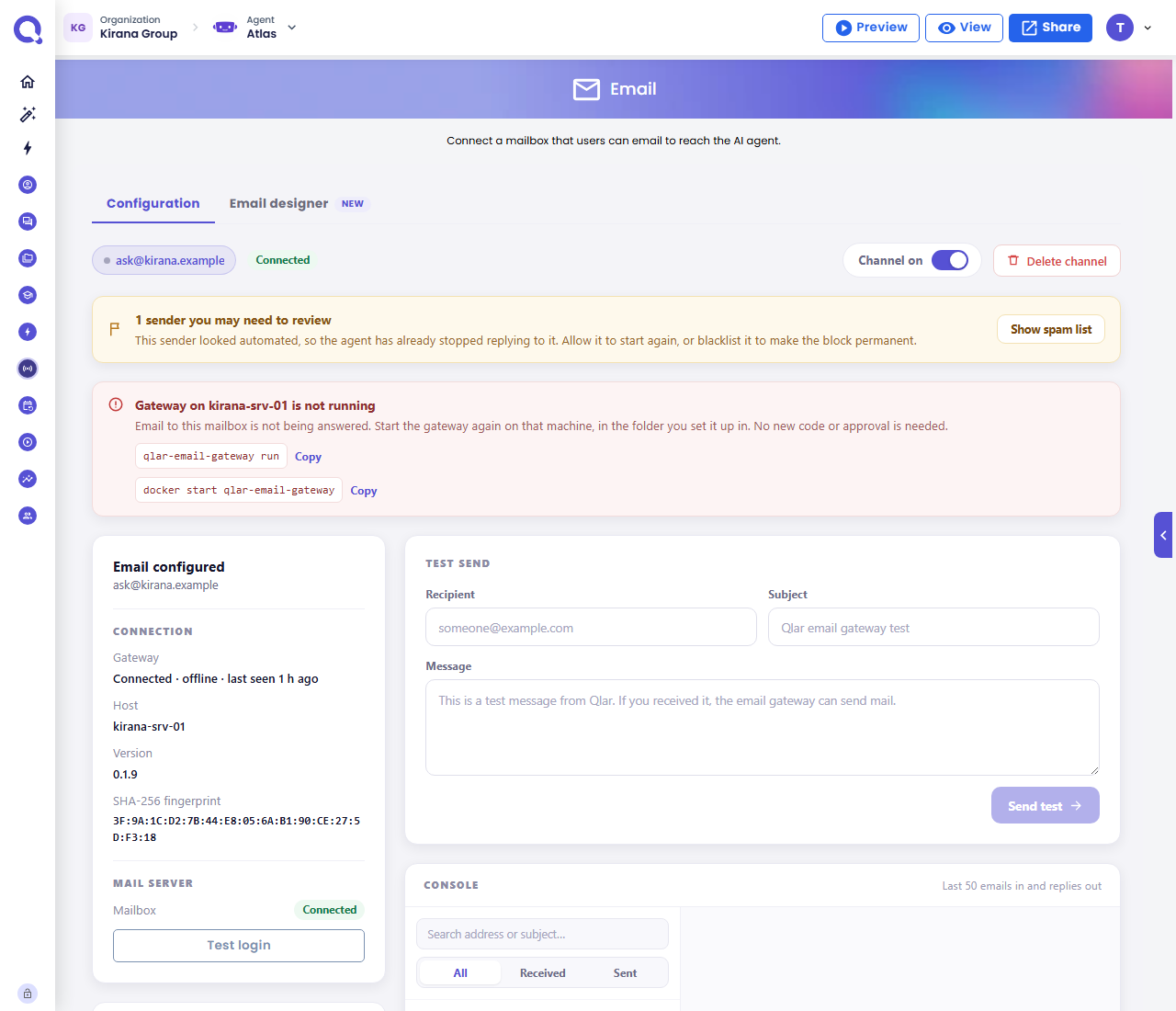
Once approved, the Email page shows your mailbox address with a Connected status and the Channel on switch. Under Connection, the Gateway line reads Connected · online, followed by the Host, Version and SHA-256 fingerprint. Mail server shows Connected and a Test login button that checks the mailbox login again.
- Use Test send on the Configuration tab: enter a Recipient, optionally a subject and message, and click Send test. The result appears in the Console.
- From another address, email the mailbox with a real question. The reply should arrive in the same thread.
If the gateway is offline
When the gateway stops, the CMS shows a red banner, Gateway on kirana-srv-01 is not running (with the name of your own machine): email to the mailbox is not being answered. Start the gateway again on that machine, in the folder you set it up in. No new code or approval is needed. The banner gives the two commands with a Copy button each: docker start qlar-email-gateway for Docker, or qlar-email-gateway run for Python.
| Symptom | Cause and fix |
|---|---|
| Enrolment code is not valid | Codes are single use and expire after 15 minutes. Create a new one. |
| The URL is not Qlar's API | Use the address the CMS shows. Do not edit it. |
clock_skew | The machine's clock is more than two minutes off. Fix time sync. |
| Waiting for approval | Expected. Compare the fingerprint and approve it in the CMS. |
Mailbox status auth_failed | Wrong username or password, or the provider needs an app password or SMTP AUTH. |
Mailbox status unreachable | Wrong host, port or security type, or a firewall blocks the mail ports. |
Mailbox status idle_unsupported | The server does not keep IDLE connections, so the gateway checks the mailbox at an interval. Replies can take that much longer. |
A reply is rejected in the Console | The safety check refused it: more than one recipient, a malformed address, or too many replies to the same recipient in the last hour. |
| The gateway says it was revoked or deleted | Someone revoked or deleted it in the CMS. Create a new code and enrol again. |
Remove or replace the gateway
- Switch off: use the Channel on switch. Incoming mail is ignored and the agent does not reply; your settings are kept.
- Delete channel: removes the channel from the agent. Stop and remove the gateway on your machine as well.
- A gateway can be revoked from the CMS. It stops on its next check. Approve it again, or enrol a new one with a fresh code.
Next steps
- Decide who gets answered: Choose Who Gets Answered.
- Prefer no installation? See Hosted Mailbox.
- Every field on the Email page: see Email.