Citations
Open in CMSThe Citations page has two purposes: managing the authors associated with your content sources, and configuring how citation references appear in your agent's responses.
In this tutorial you make Atlas, Kirana Group's operations assistant, show where its answers come from. You create the author Kirana Group Finance, assign it to the SOP you uploaded on the Documents page, and turn on footnote citations. Afterwards, every answer based on the SOP ends with a line like this:
📖 Kirana Group Finance, Project and Capex Approval Policy, 1
In the CMS, go to Knowledge → Citations in the left sidebar. The page has two tabs: Authors and Citations Settings.
Before you start
- Add at least one knowledge source in Documents, Websites, or Videos. Citations only appear when the agent answers from your sources. This tutorial uses SOP-FIN-007 "Project and Capex Approval Policy" from the Documents page.
- Make sure Enable Reference is on in Retrieval. Citations depend on it.
Step 1: Create the author
-
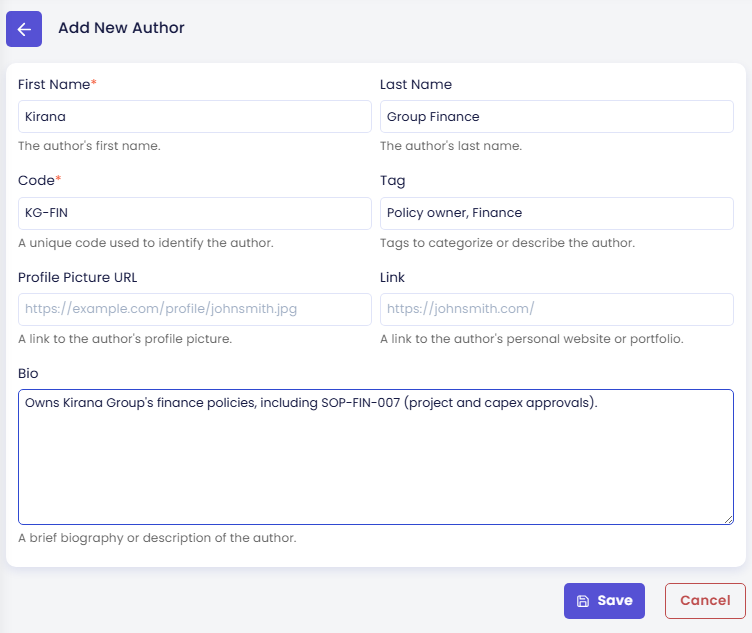
On the Authors tab, click New Author. The Add New Author form opens.
-
Fill it in:
Field Value for Atlas First Name (required) KiranaLast Name Group FinanceCode (required) KG-FINTag Policy owner, FinanceBio Owns Kirana Group's finance policies, including SOP-FIN-007 (project and capex approvals).Profile Picture URL (a link to the author's picture) and Link (the author's website or portfolio) are optional; leave them empty. An author does not have to be a person: here it is the department that owns the policy. Citations show the first and last name together, so this author appears as "Kirana Group Finance".
-
Click Save and confirm.
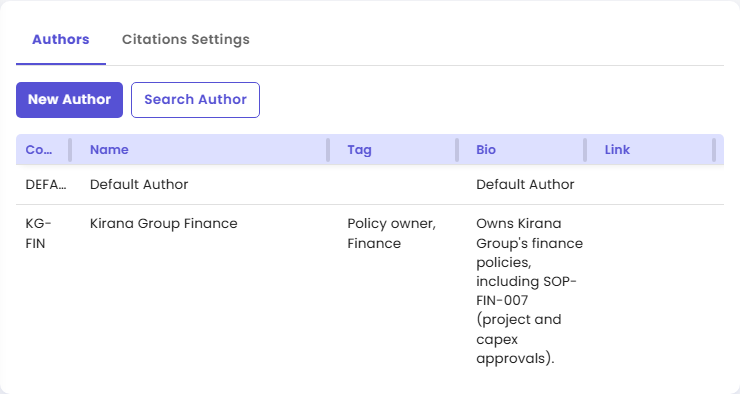
The Authors tab now lists two authors: DEFAULT (Default Author), which every agent has, and KG-FIN (Kirana Group Finance). Use Search Author to find an author when the list grows.
Step 2: Assign the author to the SOP
SOP-FIN-007 still has the default author. A document's Author can only be changed while the document is Inactive, so you deactivate it briefly:
- Go to Knowledge → Documents and open Project and Capex Approval Policy.
- Click Deactivate and confirm. Wait until the status is Inactive.
- In Author, choose KG-FIN - Kirana Group Finance.
- Click Save and confirm.
- Click Activate and confirm. Wait until the status is Active again.
While the document is inactive, Atlas cannot use it, so do this outside busy hours on a live agent. See Deactivating, activating, and deleting a document.
Step 3: Turn on footnote citations
-
Go back to Knowledge → Citations and open the Citations Settings tab.
-
Set the fields:
Field Value for Atlas Enable Citation On Show Inline Citations Off Show Footnote Citations On Max. View Reference 5(the default)Citation Text Format 📖 {author}, _{contentTitle}_, {section} -
Click Save and confirm. A message says the citations configuration was updated.
If Enable Reference is still off when you switch on Enable Citation, the CMS warns you and offers to switch it on too.
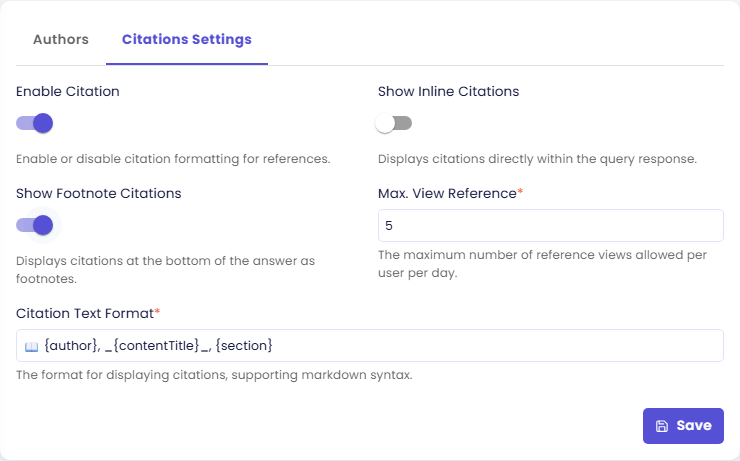
These settings are part of the agent's configuration, like Enable Reference. The Preview uses them right away; your live agent gets them after you Publish. See Preview and Publish Changes.
Check the result
-
In the preview panel on the right side of the page, click the reload button to start a fresh conversation.
-
Ask:
What do I need to attach to a capex request of USD 400,000?
Atlas answers from the SOP: form KG-F12 in the Procurement Portal and at least three vendor quotations, with the approval chain Department Head, then Finance Controller. Below the answer, footnotes read 📖 Kirana Group Finance, Project and Capex Approval Policy, 1. When an answer uses more than one part of the same document, that document can be listed more than once.
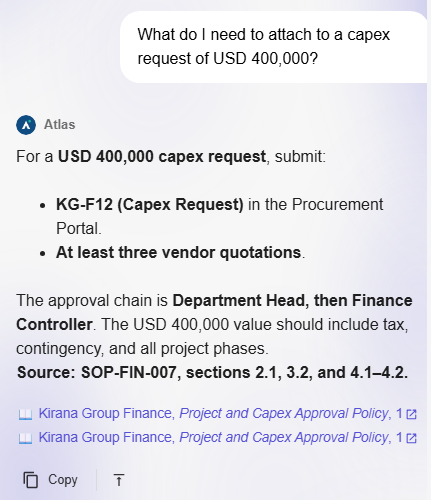
If no footnotes appear, check that Enable Citation and Show Footnote Citations are both on and saved. If the footnote still shows Default Author, check that SOP-FIN-007 was saved with the new author and is Active again.
Authors
The Authors tab is where you create and manage the author profiles that can be assigned to documents, videos, and websites.
Authors serve two functions:
- Content attribution: linking a source to its owner for internal governance and audit
- Citation display: showing the author's name alongside the source reference in agent responses
From the Authors tab you can create new author entries, edit existing ones, and remove authors that are no longer needed.
Citations Settings
The Citations Settings tab controls whether citations are shown in agent responses and how they are formatted.
These settings apply agent-wide. Disabling citations hides source references for all responses, regardless of content type.
When citations are needed
Citations tell users where the agent's answer came from. This matters for two reasons:
1. Source traceability
When an agent cites its sources, users can follow the reference back to the original document, section, or web page to read more, verify accuracy, or share the primary material with others. This is especially important in professional or regulated environments where decisions are made based on the information provided. A project manager who is told that a $2.5 million project needs CFO approval wants to see that this comes from SOP-FIN-007.
2. Reducing AI hallucinations
AI language models can sometimes produce responses that sound authoritative but are factually incorrect or made up. This is known as hallucination. It happens because an AI model generates text by predicting likely word sequences based on patterns in its training data, not by retrieving verified facts. When the model lacks grounding data for a topic, it may fill the gaps with plausible but incorrect statements.
Enabling citations reduces hallucination risk in two complementary ways:
- The agent's responses are anchored to real documents in your knowledge base, so it is less likely to make unsupported claims.
- Even when an error slips through, the cited source gives the user a quick way to cross-check the claim and catch the mistake.
Enable citations when:
- Your users need to verify answers against source material
- Regulatory or compliance requirements demand traceable answers
- The agent answers questions where accuracy is critical (policy, legal, financial, safety, technical)
- You want to build user trust by showing where information comes from
Consider disabling citations when:
- The agent is used for casual interactions where source links add friction
- The response content is generated from instructions rather than retrieved documents
Inline citations vs. footnote citations
Once citations are enabled, you can choose where they appear in the response:
| Display Mode | How It Looks | Best For |
|---|---|---|
| Show Inline Citations | Reference markers appear directly within the answer text, right after the relevant sentence or paragraph | Users who want to trace each individual claim back to its source while reading |
| Show Footnote Citations | All references are collected and listed at the bottom of the response | Cleaner responses where references should not interrupt the reading flow |
Both modes can be enabled at the same time. When both are on, references appear inline and are repeated at the end. When both are off (but Enable Citation is on), citation data is still collected internally but not shown to the user. Switching Enable Citation off also switches both display modes off.
Citation Text Format
The Citation Text Format field defines the text template used to render each citation. You can combine static text with placeholders:
| Placeholder | Replaced With |
|---|---|
{author} | The author assigned to the source |
{contentTitle} | The title of the content (document, web page, or video) |
{section} | Where the chunk is located in the content, for example a page or section number |
Markdown syntax is supported inside the format string. Atlas uses:
📖 {author}, _{contentTitle}_, {section}
This produces a citation like: 📖 Kirana Group Finance, Project and Capex Approval Policy, 1
You can adjust the template to match your style guide, for example by leaving out {author}, or by adding a static label like Source: before the placeholders.
Max. View Reference
The Max. View Reference field sets the maximum number of reference views a single user is allowed per day. The default is 5.
Each time a user opens a citation link to view its source material, that counts as one reference view. Once a user reaches the daily limit, further citation links are no longer accessible until the counter resets.
Choosing the right value:
- Raise the limit when users regularly check the source behind answers, for example internal teams who audit policies.
- Keep it low for high-volume or public agents to control resource usage.
Saving changes
Each tab saves independently. Click Save within the tab you are editing and confirm with Yes.
Next steps
- Shape the Conversation: set the welcome message and how chat answers look (next step).
- Documents: assign authors when creating or editing a document.
- Retrieval: configure retrieval and search parameters.