Websites
Open in CMSThe Websites page lets you add public web URLs to your agent's knowledge base. The platform visits each URL, extracts the main text content, and indexes it as searchable knowledge, so your agent can reference and cite web pages the same way it does uploaded documents.
In this tutorial you give Atlas, Kirana Group's operations assistant, a public safety page to answer from: the UK Health and Safety Executive (HSE) page "Inspecting the condition of ladders". Site supervisors can then ask Atlas how often ladders must be inspected and get a cited answer.
Before you start
- Read Teach Your Agent for how knowledge turns into answers. If you have files, start with Documents.
- In the CMS, open Knowledge → Retrieval and make sure Enable Reference is on. Without it, the agent ignores everything you add here. If it is off when you save, the CMS offers to switch it on, as on the Documents page. See Retrieval.
- Make sure the page you want to add is public. The platform must be able to open the URL without logging in. Some sites block automated readers altogether; see When a website fails.
Step 1: Enter the website source
-
In the CMS, go to Knowledge → Websites in the left sidebar and click New Website in the top-left. The Add New Website form opens.
-
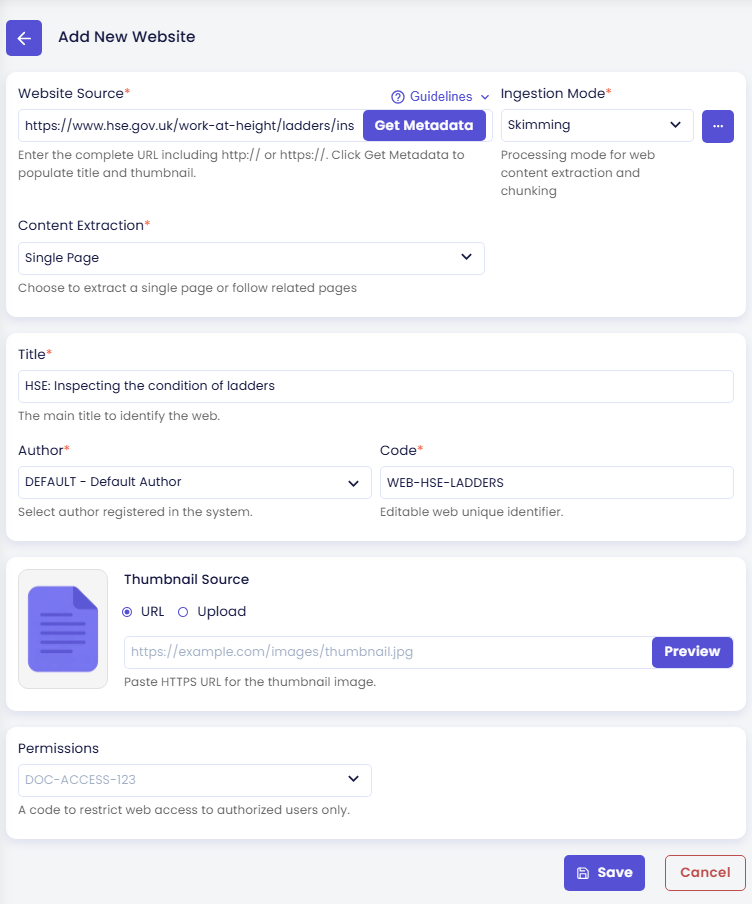
In Website Source, enter the full URL:
https://www.hse.gov.uk/work-at-height/ladders/inspecting-condition-of-ladders.htm -
Click Get Metadata to fill in the title and thumbnail from the page. You can change both afterwards.
Only http:// and https:// URLs are accepted. The URL must contain a valid hostname (for example example.com), must not exceed 2,048 characters, and must not point to localhost or a private IP address.
Step 2: Choose how the page is read
- Set Ingestion Mode to Skimming. It works well for most web pages. The modes are explained in Ingestion Mode below.
- Set Content Extraction to Single Page. The default is Related Pages, which also follows links from the page. For Atlas you only want this one page, not the rest of the HSE site. See Content Extraction.
Step 3: Fill in the title, author, and code
| Field | Value for Atlas |
|---|---|
| Title (required) | HSE: Inspecting the condition of ladders |
| Author (required) | DEFAULT - Default Author |
| Code (required) | WEB-HSE-LADDERS |
Title is the display name, and it also appears in citations. Author lists the authors registered in Citations. Code is a short unique identifier you choose. Leave Thumbnail Source and Permissions empty for this tutorial.
Step 4: Save and wait until the website is Active
- Click Save and confirm with Yes.
- A success message says the web resource was created and is being processed, and that it becomes active and usable for your agent once processing is done. Close it.
- The website's detail page opens with its chunking log, so you can follow the progress. You can close the log; processing continues in the background.
When processing is done, the website's badge changes from Processing to Active. On the Websites page, the card shows the title, the code WEB-HSE-LADDERS, the author, and how many chunks are active.
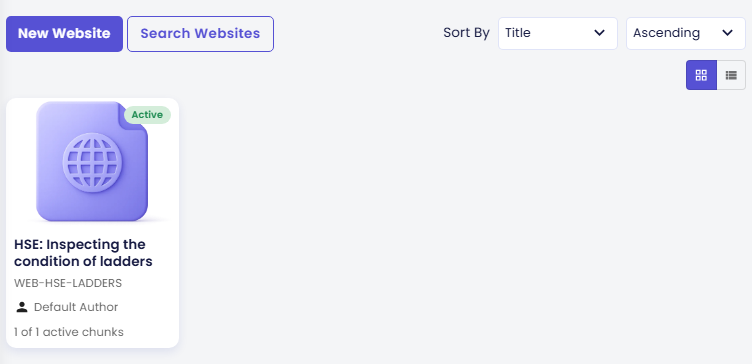
Like documents, websites do not need to be published: once a website is Active, both the Preview and your live agent can use it.
Managing the websites list
The list shows all websites registered to this agent. Each entry represents a single URL that has been, or is being, processed. Use Search Websites to filter by title, code, or status; click it again to collapse the panel. Use the Sort By and Sort Direction controls in the top-right to order entries; your preference is kept across page visits.
Websites use the same status badges as documents: Processing, Active, Inactive, Failed, and Deleted. See Document statuses.
Grounding your agent in real web content reduces the risk of hallucinations by anchoring answers to verifiable sources.
When a website fails
Some sites block automated readers. Wikipedia, for example, returns HTTP 403 to the platform. The chunking log then shows a line such as:
Website validation failed: Website returned HTTP 403
The website's badge changes to Failed. Open the website's detail page and choose one of these:
- Retry Chunking: process the same URL again, for example after a temporary error. Type the website title to confirm.
- Purge Web: remove the website entry. Type the website title to confirm.
If a site keeps blocking the platform, save the page content as a file and add it in Documents instead.
Field reference
Ingestion Mode
Ingestion Mode controls how the extracted web text is split into chunks before it is stored in the knowledge base. Two modes are available for web resources:
| Mode | Best for |
|---|---|
| Skimming | General web pages, articles, and most sites. Balanced speed and quality. (default) |
| Semantic | Content where precise, context-aware retrieval matters most. |
Click the ⋯ button next to the dropdown to open the ingestion parameters panel for the selected mode.
Skimming parameters
| Parameter | Description |
|---|---|
| Content Training AI Model | Model used for knowledge base training and embedding generation. |
| Use Summarization | Adds brief summaries to higher-level sections to improve context. Useful for structured or long content. Additional usage may apply. |
| Keep Small Sections Separate (advanced) | Prevents the system from merging small sections into larger chunks. Turning this on may reduce retrieval quality. |
| Min Chunk Tokens (advanced, visible when merging is enabled) | Minimum token size before two sections are merged. |
Semantic parameters
| Parameter | Description |
|---|---|
| Content Size (tokens) | How many tokens go into each chunk. Smaller chunks (200–400) give precise answers; larger (600–1,000) preserve broader context. Recommended: 400–600. |
| Overlapping Ratio (%) | How much content each chunk shares with the next (1–80%). Higher values improve flow across boundaries but increase cost. Recommended: 10–20%. |
Content Extraction
Content Extraction controls how many pages the platform visits from the starting URL.
| Option | Behavior |
|---|---|
| Single Page | Extracts only the page at the URL you entered. |
| Related Pages | Follows links from the starting page and extracts additional pages. (default) |
When Related Pages is selected, click the ⋯ button to configure the crawl parameters:
| Parameter | Description |
|---|---|
| Max Pages | Maximum number of pages to extract. Lower values (10–20) are faster and cheaper; higher values (30–50) give broader coverage. Recommended starting point: 30. |
| Max Depth | How many link levels deep to follow from the starting page. Depth 1 = direct links only; Depth 2 = links of links (most common); Depth 3+ = broader but risk of irrelevant content. Recommended: 2. |
| Keywords (optional) | Enter up to 10 keywords (50 characters each) to focus collection on pages containing those terms. Leave empty to extract all reachable pages without filtering. |
Thumbnail Source and Permissions
- Thumbnail Source: an optional cover image, either a URL (paste an HTTPS image link and click Preview) or an Upload.
- Permissions: optional permission codes that limit the website to authorized users. See Knowledge Permissions.
Check the result
-
On the Websites page, the card for
WEB-HSE-LADDERSshows Active. -
In the preview panel on the right side of the page, click the reload button to start a fresh conversation.
-
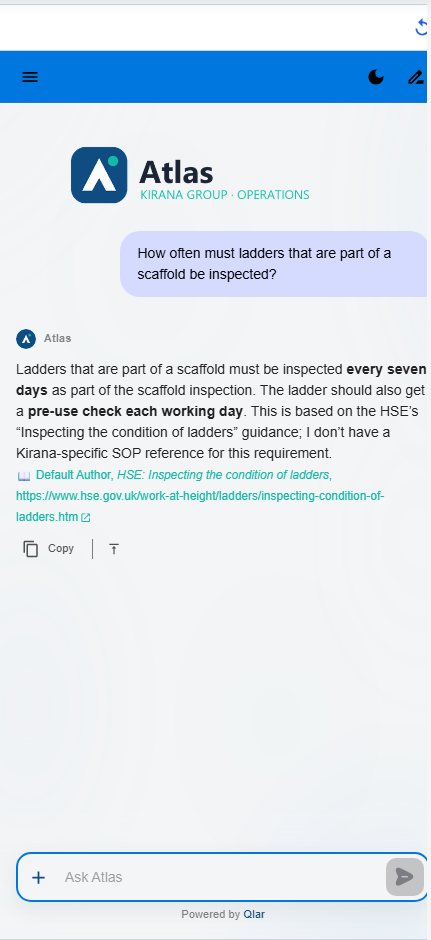
Ask:
How often must ladders that are part of a scaffold be inspected?
Atlas answers that ladders that are part of a scaffold must be inspected every seven days as part of the scaffold inspection, plus a pre-use check each working day. When citations are on (see Citations), a citation below the answer names the HSE page and links to its URL.
If the answer is missing, look at the extracted text in Chunks. If the website shows Failed, see When a website fails.