Documents
Open in CMSThe Documents page is where you upload and manage the files that form your agent's primary knowledge base. Supported formats are PDF, Markdown (.md), and plain text (.txt). Each uploaded document is parsed, split into searchable chunks, and indexed. After that, the agent can draw on its content when answering questions.
In this tutorial you see the difference a single document makes. You ask Atlas, Kirana Group's operations assistant, who has to approve a project worth $2.5 million. Without Kirana's approval policy, Atlas cannot answer. Then you upload the policy, SOP-FIN-007 "Project and Capex Approval Policy", ask again, and get the exact approval chain.
Before you start
- Set up your agent's identity in Give Your Agent an Identity, especially the Mission in Behavior, so the agent knows which questions your documents should answer.
- Read Teach Your Agent for how knowledge turns into answers.
- Check Knowledge → Retrieval. If Enable Reference is off, the agent ignores everything you add here. You do not have to switch it on first: when you save your first document, the CMS offers to do it for you (Step 4). See Retrieval.
- To follow along, download the sample file kirana-approval-policy.txt. For your own agent, prepare your files as PDF, Markdown (
.md), or plain text (.txt).
Step 1: Ask the question before the SOP is uploaded
In the CMS, go to Knowledge → Documents in the left sidebar. In the preview panel on the right, click the reload button to start a fresh conversation. Then ask:
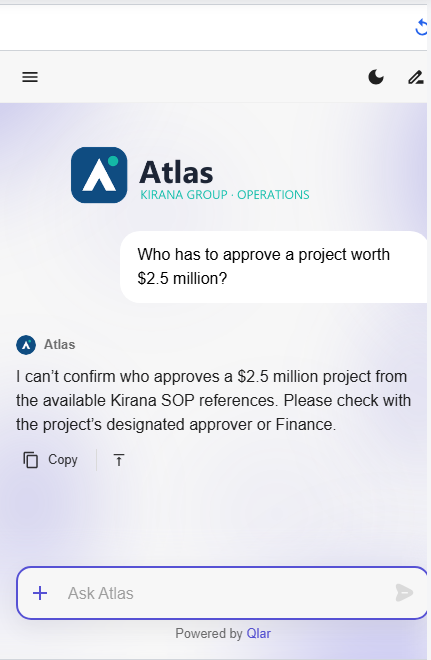
Who has to approve a project worth $2.5 million?
Atlas cannot give the right answer. It says it cannot confirm who approves a $2.5 million project from the available Kirana SOP references, and points you to the project's approver or Finance. That is the correct behavior for an agent that does not know the rule: it does not guess. It simply has not seen Kirana's approval policy yet.
Step 2: Download the SOP
Download kirana-approval-policy.txt. It is a short plain-text SOP owned by Kirana Group Finance. The part that matters for this tutorial is the approval matrix in section 3:
| Total project value (USD) | Who approves, in this order |
|---|---|
| Up to 100,000 | Department Head |
| 100,001 to 1,000,000 | Department Head, then Finance Controller |
| 1,000,001 to 5,000,000 | Group Risk Office review, then Regional Director, then CFO |
| Above 5,000,000 | Group Risk Office review, then CFO, then CEO, then the Board Investment Committee |
Section 4 lists what to submit: form KG-F12 in the Procurement Portal for every request, at least three vendor quotations above USD 250,000, and a business case and risk register above USD 1,000,000.
Step 3: Add the document
-
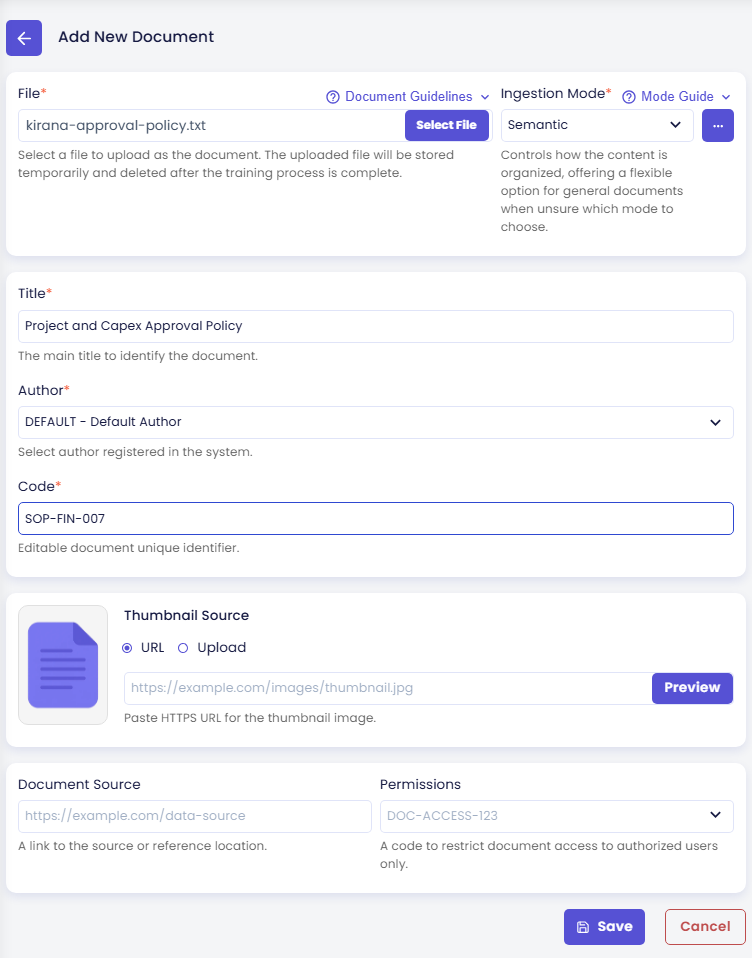
On the Documents page, click New Document in the top-left. The Add New Document form first shows only two fields:
- File (required): click Select File and pick
kirana-approval-policy.txt. Open Document Guidelines above the field to see the allowed file types and tips (for example, remove headers, footers, and page numbers). The file is stored only temporarily and deleted after processing. - Ingestion Mode (required): how the document is split into chunks. Choose Semantic. It is fast, needs no AI processing, and suits a short policy like this one. Open Mode Guide for a short description of each mode, and use the ... button next to the field to adjust that mode's parameters. The modes are explained in Ingestion Modes below.
- File (required): click Select File and pick
-
After you pick a file, the rest of the form appears. Fill it in:
Field Value for Atlas Title (required) Project and Capex Approval Policy(filled in from the file name at first; replace it)Author (required) DEFAULT - Default AuthorCode (required) SOP-FIN-007Author lists the authors registered in Citations. The default author is fine for now. On the Citations page you create the author Kirana Group Finance and assign it to this document. Code is a unique identifier for the document; using the SOP number makes it easy to find later.
-
Leave the optional fields empty for this tutorial:
- Thumbnail Source: a cover image, either a URL (paste an HTTPS image link and click Preview) or an Upload (PNG, JPEG, or WebP).
- Document Source: a link to where the document comes from.
- Permissions: permission codes that limit the document to authorized users. See Knowledge Permissions.
Step 4: Save and turn on references
- Click Save. The CMS asks Are you sure to save your changes? Click Yes. The file is uploaded and processing starts.
- If Enable Reference and Restrict Answer are both still off for this agent, the CMS asks Enable Reference?: "Do you want to enable references to let your agent answer questions using your resources? Agent answers will be restricted to your resources only." Click Yes, Enable. This switches on both Enable Reference and Restrict Answer, so Atlas answers only from your resources. No, Thanks leaves the settings as they are.
- A message confirms that the document was created. Close it.
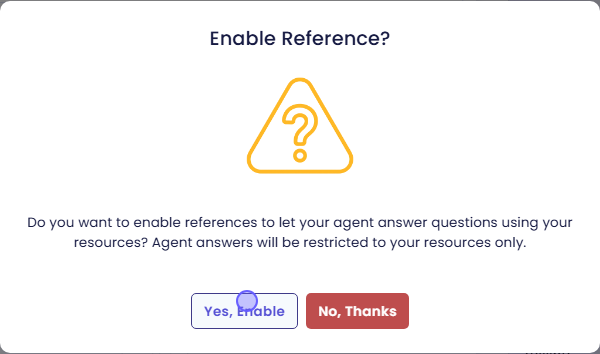
Yes, Enable creates a draft change. Enable Reference and Restrict Answer are part of the agent's configuration, so the Preview uses them right away, but your live agent gets them only after you Publish. Remember to publish once you are done in this step; see Preview and Publish Changes. You can change both switches later in Retrieval. The document itself does not need to be published.
Step 5: Watch the chunking log until the document is Active
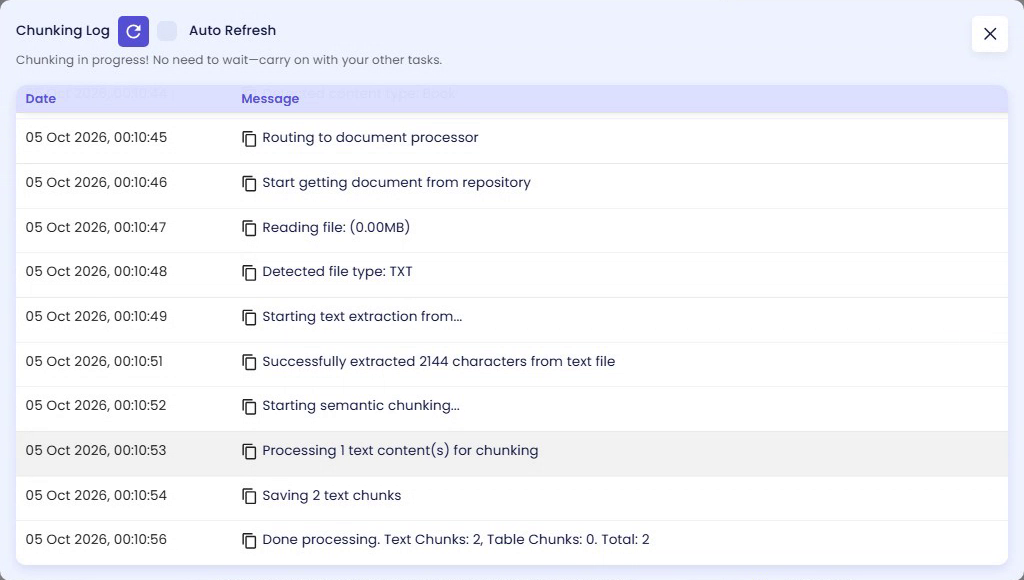
After saving, the document's detail page opens and the Chunking Log opens automatically on top of it. It shows each processing step as it happens. For the sample SOP you see, among others:
Detected file type: TXTStarting semantic chunking...Saving 2 text chunksDone processing. Text Chunks: 2, Table Chunks: 0. Total: 2
Click the reload button next to Chunking Log to fetch new lines, or tick Auto Refresh. You do not have to wait: you can close the log and carry on, and processing continues in the background. To open the log again, click View Log on the detail page.
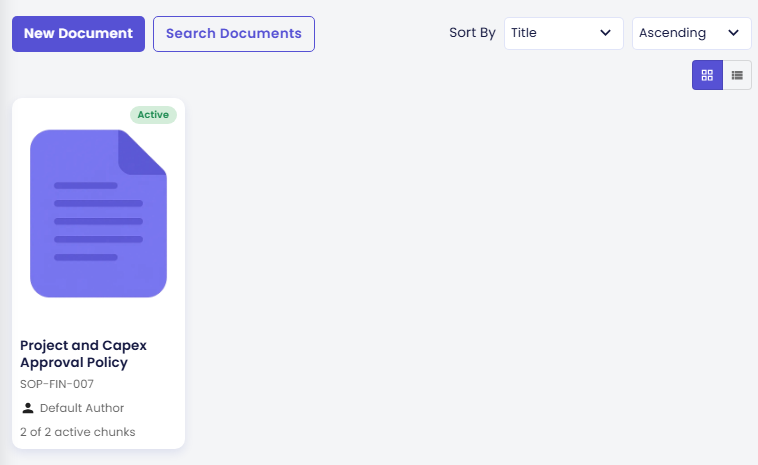
While the document is being chunked, its badge shows Processing. When processing is done, the badge changes to Active, and the detail page shows Document State: Active and Chunking Process: Completed. Back on the Documents page, the card shows the title, the code SOP-FIN-007, the author, and 2 of 2 active chunks.
Step 6: Ask the same question again
In the preview panel, click the reload button to start a fresh conversation, and ask the same question:
Who has to approve a project worth $2.5 million?
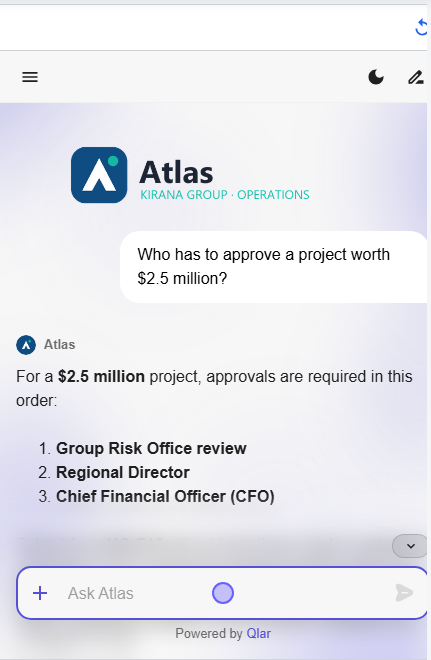
This time Atlas answers from the SOP. For a $2.5 million project, approvals are required in this order:
- Group Risk Office review
- Regional Director
- Chief Financial Officer (CFO)
Scroll down in the answer to see the rest: form KG-F12 in the Procurement Portal, at least three vendor quotations, a business case and a risk register, with SOP-FIN-007 named as the source. That matches section 3.3 of the SOP, because $2.5 million falls in the USD 1,000,001 to 5,000,000 band.
Managing the documents list
The list displays documents as cards (grid view) or rows (list view). Use the view toggle in the top-right to switch between them. Each card shows the document's title, code, author, status badge, and how many of its chunks are active.
Use Search Documents to filter by code, title, author, or status. Use the Sort By controls in the top-right to change the sort order.
Document statuses
| Badge | What it means |
|---|---|
| Processing | The document is being chunked. The agent cannot use it yet. |
| Active | Processing is complete. The agent uses the document in its answers. |
| Inactive | Someone clicked Deactivate. The agent ignores the document until it is activated again. |
| Failed | Processing failed. Open the document, check View Log, then use Retry Chunking or Purge Document. |
| Deleted | The document was deleted. It stays in the list with this badge, but the agent no longer uses it. |
While a change is being applied, you may briefly see a transitional badge such as Activating or Deactivating.
Ingestion Modes
When you upload a document, you choose an Ingestion Mode that controls how the system splits the document into searchable chunks. The right mode depends on the type and length of your document.
Quick Comparison
| Mode | Best For | AI Processing | Speed |
|---|---|---|---|
| Semantic | General documents — prose, reports, articles | None | Fast |
| Skimming | Long structured documents — books, manuals, multi-chapter reports | Low–Medium | Slow |
| Regulatory Context | Legal documents — laws, bylaws, regulations | Minimal | Slow |
| Fact Sheet | Short documents — product sheets, fund fact sheets (1–3 pages) | Medium | Medium |
| Adaptive | Complex reference books, documents with heavy cross-references | High | Slowest |
Not sure which to pick? Choose Skimming. It works well for most document types and preserves the document's natural structure.
Semantic
The simplest and most reliable mode. The document is split at natural sentence boundaries into evenly sized chunks. Each chunk overlaps slightly with the previous one so context is not lost at the edges.
Best for
- General-purpose documents where structure does not matter much
- Reports, articles, FAQs, knowledge base files
- Any document when you are unsure which mode to use
Parameters
| Parameter | Description |
|---|---|
| Content Size | Maximum number of tokens per chunk. Larger values produce fewer, longer chunks. Default: 500. |
| Overlapping Ratio | Percentage of sentences from the previous chunk that are repeated at the start of the next chunk. Higher values preserve more context across boundaries. Range: 1–80%. Default: 20%. |
| Start Page | First page to process. Leave blank to start from page 1. |
| Finish Page | Last page to process. Leave blank to process to the end. |
Advanced Parameters (optional)
| Parameter | Description |
|---|---|
| Table as Plain Text | When on, tables are extracted as plain text inside regular chunks. When off, each table becomes its own separate chunk. |
| Skip Image Analysis | When on, images are ignored. When off, an AI model generates a description for each image and includes it as a chunk. |
Skimming
Detects the document's chapter and section structure using AI, then creates one chunk per section — each chunk is titled with the full path of headings (e.g., Chapter 1 › Section 1.2 › Subsection 1.2.3). Sections that are too small are automatically merged with their neighbours; sections that are too large are split at semantic boundaries.
Best for
- Books, technical manuals, training materials
- Any document with clear chapters, sections, and subsections
- Documents where preserving heading structure in search results matters
Parameters
| Parameter | Description |
|---|---|
| Content Training AI Model | The AI model used to analyse the document structure. A more capable model may detect structure more accurately on complex documents. |
| Use Summarization | When on, the system generates an AI summary for each parent section (e.g., a chapter summary derived from its subsections). Improves context for high-level queries but increases processing time and cost. |
Advanced Parameters (optional)
| Parameter | Description |
|---|---|
| Page Overlap | Number of pages shared between adjacent processing segments when the document is too large to analyse in one pass. Helps the AI detect section boundaries that span segment edges. Default: 2. |
| Keep Small Sections Separate | When on, small sections are not merged with their neighbours and are kept exactly as the AI detected them. Useful if you want strict per-section chunks regardless of size. |
| Minimum Section Size | Sections with fewer tokens than this value are merged with an adjacent section. Only applies when Keep Small Sections Separate is off. |
| Table as Plain Text | Same as in Semantic mode. |
| Skip Image Analysis | Same as in Semantic mode. |
Regulatory Context
A dedicated parser built specifically for legal documents. It extracts each article individually — number, title, legal text, notes, and cross-references — and converts each article directly into one chunk. The article text is preserved verbatim; nothing is rewritten or summarised.
Best for
- Laws, government regulations, bylaws
- Compliance documents, legal codes
- Any document where the exact wording of each article must be preserved
Parameters
No additional parameters are required. The parser handles structure detection automatically based on standard legal document patterns.
Fact Sheet
Processes the document one page at a time. Each page — including its layout, images, and tables — is sent to an AI model that decides the chunk boundaries, writes the content in clean markdown, and extracts key metadata (product name, product type, document type, version).
Best for
- Fund fact sheets, product brochures, one-pagers
- Short documents of 1–3 pages with mixed text, tables, and charts
- Documents where preserving the visual layout and chart context matters
Parameters
No additional parameters are required. The AI model handles layout analysis and chunk boundaries automatically.
Adaptive
The most sophisticated mode. A two-phase AI pipeline first analyses the document's full structure using a reasoning model, then assembles each chunk with additional context: cross-referenced content is embedded inline, and ambiguous pronouns (e.g., "he", "it", "they") are resolved to their actual referents. The result is chunks that are independently understandable — each one makes sense on its own without needing surrounding context.
Best for
- Large reference books and encyclopaedias
- Documents with dense cross-references (e.g., "see Article 3" or "as described in Chapter 7")
- Academic or technical documents where out-of-context sentences lose their meaning
Parameters
| Parameter | Description |
|---|---|
| Document Type Hint | Optional free-text description of the document type (e.g., "educational textbook", "regulatory filing", "product manual"). Helps the AI understand context and improve structure detection. |
| Image Description AI Model | The AI model used to generate descriptions for images found in the document. |
| Excluded Pages | Page types to exclude from chunking. By default the system skips: cover pages, table of contents, references, glossary, copyright, and acknowledgments. You can override this list here. |
Advanced Parameters (optional)
| Parameter | Description |
|---|---|
| Force Full LLM Enrichment | When on, every section is processed through the AI enrichment pipeline, even sections that would normally be assembled programmatically. Produces richer context but increases processing time significantly. |
| LLM Enrichment Sections Threshold | If the number of sections eligible for AI enrichment exceeds this value, the system falls back to fully programmatic assembly for all sections. Increase this threshold to allow more AI enrichment on large documents. |
| Minimum Chunk Size | Minimum number of tokens per chunk. Chunks smaller than this are merged with adjacent sections. |
| Maximum Chunk Size | Maximum number of tokens per chunk. Chunks exceeding this are split at semantic boundaries. |
| Start Page | First page to process. Leave blank to start from page 1. |
| Finish Page | Last page to process. Leave blank to process to the end. |
| Page Overlap | Number of pages shared between adjacent processing segments. Same as in Skimming mode. |
Deactivating, activating, and deleting a document
An Active document can be deactivated to stop the agent from using it, without deleting it. You can activate it again at any time.
Deactivate a document
- Open the document's detail page.
- Click Deactivate in the top-right action bar and confirm.
- The status changes to Inactive. The agent no longer uses this document. The action bar now offers Activate, Retrain, and Delete.
Change a document's details
The form fields, including Author, can only be changed while the document is Inactive. Deactivate it, edit the fields, click Save, then activate it again. The Citations page uses this to give SOP-FIN-007 its proper author.
Activate a document
- Open the detail page of an Inactive document.
- Click Activate in the top-right action bar and confirm.
- The status returns to Active and the agent can use the document again.
Retrain a document
On an Inactive document, Retrain opens the upload form again so you can reprocess the document, for example with a different ingestion mode. All existing chunks are replaced.
Delete a document
- Open the detail page of an Inactive document.
- Click Delete in the top-right action bar and confirm.
- The document stays in the list with a Deleted badge. The agent can no longer use it. To remove it from the list completely, open it and click Purge Document, then type the document title to confirm.
To delete a document that is still Active, deactivate it first.
Check the result
- On the Documents page, the card for SOP-FIN-007 shows Active and 2 of 2 active chunks. A document that is still Processing cannot be used yet, and a Failed one needs to be retried or uploaded again.
- In the preview panel, click the reload button and ask "Who has to approve a project worth $2.5 million?". Atlas should list Group Risk Office review, Regional Director, and CFO, and name SOP-FIN-007.
If the answer is not right:
- Atlas still says it cannot find the SOP, right after the document became Active. Open the document, click Deactivate, then Activate, and ask again in a fresh conversation. This registers the chunks again.
- Atlas answers from general knowledge. Check that Enable Reference is on in Retrieval.
- The answer is incomplete or wrong. Check the document's chunks in Chunks: does the chunk with the approval matrix exist, is its text correct, and is it active?
Next steps
- Websites: add public web pages as knowledge (next step).
- Citations: give SOP-FIN-007 the author Kirana Group Finance and show sources in answers.
- Chunks: inspect the text units the agent retrieves from your documents.
- Preview and Publish Changes: publish the Enable Reference change so your live agent uses the SOP too.