Videos
Open in CMSThe Videos page is where you add video entries to your agent's knowledge base. The agent does not watch the video itself. The platform transcribes the audio, and the agent searches that transcript. This makes video content discoverable and citable alongside documents and websites, and the answer can show the video so the user can play it.
In this tutorial you add a short Kirana Group briefing, "Site safety briefing: working at height", to Atlas, Kirana Group's operations assistant. The video is hosted on public storage, so you add it as an Online Video. Afterwards, Atlas can tell a site supervisor who has to sign the permit for work above two metres, and show the briefing in its answer.
Before you start
- Read Teach Your Agent for how knowledge turns into answers.
- In the CMS, open Knowledge → Retrieval and make sure Enable Reference is on. Without it, the agent ignores everything you add here. If it is off when you save, the CMS offers to switch it on, as on the Documents page. See Retrieval.
- Have the video ready: a public link that points directly to the video file (for an Online Video), a video file on your computer, or a YouTube link plus the video file. See Video types.
- If only some users should see a video, set up permission codes first in Knowledge Permissions.
Step 1: Choose the video type
- In the CMS, go to Knowledge → Videos in the left sidebar and click New Video in the top-left.
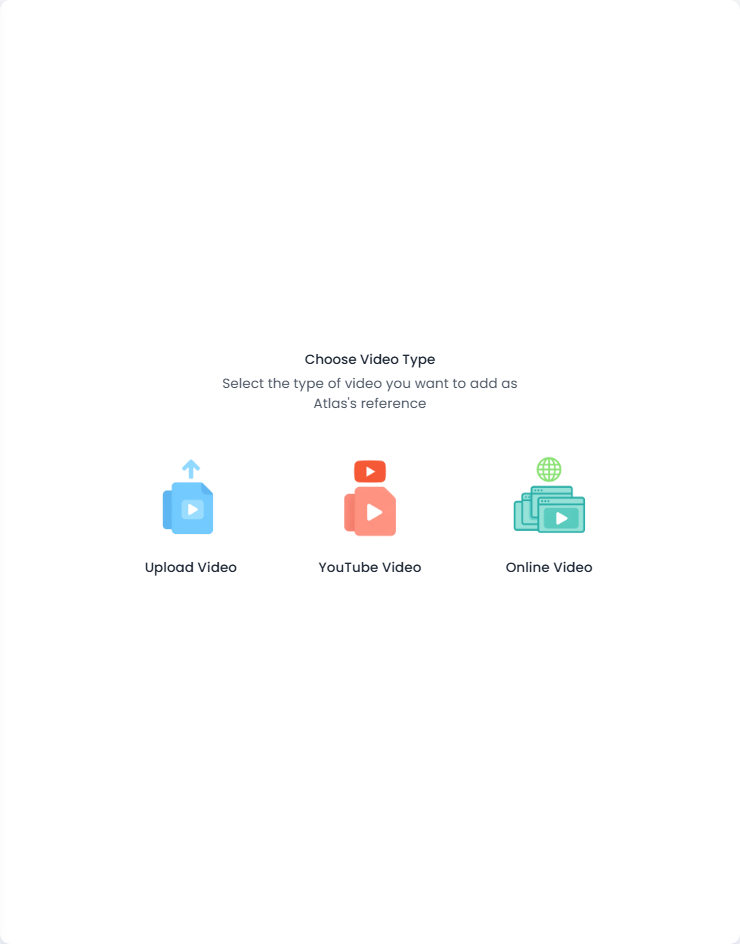
- The Choose Video Type screen asks which type of video you want to add as the agent's reference. Click Online Video.
Step 2: Fill in the Online Video form
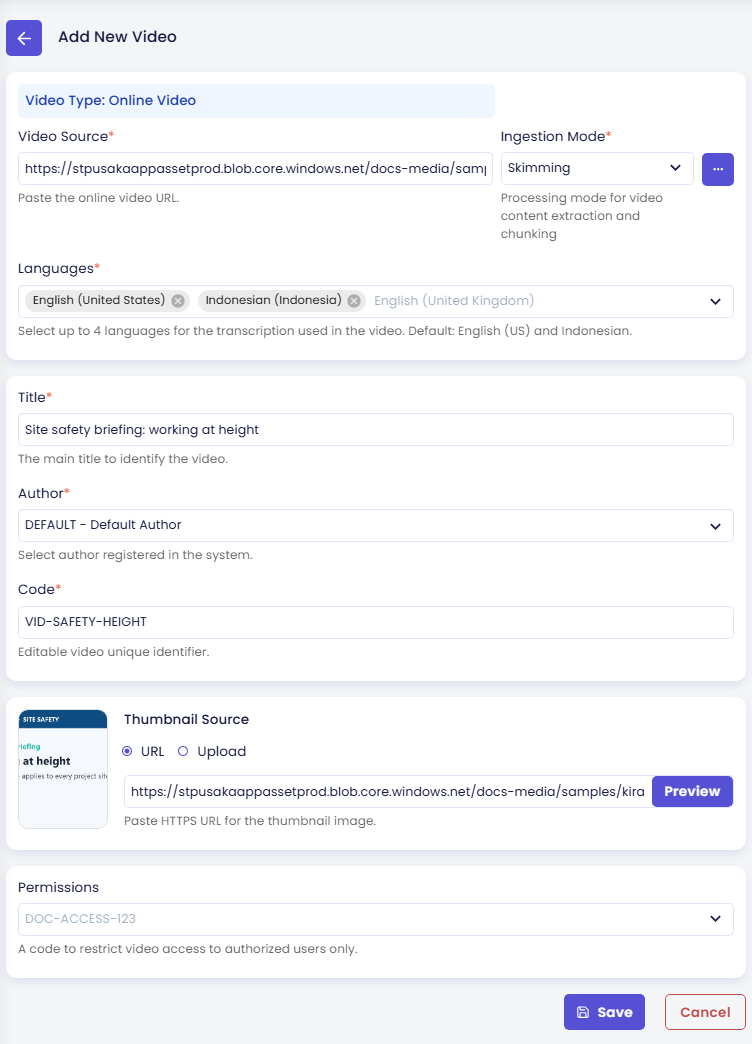
The Add New Video form opens with Video Type: Online Video at the top. Fill it in:
| Field | Value for Atlas |
|---|---|
| Video Source (required) | https://stpusakaappassetprod.blob.core.windows.net/docs-media/samples/kirana-site-safety-briefing.mp4 |
| Ingestion Mode (required) | Skimming |
| Languages (required) | English (United States) and Indonesian (Indonesia) (the default) |
| Title (required) | Site safety briefing: working at height |
| Author (required) | DEFAULT - Default Author |
| Code (required) | VID-SAFETY-HEIGHT |
| Thumbnail Source | URL: https://stpusakaappassetprod.blob.core.windows.net/docs-media/samples/kirana-site-safety-briefing.png, then click Preview |
Video Source must be a public URL that points directly to the video file, such as an .mp4 link. A page that only embeds the video does not work. Code cannot be changed after the video is created. Leave Permissions empty for this tutorial.
Step 3: Save and wait until the video is Active
- Click Save and confirm with Yes.
- A message confirms that the video was created and is being processed. Close it.
- The video's detail page opens with its chunking log. The platform downloads the video, transcribes the audio, and splits the transcript into chunks. You can close the log; processing continues in the background.
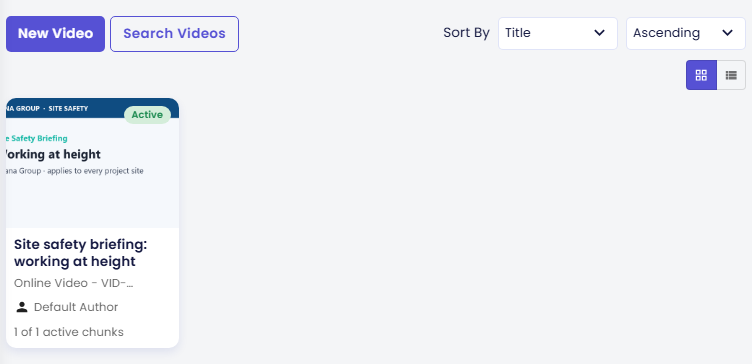
When processing is done, the badge changes from Processing to Active. On the Videos page, the card shows the thumbnail, the title, the type and code (Online Video - VID-SAFETY-HEIGHT), the author, and how many chunks are active.
Check the result
-
In the preview panel on the right side of the page, click the reload button to start a fresh conversation.
-
Ask:
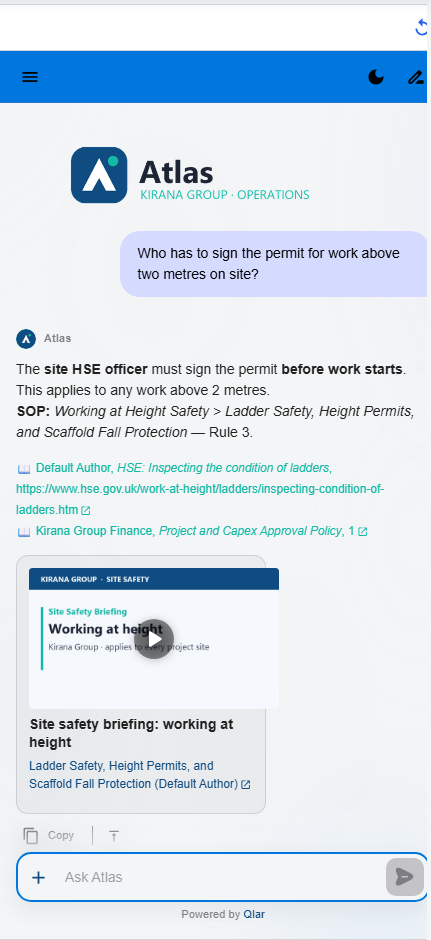
Who has to sign the permit for work above two metres on site?
Atlas answers that the site HSE officer must sign the permit before work starts, and that this applies to any work above 2 metres. Below the answer, a video card shows the briefing's thumbnail, its title, and the section the answer came from. Click the card to play the video.
If the answer is missing, check the transcript chunks in Chunks. If the video shows Failed, see Retry Chunking.
Managing the videos list
The list displays video entries as cards (grid view) or rows (list view). Use the view toggle to switch between them.
Each video card shows:
| Field | Description |
|---|---|
| Thumbnail | Cover image from a URL or an uploaded image; a fallback thumbnail if none is provided |
| Status badge | Processing, Active, Inactive, Failed, or Deleted, the same as for documents |
| Title | The video's display name |
| Type and code | The video type (Upload Video, YouTube Video, or Online Video) followed by the code |
| Author | The attributed author |
| Active chunks | How many of the video's chunks are active |
Use Search Videos to filter by title, code, author, type, or status. Use the Sort By controls in the top-right to change the sort order.
Video types
There are three video types. They differ in how the video source is provided and which fields are required.
Online Video
The type used in this tutorial. Use it when the video is hosted at a publicly accessible URL, for example on your CDN, a company server, or public cloud storage.
How it works: you provide the URL that points directly to the video file (for example https://cdn.example.com/video.mp4). The system downloads the video from that URL, extracts the audio, transcribes it, then indexes the transcript. No file upload is required.
Required fields:
| Field | Description |
|---|---|
| Video Source | Direct URL to the video file (for example https://example.com/video.mp4). Must be publicly accessible. |
| Ingestion Mode | How the transcript is split into searchable chunks. See Ingestion Modes below. |
| Languages | Languages to use for transcription. Select up to 4. Default: English (US) and Indonesian. |
| Title | Display name for the video. |
| Author | Author registered in the system. |
| Code | A unique identifier for this video. Must be unique within your agent. Cannot be changed after creation. |
Optional fields:
| Field | Description |
|---|---|
| Thumbnail Source | A cover image shown in the video list and in answers. Provide a URL or upload an image file. |
| Permissions | Restrict video access to users who hold specific permission codes. Leave empty to make the video accessible to all users. |
Upload Video
Use this type when the video file is saved on your computer and you want to upload it directly.
How it works: you upload the video file from your computer. The system stores the file temporarily, extracts the audio, transcribes it using the languages you selected, then discards the original file after processing is complete.
Required fields:
| Field | Description |
|---|---|
| File | The video file to upload. Accepted formats: MP4, AVI, MOV, MKV, WMV, WEBM, M4V. Check Video Guidelines in the form for the maximum allowed duration. |
| Ingestion Mode | How the transcript is split into searchable chunks. See Ingestion Modes below. |
| Languages | Languages to use for transcription. Select up to 4. Default: English (US) and Indonesian. |
| Title | Display name for the video. |
| Author | Author registered in the system. |
| Code | A unique identifier for this video. Must be unique within your agent. Cannot be changed after creation. |
Optional fields:
| Field | Description |
|---|---|
| Video Source | A link to the original source or location of the video (for example an internal CDN link). Used for reference only, not processed. |
| Thumbnail Source | A cover image shown in the video list. Provide a URL or upload an image file. |
| Permissions | Restrict video access to users who hold specific permission codes. Leave empty to make the video accessible to all users. |
YouTube Video
Use this type when the video is published on YouTube and you want the YouTube URL to appear as the citation link in conversations.
How it works: you provide the YouTube URL and upload the corresponding video file. The YouTube URL is stored as the citation reference: when the agent cites this video, it links users back to the YouTube page. The uploaded file is used for transcription and is discarded after processing.
Click Get Metadata after entering the YouTube URL to fill in the video title and thumbnail from YouTube automatically.
Required fields:
| Field | Description |
|---|---|
| Video Source | The full YouTube video URL (for example https://www.youtube.com/watch?v=...). Click Get Metadata to fill in the title and thumbnail. |
| File | The video file to upload for transcription. Download the video from YouTube first, then upload it here. Accepted formats: MP4, AVI, MOV, MKV, WMV, WEBM, M4V. |
| Ingestion Mode | How the transcript is split into searchable chunks. See Ingestion Modes below. |
| Languages | Languages to use for transcription. Select up to 4. Default: English (US) and Indonesian. |
| Title | Display name for the video (filled in by Get Metadata). |
| Author | Author registered in the system. |
| Code | A unique identifier for this video. Must be unique within your agent. Cannot be changed after creation. |
Optional fields:
| Field | Description |
|---|---|
| Thumbnail Source | Cover image. Filled in from YouTube by Get Metadata, or provide your own URL or upload a file. |
| Permissions | Restrict video access to users who hold specific permission codes. Leave empty to make the video accessible to all users. |
Ingestion Modes
When you add a video, you choose an Ingestion Mode that controls how the system splits the transcript into searchable chunks. Two modes are available for videos.
Not sure which to pick? Choose Skimming. It works well for most video types and preserves the natural structure of the transcript.
Semantic
The simplest mode. The transcript is split at natural sentence boundaries into evenly sized chunks. Each chunk overlaps slightly with the previous one so context is not lost at the edges.
Best for
- Conversational or unstructured videos: interviews, Q&A sessions, podcasts
- Short videos or videos with no clear chapters
Parameters
| Parameter | Description |
|---|---|
| Content Size | Maximum number of tokens per chunk. Larger values produce fewer, longer chunks. Default: 500. |
| Start Page | First segment to process. Leave blank to start from the beginning. |
| Finish Page | Last segment to process. Leave blank to process to the end. |
Skimming
Detects the transcript's chapter and section structure using AI, then creates one chunk per section; each chunk is titled with the full path of headings. Sections that are too small are automatically merged with their neighbors; sections that are too large are split at semantic boundaries.
Best for
- Videos with clear structure: briefings, lectures, tutorials, training materials
- Videos with chapter markers or distinct topic segments
- Any video where preserving section titles in search results matters
Parameters
| Parameter | Description |
|---|---|
| Video Training AI Model | The AI model used to analyze the transcript structure. Required for this mode. |
Advanced Parameters (optional)
| Parameter | Description |
|---|---|
| Page Overlap | Number of segments shared between adjacent processing passes. Helps detect section boundaries that span pass edges. Default: 2. |
| Keep Small Sections Separate | When on, small sections are not merged with their neighbors. |
| Minimum Section Size | Sections with fewer tokens than this value are merged with an adjacent section. Only applies when Keep Small Sections Separate is off. |
Languages
The Languages field controls which languages are used when transcribing the video audio.
- Select up to 4 languages. The system attempts transcription in each selected language and uses the best result.
- Default: English (United States) and Indonesian (Indonesia).
- Over 100 languages are available.
- At least one language must be selected.
Choosing languages that match the language actually spoken in the video produces the most accurate transcript and therefore the best search results.
Permissions
The Permissions field restricts which users can receive answers sourced from this video.
- Leave empty to make the video accessible to all users.
- Select one or more permission codes to restrict access to users who hold a matching permission.
- Available permission codes are defined by your agent's settings. If no permissions are configured in the agent, this field has no effect.
When a user asks a question, the agent only retrieves chunks from videos the user is permitted to access.
How videos appear in conversations
Once a video is Active, the agent can cite it in conversations. When the agent uses a video chunk to answer a question, the chat shows a video card with:
- The video thumbnail and a play button
- The video title
- A section link with the section title and the attributed author; clicking it opens the video at the relevant point
Multiple chunks from the same video are grouped together and displayed in a carousel.
Deactivating, activating, and deleting a video
An Active video can be deactivated to stop the agent from using it, without deleting it. You can activate it again at any time.
Deactivate a video
- Open the video's detail page.
- Click Deactivate in the top-right action bar and confirm.
- The status changes to Inactive. The agent no longer uses this video.
Activate a video
- Open the detail page of an Inactive video.
- Click Activate in the top-right action bar and confirm.
- The status returns to Active and the agent can use the video again.
Delete a video
- Open the detail page of an Inactive video.
- Click Delete in the top-right action bar and confirm.
- The video stays in the list with a Deleted badge, and the agent can no longer use it. To remove it from the list completely, open it, click Purge Video, and type the video title to confirm.
To delete a video that is still Active, deactivate it first.
Retry Chunking
If processing fails (status Failed), you can process the video again without deleting and re-adding it.
- Open the video's detail page.
- Click Retry Chunking in the top-right action bar.
- Type the video title to confirm.
- The system processes the video again from scratch.
For an Online Video, first check that the Video Source URL opens the video file directly in a browser without logging in.
Next steps
- Citations: manage authors and how sources are shown in answers (next step).
- Knowledge Permissions: restrict which users can surface which videos.
- Chunks: inspect the text units the agent retrieves from your video transcripts.